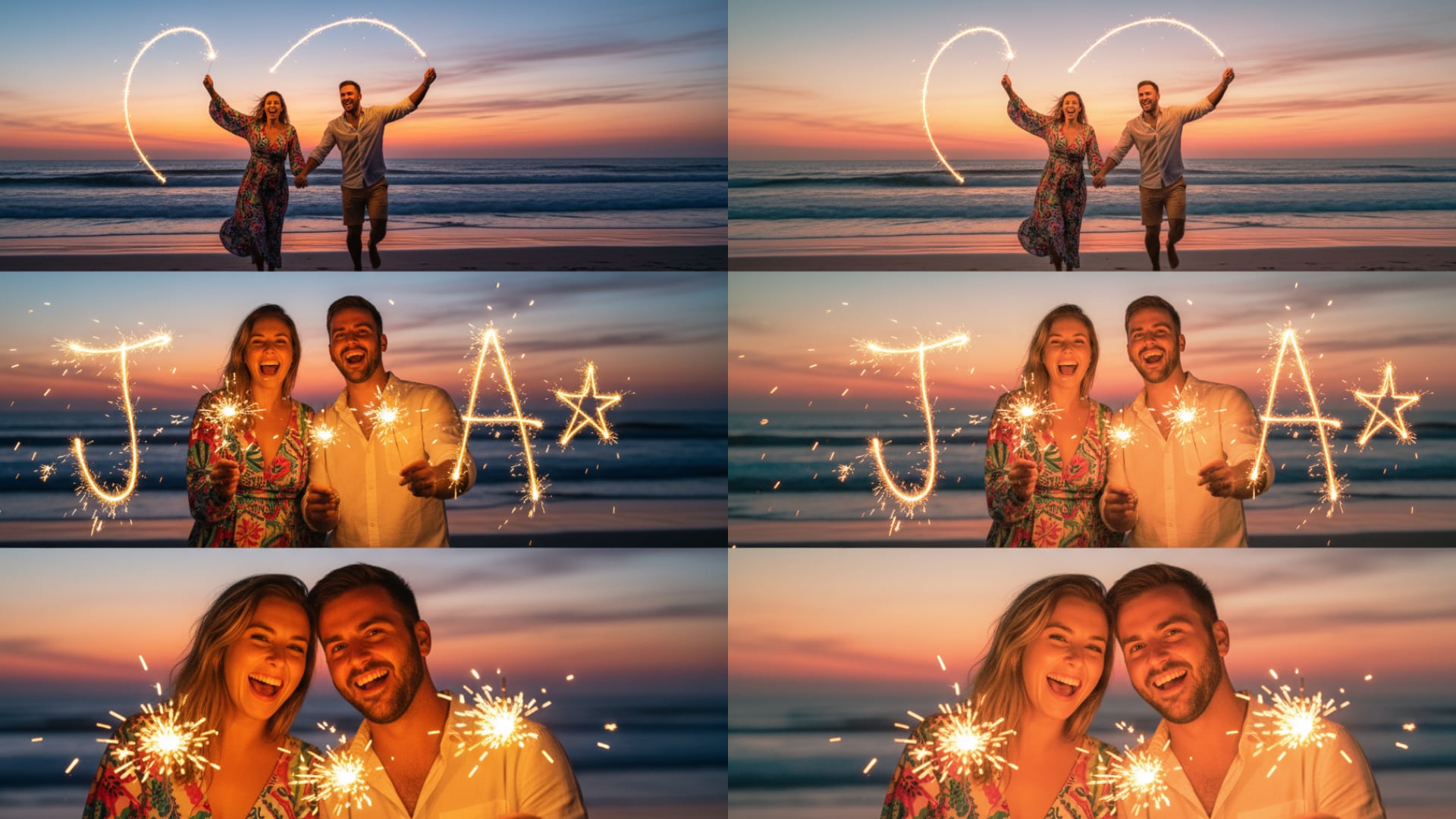
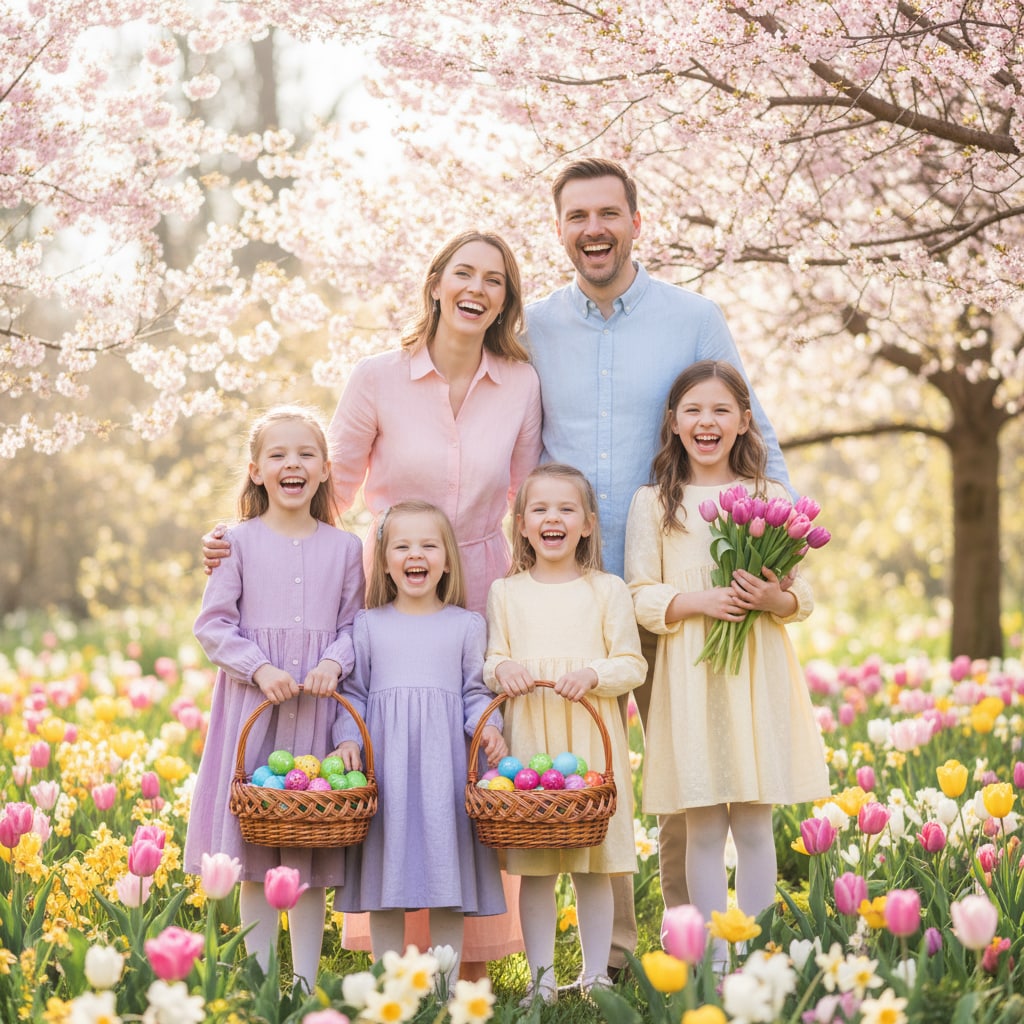
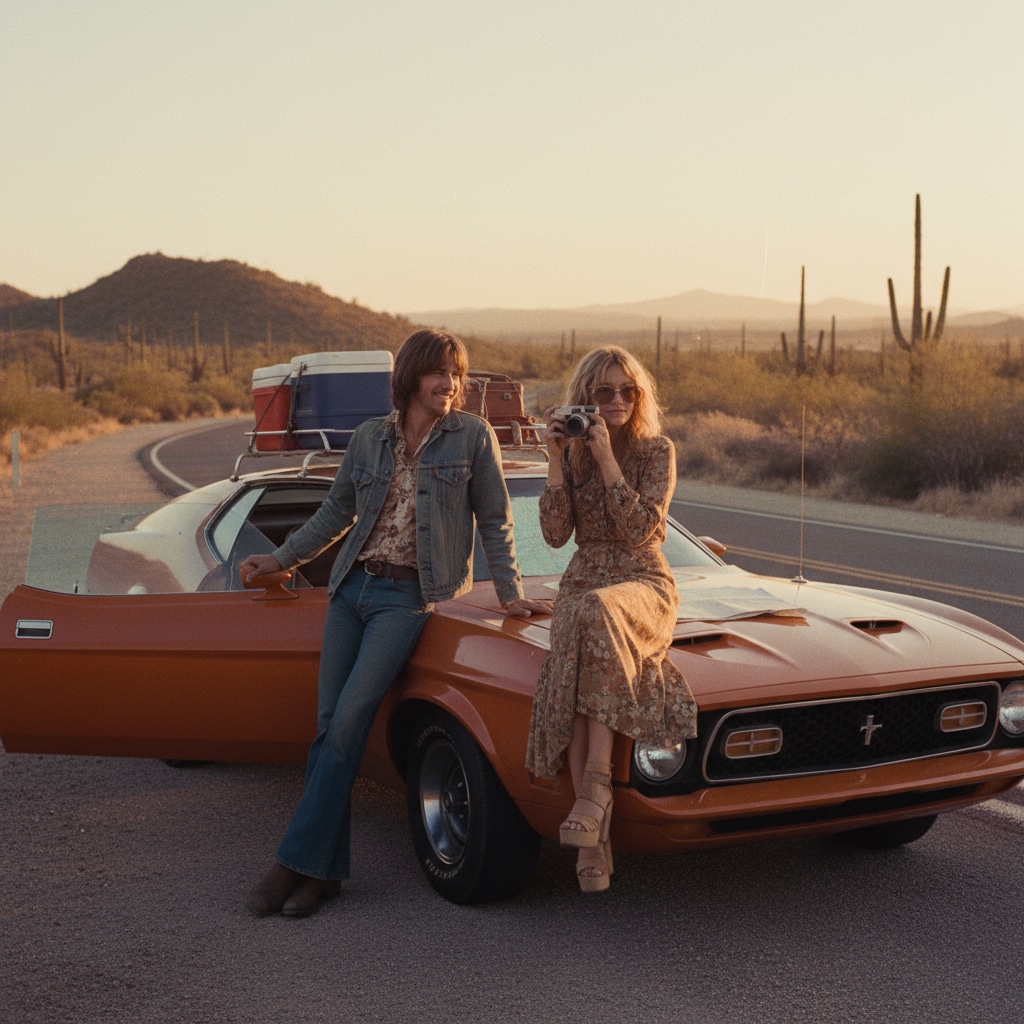
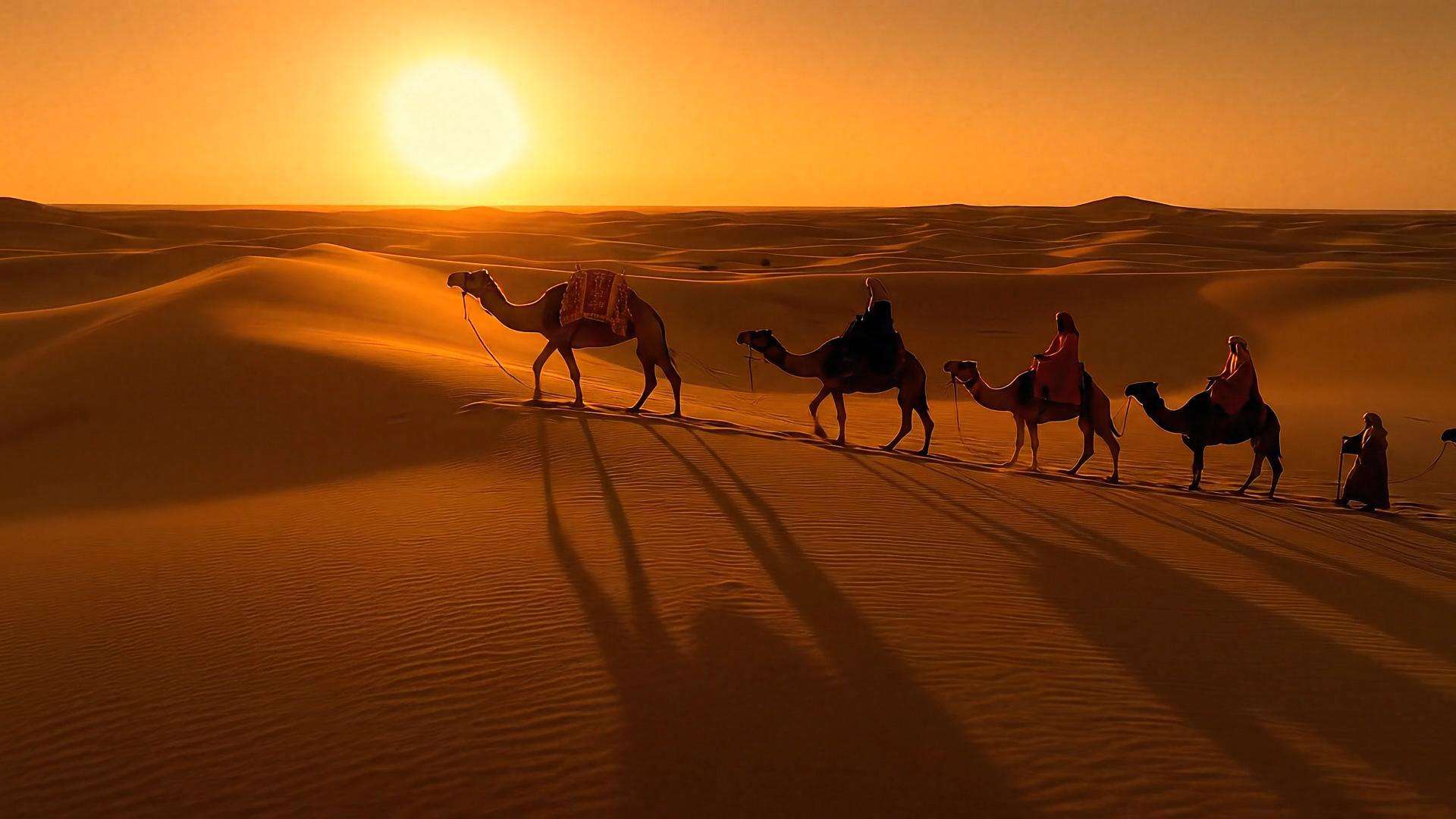
One-Click Cinematic Landscape Filters for Social Media Videos
Create breathtaking outdoor edits with professional landscape filters including cinematic color grading, golden hour enhancements, nature scene presets, sky replacements, atmospheric overlays, and moody landscape textures. Designed for creators who want stunning nature visuals without complex color correction. Ideal for travel vlogs, outdoor adventures, nature documentaries, drone footage, and scenic social content. Mix and match scenery filters to build layered, atmospheric scenes that feel straight out of a nature film.
Loading more Landscape Video Filters...
 Category:
 Duration:
 Aspect Ratio:
50+ Landscape Video Filters: Epic Cinematic Outdoor Scenes
With Filmora's ready-to-use Landscape Filters and scene enhancement effects, creating cinematic, professional nature visuals has never been easier. Apply golden hour warmth, teal and orange grading, moody storm effects, vibrant sunrise/sunset tones, atmospheric haze, and cinematic depth to elevate your outdoor footage in just a few clicks. Whether you're editing travel vlogs, hiking videos, drone landscapes, real estate tours, or nature-focused social content, Filmora gives you professional results without complicated color wheels or advanced grading knowledge.
Massive Library of Landscape Filters 🌄
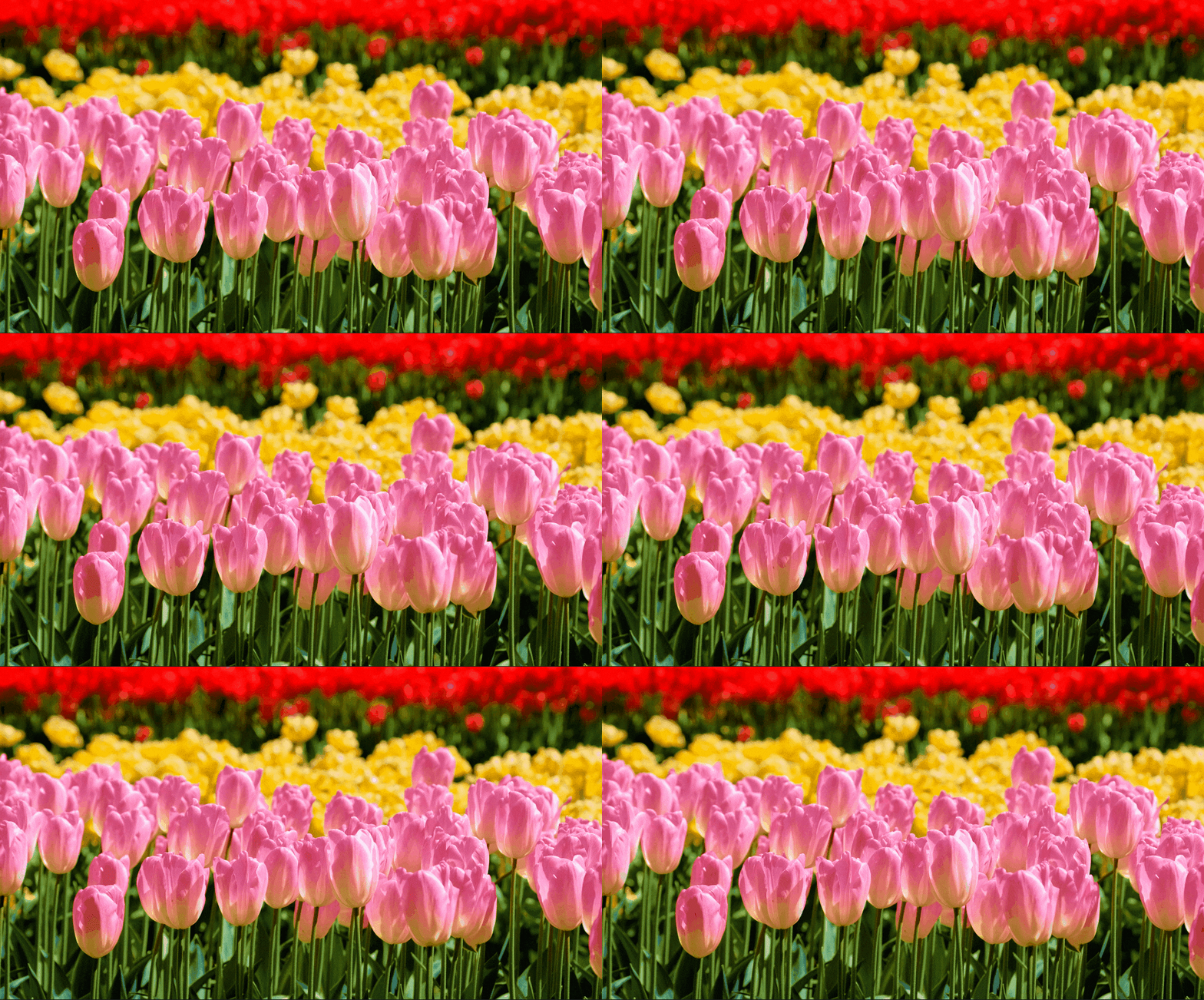
Massive Library of Landscape Filters 🌄
Access over 50 ready-to-use Landscape Filters and Scene Enhancement Presets including golden hour grading, cinematic teal & orange, moody overcast effects, vibrant nature boosts, atmospheric haze, and dramatic sky replacements. Filmora gives you endless combinations to instantly transform any outdoor clip into a professional, cinematic scene.
- Golden hour, sunrise/sunset warmth, and teal & orange cinematic grading 🌅
- Moody storm effects, atmospheric haze, and dramatic sky replacements 🌤️
- Nature color boosts, forest green enhancement, and ocean blue saturation 🌲
Creative Customization for Unique Landscape Videos 🎨
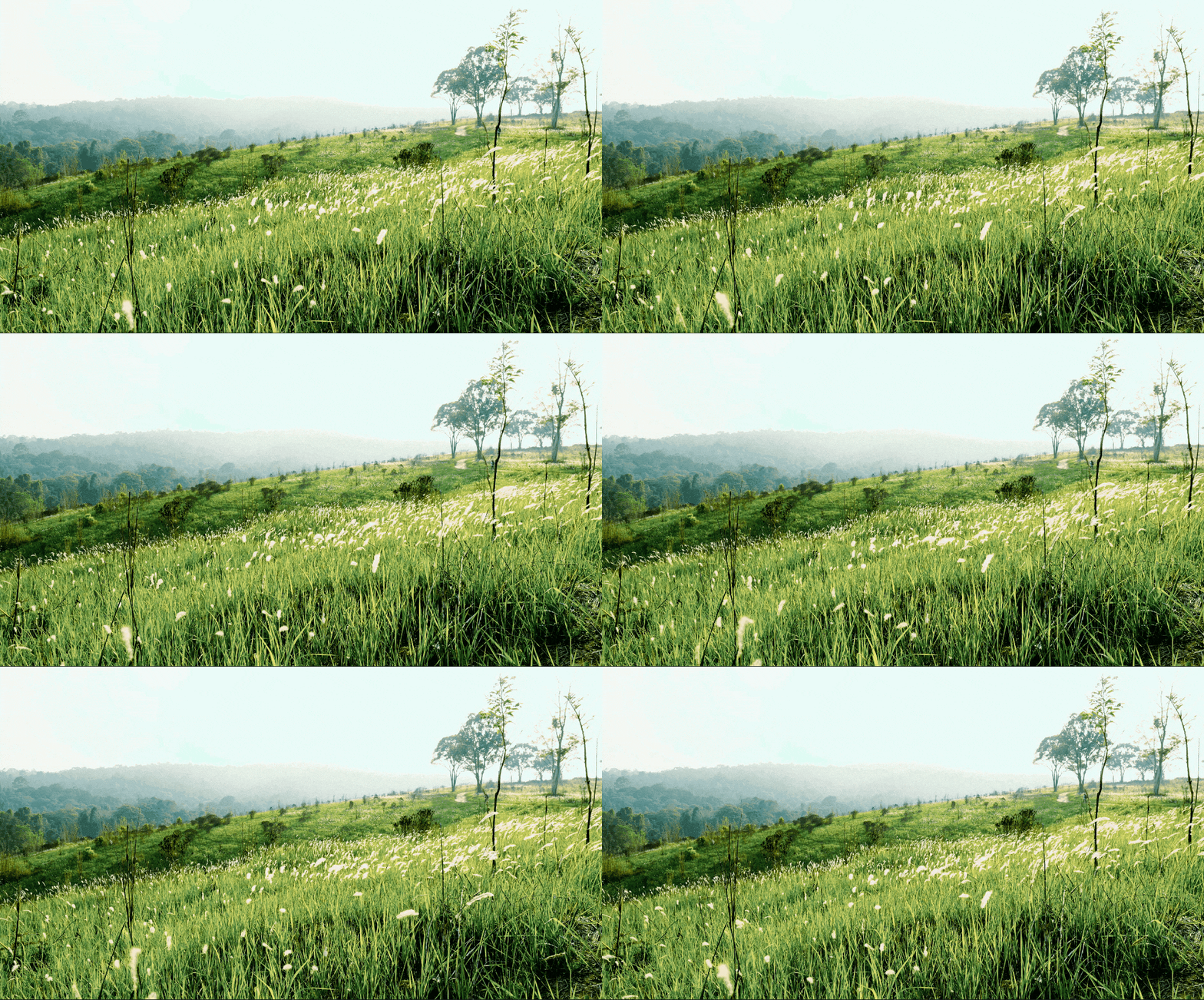
Creative Customization for Unique Landscape Videos 🎨
Filmora lets you fully personalize every Landscape Filter. Adjust color temperature, saturation intensity, contrast levels, and atmospheric depth to make your nature videos truly cinematic. Perfect for travel creators, real estate videographers, and outdoor content makers aiming for high-impact scenic visuals.
- Layer multiple landscape filters for cinematic, vintage, or moody effects 🎬
- Customize warmth, saturation, contrast, and atmospheric depth 🎨
- Supports vertical, square, and horizontal videos for TikTok, Instagram, YouTube 📱
AI Tools & Landscape Assets to Elevate Your Videos 🌍
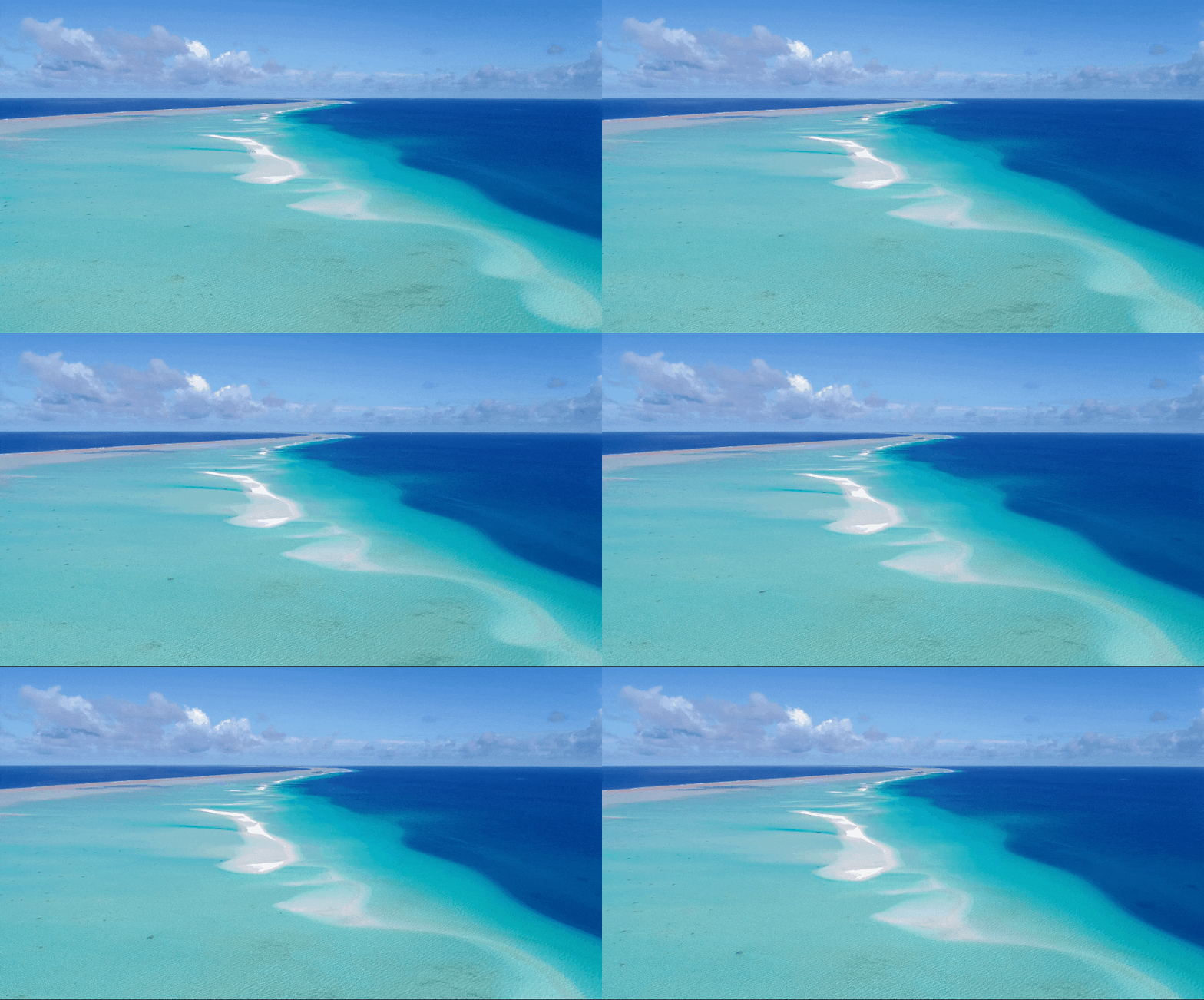
AI Tools & Landscape Assets to Elevate Your Videos 🌍
Enhance your Landscape Videos with Filmora's AI-powered tools and built-in nature assets. Use AI Sky Replacement to transform dull skies into dramatic sunsets or stormy clouds, AI Color Grading to automatically match professional landscape aesthetics, and AI Video Enhancer to boost clarity and sharpness in outdoor footage. You can also remove unwanted tourists or objects, generate ambient nature soundscapes with AI music generator, or stabilize shaky drone footage. Add nature overlays, cinematic transitions, and atmospheric audio tracks to instantly polish your content.
- AI-powered tools: sky replacement, smart color matching, video stabilization, clarity enhancement, object remover 🤖
- AI Sky Replacement to transform dull skies into dramatic sunsets, golden hour, or moody storms 🌅
- Wide stock of nature overlays, cinematic transitions, and ambient nature soundtracks for travel-ready videos 🎬
- Quickly export professional landscape videos optimized for TikTok, Instagram Reels, YouTube, and 4K displays ⚡
Frequently Asked Questions about Landscape Filters
How to Apply Landscape Video Filters in Filmora
Create professional cinematic nature looks in just a few simple steps, no advanced color grading skills required.
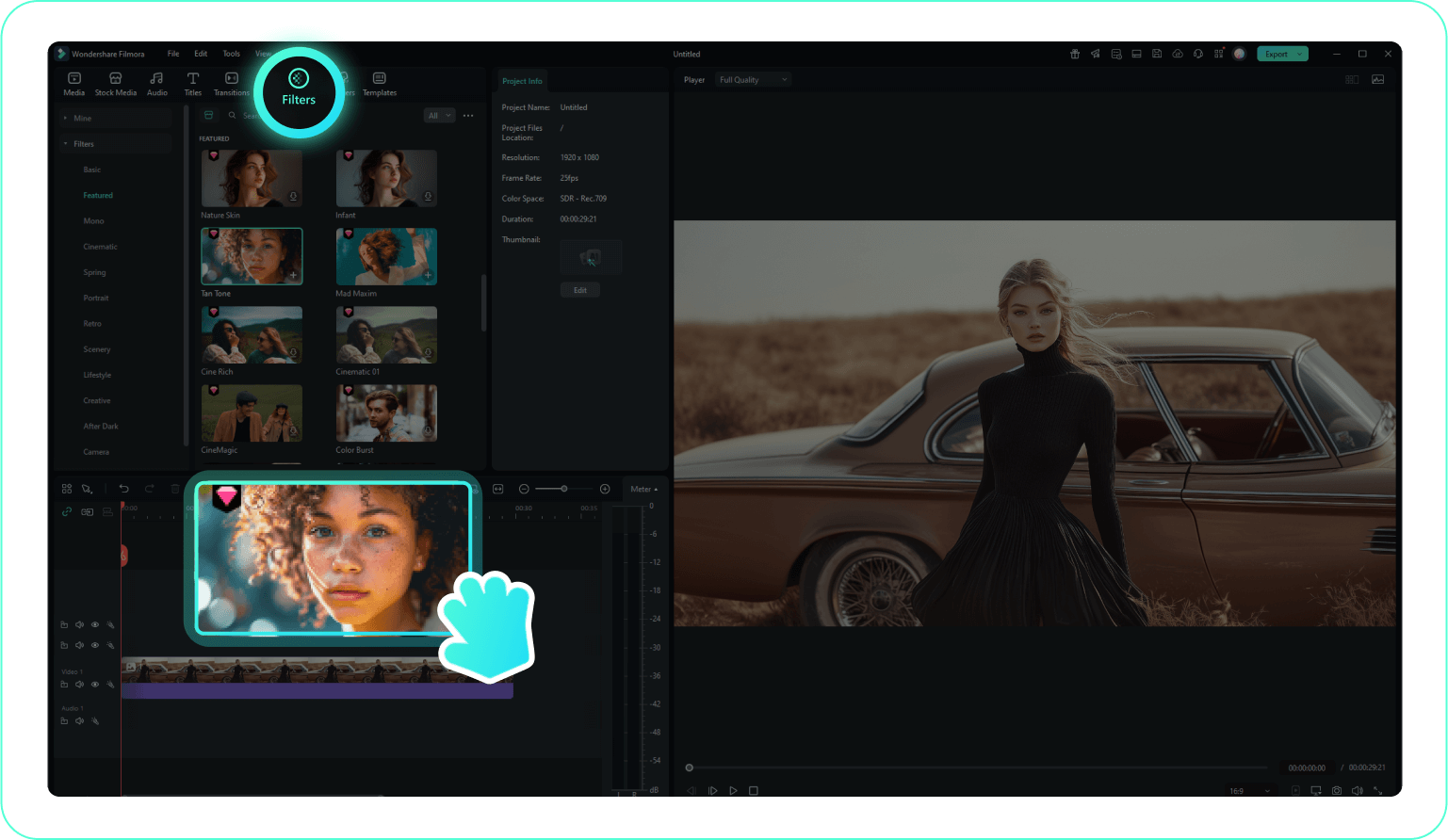
Step 1 Import Video & Access Landscape Filters
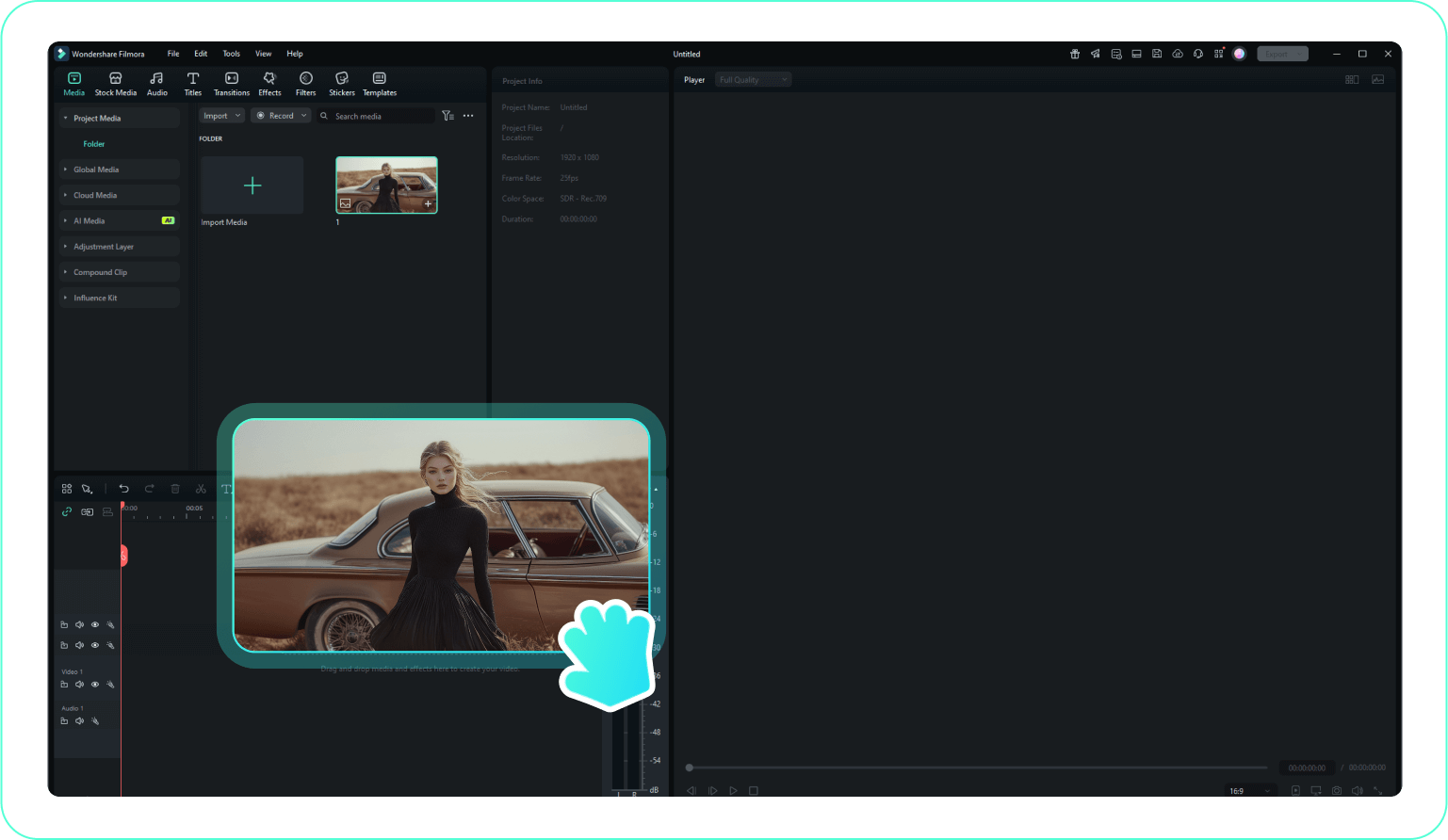
Step 2 Apply & Preview Your Landscape Filter
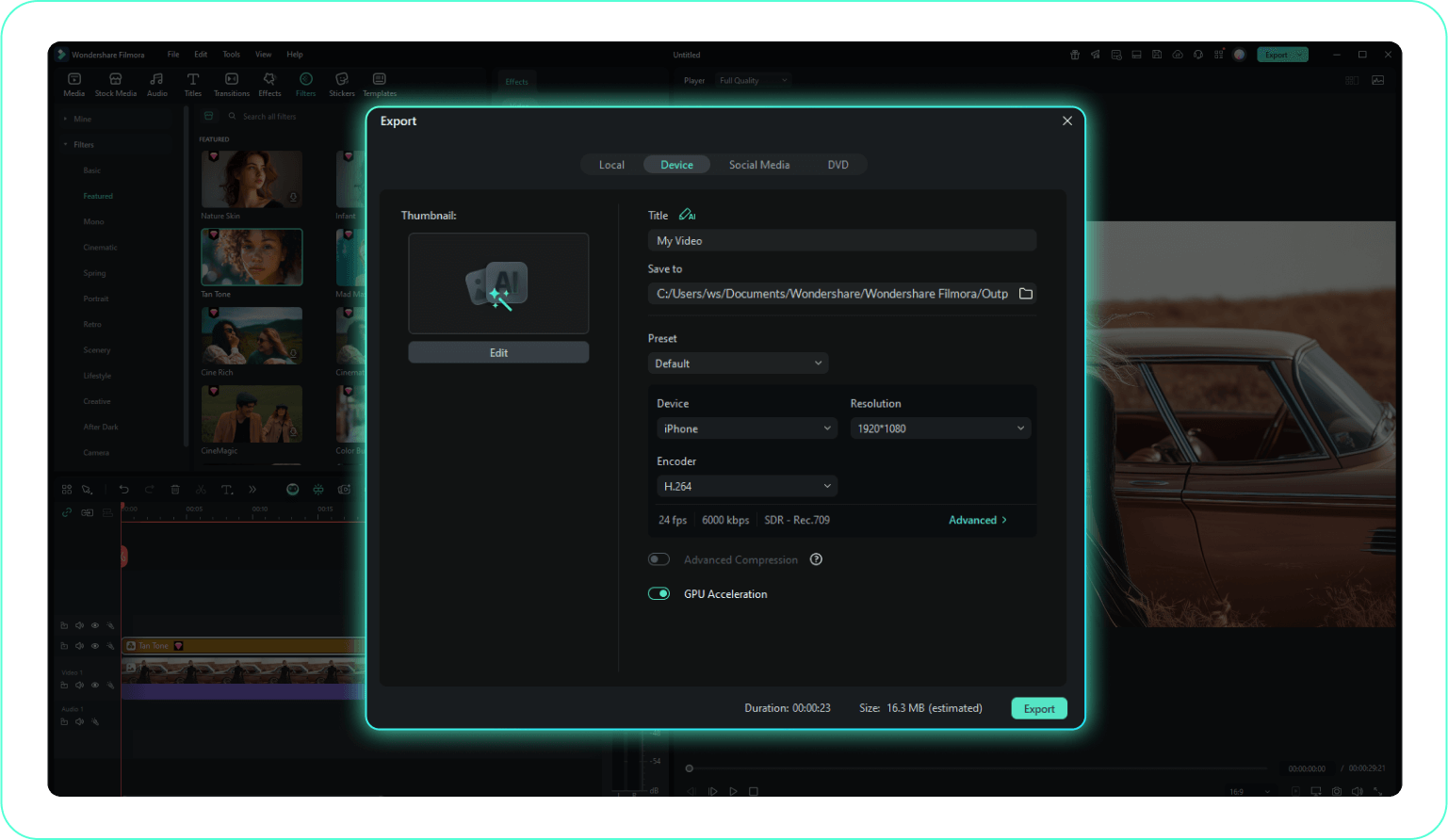
Step 3 Customize & Export Your Cinematic Video
-
1:Import Video & Access Landscape Filters
Launch Filmora and create a new project. Click "Import Media" to upload your outdoor footage—whether it's travel vlogs, drone shots, or nature scenes. Drag your video onto the timeline, then click the "Filters" tab in the upper menu to browse our extensive Landscape Filter collection organized by style: Golden Hour, Moody, Cinematic, Nature Boost, and more. -
2:Apply & Preview Your Landscape Filter
Browse through the Landscape Filters and click on any filter to see a live preview in the preview window. Find the perfect cinematic look—whether it's warm golden hour tones, teal & orange grading, or moody atmospheric effects. To apply, simply drag and drop your chosen filter onto your video clip in the timeline. Instantly transform your outdoor footage into a professional, eye-catching scene. -
3:Customize & Export Your Cinematic Video
Click on your video clip with the applied Landscape Filter to open the settings panel. Fine-tune parameters like Opacity (filter intensity), Temperature (warmth/coolness), Saturation (color vibrancy), and Contrast (depth) to perfectly match your vision. Once you're satisfied with your cinematic landscape look, click the "Export" button. Choose your preferred format (MP4, MOV), resolution (1080p, 4K), and destination. Click "Export" again to save your beautifully filtered landscape video, ready for TikTok, Instagram, YouTube, or any platform.
More Than Just Landscape Video Filters
Filmora does more than apply Landscape Filters. You can also add trending cinematic transitions, create AI-enhanced nature videos from footage or prompts, use advanced sky replacement, and access professional color grading tools—all in one place.