

 100% Security Verified | No Subscription Required | No Malware


 ChatGPT
 Perplexity
 Gemini
 Claude
 Grok
Grok
Baby moments pass in a blink, but the right baby video filters can keep those memories looking as dreamy as they feel. Soft highlights, gentle pastels, and subtle glow effects help your newborn clips and milestone videos look cuddly, warm, and timeless.
This guide walks new parents and family creators through Filmora filters designed for baby videos, with simple tips to keep skin tones natural, backgrounds calm, and every giggle or yawn ready to share on YouTube or with the whole family.
In this article
Soft Pastel Glow Filters for Newborn Clips
Dreamy Pastel Soft
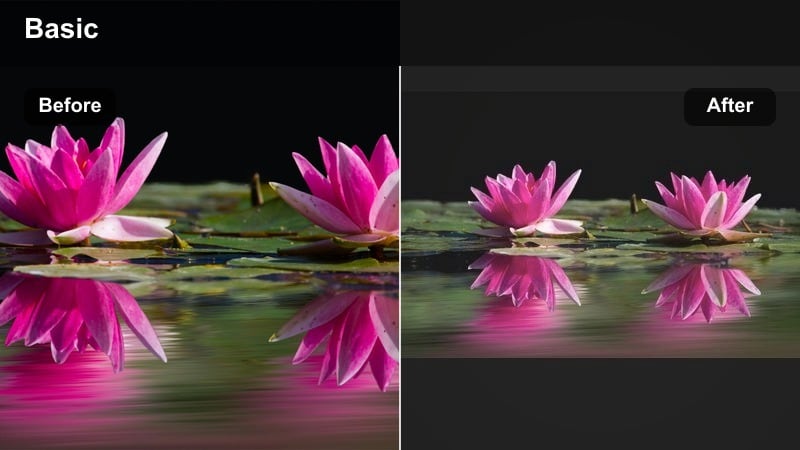
- Effect look: Gentle pastel wash with lifted highlights and soft contrast for a dreamy cradle-side feel.
- Best for: Newborn sleeping clips, crib moments, and quiet cuddle shots in natural window light.
- Editing tip: Lower the intensity slightly if blankets are already very colorful so baby skin tones stay natural.
Dreamy Pastel Soft is a go to pastel filter that wraps newborn clips in a soft, airy glow without losing detail. In Filmora, you can drag this preset onto peaceful crib scenes to lift highlights just enough to feel dreamy while keeping eyelashes, tiny fingers, and blanket textures clear.
For best results, start with the default filter strength, then gently pull back the intensity slider until cheeks look creamy instead of washed out. If your blankets are bold or patterned, reduce saturation a touch so the colors do not steal attention from the baby. Finish by adding a subtle vignette so the brightest part of the frame remains your newborns face.
Let AI Keep Your Baby Colors Gentle and Consistent
Filmoras AI driven color tools help you keep baby video filters soft and consistent, even when you shoot in different rooms or at different times of day. Instead of guessing settings for every clip, you can let AI guide you toward natural, gentle pastels that suit newborn skin.
Use AI to quickly match the look of your favorite baby clip across a full milestone video, and then fine tune brightness and warmth so blankets, walls, and tiny faces always feel calm and cozy.
 secure download

See Baby Video Filters in Action Step by Step
With Filmora, you can preview baby video filters like Dreamy Pastel Soft or Newborn Skin Softener in real time before you commit. Simply hover or click to see how each preset softens highlights, calms shadows, or adds a gentle pastel glow.
Once you find a look you love, you can drag it onto multiple clips, adjust the intensity slider, and save the combination as your own Baby Video Filters: Soft Highlights and Gentle Pastels preset for future projects.
secure downloadCombine Filters and LUTs for Signature Baby Styles
If you want an extra polished feel for YouTube, you can pair these baby video filters with gentle LUTs that nudge color without overwhelming tiny details. Start with a soft newborn filter, then add a low intensity LUT for subtle color harmony across your whole edit.
Filmora lets you save filter and LUT combinations as presets, so your newborn clips, monthly milestones, and family vlogs all share the same tender, pastel style with just a couple of clicks.
secure downloadCotton Cloud Haze
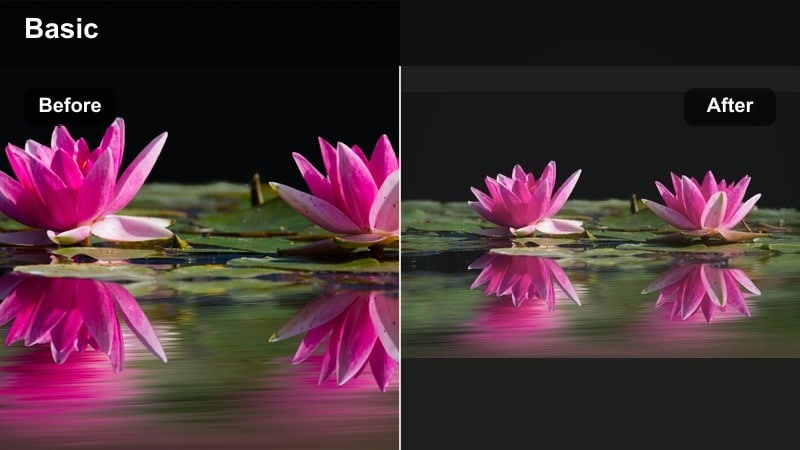
- Effect look: Milky white haze around edges with soft highlights and a slight pastel blue lift.
- Best for: Bassinet shots, swaddled newborn videos, and close ups of tiny hands and feet.
- Editing tip: Use the filter on indoor clips, then reduce highlights a bit to avoid losing detail in white blankets.
Cotton Cloud Haze adds a light, airy haze that makes blankets and onesies feel like soft clouds around your baby. In Filmora, this filter is perfect for close ups where you want the edges of the frame to melt away into milky softness while keeping the center softly luminous.
Apply the preset, then gently pull the highlights slider down so white fabrics still show folds and texture. Use masking with a small sharpen effect on your babys face or feet so these details remain crisp while the rest of the frame stays dreamy and hazy.
Buttercream Pastel Warmth
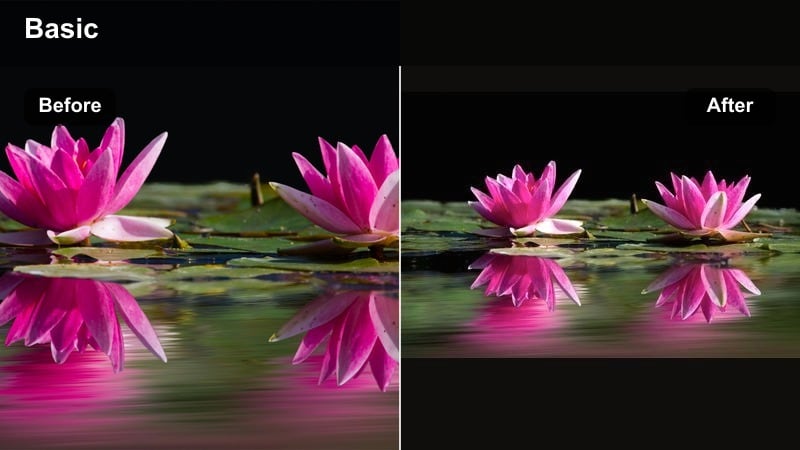
- Effect look: Warm cream tone with pastel peach highlights and softened midtones for cozy nursery scenes.
- Best for: Nursery tours, first time home clips, and golden hour window shots with parents holding baby.
- Editing tip: Slightly lower saturation on orange and yellow to stop warm nursery lights from turning too intense.
Buttercream Pastel Warmth adds a creamy warm filter that makes nursery colors feel soft and inviting without overpowering baby skin. It works especially well when you film in rooms with beige, peach, or wooden decor that you want to highlight gently.
In Filmora, drag the filter onto your shots of parents holding the baby and then open the Color settings to tone down orange and yellow channels slightly. This keeps nursery lamps and wooden furniture flattering instead of overly orange, while cheeks stay naturally rosy and cozy.
Cute Playtime Filters for Milestone Videos
Giggle Soft Pop
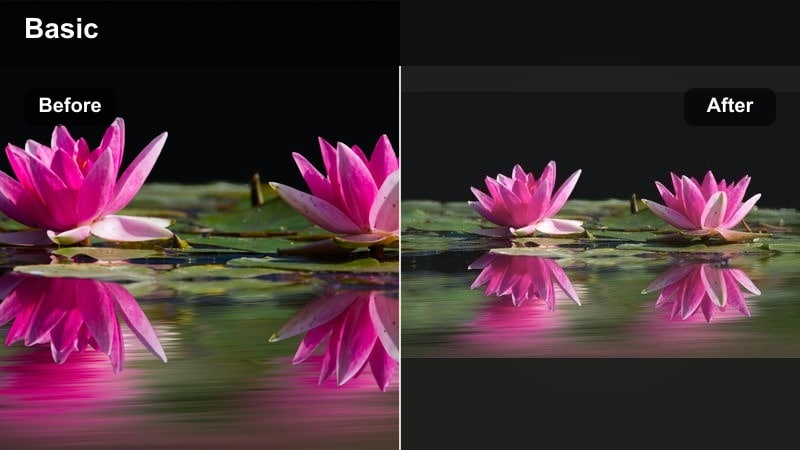
- Effect look: Soft contrast with a gentle pastel color pop that brightens toys and outfits while keeping skin smooth.
- Best for: First smiles, tummy time, and playful clips on colorful playmats or blankets.
- Editing tip: Boost vibrance slightly instead of saturation so colors stay cute and soft, not overly intense.
Giggle Soft Pop is a playful yet gentle filter that keeps playtime colors cheerful without overwhelming tiny faces. It adds a subtle lift to toy colors and outfits, ideal when you want your milestone reels to feel fun but still baby soft.
Inside Filmora, apply the filter to your tummy time or first smile clips, then increase vibrance a little to enhance color separation without pushing saturation too far. Add a light background blur or depth of field effect so that eyes naturally land on your babys giggles and expressions.
Toy Pastel Bounce
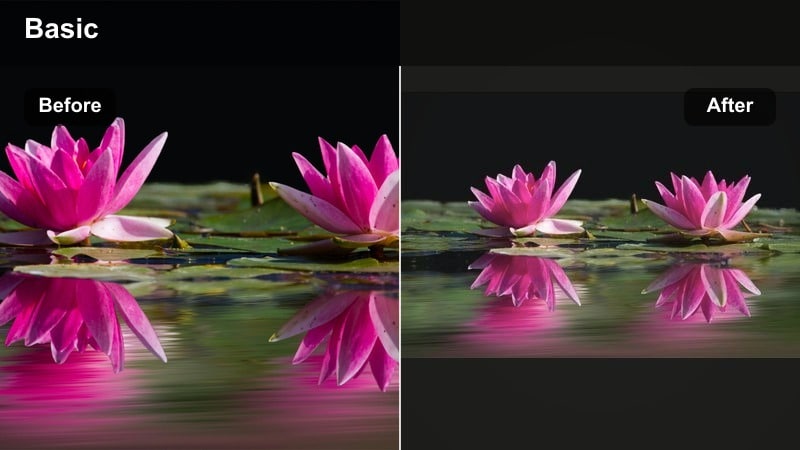
- Effect look: Pastel enhanced primaries with softened shadows to keep bright toys looking playful but gentle.
- Best for: Playpen videos, stacking toys, and any milestone that includes bright primary colors.
- Editing tip: Use color tuning to slightly pull back red if skin starts to look too pink compared to toy colors.
Toy Pastel Bounce is a balanced cute video filter that tames strong toy colors into baby friendly pastels. It is ideal for clips where plastic primaries could otherwise look harsh on camera.
After applying the filter in Filmora, open the advanced color tools and gently reduce the red channel if cheeks start to look too flushed next to toys. Darken the background just a touch so bright blocks or rattles feel lively but do not compete with your babys face.
Peachy Playtime Soft
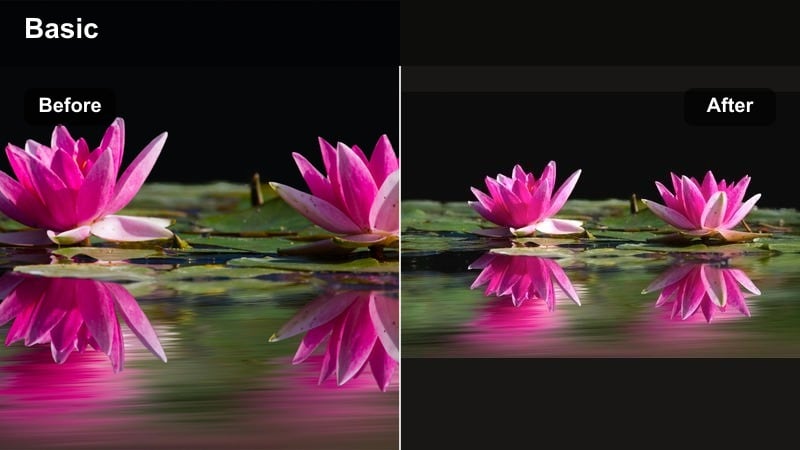
- Effect look: Soft peach glow with lifted midtones that gives skin a gentle warmth and playful charm.
- Best for: First sit ups, crawling milestones, and casual family room play sessions.
- Editing tip: Reduce the filter strength on already warm footage to keep cheeks from turning too orange.
Peachy Playtime Soft adds a subtle peach tinted filter that flatters baby skin while keeping the whole frame light and happy. It is especially nice for living room clips where daylight and indoor lamps mix.
In Filmora, place the filter on your crawling or first sit up clips and then dial back its intensity if your original footage is already warm. If whites like rugs or onesies begin to shift too peach, slightly lower temperature afterward so neutrals look clean while the overall warmth stays cuddly.
YouTube Ready Baby Filters for Family Creators
Pastel Vlog Soft
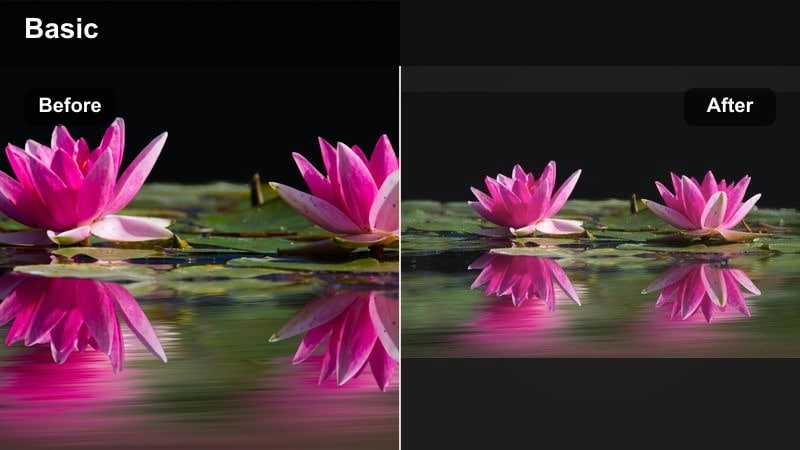
- Effect look: Balanced pastel grading with gentle contrast designed to look clean on YouTube and mobile screens.
- Best for: Baby vlog intros, day in the life videos, and family update episodes for YouTube.
- Editing tip: Add the filter first, then adjust exposure so faces remain bright and readable in small thumbnails.
Pastel Vlog Soft is a soft, polished baby vlog filter that gives your family channel a consistent, gentle pastel look. It is tuned to stay clear and flattering on both large TVs and small phone displays.
Apply it in Filmora at the very start of your color workflow, then adjust exposure and contrast so faces are bright without clipping highlights. Save it as a custom preset and use it across all intros and talking segments to keep your channel branding unified.
Thumbnail Soft Highlight
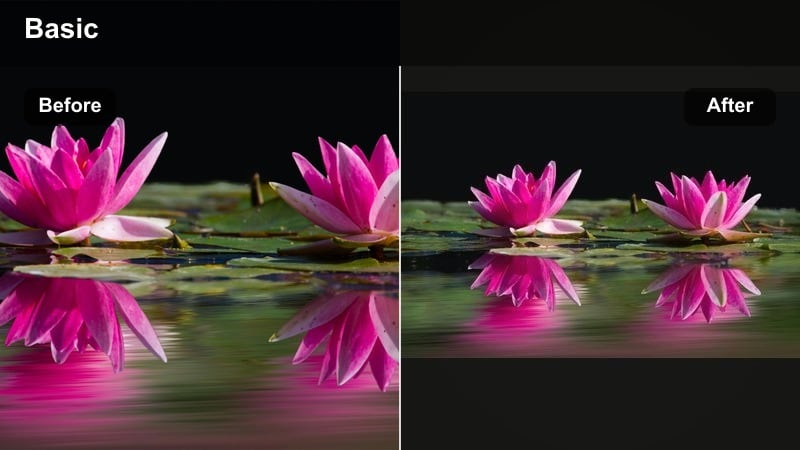
- Effect look: Brightened highlights and lifted shadows that keep baby faces visible even at tiny YouTube thumbnail sizes.
- Best for: Choosing thumbnail frames, hero shots in milestone videos, and channel trailer moments.
- Editing tip: Apply the filter lightly, then export a still frame to use as a thumbnail so eyes and smiles stay clear.
Thumbnail Soft Highlight is a visibility first baby filter that keeps tiny details crisp for YouTube and phone screens. It gently opens up shadows and lifts highlights so eyes and smiles read clearly even at small sizes.
Use it in Filmora on a duplicate track just for the shots you plan to turn into thumbnails. Apply a lighter intensity, then export high resolution stills from your chosen frames. This workflow lets you maintain a softer version of the filter on the full video while pushing clarity a bit more for thumbnail images.
Channel Pastel Branding
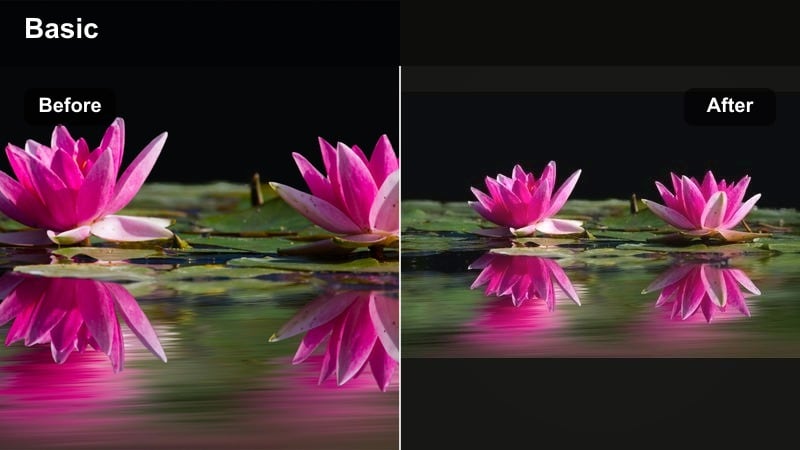
- Effect look: Soft pastel overlay with slightly cooler shadows and neutral highlights for a clean, modern family channel.
- Best for: Channel intros, end screens, and recurring segments like monthly baby updates.
- Editing tip: Use the filter at full strength on title cards and slightly reduced strength on live action clips.
Channel Pastel Branding creates a softly branded baby filter style that gives all your recurring segments a recognizable pastel signature. Cooler shadows keep things modern and clean while highlights stay neutral for easy text readability.
In Filmora, layer this filter at full strength on static title cards and end screens, then back it off a little on live action footage. Save a template project with the filter, your logo, and your favorite fonts so every monthly update feels consistent and professional.
Gentle Skin Safe Filters for Newborn Details
Newborn Skin Softener
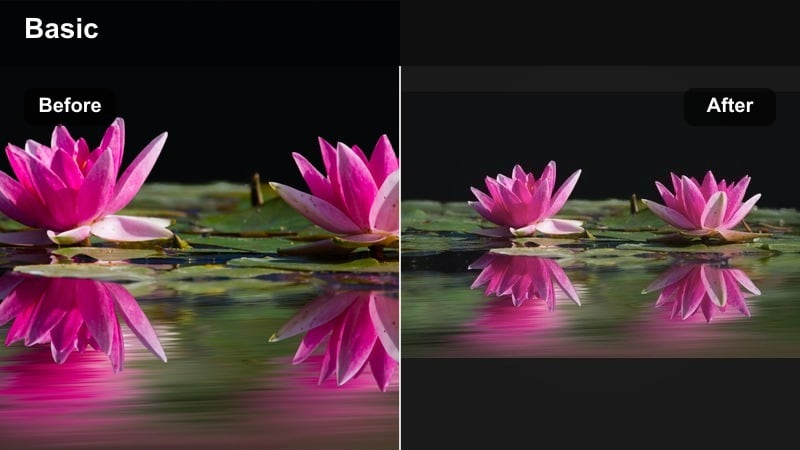
- Effect look: Subtle skin smoothing with softened shadows that keeps newborn redness gentle and flattering.
- Best for: Close ups of tiny fingers, first bath moments, and hospital or early days at home.
- Editing tip: Use masking to limit smoothing to cheeks and forehead so eyes and hair stay naturally sharp.
Newborn Skin Softener is a gentle baby safe effect that smooths skin just enough while preserving all the tiny details. It is perfect for those very early days when baby skin can be slightly red or blotchy on camera.
In Filmora, apply the filter and then use the masking tool to confine the smoothing to cheeks and forehead, avoiding eyes, nostrils, and hairline. If hospital lighting looks green or cool, add a small temperature and tint adjustment afterward so skin appears calm and natural without heavy retouching.
Milk Bath Soft Focus
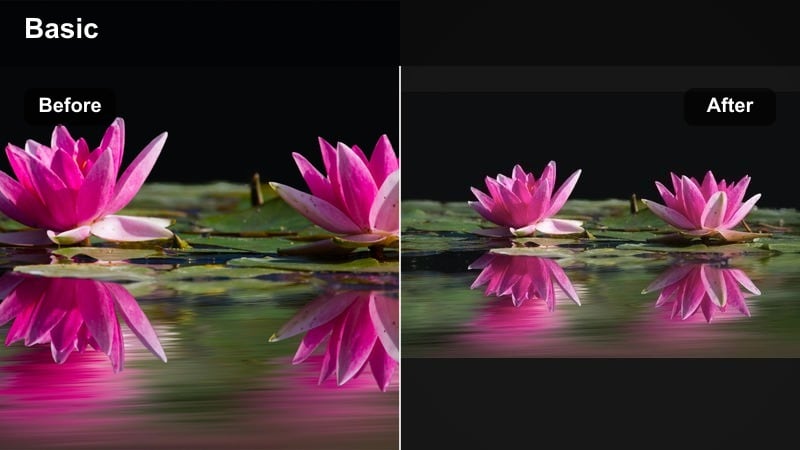
- Effect look: Soft edge blur with creamy whites and lifted exposure for dreamy bath and bedtime clips.
- Best for: First bath, bedtime routines, and gentle water play videos with lots of white bubbles and towels.
- Editing tip: Lower clarity slightly after the filter if you want an extra dreamy look around towels and bubbles.
Milk Bath Soft Focus is a creamy, dreamy filter that turns bath time into a soft storybook moment. It brightens whites and introduces a gentle blur around the edges to make water, bubbles, and towels feel extra cozy.
To keep detail in your highlights, apply the filter in Filmora, then reduce the highlight slider until bubble textures are still visible. If you want a more magical feel, lower clarity slightly around the edges with masking so the central focus on your babys face remains sharp while the surroundings melt into softness.
Pastel Nap Time
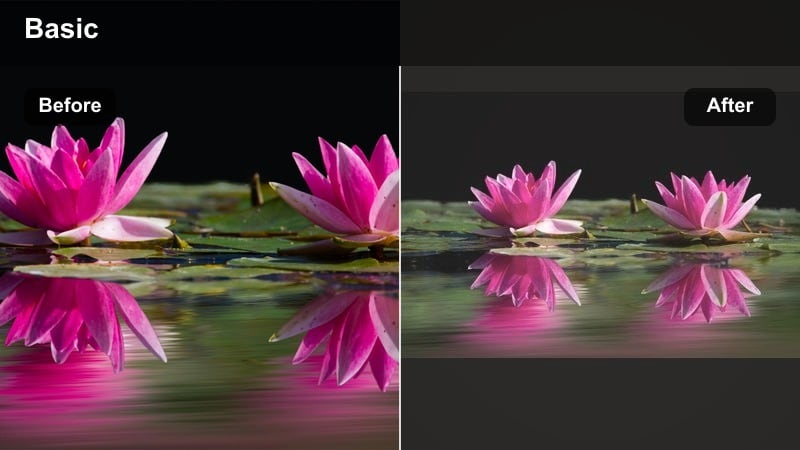
- Effect look: Low contrast pastel tone with gentle fade in blacks for calm, sleepy nap scenes.
- Best for: Nap videos, rocking chair clips, and slow motion yawns or stretches.
- Editing tip: Combine the filter with slightly slower playback speed to match the relaxed, dreamy mood.
Pastel Nap Time is a calm pastel filter that mutes distractions and lets tiny sleepy expressions speak for themselves. Faded blacks and low contrast make the whole frame feel hushed and cozy.
In Filmora, apply the filter to nap or rocking chair clips, then slow the playback speed slightly to enhance the gentle, drifting mood. Keep transitions long and simple, and avoid strong sound effects so the visuals and soft music carry the soothing feeling.
Tips for Using Baby Video Soft Filters in Filmora
- Shoot baby clips near a window with soft, indirect light so your filters can enhance natural glow instead of fixing harsh shadows.
- Apply baby video filters before adding text or stickers so you can adjust colors without affecting overlays.
- Keep filter intensity lower on already colorful toys and blankets to avoid distracting from your babys face.
- Export a short test clip and watch it on your phone to confirm that pastel filters still show facial details clearly.
- Save a preset in Filmora for newborn clips and a second one for active playtime so you can keep each style consistent.
Baby video filters built around soft highlights and gentle pastels help your newborn clips and milestone videos feel as tender as the memories you are capturing.
By choosing skin safe, subtle effects in Filmora and saving your favorite combinations as presets, you can quickly give every family video a cute, consistent style that looks beautiful on YouTube and when shared with loved ones.
secure downloadNext: Explore Baby Video Filters for YouTube and Family Channels
