

 100% Security Verified | No Subscription Required | No Malware


 ChatGPT
 Perplexity
 Gemini
 Claude
 Grok
Grok
If you shoot social videos on a Canon R50, choosing the right LUT-style filters can instantly give your clips a polished, scroll-stopping look without complicated grading.
Below are 12 beginner-friendly Canon R50 LUT-inspired filters organized by scene, with clear use cases and quick editing tips so creators can move from flat footage to cinematic content fast.
In this article
Bright Street and Daytime Creator Vibes
Clean Day Pop
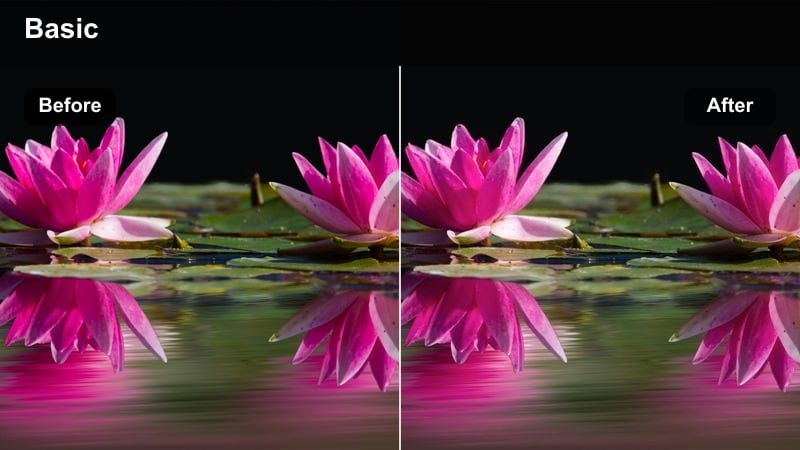
- Effect look: Crisp, vibrant daylight contrast that keeps skin tones natural while making city colors pop.
- Best for: Talking-head street reels, city b-roll, and quick lifestyle clips filmed on bright days.
- Editing tip: Lower contrast slightly if you shot in harsh midday sun, and raise shadows to keep facial details visible.
Clean Day Pop is ideal when your Canon R50 footage already has strong daylight but looks a bit flat straight out of camera. In Filmora, you can drop this type of filter on LOG, neutral, or standard profiles to immediately sharpen edges, deepen midtones, and give storefronts, cars, and sidewalks a crisp, social-ready finish without making your face look over-processed.
After applying a similar filter in Filmora, fine-tune exposure with the basic Color controls, nudging Highlights down to protect bright skies and pushing Shadows up so eyes and hair keep detail. If you are exporting for TikTok or Reels, test the look in split screen, then slightly reduce saturation to avoid oversaturated reds and oranges on mobile screens while keeping that clean, punchy day vibe.
Match Canon R50 Footage with Smart Color Suggestions
Filmora offers AI-driven color tools that quickly analyze your Canon R50 clips and suggest palettes close to classic LUT styles. You can start with an AI-recommended look, then adjust warmth, contrast, and saturation so your street footage, vlogs, and b-roll all share the same signature tone.
This workflow is especially helpful for beginners who are not comfortable with manual grading. Instead of guessing, you get a smart starting point that preserves natural skin tones while pushing city colors, skies, and backgrounds into a cohesive style from video to video.
 secure download

Preview Filters on Your Social Video Clips Instantly
In Filmora, you can drag and drop filters onto your Canon R50 clips and preview the difference with a real-time split screen. This makes it simple to compare multiple LUT-style looks for the same shot and quickly pick the one that feels best for your reel, vlog, or short.
Once you find a favorite, adjust intensity on a single slider to keep bold styles for short, high-impact clips and dial them back for longer talking segments. This saves time and keeps your workflow beginner friendly while still delivering polished results.
secure download1000+ Video Filters and 3D LUTs
Filmora includes a large built-in library of creative filters and 3D LUTs you can combine with your Canon R50 footage. Whether you are going for a cinematic street look, a pastel bedroom vibe, or stylized neon nights, you can mix filters, LUTs, and HSL adjustments to fine-tune color with just a few clicks.
You can also save custom combinations as presets, so every time you edit new R50 clips, you can apply your signature look instantly and keep your channel branding consistent across TikTok, YouTube Shorts, and Reels.
secure downloadSoft Creator Glow
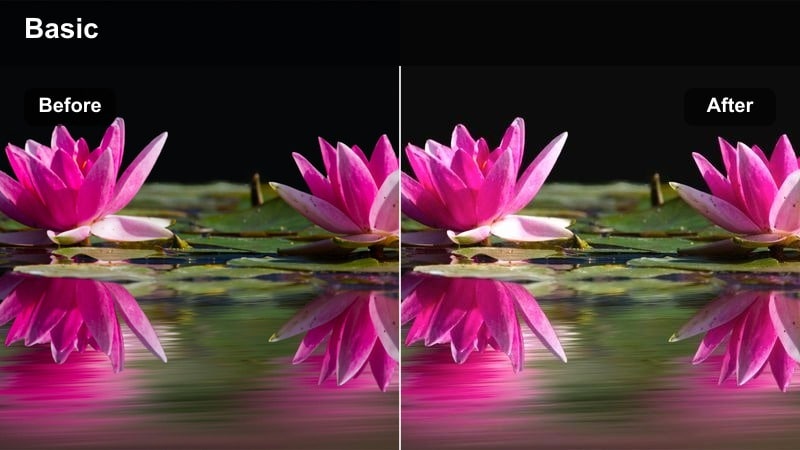
- Effect look: Low-contrast daylight with gentle highlights and a subtle warm glow around skin.
- Best for: Beauty, fashion, and lifestyle creators shooting outdoor GRWMs or casual street walks.
- Editing tip: Add a tiny bit of clarity only to midtones so the image feels soft but your face and eyes stay tack sharp.
Soft Creator Glow is a flattering look for creators who want bright skin and gentle contrast instead of a crunchy, over-edited street style. In Filmora, you can pair this filter with a slightly softened highlight curve, giving your Canon R50 footage a soft-focus aesthetic that still preserves detail in eyes, hair, and makeup.
Use masking in Filmora to add a touch of extra clarity to your face while keeping the background smoother and more diffused. This approach works perfectly for GRWM clips, outfit checks, and casual walk-and-talks, where viewers should focus on you and your styling rather than harsh shadows or distracting textures behind you.
Punchy Street Reel
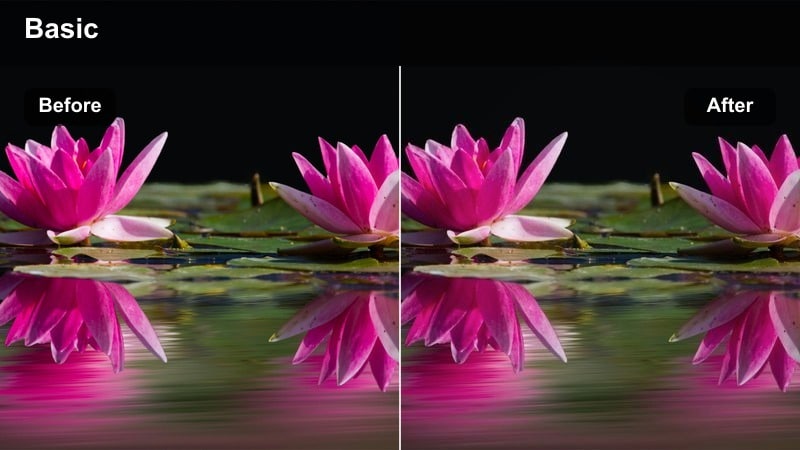
- Effect look: High-energy color with rich midtones, strong saturation, and snappy contrast tuned for vertical reels.
- Best for: Fast-cut street b-roll, skate clips, and dynamic walk-and-talk shorts.
- Editing tip: Use a slightly faster shutter speed to avoid motion blur, then let this filter emphasize edges and details.
Punchy Street Reel is built for energy and impact on small screens, where bold contrast and saturated colors catch attention in the first second. With Canon R50 footage, this style works especially well on fast-paced sequences like skate tricks, bike rides, or city transitions because it deepens midtones and adds crunch to textures such as pavement and brick.
In Filmora, combine this look with quick cuts and beat-based editing; you can apply the filter at the clip level, then copy and paste attributes to keep every shot in the sequence consistent. If the effect feels too intense on skin, use the Color tools to selectively lower saturation in reds and oranges or slightly soften contrast while preserving that high-energy street attitude.
Cozy Indoor Rooms and Creator Setups
Warm Room Talk
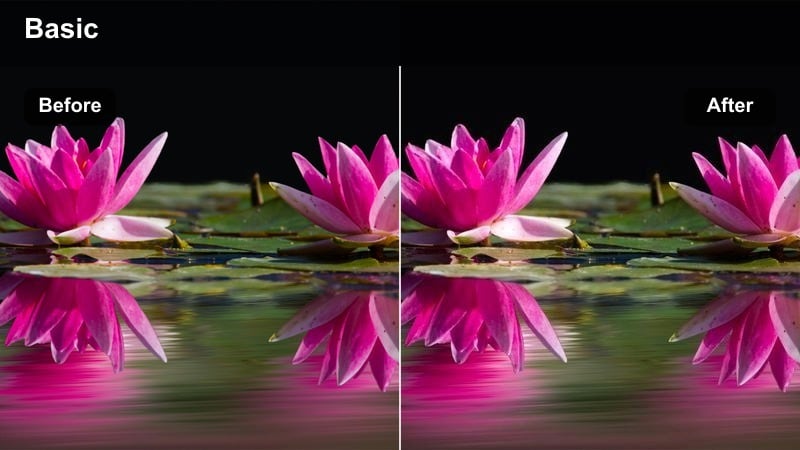
- Effect look: Subtle warm shift with softened shadows, tuned for desk and bedroom creator setups.
- Best for: Sit-down commentary, tutorials, and storytime videos filmed in small rooms.
- Editing tip: Lower black levels a touch so dark corners of your room feel rich but not crushed.
Warm Room Talk gives your Canon R50 indoor clips a friendly, welcoming tone that is perfect for commentary and tutorial content. The look eases off harsh shadows in corners and under the chin, while nudging overall color toward a cozy amber that flatters skin without making whites and grays look orange.
Inside Filmora, this type of filter pairs nicely with light noise reduction and gentle sharpening, especially if you record at higher ISOs in dim bedrooms or offices. Use the Color panel to subtly deepen blacks while keeping midtones bright, and save the combination as a preset so every future sit-down video on your channel has the same warm, creator-style aesthetic.
Neutral Study Edit
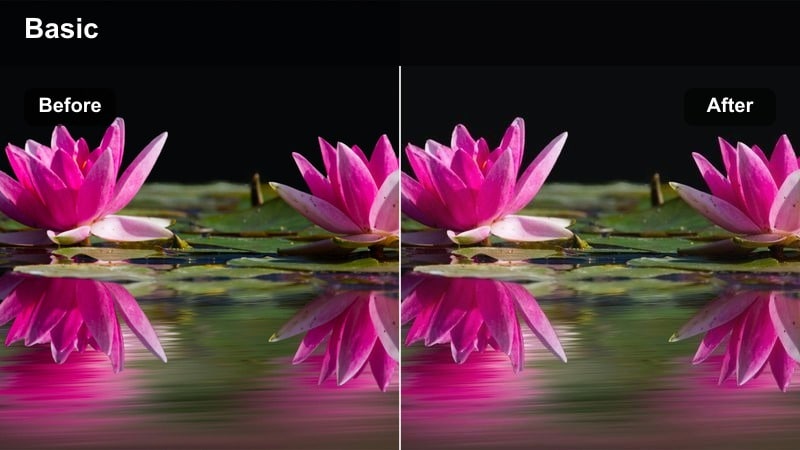
- Effect look: Clean, low-saturation neutral tone that removes color distractions and keeps focus on you.
- Best for: Study-with-me streams, productivity videos, and tech explainers filmed at a desk.
- Editing tip: Boost exposure on your face slightly, then reduce saturation just in the background for a simple, focused frame.
Neutral Study Edit is designed to strip away color noise so viewers stay locked on your explanations, timers, or productivity tips. With Canon R50 desk footage, this style mutes overly bright books, decor, and RGB lights while preserving natural skin tones, making long study or work sessions easier on the eyes.
In Filmora, apply this look, then use the advanced Color or Mask tools to selectively lift your face a bit brighter than the background. You can also tweak saturation using HSL controls, pulling down saturation in specific hues like bright blues or greens in the environment so notebooks, screens, and you as the creator remain the quiet, natural center of the frame.
Aesthetic Bedroom Vlog
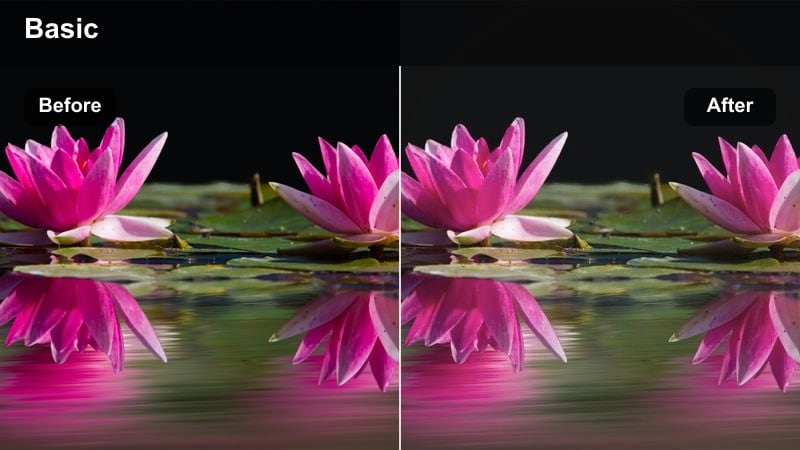
- Effect look: Soft, slightly pastel indoor toning that smooths highlights from string lights and LED accents.
- Best for: Morning routines, night routines, and aesthetic bedroom vlogs for TikTok or Reels.
- Editing tip: Use gentle vignette so the viewer's eye stays on you while the pastel background stays dreamy.
Aesthetic Bedroom Vlog is your go-to look for cozy, curated room content with fairy lights and LED strips. On Canon R50 footage, it smooths out harsh highlight spots from lamps and light strands, nudging overall color into a gentle pastel palette that feels on-trend for lifestyle, journaling, and self-care videos.
Inside Filmora, you can combine this filter with a subtle vignette and a slight reduction in Clarity or Sharpness for the background only, keeping your face crisp while the room feels soft and dreamy. Save the filter plus vignette as a custom preset, then apply it across your morning and night routine series so your whole playlist feels like one unified, aesthetic bedroom world.
Night City Vlogs and Neon Social Clips
Neon Trail Vlog
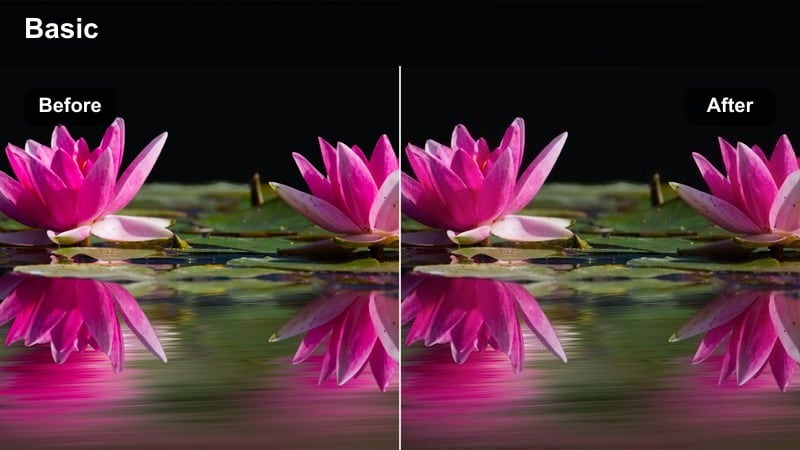
- Effect look: Deep contrast with emphasized neon blues and magentas, keeping faces clear under city lights.
- Best for: Night walk vlogs, travel reels, and handheld city b-roll with neon signs.
- Editing tip: Add a bit of noise reduction before this filter so dark areas look clean and cinematic instead of grainy.
Neon Trail Vlog is built to transform your Canon R50 night clips into stylized city scenes where blues and magentas glow while your face stays readable. The look pushes saturation in neon signage and reflections, adds depth to blacks, and maintains enough midtone detail so alleyways, sidewalks, and shop windows still feel three-dimensional.
In Filmora, run light noise reduction on your clips first, then apply this filter to avoid exaggerating grain in the darkest areas. Use the Color wheels or Curves to slightly lift midtones around your skin if your face feels too shadowy, and consider stabilizing handheld shots so the bright neon edges stay sharp and crisp for vertical social uploads.
Cool Night Chill
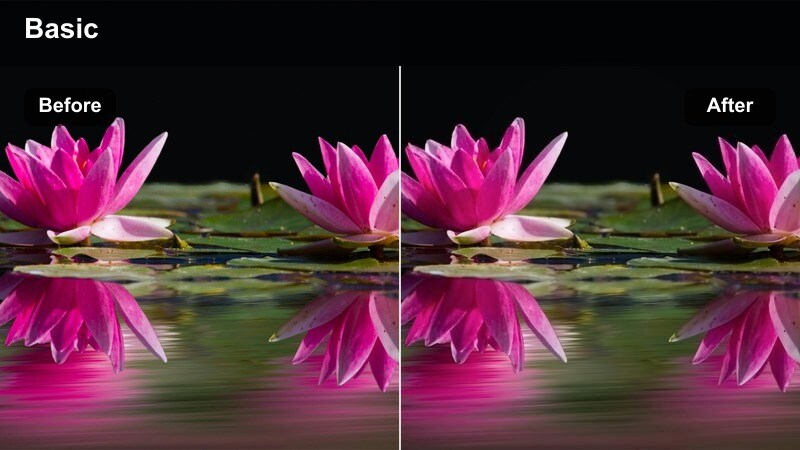
- Effect look: Cool-toned night look that balances streetlights while keeping noise under control.
- Best for: Late-night chats, city overlooks, and calm nighttime storytelling clips.
- Editing tip: Lift shadows slightly and reduce saturation in yellows to prevent streetlights from going muddy.
Cool Night Chill gives your Canon R50 night vlogs a relaxed, cinematic blue tone that feels calm rather than chaotic. It pulls tungsten and sodium-vapor streetlights toward a cleaner color while leaning the overall frame cooler, so rooftops, skylines, and water reflections take on a soft, dreamy atmosphere.
When editing in Filmora, apply this filter and then carefully lift Shadows to keep your face from disappearing into the background, especially if you are shooting at higher ISOs. Use HSL tools to selectively lower the saturation of yellows and oranges around lamp posts and windows, and add a hint of sharpening only to your subject so the cool, smooth city tones behind you do not reveal excess noise.
Vibrant City B-Roll
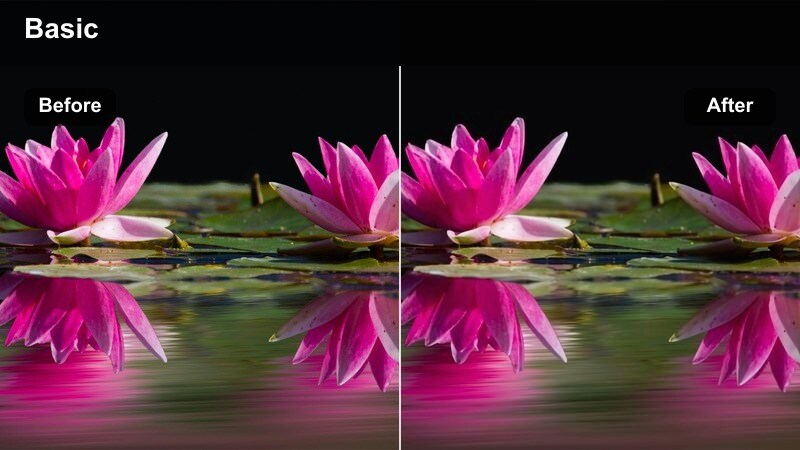
- Effect look: Color-rich night look that emphasizes car lights, window reflections, and urban textures.
- Best for: Transition b-roll, establishing shots, and looping background clips for stories.
- Editing tip: Use slower shutter for light streaks, then let this filter boost saturation on reflections and signs.
Vibrant City B-Roll turns ordinary Canon R50 night streets into energetic cutaway sequences full of reflections and motion. The look intensifies reds from brake lights, adds glow to windows and puddles, and carves stronger contrast into buildings and road textures, making it ideal for transitions and intros in travel or lifestyle vlogs.
Inside Filmora, use this filter on clips captured with slower shutter speeds to highlight light trails and moving traffic. You can layer these graded shots between talking segments, then adjust intensity if the colors clash with your main vlog look; keep saturation high for short transitions and tone it back slightly for longer b-roll sequences that loop under voiceover or music.
Outdoor Travel, Parks, and Everyday Errands
Travel Postcard
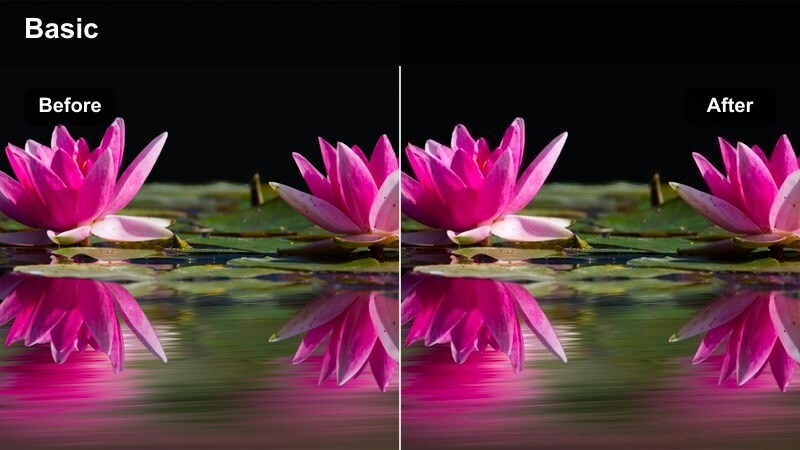
- Effect look: Balanced, slightly warm outdoor look that deepens skies and keeps foliage natural.
- Best for: Travel vlogs, city park walks, and wide establishing shots for trip recaps.
- Editing tip: Add a small amount of saturation to blues and cyans only, letting this filter handle the rest.
Travel Postcard is designed to make your Canon R50 travel clips look like curated memories straight out of a highlight reel. It warms midtones just enough for skin and stone to feel inviting, while deepening skies and keeping greens believable instead of neon, which is perfect for parks, plazas, and waterfronts.
In Filmora, apply this look to your establishing shots and walking clips, then slightly boost saturation in blues and cyans to make skies and water stand out without affecting skin. Add subtle motion like pan and zoom keyframes on still shots to enhance the postcard feeling, and save the effect as a preset for future trips so your entire travel playlist keeps the same polished visual story.
Errand Day Snap
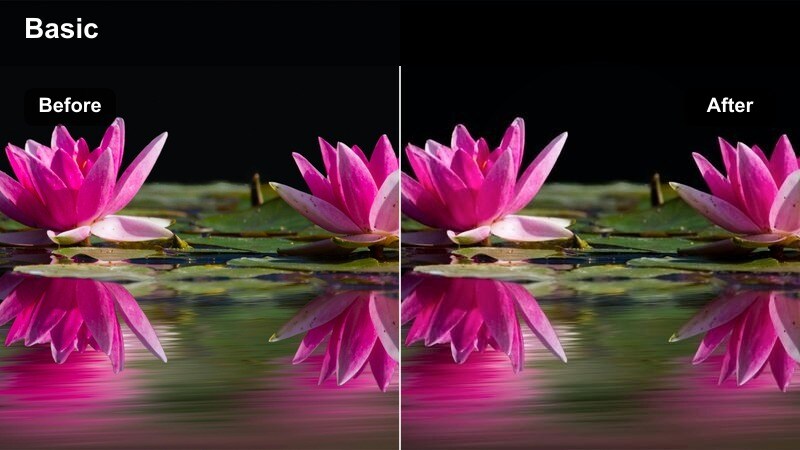
- Effect look: Casual, documentary-style tone that lightly boosts contrast and clarity without looking over-edited.
- Best for: Day-in-the-life vlogs, quick errands, and grab-and-go social clips.
- Editing tip: Keep saturation modest and let this filter focus on contrast and detail for a natural look.
Errand Day Snap keeps your Canon R50 daily vlogs looking real and relatable while still feeling finished enough for social feeds. It slightly boosts contrast and clarity to clean up handheld shots of streets, stores, and transit, but it avoids the heavy, stylized grading that can make everyday content look fake.
Within Filmora, combine this filter with light stabilization and small exposure tweaks as you move between indoor and outdoor scenes. Keep saturation close to your original footage and rely on the filter for subtle polish, then batch-apply it across an entire vlog timeline so your whole day-in-the-life story feels cohesive from first coffee run to last evening clip.
Soft Park Story
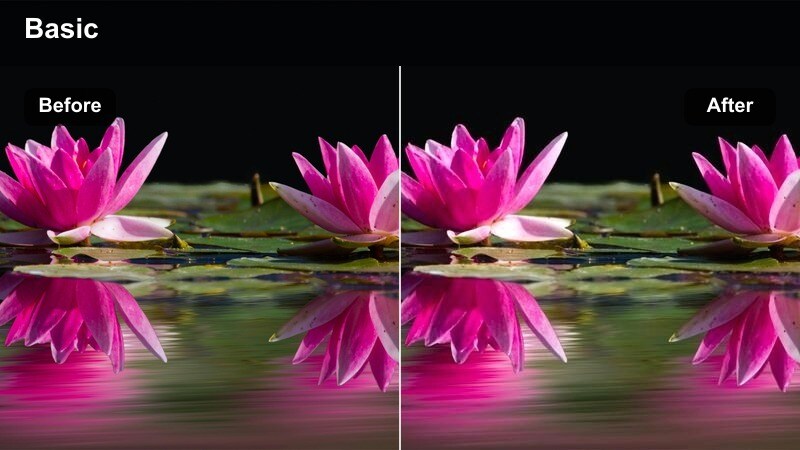
- Effect look: Gentle outdoor contrast with slightly muted greens and warm skin tones for storytelling shots.
- Best for: Sitting-on-a-bench storytime, reflective narration, and outdoor Q&A sessions.
- Editing tip: Add a slight blur to the background only and keep your face sharp to match the soft, storytelling mood.
Soft Park Story is tailored for reflective, slower-paced clips shot on the Canon R50 in parks, gardens, or quiet city corners. It calms vibrant greens so grass and trees do not overpower the frame, while gently warming skin and smoothing contrast for a comfortable, watchable storytelling look.
In Filmora, apply this filter to your park monologues and then use depth-of-field style blur or background defocus effects to separate you from benches, pathways, and foliage. Keep your voiceover or direct-to-camera audio front and center, and consider adding light background music; with the filter softening visuals, your message remains the focus while the environment supports the mood rather than stealing attention.
Tips for Using Canon R50 Filters in Filmora
- Shoot in a consistent picture profile on your Canon R50 so filters and LUT-style looks react predictably across different scenes.
- Always set white balance manually before recording so your filters do not have to fight changing color temperatures.
- For vertical social videos, compose with extra headroom, then apply your filter and crop for TikTok, Reels, or Shorts.
- Record short test clips at the start of each location and try two or three filters to see which best matches the light.
- Keep your ISO as low as possible, especially at night, so stylized filters do not exaggerate noise.
- Use scopes or exposure meters when available to avoid clipping highlights before applying high-contrast looks.
- Batch-apply the same filter to all clips in a single vlog to keep your Canon R50 content visually consistent.
- Export a short test reel and watch it on your phone to confirm that the filter still looks good on small screens.
With the right Canon R50 LUT-style filters, beginner creators can turn everyday footage into polished social videos in just a few clicks.
Start with a scene-appropriate look from this list, tweak intensity to taste, and save your favorites as presets so every new vlog or reel instantly matches your channel's style.
secure downloadNext: Best Fujifilm X-T50 LUTs
