

 100% Security Verified | No Subscription Required | No Malware


 ChatGPT
 Perplexity
 Gemini
 Claude
 Grok
Grok
These DJI Osmo Pocket 3 LUT-style filters are designed for creators who shoot daily content and want polished, cinematic color in just a few clicks.
Use them as fast, creator-friendly looks that feel like dedicated creator camera LUTs, perfect for daily vlogs, short-form videos, and quick-turnaround projects.
In this article
Bright City Daylight Vlogs
Urban Clean Day
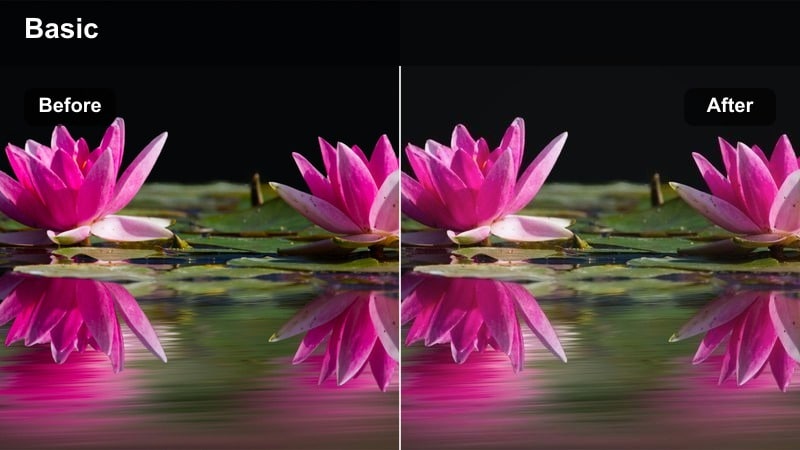
- Effect look: Neutral-bright vlog look with soft contrast and clean skin tones for city streets.
- Best for: Talking-head city walks, travel intros, and daily creator updates shot in daylight.
- Editing tip: Slightly lower highlights and add a touch of clarity to keep building edges crisp without harshness.
Urban Clean Day is a balanced, creator-first filter that keeps your DJI Osmo Pocket 3 city footage looking natural while still feeling polished. It brightens sidewalks, storefronts, and skies without pushing colors too far, so your audience focuses on your story and not on an over-stylized grade.
In Filmora, drop this look on your main talking-head tracks for city walks, then fine-tune exposure with simple highlight and shadow tweaks. If you shoot B-roll cutaways of crosswalks or traffic, reuse the same filter so everything feels like one cohesive vlog, adjusting clarity slightly to separate you from the background.
Match DJI Osmo Pocket 3 Footage with AI Color Tools
Use Filmora s AI color tools to quickly match your DJI Osmo Pocket 3 clips across different lighting conditions, so your filters always feel consistent. Let AI normalize exposure and white balance before you apply your favorite LUT-style filter, especially when you mix shaded streets and bright open plazas in one vlog.
Once a few key clips are corrected, you can treat that result as your base look and apply Urban Clean Day or any other style on top for fast, repeatable creator workflows.
 secure download

Preview Filters on Real Pocket 3 Creator Footage
Filmora lets you preview filters and LUT-style looks on your actual DJI Osmo Pocket 3 clips in real time, so you can see exactly how skies, buildings, and skin tones respond. Switching through presets on a short test sequence helps you quickly spot which styles fit your channel.
Use split-screen preview to compare the original versus filtered versions side by side and lock in your final look before you start batch-applying it across the timeline.
secure download1000+ Video Filters and 3D LUTs
Beyond these DJI Osmo Pocket 3 looks, Filmora includes a large library of filters and 3D LUTs that you can stack, tweak, and save as custom presets. This makes it easy to build your own creator camera LUT set for city walks, studio sessions, and night vlogs.
When you find a combination that works, save it as a reusable preset so every new episode starts with the same on-brand visual style and needs only minor exposure and color tweaks.
For a portable color-only version of the look, Filmora can export compatible color adjustments from a selected clip as a standard .cube LUT for use across future Pocket 3 footage or in DaVinci Resolve, Adobe Premiere Pro, and Final Cut Pro.
secure downloadStreet Pop Color
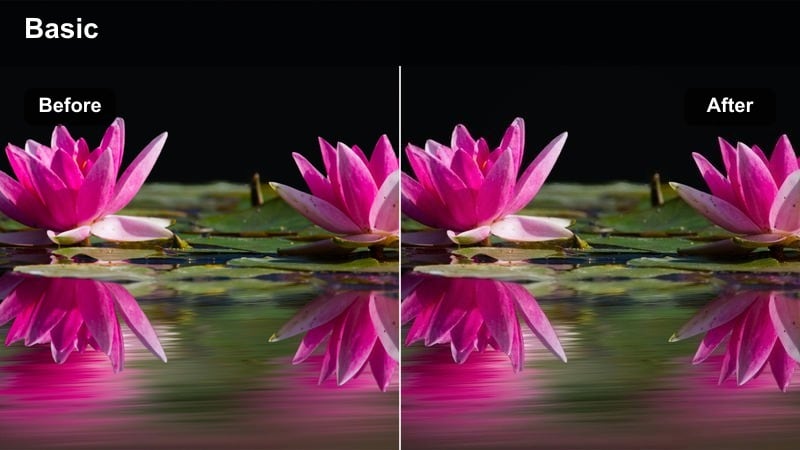
- Effect look: Punchy colors with boosted saturation and subtle contrast for vibrant street scenes.
- Best for: Colorful murals, busy crosswalks, and creator B-roll of storefronts and traffic.
- Editing tip: Dial back saturation slightly if shooting under harsh midday sun to avoid oversaturated reds and oranges.
Street Pop Color is designed to make murals, signs, and storefronts explode with color while still protecting your skin from looking cartoonish. It boosts saturation and contrast just enough to make your DJI Osmo Pocket 3 daytime footage feel energetic and scroll-stopping for Reels, Shorts, or TikTok.
In Filmora, apply this filter to your B-roll layers and montage sequences, then use the intensity slider or opacity controls to fine-tune strength scene by scene. If bright reds and oranges feel too heavy, go into HSL and pull those hues back a few points so your city footage remains vibrant but believable.
Soft City Pastel
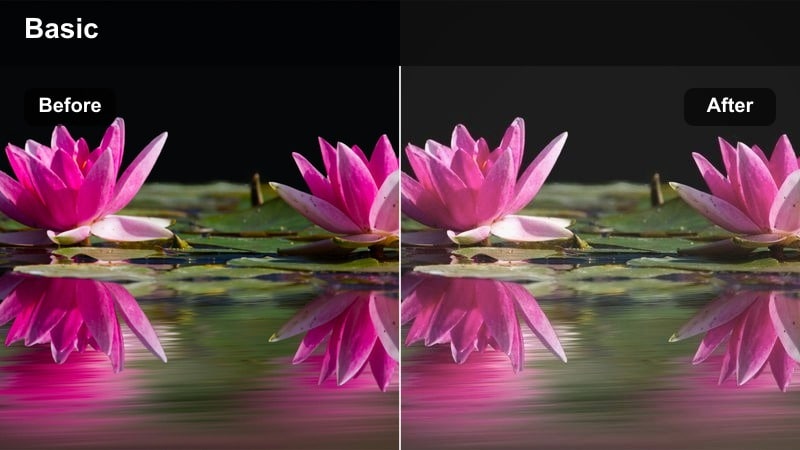
- Effect look: Soft pastel tones with lowered contrast and gentle highlights for dreamy city visuals.
- Best for: Lifestyle b-roll, creator B-roll cutaways of streets, coffee runs, and storefront windows.
- li>
Editing tip:
- Lift blacks slightly and reduce clarity for a hazy, almost filmic pastel finish.
Soft City Pastel tones down harsh midday contrast and turns normal city blocks into dreamy lifestyle backdrops. Colors lean toward gentle pastels, with softened highlights that flatter both skin and architecture, perfect for aesthetic coffee walks or outfit-of-the-day shots from your DJI Osmo Pocket 3.
In Filmora, combine this filter with a slight lift in blacks and a small clarity reduction to add a subtle haze that feels like soft film. Use it on B-roll layers between talking segments, and consider pairing with slower music and gentle transitions so your entire sequence keeps the same airy, relaxed mood.
Cozy Indoor Creator Setups
Desk Creator Neutral
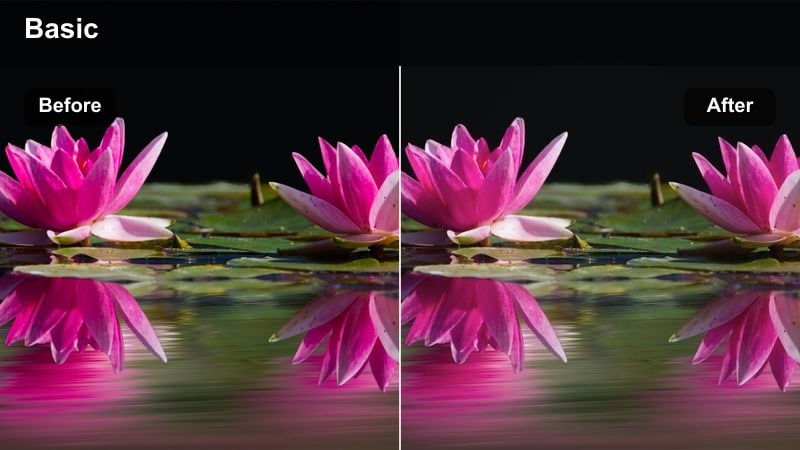
- Effect look: Balanced, low-saturation filter that keeps skin natural and desk setups clean.
- Best for: Desk talking-head videos, product shots, and tutorial recordings inside creator rooms.
- Editing tip: Match your key light white balance to the filter by slightly adjusting temperature until skin looks consistent across clips.
Desk Creator Neutral is tuned for indoor lighting, keeping skin tones accurate while avoiding the heavy color casts that come from mixed LEDs and monitors. It slightly reduces saturation and contrast so your background stays tidy and your face remains the focus during tutorials, reviews, and Zoom-style talking heads.
In Filmora, apply this filter to your entire desk sequence, then adjust the color temperature slider so your skin tone looks the same across every clip. You can save that combination as a custom preset, giving you a one-click fix every time you sit down to film in the same creator room with your DJI Osmo Pocket 3.
Warm Room Vlog
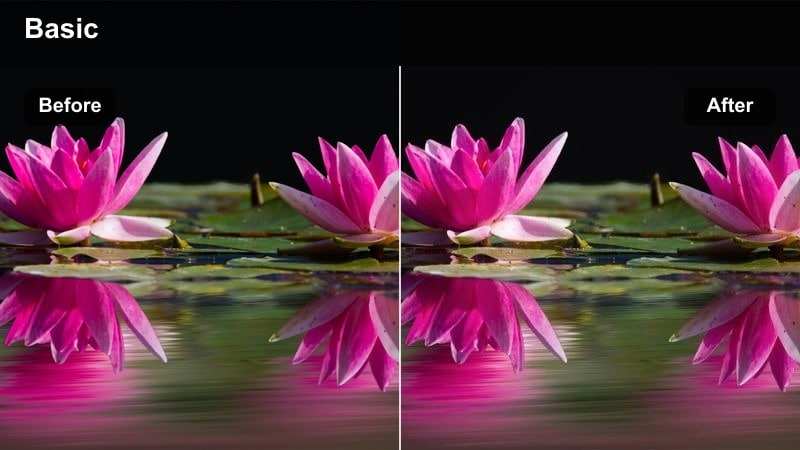
- Effect look: Cozy warm tones with slightly lifted shadows for friendly, intimate room vlogs.
- Best for: Bedroom vlogs, small studio spaces, and casual storytelling to camera.
- Editing tip: Balance warmth by lowering orange saturation a touch if your room lights are already very warm.
Warm Room Vlog leans into the cozy side of your bedroom or studio, lifting shadows and adding warmth so fairy lights, lamps, and LED strips feel inviting rather than yellow and muddy. It is ideal when you want your DJI Osmo Pocket 3 clips to convey a relaxed, personal vibe for storytime or life update videos.
In Filmora, drop this filter onto your timeline, then refine it by slightly lowering orange saturation in HSL if your bulbs are strong. You can also add a mild vignette around the frame to center attention on your eyes and face, reinforcing the intimate conversation feel that works so well for indoor creator content.
Minimal Creator White
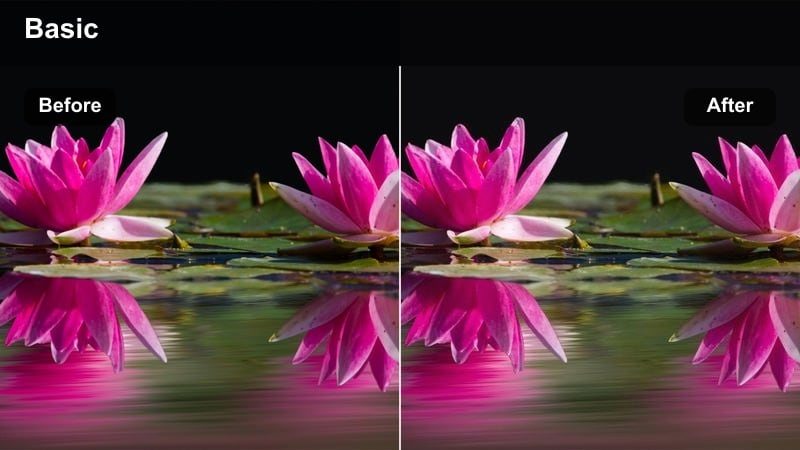
- Effect look: Clean whites, reduced color cast, and soft contrast for minimal, high-key creator rooms.
- Best for: White-wall talking heads, product demos, and clean tech table reveals.
- Editing tip: Avoid clipping by bringing down global exposure slightly, then lift midtones until skin tones look even.
Minimal Creator White is built to keep white walls truly white and to strip away distracting color casts from mixed lighting. It softens contrast just enough so your background feels bright and modern while your DJI Osmo Pocket 3 footage still holds texture in clothing and product shots.
In Filmora, start by slightly lowering overall exposure to protect highlights on walls and tabletops, then raise midtones until your face feels naturally lit. This filter is excellent for thumbnails and hero shots, so consider exporting a few frames with it applied for consistent, high-key branding across your channel.
Golden Hour City and Travel Scenes
Golden City Glow
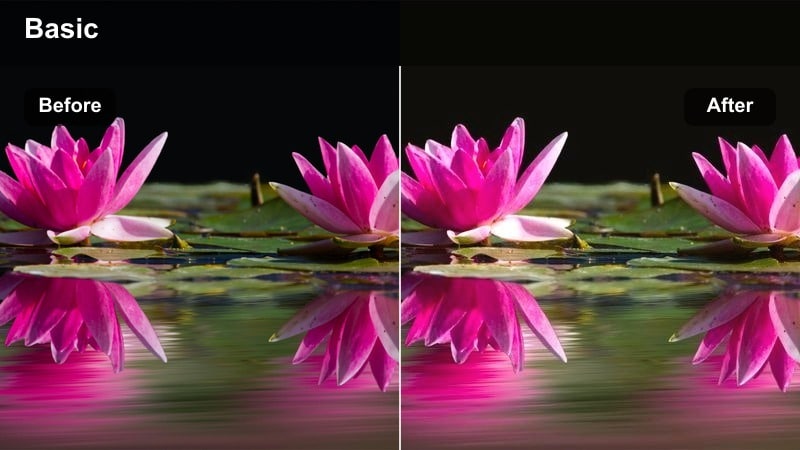
- Effect look: Rich golden highlights, soft contrast, and warm shadows for sunset city walks.
- Best for: Golden hour walk-and-talk vlogs, rooftop scenes, and travel arrivals.
- Editing tip: Lower highlights slightly and add a hint of vignette to keep attention on your face during sunset.
Golden City Glow is tuned specifically for that short window when the sun hits glass and concrete with warm, cinematic light. It enhances oranges and yellows, softens contrast, and lifts shadows just enough so your DJI Osmo Pocket 3 travel vlogs feel lush without losing detail in the skyline.
In Filmora, use this look on all clips shot within the same golden hour session, then gently reduce highlights so clouds and building edges remain detailed. A small vignette and subtle contrast boost around your midtones can further draw the viewer s eye to your face while the sun flares and reflections stay beautifully warm in the background.
Travel Teal Urban
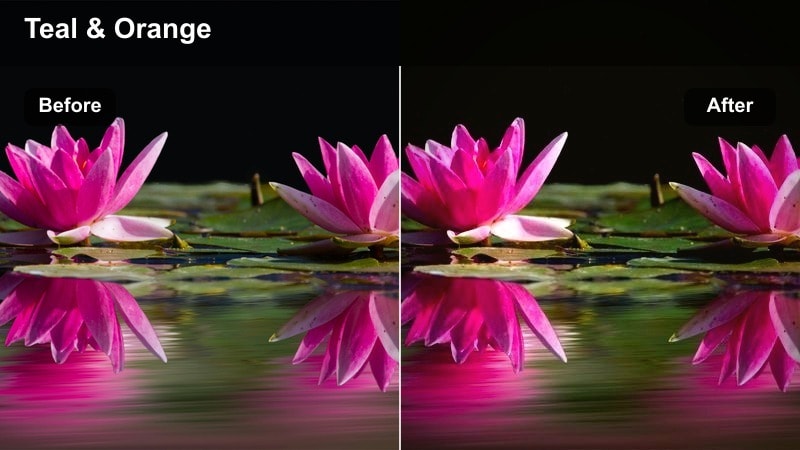
- Effect look: Classic teal shadows and warm skin tones for a cinematic travel vlog palette.
- Best for: City skylines, urban skylines at dusk, and cinematic B-roll transitions.
- Editing tip: Nudge tint toward magenta if skin starts to look too green against teal city shadows.
Travel Teal Urban brings a blockbuster-style teal and warm look to your DJI Osmo Pocket 3 city footage, shifting shadows into cool tones while preserving flattering warmth in skin. It is perfect for skyline reveals, rooftop viewpoints, and establishing shots that open or close your daily travel vlogs.
In Filmora, apply this filter to wide city shots and transition B-roll, then check your face in any close-ups to ensure it stays natural. If the teal makes your skin slightly green, nudge the global tint slider a touch toward magenta and save that adjusted preset as your go-to travel look for future trips.
Sunset Street Film
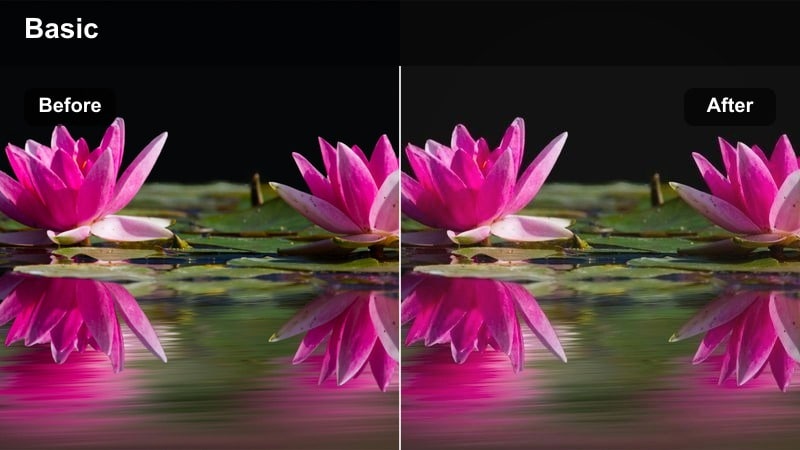
- Effect look: Soft film-inspired fade with gentle grain-like texture and warm midtones.
- Best for: Slow-motion walking shots, street B-roll, and reflective creator monologues at dusk.
- Editing tip: Add a tiny bit of blur or reduce sharpness to enhance the filmic character of the filter.
Sunset Street Film gives your evening city footage a nostalgic, film-inspired character, with faded contrast and warm midtones that suit reflective storytelling. It works especially well with slow-motion clips from the DJI Osmo Pocket 3, making each step and glance feel intentional and cinematic.
In Filmora, combine this filter with a slight reduction in overall sharpness or a subtle blur effect to mimic softer lenses. Layer in gentle sound design and slower music, and use cross-dissolve or fade transitions so your dusk walking shots and B-roll flow together like scenes from a short film.
Night City and Neon Vlogs
Neon Creator Glow
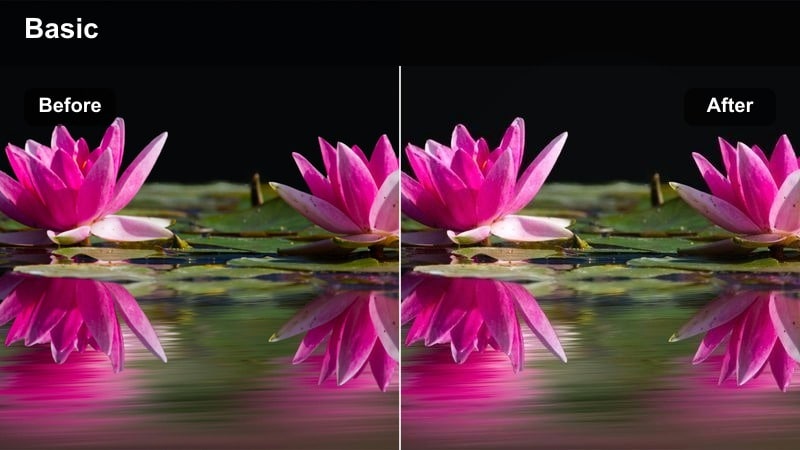
- Effect look: Vibrant neon colors with protected skin tones and lifted shadows for night city energy.
- Best for: Night street vlogs, handheld B-roll of neon signs, and creator night walks.
- Editing tip: Use noise reduction sparingly and keep ISO moderate so neon colors stay crisp, not muddy.
Neon Creator Glow amplifies the color and punch of city lights while gently lifting shadows so your face does not disappear into the night. It takes advantage of the DJI Osmo Pocket 3 s stabilized low-light performance and turns billboards, shop windows, and street reflections into bold, energetic backdrops.
In Filmora, apply this look and then use moderate noise reduction only when you truly need it, as over-processing can smear neon edges. Consider slightly boosting saturation in specific neon hues via HSL while leaving skin tones neutral, keeping your night walks readable and vibrant for viewers on mobile screens.
Moody Street Night
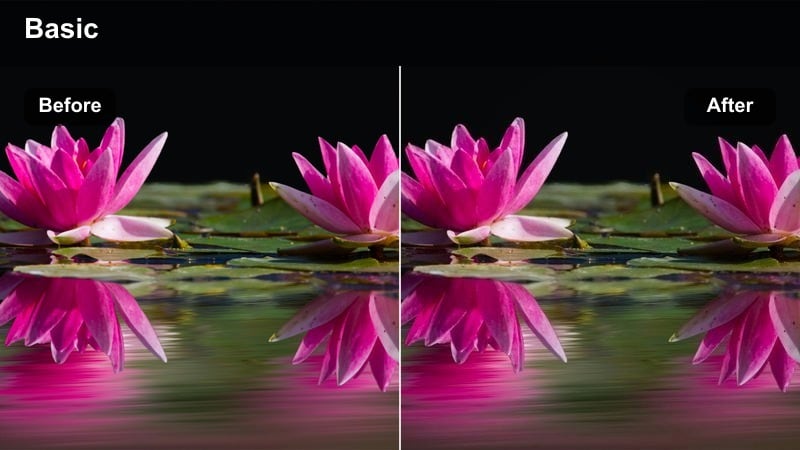
- Effect look: Deep contrast with cool shadows and subtle color shifts for cinematic night streets.
- Best for: Reflective monologues, quiet alleyways, and cinematic night B-roll for daily vlogs.
- Editing tip: Crush blacks slightly but protect midtones so your face and key details remain visible.
Moody Street Night leans into deep shadows and cooler tones, turning even simple streets into dramatic, late-night stages. It is ideal for reflective walk-and-talks or more cinematic sequences where you want your DJI Osmo Pocket 3 footage to feel stylized and intentional.
In Filmora, start by crushing blacks a bit to add depth, then carefully raise midtones so your face and important details are not lost. You can add a gentle vignette and use smooth camera movement from the gimbal to keep your shots clean and immersive, matching the serious mood of your story.
After Hours Soft
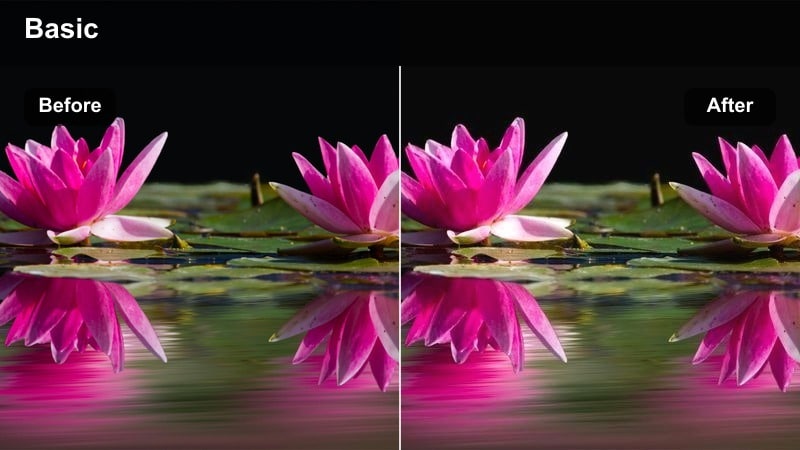
- Effect look: Soft low-contrast night look with gentle highlights and slightly warm midtones.
- Best for: Late-night chats, quiet cafe exteriors, and low-key creator reflections after a shoot.
- Editing tip: Reduce sharpness and add a light vignette to keep the focus on your face in dim environments.
After Hours Soft is a forgiving night filter that smooths out harsh point lights and lifts your skin slightly so late-night vlogs look flattering and calm. It works especially well when your DJI Osmo Pocket 3 is picking up light from cafe windows, streetlamps, or indoor spill light.
In Filmora, lower overall sharpness a bit and introduce a subtle vignette to keep attention on your face and hands as you speak. This style pairs nicely with quieter music beds and slower cuts, creating a consistent, end-of-day mood across your night reflections and debrief segments.
Tips for Using Dji Osmo Pocket 3 Filters in Filmora
- Shoot in the DJI Osmo Pocket 3 s flatter color profile when possible to give your filters more room to shape contrast and color.
- Keep ISO as low as your scene allows so the filters do not amplify noise, especially in night city shots.
- Create a simple three-look workflow: one filter for indoor setups, one for outdoor daylight, and one for night, then reuse them across episodes.
- Use Filmora keyframes to gently fade filters in and out during transitions, especially when moving from indoor to outdoor scenes in a single vlog.
- Batch-apply your chosen filter to all clips in a sequence, then fine-tune exposure and white balance only on shots that stand out.
- Save your favorite combinations of filters, color corrections, and subtle vignettes as custom presets to speed up grading on daily uploads.
- Test new filters on a short 10 to 20 second Pocket 3 clip before applying them to a full vlog to avoid regrading long timelines.
- Export a few still frames with your signature filter applied and reuse them as branded thumbnails or channel artwork.
With the right DJI Osmo Pocket 3 LUT-style filters, you can turn quick daily captures into consistent, cinematic creator content without spending hours grading.
Pick one or two go-to looks for each type of scene you shoot most often, then build them into a repeatable Filmora workflow so every vlog feels on-brand and ready to post fast.
secure downloadNext: Best Insta360 X4 LUTs
