

 100% Security Verified | No Subscription Required | No Malware

 ChatGPT
 Perplexity
 Gemini
 Claude
 Grok
Grok
If you shoot with the Fujifilm X-M5, you already know how powerful its color science and film simulations can be. To translate that same character into your edited videos, Filmora filters can give you Fujifilm X-M5 LUT-style looks with just a few clicks.
Below you will find a curated set of creator-focused filters that echo popular Fujifilm aesthetics, from clean everyday vlogs to moody evening sequences. Each filter includes a quick editing tip so you can dial in a reliable look for everyday content without spending hours on color grading.
In this article
Warm Golden Hour Streets and Sidewalk Vlogs
Sunlit Urban Soft
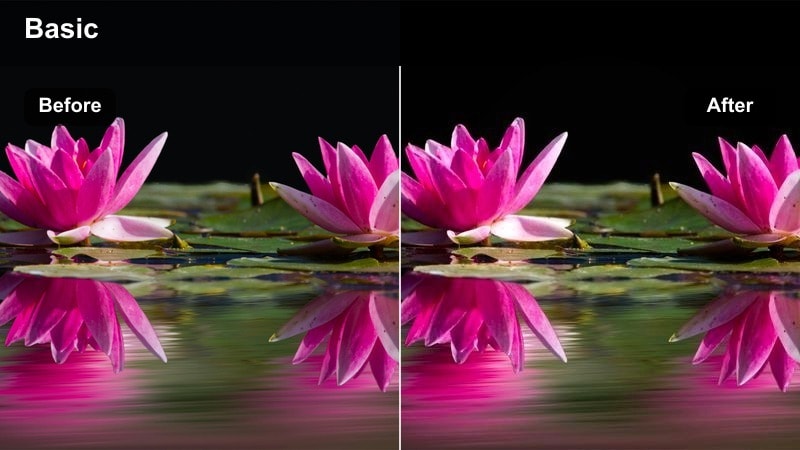
- Effect look: Soft, warm highlights that echo Fujifilm's classic chrome-style warmth for golden hour sidewalk vlogs.
- Best for: Talking-head walk-and-talk clips in late afternoon sun, casual street b-roll, and everyday creator intros.
- Editing tip: Lower contrast slightly and pull down highlights to protect bright skies, then nudge saturation up for jackets and street signs.
Sunlit Urban Soft is ideal when you want that signature Fujifilm X-M5 warmth without pushing colors into an overly stylized territory. In Filmora, apply this filter to clips shot during late afternoon or early evening and use the exposure sliders to keep faces gently lit while letting the sun do most of the work. The warm highlight rolloff helps tame harsh light on sidewalks and buildings, giving your vlog a relaxed, cinematic feel straight out of the box.
For best results, fine-tune the look with Filmora's HSL and color temperature controls after applying the filter. Slightly cooling the overall white balance and then adding a touch of magenta tint can preserve natural skin while keeping your streets glowing. If you batch apply this filter across a whole walking sequence, copy and paste the adjusted settings to maintain a consistent creator look from clip to clip.
Turn Fujifilm-Inspired Looks into a One-Click Palette
Filmora's AI color tools can analyze a reference frame from your favorite Fujifilm X-M5 clip and help you push other footage closer to that look. Once you refine the result, save it as a custom preset so you can reuse the same palette on future vlogs and travel videos.
This workflow is especially powerful if you mix cameras or shoot on both phone and X-M5. The AI-driven palette helps your entire timeline feel as if it came from a single Fujifilm body, while you stay focused on storytelling instead of manual shot matching.
 secure download

Preview Fujifilm X-M5 Style Filters in Real Time
With Filmora's real-time preview, you can quickly cycle through different filters on your Fujifilm X-M5 footage and compare how each look treats skin, skies, and street details. Instead of guessing, you see the impact instantly while you scrub your timeline.
Build a short test sequence that includes bright exteriors, indoor desk clips, and low-light shots, then audition filters across them. This makes it easy to pick one or two versatile looks that you can confidently apply to an entire vlog without surprises.
secure download1000+ Video Filters and 3D LUTs
Filmora includes a large library of video filters and 3D LUTs that can complement your Fujifilm X-M5 film simulations. From subtle everyday grades to bold cinematic treatments, you can stack effects to dial in a signature look for your channel.
Start with a Fujifilm-inspired filter for overall tone, then add creative LUTs or stylized filters on top to refine mood. When you find combinations that work, save them as presets so you can reproduce the same look on new projects in a single click.
secure downloadCopper City Glow
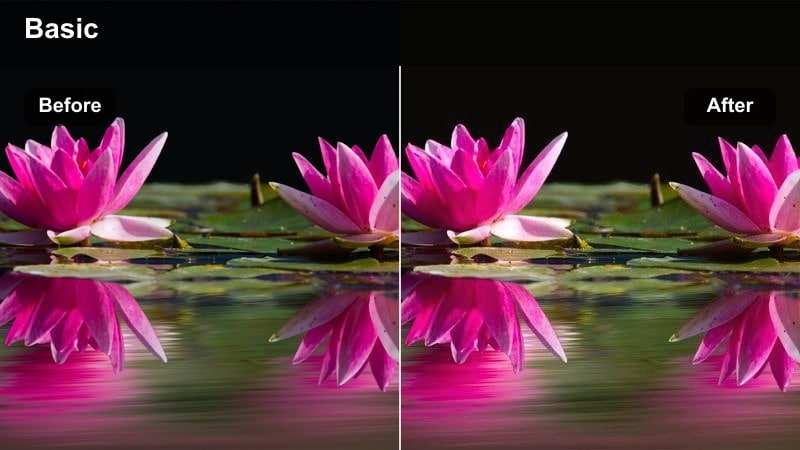
- Effect look: Copper-tinted highlights and rich midtones that resemble a stylized Fujifilm film simulation with cinematic warmth.
- Best for: B-roll of crosswalks, bicycles, and storefronts shot around sunset with your Fujifilm X-M5.
- Editing tip: Add a light vignette and reduce sharpness a touch to enhance the cinematic, filmic quality without losing clarity.
Copper City Glow pushes your golden hour footage toward a more cinematic, filmic space with deeper midtones and metallic highlights. In Filmora, this filter works especially well on B-roll where you want reflections on glass, metal, and wet pavement to feel rich and intentional. Layer it on top of your Fujifilm X-M5 clips and fine-tune sharpness to smooth digital edges slightly while retaining important detail.
To keep your sequence cohesive, pre-adjust earlier daytime shots by warming the white balance and slightly darkening exposure before applying Copper City Glow. Then use Filmora's curves to gently lift shadows in any clips that feel too dense, so alleyways and side streets retain texture. The combination of copper warmth and controlled contrast helps you create a stylized, story-driven sunset montage with minimal grading time.
Subtle Street Neutral
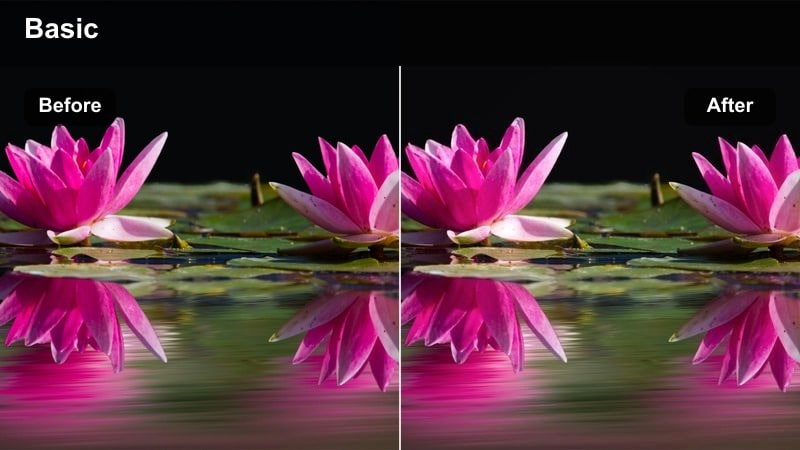
- Effect look: Balanced, low-contrast look with a hint of warmth that feels like a neutral Fujifilm creator LUT.
- Best for: Daily life vlogs, errand montages, and handheld clips in mixed sun and shade.
- Editing tip: Keep saturation moderate and use white balance eyedropper on neutral pavement or walls to maintain a natural everyday feel.
Subtle Street Neutral is designed to give your Fujifilm X-M5 clips a clean, creator-friendly finish without drawing attention to the grade. In Filmora, it works well as a base filter across typical street scenes, errands, and quick handheld updates, especially when light is inconsistent. The mild warmth and low contrast help handle both sunlit and shaded areas, so you can cut between shots without jarring shifts in mood.
After applying the filter, use the white balance eyedropper on a neutral surface like a gray wall or pavement to keep colors grounded. Then adjust saturation slightly if your scene feels too flat or too punchy. Once you get a look you like, save it as a custom preset and reuse it as your everyday street baseline to speed up future edits and keep your channel visually consistent.
Cozy Indoor Desk Setups and Talking-Head Segments
Creator Desk Clean
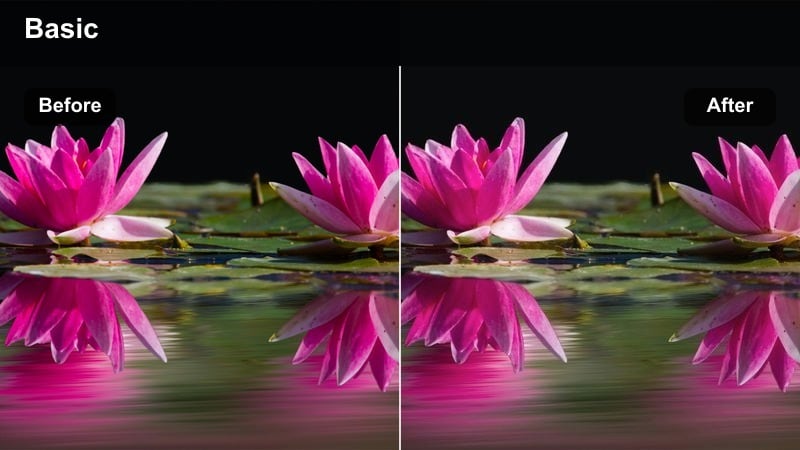
- Effect look: Bright, clean whites and soft contrast that mimic a studio-ready Fujifilm LUT for desk setups.
- Best for: Productivity vlogs, desk tours, and tutorial recordings shot with LED or window light.
- Editing tip: Drop highlights slightly to avoid clipped monitors and raise shadows to soften harsh contrasts from practical lights.
Creator Desk Clean is tailored to the kinds of talking-head and tutorial shots most Fujifilm X-M5 creators rely on. Applied in Filmora, it lifts your whites for a crisp studio impression while keeping contrast soft enough that your monitor screens and paper notes stay visible. The look is neutral by design, giving you a professional finish that pairs well with overlays, lower thirds, and on-screen graphics.
To maintain control over your highlights, lower them a little further in Filmora if you work with bright LED panels or strong window light. If your background wall skews blue, gently warm the temperature or reduce blue saturation so whites look natural, not icy. Once you dial in your desk environment, save the filter and tweaks as a preset so every future sit-down video matches effortlessly.
Soft Home Warmth
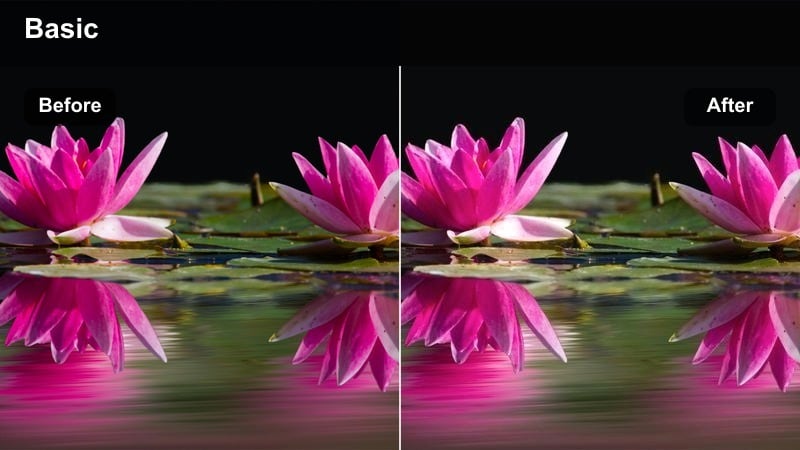
- Effect look: Gentle warm cast that emulates a cozy Fujifilm living-room vlog, with softened shadows and pleasing skin tones.
- Best for: Evening storytime vlogs, creator reflections, and casual indoor lifestyle sequences.
- Editing tip: Reduce saturation in the yellow channel so indoor lamps feel warm without making walls and skin look too intense.
Soft Home Warmth is perfect for transforming standard indoor Fujifilm X-M5 clips into intimate, inviting scenes. In Filmora, this filter adds a subtle amber glow to lamps and practical lights, smoothing out contrast so couches, bookshelves, and decor feel soft and approachable. It is particularly effective for reflective monologues, evening recaps, or any moment where you want viewers to feel like they are right in your living room.
When you apply the filter, use HSL to lower yellow saturation if your walls or lampshades start to overpower the frame. If you are dealing with mixed lighting, such as daylight from a window and warm bulbs, tilt your global white balance slightly warm and then use color wheels to keep midtones neutral. This way, your skin remains believable while the overall scene still leans into that cozy Fujifilm-inspired warmth.
Minimal Creator Flat
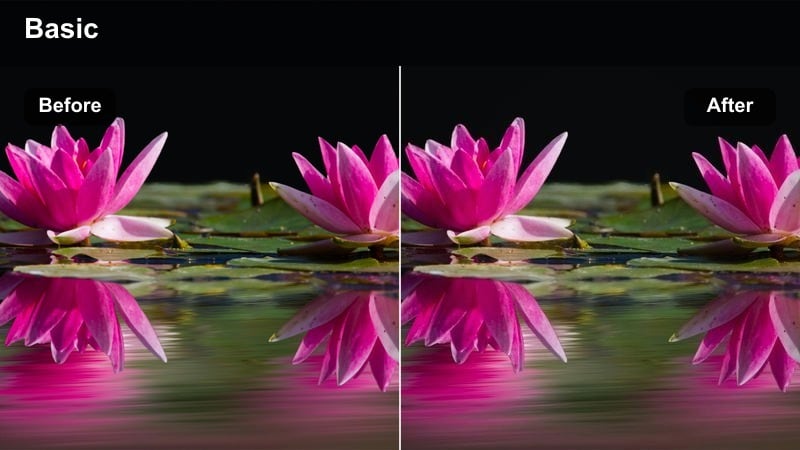
- Effect look: Low-contrast, slightly desaturated look that mimics a flat Fujifilm profile before a creative grade.
- Best for: Creators who want a neutral base look for overlays, text, and graphics-heavy desk videos.
- Editing tip: Keep exposure slightly under and let your text and overlays provide the pop so the frame never feels cluttered.
Minimal Creator Flat gives your Fujifilm X-M5 desk and tutorial clips a restrained, almost log-like starting point while remaining viewer-ready. In Filmora, it reduces contrast and saturation so your background stays calm and unobtrusive, leaving space for bold lower thirds, callouts, and UI overlays. This is a smart choice for educational content or software walkthroughs where information density is high.
After applying the filter, resist the urge to crank up saturation or contrast; instead, keep exposure just a touch under and let your graphics define the visual energy. You can also create color-variant versions of this look to match your channel branding by nudging hue or tint slightly. Save those variations as presets so you can quickly match the flat, design-first aesthetic across entire playlist series.
Moody Night City Vlogs and Neon Walks
Neon City Pop
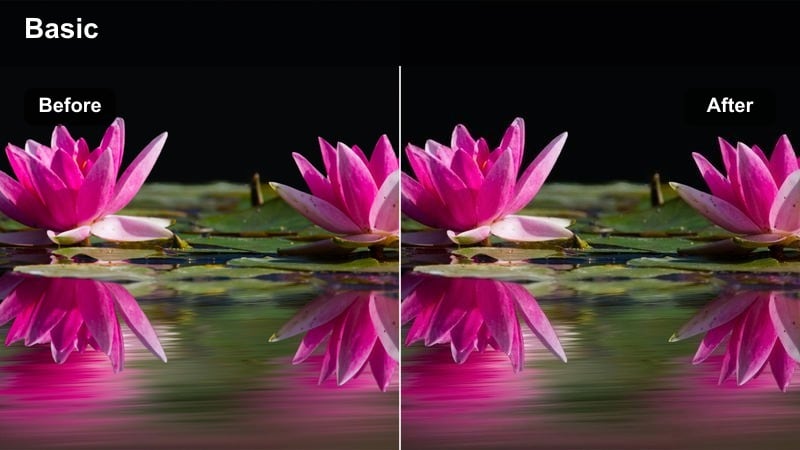
- Effect look: Punchy saturation and boosted contrast that make neon signs and storefronts pop like a stylized Fujifilm creator LUT.
- Best for: Night vlogs downtown, handheld b-roll of billboards, and rainy reflections on city streets.
- Editing tip: Raise midtones instead of shadows to avoid noisy blacks while still showcasing neon lights and reflections.
Neon City Pop takes advantage of your Fujifilm X-M5's low-light capabilities by emphasizing color and contrast in urban night scenes. In Filmora, this filter intensifies reds, blues, and magentas so signage and LED panels jump off the screen, while keeping blacks rich for a cinematic finish. It is a strong choice for fast-paced downtown walks, street food segments, or any sequence where vibrant neon is a core part of the story.
Because night footage can be noisy, focus your exposure adjustments on midtones and highlights rather than dragging shadows too high. If grain is visible, leave blacks deep and consider adding a small amount of film grain in Filmora to make noise feel intentional. Combined with careful framing around bright shop windows or billboards, Neon City Pop can turn simple city strolls into visually striking creator content.
Midnight Soft Matte
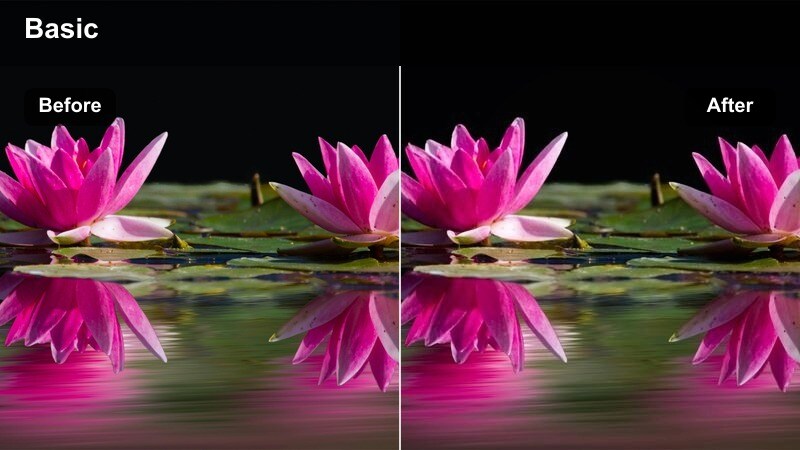
- Effect look: Lifted blacks and gentle contrast for a soft matte night look inspired by cinematic Fujifilm color.
- Best for: Quiet late-night walks, reflective monologues, and minimal traffic scenes with a moody tone.
- Editing tip: Use a curve to lift the black point slightly and then reduce saturation for cooler, contemplative night sequences.
Midnight Soft Matte is built for slower, introspective segments where you talk to camera in near-empty streets or alleys. In Filmora, it lifts your blacks slightly to create a matte, filmic softness, reducing the harshness that can sometimes appear in pure digital night footage. Colors pull back a bit, letting pools of light from streetlamps or storefronts become gentle focal points rather than harsh spots.
Apply this filter and then subtly tweak the curve to control exactly how far your black point lifts, balancing mood with readability in darker areas. If you are speaking directly to camera, position yourself near the brightest part of the frame and use a mild vignette to guide attention toward your face. Combined with slower cuts and thoughtful pacing, Midnight Soft Matte can turn night walks into cinematic reflection pieces.
Cool Street Chrome
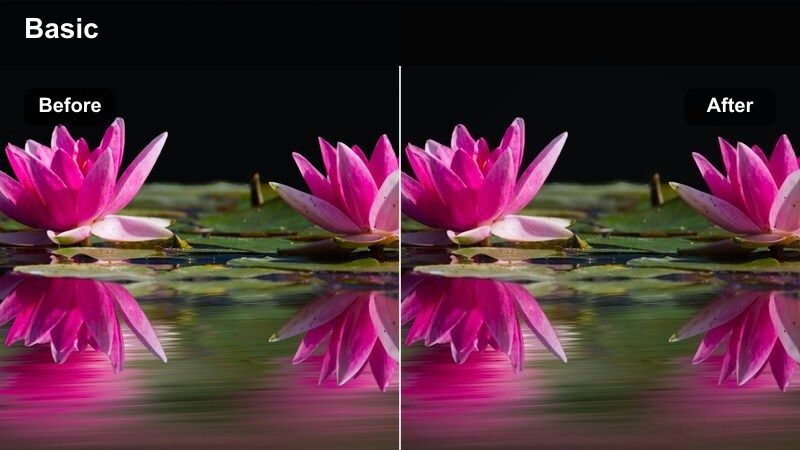
- Effect look: Cooler, chromey highlights and cleaner shadows that echo Fujifilm chrome-style night photography.
- Best for: Bus stops, subway entrances, and reflective store windows during blue-hour and early night.
- Editing tip: Bias your white balance slightly toward blue and drop green saturation so concrete and metal feel sleek rather than muddy.
Cool Street Chrome gives your Fujifilm X-M5 evening and early-night clips a polished, metallic quality. In Filmora, it shifts the palette toward cooler tones, enhancing reflections on glass, wet asphalt, and metal railings for a stylish, almost editorial look. This filter works particularly well around transit hubs, modern storefronts, and city infrastructure where structure and geometry matter.
After applying the filter, fine-tune white balance a touch cooler and reduce green saturation so your grays and silvers look clean, not muddy. If your skin starts to look too cyan, use a simple mask or selective color adjustments to warm your face slightly while leaving the rest of the frame in that cool chrome space. The result is a distinct separation between you and your environment that still feels cohesive and intentional.
On-the-Go Everyday Clips and Travel Moments
Travel Daylight Balance
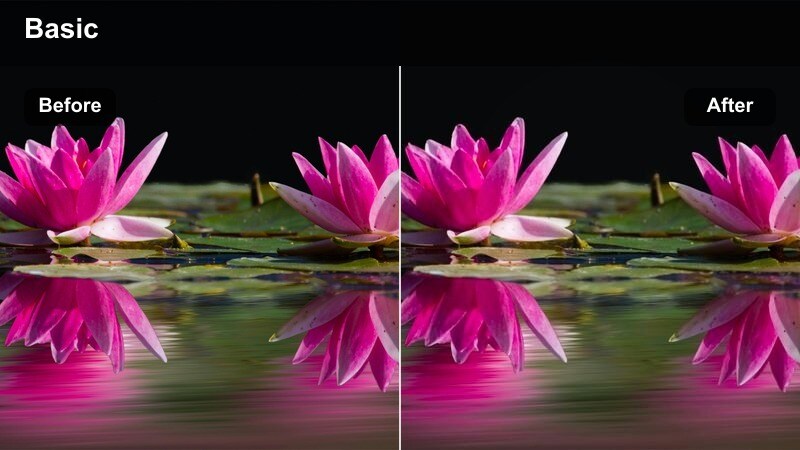
- Effect look: Balanced colors with modest contrast that work reliably across streets, stations, and casual travel shots.
- Best for: Transit clips, handheld b-roll walking through new neighborhoods, and quick cutaway shots.
- Editing tip: Set white balance once for the whole travel sequence, then apply this filter so your day story feels unified from start to finish.
Travel Daylight Balance is designed to simplify color work when you are moving quickly with your Fujifilm X-M5 from street to station to cafe. In Filmora, this filter delivers a light touch that keeps colors natural and contrast moderate, so nearly any daylight location grades consistently. It is an excellent starting point for travel vlogs where you want to maintain a true-to-life feel and let the locations speak for themselves.
Before applying the filter across your day-in-the-life sequence, pick a representative clip and lock in a suitable white balance for the whole project. Once that is set, drop Travel Daylight Balance on all your clips and fine-tune only exposure shot by shot. Saving this combination as a preset lets you quickly match visual tone across multiple trips and episodes in a travel series.
Casual Creator Snapshot
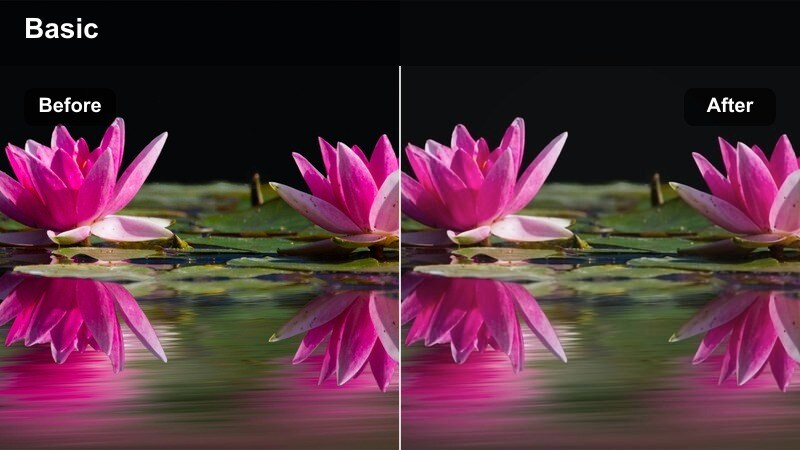
- Effect look: Slightly lifted shadows and true-to-life colors aimed at spontaneous clips and social shorts.
- Best for: Quick updates, vertical reels, and everyday life shots captured between bigger scenes.
- Editing tip: Keep adjustments minimal and aim for consistent skin tone so your face looks the same across shorts and main videos.
Casual Creator Snapshot is built around authenticity, preserving the natural look of your Fujifilm X-M5 footage while adding a touch of polish. In Filmora, it lightly lifts shadows and maintains accurate color, making it ideal for handheld check-ins, behind-the-scenes snippets, and clips repurposed for vertical platforms. Because the grade is subtle, your audience focuses on your message instead of noticing the color work.
When you are editing, apply this filter to both horizontal and vertical exports so your visual style remains recognizable across YouTube, Shorts, and Reels. Aim to keep skin tone identical between platforms by avoiding heavy color tweaks after the filter is applied. This consistency across formats builds trust, helps with brand recognition, and makes multi-platform posting much more efficient.
Weekday Commute Soft
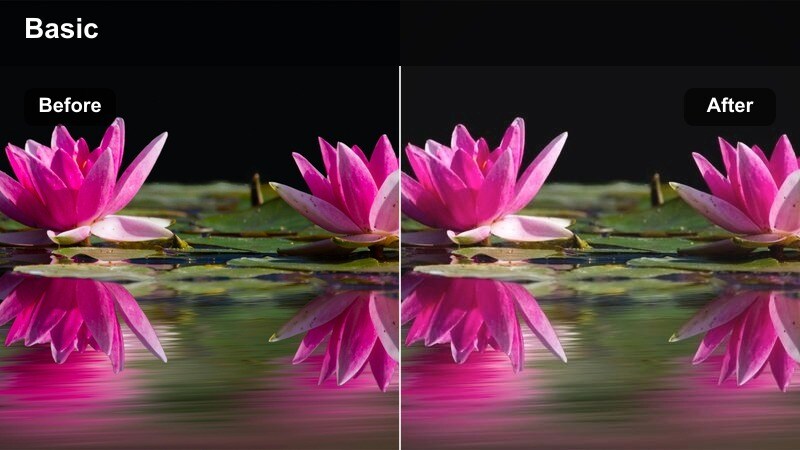
- Effect look: Gentle fade and slightly muted colors that make trains, buses, and sidewalks feel cinematic but grounded.
- Best for: Commuter b-roll, platform waiting shots, escalators, and stairway transitions.
- Editing tip: Combine this filter with slower cuts or subtle speed ramps so your everyday commute feels like part of a story.
Weekday Commute Soft is meant to transform ordinary in-between moments into visual transitions that tie your vlogs together. On Fujifilm X-M5 clips of trains, buses, or station corridors, Filmora softens color and contrast just enough to make them feel like cinematic chapter breaks. Muted tones prevent signage and advertisements from overpowering the frame, keeping the mood calm and reflective.
Apply this filter consistently to all your commute-related shots and consider slowing them down slightly or adding gentle speed ramps for rhythm. By repeating recurring angles like doors opening, footsteps on stairs, and platform views, you can create a visual motif your audience recognizes. With Weekday Commute Soft as the glue, everyday travel becomes a storytelling tool instead of just filler footage.
Tips for Using Fujifilm X-M5 Filters in Filmora
- Shoot a short test sequence on your Fujifilm X-M5 in each lighting scenario you use most, then audition filters on that footage before committing to a full grade.
- Lock in a consistent white balance profile in-camera so Filmora filters and any creator LUTs react predictably across your entire timeline.
- Define three master looks for your channel such as day street, indoor desk, and night city, and reuse them as the foundation for every new video.
- Watch skin tones closely; if they appear too orange, green, or cyan, correct white balance first, then fine-tune contrast and saturation.
- Use Filmora's scopes or histogram to keep highlights from clipping, especially in bright sidewalks, window light, and reflective night scenes.
- Apply filters before adding titles and overlays so your text colors stay sharp and are not dulled by later global adjustments.
- Save separate preset versions of your favorite filters for vertical and horizontal projects to maintain a unified brand look on every platform.
- Export a short test video and review it on your phone to confirm that contrast, saturation, and brightness work well on small screens.
With a few carefully chosen Filmora filters, your Fujifilm X-M5 footage can take on the polished, creator-ready feel you usually expect from dedicated LUT packs. You get the speed of one-click looks plus the flexibility to refine them with Filmora's color tools.
Build a small set of go-to looks for streets, indoors, and night scenes, then tweak and save them as presets over time. As your library grows, every new upload will feel consistent, recognizable, and uniquely yours while your edit workflow becomes faster and more enjoyable.

