

 100% Security Verified | No Subscription Required | No Malware


 ChatGPT
 Perplexity
 Gemini
 Claude
 Grok
Grok
These GoPro Hero 13 LUT-style filters are built for adventurers who want their action videos to look cinematic straight out of the edit, without getting lost in complicated color tools.
Whether you are bombing down a trail, dropping into a skate bowl, or diving into clear blue water, the following filters give your GoPro Hero 13 footage punchy contrast, clean color, and a polished, share-ready look.
In this article
Sun-Chase Trails and Outdoor Adventures
Golden Grit Trails
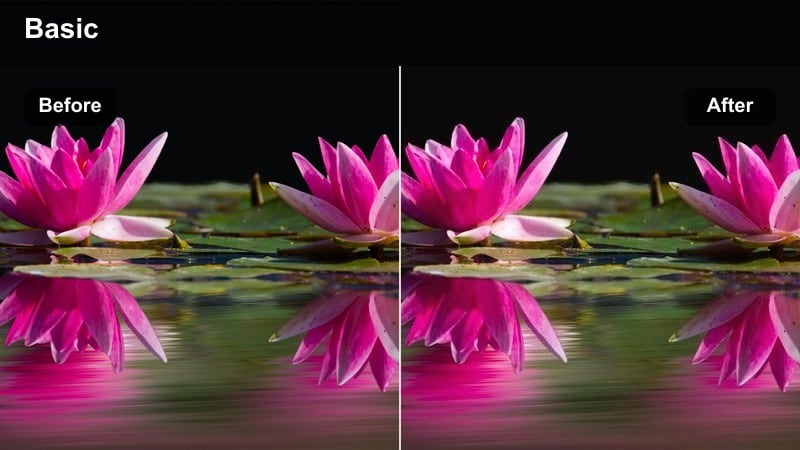
- Effect look: Warm, high-contrast golden tones that make late-afternoon rides feel like a movie.
- Best for: Mountain biking, trail running, and desert off-road sessions shot near golden hour.
- Editing tip: Slightly lower highlights to keep skies detailed, and add a touch of clarity for extra dust and texture.
Golden Grit Trails wraps your GoPro Hero 13 trail footage in rich, sun-soaked tones that emphasize the dust, rocks, and low-angle light of evening sessions. In Filmora, this LUT-style filter quickly transforms flat-looking clips into cinematic sequences where the trail glows and the horizon stays punchy but controlled.
To get the most from this look, start with a mild highlight reduction in Filmora so cloud texture and ridgeline detail survive the grade. Then nudge clarity and sharpness just enough to carve out dust particles and small rocks without making the image crunchy, giving your rides a polished, video-part aesthetic.
Let AI Match Your GoPro Hero 13 Colors Automatically
Instead of manually dialing in color for every single clip, use Filmoras AI-driven color tools to quickly match your GoPro Hero 13 footage across different locations and lighting conditions. This keeps your golden trail runs consistent even when clouds roll in or the sun dips behind a ridge.
With a couple of clicks, you can sync the overall tone of your action camera clips to a reference shot, then layer these filters or GoPro Hero 13 LUTs to give each sequence its own personality while staying visually unified.
 secure download

Preview Filters on Your Action Clips in Real Time
Filmora lets you hover over filters to preview how they will transform your GoPro Hero 13 footage before you commit. You can quickly audition warm trail looks, cool alpine tones, or gritty city grades on the same sequence.
Play your action videos in the timeline, scrub through key moments, and compare several filters side by side until you find the one that best matches your trail, wave, or city mission.
secure download1000+ Video Filters and 3D LUTs for GoPro Hero 13
Filmora includes a massive library of built-in filters, cinematic presets, and 3D LUTs you can stack with your GoPro Hero 13 footage. Whether you want polished travel vibes, gritty action looks, or stylized color grades, you can build a repeatable workflow in minutes.
Imported GoPro LUTs are displayed as thumbnails in Media > Editing Presets > LUT, making technical and creative files easier to distinguish. Separately, Filmora can export compatible color adjustments from a selected clip as a standard .cube LUT for reuse across other GoPro footage or in DaVinci Resolve, Adobe Premiere Pro, and Final Cut Pro.
Apply a corrective GoPro LUT first, then experiment with creative filters, HSL tweaks, and curves to lock in a signature style that works across trails, water sessions, and night rides.
secure downloadAlpine Crisp Clarity
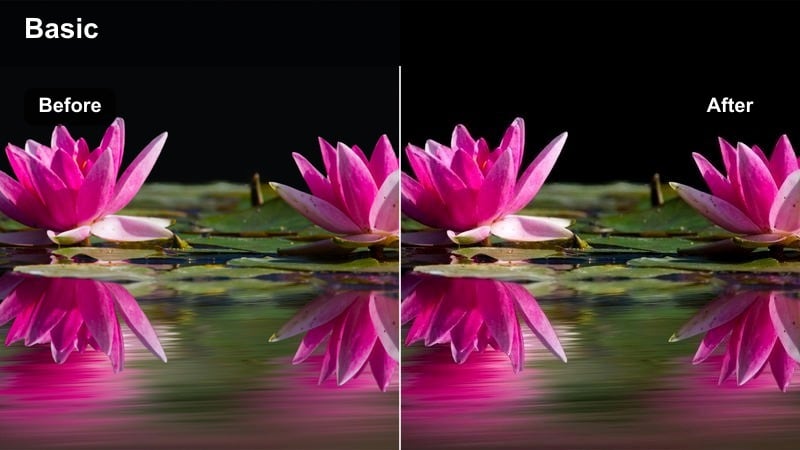
- Effect look: Cool, clean tones with crisp contrast that make mountain scenes feel razor sharp.
- Best for: Snowboarding, skiing, ridgeline hikes, and glacier trekking shot in bright daylight.
- Editing tip: Lift the shadows slightly to keep dark jackets visible against snow, and tame blues if the sky looks too electric.
Alpine Crisp Clarity is designed to keep snow bright and detailed without turning it into a blown-out mess. On GoPro Hero 13 clips, this filter leans into cool tones that make ice, sky, and ridges feel clean and high definition while protecting highlights for a professional, wintry look.
In Filmora, combine this filter with modest shadow lifting so riders and gear do not disappear into silhouetted shapes against the snow. If the sky drifts toward neon blue, gently reduce saturation in the blue channel and fine-tune using curves until your alpine scenes look sharp, crisp, and realistic.
Forest Rush Contrast
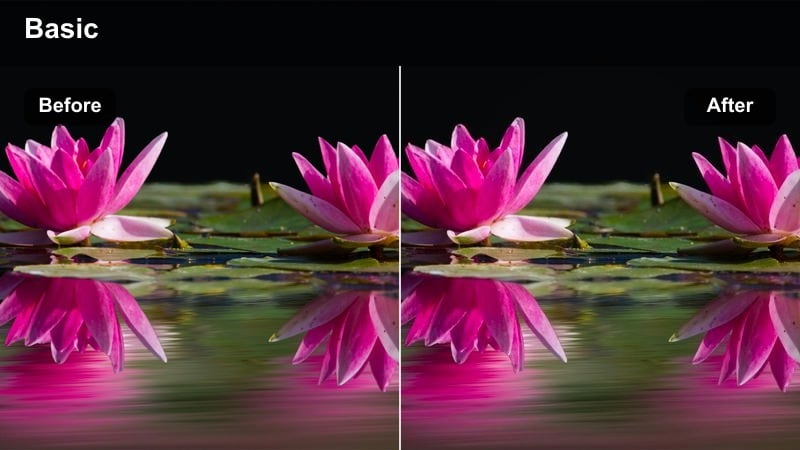
- Effect look: Deep greens, rich midtones, and punchy contrast for fast forest runs and rides.
- Best for: Trail running, enduro rides, and hiking footage under heavy tree cover or dappled light.
- Editing tip: Reduce overall contrast if your path looks too dark, and add a bit of saturation to greens to separate them from the subject.
Forest Rush Contrast brings out the energy of wooded singletrack by deepening greens and adding definition to trunks, roots, and rocks. It is tuned for GoPro Hero 13 footage shot under canopy, where mixed highlights and shadows can easily look muddy or flat.
Inside Filmora, drop this filter on your forest clips, then ease back overall contrast if the trail itself starts to vanish in the darkness. A small boost to green saturation and targeted luminance adjustments can help separate foliage from riders, keeping eyes locked on movement through the frame while maintaining a rich, moody atmosphere.
Waterline Thrills and Ocean Sessions
Aqua Punch Surf
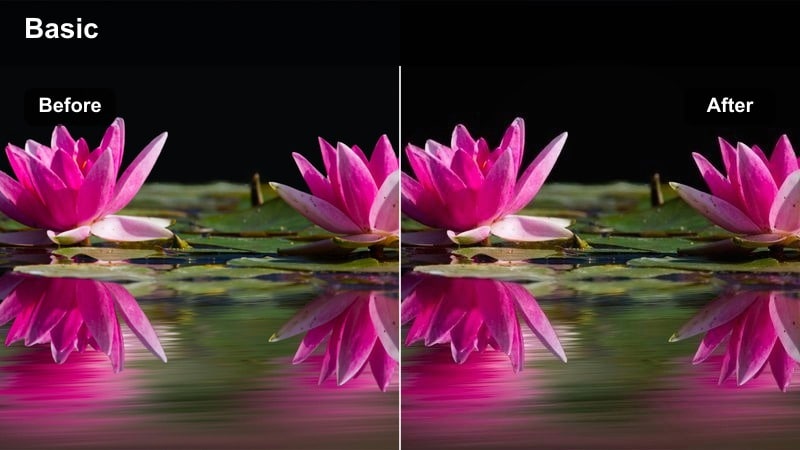
- Effect look: Bold teal water, crisp whites, and strong contrast that make every wave pop.
- Best for: Surfing, wakeboarding, and kitesurfing clips shot in bright coastal light.
- Editing tip: Pull back teal saturation slightly if skin tones start to look unnatural, and boost clarity for spray detail.
Aqua Punch Surf is built to make your GoPro Hero 13 surf clips explode with color and detail, emphasizing turquoise water and white spray. The filter adds bite to the contrast so lips, faces, and boards stand out against the barrel or open ocean.
In Filmora, apply this filter to your best turns, barrels, and cutbacks, then fine-tune teal saturation so water looks rich without pushing skin tones into unnatural territory. A touch of additional clarity and sharpness on key shots will help highlight the texture of spray and foam, making each frame feel powerful and immersive.
Reef Clear Dive
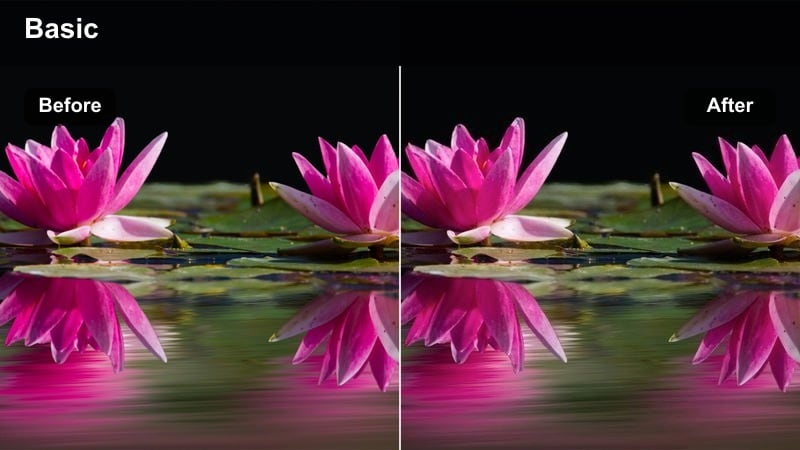
- Effect look: Clean, de-hazed underwater tones with lifted shadows so details do not disappear.
- Best for: Snorkeling, freediving, shallow reef exploration, and clear lake plunges.
- Editing tip: Raise exposure slightly and add a subtle fade to avoid muddy underwater blacks.
Reef Clear Dive is tuned for GoPro Hero 13 underwater footage, where haze and color cast can quickly hide coral, fish, and rock texture. This filter lifts shadows and reduces underwater murk so shapes and colors remain visible, even in slightly darker conditions.
Inside Filmora, pair this look with a gentle exposure bump and a small fade in the blacks to keep your underwater scenes airy instead of heavy. If you used a physical red or magenta filter while shooting, this LUT-style grade can sit on top to refine color balance and give your dives a calm, documentary-style finish.
Sunset Bay Glow
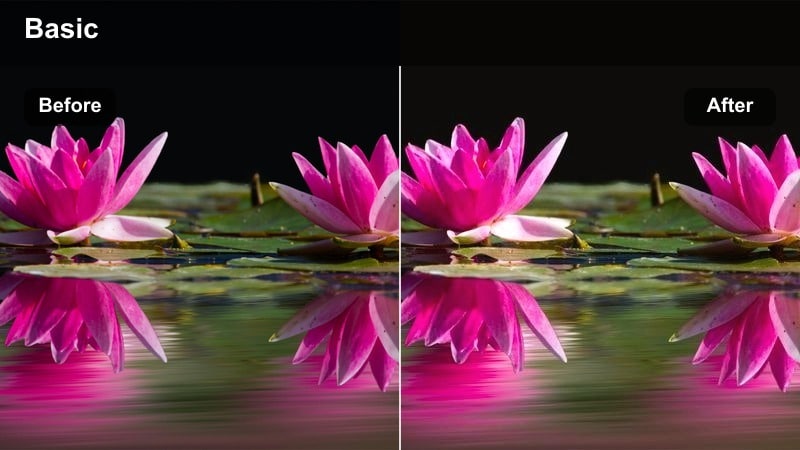
- Effect look: Warm magenta and orange highlights with soft contrast over calm or choppy water.
- Best for: Paddle boarding, kayaking, and boat rides during sunset or sunrise sessions.
- Editing tip: Slightly lower vibrance if the sky becomes too neon, and add a gentle film grain for a dreamy finish.
Sunset Bay Glow leans into warm magentas and oranges, turning GoPro Hero 13 golden-hour water clips into dreamy, cinematic sequences. The softer contrast smooths out ripples and reflections so the mood of the scene feels calm and immersive.
In Filmora, apply this filter to your best horizon shots, paddling POVs, and slow pans across the bay. If the sky starts to look overly saturated, trim vibrance and saturation a touch, then layer in subtle film grain to add texture and a more analog, story-driven feel to your sunrise and sunset sessions.
City Velocity and Night Motion
Neon Street Runner
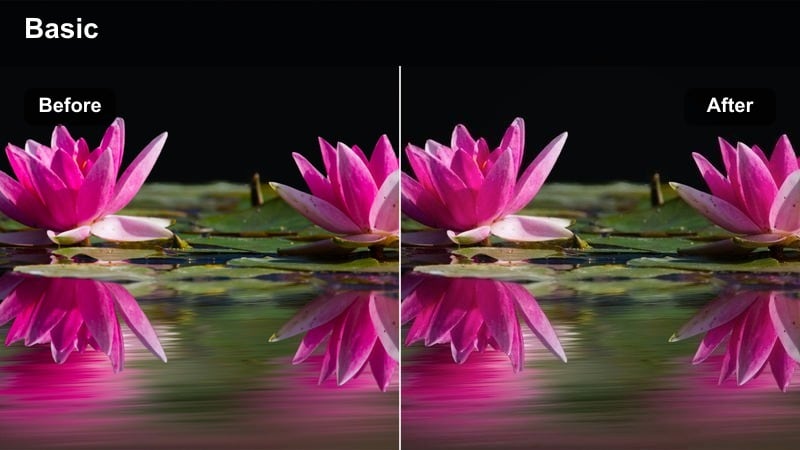
- Effect look: Vibrant neon colors with deep blacks and a slight teal-and-magenta vibe.
- Best for: Urban night runs, scooter rides, and city cruising through bright signage.
- Editing tip: Use noise reduction before applying this filter, and slightly raise shadows so details do not vanish.
Neon Street Runner takes advantage of the GoPro Hero 13s improved low-light capabilities by pushing city signs, storefronts, and car lights into vibrant neon. Deep blacks keep the background moody while teal and magenta accents give your clips a stylized, cyberpunk-inspired edge.
In Filmora, run a mild noise reduction pass on your night shots before dropping this filter on top, which helps preserve a clean, modern look. Then nudge shadows up just enough so shoes, sidewalks, and nearby buildings remain visible, maintaining both atmosphere and clarity as you sprint through the city.
Urban Contrast Commute
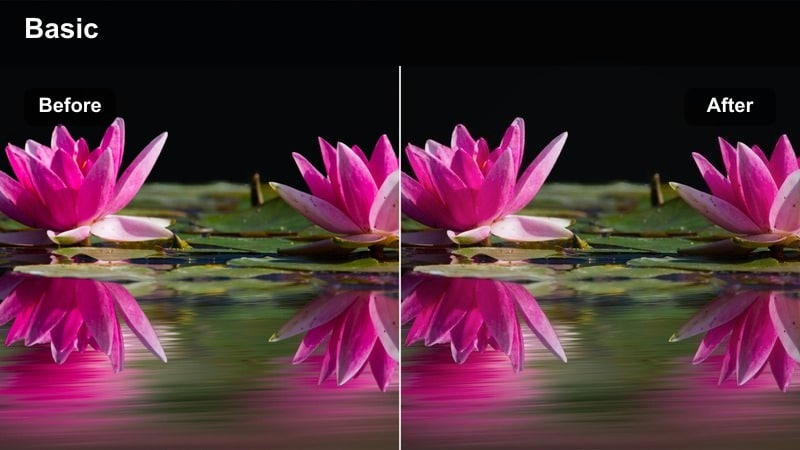
- Effect look: Neutral color balance with snappy contrast that makes concrete, glass, and metal stand out.
- Best for: Bike commutes, e-scooter POV, and time-lapses weaving through daytime traffic.
- Editing tip: Add a tiny bit of saturation to reds and yellows so cars and traffic lights guide the viewers eye.
Urban Contrast Commute is a clean, realistic filter that enhances the structure of city environments without over-stylizing them. On GoPro Hero 13 handlebar or helmet POV clips, it tightens contrast so buildings, road markings, and vehicles feel crisp and purposeful.
Once you drop this filter onto your timeline in Filmora, introduce a subtle saturation boost to reds and yellows so brake lights, buses, and crosswalk signals naturally grab attention. Pair the grade with speed ramps and a touch of motion blur to turn everyday commutes into dynamic, story-driven sequences that still look true to life.
Mono Steel Asphalt
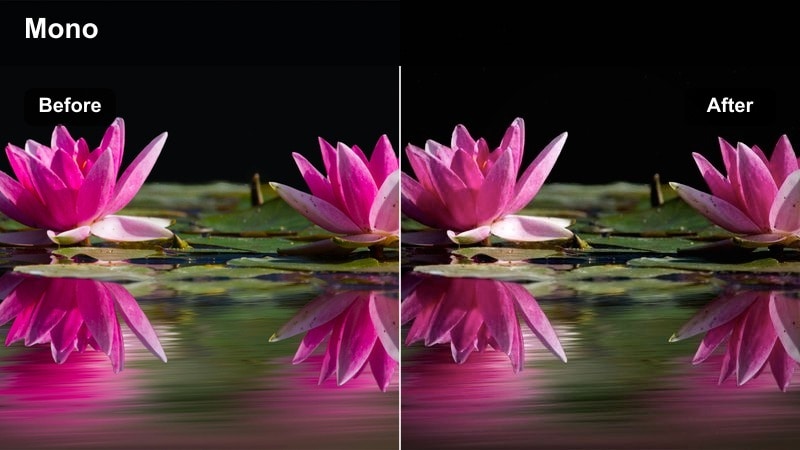
- Effect look: High-contrast monochrome with metallic midtones and rich street texture.
- Best for: Skate sessions, parkour lines, and rainy city rides where mood matters more than color.
- Editing tip: Increase local contrast and clarity to bring out wet pavement, rails, and edge detail.
Mono Steel Asphalt strips color away and focuses on shape, contrast, and texture, turning GoPro Hero 13 city clips into classic black-and-white sequences. It emphasizes glistening asphalt, brick, and metal, making every grind, hop, or flip feel more dramatic.
In Filmora, combine this monochrome filter with boosted clarity and local contrast to draw attention to reflections and small surface details. A mild vignette and careful framing around rails, ledges, and puddles will help transform raw street footage into moody, timeless action reels.
Helmet Cam Heat and High-Speed POV
Adrenaline Rush Pop
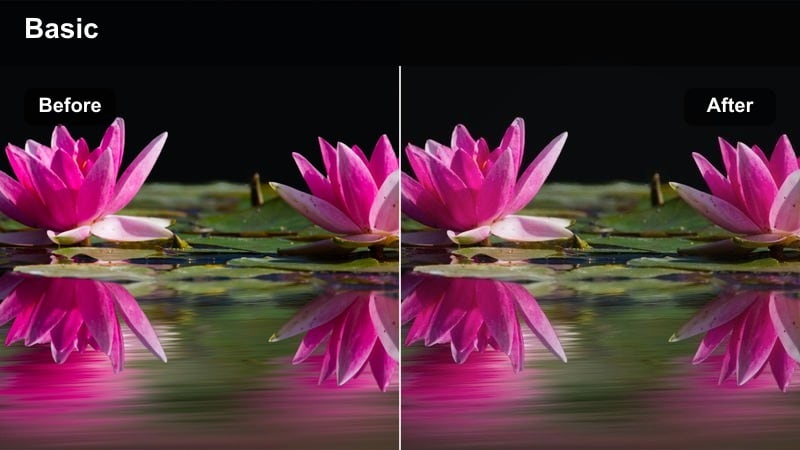
- Effect look: High-contrast, saturated tones that make speed and motion feel intense.
- Best for: Motocross, downhill mountain biking, and snowmobile POV clips.
- Editing tip: Use light motion blur or frame blending in fast cuts to keep the aggressive color from feeling too chaotic.
Adrenaline Rush Pop is all about impact, turning GoPro Hero 13 helmet POV footage into bold, high-saturation visuals that scream speed. The strong contrast and vivid color make jumps, berms, and roosted corners feel larger than life.
In Filmora, stack this filter on your fastest sections, then add light motion blur or frame blending during rapid cuts so the intense palette never feels overwhelming. Sync the most color-boosted moments with landings, revs, and hits in the soundtrack to create edits that feel tight and high-energy from start to finish.
Dust Trail Cinematic
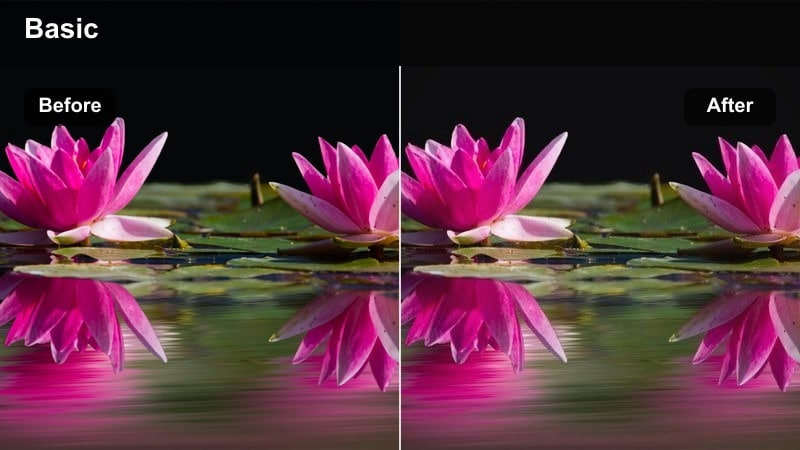
- Effect look: Muted highlights, warm mids, and a subtle fade for a filmic desert or dirt feel.
- Best for: Rally driving, ATV runs, and enduro motos through sand, gravel, and loose dirt.
- Editing tip: Lean into the fade by lowering blacks slightly, then add gentle highlight roll-off to avoid harsh clipping.
Dust Trail Cinematic dials back harsh contrast and bright whites, giving your GoPro Hero 13 dirt and desert clips a filmic, slightly vintage vibe. Warm midtones and a subtle fade turn dust clouds and long trails into story elements instead of just background mess.
When editing in Filmora, embrace the faded look by easing blacks down and using curves to create smooth highlight roll-off. Hold a little longer on shots where dust hangs in the air, and let the warmer color palette combine with ambient engine noise to build tension and atmosphere between big hits and overtakes.
Steep Drop Focus
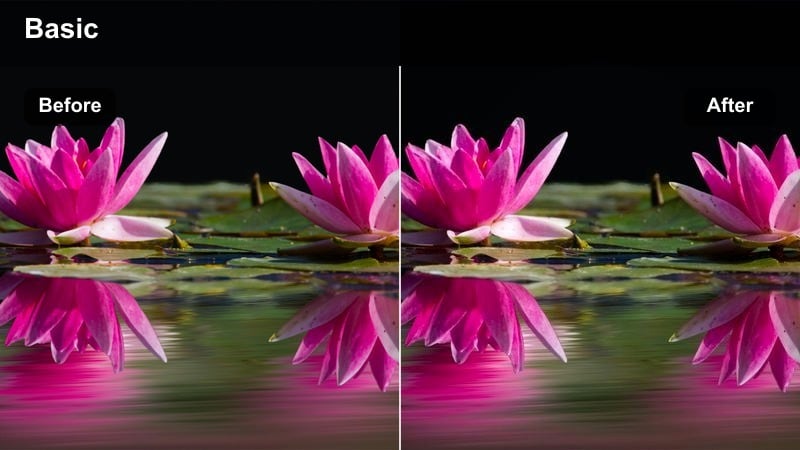
- Effect look: Balanced color with a subtle vignette and midtone push to keep the path or line emphasized.
- Best for: Cliff drops, technical descents, and narrow ridgeline POVs where the line is everything.
- Editing tip: Combine with a slight warp stabilization and crop so the center of the frame stays locked on your landing zone.
Steep Drop Focus is built to guide viewers eyes straight down the line, using balanced color and a light vignette to highlight the center of your GoPro Hero 13 frame. It works especially well on technical descents and exposed ridges where reading the terrain is part of the thrill.
In Filmora, pair this filter with gentle stabilization and a small crop so your landing zone or chosen line remains rock-solid in the middle of the shot. Cut into these POV clips from wider angles of the feature to build context, then let the focused grading pull viewers into the commitment and precision of the move.
Tips for Using Gopro Hero 13 Filters in Filmora
- Shoot GoPro Hero 13 footage in a flat or log-like profile when possible so these filters and LUT-style looks have more dynamic range to work with.
- Lock white balance instead of using auto when you know the lighting will stay consistent, such as a long downhill run or surf session.
- Use higher frame rates for fast action, then slow key moments in the edit so your cinematic color work is easier to appreciate.
- Group clips by scene type, like trails, water, or city, and apply the same filter preset across the group for visual consistency.
- Keep an eye on skin tones, especially with strong teal or warm filters, and adjust saturation or hue slightly if faces look off.
- Add subtle motion blur or speed ramping along with your filter choice to make GoPro Hero 13 POV shots feel smoother and more intentional.
- Stabilize your clips before heavy color work to avoid sharpening and noise artifacts in shaky footage.
- Use masks and keyframes to apply a filter slightly stronger in the background than on your subject when mixed lighting gets messy.
With the right GoPro Hero 13 LUT-style filters, your raw action footage can jump from basic to cinematic in a few clicks, whether you are charging mountains, chasing waves, or weaving through city streets at night.
Load your latest adventure into Filmora, test these filters on a couple of standout clips, and then build a repeatable look that makes every new run, ride, or dive feel like part of the same epic story.
secure downloadNext: Best Sony ZV-E1 LUTs
