

 100% Security Verified | No Subscription Required | No Malware


 ChatGPT
 Perplexity
 Gemini
 Claude
 Grok
Grok
These Canon C200 film LUT-inspired filters are designed to give your footage a cinematic, filmic look inside Filmora, with balanced skin tones, smooth highlights, and rich Canon color science.
Whether you are shooting narrative films, branded content, or run-and-gun documentaries on the Canon C200, use these scene-based filter ideas as a blueprint for building your own film LUT style in Filmora.
In this article
Daylight Street Scenes with Canon C200
C200 Urban Soft Film
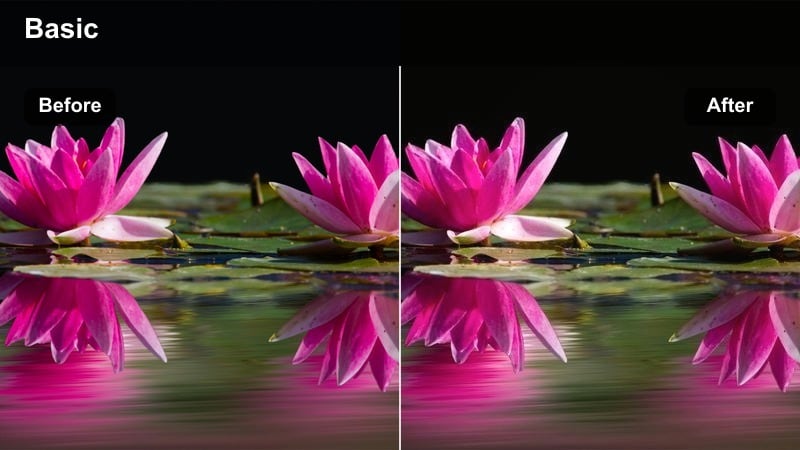
- Effect look: Soft contrast, slightly lifted blacks, and a gentle filmic roll-off in highlights for city exteriors shot on the Canon C200.
- Best for: Daytime street b-roll, handheld urban walks, and C200 documentary coverage with natural light.
- Editing tip: Dial back contrast slightly before adding the filter so Canon C200 highlights retain detail and avoid clipping in bright skies.
Use C200 Urban Soft Film when you want street footage to feel cinematic but still grounded in reality. In Filmora, start with a basic correction on your Canon Log 3 clips, then apply this filter to add gentle contrast, soften the roll-off in the highlights, and create pleasing, film-style blacks that hold detail in sidewalks, buildings, and skies.
This look works especially well for walk-and-talk vlog sequences and observational documentary b-roll, where you want the environment to feel soft and inviting rather than harsh. After applying the filter, refine midtones with curves, and if needed, slightly warm skin tones with HSL so faces stay natural against cooler street elements.
Speed up Canon C200 film looks with AI Color Matching
Filmoras AI color tools let you quickly match new Canon C200 clips to a reference shot, so you can build film-style LUT looks without spending hours keyframing. Use them to line up exposure and color across a sequence before you start layering creative film filters.
Import a favorite graded C200 frame, run AI color matching on your new footage, and then add the film looks above to give everything a cohesive, cinematic style with minimal manual tweaking.
 secure download

Preview cinematic Canon C200 filters in real time
Filmora lets you hover over filters to preview film-style looks on your Canon C200 footage instantly in the Viewer. This makes it easy to audition multiple cinematic styles without committing to heavy grading.
Test a few film-inspired filters on the same C200 clip, adjust intensity and basic color settings, and then save the combination as your own go-to film look preset.
secure downloadFine-tune Canon C200 color with Filmora HSL controls
Once you have a base film look on your Canon C200 footage, use Filmoras HSL controls to target specific hues like skin tones, skies, or neon lights. This is where you can really make your film LUT-style grades feel custom and dialed-in.
Push or pull saturation and luminance in selected color ranges to keep Canon skin tones natural while still giving your backgrounds a strong, stylized character.
secure downloadC200 City Contrast Film
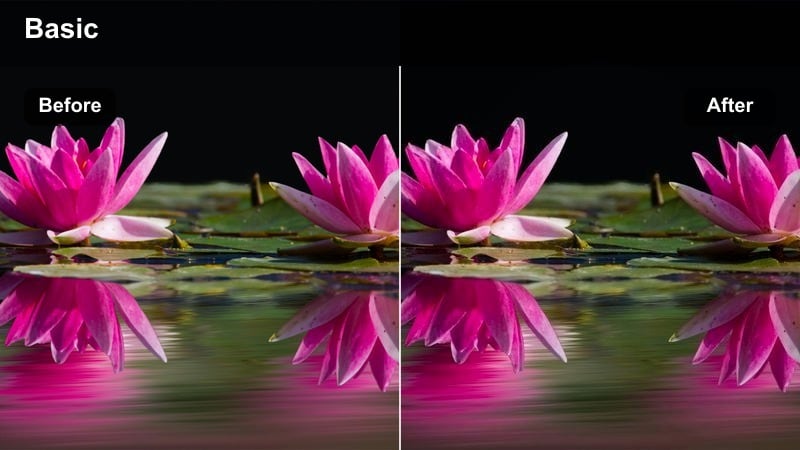
- Effect look: Punchy contrast with rich midtones and a subtle teal shadows shift, tuned for Canon C200 city blocks.
- Best for: High-energy street montages, skate sequences, and urban lifestyle ads shot on the C200.
- Editing tip: Lower saturation in the reds slightly so Canon C200 skin tones stay natural when you increase overall contrast.
C200 City Contrast Film is ideal for content that needs a bold, commercial-ready punch. In Filmora, apply this look to Canon C200 clips where you want deep yet detailed shadows, crisp midtones, and a modern teal shift in the darker areas to complement warm streetlights and skin.
After enabling the filter, refine it by pulling down red saturation and nudging orange hues toward a more natural tone. This keeps faces from going too electric while allowing signage, cars, and buildings to benefit from the heightened contrast and cinematic color separation.
C200 Muted Street Film
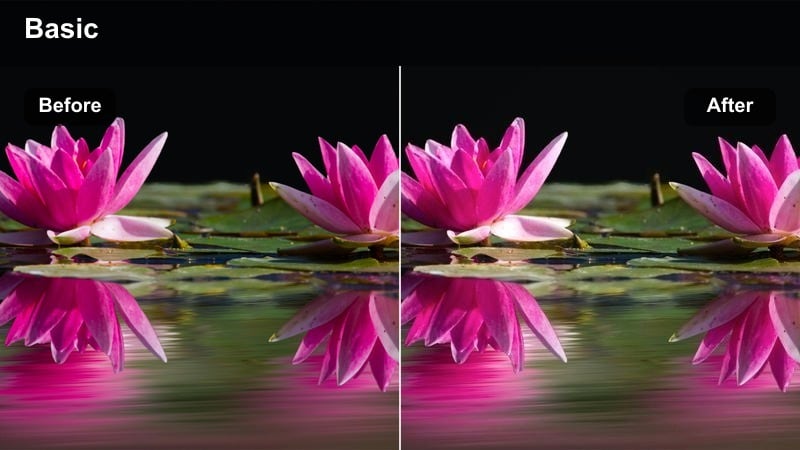
- Effect look: Desaturated, low-contrast street aesthetic with gentle warm skin tones for Canon C200 footage.
- Best for: Introspective city walks, travel vlogs, and moody C200 sequences where you want a subtle film look.
- Editing tip: Reduce global saturation first, then add selective warmth to skin using Filmoras HSL controls to keep faces alive in muted environments.
C200 Muted Street Film brings a quieter, more reflective tone to your urban visuals. In Filmora, start by pulling global saturation down, then apply the filter to level out strong colors and create a flatter, film-like palette that focuses attention on story rather than bright hues.
Use HSL to add a bit of warmth back into oranges and yellows so skin tones remain inviting against desaturated buildings and roads. This treatment is perfect for narrative sequences, contemplative voiceovers, or any Canon C200 street scene where mood and character matter more than color intensity.
Interior Dialogue and Narrative Scenes
C200 Soft Dialogue Film
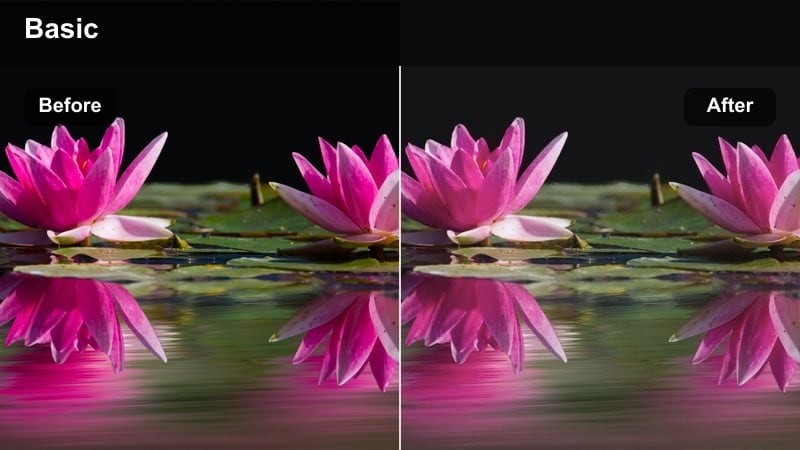
- Effect look: Low-contrast, creamy film look that prioritizes Canon C200 skin tones and soft interior light.
- Best for: Narrative dialogue scenes, interviews, and talking-head content shot indoors with the Canon C200.
- Editing tip: Match exposure between angles before applying the filter so your C200 A and B camera shots cut seamlessly.
C200 Soft Dialogue Film is tuned to keep faces flattering and interiors gentle, making it a great choice for interviews and scripted dialogue. In Filmora, get both camera angles balanced for exposure and white balance, then apply this filter to unify contrast and softly roll off highlights on cheeks and foreheads.
After the filter, fine-tune midtone brightness so eyes stay clear and engaging without pushing contrast too far. If you are cutting between multiple C200 cameras, save the final adjustment as a preset and apply it across the sequence to maintain a consistent, cinematic conversation look.
C200 Warm Room Film
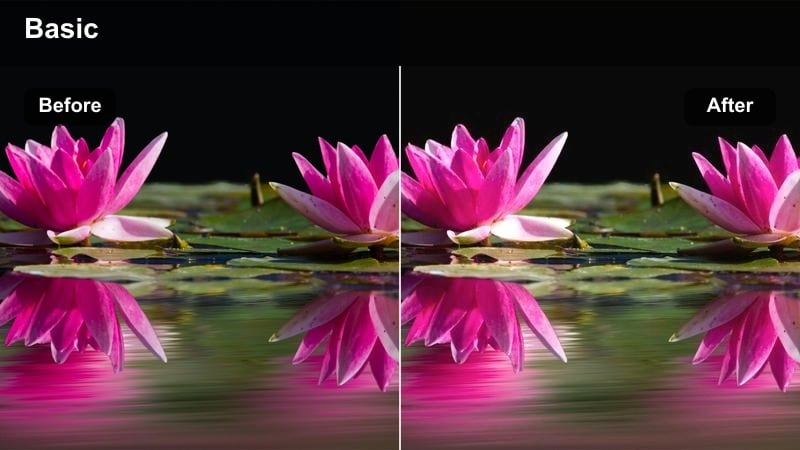
- Effect look: Warm, cozy film palette with lifted shadows and subtle halation-style glow for Canon C200 interiors.
- Best for: Cozy home scenes, character-driven shorts, and branded lifestyle spots shot with the C200.
- Editing tip: Use Filmoras vignette after applying the filter to gently darken corners and guide focus toward faces.
C200 Warm Room Film gives interior scenes a rich, inviting glow that feels like classic film. Apply it in Filmora to Canon C200 clips that feature warm lamps, window light, or candles, and it will slightly lift shadows while adding a pleasant warmth across the frame.
For extra focus, add a subtle vignette and reduce highlight sharpness a touch so bright areas bloom softly instead of appearing clinical. This look is well suited for lifestyle content and intimate narrative scenes, helping rooms feel cozy and cinematic without losing detail.
C200 Neutral Office Film
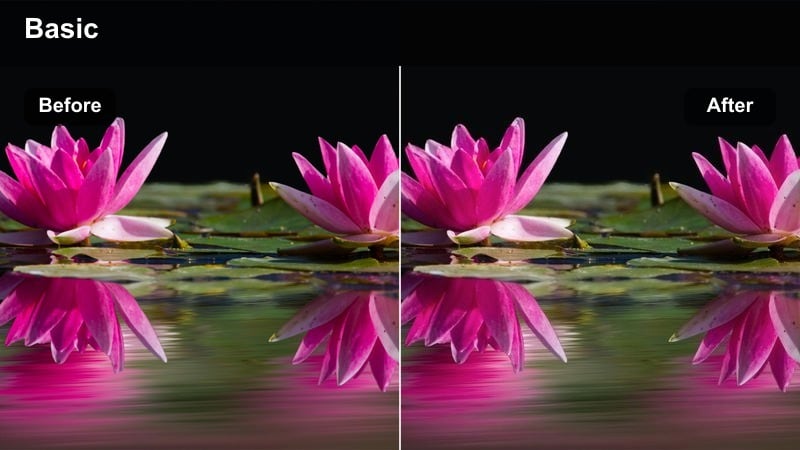
- Effect look: Clean, neutral film look with controlled contrast and subtle color separation suited for Canon C200 office scenes.
- Best for: Corporate interviews, office b-roll, and training videos captured on the C200.
- Editing tip: Use Filmoras color match tools to align different office locations, then add this neutral film filter as the final creative layer.
C200 Neutral Office Film is built for professional environments where color accuracy matters as much as style. In Filmora, match your Canon C200 shots from different rooms or days using color match, then apply this filter to introduce a gentle cinematic contrast and slightly more refined color separation.
Keep saturation controlled so brand colors and logos remain correct, and adjust overall brightness to make faces look fresh without blowing out screens or windows. This approach delivers office visuals that feel polished and filmic while staying perfectly usable for corporate and client work.
Golden Hour and Sunset Cinematics
C200 Golden Film Glow
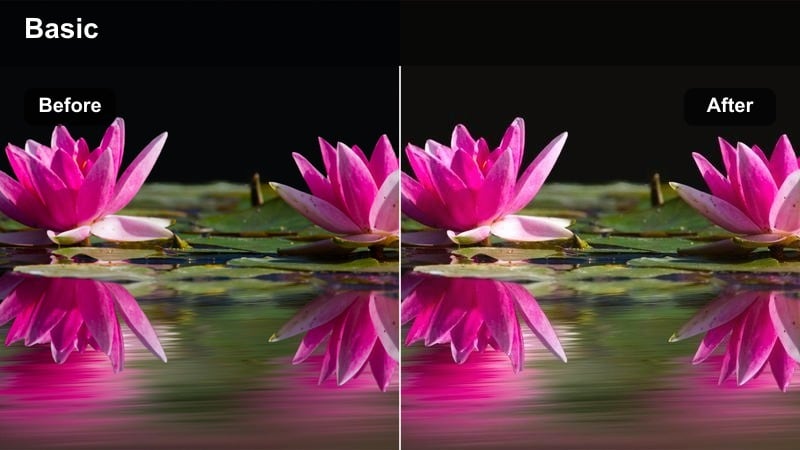
- Effect look: Rich golden highlights with softened contrast and a nostalgic film warmth tailored for Canon C200 sunset shots.
- Best for: Golden hour portraits, romantic walk sequences, and cinematic establishing shots on the C200.
- Editing tip: Expose slightly to the right in-camera with the C200, then pull highlights down in Filmora to keep the glow while retaining detail.
C200 Golden Film Glow amplifies the natural warmth of late afternoon and sunset light. After lightly correcting exposure in Filmora, apply this filter to Canon C200 golden hour footage to enrich warm tones, soften contrast, and create a smooth, filmic roll-off in the brightest parts of the sky.
Use curves to bring highlights down if they are too intense, and consider adding a mild diffusion or glow effect around the sun or windows. This will preserve your highlight detail while keeping the romantic, nostalgic feeling that makes golden hour footage so cinematic.
C200 Sunset Contrast Film
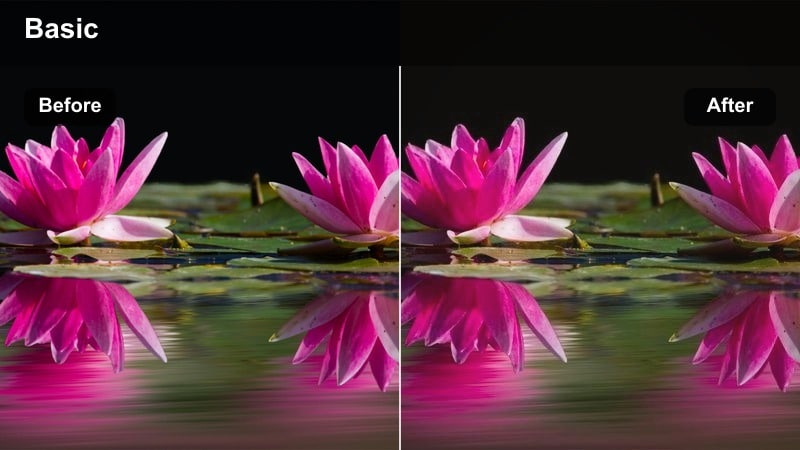
- Effect look: Deeper shadows, punchy color, and a slight filmic fade in the blacks for dramatic Canon C200 sunsets.
- Best for: Silhouettes, skyline shots, and dramatic outdoor sequences captured at dusk on the C200.
- Editing tip: Use Filmoras curves to gently raise the black point after applying the filter, keeping the film fade without losing shape.
C200 Sunset Contrast Film is designed to make your dusk sequences feel bold and dramatic. In Filmora, apply this filter to deepen shadows and enhance color separation, then slightly lift the black point with curves so dark areas retain a delicate film-like fade instead of going completely solid.
This look pairs especially well with silhouette shots where you expose for the sky on the Canon C200. If midtones start to feel too aggressive, lower saturation slightly to keep your skyline, clouds, and foreground shapes rich but not overcooked.
C200 Soft Pastel Sunset
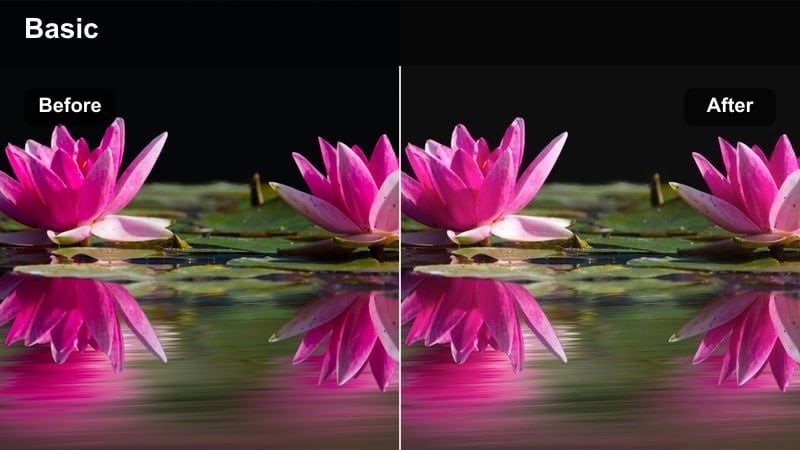
- Effect look: Pastel film palette with softened hues and low saturation tuned for Canon C200 blue-hour and late sunset shots.
- Best for: Blue-hour cityscapes, reflective emotional moments, and soft romantic visuals on the C200.
- Editing tip: Pull magenta out of the shadows slightly so the pastel look stays clean and Canon C200 noise remains subtle.
C200 Soft Pastel Sunset is ideal for dreamy, introspective scenes where harsh contrast would break the mood. In Filmora, use this filter on Canon C200 shots captured at blue hour to gently desaturate strong colors, soften transitions between tones, and produce that airy pastel quality associated with certain film stocks.
Pay attention to shadow color; if magentas creep in, adjust the color wheels or HSL sliders to neutralize them for a cleaner result. A light noise reduction pass before grading can help keep skies and flat walls smooth so the pastel aesthetic feels intentional rather than noisy.
Night City and Neon Canon C200 Shots
C200 Neon Film Crush
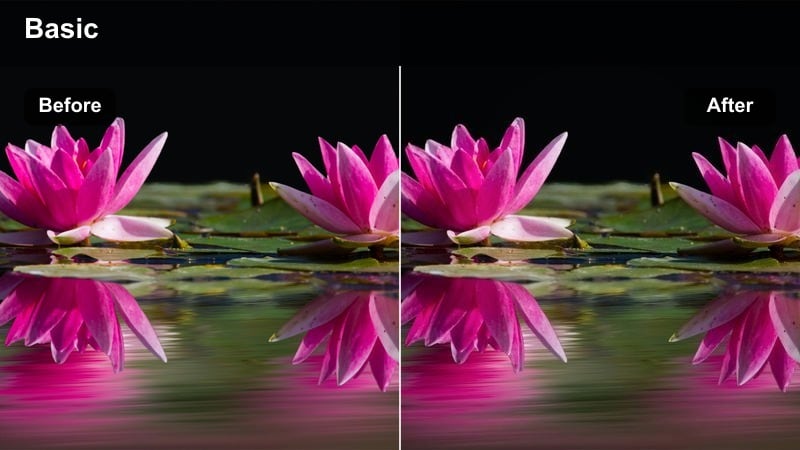
- Effect look: Crushed blacks, saturated neon colors, and cinematic contrast optimized for Canon C200 night streets.
- Best for: Neon signs, nightlife sequences, and stylized urban night b-roll shot on the C200.
- Editing tip: Use Filmoras HSL sliders to protect skin tones by reducing saturation in magenta and boosting it in cyan and blue for the lights.
C200 Neon Film Crush leans into high contrast and vivid color to make night city visuals pop. Apply it in Filmora to Canon C200 clips featuring neon signs, reflections, and wet streets, and you will get deep blacks with strong, saturated cyan and magenta highlights that feel instantly cinematic.
Because this look is intense, fine-tune HSL to tone down magenta and red saturation around faces while pushing blues and cyans for the signage and ambient light. If shadows feel too heavy, slightly raise the shadow slider instead of reducing overall contrast, preserving the night mood while regaining detail where needed.
C200 Noir Street Film
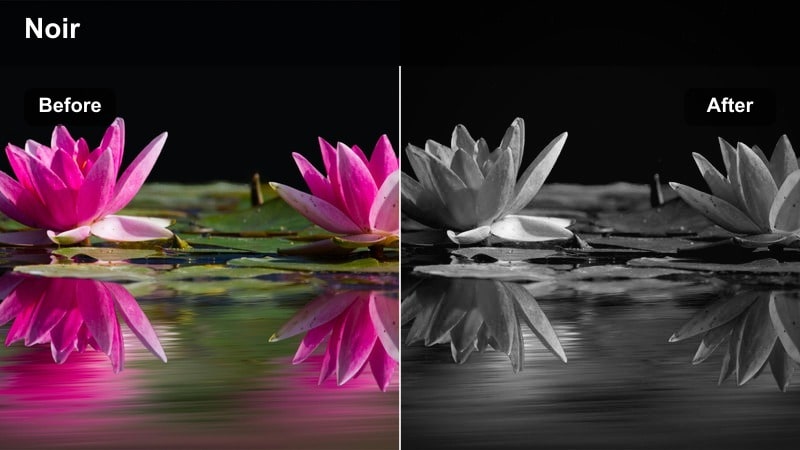
- Effect look: High-contrast, near-monochrome film style with selective color retained in key highlights for Canon C200 night scenes.
- Best for: Neo-noir short films, dramatic alleyway scenes, and moody narrative work with the C200.
- Editing tip: Desaturate globally, then bring a touch of color back into yellows and reds to keep practical lights interesting.
C200 Noir Street Film channels classic noir aesthetics while taking advantage of the Canon C200s low-light performance. In Filmora, start by dropping global saturation, then apply this filter to push contrast and create deep blacks, leaving just a hint of color in streetlights or signage.
Use vignettes and shadow controls to guide attention toward your subject, typically placed under a pool of light or in front of a lit doorway. Keeping most of the frame close to monochrome heightens drama, while the small remaining color accents provide enough visual interest to feel modern and cinematic.
C200 Clean Night Film
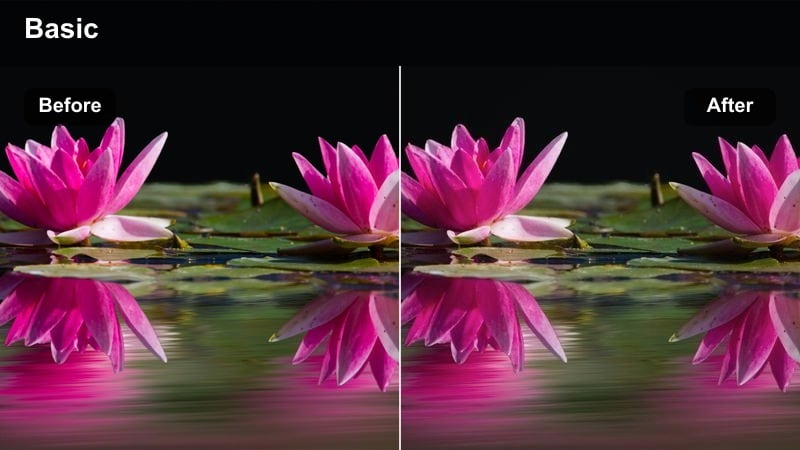
- Effect look: Balanced contrast and controlled saturation for Canon C200 night cityscapes where you want clarity and a subtle film feel.
- Best for: Nighttime establishing shots, city timelapses, and corporate evening events shot on the C200.
- Editing tip: Use Filmoras color wheels to pull any green tint out of shadows so your night scenes feel neutral and professional.
C200 Clean Night Film is a more restrained option for night footage when you need clarity and professionalism. In Filmora, apply this look to Canon C200 skyline shots or event coverage to add gentle film-like contrast and color shaping without going into stylized neon territory.
Watch for unwanted green or magenta color casts in the shadows and midtones, and correct them with color wheels for a neutral base. A touch of noise reduction before the filter can help keep skies and dark backgrounds looking smooth, while sharpening adjusts fine detail in buildings and faces as needed.
Tips for Using Canon C200 Film Luts Filters in Filmora
- Shoot Canon C200 footage in Canon Log 2 or Log 3 whenever possible so Filmora filters have enough dynamic range to create strong film-style looks.
- Perform basic exposure and white-balance correction in Filmora before adding creative filters, especially for Canon C200 clips with important skin tones.
- Create and save separate Filmora presets for daylight, interiors, golden hour, and night so your Canon C200 film LUT style stays consistent yet scene-appropriate.
- When pushing contrast on C200 material, monitor scopes in Filmora to avoid clipping highlights or crushing shadows beyond recovery.
- Use HSL and color wheels to protect Canon C200 skin tones while still stylizing backgrounds with stronger color shifts.
- Apply light noise reduction to higher-ISO Canon C200 clips before heavy grading so film-style filters do not exaggerate grain in dark areas.
- Export a short graded sample and view it on multiple screens to confirm your Canon C200 film look holds up outside your edit environment.
Canon C200 film LUT-inspired filters in Filmora can give your projects a polished, cinematic feel without requiring a complex color grading pipeline. By combining these looks with basic exposure and white-balance correction, your C200 footage can quickly take on a filmic character.
Use the scene-based examples above as starting points, then refine them into custom presets that match your brand or storytelling style. Over time, you can build a consistent Canon C200 film look that speeds up every edit while keeping your visuals cohesive from project to project.
secure downloadNext: Canon R6 Wedding LUTS
