

 100% Security Verified | No Subscription Required | No Malware


 ChatGPT
 Perplexity
 Gemini
 Claude
 Grok
Grok
These Canon R5 travel LUT-style filters are tailored for creators who want cinematic color without complicated grading, whether you are filming handheld on city streets or hiking with your camera in a backpack.
Use these Filmora filters as a fast starting point for your Canon R5 travel footage, then fine-tune exposure and color to match each destination and mood.
In this article
Golden Hour Escapes
Sunset Glow Boulevard
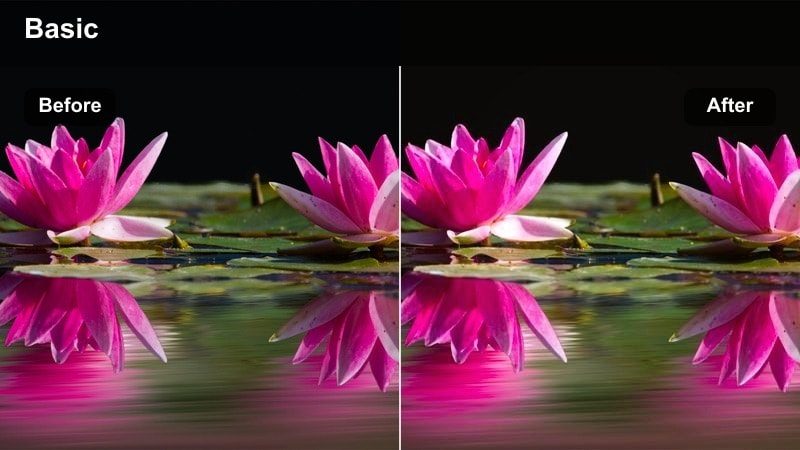
- Effect look: Warm cinematic glow that deepens oranges and softens highlights for late afternoon city walks.
- Best for: Golden hour street scenes, waterfront promenades, and rooftop views shot on the Canon R5.
- Editing tip: Lower the intensity to around 60 percent and pull back saturation on reds to avoid oversaturated skin tones.
Sunset Glow Boulevard wraps your Canon R5 city footage in a warm, cinematic glow that flatters skin while making sky and building highlights look richer. It slightly deepens oranges and yellows, helping streetlights, windows, and reflections feel like they are catching the very last light of the day.
In Filmora, apply this filter to your golden hour B-roll first, then dial back the effect strength until skin tones look natural on close-ups. Combine it with subtle HSL adjustments to separate oranges in the sky from those in faces, and use keyframes to slowly increase the glow as you move from shadowy streets to open rooftops.
Speed up Canon R5 travel grading with AI color tools
Filmora s AI color tools help match your Canon R5 travel clips across different lighting conditions, from harsh midday sun to tungsten hostel lamps. Once you like how one shot looks with Sunset Glow Boulevard or any other filter, you can use it as your visual reference.
Run AI color matching on that hero shot, then apply the matched look to the rest of your Canon R5 clips so your entire travel sequence keeps consistent contrast and color in just a few clicks.
 secure download

Preview travel filters on real Canon R5 footage
Import a short montage of Canon R5 clips city walks, airport transitions, and scenic views then cycle through these Filmora travel filters to see how each one reshapes color and mood. Seeing them side by side makes it easier to pick one core look for each part of your trip.
Use split-screen or before-and-after preview modes to compare graded versus original Canon R5 footage so you can balance intensity and color shifts before committing to a style.
secure download1000 plus video filters and 3D LUTs
Beyond these Canon R5 travel looks, Filmora includes a large library of filters and 3D LUTs you can stack, blend, and customize. This gives you a fast way to test multiple cinematic styles on the same clip without manual color grading.
Combine a base conversion LUT for Canon R5 footage with a Filmora creative filter on top, then adjust opacity until skin tones stay natural and your travel footage gets a distinctive signature look.
secure downloadAmber Coastline Trails
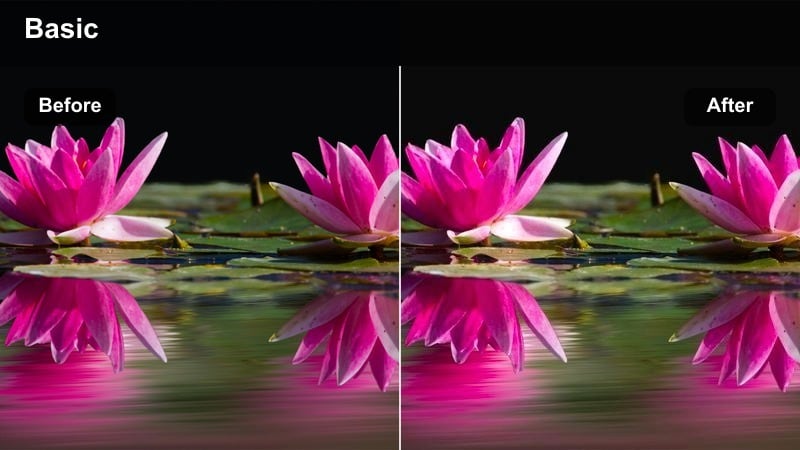
- Effect look: Soft amber toning with gentle contrast that adds depth to coastal horizons.
- Best for: Canon R5 clips of seaside promenades, piers, and cliffside paths during sunset.
- Editing tip: Add a slight vignette and reduce clarity to emphasize silhouettes against the glowing horizon.
Amber Coastline Trails adds a warm amber cast that flatters ocean sunsets and sun-kissed cliffs without crushing detail in the shadows. The gentle contrast helps separate foreground walkers and railings from the background sea, keeping your Canon R5 silhouettes readable even when shooting into the sun.
In Filmora, combine this filter with a soft vignette to draw the eye toward your subject and the brightest part of the horizon. Slightly lower clarity or sharpness to smooth waves and distant buildings, creating a painterly, nostalgic feel that works well for outro shots or reflective voiceovers.
Hazy City Sundown
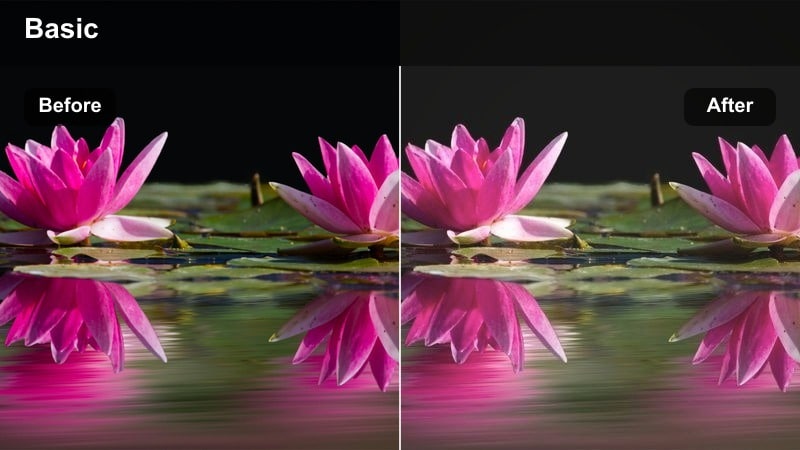
- Effect look: Muted contrast with lifted blacks and pastel highlights for a dreamy sundown cityscape.
- Best for: Canon R5 footage of skyline views, balcony scenes, and elevated overlooks during the last light.
- Editing tip: Increase local contrast using Filmora s sharpen and clarity sliders while keeping global contrast soft.
Hazy City Sundown turns your Canon R5 skyline shots into soft, pastel city portraits with lifted blacks and dreamy highlights. The filter de-emphasizes harsh contrast, which is perfect for hazy evenings and distant cityscapes where you want atmosphere more than crisp edges.
In Filmora, keep the overall contrast low but add a touch of local clarity or sharpening on buildings to prevent the image from feeling muddy. You can use masks to target the skyline while leaving the sky and foreground softer, preserving a cinematic haze that still looks sharp on larger displays.
Vibrant City Breaks
Metro Neon Rush
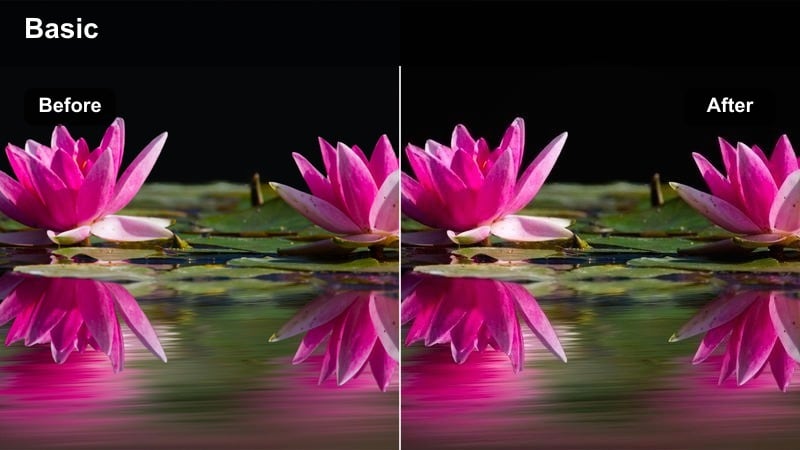
- Effect look: Punchy contrast and vivid colors with emphasis on blues and magentas for nightlife energy.
- Best for: Canon R5 night street footage, subway platforms, and neon signs in busy downtown districts.
- Editing tip: Lift shadows slightly to recover details in dark corners while keeping midtones rich.
Metro Neon Rush is tuned for Canon R5 night footage, amplifying blues and magentas to make neon signs, storefronts, and billboards pop. The strong contrast gives your city B-roll a high-energy, music-video vibe while still preserving enough shadow detail to see movement in the streets.
In Filmora, apply this filter to your busiest downtown sequences, then raise shadows just enough to reveal people and textures without flattening the look. Pair it with noise reduction on darker areas and subtle motion blur effects on passing cars or trains to sell the sense of speed and nightlife energy.
Old Town Color Walk
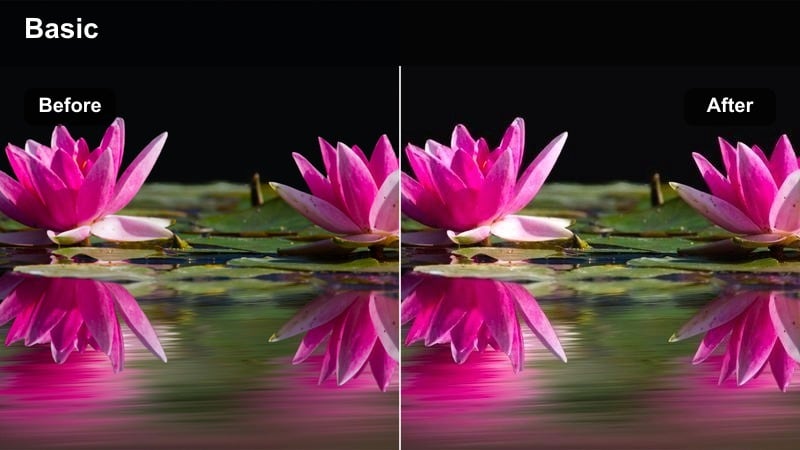
- Effect look: Balanced color with gentle warmth and boosted micro-contrast for textured streets.
- Best for: Canon R5 travel logs through historic alleys, markets, and plazas in daylight.
- Editing tip: Lower saturation slightly and rely on contrast and sharpness for a more cinematic documentary feel.
Old Town Color Walk keeps colors natural but adds a touch of warmth and micro-contrast to bring out cobblestones, bricks, and weathered paint. It is ideal for Canon R5 daytime walks through historic districts where you want to highlight architecture and street details without oversaturating the image.
In Filmora, slightly reduce overall saturation after applying the filter, then increase sharpness and contrast just enough to define edges. Add a gentle vignette and slower cuts in the edit to lean into a documentary-style look that feels intentional and timeless, perfect for voiceover narration or walking tours.
Urban Commuter Drift
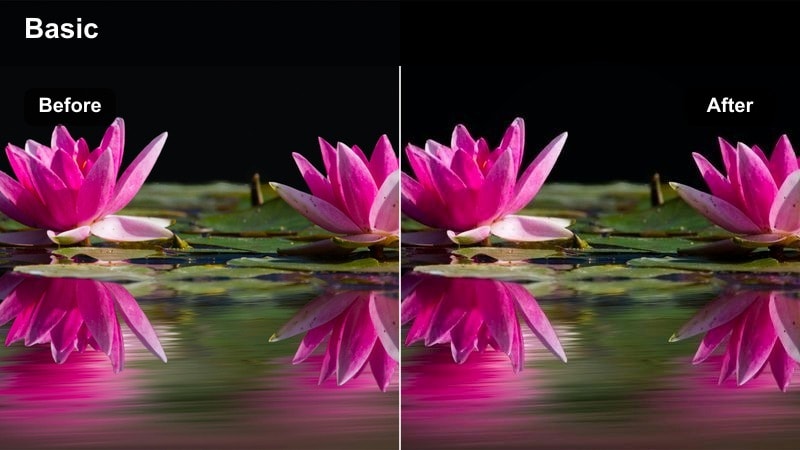
- Effect look: Cooler tones with clean contrast aimed at modern architecture and transit hubs.
- Best for: Canon R5 clips of trains, trams, glass buildings, and airport transitions.
- Editing tip: Combine this filter with a subtle motion blur effect on B-roll to emphasize movement and direction.
Urban Commuter Drift shifts your Canon R5 footage toward cool, clean tones that suit glass, steel, and concrete environments. The filter emphasizes straight lines and reflections in modern transit hubs, helping platforms, escalators, and skyline backdrops look sleek and minimal.
In Filmora, set your white balance slightly cool before applying the filter, then add directional blur or speed ramps to emphasize the flow of commuters and vehicles. Use color wheels to nudge shadows toward teal and highlights toward neutral white, creating a cohesive, techy aesthetic across airport, metro, and train sequences.
Mountain and Road Journeys
Alpine Road Journal
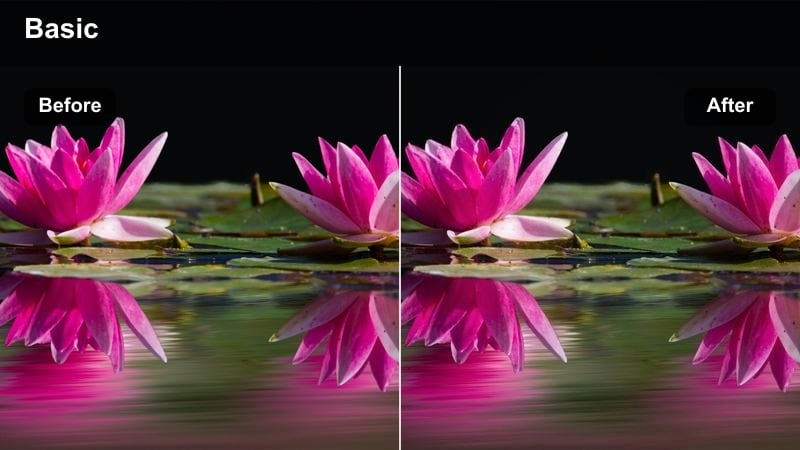
- Effect look: Clean contrast with crisp blues and greens that emphasize distant peaks and valleys.
- Best for: Canon R5 car window shots, mountain passes, and lookout stops on clear days.
- Editing tip: Use Filmora keyframes to slowly increase filter intensity as the landscape opens up for a cinematic reveal.
Alpine Road Journal brightens blues and greens while keeping whites clean, giving your Canon R5 mountain footage a fresh, high-altitude feel. It works particularly well on roadside pull-offs and drone-style overlooks where you want deep skies, clear ridgelines, and visible detail in trees and rocks.
In Filmora, use keyframes to ramp up the filter intensity as you emerge from tunnels or forests into open viewpoints, creating a satisfying reveal. Lower highlights slightly after applying the filter to protect cloud detail, and add a subtle tilt-shift or blur to foreground elements to emphasize the vast scale of the landscape.
Misty Ridge Hiker
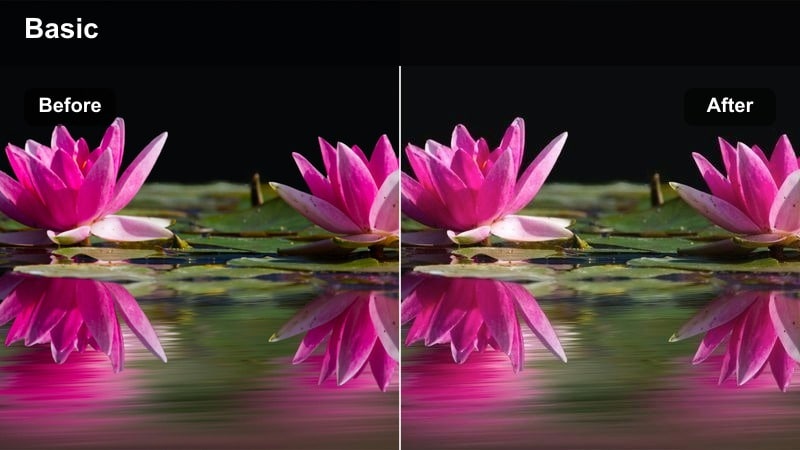
- Effect look: Soft low-contrast look with cool haze in shadows that complements foggy mornings.
- Best for: Canon R5 clips on overcast trails, ridge walks, and early start hikes with low visibility.
- Editing tip: Add a small clarity boost on midtones only to bring back texture in jackets and backpacks while keeping the background soft.
Misty Ridge Hiker leans into cool tones and low contrast to capture the quiet mood of foggy mornings and overcast treks. The filter softens distant hills and valleys, letting your Canon R5 footage feel cinematic and atmospheric instead of flat and gray.
In Filmora, use this look on wide establishing shots and then punch in on mid-shots of your hiker for emotional beats. Apply a modest clarity boost to midtones so clothing, gear, and raindrops retain detail, while keeping backgrounds hazy to preserve depth and a sense of isolation on the trail.
Desert Highway Serenade
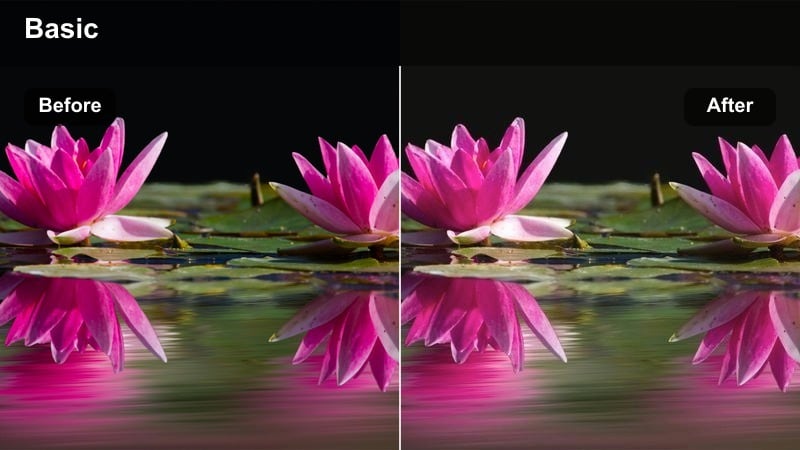
- Effect look: Warm, slightly faded tones with gentle contrast that flatter open, sun-bleached landscapes.
- Best for: Canon R5 highway drives, roadside stops, and wide arid plains under strong sunlight.
- Editing tip: Reduce overall saturation by a small amount and rely on selective color boosts for the sky or road markings.
Desert Highway Serenade adds a warm, slightly faded look that suits bright, sun-bleached scenes and long stretches of asphalt. It tames harsh midday light in Canon R5 clips by softening contrast and giving the image a nostalgic, road-movie character.
In Filmora, gently pull back overall saturation after applying the filter, then selectively boost blues in the sky or yellows in road lines to create visual anchors. Combine the look with slow push-ins, lens flare overlays, or time-lapse sequences to build dreamy montages of endless road trips and desert vistas.
Night and Airport Transitions
Terminal Calm Noir
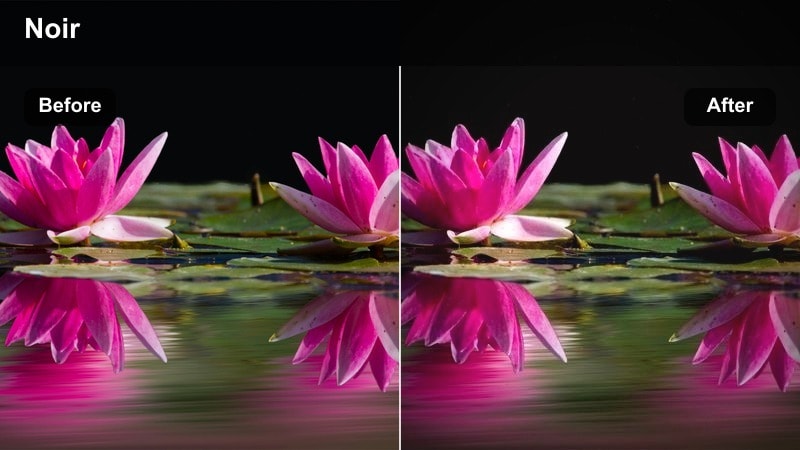
- Effect look: Soft cinematic fade with slightly desaturated colors and cool shadows for quiet terminals.
- Best for: Canon R5 airport lounges, boarding gates, and late-night layover transitions.
- Editing tip: Add a slow zoom effect to static shots to create a more immersive, reflective travel mood.
Terminal Calm Noir cools down shadows and gently desaturates colors to emphasize the quiet atmosphere of late-night airports. Your Canon R5 shots of waiting areas, boarding lines, and runway views gain a contemplative, cinematic tone without looking overly stylized.
In Filmora, combine this filter with slow zooms or subtle push-ins on static tripod shots to keep visual interest during voiceovers or time-passing sequences. Slightly lift blacks so reflections in windows and polished floors look soft and filmic, turning otherwise empty spaces into mood-driven transition scenes.
City Lights Arrival
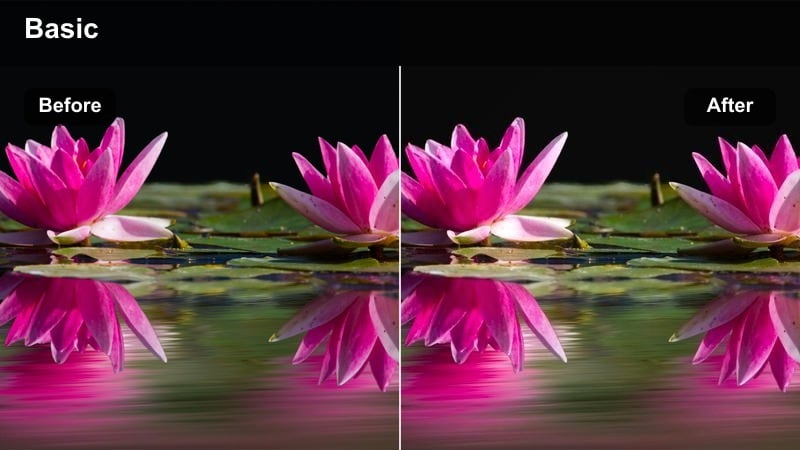
- Effect look: Vibrant city glow with lifted shadows and saturated warm highlights for arrival sequences.
- Best for: Canon R5 shots from airplane windows, taxi rides, and first glimpses of a city at night.
- Editing tip: Apply a slight film grain overlay after this filter to make bokeh and light streaks feel more organic.
City Lights Arrival is designed for that first glimpse of a new city after dark, adding a rich glow to warm highlights and slightly lifting shadows so the urban grid remains visible. It makes Canon R5 window shots from planes, taxis, and trains feel exciting and inviting rather than dull or noisy.
In Filmora, apply the filter, then add a soft film grain or texture overlay to smooth out digital noise and enhance bokeh. Use gentle stabilization on handheld clips and consider reducing sharpness a touch so distant lights and reflections look dreamy instead of harsh, especially when posting to social platforms.
Midnight Hostel Chill
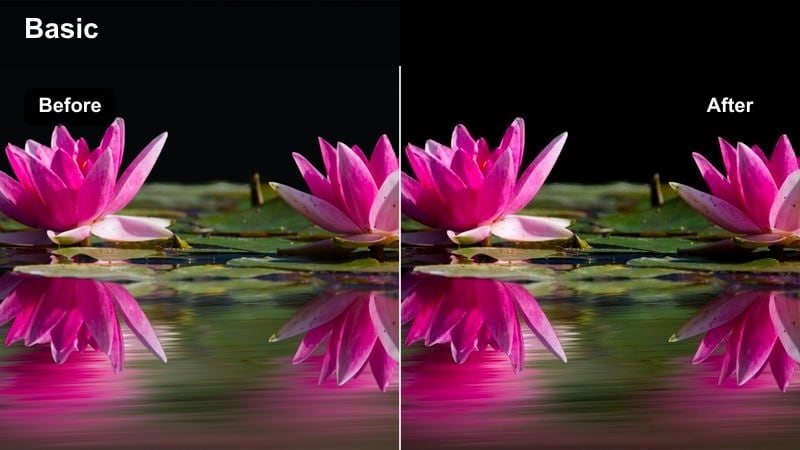
- Effect look: Low-contrast, slightly cool filter with gentle highlight roll-off for dim interiors.
- Best for: Canon R5 handheld clips in hostels, small hotel rooms, and late-night work sessions on the road.
- Editing tip: Raise exposure just enough for faces to be clear, then keep contrast low to hide messy backgrounds.
Midnight Hostel Chill calms down harsh mixed lighting in small rooms, lowering contrast and cooling tones for a relaxed, late-night vibe. It helps Canon R5 handheld shots of beds, desks, and luggage corners feel cozy and intentional instead of cluttered and noisy.
In Filmora, nudge exposure up until faces and laptop screens are clearly visible, then avoid pushing contrast too far so background objects stay soft. Add a light vignette and, if needed, a background blur or depth-of-field effect so the viewer s focus stays on your subject winding down, editing, or journaling about the day.
Tips for Using Canon R5 Travel Luts Filters in Filmora
- Shoot with a slightly flatter picture profile on your Canon R5 so Filmora travel filters have more latitude to shape contrast and color.
- Pick one main filter for each location or chapter of your trip to keep your travel vlog visually consistent and easy to follow.
- Always correct exposure and white balance in Filmora before adjusting filter intensity for the cleanest, most natural results.
- Use AI color matching to quickly sync the look of clips shot in different lighting while keeping your chosen Canon R5 filter as the base style.
- Test your graded sequence on both a phone and a laptop to make sure contrast, saturation, and skin tones hold up across screens.
- Save custom presets that combine filters, LUTs, and manual tweaks so you can reuse your favorite Canon R5 travel looks on future trips.
- Mix subtle motion effects like slow zooms or speed ramps with these filters to turn simple B-roll into more cinematic transitions.
With these Canon R5 travel LUT-style filters in Filmora, you can turn raw trip footage into cohesive stories that feel polished and cinematic without deep color grading knowledge. Each look is tuned to common travel situations, from foggy ridges and desert highways to neon streets and quiet hostels.
Experiment with different filters for city, mountain, and night scenes, then refine intensity, exposure, and white balance to craft a signature travel style you can reuse from destination to destination. By combining Filmora s filters, AI tools, and your Canon R5, you can build professional-looking travel edits in a fraction of the time.
secure downloadNext: Canon R8 Vlog LUTS
