

 100% Security Verified | No Subscription Required | No Malware


 ChatGPT
 Perplexity
 Gemini
 Claude
 Grok
Grok
These Canon R6 cinematic LUT-style filters are designed for videographers and creators who want fast, filmic color straight out of Filmora without diving deep into complex grading tools.
Use these curated looks as a starting point for your Canon R6 footage, then fine-tune contrast, saturation, and tone curves to match your story, whether you are shooting documentaries, travel films, or narrative shorts.
In this article
Golden Hour Dramas and Warm Storytelling
R6 Warm Amber Drift
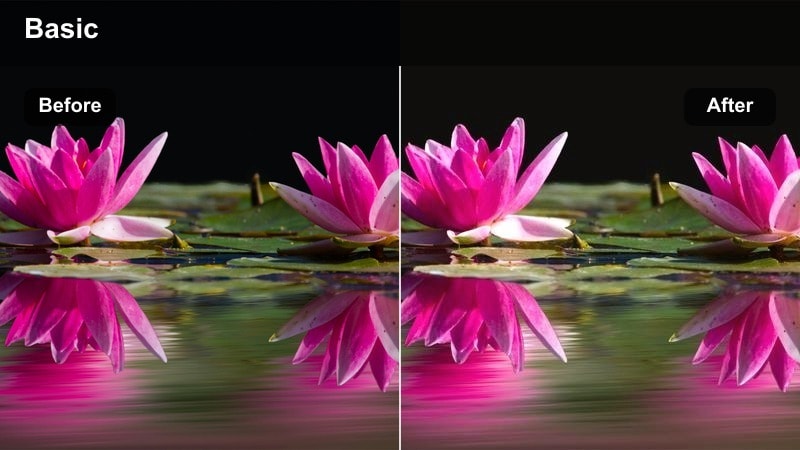
- Effect look: Soft, warm cinematic glow that lifts skin tones and adds a gentle amber roll-off in the highlights.
- Best for: Late-afternoon exteriors, warm interiors, character-driven scenes shot at golden hour on the Canon R6.
- Editing tip: Slightly lower overall saturation after applying the filter and add a subtle vignette to keep attention on faces.
R6 Warm Amber Drift wraps your Canon R6 footage in a soft, glowing warmth that flatters skin tones and emphasizes the magic of golden hour. Highlights take on a cinematic amber roll-off while midtones stay smooth, helping your scenes feel like they were shot on high-end cinema glass without complex grading.
In Filmora, apply this filter to your base-corrected Canon R6 clips, then gently pull back global saturation and add a light vignette to center focus on your subject. If the original light was already very warm, keep shadows a bit cooler and use HSL controls to tame reds in skin so the image feels rich and cinematic rather than overly orange.
Speed Up Canon R6 Grading with AI Color Tools
Filmora s AI-powered color tools help you turn flat Canon R6 footage into cinematic images in just a few clicks. Let AI handle tricky exposure and balance issues so your filters land on a cleaner, more consistent base.
Apply an AI color match across your timeline first, then layer these Canon R6 cinematic LUT-style filters on top to lock in a polished, unified look even when scenes were shot in mixed lighting.
 secure download

Preview Canon R6 Cinematic Filters in Real Time
With Filmora s real-time preview, you can audition multiple cinematic filters on your Canon R6 clips without waiting for heavy renders. Scrub through your timeline as you toggle between looks to see how each filter responds to motion, light shifts, and transitions.
Test several filters on the same shot, compare them side by side, and lock in the style that best supports your pacing and story mood before grading the full project.
secure download1000+ Video Filters and 3D LUTs
Filmora includes a large library of video filters and 3D LUTs you can stack with these Canon R6 looks for deeper customization. Start with a cinematic base filter, then mix in stylized overlays or subtle finishing LUTs to craft a unique signature grade.
For more advanced control, pair filters with HSL and curves, then save your finished combination as a reusable preset so every Canon R6 project starts from a proven, cinematic setup.
secure downloadR6 Soft Portra City
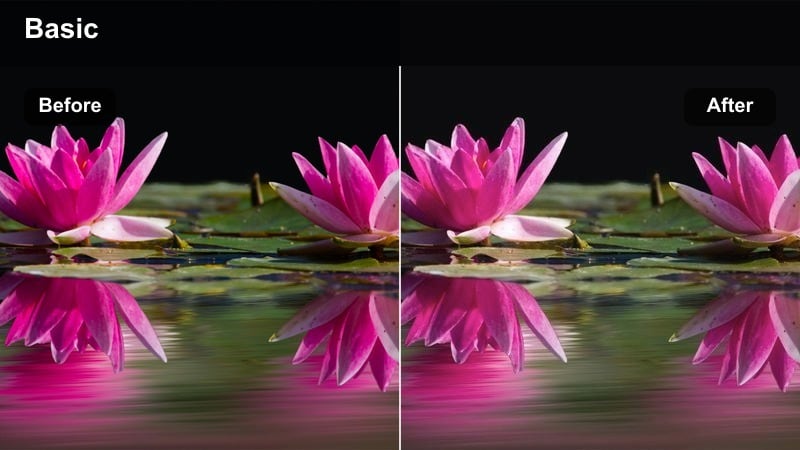
- Effect look: Muted contrast with creamy highlights and subtle pastel color shifts for a film-inspired finish.
- Best for: Romantic city walks, quiet street portraits, and lifestyle vlogs with natural daylight on the Canon R6.
- Editing tip: Lift the blacks slightly to keep the filmic softness and avoid crushing shadows, especially in backlit compositions.
R6 Soft Portra City gives your Canon R6 street footage a pastel, analog-inspired mood with gentle contrast and creamy highlights. Colors feel slightly washed and romantic rather than punchy, making it ideal for lifestyle sequences, fashion pieces, or vlogs that aim for a dreamy, relaxed atmosphere.
In Filmora, apply this filter after basic exposure and white-balance corrections, then raise black levels a touch to avoid hard clipping in shadows. If you need a moodier variant, subtly lower midtones and cool the shadows while protecting skin tones using the HSL panel so your subjects stay flattering within the softer palette.
R6 Golden Street Cinema
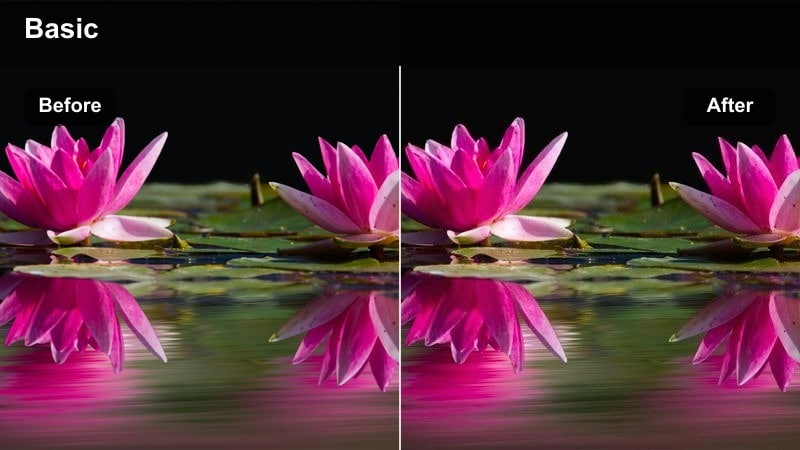
- Effect look: High-impact golden hues in the highlights with rich, balanced midtones for urban sunsets.
- Best for: City skyline B-roll, rooftop meetups, and street sequences filmed at sunset or sunrise on the Canon R6.
- Editing tip: Use keyframed exposure adjustments as the sun sets so the golden color stays consistent across your edit.
R6 Golden Street Cinema amplifies the warmth in your Canon R6 sunset and sunrise scenes, pushing highlights toward a vivid golden tone while preserving natural midtones. This creates striking city silhouettes, glowing streets, and dramatic B-roll that feels purposefully cinematic rather than just warm.
Inside Filmora, apply the filter, then watch your highlights and protect them with curves if the sky or streetlights start to clip. Slightly underexposing in camera and then gently raising exposure in post allows this filter to create a smooth highlight roll-off, especially when combined with keyframed exposure for shots captured as light rapidly changes.
Neon Nights and Urban Glow
R6 Neon Teal Magenta
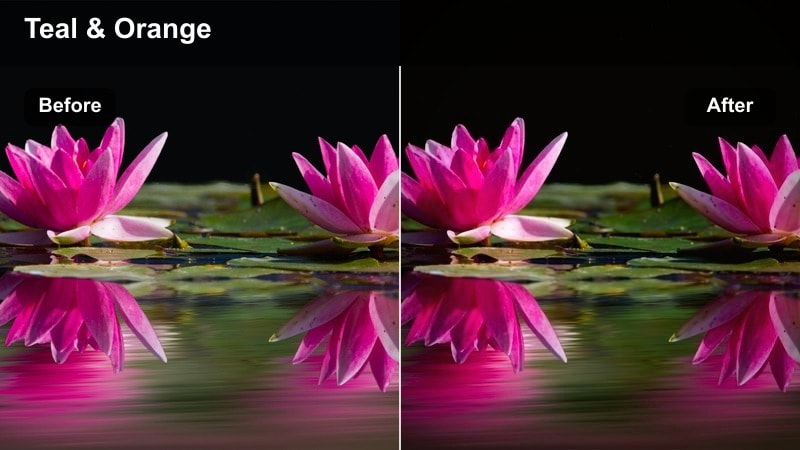
- Effect look: Bold teal shadows and magenta highlights for a stylized cyberpunk city aesthetic.
- Best for: Night streets, neon signs, rainy pavements, and handheld Canon R6 sequences under mixed city lights.
- Editing tip: Reduce luminance noise first, then apply the filter so saturated colors in dark areas stay clean and punchy.
R6 Neon Teal Magenta converts your Canon R6 night city shots into a stylized cyberpunk world by pushing shadows toward teal and highlights toward magenta. Wet streets, reflective windows, and neon signage all become strong color accents that define the frame and add a futuristic vibe.
In Filmora, denoise your footage before applying this filter so colored shadows remain smooth instead of grainy. Afterward, use HSL tools to fine-tune blues and magentas, especially around skin, and experiment with slight exposure adjustments to keep neon highlights vibrant while retaining detail in the darker areas of the scene.
R6 Midnight Cinema
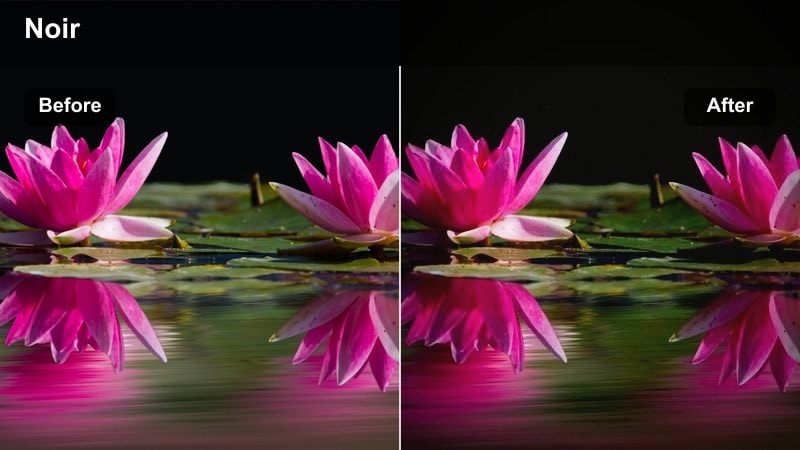
- Effect look: Deep contrast with cool shadows and subtle warm highlights for a noir-inspired night look.
- Best for: Urban alleyways, dimly lit streets, car parks, and night dialogue scenes using the Canon R6.
- Editing tip: Use a gentle film grain overlay on top of the filter to reinforce the noir feeling without muddying the image.
R6 Midnight Cinema creates a moody, noir-style look for your Canon R6 low-light footage by emphasizing cool, inky shadows and selectively warming practical light sources. This separation gives night scenes depth and drama while keeping faces and key elements readable.
In Filmora, apply the filter and then check your histogram to ensure important shadow detail is not fully crushed. If necessary, lift only the deepest blacks while leaving midtones and highlights untouched, and layer a subtle film grain overlay to add texture without turning already dark areas into noisy patches.
R6 Arcade Glow
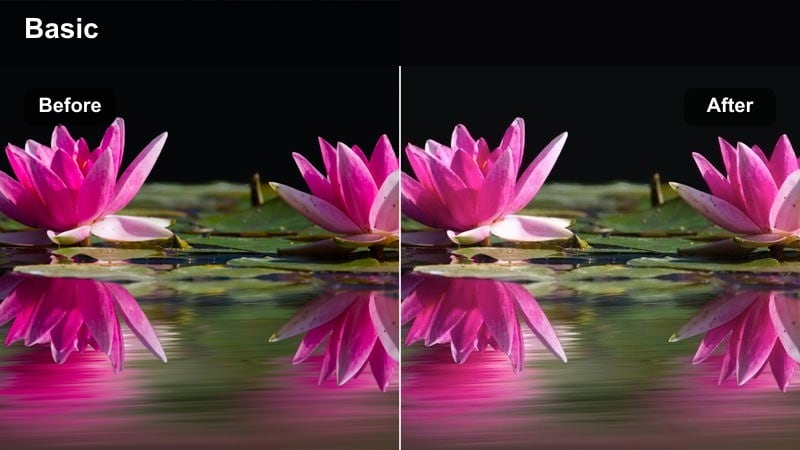
- Effect look: Soft highlight bloom and boosted saturation around bright signage for a dreamy nightlife vibe.
- Best for: Arcades, bar signs, street markets, and handheld Canon R6 party scenes with colorful LEDs.
- Editing tip: Dial down clarity or sharpen minimally so the glowing lights stay smooth and cinematic instead of harsh.
R6 Arcade Glow enhances bright signs and LEDs in your Canon R6 nightlife footage, adding a soft bloom around highlights and emphasizing saturated color. The result is a dreamy, nostalgic look that works perfectly for busy night markets, arcades, concerts, or bar sequences.
In Filmora, slightly underexpose your footage in camera, then apply the filter to keep the glow under control without losing highlight detail. After grading, reduce clarity or sharpening to avoid harsh halos, and if needed, use selective blurs and blend modes on the brightest parts of the frame to fine-tune how intense the glow appears.
Daylight Documentaries and Street Stories
R6 True Street Neutral
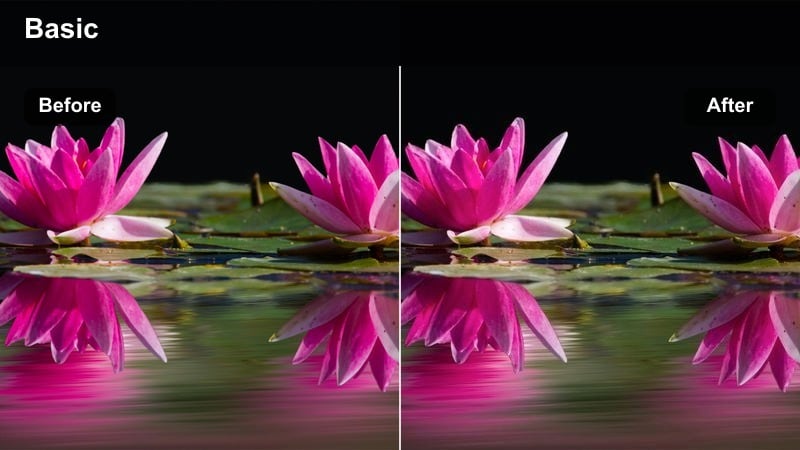
- Effect look: Clean, neutral color with gentle contrast tailored for Canon R6 daytime documentary work.
- Best for: Run-and-gun interviews, city B-roll, and social documentary projects shot in variable daylight.
- Editing tip: Set white balance in your Canon R6 as close as possible on location, then use this filter for subtle finishing instead of heavy correction.
R6 True Street Neutral is designed as a realistic, documentary-friendly look that keeps Canon R6 footage natural while adding a touch of polish. Colors stay accurate, contrast is gentle, and the overall image feels balanced enough to mix with archival or broadcast material.
In Filmora, use this filter as a base grade across your timeline to normalize shots captured in different daylight conditions. Once applied, make small per-clip adjustments to exposure and white balance only where necessary, and consider saving the result as a custom preset to speed up grading on longer documentary or event projects.
R6 Urban Soft Matte
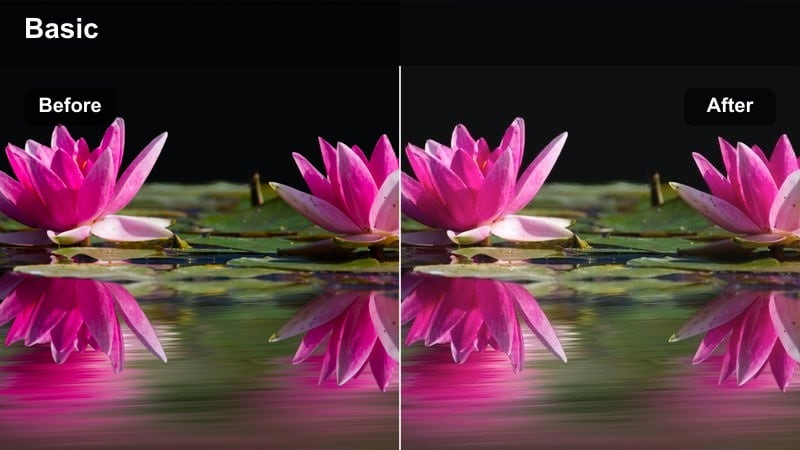
- Effect look: Lowered contrast with lifted blacks and soft midtones for a calm, observational street feel.
- Best for: Street photography-style video, quiet urban walks, and reflective voice-over sequences shot on the Canon R6.
- Editing tip: Slightly desaturate bright primary colors like traffic lights or signs so they do not break the subtle mood.
R6 Urban Soft Matte gives your Canon R6 street stories a gentle, observational feel by lifting blacks and smoothing midtones. The soft matte contrast takes the edge off harsh daylight, making your footage feel more like still street photography sequences brought to life.
After applying the filter in Filmora, watch for bright primary colors that may pull focus, such as traffic lights, cars, or signage. Slightly desaturate these colors and, if there is a lot of sky, use gradient masking to control brightness so the calm, reflective mood remains consistent from shot to shot.
R6 City Contrast Doc
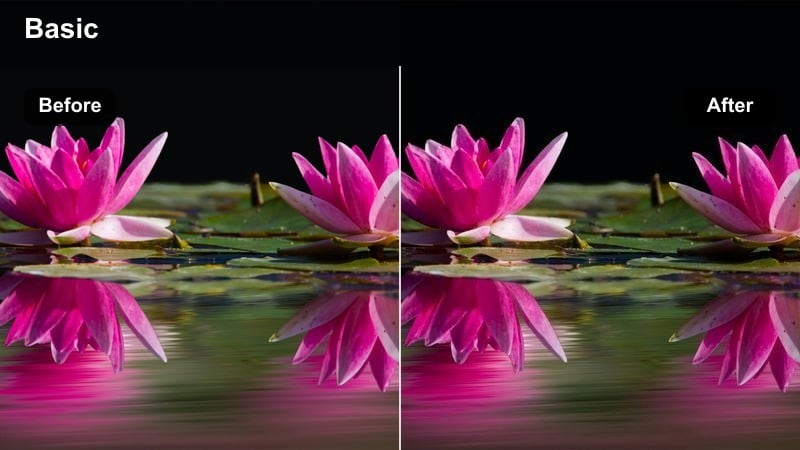
- Effect look: Punchy but controlled contrast with crisp edges and slightly cool shadows for modern city stories.
- Best for: Corporate B-roll, urban montages, time-lapses, and street life sequences from the Canon R6.
- Editing tip: Add a small amount of sharpening only if you shot in 4K; leave 1080p footage softer to avoid artifacts.
R6 City Contrast Doc is built for modern, energetic city pieces, giving your Canon R6 footage crisp contrast and subtly cool shadows. Skyscrapers, traffic, and crowd movement all feel sharper and more dynamic while skin tones remain natural enough for corporate or branded work.
In Filmora, use this filter on high-resolution Canon R6 clips such as 4K B-roll, time-lapses, and establishing shots, adding just a touch of sharpening where needed. To keep different shooting times consistent, apply the filter across your sequence, then adjust saturation and warm up midtones on any clips that feel too cold without losing the clean, contemporary look.
Indoor Dialogue and Studio Scenes
R6 Soft Interview Skin
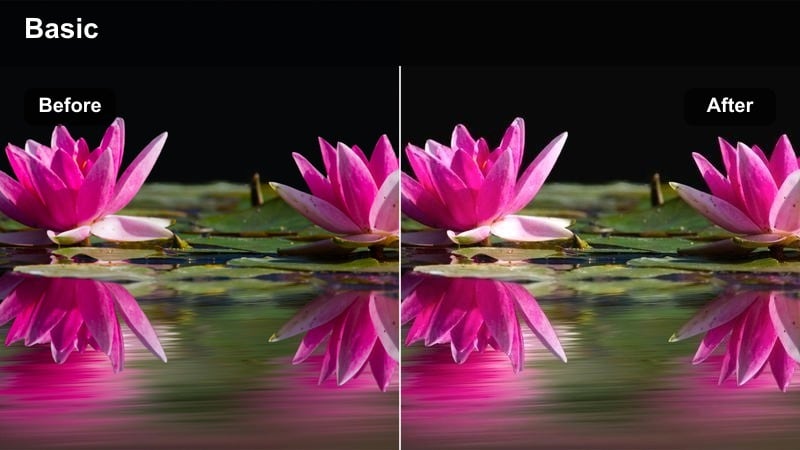
- Effect look: Gentle contrast with warm, flattering skin tones and neutral backgrounds for talking-head videos.
- Best for: YouTube interviews, corporate pieces, and studio podcasts recorded on the Canon R6.
- Editing tip: Use Filmora s skin-tone tools or HSL to make small hue corrections to faces without affecting the whole frame.
R6 Soft Interview Skin is tuned to make Canon R6 talking-head footage look professional and approachable, emphasizing warm, flattering skin tones against neutral backgrounds. The contrast is gentle enough to preserve detail in hair and clothing while still giving the image shape and depth.
Once you apply this filter in Filmora, fine-tune skin tones using targeted HSL or skin-tone tools instead of global color changes. Lock in a consistent white balance on set whenever possible so this filter behaves predictably across multiple angles, then match exposure between shots for smooth, distraction-free interview edits.
R6 Moody Office Scene
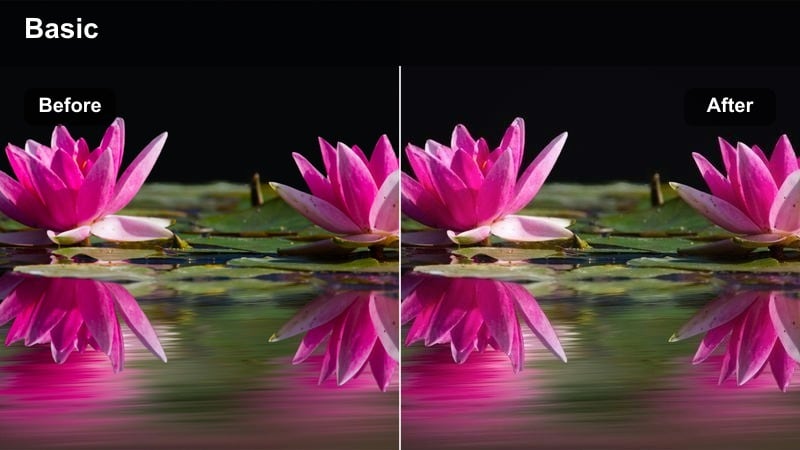
- Effect look: Dimmed midtones and cool highlights with subtle warm skin for dramatic indoor storytelling.
- Best for: Office narratives, startup promos, and moody desk scenes lit by windows or monitors on the Canon R6.
- Editing tip: Use masks to keep faces slightly brighter than the background so the mood stays cinematic but readable.
R6 Moody Office Scene leans into dramatic storytelling by cooling highlights and lowering midtones while preserving a touch of warmth in skin tones. Applied to Canon R6 office or workspace footage, it transforms ordinary rooms into cinematic environments with strong pools of light and shadow.
In Filmora, combine this filter with masked exposure adjustments that gently lift faces and key objects above the background. Include practical lights like lamps, screens, or city windows in frame, then selectively boost their brightness so they read as intentional light sources that enhance the moody atmosphere rather than accidental hotspots.
R6 Creator Studio Clean
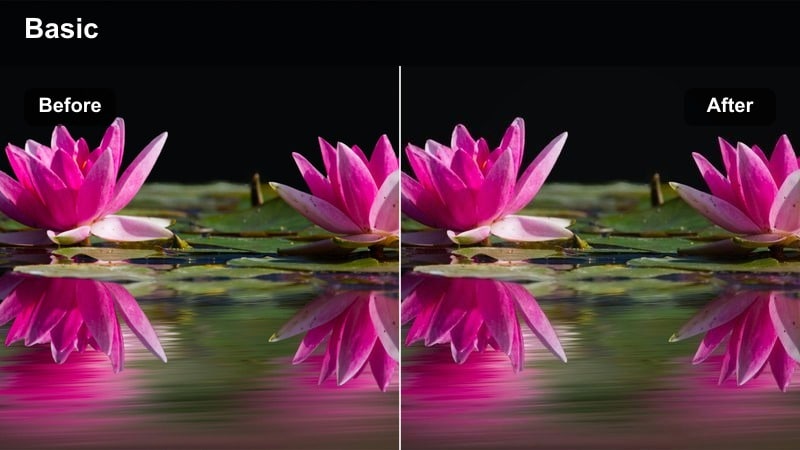
- Effect look: Bright, clean whites and true colors with subtle contrast suited to creator workspaces.
- Best for: Tutorials, desk setups, product demos, and tech reviews recorded on the Canon R6 in a home or studio.
- Editing tip: Keep saturation moderate so product colors stay accurate and do not distract from the information in your video.
R6 Creator Studio Clean is a neutral, crisp look that keeps whites bright and product colors accurate for Canon R6 tutorial and review content. It adds just enough contrast to feel polished on platforms like YouTube without pushing your image into an overly stylized direction.
Apply this filter in Filmora after dialing in stable exposure using your Canon R6 zebras or histogram to avoid blown-out backgrounds. Then, keep saturation in check so branding and product details remain trustworthy, and save this combination as a default preset so every new video in your creator series starts from the same consistent visual baseline.
Tips for Using Canon R6 Cinematic Luts Filters in Filmora
- Shoot in a flat or log-style profile on your Canon R6 when possible so these cinematic filters have more latitude to shape contrast and color.
- Prioritize natural-looking skin tones; if faces look too red, green, or magenta after applying a filter, correct them first using Filmora s targeted color tools.
- Batch-apply a single base filter across an entire sequence, then tweak exposure and white balance clip by clip so your overall look remains consistent.
- Use scopes like waveform and vectorscope in Filmora to monitor exposure and color when switching between multiple Canon R6 looks in the same timeline.
- Underexpose slightly for high-contrast scenes, especially at golden hour or at night, so your chosen filter has room to preserve highlight detail.
- Create and save custom presets whenever you refine a filter with curves, HSL, or sharpening so you can reuse that Canon R6 look on future projects.
- Export a short graded test segment and view it on different screens before committing to a filter for an entire edit to ensure it holds up everywhere.
These Canon R6 cinematic LUT-style filters give videographers and creators a fast, reliable way to sculpt mood, color, and contrast inside Filmora without building every grade from scratch. Each look is tuned to common Canon R6 shooting scenarios, from golden-hour exteriors to neon-soaked nights and clean studio setups.
Experiment with a few favorites, adjust them to match your camera profile and lighting, and then save your best combinations as Filmora presets. Over time, you will build a consistent Canon R6 visual style that carries across documentaries, travel films, client work, and every new project you release.
secure downloadNext: Canon R5 Travel LUTS
