

 100% Security Verified | No Subscription Required | No Malware


 ChatGPT
 Perplexity
 Gemini
 Claude
 Grok
Grok
CapCut aesthetic LUTs for edits are the fastest way to give your videos a consistent, on-brand look without learning complex color grading. By stacking the right filters, HSL, and glow tools, you can recreate LUT-like styles that feel cinematic, dreamy, or clean in just a few taps.
Below are 12 aesthetic filter setups you can recreate in CapCut to mimic popular LUT vibes for TikTok, Reels, and YouTube. Each idea includes when to use it and an editing tip so you can match the exact mood you want for your content.
In this article
Golden Hour Soft Glow Vibes
Sunlit Pastel Soft Glow
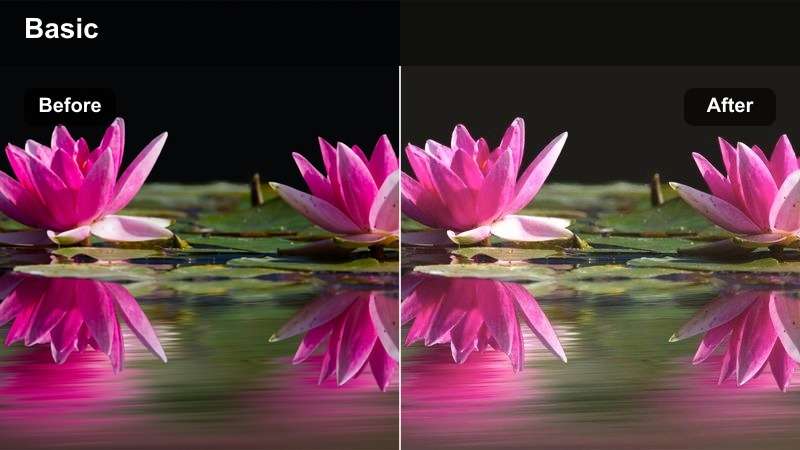
- Effect look: Soft pastel highlights with warm golden tones and gentle glow for dreamy daylight scenes
- Best for: Golden hour vlogs, rooftop chats, soft aesthetic GRWMs, calm lifestyle B-roll
- Editing tip: Warm your temperature slightly, lower contrast, then add a light blur or glow filter over bright areas to keep skin soft while preserving detail in the background.
In Filmora, you can recreate this Sunlit Pastel Soft Glow vibe by starting with a soft warm filter, then slightly lowering contrast and adding a subtle glow effect to the highlights. Use the Color panel to nudge the temperature toward warm, reduce clarity a touch, and gently raise the shadows so the whole frame feels airy instead of harsh.
To keep subjects flattering, apply Filmora beauty and skin smoothing tools sparingly, then sharpen only the eyes and key facial details with masks. This combination imitates a CapCut-style aesthetic LUT, giving your golden hour vlogs and rooftop chats a dreamy, cinematic finish that still looks natural and professional across TikTok, Reels, and YouTube.
Lock in a consistent aesthetic across every platform
Once you design a golden hour look you love in CapCut or Filmora, you can use Filmora AI color tools to copy that same mood onto any new clip. Import one reference video with your ideal warm pastel glow and let Filmora automatically analyze and match the color palette.
This keeps your TikTok, Reels, and YouTube uploads visually consistent, so every new post clearly fits your brand without manually rebuilding the grade from scratch every time.
 secure download

Preview looks instantly without destroying your original
Filmora lets you preview dozens of LUT-style filters and creative looks in real time, so you can test soft glow, pastel, or warm cinematic styles without touching your underlying footage. Scroll through options until you find a grade that matches your CapCut aesthetic LUTs for edits.
Once you pick a base look, fine-tune it with Filmora controls like exposure, glow, grain, and HSL so the final result feels custom instead of generic. Your original clip stays untouched, giving you freedom to experiment as much as you want.
secure downloadSave and reuse your favorite aesthetic LUT recipes
Instead of rebuilding the same CapCut-style aesthetic from scratch, Filmora allows you to save your favorite color grades as reusable presets. Create several go-to looks, such as golden hour soft glow, moody night, or retro film, and apply them with one click to any clip.
Filmora can also export compatible color adjustments from a selected clip as a standard .cube LUT, allowing the color look to be reused in Filmora, DaVinci Resolve, Adobe Premiere Pro, or Final Cut Pro.
This workflow keeps your edits fast and your channel branding consistent. Whether you are posting daily vlogs or polished montages, you can match the same LUT-like style across every upload in seconds.
secure downloadWarm Film Haze
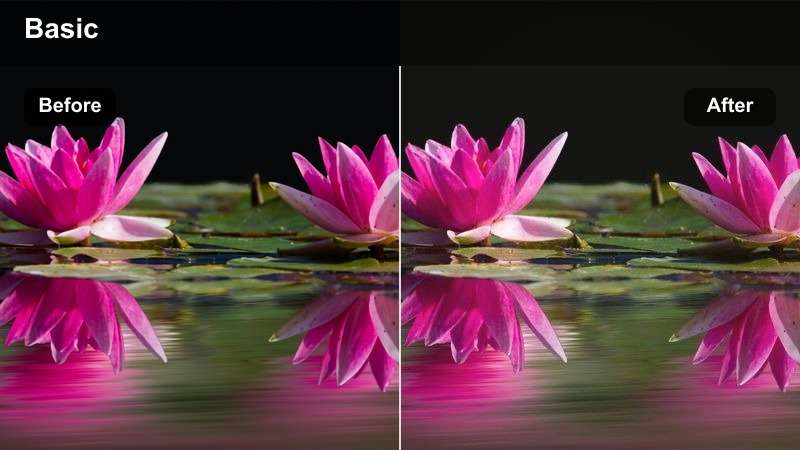
- Effect look: Faded warm tones with light grain and a subtle orange tint for a nostalgic film feel
- Best for: Street sunsets, cozy coffee runs, cinematic b-roll of walking shots or window reflections
- Editing tip: Lower blacks slightly, add a bit of grain, and desaturate just the greens to keep the frame focused on skin and warm light sources.
To mimic Warm Film Haze in Filmora, start by selecting a warm film or vintage-style filter, then gently lower the blacks to create a soft fade while preserving overall contrast. Add a light layer of film grain from the effects panel so your sunset streets and coffee runs feel nostalgic but still clean enough for modern platforms.
Use HSL controls to slightly desaturate greens and shift them toward a softer olive tone, which keeps attention on skin, warm windows, and streetlights. A subtle vignette can pull the viewer toward the subject, and small adjustments to midtone warmth will help sell the cozy, hazy atmosphere your CapCut aesthetic aims for.
Golden Skin Smoother
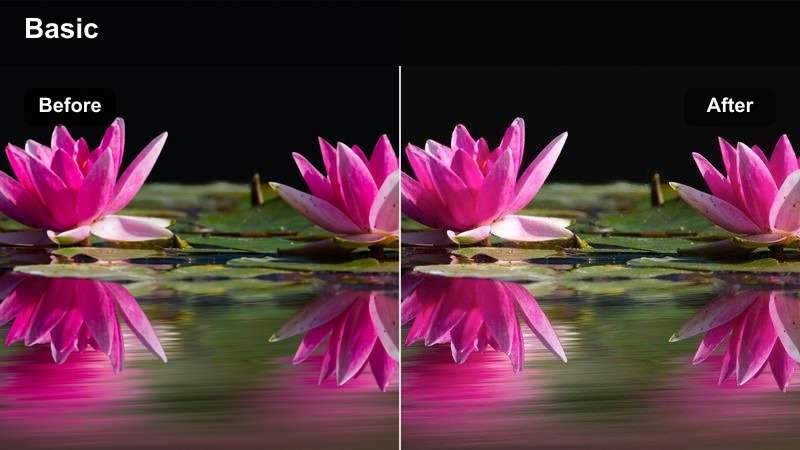
- Effect look: Clean warm skin tones with softened texture and a subtle highlight bloom
- Best for: Face cams, GRWMs, talking videos, product closeups shot near a window or ring light
- Editing tip: Use CapCut beauty tools lightly, then add a warm filter and drop contrast, keeping sharpness higher on eyes and lashes for a polished finish.
In Filmora, you can build a Golden Skin Smoother look by combining gentle skin smoothing effects with warm color grading that protects natural tones. Apply a soft beauty filter to reduce minor blemishes, then slightly lower contrast and use color controls to push warmth in the midtones, where skin information lives.
To keep the face from looking flat, increase sharpness selectively on the eyes, brows, and lashes using masks or adjustment layers. A minimal glow or bloom effect on the highlights, especially around cheekbones and nose, finishes the CapCut-style aesthetic and makes your talking videos and GRWMs look polished but not over-edited.
Moody City Nights
Neon Street Mood
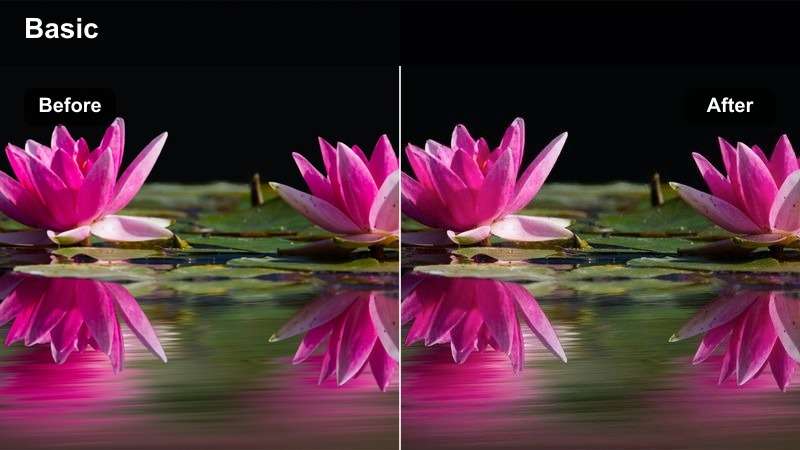
- Effect look: Deep contrast with boosted neon blues and magentas for cyberpunk-style city scenes
- Best for: Night walks, car POVs, rainy street shots with reflections and neon signs
- Editing tip: Crush shadows slightly, increase vibrance instead of saturation, and isolate blues and magentas in HSL to amplify only the neon colors.
To create a Neon Street Mood grade in Filmora, first increase overall contrast and gently crush the blacks so the darkest areas fall into rich shadow. Then, use Vibrance instead of global Saturation to boost color intensity selectively without blowing out skin and neutral areas.
Inside HSL, target blues and magentas, increasing their saturation and shifting their hue to taste until signs and reflections glow with that cyberpunk energy. Combining this with a bit of clarity and maybe a light bloom on highlights will make rainy streets, car POVs, and city walks feel dramatically stylized, similar to bold CapCut aesthetic LUTs for edits.
Cinematic Night Contrast
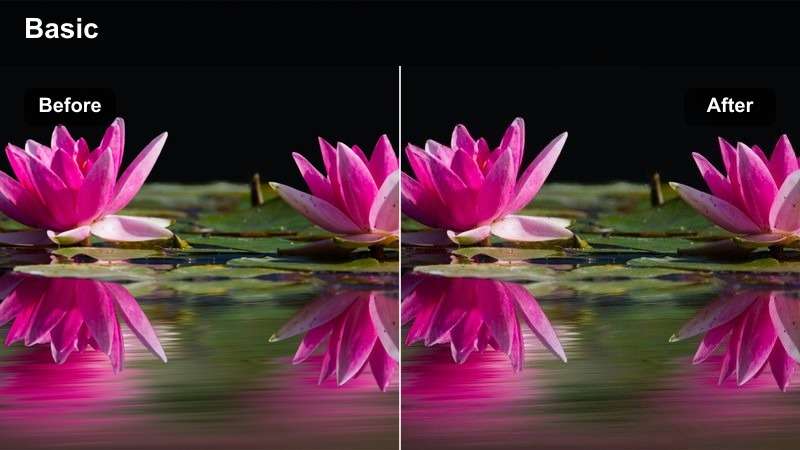
- Effect look: High-contrast dark tones with clean whites and controlled color for a movie-like night grade
- Best for: Nighttime B-roll, skyline timelapses, car parks, and slow-mo city traffic shots
- Editing tip: Raise exposure slightly, then add contrast and a gentle fade in the blacks to keep details in dark areas while still looking cinematic.
For Cinematic Night Contrast in Filmora, start by nudging exposure up to recover visibility in midtones, then add strong contrast to carve out defined shadows. Apply a mild fade in the black levels so night shots keep detail without looking washed out, and keep whites crisp to emphasize windows, headlights, and streetlights.
Use Filmora color wheels or tone curves to keep saturation under control, focusing on subtle color rather than intense hues. This makes skyline timelapses and parking-lot B-roll feel like movie frames, with clear shapes and lighting that match high-end CapCut night LUT aesthetics.
Cool Minimal Night
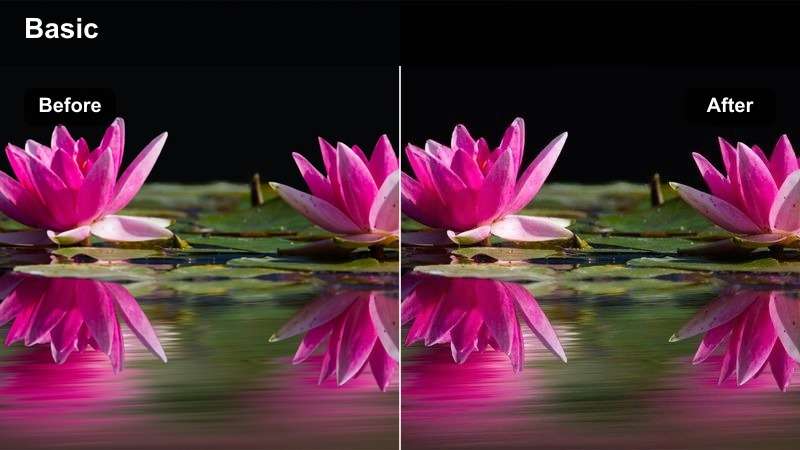
- Effect look: Cool-toned, desaturated streets with crisp whites and subtle teal highlights
- Best for: Minimalist edits, outfit shots under streetlights, metro station clips, and stairwell scenes
- Editing tip: Lower saturation across the frame, then bring back a bit of color in cyan and blue to keep the image feeling intentional and modern.
To get the Cool Minimal Night look in Filmora, begin by reducing global saturation so the frame feels muted and modern. Then, in HSL, selectively reintroduce color to cyans and blues, pushing them slightly toward teal so signage, light reflections, and some clothing pieces stand out against a mostly neutral backdrop.
Maintain crisp whites and use a touch of cool temperature adjustment to shift the overall mood away from warm streetlamp orange. This combination suits metro platforms, stairwells, and clean architecture shots, giving your content that understated CapCut aesthetic without overwhelming your minimalist branding.
Soft Pastel Aesthetic
Pastel Diary Vibes
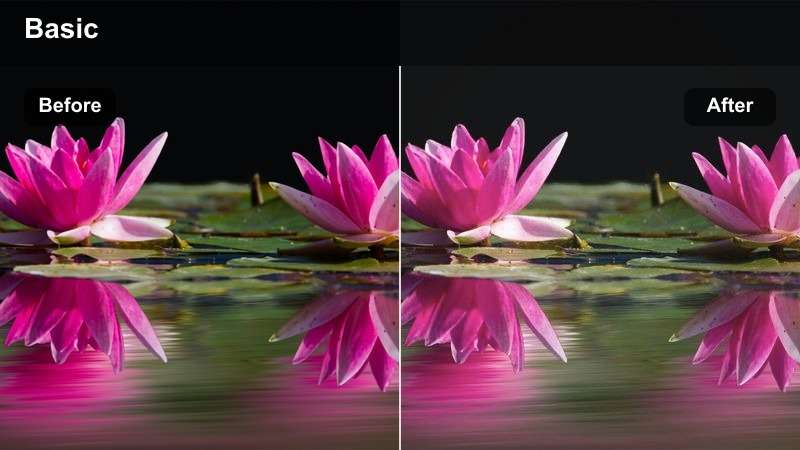
- Effect look: Light, bright pastel colors with low contrast and a gentle matte finish
- Best for: Daily vlogs, study edits, desk setups, and gentle morning routines
- Editing tip: Increase brightness and reduce contrast, then adjust HSL to make greens minty and blues more baby blue for a diary-style aesthetic.
To build Pastel Diary Vibes in Filmora, raise overall brightness and gently lower contrast so edges feel soft and nothing looks too harsh. Apply a small S-curve or lift the blacks to introduce a matte finish, which instantly gives daily vlogs and study setups a dreamy, journal-like feel.
Use HSL to refine color: shift greens toward a lighter mint and soften blues into baby-blue pastels, reducing saturation where needed to avoid loud tones. This pastel palette pairs well with stationary closeups, desk shots, and quiet morning routines, imitating the soft CapCut aesthetic LUTs popular on study-tok.
Creamy Bedroom Light
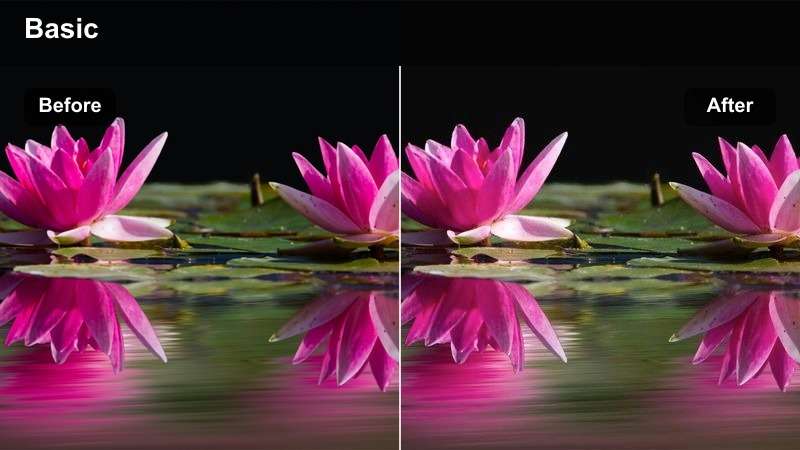
- Effect look: Warm creamy whites with slightly muted colors and soft shadows
- Best for: Room tours, bed POV shots, mirror selfies, and cozy at-home clips
- Editing tip: Lift shadows a bit, add warmth, and drop saturation for heavily colored objects to keep the frame neutral and cozy.
In Filmora, the Creamy Bedroom Light aesthetic starts with lifting shadows so no part of the frame feels too dark or contrasty. Increase color temperature just enough to turn whites into soft cream tones, and pull back saturation on strong colors like bright blankets or posters to maintain a calm, neutral palette.
Use the Vignette tool lightly, or soften the corners with blur for an even cozier feel in POV and mirror shots. The result is a warm, inviting grade that makes room tours, bed content, and casual at-home clips look like curated lifestyle visuals inspired by CapCut cozy LUTs.
Soft Campus Edit
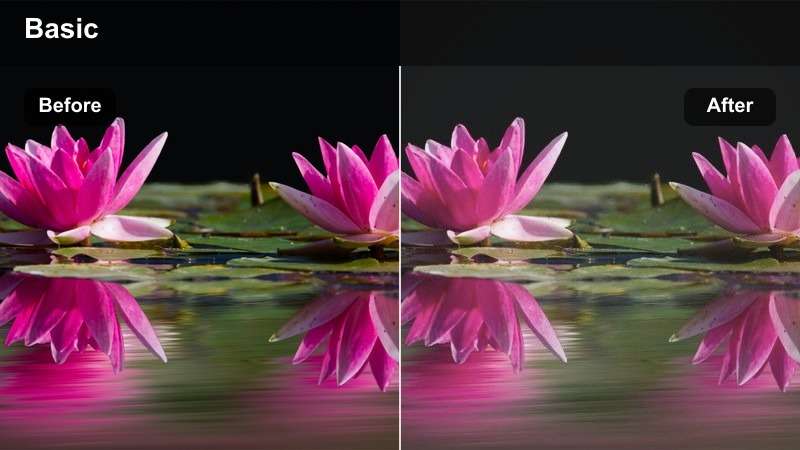
- Effect look: Low contrast daylight with pastel blues and a slight fade for study-tok style edits
- Best for: Study montages, library walks, note-taking POVs, and campus transitions
- Editing tip: Pull down contrast, add a soft fade in blacks, and nudge blue hues toward teal to make skies and outfits feel cohesive.
To recreate Soft Campus Edit in Filmora, pull down contrast and slightly fade the blacks so outdoor campus shots feel gentle and low-stress. Adjust exposure to keep daylight bright but not blown out, then shift blues a bit toward teal for cohesive skies, backpacks, and outfits.
This pastel-like grade works especially well on note-taking POVs, library footage, and walking transitions between buildings. Combined with subtle slow motion and soft background music, it delivers the polished study-tok aesthetic that many CapCut LUT-style edits aim to replicate.
Retro and Film Inspired Looks
VHS Street Edit
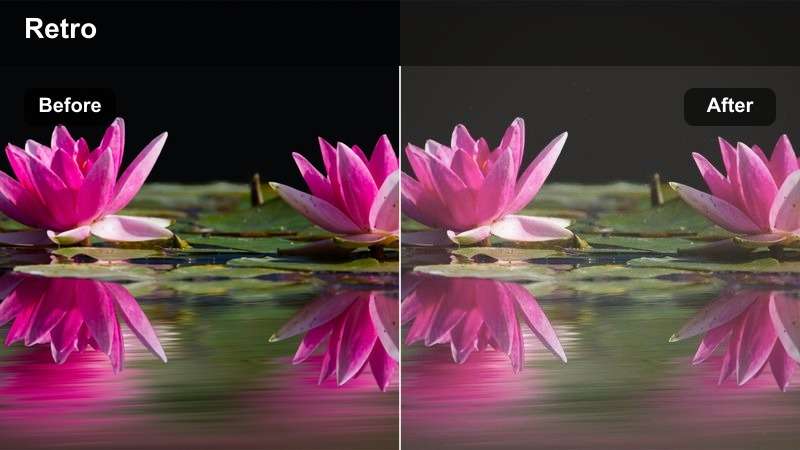
- Effect look: Low-resolution vibe with soft color shifts, mild noise, and crushed blacks for a tape-style look
- Best for: Throwback edits, fit checks on the sidewalk, skate clips, and fast-paced city montages
- Editing tip: Lower sharpness slightly, add grain, and pull down saturation to mimic old tape, then add text overlays with simple fonts in white.
To get a VHS Street Edit style in Filmora, gently decrease sharpness so edges feel softer and less digital, then layer in film grain or noise to add that analog texture. Pull overall saturation down a bit and crush the blacks so shadows look deep and slightly muddy, matching the imperfect feel of old tape recordings.
You can also experiment with subtle RGB split or chromatic aberration effects available in Filmora to mimic tape misalignment. Pair the grade with simple white text overlays, time stamps, or retro-style title cards for fit checks and skate clips that capture the nostalgic CapCut VHS aesthetic.
Faded Film Street
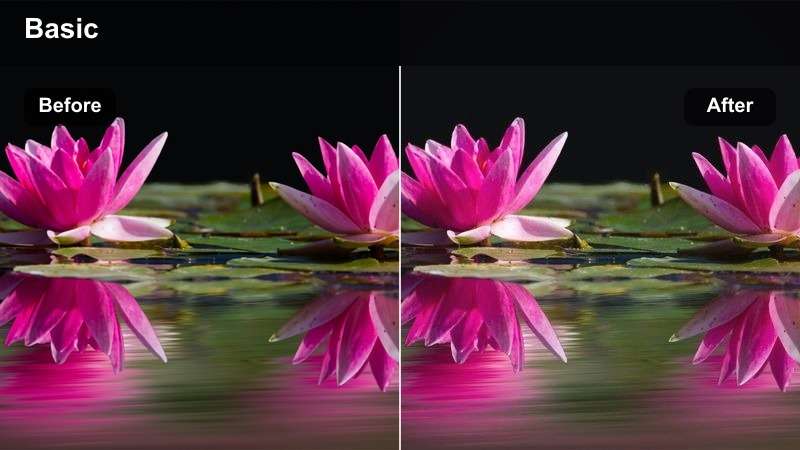
- Effect look: Soft faded contrast with slightly warm highlights and cool shadows for a filmic split tone
- Best for: Slow walks, outfit reveals on crosswalks, bus stop clips, and lookbook transitions
- Editing tip: Lift blacks for a matte look, warm the midtones, and cool shadows very slightly to create subtle color separation like film.
In Filmora, the Faded Film Street vibe starts with a matte look: lift the black point in curves or use the contrast tools to soften the deepest shadows. Next, apply split toning by nudging midtones and highlights warmer while cooling shadows just a touch, creating a stylish separation that flatters skin and street environments.
This soft, editorial-style grade works perfectly for slow outfit walks, crosswalk reveals, and lookbook sequences. Add a tiny bit of film grain and slower, smoother motion to fully sell the cinematic film influence commonly seen in CapCut fashion LUTs.
Polaroid Memory Glow
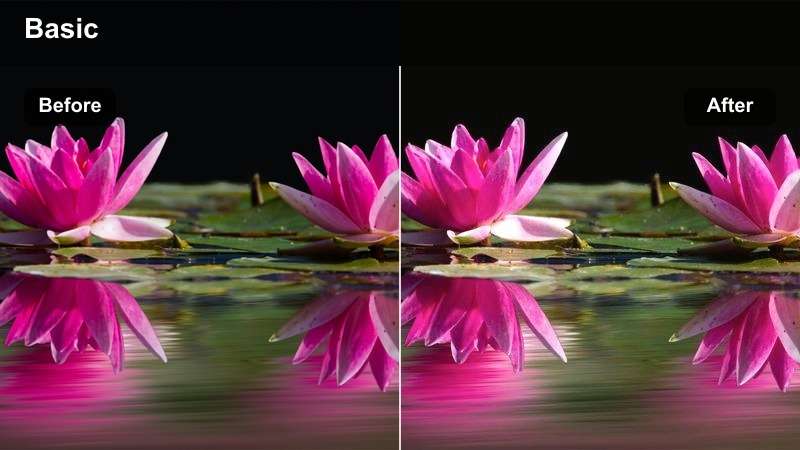
- Effect look: Warm faded tones with slight vignette and soft highlights that mimic instant film snapshots
- Best for: Friend hangouts, city overlooks, travel clips, and nostalgic recap edits
- Editing tip: Add a subtle vignette, lift the blacks, and push warmth in highlights while slightly desaturating the whole image.
To generate a Polaroid Memory Glow look in Filmora, lift the blacks for a gentle fade, then warm up the highlights so skin and sunlight feel soft and inviting. Apply a light vignette around the frame to focus attention on your friends, landscapes, or city views, matching the feel of a physical instant photo.
Reduce global saturation just a bit so colors feel aged rather than neon-bright, and optionally add a hint of glow to the brightest areas. This combination makes recap edits, travel montages, and overlook scenes feel like saved memories, echoing the nostalgic instant-film LUTs that are popular in CapCut edits.
Tips for Using Capcut Aesthetic Luts For Edits Filters in Filmora
- Shoot in the flattest, most natural camera setting you can, so your CapCut aesthetic filters have more flexibility without breaking the image.
- Keep one or two signature looks for your channel instead of using a new aesthetic every video, so followers recognize your style instantly.
- Always adjust exposure and white balance before adding filters; a clean base makes every aesthetic LUT-style edit look more professional.
- Export a short test clip when trying a new aesthetic and view it on your phone to check how the colors feel on the actual platform.
- Save your favorite CapCut filter combinations as custom presets and name them by mood, like golden-soft, neon-night, or pastel-diary.
- Use Filmora AI color matching to copy your favorite CapCut aesthetic from one reference clip to entire projects in seconds.
- Mix Filmora filters with subtle HSL tweaks so your aesthetic feels unique instead of relying on a single stock LUT.
- Balance glow, blur, and sharpness carefully to keep skin flattering while text, eyes, and product details stay clear.
CapCut aesthetic LUTs for edits are really just smart combinations of filters, color, and glow that give your content a recognizable mood in seconds.
Once you find a few looks you love, lock them in as presets and use tools like Filmora to keep that same aesthetic flowing across all your videos and platforms.
secure download