

 100% Security Verified | No Subscription Required | No Malware


 ChatGPT
 Perplexity
 Gemini
 Claude
 Grok
Grok
City street slow motion footage can instantly turn everyday urban scenes into cinematic storytelling, especially when paired with the right Filmora filter presets tailored for motion and mood.
Below are 12 city street slow motion filter styles designed for content creators who want to emphasize movement, light trails, and atmosphere in their urban B-roll without complicated color grading.
In this article
Dusk Commute Vibes on Busy City Streets
Amber Haze Dusk
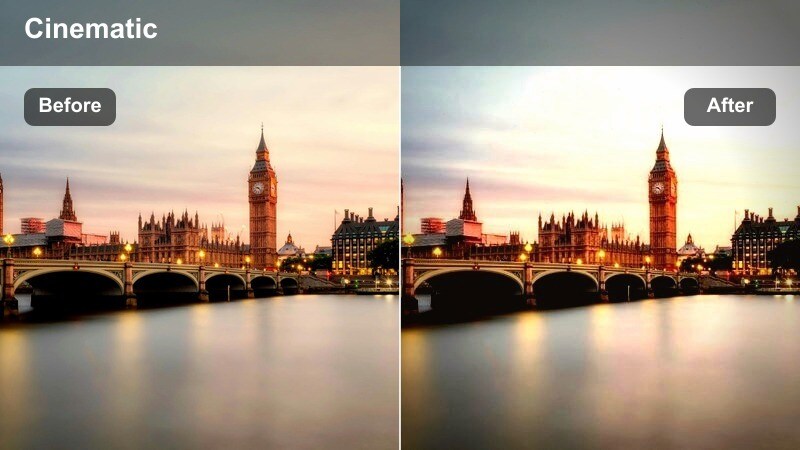
- Effect look: Warm amber highlights that soften contrast and stretch motion for a dreamy commute feel.
- Best for: Slow motion shots of people crossing intersections and cars rolling through golden-hour traffic.
- Editing tip: Lower the sharpness slightly and add a subtle vignette to draw attention to subject movement in the frame.
Amber Haze Dusk wraps your city street slow motion filter look in a warm amber glow that flatters skin, headlights, and sunlit windows. In Filmora, this preset softens contrast and slightly stretches the perception of motion, helping crosswalks, traffic flows, and crowd movement feel dreamy instead of hectic.
Use it on any slow motion clip captured around golden hour, especially when streetlights are beginning to turn on. After applying the filter, fine-tune exposure and warmth in Filmora so streetlights, car interiors, and the sky share a cohesive amber cast. If faces feel too soft, selectively restore a bit of clarity on your main subject while keeping the rest of the frame hazy for maximum cinematic impact.
Let Filmora's AI refine your city street slow motion colors
After you choose a city street slow motion filter preset such as Amber Haze Dusk, Filmora's AI color tools can automatically balance exposure and white balance across the entire clip. This is especially useful when your commute footage moves between different angles, storefronts, and mixed light sources.
With one click, AI helps keep shots from the same location visually consistent so your B-roll feels like a unified sequence rather than mismatched clips. You retain the cinematic mood of the filter while reducing distracting color shifts between shots.
 secure download

Preview city slow motion filters in real time
Filmora lets you preview each city street slow motion filter just by hovering over it in the Effects panel. As your clip plays back in slow motion, you can instantly see how different looks handle motion blur, light trails, and color mood before you apply anything.
This real time feedback makes it easy to compare subtle, soft filters against bold neon styles and quickly lock in the aesthetic that best matches your story or soundtrack.
secure downloadCombine city street filters with creative LUTs
After you have applied a city street slow motion filter, you can layer Filmora's LUTs on top to push the color grade toward a specific urban mood. A neon night LUT, for example, can intensify signage and light trails without changing the underlying motion softness you already dialed in.
By keeping LUT intensity low and starting with a subtle filter, you maintain realism while still giving your street B-roll a distinctive signature look that fits your brand or channel.
secure downloadSoft Commute Drift
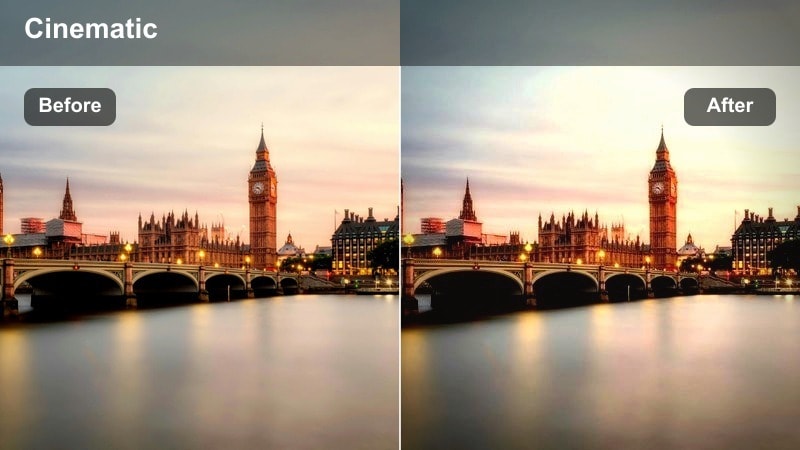
- Effect look: Low-contrast, soft-focus style that smooths motion and mutes harsh city colors.
- Best for: Slow panning shots of buses, trams, and cyclists gliding past office blocks.
- Editing tip: Pair with a slower shutter-speed look and slight motion blur to accentuate the drifting feel of passing traffic.
Soft Commute Drift is ideal when you want your city street slow motion to feel calm and relaxed rather than intense. In Filmora, this city street filter lowers contrast and slightly softens fine detail, which helps passing traffic and panning shots feel like a smooth drift instead of a sharp, busy scene.
Apply it to clips where buses, trams, or cyclists slide past glass buildings and reflective facades. Then, combine it with Filmora's motion blur or speed adjustment tools to simulate a slower shutter aesthetic. Keep faces and key signage gently sharpened with masks or keyframed adjustments, while the rest of the frame stays soft to maintain a soothing, cinematic commute vibe.
Crosswalk Glow
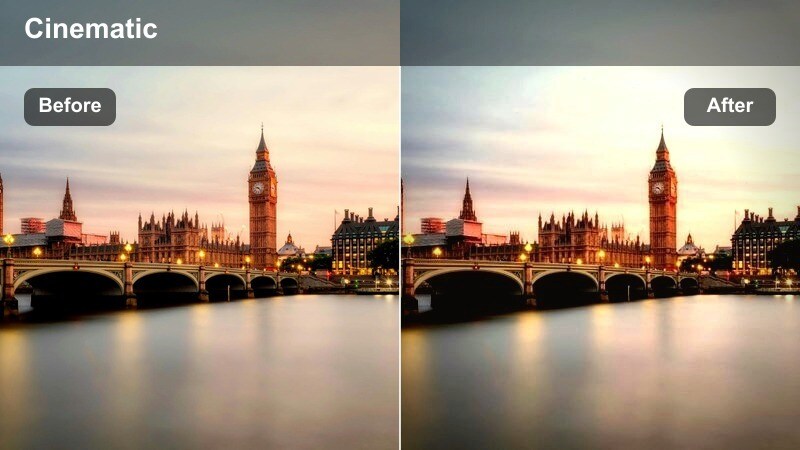
- Effect look: Highlight bloom around streetlights and crosswalk signals with a subtle teal shadow tint.
- Best for: Slow motion crosswalk scenes where crowds surge forward as the light turns green.
- Editing tip: Use a slightly lower frame rate for recording and slow it down in Filmora to exaggerate the glowing light trails.
Crosswalk Glow is a city street slow motion filter that makes every signal, headlight, and storefront pop with a soft halo. The warm highlight bloom combined with a cool teal tint in the shadows gives your footage a modern, cinematic look that works especially well at dusk or night.
Use it on wide shots of crowds crossing the street or medium shots where neon signage and signals frame your subjects. In Filmora, slightly lower overall exposure if highlights start to clip, then raise whites to keep the glow. Mask out logos or key faces where you want full clarity so your audience can still read brand elements or focus on specific characters amid the blooming light.
Rainy Avenue Cinematics and Reflections
Neon Rain Drift
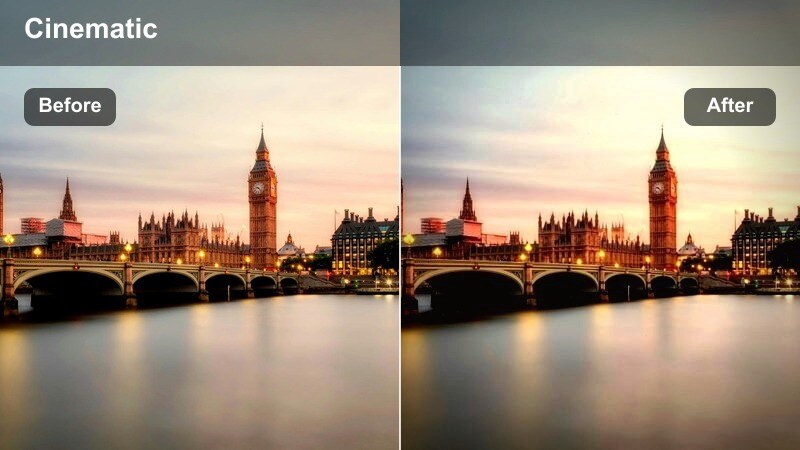
- Effect look: Saturated neon colors reflecting in wet pavement with deep blues and magentas.
- Best for: Slow motion walking shots with umbrellas, car lights, and signage reflecting off rain-soaked streets.
- Editing tip: Increase saturation in blues and magentas while keeping luminance balanced so reflections stay vivid but not clipped.
Neon Rain Drift transforms a wet city avenue into a vibrant, neon-soaked canvas. As a city street slow motion filter, it amplifies deep blues and magentas, pushing the color of signs and taillights down into every puddle and glistening surface without losing the moody feel of a rainy night.
Apply it to umbrella walks, storefronts, and traffic-heavy intersections where reflections are clearly visible on the pavement. Inside Filmora, fine-tune HSL or color controls to selectively boost blue and magenta saturation, while carefully managing highlights so reflections do not blow out. Combine the filter with a gentle slow zoom or dolly effect to create immersive rainy sequences perfect for music videos, vlogs, or narrative B-roll.
Misty Headlight Trails
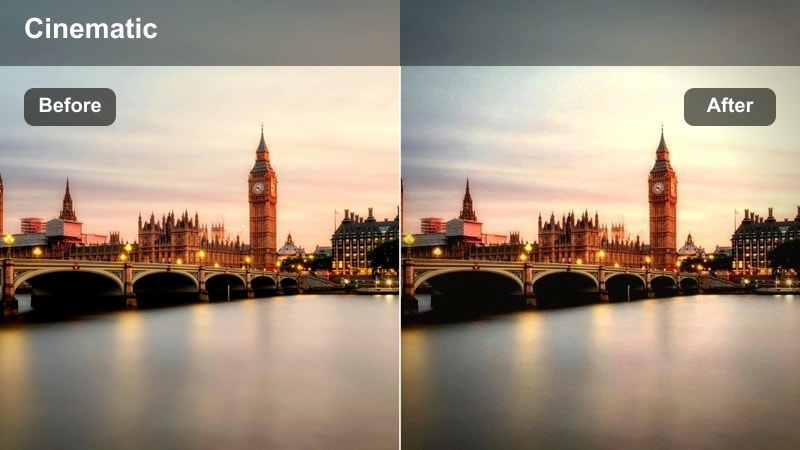
- Effect look: Soft, misty diffusion on headlights and taillights with cool cyan highlights.
- Best for: Slow motion shots of cars moving through light rain or fog along city avenues.
- Editing tip: Use keyframed contrast boosts when cars enter tunnels or darker sections to keep the light trails defined.
Misty Headlight Trails adds a layer of soft diffusion that makes every headlight and taillight feel like it is cutting through a light fog. This city street slow motion filter leans into cool cyan highlights, giving your traffic sequences a stylized, atmospheric look that suggests damp air and late-night drives.
In Filmora, use this preset for clips where cars pass under streetlights, through light rain, or under overpasses. The filter smooths motion and smears light just enough to create pleasing trails without losing the structure of the vehicles. For darker sections of the road, keyframe subtle contrast and exposure changes so the trails remain visible, and selectively sharpen the asphalt or lane markings to keep a clear sense of direction and depth.
Puddle Reflection Calm
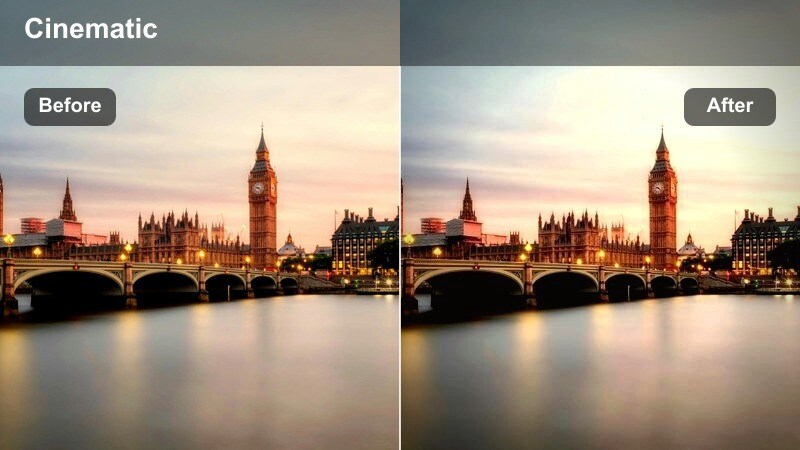
- Effect look: Muted highlights with lifted blacks and gentle cyan tint in midtones to enhance reflections.
- Best for: Slow motion close-ups of shoes stepping through puddles and mirrored city skylines on the ground.
- Editing tip: Add a light slow zoom-in during the reflection shot to create a meditative, introspective feel.
Puddle Reflection Calm is designed for intimate, reflective city street slow motion moments. By muting highlights and lifting blacks, this filter softens overall contrast while a gentle cyan midtone tint makes reflected buildings and signs stand out inside puddles and wet asphalt.
Use it on close-ups of shoes, wheels, or raindrops disturbing mirrored cityscapes on the ground. In Filmora, you can pair the preset with a slow, almost imperceptible zoom or push-in to draw the viewer deeper into the reflective world. Increase clarity slightly on the reflection region while allowing the real skyline above to stay a bit softer, creating the feeling that the street itself contains a quieter, alternate version of the city.
Golden Hour Boulevard and Sidewalk Stories
Sun Fade Boulevard
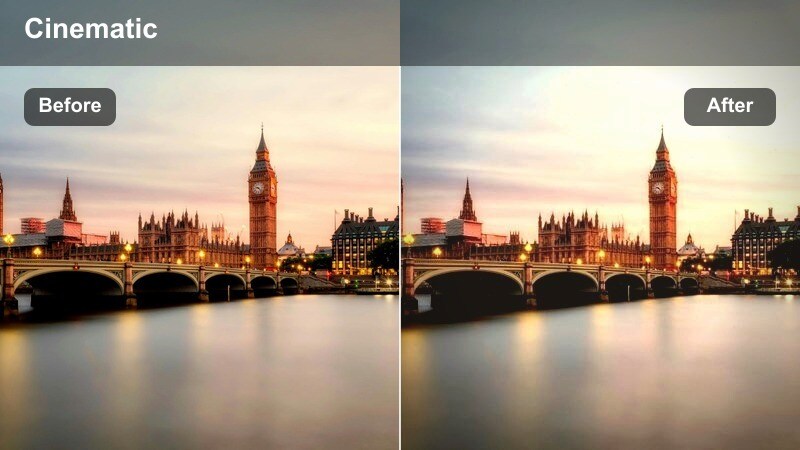
- Effect look: Sun-drenched highlights with soft flares and slightly faded shadows for a nostalgic tone.
- Best for: Slow motion tracking shots of skaters, cyclists, or joggers moving along sunlit city boulevards.
- Editing tip: Use lens flare overlays sparingly and align them with the real sun direction to keep the look believable.
Sun Fade Boulevard turns your golden hour city street slow motion into something that feels like a memory. The filter brightens highlights, rolls off contrast, and adds a hint of fade to shadows, creating an instant nostalgic mood for boulevard shots, long sidewalks, and park-adjacent streets.
Apply it to tracking shots that follow skaters, cyclists, or joggers moving through warm sunset light. In Filmora, you can enhance the look by gently adding lens flare overlays and matching their position to the real light source in your shot. To keep subjects from disappearing into backlight, lift shadows locally around them while letting the background stay more faded so the viewer's attention naturally stays on motion and silhouette.
Sidewalk Chill Soft
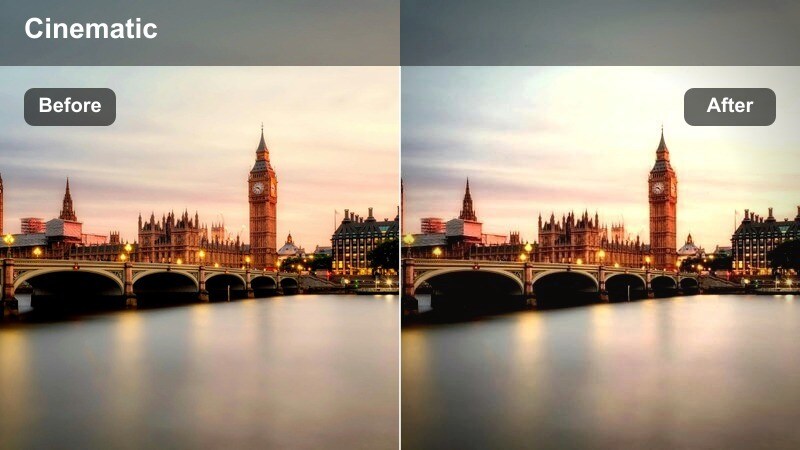
- Effect look: Soft pastels on buildings and storefronts with gentle contrast for relaxed street life.
- Best for: Slow motion shots of friends chatting on the sidewalk, sitting on steps, or walking past cafes.
- Editing tip: Reduce micro-contrast on bricks and concrete so faces and gestures feel more prominent in the frame.
Sidewalk Chill Soft is a city street slow motion filter tailored for casual, lifestyle-focused content. It lowers overall contrast and nudges buildings and storefronts toward pastel tones, which keeps the environment colorful but understated so your subjects feel relaxed and approachable.
Use it for friendship montages, date walks, or influencer shots moving slowly past cafes and boutiques. In Filmora, soften textures like brick and concrete by reducing clarity or structure, then preserve detail on faces and hands using masks. If subjects blend in too much, subtly shift clothing colors away from the background palette to create natural separation without making the scene look overly graded.
Backlit Silhouette Walk
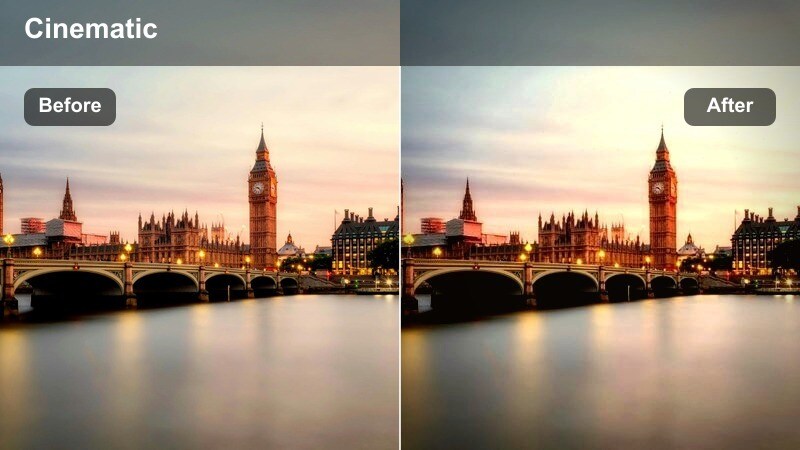
- Effect look: Strong backlight, deep silhouettes, and elongated shadows from low-angle sun.
- Best for: Slow motion walk-by shots where figures move across the frame with long shadows on the pavement.
- Editing tip: Lower exposure slightly and emphasize blacks to keep silhouettes crisp against the glowing sky.
Backlit Silhouette Walk is all about contrast between dark figures and glowing skies. This city street slow motion filter deepens blacks and enriches warm backlight, so long shadows and outlines of people become graphic shapes moving across the frame.
Apply it to sunset or sunrise walks where the sun is low and behind your subjects. In Filmora, gently reduce exposure and push blacks to make silhouettes crisp while ensuring the sky retains color and gradient. Consider framing your subject slightly off-center so their elongated shadow occupies more space, and add a slow pan or tilt to heighten drama as they move through the light.
Night Light Trails and Urban Transit
Metro Rush Glide
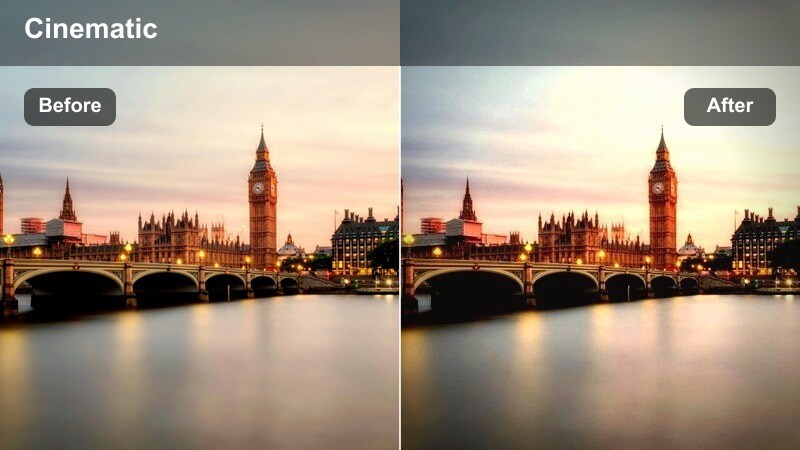
- Effect look: Clean, cool-toned clarity with accentuated light streaks and subtle contrast on architecture.
- Best for: Slow motion train arrivals, subway entrances, and escalator motion in city transit hubs.
- Editing tip: Stabilize handheld shots slightly in Filmora so the smooth motion of the metro feels intentional and controlled.
Metro Rush Glide gives night transit footage a sleek, modern aesthetic. The filter keeps architecture sharp and cool-toned while allowing light sources on trains, escalators, and station signage to streak elegantly through your slow motion frames.
Use it in underground stations, elevated tracks, or interior transit hubs where movement lines dominate your composition. In Filmora, apply light stabilization to handheld shots so the motion of trains and crowds appears purposeful rather than shaky. Then add a subtle directional motion blur that follows the path of the metro or escalator to reinforce flow, while selectively brightening signs so viewers can still read the environment clearly.
Downtown Lights Flow
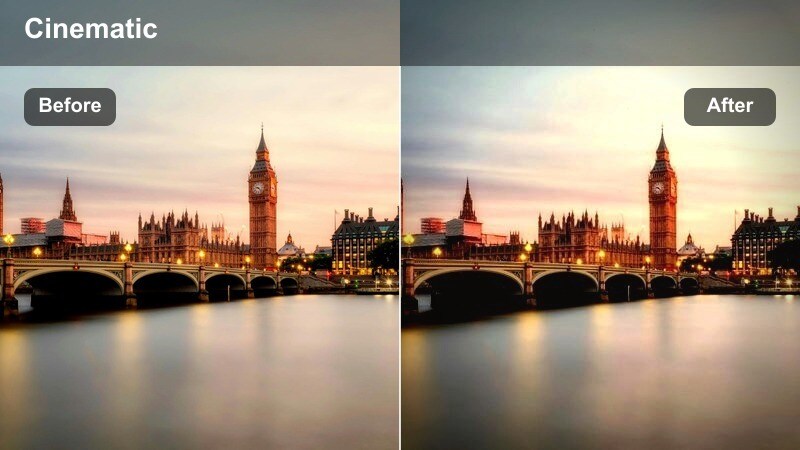
- Effect look: Rich contrast with glowing streetlights, building windows, and car light trails.
- Best for: Slow motion aerials or high-angle shots overlooking busy downtown streets at night.
- Editing tip: Tilt the color balance slightly toward warm highlights and cool shadows to separate buildings from the night sky.
Downtown Lights Flow is built for skyline views and high-angle shots over busy city grids. This city street slow motion filter increases contrast and intensifies the glow of streetlights, windows, and light trails, turning nighttime traffic into flowing rivers of color.
Apply it to drone shots, balcony angles, or rooftop time-lapse sequences that you convert to slow motion in Filmora. Gently warm the highlights and cool the shadows so buildings separate from the sky, and lift shadows a touch to keep structural lines visible. If noise creeps into darker areas, use Filmora's noise reduction selectively on the deepest blacks so the glowing trails and windows stay crisp.
Late Night Crosswalk Pulse
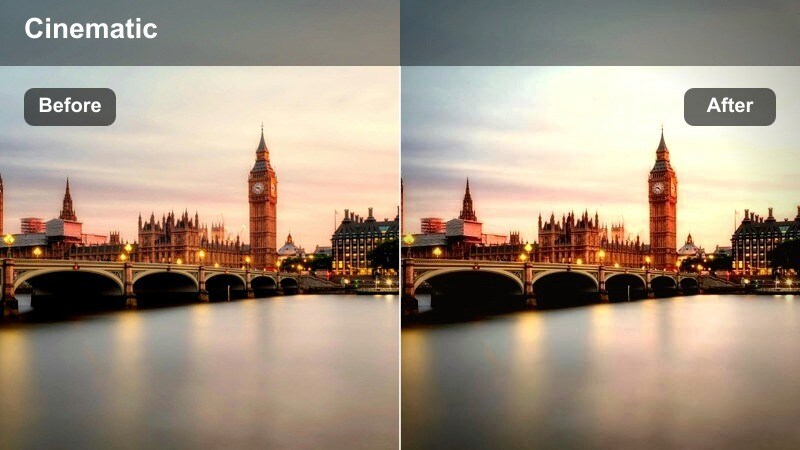
- Effect look: Punchy, rhythmic shifts in saturation and contrast that make each step feel emphasized.
- Best for: Slow motion walk cycles across illuminated crosswalks and LED billboards.
- Editing tip: Sync subtle contrast pulses with footfalls or music beats to create a sense of rhythm in the slow motion.
Late Night Crosswalk Pulse adds energy and rhythm to your city street slow motion. The filter gives billboards, LED panels, and crosswalk stripes a vivid, punchy presence that pairs perfectly with walk cycles or performance pieces set to music.
Use it when a single subject or small group moves through a lit intersection at night. In Filmora, you can keyframe small changes in exposure, contrast, or saturation to pulse in time with footsteps or beats, enhancing the sense of musicality without resorting to heavy visual effects. Keep these adjustments subtle so they support your subject's movement while the filter handles the bold color and contrast of the urban nightscape.
Tips for Using City Street Slow Motion Filter Filters in Filmora
- Shoot at the highest frame rate your camera allows so Filmora has more frames to work with when you slow down city street footage.
- Stabilize handheld shots in Filmora before adding heavy glow or blur filters to avoid exaggerated camera shake.
- Expose slightly darker at night to protect highlight detail in signs and headlights when using glow-heavy filters.
- Use masks to keep faces sharper while the rest of the frame carries motion blur and bloom for a cinematic feel.
- Match filter choices to story: use soft pastel looks for calm walks and high-contrast neon styles for energetic nightlife sequences.
With the right city street slow motion filter in Filmora, everyday urban traffic, sidewalks, and lights can instantly feel like polished B-roll ready for vlogs, travel films, and social content.
Test a few presets on short clips, then refine with AI tools, masks, and LUTs so your final edit captures both the motion and mood of your favorite city streets.
secure download