

 100% Security Verified | No Subscription Required | No Malware


 ChatGPT
 Perplexity
 Gemini
 Claude
 Grok
Grok
Cool selfie video filters can instantly turn basic front-camera clips into stylized, editorial moments with crisp blues and clean contrast. For fashion creators and urban vloggers, the right blue tone face effect can make outfits pop while keeping skin looking polished and intentional.
This guide walks through a curated set of Filmora filters tailored to mirror selfies and city vlogs. Use them as ready-made presets to create a consistent, cool selfie filter style that feels cinematic, modern, and on-brand for your social feeds.
In this article
Cool, Clean Selfie Filters for Everyday Clips
Frosted Mirror Glow
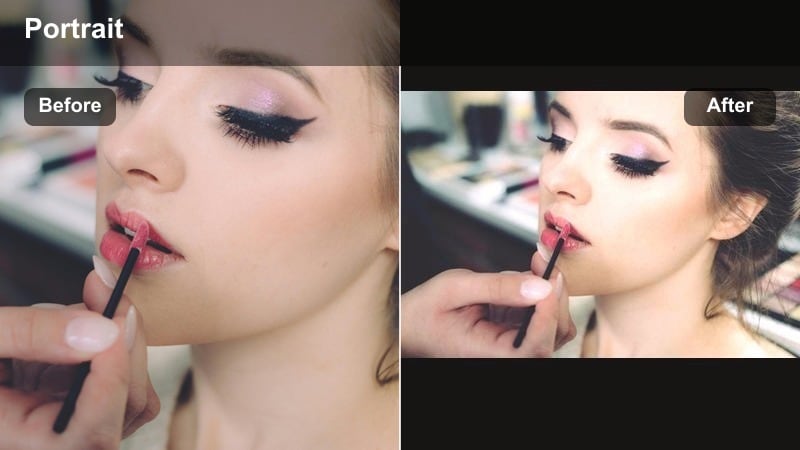
- Effect look: Soft blue cast with gentle contrast and slightly lifted highlights on the face
- Best for: Mirror selfies in bright bathrooms or dressing rooms where you want a clean front camera look
- Editing tip: Reduce filter strength to around 60% and slightly lower exposure if your mirror lights are very bright to avoid blown-out skin
Frosted Mirror Glow adds a subtle cool cast across your frame while keeping skin bright and flattering, so your front camera clips feel curated instead of raw. In Filmora, you can apply this preset to mirror selfies to neutralize yellow bathroom lights and build that clean, editorial wash you see in polished fashion content.
After dropping the filter on your clip, use the intensity slider to find that 50 to 70 percent range where your features stay natural but the blue tone is still clearly visible. If your mirror bulbs are intense, pull exposure and highlights down slightly, then nudge the temperature slider cooler until whites on towels, tiles, or countertops look crisp and not creamy.
Use Filmora’s AI tools to lock in your cool selfie aesthetic
Filmora’s AI-powered color tools help you keep your cool selfie video filters consistent across multiple clips and shooting days. Instead of manually matching every new mirror selfie or city vlog shot, you can let the software analyze your look and suggest balanced blue-toned adjustments.
Save your favorite cool selfie filter combinations as presets and quickly apply the same vibe to new projects. This keeps your grid, Reels, and Shorts aligned, whether you are filming in your bedroom, on the metro, or in the middle of a crowded crosswalk.
 secure download

Preview cool selfie filters directly on your clips
With Filmora, you can test multiple cool selfie video filters in real time by hovering or tapping through the filter library. This makes it easy to see how each look interacts with your specific lighting, skin tone, and outfit colors before you commit.
Try stacking a light blue wash filter with subtle contrast or glow adjustments for a more customized, signature style. Adjust intensity on each layer so your face stays flattering and the background supports your overall urban aesthetic.
secure downloadCombine filters and LUTs for advanced cool-tone styling
If you want a more cinematic finish, layer Filmora filters with cool-toned LUTs for deeper, film-like color separation. Start with a soft cool selfie filter to polish your front camera look, then add a LUT that emphasizes teal shadows or crisp blues in the background.
Keep your adjustments subtle so your face still looks natural while the environment gets more stylized. This combination is especially powerful for fashion creators and urban vloggers who want their content to stand out in a crowded feed.
secure downloadSubway Glass Chill
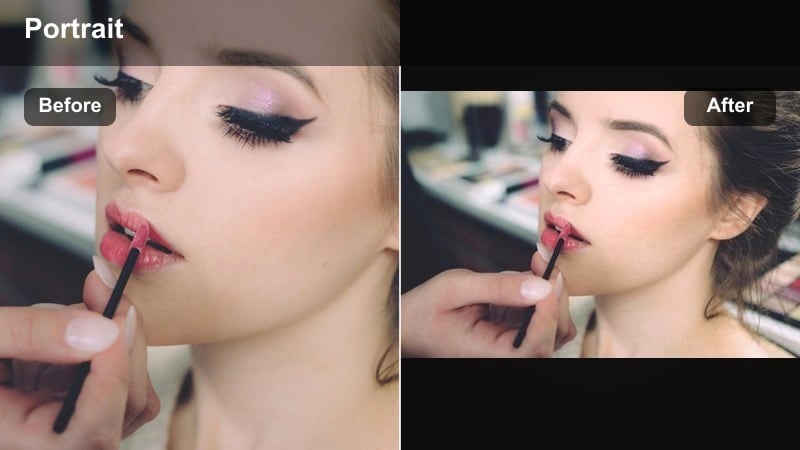
- Effect look: Light cyan highlights with cool shadows and a faint glassy clarity boost
- Best for: Front-camera clips on public transport or underground hallways with mixed lighting
- Editing tip: Increase sharpness slightly and reduce noise to keep the glassy effect clean, especially in low light subway scenes
Subway Glass Chill gives commuting clips a sleek, ad-like finish by cooling down yellow carriage lights and enhancing edges just enough for a glassy feel. Apply it to escalator shots, platform check-ins, or handheld train selfies to turn everyday movement into stylized B-roll.
In Filmora, drop this filter on dim footage, then lightly boost sharpness and noise reduction so your face and outfit details stay clear even in grainy underground lighting. Add a small vignette and adjust the cyan tint until walls, tiles, and rails share a consistent cool tone that frames your silhouette.
Polished Front Camera
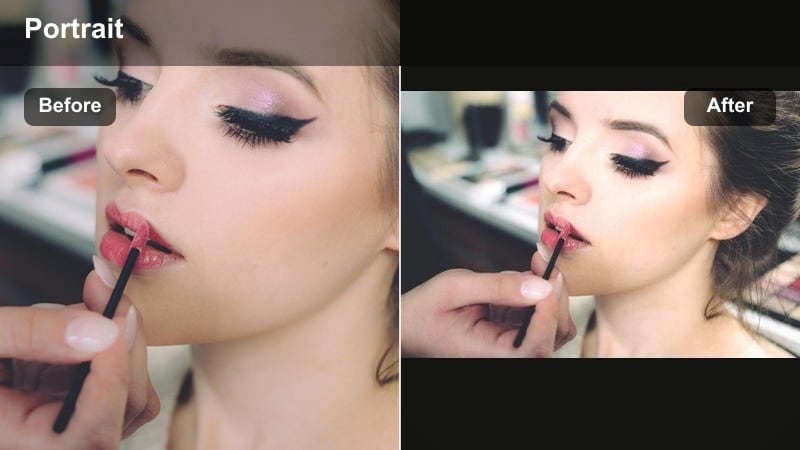
- Effect look: Neutral cool tone with smooth skin contrast and lightly desaturated colors
- Best for: Everyday talking selfies where you want a clean, almost studio-like front camera look
- Editing tip: Dial back saturation on reds and oranges to avoid oversaturated lips or cheeks under strong indoor lighting
Polished Front Camera is your everyday filter for Stories, Reels, and quick updates where you want to look put-together without heavy editing. It cools the frame slightly, smooths contrast on skin, and gently desaturates intense colors so busy bedrooms or offices do not distract from your message.
Apply it as a base look in Filmora, then use color controls to softly pull down reds and oranges if your lips, cheeks, or background decor pop too hard. Save the adjusted version as a custom preset so every new talking clip you import can instantly match this clean, studio-inspired aesthetic.
Blue-Toned Filters for City Vlogs and Street Style
Skyline Blue Crisp
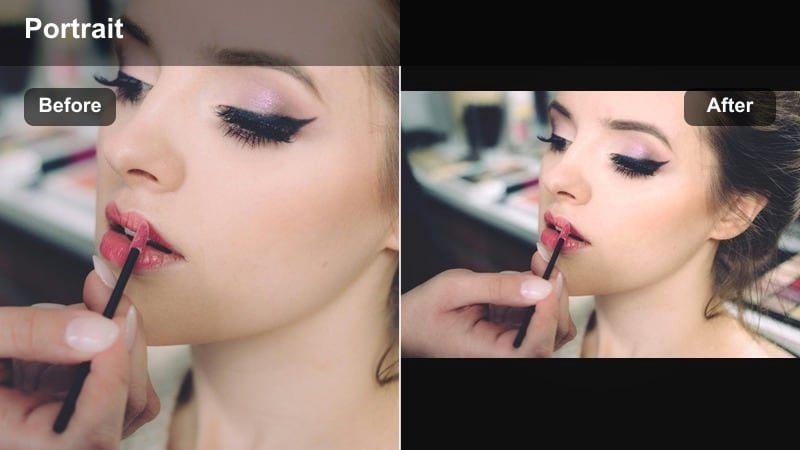
- Effect look: Punchy contrast, strong blue skies, and cool shadows that keep skin defined
- Best for: City vlogs, rooftop shots, and walking clips where the skyline is visible
- Editing tip: Lower contrast slightly if your outfit has a lot of black to prevent detail loss in the shadows
Skyline Blue Crisp pushes blues in the sky and reflections while keeping your facial features sharp, which is perfect for rooftop intros and street-style walks. It adds cinematic separation between you and the background so tall buildings and clouds feel like part of a wide-screen backdrop.
In Filmora, apply this filter to your city sequences, then fine-tune contrast depending on your wardrobe. If you are wearing dark denim or all-black looks, gently pull contrast back so the cool shadows still show texture. You can also slightly raise midtones to keep your face readable against strong architectural lines.
Neon Crosswalk Cool
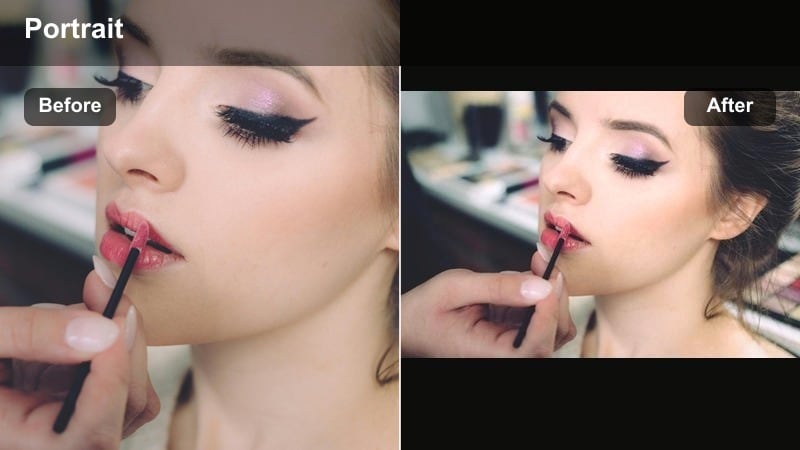
- Effect look: Deep teal shadows with preserved neon colors and slightly cool midtones
- Best for: Night city vlogs, crosswalk shots, and reflective puddles under streetlights
- Editing tip: Lift shadows a bit to bring back detail in dark outfits while keeping the teal city mood
Neon Crosswalk Cool is built for late-night city energy, turning gray asphalt and dark corners into moody teal backdrops while leaving neon signs vibrant. It keeps skin tones cool but clear, so you can stand in front of streetlights, shop fronts, or billboards without losing detail.
After applying the filter in Filmora, bring shadows up slightly if your outfit or hair blends into the darkness, and consider adding subtle glow or bloom effects to emphasize reflections in puddles or windows. Quick walking shots, crosswalk transitions, and turning moments all pair well with this cinematic night grading.
Concrete Daylight Wash
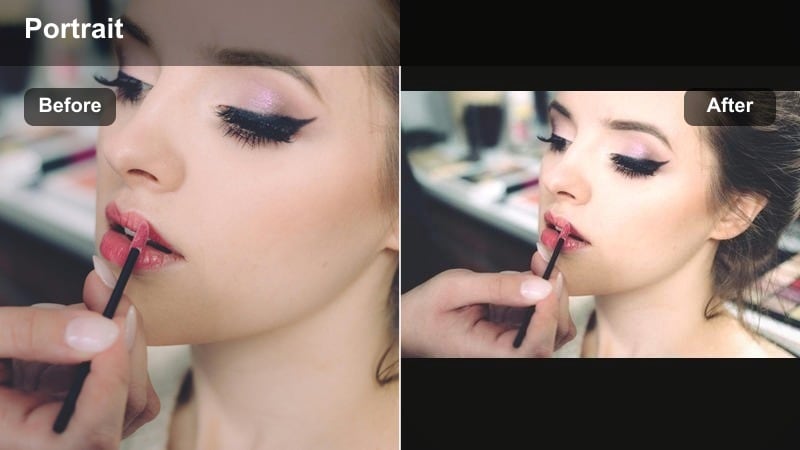
- Effect look: Muted colors with a soft blue wash that flattens harsh midday light
- Best for: City sidewalk vlogs, outfit checks, and quick B-roll on gray concrete backdrops
- Editing tip: Add a slight fade in the curves tool to soften edges and give a more editorial, film-inspired finish
Concrete Daylight Wash is ideal for shooting when the sun is high and shadows are harsh, especially on pale sidewalks or building facades. It mutes intense colors, cools the frame, and evens out contrast so your outfit and skin look intentional rather than overexposed.
In Filmora, stack this filter with a gentle fade in the curves panel to smooth highlights and dark corners for a magazine-style finish. Use it on walking B-roll, step-by-step outfit showcases, or static posing shots where gray walls, staircases, or streets dominate the frame.
Mirror Selfie Filters for Bedrooms, Studios, and Stores
Wardrobe Iceframe
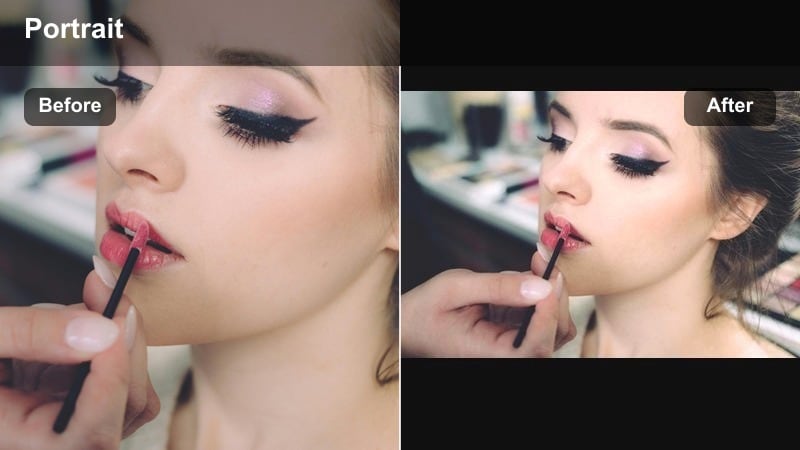
- Effect look: Cool, subtle blue with a slight vignette and added clarity on clothing textures
- Best for: Full-body mirror selfies in bedrooms, closets, or styling corners
- Editing tip: Increase clarity on fabrics but lower clarity on skin using Filmora’s masking to keep faces soft
Wardrobe Iceframe focuses attention on your outfits by sharpening fabrics and silhouettes while keeping the overall scene calm and cool. The gentle vignette and blue tint help messy bedroom corners recede so your mirror reflection reads like a curated look-book shot.
Inside Filmora, apply the filter, then use masking to isolate your face and reduce clarity there while boosting it on the rest of the frame. This workflow gives denim, leather, and knits more definition without emphasizing pores or texture on your skin, ideal for fashion-haul Reels and OOTD mirror spins.
Storefront Cool Reflect
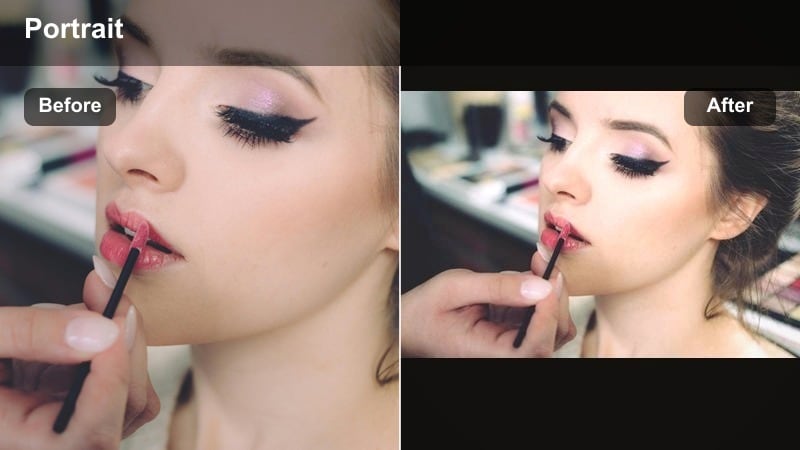
- Effect look: Light blue tint with reflective highlight boost and slightly lowered warm hues
- Best for: Shopping vlogs and storefront window selfies showing both your reflection and the street
- Editing tip: Pull back saturation on yellows to keep store lights from overpowering your blue-tone aesthetic
Storefront Cool Reflect is tailored for reflection shots where you and the city overlap in glass. It keeps your outline sharp against softened backgrounds, while blue-tinted highlights help blend indoor and outdoor light sources into one cohesive aesthetic.
When editing in Filmora, reduce yellow and orange saturation slightly to prevent warm store lighting from clashing with the cool wash. Use this filter on slow pans past display windows or static poses where your reflection overlaps passing cars, signs, or people for layered, urban visuals.
Studio Soft Cyan
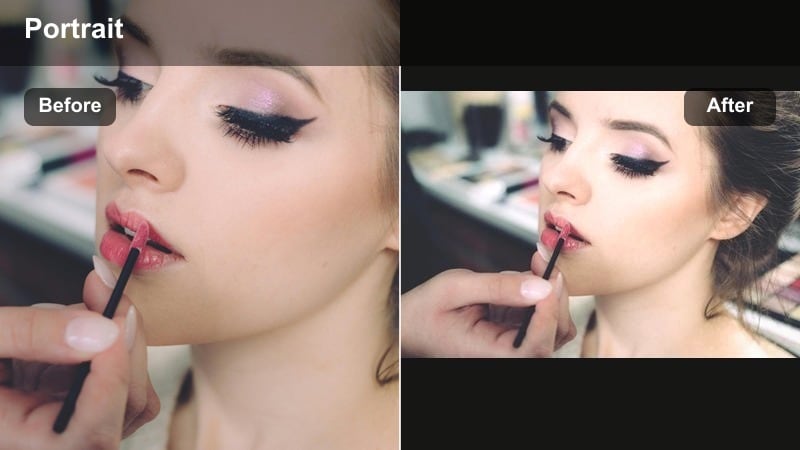
- Effect look: Gentle cyan midtones, bright whites, and a flattering soft contrast on skin
- Best for: Indoor studio shoots, makeup videos, and sponsored content that needs a polished finish
- Editing tip: Fine-tune white balance after applying the filter so product packaging still looks true to color
Studio Soft Cyan gives branded and sponsored videos a modern, commercial-ready finish with clean whites and flattering cool tones on the face. It is especially useful for makeup, skincare, or jewelry content where you want both your look and the product to feel high-end.
In Filmora, apply this filter to your studio clips, then tweak white balance to ensure packaging, labels, and swatches stay accurate for viewers. You can lightly increase exposure or add a soft light effect to enhance the airy, professional vibe without washing out your features.
Cinematic Cool-Tone Face Effects for Reels and Shorts
Editorial Ice Contour
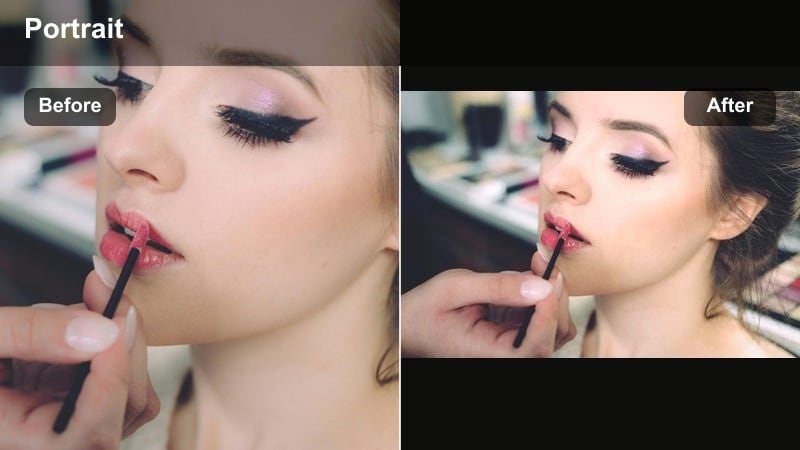
- Effect look: High-fashion cool grading with slightly deepened shadows and sculpted facial contrast
- Best for: Close-up beauty shots, transitions, and editorial-style Reels showing makeup details
- Editing tip: Use a subtle blur on the background so the sculpted cool tones on your face become the main focus
Editorial Ice Contour transforms basic front-camera footage into high-fashion close-ups by carving out highlights and shadows with a cool grade. It is ideal for revealing contour, highlighter placement, and graphic eyeliner looks that you want to feel runway-inspired.
After applying the effect in Filmora, add a gentle Gaussian blur or depth-of-field style effect to the background so your face sits in sharp focus. Film static poses, slow head turns, or snap transitions, then cut them into your Reels or Shorts as striking anchor shots that showcase your coolest glam moments.
Metro Mist Softface
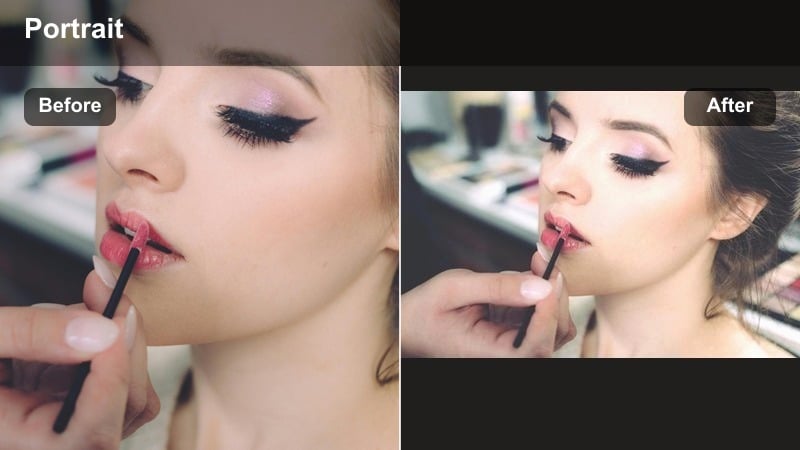
- Effect look: Soft cool glow on skin with reduced texture and slightly faded backgrounds
- Best for: Quick talking clips during commutes, escalator shots, and station cutaways
- Editing tip: Pair with subtle background music and use gentle zoom-ins to enhance the dreamy metro aesthetic
Metro Mist Softface lightly smooths texture and adds a cool glow, making rushed commuting selfies feel dreamy and cinematic. It keeps the urban setting visible but softened, so crowds, signage, and movement stay atmospheric rather than distracting.
In Filmora, combine this filter with slow zoom-ins or handheld push-ins to emphasize your expression while escalators or trains move behind you. Layer in low-key background tracks and cut these clips between sharper city B-roll to create a rhythm of soft, introspective moments inside an otherwise busy vlog.
Cityframe Cool Portrait
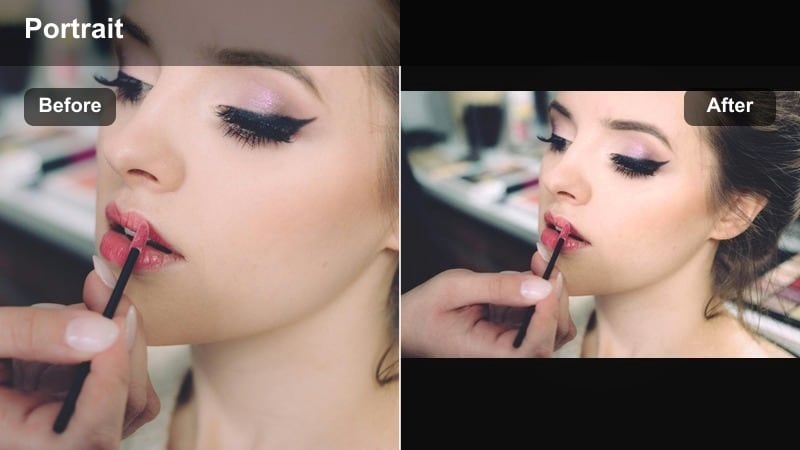
- Effect look: Balanced cool portrait grading with strong edge definition and rich midtones
- Best for: Vertical portrait shots framed by buildings, doorways, or railings in the city
- Editing tip: Use Filmora’s portrait masking to keep your face cooler and let the background stay slightly more neutral for depth
Cityframe Cool Portrait locks your face into a balanced cool grade while giving urban architecture crisp edges and depth. It is designed for vertical shots where streets, doorways, or railings naturally frame your body, creating poster-worthy clips for Reels and Shorts.
Inside Filmora, use portrait masking to treat your face and body separately from the background: keep your skin slightly cooler and cleaner while letting buildings and streets hold a more neutral tone. Add a slow push-in or dolly effect so those architectural lines guide the viewer straight into your eyes and outfit details.
Tips for Using Selfie Cool Tone Filters in Filmora
- Shoot near natural light sources like windows, then cool the image down with filters instead of relying only on harsh overhead lights.
- Lower filter intensity on skin and keep it stronger on backgrounds to avoid an over-edited face while still getting a strong blue vibe.
- If your outfit is mostly cool colors, slightly reduce saturation so the filter does not push blues and greens too far.
- Record a short test clip in each location and preview multiple filters before filming full sequences.
- Save your favorite cool selfie filter combinations as custom presets so your feed stays visually consistent.
- Use masking tools in Filmora to treat your face, outfit, and background separately for more precise cool-tone styling.
- Blend cool filters with light grain or fade for a more cinematic, editorial finish on fashion and city vlogs.
- Keep an eye on product and skin color accuracy by adjusting white balance after applying strong blue-toned effects.
Cool selfie video filters give fashion creators and urban vloggers an easy way to turn casual clips into cohesive, on-brand content. By choosing the right blue tone face effect for mirror selfies, city vlogs, and close-up portraits, you can keep your front camera look clean and recognizable across every platform.
Explore these Filmora presets, tweak intensity, and stack filters with LUTs until you find a cool selfie filter style that feels like your signature. When you are ready to expand your look into duo content, try filters that flatter two skin tones and settings at once.
secure downloadNext: Best Couple Video Filters for Romantic, Cinematic Vlogs
