

 100% Security Verified | No Subscription Required | No Malware

A strong Behance project video should make the work feel intentional from the first frame to the last. This free Behance portfolio video LUT pack gives designers and creative studios a focused set of Filmora video filters for shaping polished portfolio showcases, case studies, and motion work.
Use these looks to create a consistent visual language across screen recordings, animation reels, product studies, and behind-the-scenes edits. Apply a preset as a starting point, then refine exposure, contrast, saturation, and skin tones so your Behance video color grading stays clear, credible, and aligned with the project.
In this article
Studio Introductions and Project Openings
Clean Studio
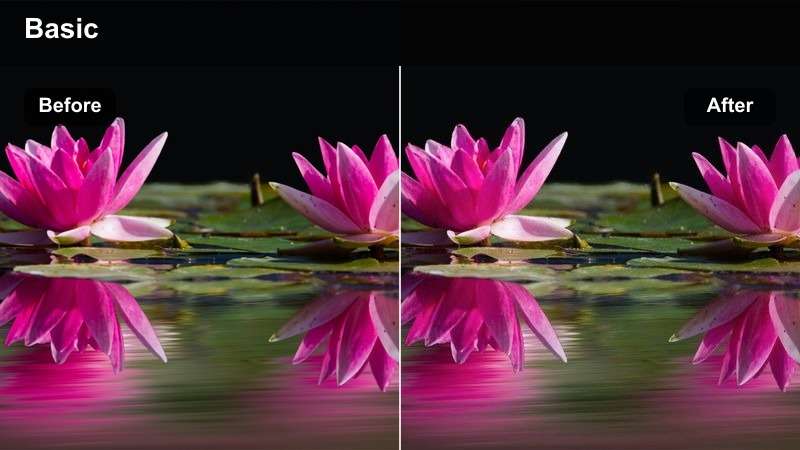
- Effect look: Balanced contrast, neutral whites, and crisp midtones for a refined presentation
- Best for: Portfolio introductions, agency reels, and clean design walkthroughs
- Editing tip: Lower highlights slightly before applying the filter to preserve white interface details
Clean Studio creates a polished neutral foundation for opening frames, logo reveals, and portfolio introductions. Its balanced contrast keeps design details sharp while neutral whites help interface captures and presentation graphics appear accurate.
In Filmora, use this filter as a starting point for clips that need a professional and consistent finish. Correct white balance first, then make small exposure adjustments so screen recordings, camera footage, and title cards share the same visual tone.
Build a Consistent Creative Showcase Palette
Use Filmora's color tools to identify the dominant tones in your portfolio footage and shape a palette that supports the project instead of competing with it.
For Behance presentations, consistency is especially useful when combining screen recordings, studio footage, animation previews, and final mockups in one case study.
 secure download

Soft Editorial
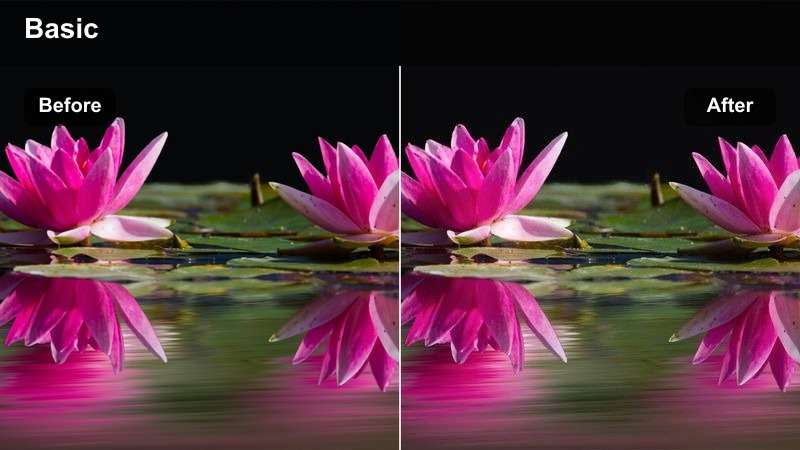
- Effect look: Gentle contrast, softened highlights, and a subtle warm editorial finish
- Best for: Brand case studies, visual identity projects, and art-directed portfolio intros
- Editing tip: Add a small amount of fade only after checking that fine typography remains readable
Soft Editorial gives brand case studies and visual identity projects a warm, art-directed mood. Gentle contrast and softened highlights make environmental footage, mockups, and presentation scenes feel more atmospheric without becoming overly stylized.
Apply it mainly to footage and visual assets while keeping important text overlays sharp. In Filmora, review small captions and labels at full size, then adjust fade and saturation until the editorial finish supports readability.
Cool Grid
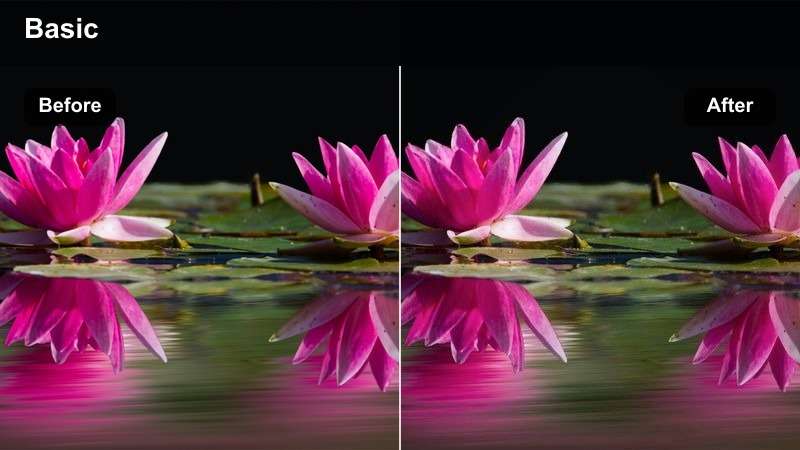
- Effect look: Cool shadows, controlled saturation, and a structured high-contrast finish
- Best for: UX portfolios, digital products, interface systems, and technical design work
- Editing tip: Reduce blue intensity in shadow areas when the screen capture already contains cool interface colors
Cool Grid reinforces the precision and structure of digital design work with cool shadows, controlled saturation, and crisp contrast. It is especially effective for UX portfolios, interface systems, and technical product presentations.
Because screen recordings often contain strong blues and cyans, reduce those colors before applying the filter in Filmora. This helps preserve a controlled look while keeping interface elements distinct and easy to evaluate.
Case Study Process and Design Detail
Paper to Screen
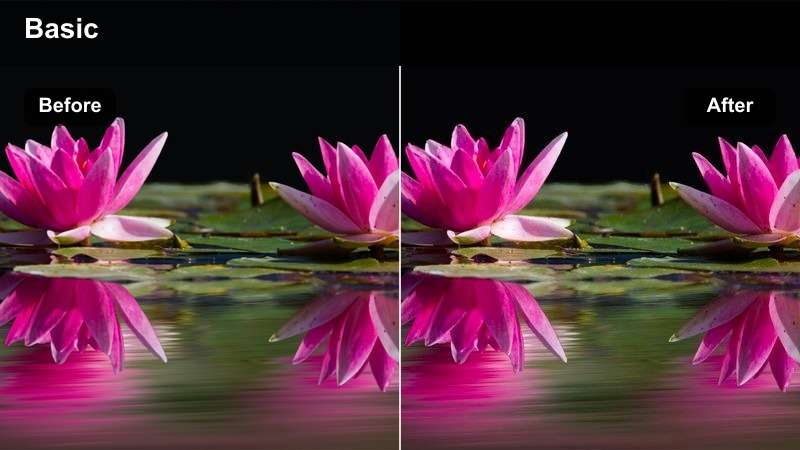
- Effect look: Warm neutrals, lifted blacks, and tactile contrast for a crafted visual feel
- Best for: Sketch-to-final case studies, print projects, and identity development videos
- Editing tip: Keep paper highlights below clipping so textures and pencil marks remain visible
Paper to Screen adds warm neutrals and lifted blacks to footage that documents the creative process. The tactile finish suits sketches, print layouts, typography samples, and identity development videos.
Use moderate intensity in Filmora so paper grain, pencil marks, tape, and ink remain visible. Protect highlights before applying the filter, especially when filming white paper or bright worktables.
Gallery Neutral
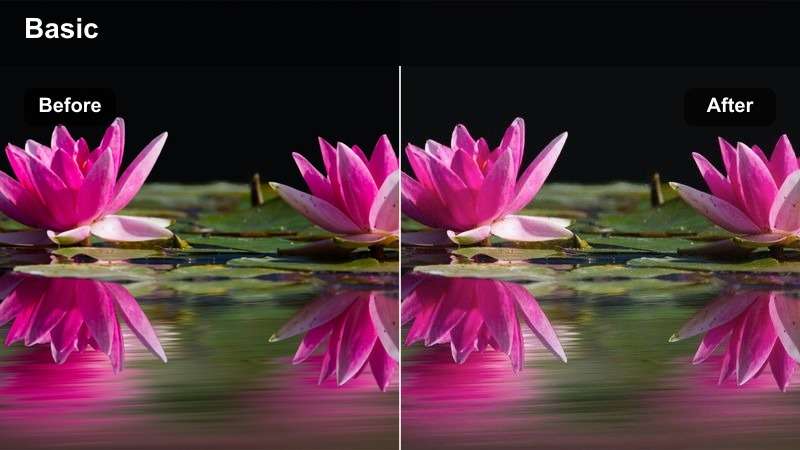
- Effect look: Clean midtones, muted color, and spacious tonal separation
- Best for: Photography portfolios, art direction reels, and curated project galleries
- Editing tip: Fine-tune individual clips for consistent brightness when combining images from different shoots
Gallery Neutral keeps attention on the work with clean midtones, muted color, and generous tonal separation. It creates a quiet presentation style for photography portfolios, art direction reels, and curated project collections.
Use this filter with clean transitions and measured pacing in Filmora. When combining images from different shoots, match brightness and exposure clip by clip before applying the look across the sequence.
Bold Process
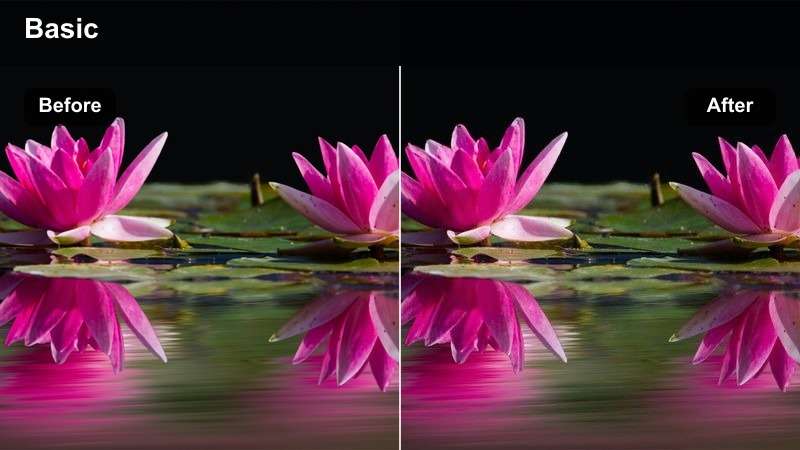
- Effect look: Deep blacks, vivid accents, and punchy contrast for energetic storytelling
- Best for: Campaign concepts, art direction experiments, and high-energy creative case studies
- Editing tip: Apply the filter selectively to hero moments and reduce intensity on explanatory slides
Bold Process gives campaign concepts and art direction experiments stronger momentum through deep blacks, vivid accents, and punchy contrast. It works well for creative case studies that need a confident and energetic visual rhythm.
In Filmora, reserve the strongest treatment for campaign reveals, transitions, and final outcomes. Reduce intensity on explanatory slides so viewers have enough visual calm to understand the process and decisions.
Preview Behance Video Filters Before Export
Compare the filters in this pack on title cards, process footage, motion graphics, and final project shots to find the look that best matches your creative direction.
Preview the full timeline rather than judging one frame alone, since pacing and scene changes can affect how the color treatment feels.
secure downloadMotion Work, Animation, and Screen Capture
Neon Motion
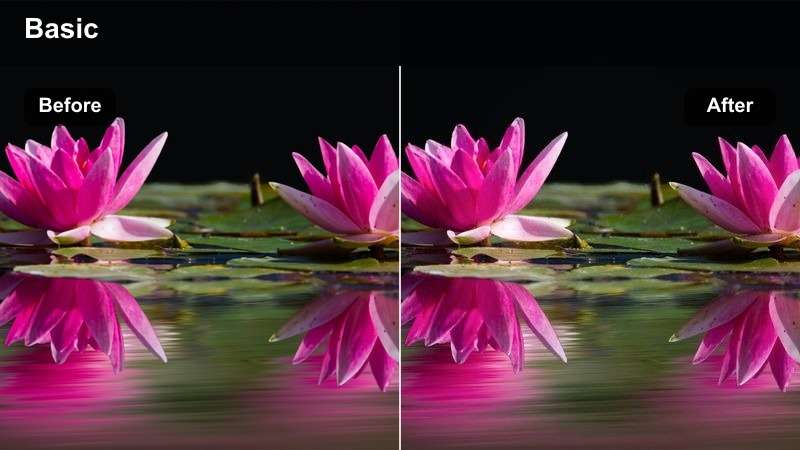
- Effect look: Enhanced glow, saturated accents, and deep cinematic shadows
- Best for: Motion graphics reels, title sequences, and experimental animation
- Editing tip: Check bright edges at full size and reduce glow if animated lines lose definition
Neon Motion makes animated accents stand out with enhanced glow, saturated color, and deep shadows. It is a natural fit for motion graphics reels, title sequences, and experimental animation with luminous details.
Use the filter selectively in Filmora when animated lines or small type need extra energy. Preview bright edges at full size and reduce bloom if glow begins to hide the shapes, timing, or lettering.
Analog Frame
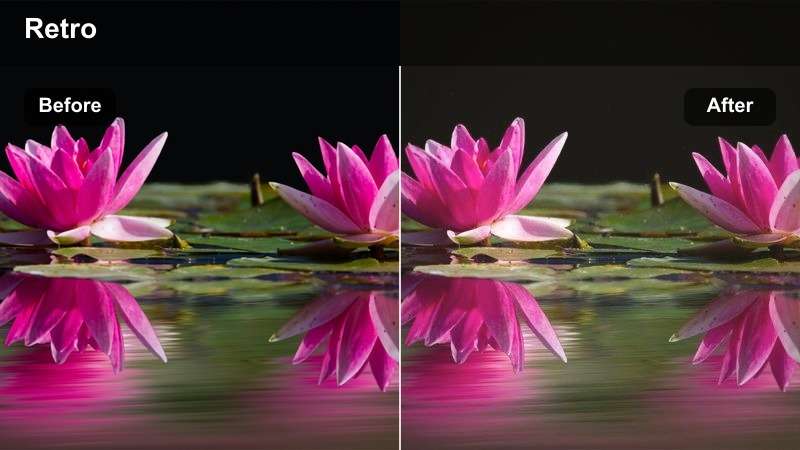
- Effect look: Subtle grain, softened contrast, and a nostalgic restrained color shift
- Best for: Experimental reels, storytelling animations, and handcrafted motion concepts
- Editing tip: Keep grain fine and consistent so it supports the mood without distracting from animation timing
Analog Frame gives digital animation a tactile and personal quality through subtle grain, softened contrast, and a restrained color shift. It suits experimental reels and handcrafted motion concepts that benefit from a less sterile appearance.
Add fine, consistent grain in Filmora and keep it away from interface demonstrations where clarity is more important than mood. Review the complete reel to ensure the texture supports animation timing rather than distracting from it.
High-Key Motion
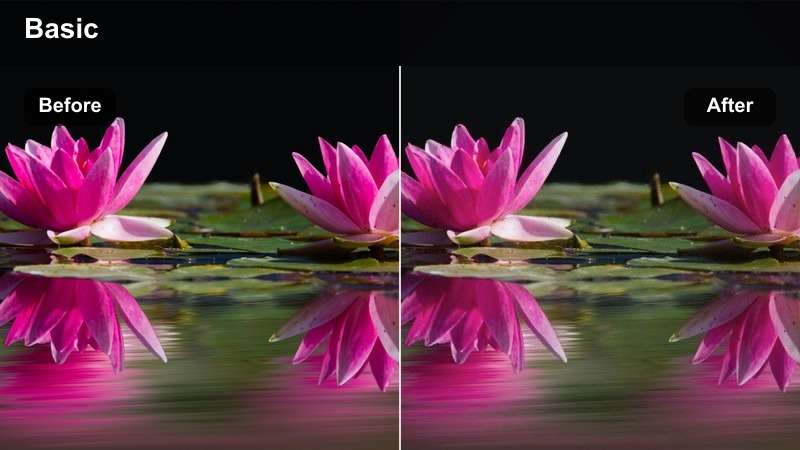
- Effect look: Bright exposure, airy highlights, and clean optimistic color
- Best for: Playful motion identities, product animations, and upbeat studio reels
- Editing tip: Reduce exposure on pale backgrounds before applying the filter to protect graphic edges
High-Key Motion creates an airy, optimistic finish for playful identities, product animations, and upbeat studio reels. Bright exposure and clean color help colorful motion assets feel friendly and contemporary.
Protect graphic edges by reducing exposure on pale backgrounds before applying the filter in Filmora. A subtle curve adjustment afterward can restore separation around logos, icons, and animated type.
Final Presentation and Portfolio Export
Cinematic Case Study
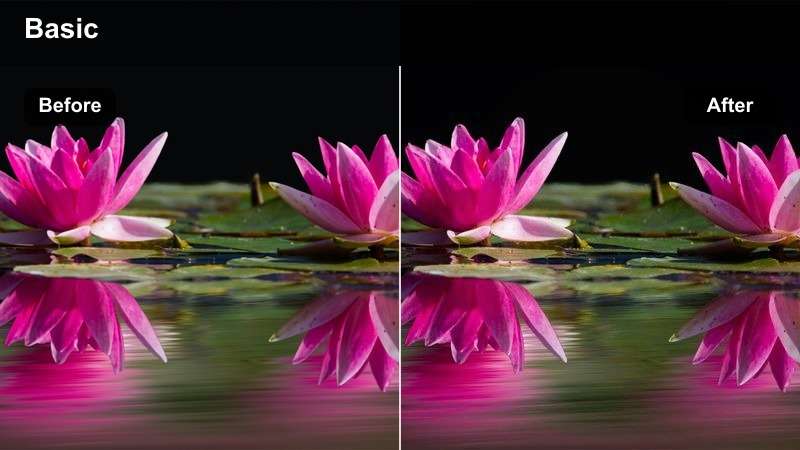
- Effect look: Rich contrast, controlled highlights, and a polished cinematic color balance
- Best for: Long-form case studies, campaign films, and studio presentation videos
- Editing tip: Use matching exposure adjustments between interviews, process shots, and final project footage
Cinematic Case Study connects interviews, process footage, and final project scenes with rich contrast and controlled highlights. It helps longer portfolio videos feel cohesive and deliberate from opening frame to conclusion.
Before applying it in Filmora, match exposure and white balance across every scene. Review the complete timeline after grading so the strongest visual moments support the case study narrative.
Monochrome Focus
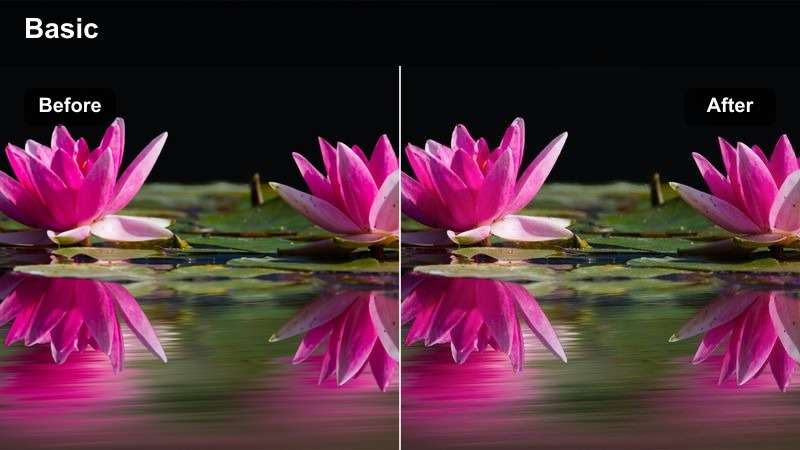
- Effect look: Reduced saturation, graphic contrast, and a focused black-and-white finish
- Best for: Typography projects, editorial layouts, architectural visuals, and conceptual reels
- Editing tip: Adjust luminance by color channel to separate similar tones after desaturation
Monochrome Focus emphasizes composition, rhythm, and form through reduced saturation and graphic black-and-white contrast. It is well suited to typography projects, editorial layouts, architecture, and conceptual reels.
In Filmora, shape the grayscale with channel controls instead of only lowering saturation. Adjust luminance by color so lettering, images, and background planes remain visually separate.
Signature Finish
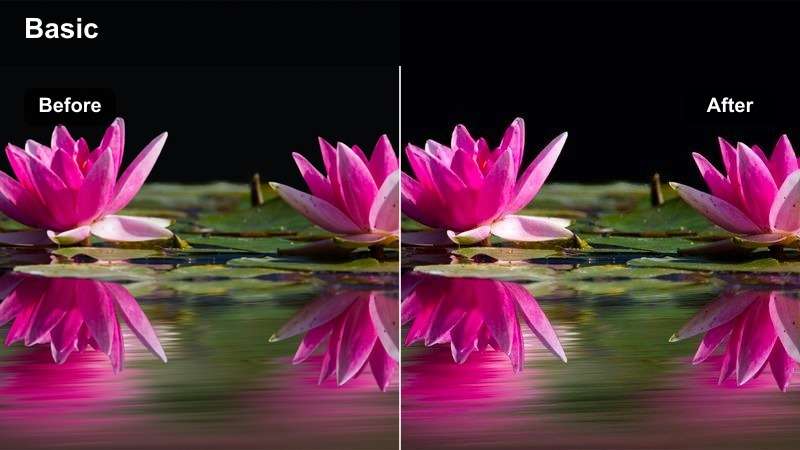
- Effect look: Balanced warmth, refined contrast, and subtle color cohesion across mixed footage
- Best for: Final portfolio compilations, studio highlight reels, and multi-project Behance uploads
- Editing tip: Use this as a final unifying layer after correcting each clip independently
Signature Finish provides balanced warmth and refined contrast for portfolios that combine different cameras, mockups, screen captures, and animation scenes. Its subtle cohesion helps a multi-project reel feel recognizable and complete.
Correct each clip independently in Filmora before using this filter as a final unifying layer. Apply it gently across the timeline, then compare the opening and closing frames to confirm the visual identity holds together.
Turn Filter Experiments Into a Repeatable Workflow
Start with a Behance video LUT or filter as a creative foundation, then make targeted corrections for exposure, white balance, contrast, and saturation in Filmora.
Saving your refined settings helps creative studios maintain a recognizable visual standard across portfolio showcases, case studies, and future motion work.
secure downloadTips for Using Behance Video Lut Download Filters in Filmora
- Correct exposure and white balance before applying a strong filter so the preset produces a predictable result.
- Use one primary look across a case study and reserve alternate filters for transitions or clearly separated project chapters.
- Check small typography and interface details at full resolution after applying contrast, glow, or grain.
- Match screen recordings to camera footage with brightness and saturation adjustments before adding a unifying finish.
- Export a short review version first to confirm that the filter remains clear on both desktop and mobile Behance viewing.
The right filter can give a Behance project video a stronger point of view while keeping the design work easy to understand. Use this free Behance portfolio video LUT pack as a flexible starting point, then refine every scene so the final grade supports your concept, craft, and presentation goals.
With Filmora, designers and creative studios can turn portfolio showcases, case studies, and motion work into more cohesive visual stories. Download the pack, test the looks against your strongest footage, and save the refined settings that define your creative showcase grading style.
secure download