

 100% Security Verified | No Subscription Required | No Malware


 ChatGPT
 Perplexity
 Gemini
 Claude
 Grok
Grok
These free cinematic LUT-style filters for Premiere Pro are designed for creators and editors who want filmic color with minimal tweaking. Each look focuses on storytelling, mood, and consistency across your entire edit.
Browse the scene-based collections below, pick a filter that matches your story, then fine-tune intensity and basic corrections in Premiere Pro to match your camera, lighting, and brand aesthetic.
In this article
Golden Hour Stories and Warm Cinematic Sunsets
Sunset Glow Film
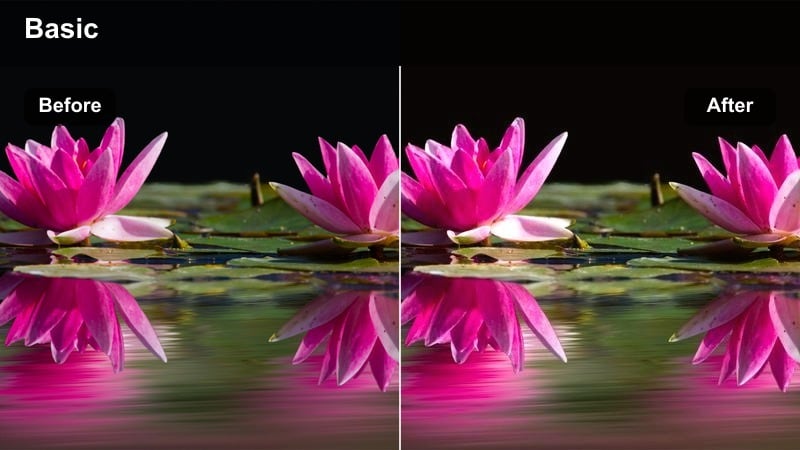
- Effect look: Soft golden warmth with gentle contrast and subtle filmic halation around highlights.
- Best for: Outdoor golden hour vlogs, travel b-roll, and romantic storytelling scenes.
- Editing tip: Slightly lower saturation on skin tones and pull back highlight intensity to prevent clipping in bright skies.
Sunset Glow Film gives that classic golden-hour cinema feel with warm mids, soft contrast, and highlights that roll off instead of clipping. In Filmora, you can mimic this by combining a warm temperature shift with curve adjustments that gently lift shadows while protecting bright skies.
Use this look on rooftop vlogs, travel montages, and quiet narrative beats where the sun is low and soft. If you edit in Filmora, apply a warm cinematic filter first, then fine-tune skin tones with HSL or color tuning so faces stay natural while the environment leans into rich, glowing sunset color.
Speed up cinematic looks with Filmora's AI color tools
After you test these free cinematic LUT-style filters in Premiere Pro, you can recreate similar moods in Filmora using AI-powered color matching and tone balancing. Filmora analyzes a graded reference frame and automatically pushes your whole timeline toward that same cinematic palette.
Import a still frame from your favorite LUT-graded clip, drop it into Filmora, and let AI Color Palette transfer the look across your other shots so your sequence feels cohesive from the first frame to the last.
 secure download

Preview cinematic filters in real time
Filmora includes a large library of cinematic filters that emulate many popular LUT looks without requiring extra files. As you hover over a filter, you get an instant live preview on your selected clip so you can compare several moods quickly.
Stack multiple Filmora filters on an adjustment layer to build warm sunsets, cool nights, or neutral documentary looks, then trim the layer to control exactly where each style appears in your timeline.
secure downloadRefine cinematic color with advanced controls
Once you find a filter or LUT combination you like, Filmora lets you push the grade further with advanced tools like HSL and curves. You can target specific color ranges such as skies, jackets, or neon signs without shifting the rest of the frame.
This is ideal for creators who start with free cinematic LUT-style filters in Premiere Pro and want the same control in a faster, more streamlined interface when they switch to Filmora for everyday edits.
secure downloadAmber City Dusk
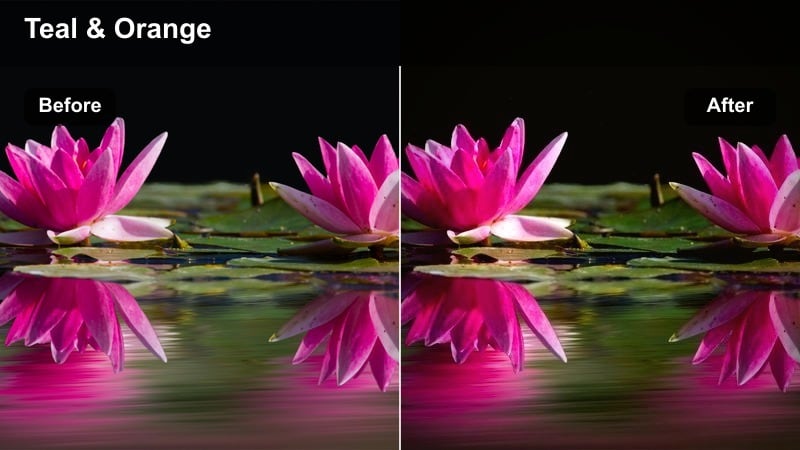
- Effect look: Rich amber highlights with deep teal shadows for a stylized, cinematic dusk palette.
- Best for: Cityscape b-roll, evening street walks, and drone shots over urban skylines.
- Editing tip: Push clarity slightly to sharpen architecture and reduce midtone contrast if faces start to look too harsh.
Amber City Dusk leans into the popular teal-and-orange style, turning city windows into warm glows while streets and skies lean cool. In Filmora, combine a cool shadow shift with warm highlights using color tuning or curves to recreate that cinematic contrast between buildings and sky.
Use this look for establishing shots, drone passes, or handheld walks through the city as the lights turn on. If you cut between Premiere Pro and Filmora projects, treat this as your dusk look across platforms so your channel keeps a recognizable, stylized city-night identity.
Golden Subway Arrival
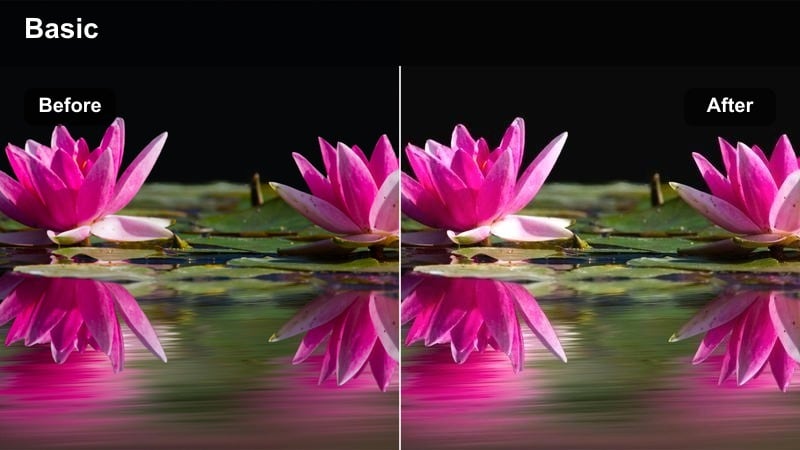
- Effect look: Warm tungsten glow with lifted blacks and soft contrast, mimicking film shot under station lights.
- Best for: Urban travel sequences, handheld subway arrivals, and moody vlogs underground.
- Editing tip: Increase contrast slightly in the curves panel to keep the lifted blacks from looking washed out in low-light shots.
Golden Subway Arrival turns harsh fluorescent and tungsten lighting into a nostalgic film-like glow, ideal for underground stations and platforms. In Filmora, you can lift shadows a bit while nudging the color temperature warmer to get that soft, dreamy transit feel.
Apply this look to clips where trains arrive, commuters step off, or you film moody underground monologues. Pair it with Filmora film grain overlays and a little vignette to blend digital noise into a cohesive texture that feels more like a classic movie than a noisy low-light capture.
Neon Nights and High-Contrast Street Cinematics
Neon Noir Alleys
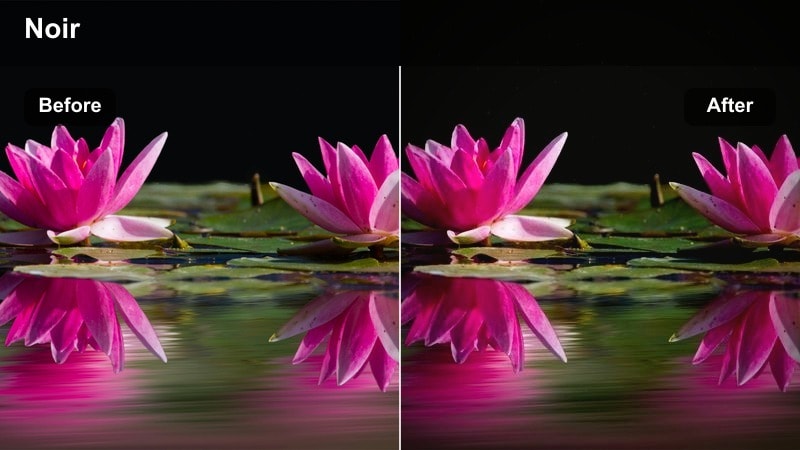
- Effect look: Deep shadows with saturated neon magentas and cyans, inspired by neo-noir city visuals.
- Best for: Night street sequences, cyberpunk-style b-roll, and music videos in urban alleys.
- Editing tip: Use masks around faces to gently raise exposure so talent stays visible against dark, high-contrast backgrounds.
Neon Noir Alleys pushes your night city footage into a bold cyberpunk direction with inky blacks and loud magenta-cyan highlights. In Filmora, use color tuning to drop overall exposure slightly, then selectively boost saturation in pinks and cyans to make signs and reflections pop.
This style works well for music videos, fashion clips, or narrative scenes set in back alleys and side streets. Combine it with Filmora speed ramps, lens flares, and light leaks to enhance motion and build a cohesive neon world around your characters.
Electric Crosswalk
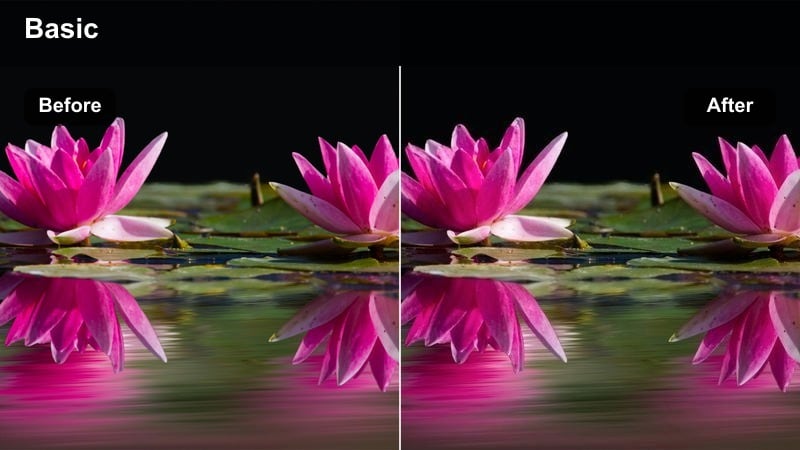
- Effect look: Punchy contrast with cool blue mids and clean whites, emphasizing city signage and traffic lights.
- Best for: Street photography style b-roll, crosswalk time-lapses, and fast-paced urban edits.
- Editing tip: Slightly reduce vibrance instead of saturation if store signs and headlights start to overpower the frame.
Electric Crosswalk gives your city-night sequences crisp contrast and cool, energetic blues that work well with headlights and LED signs. In Filmora, you can emulate this by adding a contrast-rich filter, cooling the midtones, and then preserving whites with careful curve control.
Use this look on time-lapses, crowd shots, and traffic sequences between dialogue scenes. Paired with Filmora motion blur effects and dynamic transitions, it creates a seamless sense of speed whenever your story moves through busy intersections and downtown streets.
Midnight Rain Reflections
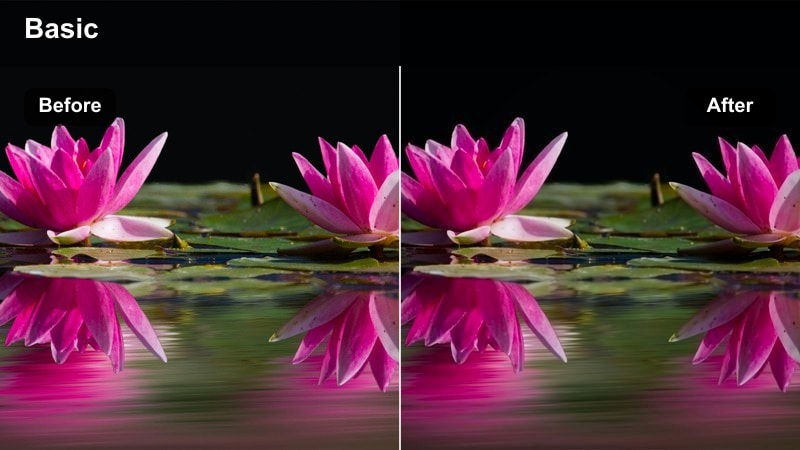
- Effect look: Glossy wet streets with enhanced reflections, cooler shadows, and subtle purple highlights.
- Best for: Rainy night city scenes, car passes, and reflective pavement b-roll.
- Editing tip: Raise saturation in blues and purples only, and lower global saturation a touch to keep skin and buildings under control.
Midnight Rain Reflections leans into the way water catches colored light, giving wet streets an almost glassy look. In Filmora, boost contrast slightly and enhance cool tones and purples so reflections from signs, cars, and windows become a visual focal point.
Apply this look to drive-by shots, tracking shots along sidewalks, or moody hero walks through the rain. For extra style, add Filmora light leaks or lens distortion effects so droplets and reflections feel more cinematic and less like raw handheld footage.
Urban Daylight Vlogs and Street Documentaries
Soft City Chronicle
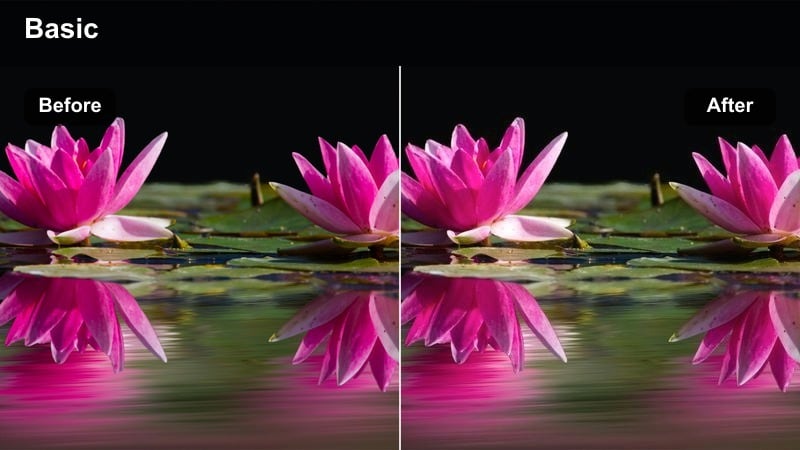
- Effect look: Muted highlights, softened contrast, and slightly desaturated colors for documentary-style realism.
- Best for: Day-in-the-life city vlogs, street interviews, and handheld documentary footage.
- Editing tip: Use the basic correction panel to calibrate white balance first so the gentle desaturation feels intentional instead of washed out.
Soft City Chronicle pulls harsh midday light into a more neutral, documentary-style grade. In Filmora, reduce contrast a bit, pull saturation down slightly, and use curves to tame bright highlights so your footage looks calm and observational rather than hyper-stylized.
This look fits vlogs, street interviews, and slice-of-life documentaries where authenticity matters more than flashy color. Pair it with Filmora stabilization, subtle film grain, and simple cuts to let story and performance drive the scene while the grade quietly supports it.
Metro Commuter Film
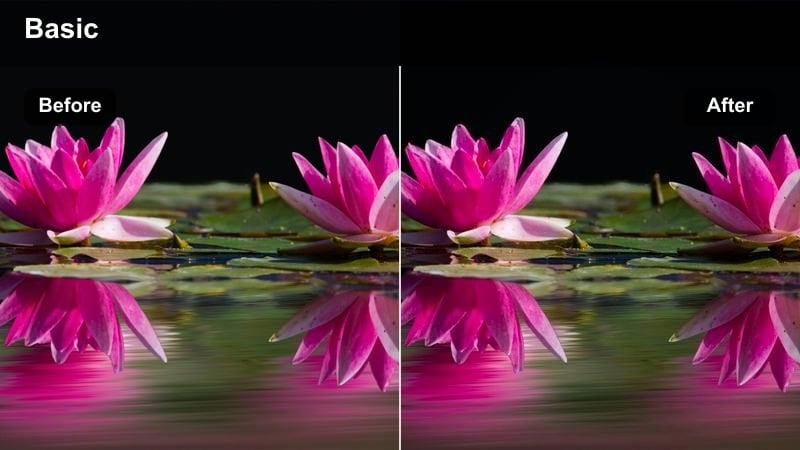
- Effect look: Neutral cinematic contrast with a slight cool shift and gently lifted blacks for everyday city commutes.
- Best for: Bus and train rides, escalator shots, and commuting sequences through stations and terminals.
- Editing tip: Stabilize handheld shots in Premiere Pro first so the subtle lift in blacks does not emphasize micro-shakes.
Metro Commuter Film adds a hint of coolness and soft blacks to everyday public transit shots, giving them a polished, cinematic feel without going too stylized. In Filmora, start with a neutral cinematic filter, cool the temperature slightly, and lift the shadows to keep detail in darker areas.
Use it as a base look for escalators, train interiors, and bus windows as you move your characters through the city. Because it is subtle, you can easily stack additional Filmora adjustments on top scene by scene while keeping the commute segments visually consistent.
Street Journal Flat Film
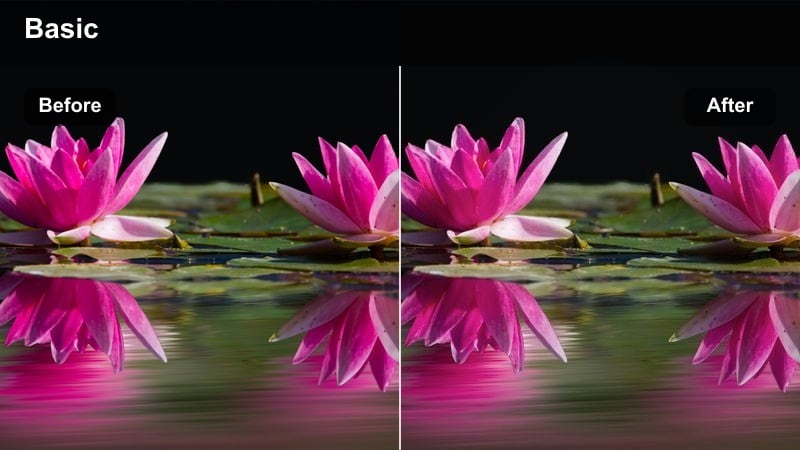
- Effect look: Low contrast, slightly lifted shadows, and gentle color shifting toward earthy neutrals.
- Best for: Editorial-style street stories, handheld reportage, and talking-head walk-and-talks.
- Editing tip: Add a small S-curve after this filter to fine-tune contrast scene by scene without breaking the overall flat aesthetic.
Street Journal Flat Film creates a flatter, more neutral base that feels like log footage already gently graded toward earthy tones. In Filmora, you can simulate this by lowering contrast, lifting shadows, and nudging color toward soft, warm neutrals that are easy on the eyes.
This grade is perfect for editors who want room to tweak each scene differently while maintaining a shared foundation. Apply it as a base on an adjustment layer in Filmora, then refine individual clips with localized exposure and color tweaks to emphasize specific moments.
Studio, Interiors, and Narrative Close-Up Scenes
Cinema Portrait Soft
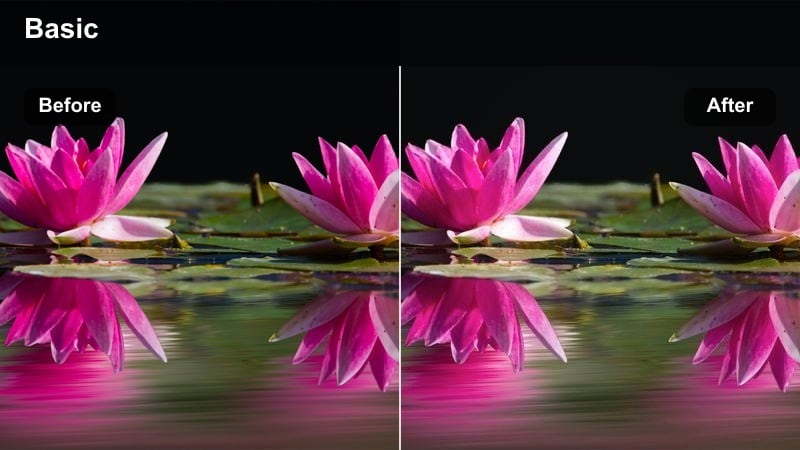
- Effect look: Gentle contrast, warm skin tones, and softened highlights tailored for indoor close-ups.
- Best for: Studio talking heads, interviews, and product talking segments shot in controlled lighting.
- Editing tip: Dial back sharpness slightly and add a soft vignette to keep attention on faces and key objects in frame.
Cinema Portrait Soft focuses on flattering skin tones and smooth highlight roll-off, ideal for A-roll interviews and YouTube talking heads. In Filmora, combine a warm tone shift with reduced sharpness and a subtle vignette so faces feel soft and cinematic instead of overly digital.
Use this look on your primary storytelling segments, then match B-roll in both Premiere Pro and Filmora to those skin tones. If you edit across platforms, save a snapshot of your Filmora grade and reference it in Premiere to keep your channel branding consistent.
Apartment Art Film
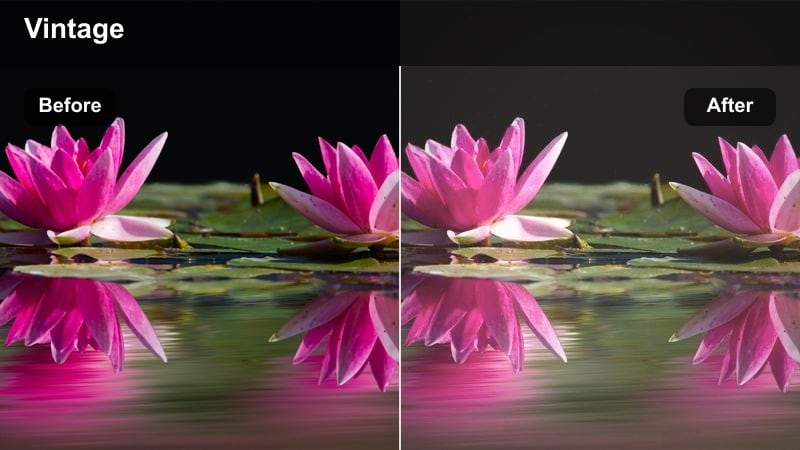
- Effect look: Soft milky blacks, pastel highlights, and a subtle vintage tint for small interior spaces.
- Best for: Narrative short films, cozy apartment scenes, and lifestyle content shot indoors.
- Editing tip: Bring down blacks just a touch if your camera already has low contrast to avoid an overly hazy image.
Apartment Art Film gives intimate interiors a pastel, art-house mood, with milky blacks and soft colors that flatter window-lit rooms. In Filmora, gently fade the blacks, reduce saturation, and add a small warm or vintage tint until the space feels like a slow, contemplative movie.
Apply this look to lifestyle vlogs, narrative scenes around windows and desks, or quiet emotional beats in your story. Combine it with Filmora slow motion, soft music, and minimal transitions to create a cohesive, gentle interior aesthetic that contrasts nicely with your outdoor grades.
Workspace Cine Grade
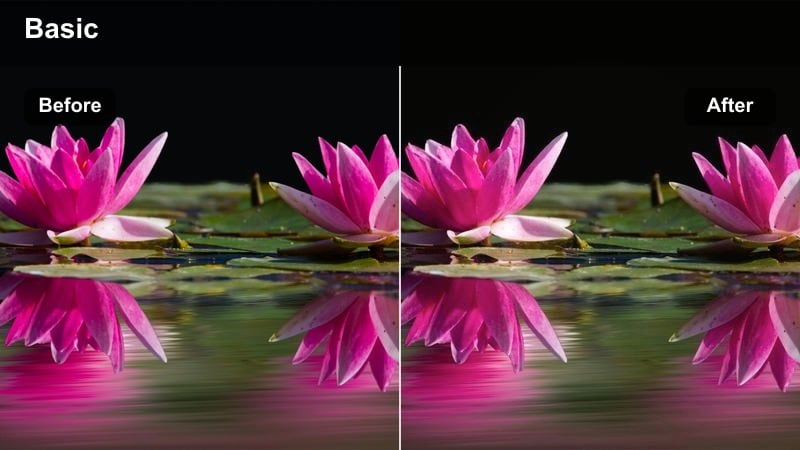
- Effect look: Clean, modern contrast with neutral whites and slightly cool shadows for tech-heavy desk setups.
- Best for: Desk setups, editing tutorials, gear reviews, and productivity content shot indoors.
- Editing tip: Fine-tune white balance to keep monitors from looking overly blue, then reduce saturation of blues only if needed.
Workspace Cine Grade is built for tech and productivity creators who shoot around monitors, keyboards, and gear. In Filmora, aim for clean whites, slightly cool shadows, and moderate contrast so your workspace looks professional and your UI elements stay readable.
Use this look on desk tours, editing breakdowns, or gear reviews where viewers need to see product details clearly. Combine it with Filmora screen recording overlays, callouts, and on-screen titles to craft polished tutorial content that still carries a subtle cinematic edge.
Tips for Using Free Cinematic Luts For Premiere Pro Filters in Filmora
- Always correct exposure and white balance in Premiere Pro or Filmora before applying any cinematic LUT-style filter so the look behaves predictably.
- Use adjustment layers for your LUTs or filters, which lets you change intensity globally without touching each individual clip.
- Prioritize matching skin tones across your sequence first, then refine skies, streets, and background elements for final polish.
- Export short test clips with your chosen filter or LUT to see how YouTube, TikTok, or other platforms affect contrast, saturation, and noise.
- Group clips by lighting scenario on your timeline and use a single filter per group to avoid jarring shifts when cutting between scenes.
- In Filmora, combine one base LUT with a subtle filter to separate moods such as warm interiors, cool exteriors, and stylized neon nights.
- Adjust filter opacity or LUT strength instead of stacking too many heavy effects, which can introduce banding and color artifacts.
These free cinematic LUT-style filters for Premiere Pro give creators and editors a fast way to push city stories, studio videos, and narrative scenes toward a film-ready look.
Start with the scene collection that fits your footage, refine exposure and skin tones, then build on top of these filters as a foundation for your own signature cinematic style.
secure download