

 100% Security Verified | No Subscription Required | No Malware


 ChatGPT
 Perplexity
 Gemini
 Claude
 Grok
Grok
If you are a creator or editor looking for free LUTs for DaVinci Resolve download options, these Filmora-inspired filters will help you get polished, cinematic grades without spending a cent.
Use this collection as a reference for the kinds of free LUT-style filters you can look for online, then recreate similar looks with DaVinci Resolve nodes, power grades, or compatible LUT packs.
In this article
Golden Hour City Vibes
Sunset Street Glow
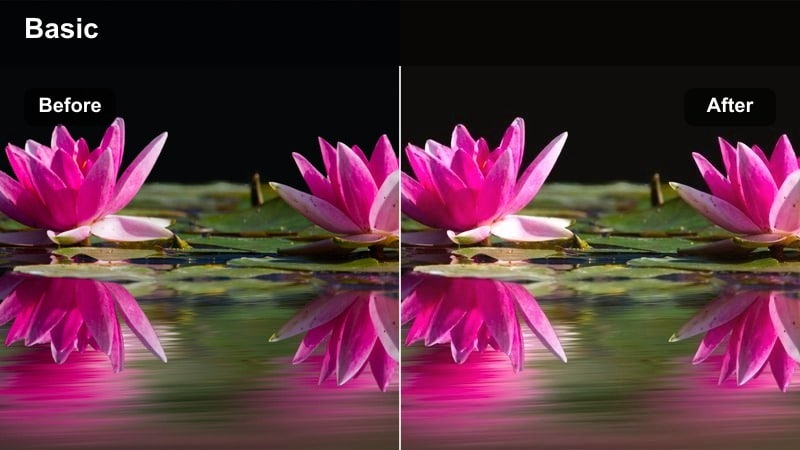
- Effect look: Warm, glowing highlights with soft contrast and gentle halation around streetlights.
- Best for: City B-roll at dusk, rooftop vlogs, and handheld walk-and-talk shots in late afternoon light.
- Editing tip: Lower the overall saturation on skin tones while keeping the orange highlights rich to avoid oversaturated faces.
Sunset Street Glow adds a classic golden-hour warmth that wraps around buildings, streetlights, and traffic, giving your city footage an instant cinematic upgrade. In Filmora, you can emulate this by combining a warm temperature shift, a slight highlight bloom, and reduced global contrast so the glow feels soft instead of harsh.
Use this type of filter on outdoor vlogs, travel intros, or romantic city montages where you want the sky and lights to feel cozy and inviting. Pair it with Filmoras vignette and skin-tone tools to keep faces natural while the rest of the frame leans into rich oranges and soft highlights similar to popular free LUTs for DaVinci Resolve download packs.
Speed up grading with AI-assisted color matching
Instead of manually tweaking every node or filter from scratch, let AI handle your base balance first. In Filmora, AI-driven color tools can analyze a hero frame and quickly get exposure and white balance close to the look of your favorite DaVinci Resolve LUT packs.
Once the AI color palette brings your clip into a neutral starting point, you can drop warm city looks, night filters, or stylized presets on top and fine-tune them. This mirrors the Resolve workflow of using technical LUTs plus creative LUTs, but inside a simpler timeline-based editor.
 secure download

Preview filters on real city footage before committing
City filters and LUT-style looks behave very differently on skylines, glass, and skin, so always test them on a mix of shots. In Filmora, duplicate a short sequence, then apply different presets or custom color combinations to quickly compare moods without touching your main edit.
This workflow is similar to building a look-test timeline in DaVinci Resolve, but streamlined. It helps you decide whether a golden-hour glow, teal-and-orange night filter, or muted filmic grade best fits your story before you commit across a whole project.
secure download1000+ Video Filters and 3D LUTs in Filmora
Beyond recreating free LUTs for DaVinci Resolve download looks, Filmora includes a large built-in library of filters, 3D LUTs, and cinematic overlays. You can stack these effects, control their intensity, and save your own combinations as custom presets for recurring projects.
Mix stylized city looks with subtle finishing tools like vignette, grain, and sharpening so your grade feels complete. This gives you the flexibility of a node-based workflow but with a more visual, drag-and-drop editing experience.
secure downloadAmber Skyline Soft
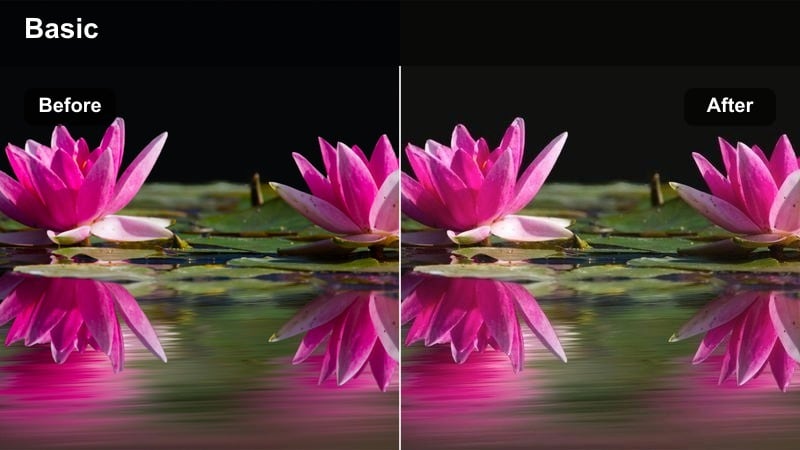
- Effect look: Soft, amber-tinted cast with gentle fade in blacks for a nostalgic urban feel.
- Best for: Drone shots over the city, timelapses of traffic, and skyline establishing shots.
- Editing tip: Add a light film grain node after the filter to keep the soft look from feeling too digital or plastic.
Amber Skyline Soft leans into warm, hazy tones that make your skyline shots feel dreamy and nostalgic. In Filmora, you can get a similar style by lifting the blacks, dialing in a warm color tint, and reducing clarity slightly so buildings blend gently into the sky.
This look works especially well on drone passes, bridges, and rooftop views where you want a memory-like feeling rather than a crisp documentary grade. Add subtle film grain and a slow zoom or pan in Filmora to turn static skyline footage into a cinematic opening for vlogs or short films.
Urban Gold Crisp
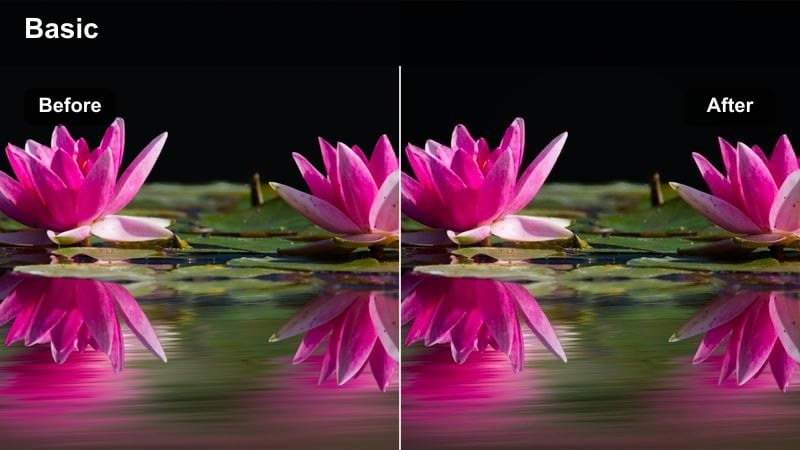
- Effect look: Punchy contrast with golden midtones, cooler shadows, and crisp details in architecture.
- Best for: Urban travel videos, architectural B-roll, and city fashion lookbooks.
- Editing tip: Use a subtle sharpening node only on luminance to avoid crunchy color edges on building lines.
Urban Gold Crisp is built for detail: it combines warm golden midtones with cooler shadows so streets, windows, and metal structures stand out. In Filmora, use a split-tone style adjustment by warming highlights and slightly cooling shadows, then increase contrast and sharpness for a punchy, modern aesthetic.
Apply this look to architectural B-roll, city fashion shoots, or product shots in urban environments where you want edges to be clean and defined. When working with people in frame, pair the filter with Filmoras skin smoothing or selective color tools to keep faces flattering while the background architecture stays razor sharp.
Cinematic Street Nights
Neon Noir Teal
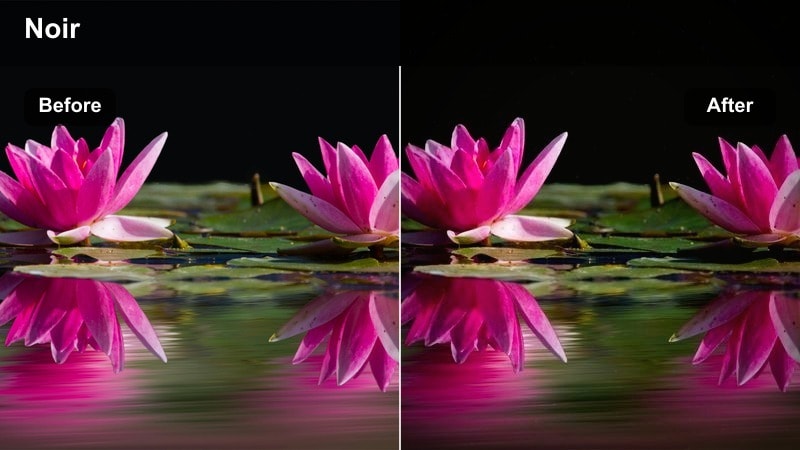
- Effect look: Deep teal shadows with saturated neon signs and rich contrast inspired by cyberpunk cityscapes.
- Best for: Night street scenes, alleyway B-roll, and handheld nightlife montages.
- Editing tip: Pull saturation out of the deepest shadows so the teal does not band or crush when you upload to streaming platforms.
Neon Noir Teal pushes your night city shots into a stylized, cyberpunk-inspired palette with cool teal shadows and vivid neon highlights. In Filmora, you can simulate this by shifting shadow tones toward teal, boosting saturation on reds and magentas, and adding extra contrast so signs and reflections command attention.
Use this look for rainy alleys, bar districts, or nightlife vlogs where you want a music-video vibe rather than a natural record of the scene. Combine it with Filmoras glow, speed ramping, and light leak overlays to build sequences that feel like they came from a high-end DaVinci Resolve grade but are much faster to create.
Midnight Metro Film
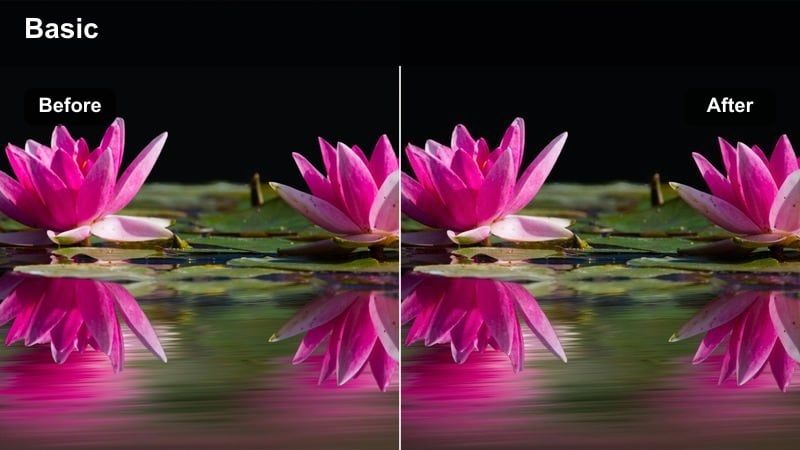
- Effect look: Low-contrast, filmic night tone with muted colors and soft highlights in subway and metro environments.
- Best for: Subway sequences, underground stations, and handheld train vlogs.
- Editing tip: Lift the blacks slightly and add a tiny bit of noise to hide compression in dimly lit areas.
Midnight Metro Film tones down the harshness of fluorescent and LED lighting in underground spaces, giving your footage a softer, film-inspired mood. In Filmora, lower overall contrast, pull saturation back a bit, and gently lift shadows to avoid crushed blacks and noisy corners in metro stations.
This style is perfect for narrative scenes, travel vlogs, or documentary pieces filmed on trains and platforms where you want the environment to feel intimate rather than clinical. Layer Filmoras grain, vignette, and a subtle blur on highlights to recreate the feel of vintage film stock often emulated by free color presets for DaVinci Resolve.
Rainy Asphalt Glow
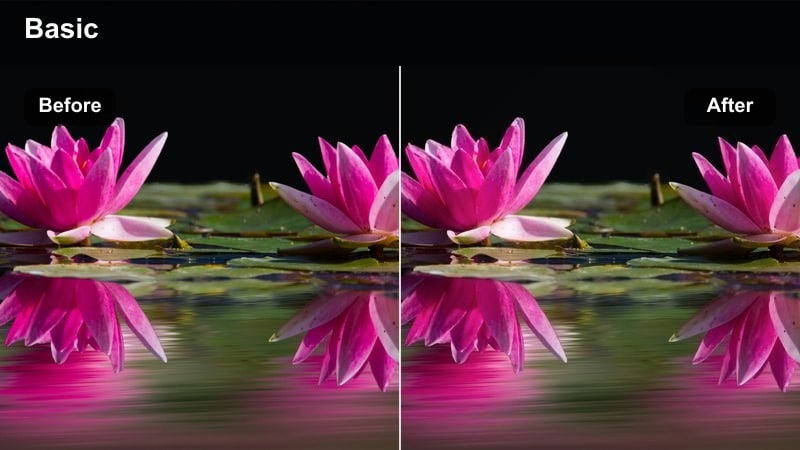
- Effect look: High-contrast reflections with cool shadows and glowing highlights on wet streets.
- Best for: Car B-roll at night, city rain sequences, and moody narrative shots.
- Editing tip: Use a power window on the road surface to boost reflection brightness without blowing out the rest of the scene.
Rainy Asphalt Glow amplifies reflections on wet roads, making car lights, signs, and city colors streak across the frame. To get this in Filmora, increase contrast, cool down shadow tones, and slightly raise highlight brightness, then enhance saturation in blues and reds to make reflections vivid.
Apply this look to low-angle shots of cars, crosswalks, and puddles when you want a dramatic, moody sequence. Combine it with Filmoras slow-motion, speed ramp, and lens flare elements to turn a simple rainy street into a cinematic backdrop for music videos, trailers, or dramatic short films.
Daytime Vlog City Life
Clean City Neutral
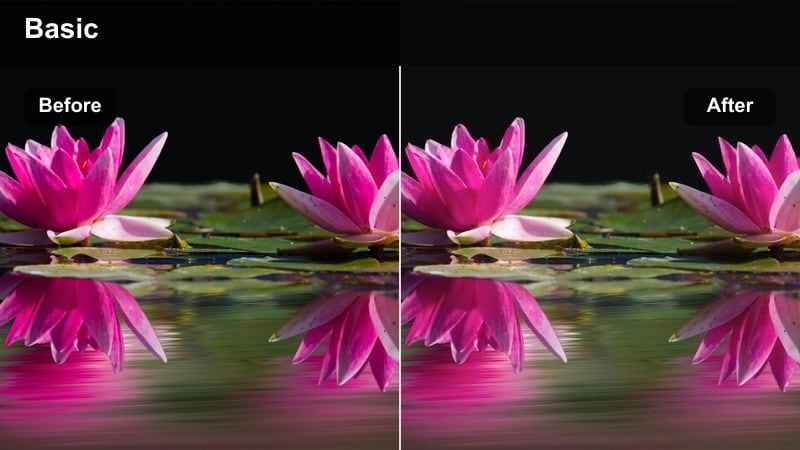
- Effect look: Balanced neutral color with soft contrast and accurate skin tones for everyday street vlogs.
- Best for: Talking head vlogs while walking, lifestyle B-roll, and simple street interviews.
- Editing tip: Use a separate node for white balance before this filter so the neutral look stays consistent across clips.
Clean City Neutral is designed to keep your daytime vlog footage natural and faithful to real life while still looking polished. In Filmora, aim for accurate white balance, moderate contrast, and gentle saturation so skin tones, storefronts, and sky all sit comfortably together.
This look is ideal when you focus on storytelling and personality, such as Q and A walks, casual shopping vlogs, or creator interviews on the street. Save your preferred adjustments as a custom preset in Filmora so you can apply a consistent, channel-defining base grade to every new upload, just like using a favorite neutral LUT in Resolve.
Soft Pastel Streets
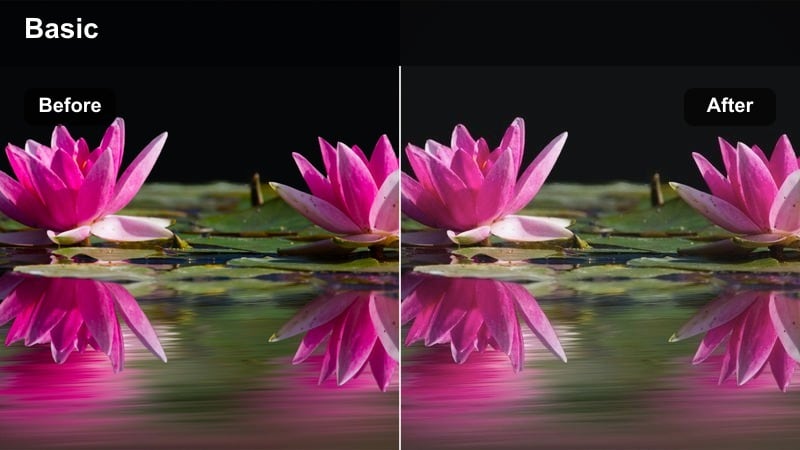
- Effect look: Gently desaturated, pastel city colors with smooth highlights and lifted shadows.
- Best for: Lifestyle vlogs, coffee shop B-roll, and chill city walks during cloudy days.
- Editing tip: Keep the midtones slightly bright so the pastel effect feels airy rather than washed out.
Soft Pastel Streets gives your city footage an aesthetic, Instagram-ready vibe with muted colors and airy contrast. In Filmora, lightly reduce saturation, lift shadows, and soften highlights to create pastel tones while keeping midtones bright enough that the image does not feel dull.
This filter style works beautifully for brunch scenes, coffee shop B-roll, bookstore visits, and calm walking shots on overcast days. Combine it with Filmoras subtle film grain, vignette, and text overlays to create cohesive lifestyle sequences that look curated and on-brand across your whole video.
Street Pop Vlog
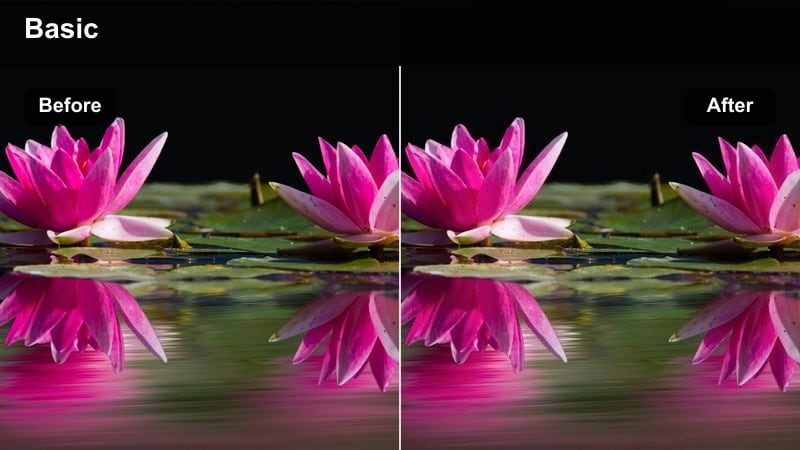
- Effect look: Vibrant colors with medium contrast that makes signs, outfits, and storefronts pop without oversaturating skin.
- Best for: YouTube travel vlogs, shopping hauls in city districts, and food tour intros in urban areas.
- Editing tip: Use Resolve's saturation vs luma curve to keep bright objects from glowing too intensely while midtones stay colorful.
Street Pop Vlog is all about energy: it boosts color and contrast so storefronts, clothing, and food all jump off the screen. In Filmora, increase saturation carefully, add moderate contrast, and use HSL controls to keep reds and yellows vibrant while preserving realistic skin tones.
Use this style for travel intros, shopping sprees, and food tours where you want the city to look exciting and lively. Pair it with Filmoras motion graphics titles, animated stickers, and upbeat music to create a YouTube-ready look that competes with channels using paid cinematic LUTs free alternative packs.
Moody Urban Stories
Concrete Film Matte
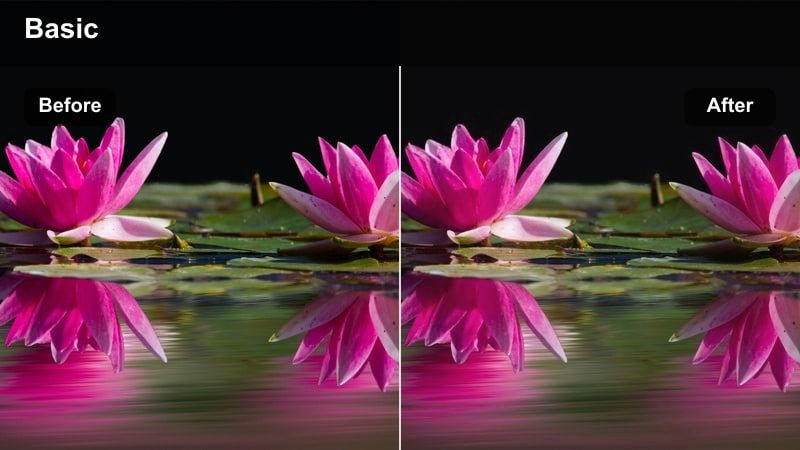
- Effect look: Matte blacks, cool highlights, and a subtle film green tint that suits gritty city narratives.
- Best for: Short films, cinematic B-roll sequences, and storytelling edits in alleys and side streets.
- Editing tip: Use a small vignette and keep midtones slightly lower to guide the viewer's eye to your subject.
Concrete Film Matte introduces a desaturated, slightly green-tinted film look with lifted blacks that feel gritty but controlled. In Filmora, you can emulate this by pulling down saturation, shifting highlights slightly cooler, and raising shadow levels so blacks become matte instead of deep and glossy.
This aesthetic is ideal for narrative shorts, moody B-roll of alleys, or character-driven story sequences in older parts of the city. Add Filmoras film grain, letterbox bars, and slow, deliberate camera movement to fully sell the cinematic mood similar to popular cinematic LUTs free collections for urban storytelling.
Steel Blue City
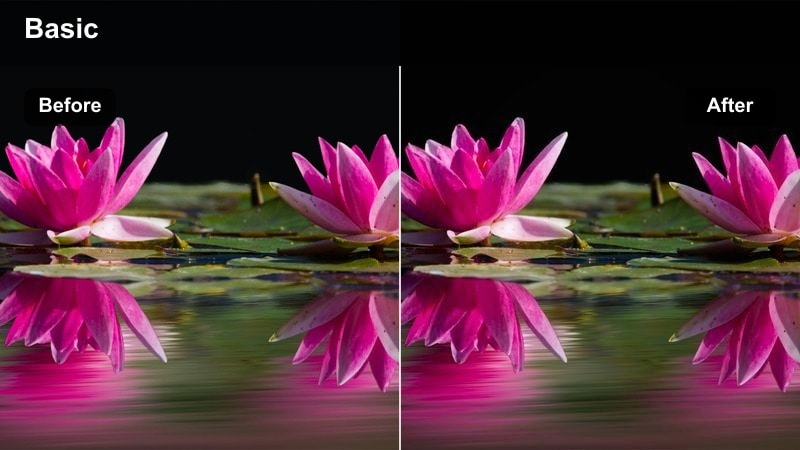
- Effect look: Cool, steely blue tones with clean highlights and a subtle contrast boost for modern cityscapes.
- Best for: Corporate city B-roll, tech intros, and modern lifestyle edits around glass buildings.
- Editing tip: Add a slight warm tint to skin tones after this cool filter to keep people from looking lifeless.
Steel Blue City emphasizes cool, metallic tones that flatter glass towers, steel structures, and modern architecture. In Filmora, shift overall temperature slightly cooler, reduce warm color saturation, and give a small contrast bump to make lines and reflections crisp and professional.
Use this look for corporate videos, tech brand intros, or urban lifestyle content that needs a clean, futuristic feel. When people appear in frame, counterbalance the cool grade by subtly warming skin tones with Filmoras HSL or color wheel tools so subjects remain lively and engaging against the steely backdrop.
Urban Fade Vintage
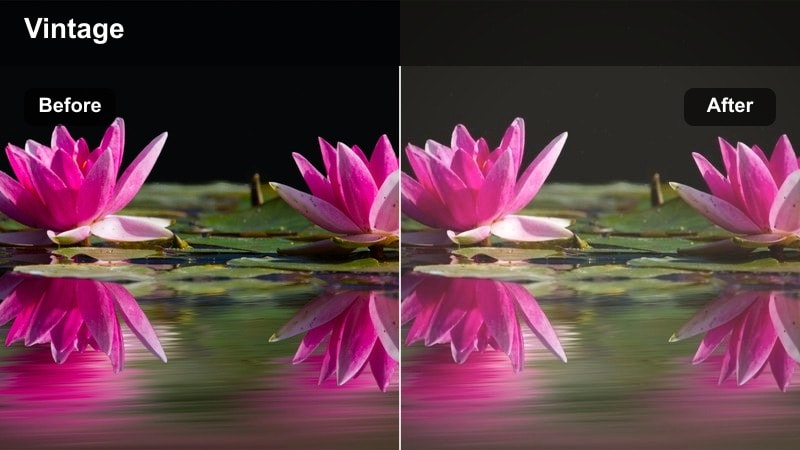
- Effect look: Faded contrast with warm midtones and a subtle shift toward brownish highlights for a retro city mood.
- Best for: Vintage-themed edits, memory sequences, and old-city neighborhood B-roll.
- Editing tip: Reduce chroma noise and apply a very soft blur before grain so the vintage look stays creamy instead of harsh.
Urban Fade Vintage pushes your city shots into a warm, retro direction with lifted blacks and slightly brownish highlights. In Filmora, lower global contrast, warm midtones, and introduce a subtle color shift toward yellow-brown in highlights, then finish with gentle grain for a filmic texture.
This style is perfect for flashbacks, travel memories, or explorations of historic neighborhoods where you want the footage to feel nostalgic. Pair it with Filmoras slower transitions, soft music, and archival-style text to create sequences that look like they were pulled from old film reels rather than modern digital cameras.
Tips for Using Free Luts For Davinci Resolve Download Filters in Filmora
- Always color-correct exposure and white balance in your editor before applying any free LUTs or LUT-style filters so the look behaves predictably.
- Test each filter or preset on both indoor and outdoor city clips to see how it responds to mixed lighting, glass reflections, and skin tones.
- Save your favorite combinations of color adjustments, filters, and overlays as custom presets or power grades to reuse across series and playlists.
- Keep an eye on scopes like waveform and vectorscope when stacking multiple LUTs or effects to avoid clipping, banding, or extreme color shifts.
- Export short test clips and watch them on a phone and laptop to ensure your cinematic grade survives compression on platforms like YouTube and TikTok.
- Use adjustment layers or clips on the timeline so you can toggle entire looks on and off quickly without redoing individual clip corrections.
With these 12 free LUT-style filters as inspiration, you can shape everything from golden hour skylines to neon-soaked streets directly inside DaVinci Resolve or recreate similar vibes quickly in Filmora.
Once you are comfortable dialing in these city looks, explore a free LUTs for CapCut pack to keep a consistent visual style across both desktop and mobile edits, no matter which platform you are cutting on.
secure download