

 100% Security Verified | No Subscription Required | No Malware


 ChatGPT
 Perplexity
 Gemini
 Claude
 Grok
Grok
This curated free LUTs for CapCut pack is built for creators and editors who want fast, cinematic looks without spending hours color grading from scratch.
Each filter in this pack includes an effect description, best use case, and a quick editing tip so you can match the mood of your footage and keep your CapCut workflow simple and efficient.
In this article
Warm Golden Hour and Sunset Scenes
Sunset Glow Cinematic
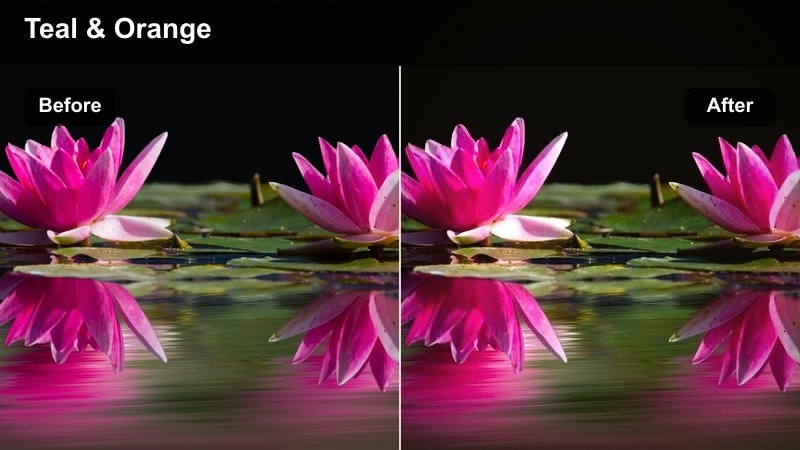
- Effect look: Soft golden contrast with lifted shadows and a subtle orange-teal cinematic tone.
- Best for: Outdoor golden hour city rooftops, street portraits, and sunset B-roll.
- Editing tip: Lower saturation slightly for skin tones and tweak warmth to match your exact sunset color.
Sunset Glow Cinematic gently boosts warm tones while keeping contrast soft, so your skyline shots and rooftop portraits feel rich without looking overprocessed. It adds a light orange-teal split that flatters both the sky and city lights, making it a strong starting point before you fine-tune details in Filmora.
Apply a similar warm cinematic LUT in Filmora, then adjust exposure and white balance until the sky retains detail and faces stay natural. Use Filmora color wheels or HSL to pull back oversaturated oranges, and add a subtle vignette so the viewer focuses on your subject while the sunset remains a cinematic backdrop.
Match Your CapCut LUTs to Any Aesthetic Instantly
Filmora AI Color tools can read the mood of your favorite golden hour or city clips and generate palettes that match the free LUTs for CapCut pack. This makes it easy to pre-visualize how your footage will look before you move it into CapCut.
Once you have a palette that fits your brand, you can reuse it on future projects to keep your CapCut edits consistent, whether you are shooting travel vlogs, street B-roll, or cinematic portraits.
 secure download

Preview Filters Before You Commit
With Filmora, you can quickly audition multiple filters and LUT-style looks on a single clip to see how your golden hour or city footage reacts before you send anything to CapCut. This is ideal when you are deciding between warm cinematic or cooler urban tones.
By comparing several Filmora presets side by side, you can lock in a direction, batch-apply the closest match to your sequence, and then export clips or references that guide your final color in CapCut.
secure downloadBuild a Cross-App LUT Workflow
Filmora supports 1000 plus video filters and 3D LUTs, so you can design looks that pair well with your free LUTs for CapCut pack. Test cinematic, vlog, and social-focused styles in Filmora first, then bring the best results into CapCut for reframing and text.
By saving a small collection of go-to LUTs inside Filmora, you create a repeatable workflow where desktop grading and mobile edits share the same visual language across platforms.
secure downloadUrban Gold Streets
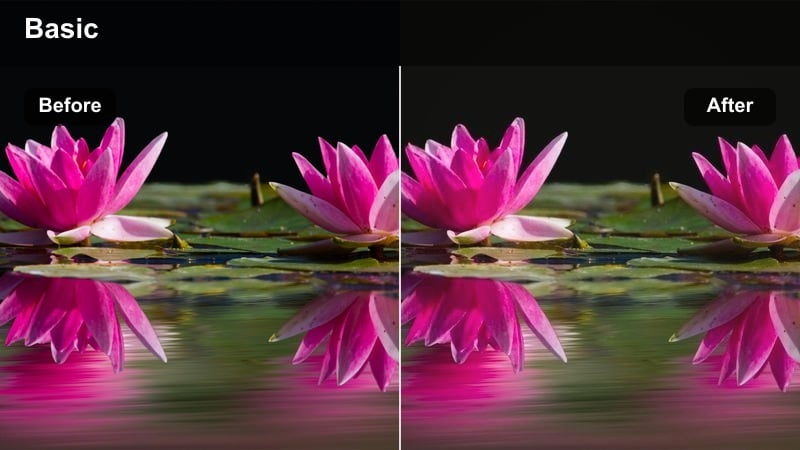
- Effect look: Warm amber highlights with slightly faded blacks and soft halation around bright areas.
- Best for: City street b-roll, lifestyle walking shots, slow-motion clips at dusk.
- Editing tip: Add a tiny bit of vignette to focus attention on your subject in busy street frames.
Urban Gold Streets adds a rich amber glow to street lights and window reflections while gently fading the blacks for a filmic, slightly retro feel. It works especially well when your frame is full of signs, cars, and buildings that catch the golden light at dusk.
In Filmora, you can recreate this vibe by combining a warm LUT with lowered blacks and a subtle bloom or glow effect on highlights. Use masks or adjustment layers to keep your subject a touch brighter than the background so the urban chaos feels stylized, not distracting, before exporting to CapCut.
Golden Vlog Soft
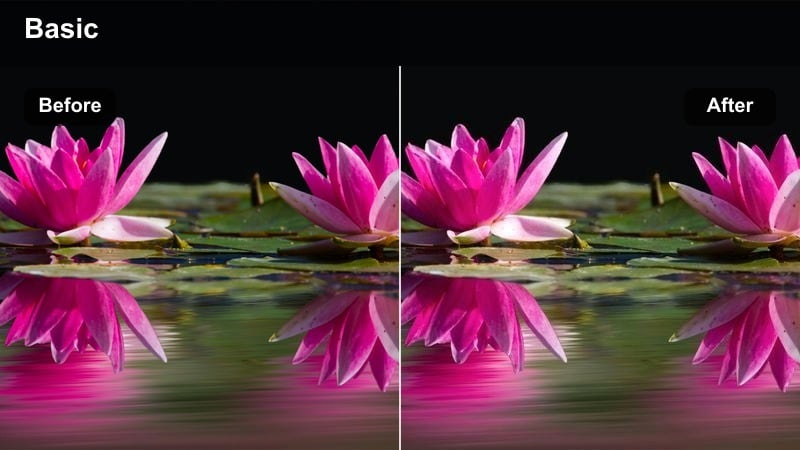
- Effect look: Gentle warm tint with softened contrast and smoothed midtones for vlog-friendly skin.
- Best for: Talking-head vlogs near windows, lifestyle home vlogs, and cafe clips at sunset.
- Editing tip: Set white balance first using something neutral in your shot, then apply this filter for consistent vlogs.
Golden Vlog Soft is tuned to keep skin tones flattering while introducing a mild golden tint, which is perfect for creators who film near windows or in cozy indoor spaces. The low contrast and smoothed midtones help reduce harsh shadows and minor blemishes without heavy retouching.
When you set up this look in Filmora, correct white balance first, then apply a soft warm LUT and gently reduce contrast and clarity. Save this combination as a custom preset so you can apply it to all clips in a vlog episode, then send the graded footage into CapCut for captions, stickers, and transitions.
Cool City Nights and Neon Scenes
Neon Noir Streets
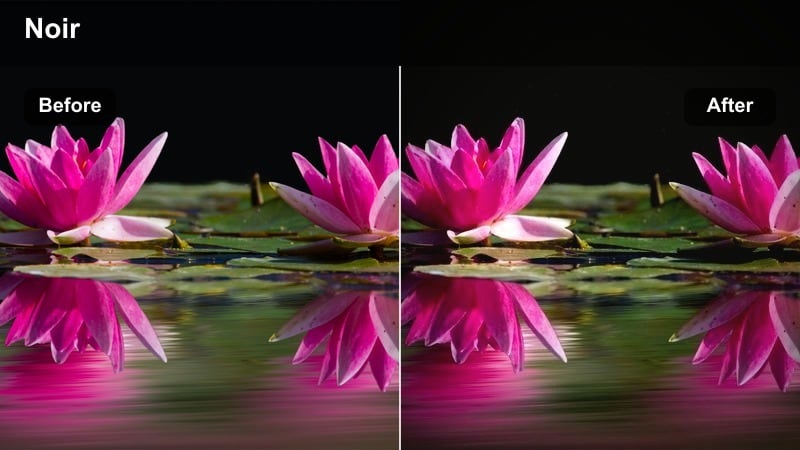
- Effect look: Deep contrast with cool shadows and boosted neon blues and magentas for a cyberpunk feel.
- Best for: Night city b-roll, neon sign shots, and moody travel edits.
- Editing tip: Underexpose your footage slightly in-camera so the neon signs are rich after applying this filter.
Neon Noir Streets leans into high contrast and cool shadows, making neon blues and magentas punchy while still preserving a dark, cinematic atmosphere. It is ideal for rainy streets, reflections, and narrow alleys filled with glowing signage.
In Filmora, start by slightly lowering exposure and deepening black levels, then apply a cool-toned LUT that emphasizes blue and magenta hues. Use curves to protect highlights so signs do not clip, and add a bit of noise reduction if your low-light footage is grainy before exporting to CapCut for final timing and effects.
Metro Cool Transit
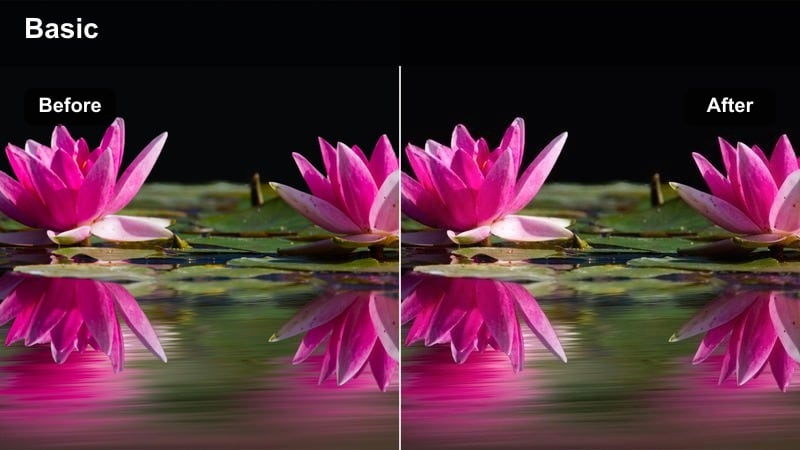
- Effect look: Subtle teal cast in shadows with clean neutral skin and crisp contrast.
- Best for: Subway platforms, train rides, and fast-paced city commute shots.
- Editing tip: Stabilize handheld shots in CapCut first so the clean, crisp look feels intentional and polished.
Metro Cool Transit gives your transit footage a fresh, modern edge by cooling the shadows with a teal tint while keeping skin tones near neutral. The result is a crisp, slightly stylized look that fits techy city commutes and travel montages.
To build this style in Filmora, apply a teal-leaning LUT, then use color controls to protect skin tones from going too blue. Sharpen lightly, add a touch of motion blur for fast-moving trains, and export clips that you can later cut and reframe vertically in CapCut for Reels or TikTok.
Skyline Midnight Crisp
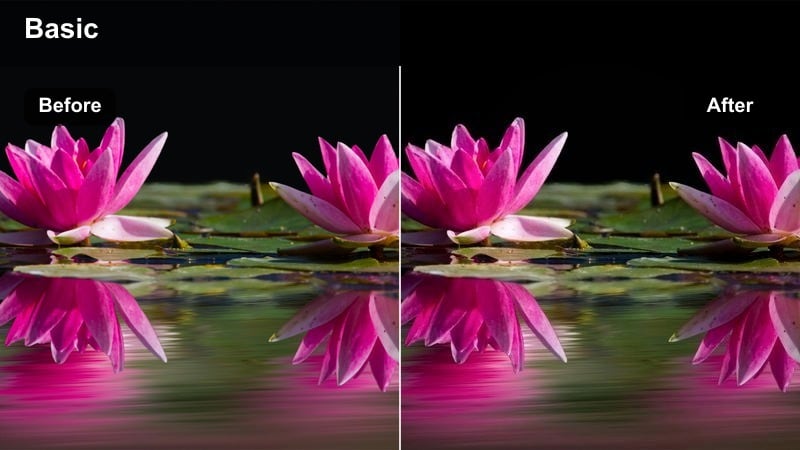
- Effect look: Clean, cool midtones with deepened blues in the sky and brightened city windows.
- Best for: Drone shots over downtown, skyscraper timelapses, and skyline panoramas.
- Editing tip: Use CapCut keyframes to slowly zoom into the skyline while this filter adds clarity and depth.
Skyline Midnight Crisp is tailored for wide cityscapes, cooling midtones and enriching blues in the sky while making windows and streetlights stand out. It keeps details sharp so distant buildings and light patterns read clearly even on mobile screens.
In Filmora, apply a cool LUT and then add selective sharpening, focusing on buildings while keeping the sky smooth with light noise reduction. Slightly increase clarity and contrast, then export your sequences so CapCut can handle creative zooms, text overlays, or sound design on top of the already graded skyline footage.
Bright Daytime Travel and Street Adventures
Travel Clean Neutral
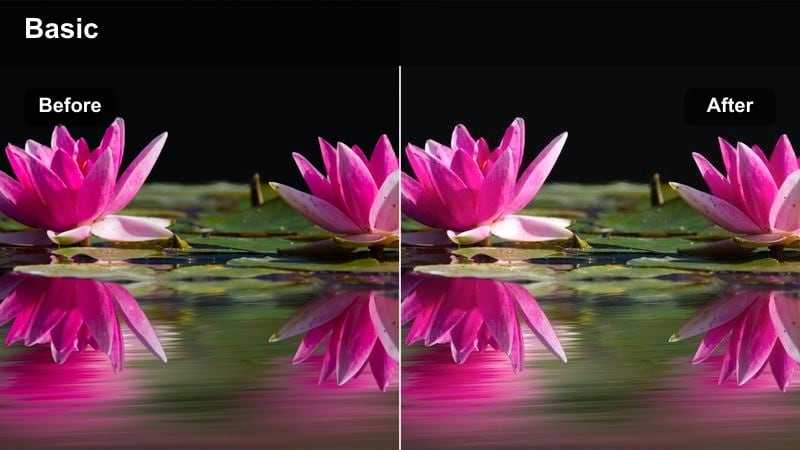
- Effect look: Balanced, bright look with neutral colors, light contrast, and true-to-life skin tones.
- Best for: Travel vlogs, walk-and-talk city tours, and handheld sightseeing clips.
- Editing tip: Apply this filter to all clips in a sequence, then adjust exposure individually for a consistent travel story.
Travel Clean Neutral is a flexible daytime look that brightens your footage without pushing colors too far, so cities and landmarks remain true to life. It lightly enhances contrast and keeps skin tones honest, which is ideal for long-form travel vlogs.
Use Filmora to establish this as your base grade by correcting white balance, adding modest contrast, and boosting overall brightness. Save it as a preset and apply it to all your travel clips before you do any creative edits in CapCut, ensuring that your entire episode feels unified visually.
Street Pop Social
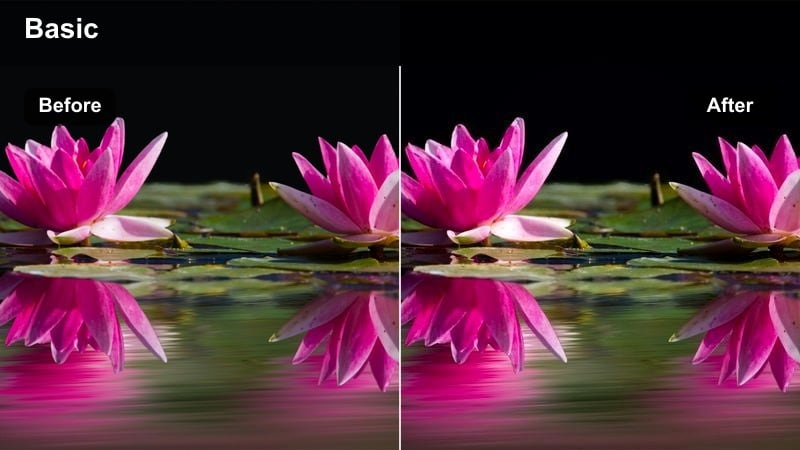
- Effect look: Punchy contrast with boosted primary colors and slightly warm highlights for social-ready clips.
- Best for: Short-form reels, TikTok city montages, and colorful street details.
- Editing tip: Keep shots under 3 seconds and cut to the beat to match the energetic, saturated look.
Street Pop Social is built for attention-grabbing edits, pushing primary colors and contrast so crosswalks, signs, and street art immediately stand out. The slightly warm highlights keep the mood upbeat and perfect for fast social montages.
In Filmora, stack a vibrant LUT with a bit of saturation and contrast, then fine-tune individual colors via HSL if certain hues become too intense. Export short, tightly edited sequences that you can drop into CapCut templates, where transitions, text, and effects will match the already bold visual energy.
Soft City Daylight
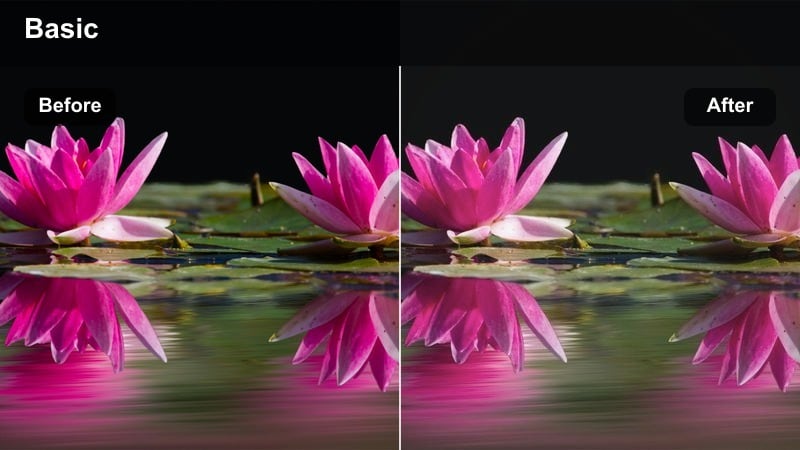
- Effect look: Low-contrast pastel-like tones with gentle highlights and softened edges.
- Best for: Lifestyle b-roll, coffee run montages, and aesthetic daily routine videos in the city.
- Editing tip: Shoot slightly underexposed, then raise exposure in CapCut with this filter for a smooth pastel result.
Soft City Daylight mutes contrast and saturation to create pastel-inspired city visuals, making everyday moments feel calm and aesthetic. It is a natural fit for lifestyle edits, cafe clips, and slow city walks set to lo-fi music.
To achieve a similar pastel finish in Filmora, reduce contrast, lift blacks slightly, and pull down global saturation until colors look soft but not washed out. Add a minor blur or lower clarity for a dreamy touch, then send these graded shots into CapCut for gentle zooms, text, and overlays that match the relaxed vibe.
Social-First Vertical and Creator Content
Creator Clear Studio
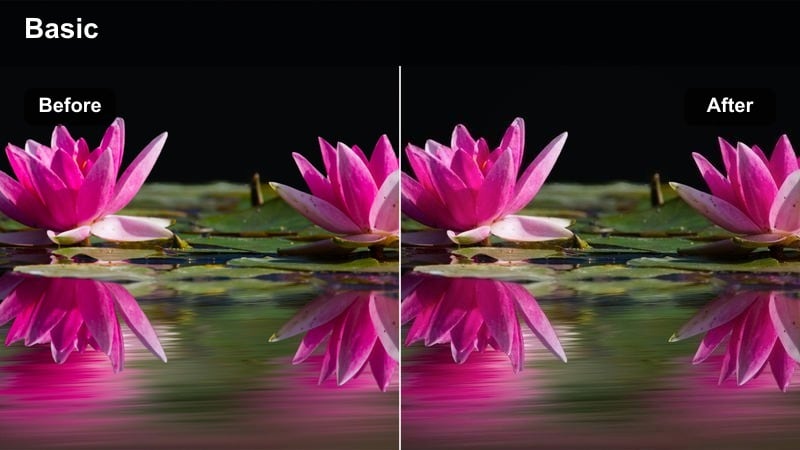
- Effect look: Bright, clear tones with subtle contrast and slightly cool whites for a clean studio feel.
- Best for: Vertical talking-head content, tutorials, and educational clips filmed indoors.
- Editing tip: Frame your subject in the center third and leave clean space above for titles and captions.
Creator Clear Studio delivers a polished, minimal studio look with bright exposure, neutral colors, and lightly cool whites that feel modern and techy. It keeps focus on your face and on-screen elements, which is ideal for tutorials, explainers, and educational content.
In Filmora, combine a gentle clarity boost with a cool-neutral LUT, then fine-tune exposure so your background stays clean without clipping. Export a master version of each clip graded this way, and let CapCut handle the vertical framing, text captions, and on-screen graphics on top of the already refined image.
Product Showcase Crisp
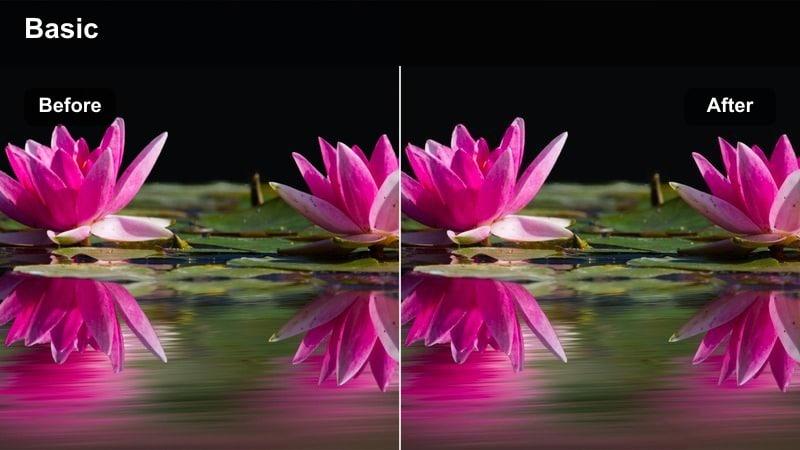
- Effect look: High clarity with balanced contrast, slightly desaturated backgrounds, and true product colors.
- Best for: Tech product demos, desk setups, and quick gear showcases.
- Editing tip: Reduce background saturation a bit more so the main product becomes the immediate focal point.
Product Showcase Crisp is designed to keep product colors accurate while subtly toning down the environment, so gadgets and gear immediately draw the eye. The higher clarity and balanced contrast make text, buttons, and materials easy to read on small screens.
In Filmora, apply a neutral LUT, increase sharpness slightly, and use saturation controls or masks to reduce color intensity in the background. Once your hero product stands out cleanly, export clips for CapCut where you can add speed ramps, callout graphics, and annotations that highlight key features.
Short-Form Boost
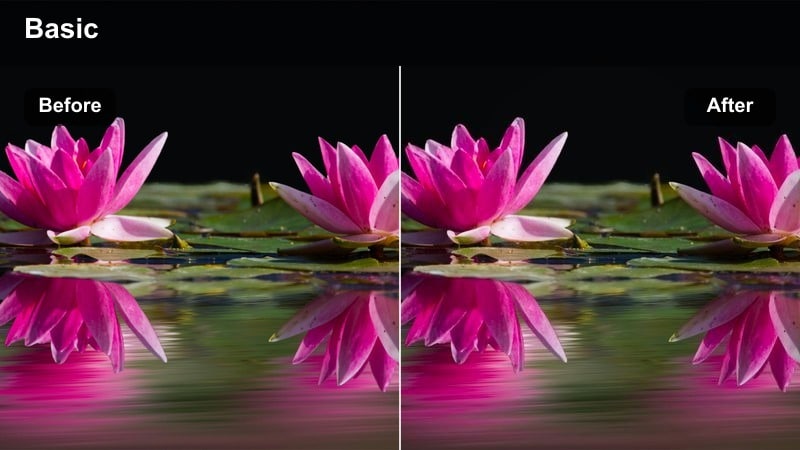
- Effect look: High-impact contrast with lifted highlights, rich midtones, and social-ready vibrance.
- Best for: Fast vertical edits, transitions, and trending CapCut template-style videos.
- Editing tip: Combine this filter with dynamic transitions and zooms to match the bold, high-energy look.
Short-Form Boost pushes contrast and vibrance so every frame feels punchy and attention-grabbing, which is perfect for hooks, transitions, and trend-based edits. Lifted highlights and rich midtones keep the image bright and energetic without fully blowing out details.
To prepare this style in Filmora, combine a vivid LUT with extra contrast and highlight gain, then watch your scopes to avoid clipping. Export short, pre-graded clips and template-style sequences so CapCut can handle rapid-fire cuts, zooms, and transitions that take full advantage of the bold visual style.
Tips for Using Free Luts For Capcut Pack Filters in Filmora
- Always correct exposure and white balance in Filmora before exporting clips to CapCut and applying any LUT-style filter to avoid muddy or oversaturated color.
- Group clips by location or lighting in your Filmora timeline, apply similar filters or LUTs to each group, and then keep those groups together when you edit in CapCut.
- Create a backup project or duplicate your raw, ungraded clips in Filmora so you can experiment with multiple LUT exports without losing the original footage.
- Use subtle vignette and sharpening in Filmora to support your CapCut LUTs, keeping adjustments light so the footage never looks overly processed.
- Export a short 5 to 10 second test sequence with your preferred Filmora grade, apply your free LUTs for CapCut pack on top, and review everything on your phone.
- Save your favorite Filmora color combinations as presets so you can quickly recreate the same base look before finalizing reels and shorts in CapCut.
- Match your Filmora project settings to the resolution and frame rate you will use in CapCut to avoid quality loss when you swap between apps.
This free LUTs for CapCut pack gives creators and editors an easy way to build cinematic, social-ready looks for city, travel, and studio-style content without complex color grading.
Experiment with a few favorite filters, save them as presets, and then explore how Filmora can help you refine those looks further before sending clips back into CapCut for final polish.
secure download