

 100% Security Verified | No Subscription Required | No Malware


 ChatGPT
 Perplexity
 Gemini
 Claude
 Grok
Grok
If you are a creator or editor looking for free LUTs for Final Cut Pro, LUT-style filters are a fast, reliable way to give your projects a cinematic grade without spending hours on manual color work.
Below you will find 12 free LUT-inspired filters organized by scene type, each with clear tips on how to use them in Final Cut Pro so you can turn flat footage into polished, scroll-stopping videos.
In this article
Urban Daylight Street Looks
Clean City Neutral
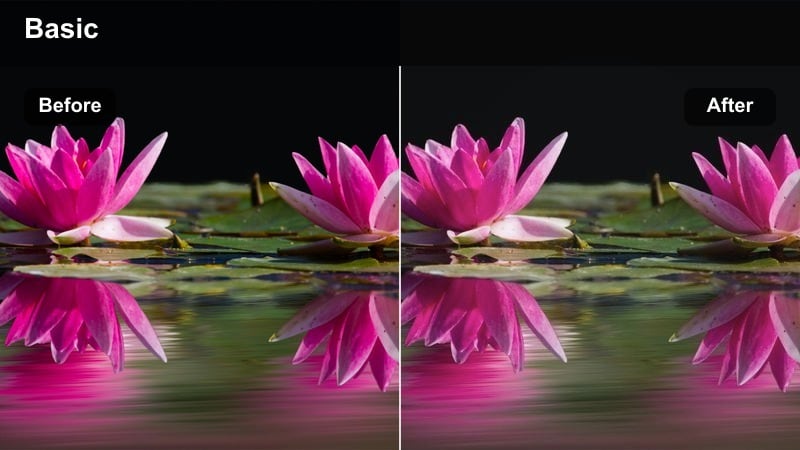
- Effect look: Soft neutral grade that keeps skin tones natural while gently boosting clarity in city daylight shots.
- Best for: Vlogs, talking-head street walk-and-talks, travel diaries shot in bright urban environments.
- Editing tip: Lower the contrast slightly if your highlights are clipping and add a subtle vignette to pull attention to the subject.
Clean City Neutral gives you a modern city look that feels polished without looking overly edited. In Final Cut Pro, you can treat it like a base daylight LUT-style filter that evens out colors, protects skin tones, and adds just enough clarity so buildings, roads, and street details feel crisp.
Drop this look on an adjustment layer over your clips, then fine-tune exposure and white balance beneath it for maximum control. Use Color Wheels to gently warm midtones for more flattering skin, and soften highlights if skies or reflective windows start to blow out while maintaining that clean city aesthetic.
Match Your Free LUT-Style Filters With AI Color Tools
Once you apply a free LUT-style filter in Final Cut Pro, you can mirror the same idea in Filmora by using AI-assisted color tools to balance exposure and white balance before your creative grade. This keeps the neutral, cinematic feel consistent across every clip, especially when you mix cameras or shoot in different parts of the city.
Filmora lets you get to a balanced base image in a few clicks, so your LUT-style looks work the way they were designed instead of fighting bad lighting or color casts.
 secure download

See These Filters in a Real FCP Project
To understand how each LUT-style filter changes your story, load a short street vlog or B roll sequence in Final Cut Pro and stack several looks on separate adjustment layers. Toggling them on and off lets you quickly compare contrast, saturation, and mood before you commit.
You can recreate the same testing workflow in Filmora, where you layer filters and LUT-like effects to preview which combination fits your channel, then save that look as a preset for future edits.
secure downloadExplore 1000+ Video Filters and 3D LUTs
Once you know which free LUT-style looks you prefer in Final Cut Pro, you can expand your toolkit in Filmora with a large library of built in filters and 3D LUTs. These presets cover cinematic, vlog, travel, and studio styles, so you can match the same type of grade in just a few clicks.
Mix and match Filmoras filters with your own LUT exports to build a flexible grading workflow that works for YouTube, social clips, and client projects without starting from scratch each time.
secure downloadStreet Contrast Punch
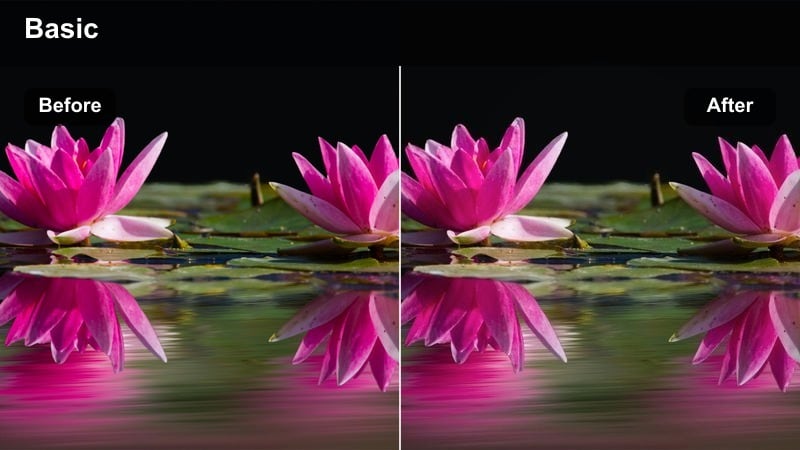
- Effect look: High-contrast urban filter with rich blacks and punchy saturation that makes painted walls and billboards pop.
- Best for: Skate edits, fashion B-roll, graffiti and mural shots, high-energy city montages.
- Editing tip: Use keyframes to ramp the filter's opacity during beat drops so the contrast and saturation hit in sync with the music.
Street Contrast Punch is made to give your city footage instant energy with deeper shadows, brighter highlights, and stronger color separation. In Final Cut Pro, it behaves like a bold LUT that enhances murals, signage, and motion, ideal for fast cuts and kinetic camera moves.
To keep this look cinematic instead of harsh, lightly lift shadows with Color Curves before applying the filter, then fine-tune saturation in problem areas like deep blues or reds. You can even animate opacity so the grade intensifies on beat drops, then eases off during calmer moments, a workflow you can mirror with Filmoras keyframe controls.
Pastel Street Film
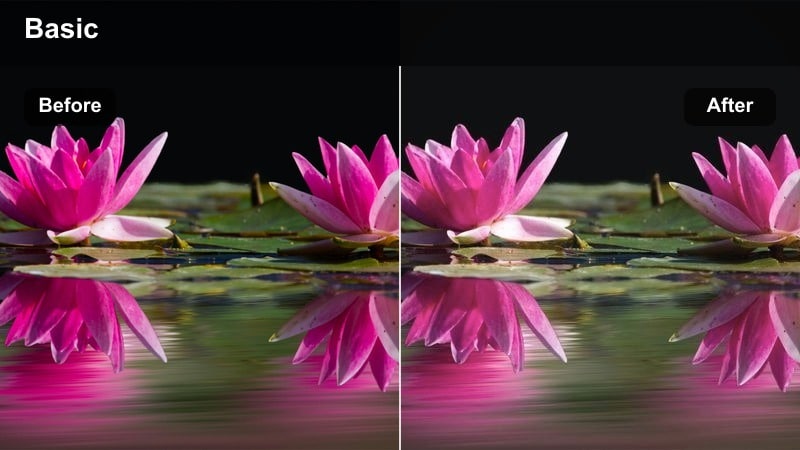
- Effect look: Soft pastel film-inspired look with lowered contrast and muted primaries that feels dreamy but still urban.
- Best for: Lifestyle vlogs, city coffee shop scenes, aesthetic B-roll with slow camera moves.
- Editing tip: Reduce sharpness or add a very light blur in Final Cut Pro to enhance the analog and pastel feel of the grade.
Pastel Street Film turns hard city lines into a gentler, more cinematic canvas by pulling down contrast and softening primary colors. In Final Cut Pro, this LUT-style filter is perfect when you want your urban footage to feel like a dreamy film sequence instead of a raw street capture.
Expose your clips slightly brighter than usual so midtones stay luminous, then apply the filter and reduce sharpness a touch to reinforce the analog aesthetic. You can replicate the same pastel mood in Filmora by pairing a matte style filter with mild blur, then subtly lifting mids to keep skin tones and storefronts glowing softly.
Cinematic City Nights
Neon City Glow
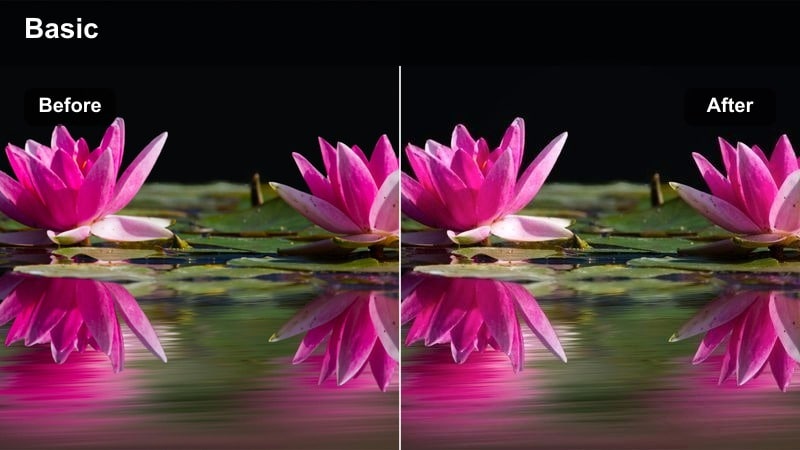
- Effect look: Moody teal and magenta night filter that emphasizes neon signs and reflections on wet streets.
- Best for: Night street b-roll, cyberpunk-inspired edits, music videos, and rainy city walks.
- Editing tip: Add a light bloom effect to highlights in Final Cut Pro to make neon signs glow and feel more cinematic.
Neon City Glow leans into stylized teal and magenta tones to bring out the color in signs, storefronts, and reflections at night. Applied in Final Cut Pro, it works like a cyberpunk LUT that instantly shifts your footage into a futuristic, music-video-ready palette.
For best results, shoot slightly underexposed so detail in neon lights is preserved, then in the edit use bloom and controlled midtone lifts to keep faces visible without washing out the background. You can build a similar neon-heavy grade in Filmora by combining color tuning tools with glow and highlight effects, matching the LUT-style feel from your FCP workflow.
Subway Noir
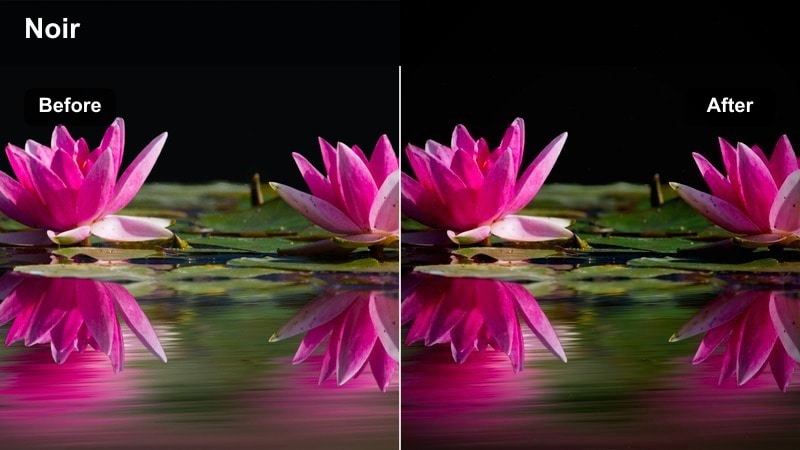
- Effect look: Gritty, low-saturation night filter with cool shadows and strong contrast inspired by classic film noir.
- Best for: Subway platforms, underground walkways, moody character portraits in harsh artificial light.
- Editing tip: Turn down saturation globally, then add a hint of warm tone back only to skin using Color Masks in Final Cut Pro.
Subway Noir strips color from your scenes and pushes cool shadows to echo classic noir cinematography. In Final Cut Pro, it acts like a gritty LUT that deepens blacks, hardens edges, and lets motivated pools of light carve out your subject in often ugly subway lighting.
Dial back overall saturation, then selectively warm skin tones so characters still feel alive against a cold environment. In Filmora, similar results come from combining a desaturated, contrasty filter with targeted color adjustments on skin ranges, giving your underground sequences a stylized but story-focused look.
Golden Night Vlog
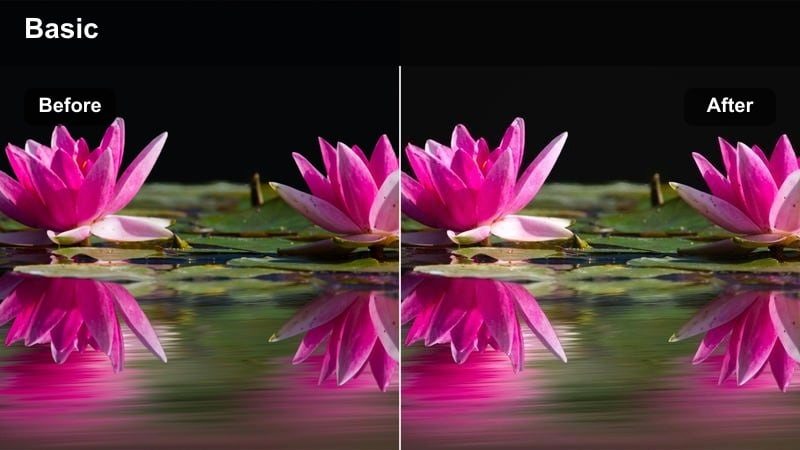
- Effect look: Warm, inviting night city filter that adds amber highlights and gentle lift to shadows for a cozy feel.
- Best for: Night vlogs, outdoor restaurant scenes, handheld city strolls under streetlights.
- Editing tip: Boost saturation slightly but keep midtones warm and shadows neutral to avoid a muddy orange cast.
Golden Night Vlog transforms harsh streetlights into soft, cozy glows by warming highlights and gently lifting darker areas. In Final Cut Pro, this LUT-style filter is ideal for handheld night strolls, food runs, and cafe vlogs where you want the city to feel welcoming rather than stark.
Keep most of the warmth in midtones so faces and table setups look inviting, but leave shadows closer to neutral so your image does not turn overly orange. You can parallel this look in Filmora by pushing temperature and tint in the midtone region, combining it with a light shadow lift to retain nighttime mood while staying flattering on skin.
Travel Cityscapes and Skylines
Skyline Teal Clean
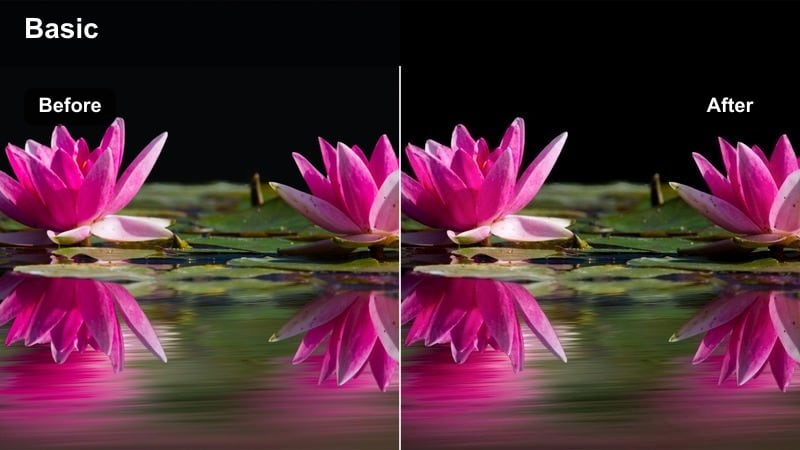
- Effect look: Crisp teal-skies filter that deepens blues and cools shadows while keeping buildings sharp and modern.
- Best for: Drone city flyovers, rooftop b-roll, skyline establishing shots in bright weather.
- Editing tip: Dial back saturation in the blue channel if skies start banding, and use subtle sharpening only on wide aerial shots.
Skyline Teal Clean enhances bright city days by deepening blue skies and giving buildings a cool, contemporary finish. In Final Cut Pro, it behaves like a skyline LUT that removes haze and tightens contrast so architecture looks sharp in drone and rooftop shots.
Before applying it, correct white balance on a neutral building or cloud to avoid color shifts, then tweak blue saturation if the sky starts to band. In Filmora, you can push a similar teal-forward city look using HSL controls on blues and cyans, plus mild sharpening on wides to keep your aerials looking crisp but not oversharpened.
Sunset City Soft
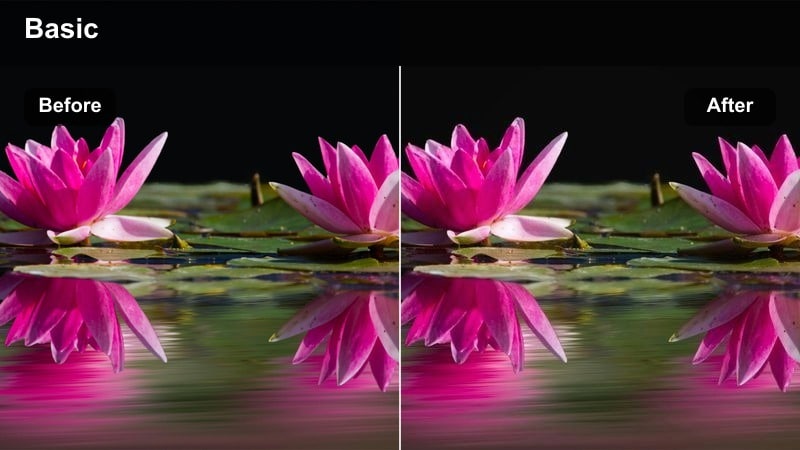
- Effect look: Golden-hour filter that enhances warm oranges in the sky and softens transitions between highlights and shadows.
- Best for: City sunsets, riverfront skylines, rooftop golden-hour time-lapses.
- Editing tip: Expose slightly to the right when shooting, then pull highlights back in Final Cut Pro to keep cloud detail with this filter applied.
Sunset City Soft is tuned for golden hour, boosting warm oranges and pinks while smoothing contrast so buildings and sky blend gracefully. In Final Cut Pro, this LUT-style look elevates time-lapses, skyline b roll, and reflective waterfront shots during the last hour of light.
Shoot a touch brighter to capture detail in the shadows, then lower highlights in post so clouds and sunlit windows retain texture with the filter active. In Filmora, combine warm color tuning with a gentle curve adjustment to soften highlight roll off, ensuring your sunset grades glow without losing city detail.
Travel City Matte
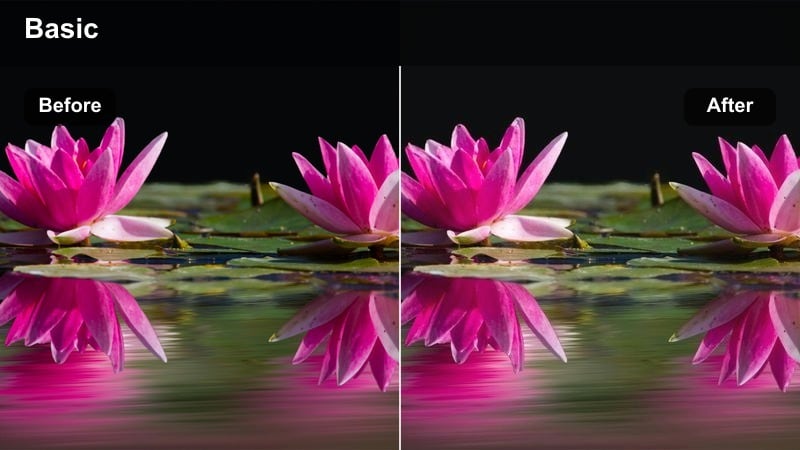
- Effect look: Low-contrast matte filter that gently lifts shadows, reduces highlight harshness, and adds a travel-film vibe.
- Best for: Handheld walking tours, city travel montages, documentary-style city stories.
- Editing tip: Combine with a subtle film-grain overlay in Final Cut Pro to complete the travel-film aesthetic.
Travel City Matte gives your footage a laid-back travel-film character by flattening contrast slightly and lifting blacks into a soft matte. In Final Cut Pro, this LUT-style filter is a great choice for walk-and-talk sequences, tourist moments, and handheld city explorations where you want a gentle, cinematic finish.
If the image starts to feel washed out, reduce the filter intensity until blacks sit just above pure zero, then layer in a light film grain for texture. You can mimic this aesthetic in Filmora by adjusting curves to create a matte S shape and pairing it with a grain overlay, turning everyday city clips into cohesive travel stories.
Indoor Studios and Creative Workspaces
Creator Desk Neutral
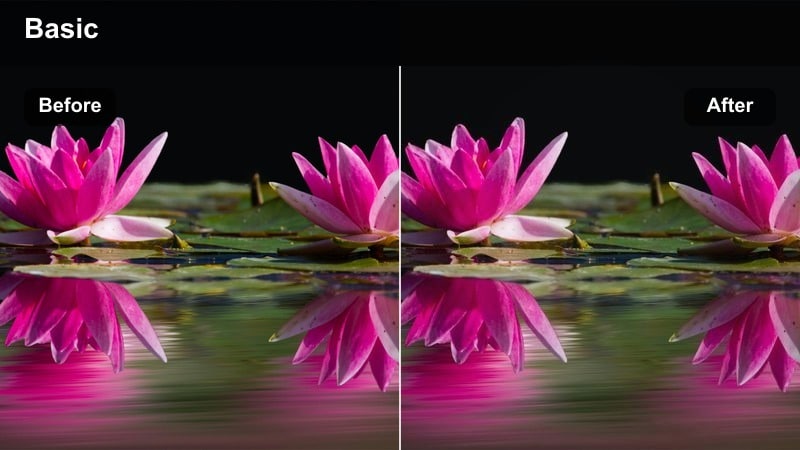
- Effect look: Balanced, low-contrast filter tuned for desk setups with monitors, LED strips, and softbox lighting.
- Best for: Tutorials, productivity videos, top-down desk shots, and tech reviews in home studios.
- Editing tip: Reduce saturation of intense RGB lights slightly to stop them from overpowering the subject's face.
Creator Desk Neutral is crafted for desk and workspace shots where you have multiple light sources, screens, and LED accents. In Final Cut Pro, this LUT-style filter keeps contrast soft and colors balanced so your face, desk, and background all feel cohesive instead of fighting each other.
After applying the look, tame overly bright RGB or monitor colors with targeted saturation controls, and keep overall exposure just below clipping to protect white objects on the desk. Filmora offers a similar approach by combining neutral filters with HSL adjustments, letting you calm down bright LEDs while keeping skin tones clean and professional.
Studio Soft Skin
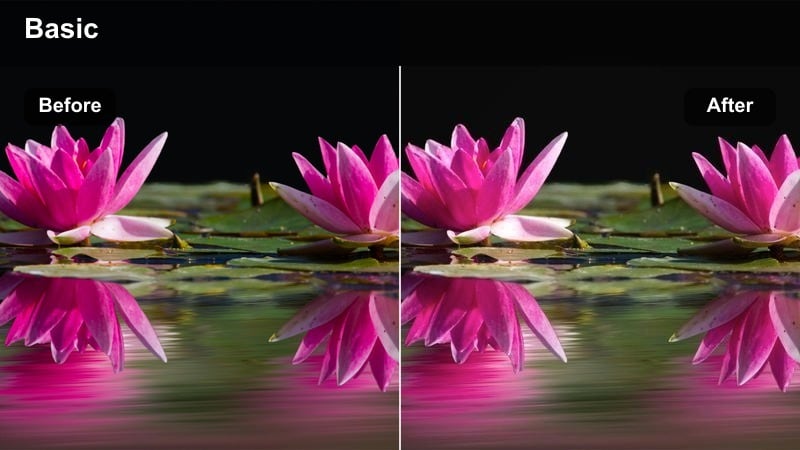
- Effect look: Subtle, skin-tone-friendly filter that smooths contrast and gently warms faces without oversaturating backgrounds.
- Best for: Talking-head YouTube videos, interviews, and educational content filmed indoors.
- Editing tip: Use a skin-tone mask in Final Cut Pro to amplify the warmth on faces while keeping walls and props neutral.
Studio Soft Skin is all about flattering people on camera, softening contrast and warming just enough to make faces look lively. In Final Cut Pro, it functions like a beauty-focused LUT that protects skin tones from harsh shadows and overly cool lighting common in small studios.
Check the vectorscope to keep skin along the proper line, then nudge midtones if faces drift too red or yellow, leaving background elements more neutral. Filmora users can achieve a similar result by using its skin-tone-friendly filters and selective color controls, ensuring your host looks consistent across multiple recording sessions and setups.
Office Cool Modern
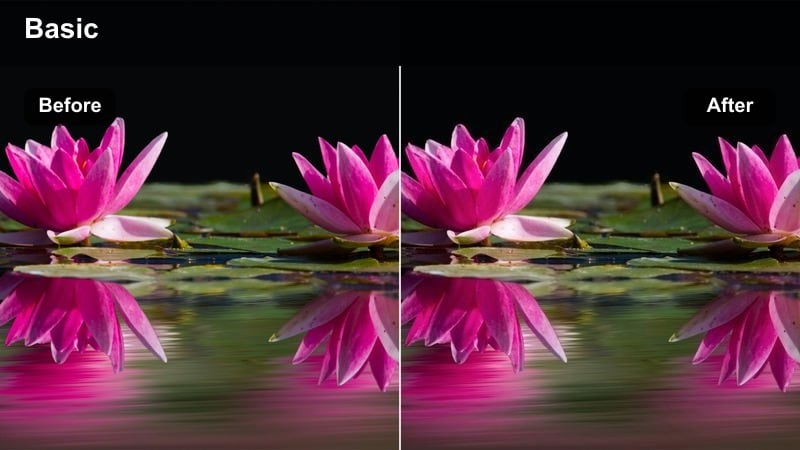
- Effect look: Cool, clean office filter with slightly reduced saturation and crisp contrast for a techy corporate feel.
- Best for: Startup office b-roll, corporate explainers, workspace tours, and product demos.
- Editing tip: Keep white balance slightly on the cool side and add a tiny clarity boost to emphasize glass and metal surfaces.
Office Cool Modern brings a sleek, corporate polish to your indoor office footage by cooling the white balance and tightening contrast. In Final Cut Pro, this LUT-style filter is ideal for glass-heavy spaces, tech environments, and startup offices where you want a clean, contemporary impression.
Correct any green cast from overhead lights with the tint control before applying the filter, then add a modest clarity or sharpening boost to emphasize edges in laptops, glass, and metal. You can mirror this aesthetic in Filmora by selecting a cool-toned filter, reducing overall saturation slightly, and selectively desaturating greens so the office looks modern rather than fluorescent.
Tips for Using Free Luts For Final Cut Pro Filters in Filmora
- Always correct exposure and white balance before applying any free LUT or LUT-style filter in Final Cut Pro or Filmora to avoid fighting baked-in color shifts.
- Use adjustment layers whenever possible so you can control a filter or LUT across multiple clips from a single place in your timeline.
- Lower the intensity of strong filters to around 60 to 80 percent opacity for a more cinematic, less processed look in both editors.
- Keep an eye on scopes to ensure blacks are not crushed and highlights are not clipping, especially with high-contrast urban and night looks.
- Create separate variants of the same favorite filter for day, night, and indoor scenes to keep series, playlists, and episodes visually consistent.
- Combine LUT-style filters with subtle sharpening, grain, and vignette effects instead of pushing any one effect too far.
- Save your most-used grades as presets or export them as LUTs so you can quickly match the same style between Final Cut Pro and Filmora.
- Test multiple looks on a short reference sequence first, then lock one in as your master grade before editing the full project.
With a handful of free LUT-style filters, you can turn flat city, travel, and studio footage into polished edits in Final Cut Pro without buying expensive plugins.
Save the looks that fit your channel, build them into a repeatable workflow, and then explore free LUTs for mobile video to keep your content consistent across every device.
secure download