

 100% Security Verified | No Subscription Required | No Malware


 ChatGPT
 Perplexity
 Gemini
 Claude
 Grok
Grok
These free LUT-style filters for mobile video help creators and editors turn flat phone footage into cinematic clips without needing desktop color grading skills.
Each preset is tuned for common creator scenarios, from city vlogs to night streets, so you can drop in a look that matches your footage and keep editing fast on your phone.
In this article
Warm Golden Hour Streets and Urban Sunsets
Sunset Amber Glow
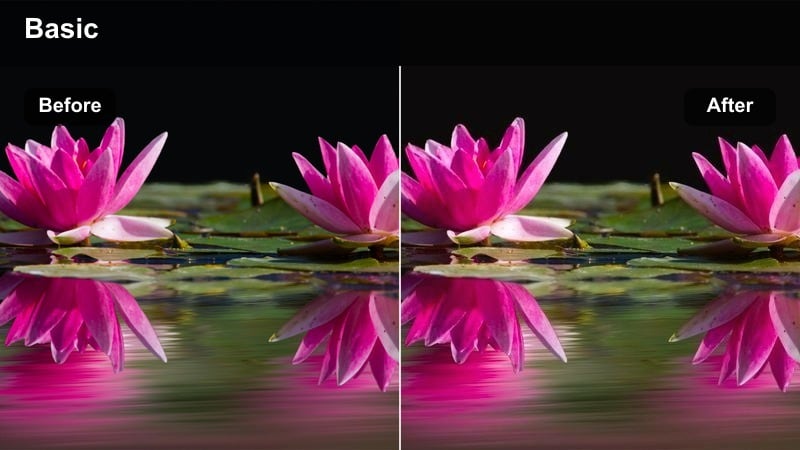
- Effect look: Soft amber warmth with gentle contrast for glowing evening streets.
- Best for: Golden hour city walks, rooftop vlogs, warm lifestyle B-roll.
- Editing tip: Lower the filter intensity to around 60 percent if your sky is already saturated to avoid clipping the highlights.
Sunset Amber Glow wraps your mobile footage in a soft amber wash, giving streets, sidewalks, and city skylines that cinematic end-of-day warmth. It gently lifts midtones and adds subtle contrast so street details pop while keeping highlights from looking harsh, which is ideal when you have strong sun flares or reflective windows in frame.
In Filmora, apply this filter to your golden hour vlogs or rooftop B-roll, then fine-tune intensity so skin tones still look natural and skies retain texture. If faces start to skew too orange, lightly reduce overall saturation and balance the temperature slider until people and backgrounds share the same warm, inviting tone.
Instant color in Filmora with AI color tools
Filmora AI color tools help you get cinematic results from phone footage by automatically balancing exposure and contrast before you apply any creative filters. This gives you a clean, neutral base so warm, cool, or stylized looks stay consistent from shot to shot.
You can start with an AI auto-correction to quickly normalize mixed lighting, then stack these free LUT-style filters on top to lock in the mood for each scene without heavy manual grading.
 secure download

Preview filters on your clips in one tap
Filmora filter controls let you quickly swipe through free LUT-style presets and see how each one transforms your mobile video in real time. This makes it easy to compare warm, cool, and neutral looks on the same shot without committing to a grade too early.
Once you find a style that fits your scene, you can dial back intensity, adjust exposure, and tweak color so the final result supports your story instead of overpowering it.
secure download1000 plus video filters and 3D LUTs for advanced looks
Beyond these free mobile-friendly styles, Filmora includes a large library of filters and 3D LUTs so you can design more advanced looks as your skills grow. You can layer creative filters over correction LUTs, then customize color with HSL and curves for precise control.
When you find a combination that works, save it as a preset so you can apply the same cinematic treatment to every new mobile project in just a few taps.
secure downloadHazy City Glow
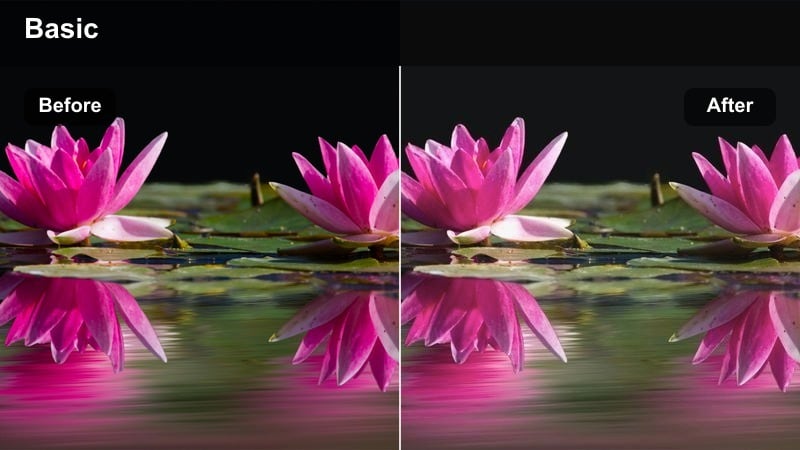
- Effect look: Low-contrast dreamy glow with lifted blacks and soft highlights.
- Best for: Backlit urban shots, romantic city walks, storytelling B-roll.
- Editing tip: Add a slight vignette in your mobile app to pull focus toward the subject since this look softens overall contrast.
Hazy City Glow gives your mobile city footage a soft, romantic atmosphere by lifting shadows and blooming highlights for a gentle, airy feel. Harsh edges and deep blacks become smoother, which works especially well in backlit scenes where the sun or streetlights are behind your subject.
Inside Filmora, use this filter on narrative B-roll, couple walks, or reflective city moments, then add a subtle vignette and a touch of sharpness so your subject remains defined. Check fine details like signs and building edges at 100 percent zoom, and slightly increase clarity if the dreamy glow starts to look more blurry than cinematic.
Bronze Street Vlog
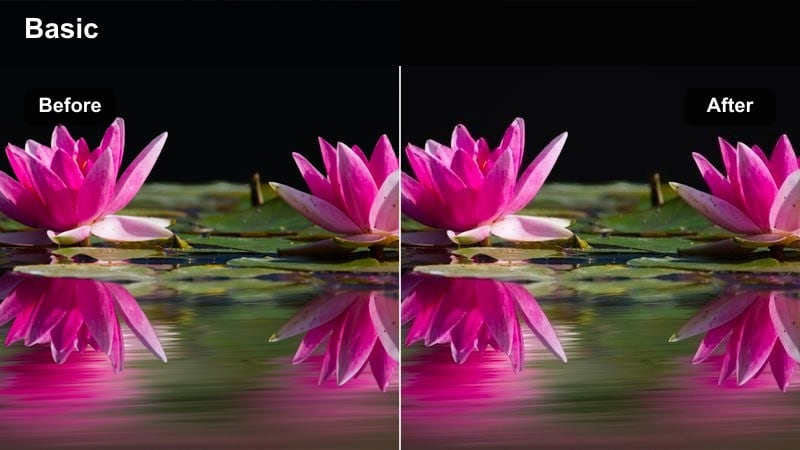
- Effect look: Bronzed midtones with boosted contrast for punchy vlog footage.
- Best for: Talking-head city vlogs, travel intros, handheld walking shots.
- Editing tip: Use stabilization in your mobile editor first, then apply this filter so the strong contrast does not emphasize shaky edges.
Bronze Street Vlog pushes midtones into a bronzed, sun-kissed range while adding strong contrast that makes your subject pop against busy city backgrounds. This look is ideal for YouTube-ready intros and walking monologues where you want bold, energetic color that still flatters skin.
When editing in Filmora, stabilize your clips before adding this filter so sharp edges and high contrast do not exaggerate camera shake. Apply the same look to both talking-head shots and B-roll, then lower intensity slightly on B-roll to keep the focus on your dialogue while maintaining a cohesive visual style across the whole vlog.
Moody Cool City Nights and Neon Scenes
Neon Noir
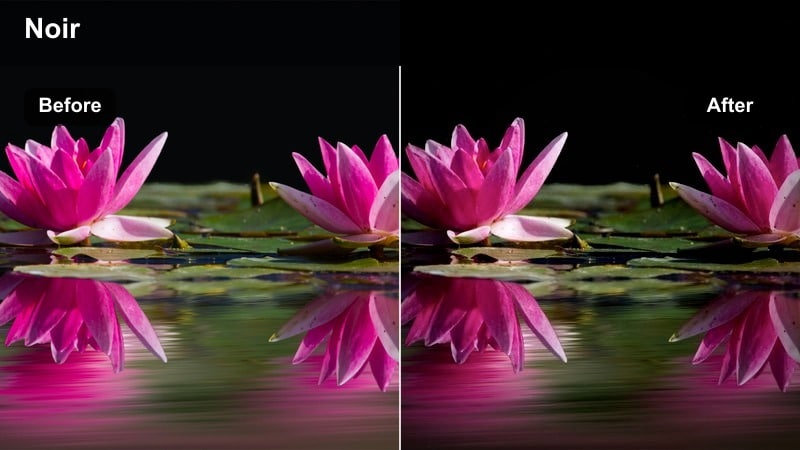
- Effect look: High-contrast, cyan and magenta-tinted night look with deep blacks.
- Best for: Neon signs, rainy night streets, cyberpunk-style B-roll.
- Editing tip: Reduce noise first using your mobile app denoise tool so the strong contrast does not exaggerate grain in dark areas.
Neon Noir transforms ordinary phone-shot night streets into stylized, cyberpunk-inspired frames with bold cyan and magenta tones. It deepens blacks, boosts contrast, and leans into colored highlights from signs and LEDs, which makes reflections on wet pavement and glass look especially dramatic.
In Filmora, denoise your footage before applying this filter so heavy contrast does not highlight digital grain in the shadows. After grading, slightly raise the shadows or blacks sliders if important details disappear, and experiment with slow motion or tight cuts on signs and reflections to build a cinematic neon sequence.
Metro Cool Blue
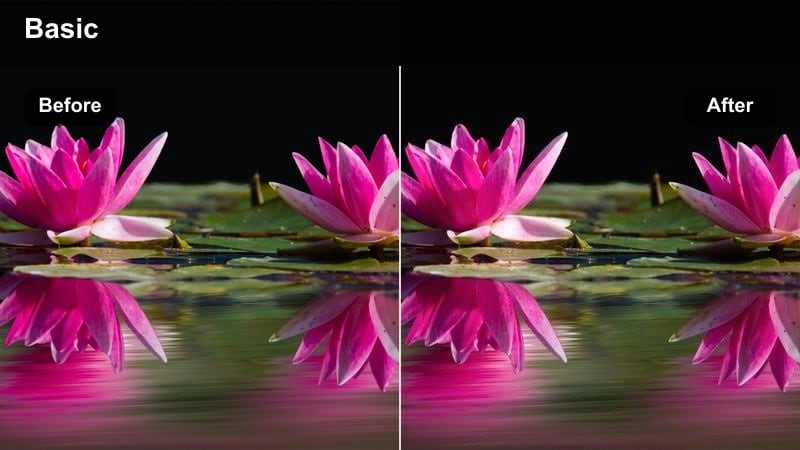
- Effect look: Cool blue highlights with neutral skin tones and moderate contrast.
- Best for: Subway rides, underground stations, blue LED-lit scenes.
- Editing tip: If faces look too cold, increase warmth or skin smoothness slightly to keep your subject natural under blue lights.
Metro Cool Blue emphasizes cool blue highlights and ambient LEDs while working to keep skin tones relatively neutral, creating a crisp metropolitan mood. This makes it perfect for subway platforms, underground tunnels, and scenes lit by signs or panels where you want a modern, digital vibe without making people look lifeless.
While editing in Filmora, apply this filter to your transit clips, then adjust the temperature slider if your subject skin drifts too far into blue. Use masks or local adjustments to gently brighten faces and key details so they stand out against the cooler surroundings, and combine with subtle camera moves or cuts to rhythm for polished metro-style edits.
Urban Midnight Film
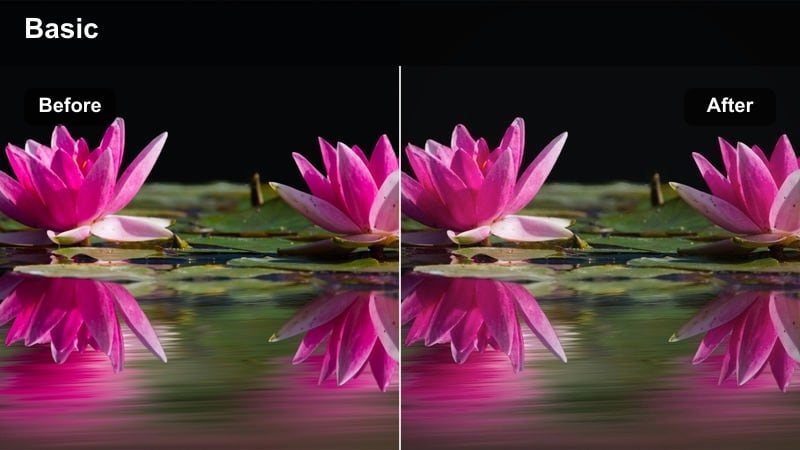
- Effect look: Matte midnight blues with subtle film grain and softened highlights.
- Best for: Quiet city corners, parked cars at night, reflective puddles.
- Editing tip: Add a slow push-in or slight zoom effect in your mobile editor to enhance the cinematic feel of static shots.
Urban Midnight Film gives your night city clips a moody, film-inspired treatment with matte blues, softened highlights, and a gentle grain character. Instead of a glossy neon finish, you get quieter, more introspective frames that resemble stills from an indie movie or late-night music video.
In Filmora, pair this filter with slow push-ins, crossfades, or gentle zooms to bring static tripod or handheld shots to life. Cut between wide street views, close-ups of puddles or headlights, and detail shots of buildings while keeping the same look across clips so your entire night sequence feels like a cohesive cinematic story.
Clean Daytime Vlogs and Travel Walkthroughs
City Daylight Clean
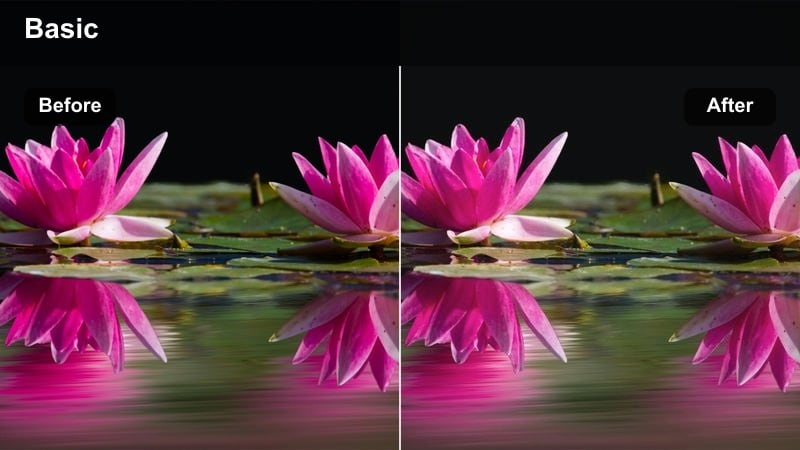
- Effect look: Neutral, bright, and crisp look with gentle saturation for daytime clips.
- Best for: Daily vlogs, street walk-throughs, quick social stories shot in daylight.
- Editing tip: Bring highlights down slightly so phone skies keep detail while sidewalks and buildings stay bright.
City Daylight Clean keeps your footage close to natural while adding a touch of brightness and clarity that makes everyday scenes look more professional. It boosts overall exposure and gentle saturation without pushing into an obvious filter, so your audience focuses on the story rather than the grade.
Use this preset in Filmora as your base look for daytime vlogs, then tweak exposure and white balance per clip to account for shifting sunlight or shadows. Save your adjusted version as a custom preset so every new vlog episode starts from the same clean, consistent style that is easy to match across different shooting days.
Travel Street Pastel
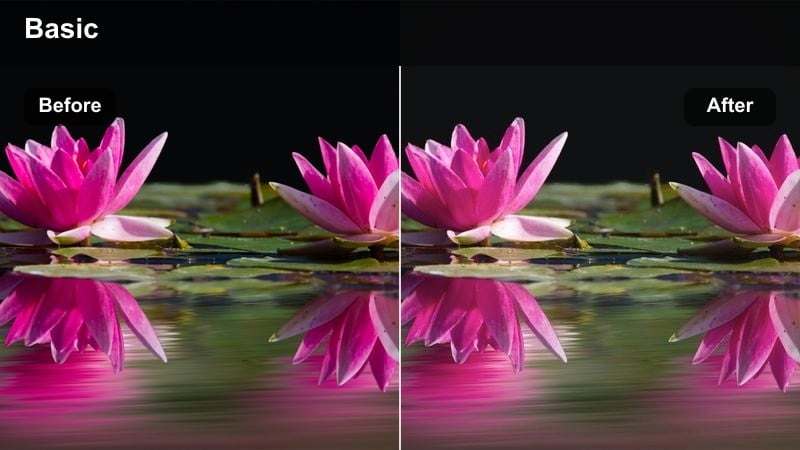
- Effect look: Soft pastel colors with reduced contrast for a light travel aesthetic.
- Best for: Travel reels, quiet side streets, handheld B-roll in bright cities.
- Editing tip: Reduce saturation on overly bright signs or billboards so the pastel effect stays gentle across the frame.
Travel Street Pastel softens your city footage into light, airy tones with reduced contrast and gentle color, ideal for travel diaries and aesthetic reels. Vibrant buildings and storefronts become pastel, while harsh shadows are eased, giving your edit a calm and dreamy atmosphere even in busy locations.
Inside Filmora, apply this filter to your side streets, cafes, and scenic walk-throughs, then selectively lower saturation or boost local contrast on signs and text you want to keep readable. Preview your edit on a smaller screen size to ensure that, despite the softer look, key details and overlays are still legible in vertical and horizontal formats.
Urban Documentary Neutral
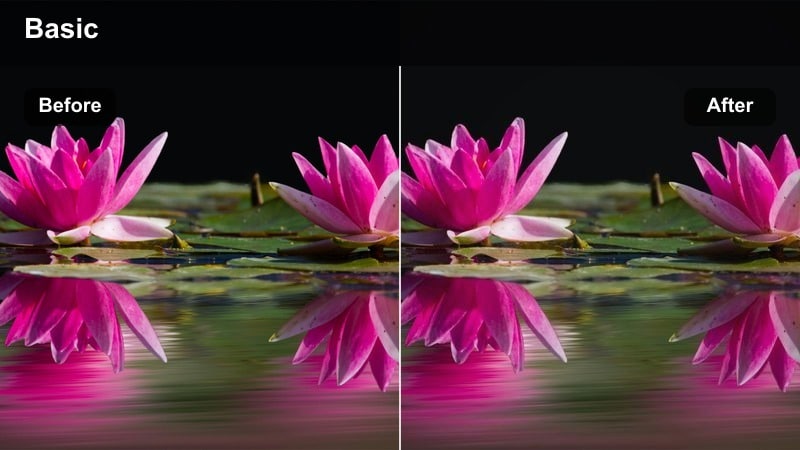
- Effect look: Flat-neutral documentary style with controlled contrast and muted saturation.
- Best for: Street interviews, documentary-style city coverage, b-roll for voiceovers.
- Editing tip: Use this as a base look and add titles, graphics, or overlays on top for YouTube and social series.
Urban Documentary Neutral gives your phone footage an honest, report-style feel with controlled contrast and desaturated colors. It avoids strong stylization so that viewers pay attention to faces, dialogue, and real-life details, making it ideal for interviews, explanatory videos, and city coverage with voiceovers.
When editing in Filmora, apply this look across all interviews and B-roll in a project to create a unified visual identity, then layer on titles, lower-thirds, and callouts on top. You can build reusable intros and outros with the same filter and graphics so each episode in your mobile doc or street series feels like part of a consistent brand.
Punchy Social Reels and Vertical Clips
Vertical Pop Street
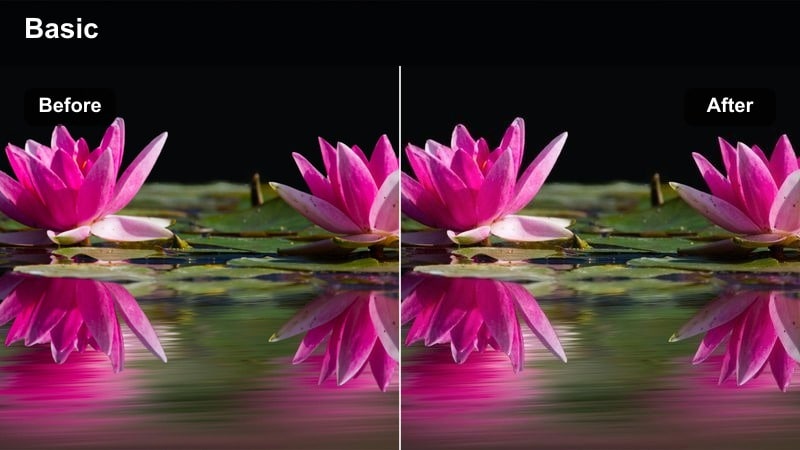
- Effect look: High saturation, fast-contrast look tuned for vertical city reels.
- Best for: Quick street reels, transitions, and trending vertical edits.
- Editing tip: Crop for vertical first, then apply the filter so important details stay in frame and still pop.
Vertical Pop Street is built to grab attention on small screens with bold saturation and strong midtone contrast that makes colors slam out of the feed. It works especially well for tall city views, sign transitions, and quick cuts where you want every frame to feel high-energy and scroll-stopping.
In Filmora, set your project to a vertical aspect ratio and crop your shot before applying this filter so key buildings, people, and text remain centered. After grading, fine-tune saturation and midtones so the image stays punchy without clipping highlights, and let the bold color do the heavy lifting instead of relying on heavy overlays or tiny text.
Creator Studio Lite
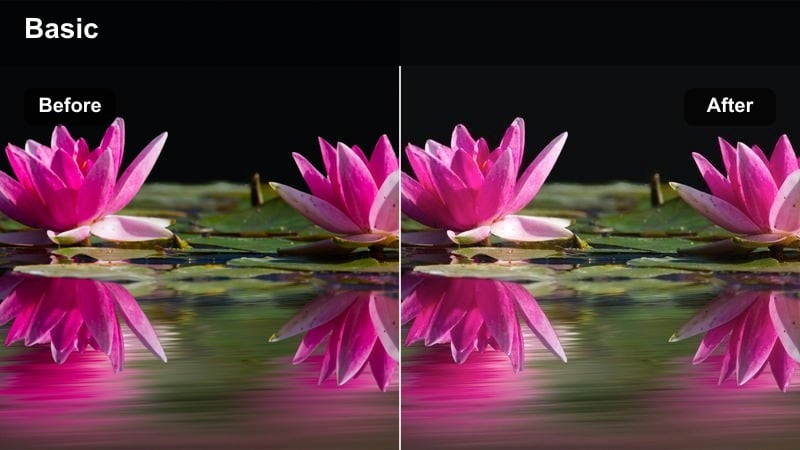
- Effect look: Bright, soft skin-friendly look tuned for indoor creator setups.
- Best for: Desk setups, talking reels, tutorial shorts recorded on mobile.
- Editing tip: Lower contrast slightly if you use a ring light so your face does not look overly shiny on camera.
Creator Studio Lite is optimized for indoor setups with ring lights, desk lamps, and softboxes, giving skin a smooth, flattering finish without heavy beauty effects. It brightens your scene, softens contrast, and evens out color so your background feels clean and your face remains the clear focus of the frame.
Apply this filter in Filmora to your talking reels, tutorials, and Q and A clips, then gently reduce contrast or highlights if your lighting is very strong. Pair the look with basic skin smoothing or exposure tweaks, and keep your phone slightly above eye level so the filter works with a flattering angle that feels polished yet natural on mobile.
Street Motion Edge
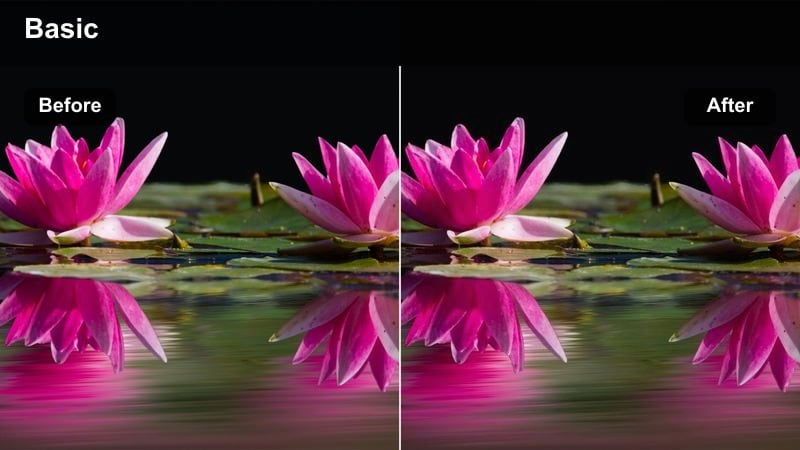
- Effect look: Edgy high-contrast look with slight desaturation for kinetic clips.
- Best for: Skate edits, bike POV, fast handheld city movement.
- Editing tip: Combine this filter with speed ramps and motion blur effects inside your mobile editor for high-impact sequences.
Street Motion Edge gives action-heavy clips a gritty, high-contrast finish with slightly desaturated colors that emphasize shape and motion over prettiness. It adds punch to shadows and edges, which suits skate edits, bike runs, and fast handheld shots where you want viewers to feel the energy in every frame.
In Filmora, combine this filter with speed ramps, quick cuts on movement, and subtle motion blur to hide micro-jitters and make transitions feel sharper. Keep individual clips short and cut on moments of motion so the aggressive contrast supports a dynamic, energetic rhythm instead of making the sequence feel chaotic.
Tips for Using Free Luts For Mobile Video Filters in Filmora
- Lock exposure and white balance on your phone before filming so these filters stay consistent from shot to shot.
- Shoot at the highest resolution and bitrate your device allows, then downscale in Filmora to help each filter look cleaner and sharper.
- Use Filmora AI auto-correction or basic color tools first, then add a LUT-style filter on top for a more controlled final grade.
- Adjust filter intensity rather than pushing exposure too far, keeping skin tones and skies natural while still gaining a cinematic mood.
- Save your favorite filter settings as custom presets in Filmora so future mobile projects can be graded in a few taps.
- Preview your edits on both vertical and horizontal timelines to check that color, contrast, and detail hold up on different formats.
- Mix one main filter with subtle local adjustments instead of stacking many heavy effects that can break mobile footage.
- Export short test clips from Filmora to your phone and review them in social apps to confirm the look reads well in real feeds.
These free LUT-style filters give creators and editors an easy way to give mobile video a polished, cinematic color grade without complex tools. By matching each preset to your lighting and scene, you can turn everyday phone footage into clips that feel ready for YouTube, TikTok, and Instagram.
Load your clips into Filmora, test a few looks, and save the presets that match your style so every future mobile project is faster to color and easier to finish. With AI-assisted correction, filter previews, and 3D LUT support, you can build a complete mobile color workflow that scales from quick reels to full travel vlogs.
secure download