

 100% Security Verified | No Subscription Required | No Malware


 ChatGPT
 Perplexity
 Gemini
 Claude
 Grok
Grok
This free cinematic LUTs pack download is built for creators and editors who want a filmic look in seconds without advanced color grading skills.
Use these cinematic-style filters inside Filmora to add depth, mood, and polish to your travel films, short movies, vlogs, and social content with just a few clicks.
In this article
Golden Hour Drama and Warm Storytelling
Sunset Story Grade
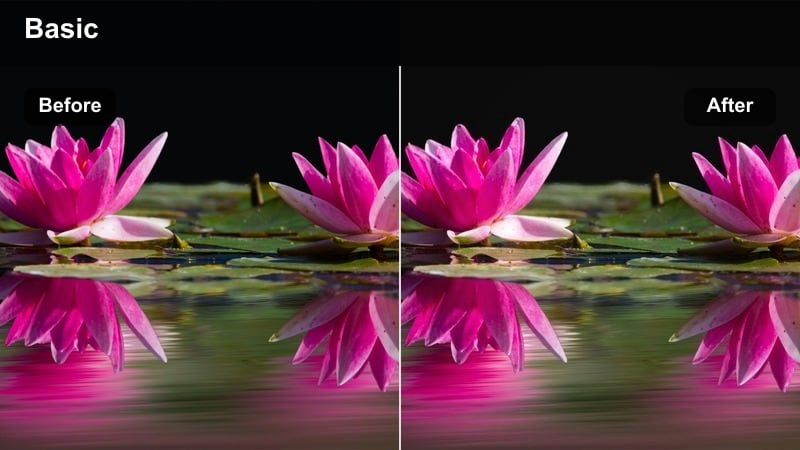
- Effect look: Warm cinematic contrast with rich oranges and soft shadows
- Best for: Golden hour city b-roll, walking shots, and emotional vlogs
- Editing tip: Lower the intensity to around 70% for skin-tone friendly warmth that still feels movie-like.
Sunset Story Grade wraps your footage in a warm, filmic glow that emphasizes orange highlights and smooth, soft shadows. In Filmora, it is ideal for turning ordinary walks, city streets, and farewell moments into cinematic, story-driven visuals that feel like scenes from a movie.
Apply this filter to clips shot near golden hour or any frame where you want to introduce a nostalgic, emotional tone. Adjust the intensity slider so faces stay natural, then fine-tune exposure and contrast in Filmora to keep important details in the midtones while the background basks in sunset warmth.
Speed Up Grading with Filmora AI Color Tools
After downloading this free cinematic LUTs pack, you can refine each look in seconds using Filmora's AI color tools. Let the AI automatically correct exposure and white balance so your footage starts from a clean, neutral baseline.
Once your clips are balanced, layer these cinematic filters on top to push the mood in a specific direction without fighting color issues. This workflow helps you achieve professional film-style grading even if you are new to color correction.
 secure download

Fine-Tune Looks with HSL and Color Controls
Filmora's color tools, including HSL and advanced curves, let you customize each cinematic LUT-style filter to fit your camera and shooting conditions. You can protect skin tones, control specific color ranges, and refine contrast so every scene feels cohesive.
Use HSL to dial back overly strong oranges, blues, or greens introduced by a filter while keeping the overall cinematic character. This makes it easier to match shots from different locations or cameras within the same project.
secure downloadPreview Cinematic Filters in Real Time
Filmora lets creators and editors preview each cinematic filter from this pack directly on the timeline. You can hover over different styles and instantly see how they affect your clip in the viewer without applying them first.
This real-time preview makes it easy to compare warm, cool, or moody grades side by side, so you quickly choose the look that matches your story before fine-tuning intensity and basic color settings.
secure downloadAmber City Glow
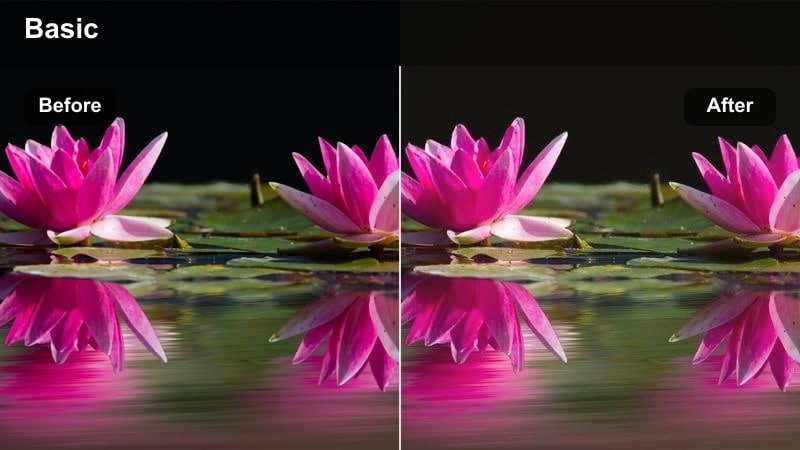
- Effect look: Soft amber highlights with gentle fade for a nostalgic film look
- Best for: Slow-motion street scenes, couples walking, and lifestyle B-roll
- Editing tip: Combine with a slight vignette and slower transitions for a dreamy cinematic flow.
Amber City Glow leans into soft amber highlights and a gentle fade in the blacks, creating a dreamy, nostalgic atmosphere. It is especially effective on slow-motion shots, walking sequences, and lifestyle b-roll where you want emotion and memory to take center stage.
In Filmora, pair this filter with subtle vignettes and slower cross-dissolve transitions to keep the mood relaxed and cinematic. Avoid aggressive sharpening and instead let the natural softness of the filter and any shallow depth-of-field in your footage carry the emotional weight.
Sunlit Portrait Film
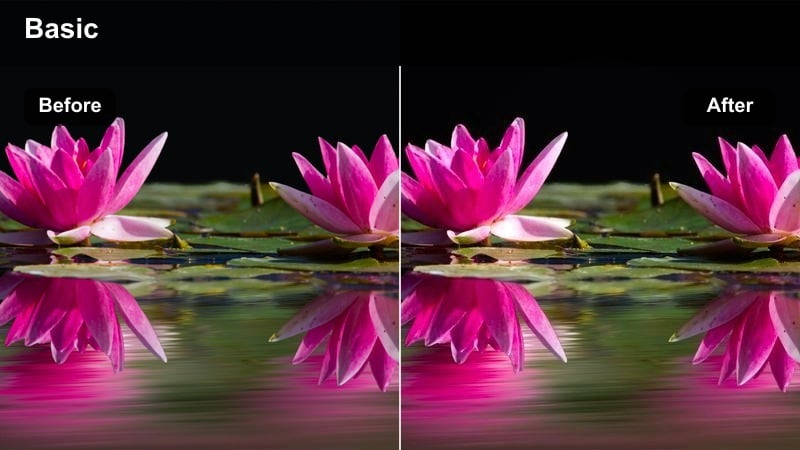
- Effect look: Balanced warmth with lifted blacks and smooth skin emphasis
- Best for: Outdoor portraits, cinematic talking heads, and creator intros
- Editing tip: Adjust exposure before applying the filter so faces sit in a natural midtone range.
Sunlit Portrait Film is tuned to keep skin tones flattering while still delivering a cinematic sense of warmth and gentle lifted blacks. It suits outdoor creators, interview-style talking heads, and introduction segments where the subject needs to look polished but still natural.
Before applying this filter in Filmora, correct exposure so faces sit comfortably in the midtones, then use the filter intensity slider to find the right balance of warmth. If needed, use the color tools to protect skin hues while allowing the background to take on a richer, golden tone that supports your story.
Moody Urban Nights and Neo-Noir Vibes
Neon Noir Deep
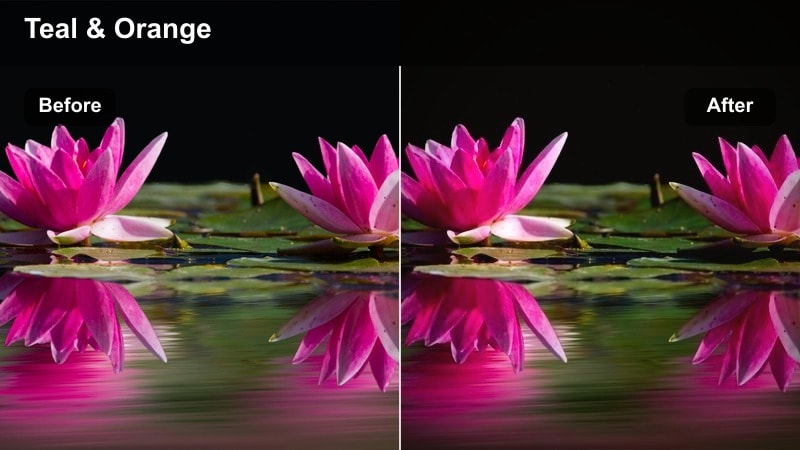
- Effect look: High-contrast teal and magenta with deep cinematic blacks
- Best for: Night cityscapes, car scenes, and cyberpunk-inspired edits
- Editing tip: Expose slightly brighter in-camera to keep detail before crushing the blacks with this filter.
Neon Noir Deep delivers bold teal shadows and magenta highlights with rich, deep blacks that feel straight out of a neo-noir or cyberpunk film. It excels on rainy streets, neon signs, and reflective surfaces where the color split between teal and magenta can really shine.
When editing in Filmora, use this filter on footage that already has strong light sources or neon accents, then adjust shadow levels if important details disappear. Add a touch of glow or light leak overlays from Filmora's effects library to push the atmosphere even further while keeping the main subject readable.
Midnight Ride Film
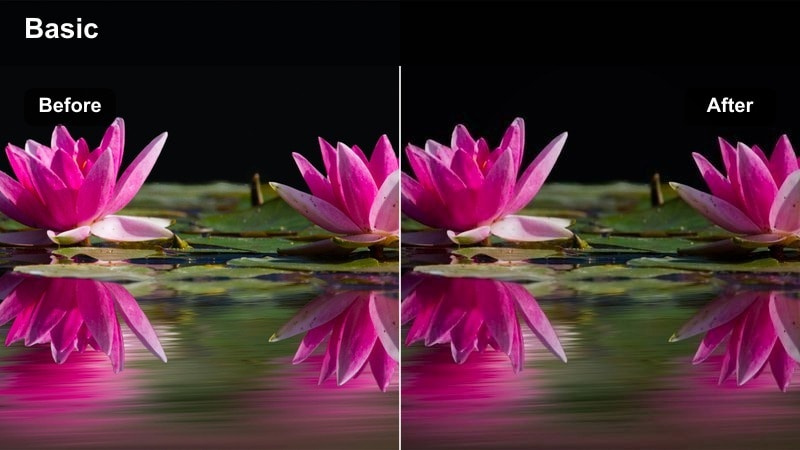
- Effect look: Cool blue shadows with muted highlights and film-like grain feel
- Best for: In-car dialogue, driving shots, and city b-roll from windows
- Editing tip: Stabilize handheld shots slightly so the cinematic mood feels intentional, not shaky.
Midnight Ride Film creates cool, blue-toned shadows and restrained highlights to evoke the quiet, reflective feeling of late-night drives. It is a natural fit for car interiors, window reflections, and moving city lights where you want a subdued yet cinematic tone.
In Filmora, combine this filter with mild stabilization on handheld clips to maintain a smooth, intentional look. Add gentle film grain or a subtle vignette if you want extra texture, and warm the midtones slightly when faces feel too cold while keeping the cool blue atmosphere in the background.
Alley Mystery Grade
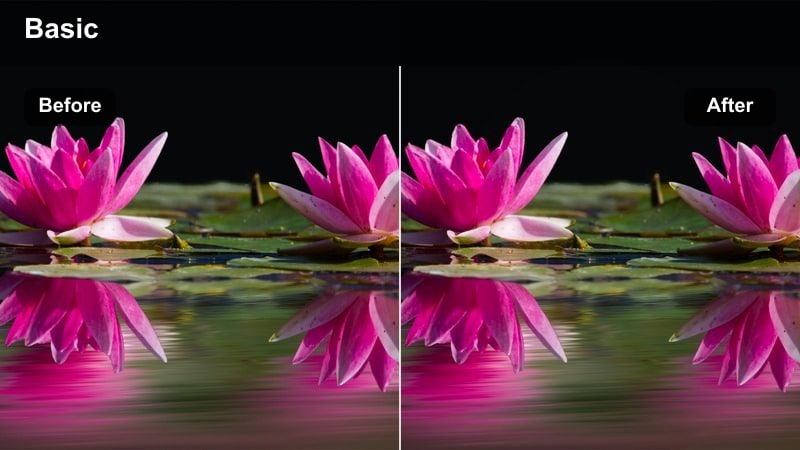
- Effect look: Muted colors, greenish shadows, and heavy atmosphere
- Best for: Short films, chase scenes, and narrative tension in alleys or backstreets
- Editing tip: Cut out bright, colorful frames that fight the muted palette for a consistent mood.
Alley Mystery Grade desaturates your image and introduces subtle greenish shadows to enhance tension and grit. It works particularly well for narrative shorts, chase sequences, and any scene set in backstreets or industrial locations where suspense is key.
Use this filter in Filmora on scenes with minimal bright colors so the muted palette remains cohesive. If certain neon signs or clothing items pop too much, reduce their saturation with selective color adjustments and lean into slower cuts or lingering shots to let the moody color build suspense.
Daylight Cinematic Travel and Street Stories
Travel Film Soft
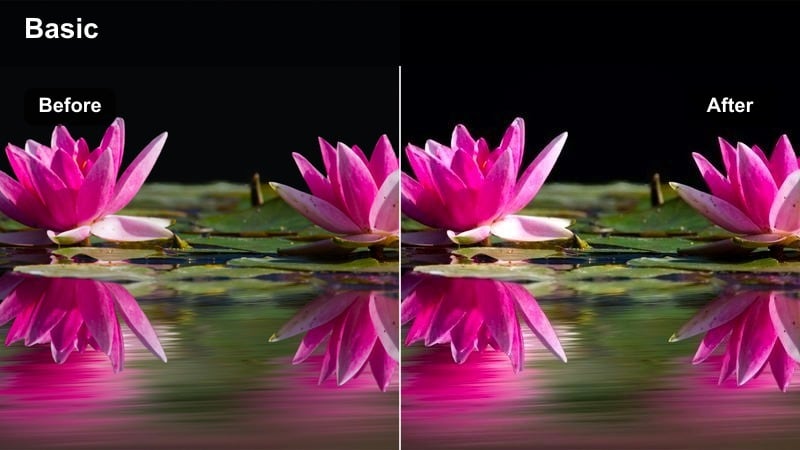
- Effect look: Soft contrast, slightly lifted blacks, and gentle warmth
- Best for: City travel montages, handheld street footage, and casual vlogs
- Editing tip: Use speed ramps and music hits with this filter to keep soft visuals feeling energetic.
Travel Film Soft brings a relaxed, cinematic finish to daytime city footage by softening contrast and introducing gentle warmth. It is perfect for montages, handheld walk-throughs, and casual creator vlogs where you want a polished film look without making the image too intense.
In Filmora, pair this filter with upbeat music, speed ramps, and well-timed cuts so the softness does not feel slow or dull. Slightly lower highlights before applying the filter to preserve detail in bright skies and buildings, then tweak midtones if faces appear too flat after the look is applied.
Street Docu Clean
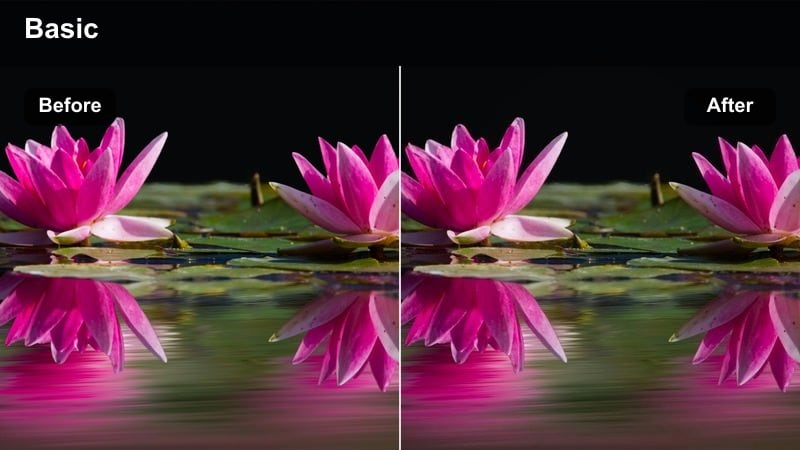
- Effect look: Clean, slightly cool tone with crisp micro-contrast
- Best for: Documentary-style street interviews and observational city footage
- Editing tip: Match white balance across clips before applying for a seamless, professional feel.
Street Docu Clean gives your footage a modern, documentary-style polish with subtle coolness and crisp micro-contrast. It keeps colors believable while adding enough refinement to make interviews and street observations feel ready for broadcast or streaming platforms.
Before applying this filter in Filmora, balance white point and exposure across your clips so the result feels consistent. Apply the filter to an adjustment layer above a sequence of shots, then fine-tune individual clips underneath for exposure, which helps you maintain a uniform, professional documentary look.
City Poem Matte
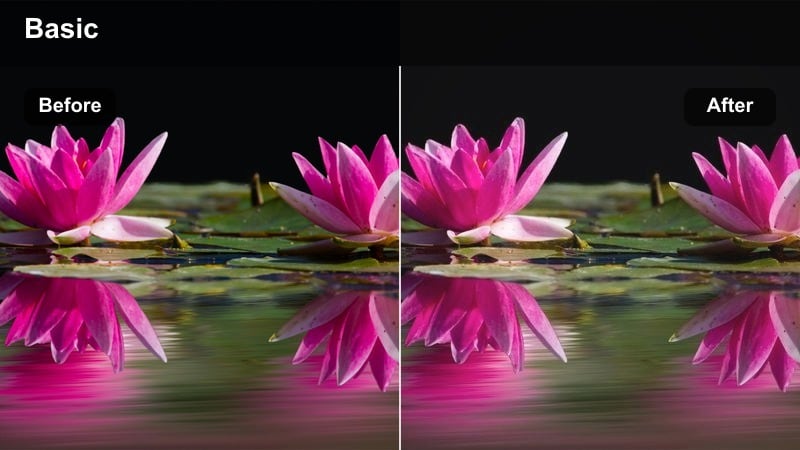
- Effect look: Matte blacks with pastel-like city colors and reduced saturation
- Best for: Slow travel sequences, reflective voiceovers, and urban b-roll
- Editing tip: Use slower cuts and cross-dissolves so the soft matte finish can really be felt.
City Poem Matte lifts the blacks and softens saturation to create pastel-like tones that suit reflective or poetic urban stories. It transforms busy streets into calmer, more introspective frames that pair nicely with voiceovers and slower pacing.
In Filmora, apply this filter to b-roll sections that support narration or emotional music, then slow your cuts and use gentle transitions like cross-dissolves. Keep on-screen text minimal so the viewer can focus on the soft visuals and your audio storytelling working together.
Epic Wide Shots and Trailer-Style Moments
Blockbuster Teal & Gold
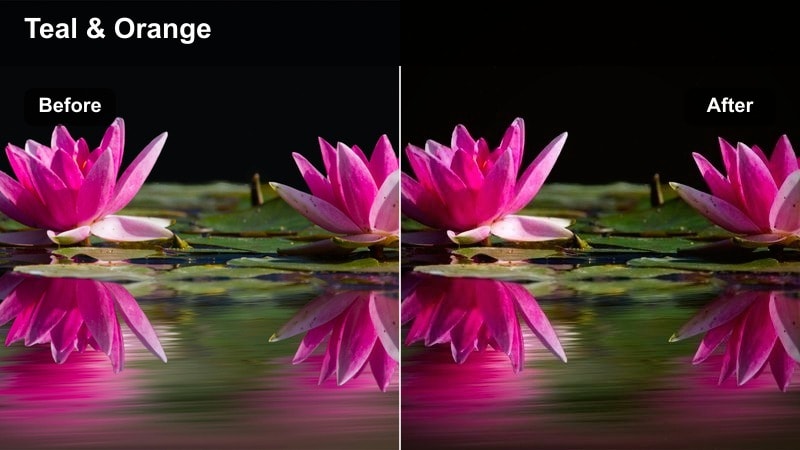
- Effect look: Classic teal shadows and warm gold highlights with strong contrast
- Best for: Opening sequences, city skylines, and hero shots of main characters
- Editing tip: Use this filter on the most important shots only so the look feels special and impactful.
Blockbuster Teal & Gold delivers the iconic teal shadows and golden highlights combination associated with big-budget movie trailers. It is designed for impactful moments like skyline reveals, hero shots, and key story beats where you want maximum cinematic punch.
In Filmora, resist the urge to apply this filter to every clip. Instead, use it sparingly on your opening, transitions, and climactic frames, then adjust orange saturation if skin tones become too intense. Adding cinematic black bars and sound design accents can further sell the big-screen feel.
Trailer Crisp Day
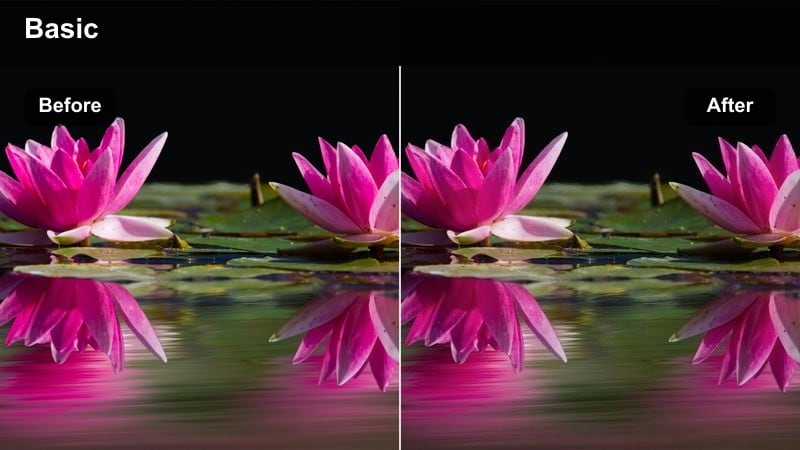
- Effect look: High clarity, cool neutrals, and slightly desaturated mids
- Best for: Drone footage, establishing shots, and architecture b-roll
- Editing tip: Avoid heavy handheld shake; stabilize for that premium trailer-style clarity.
Trailer Crisp Day emphasizes clarity and cool neutral tones to give wide daytime shots a premium, high-end trailer aesthetic. It works particularly well on drone passes, establishing shots of cities or landscapes, and architectural b-roll that benefits from visible detail.
Apply this filter in Filmora to your key establishing shots and combine it with stabilization on aerial or handheld clips to maintain a clean, professional look. Slightly lengthen these shots in the timeline so viewers can appreciate the added sharpness and cool cinematic tone before cutting back to closer action.
Hero Frame Soft Anamorphic
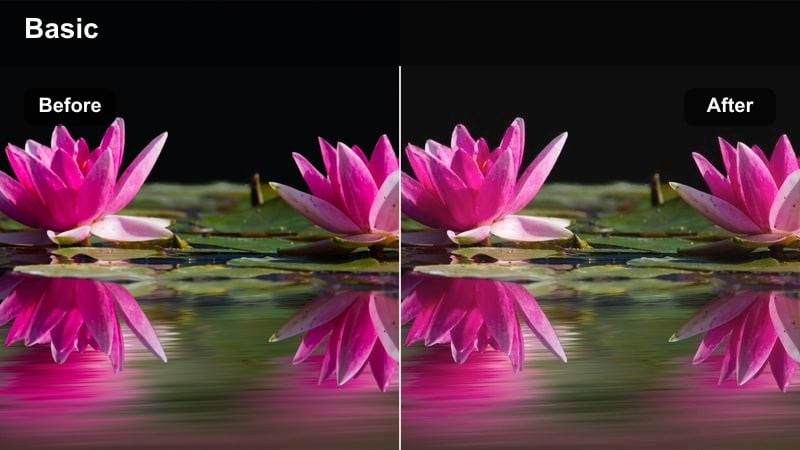
- Effect look: Soft halation on highlights with subtle blue shadows and filmic fade
- Best for: Hero close-ups, rooftop reveals, and slow-motion city walks
- Editing tip: Add cinematic bars and slightly slow down footage to match the filmic softness.
Hero Frame Soft Anamorphic introduces gentle highlight glow, subtle blue-leaning shadows, and a filmic fade that mimics anamorphic-inspired visuals. This makes it ideal for hero close-ups, rooftop moments, and slow-motion walks where your main character should feel larger than life.
In Filmora, pair this filter with shallow depth-of-field footage and cinematic black bars to emphasize the subject and enhance the widescreen feel. Keep text overlays minimal on these shots and consider slowing down the clip slightly to let the soft glow and faded contrast fully register with viewers.
Tips for Using Free Cinematic Luts Pack Download Filters in Filmora
- Organize your timeline by scene and apply the same cinematic filter to each group for consistent storytelling and color continuity.
- Always correct exposure and white balance in Filmora before adding any cinematic filter from this free LUTs-inspired pack.
- Lower filter intensity on close-ups so skin tones stay natural while the overall frame still feels rich and cinematic.
- Export a short 10-second test sequence with several different looks to compare how they appear on your target platform.
- Mix warm and cool filters across scenes only when it clearly supports a shift in mood, time, or storyline.
- Use Filmora keyframes to gradually fade a cinematic filter in or out during emotional or narrative transitions.
- Avoid stacking multiple strong filters; start with one solid look and refine it using Filmora's color tools instead.
- Create and save custom presets once you like a combination of filter, contrast, and saturation so future projects grade faster.
With this free cinematic LUTs pack download for Filmora, creators and editors can instantly upgrade everyday footage into film-style sequences that feel intentional and polished.
Try these cinematic filters on your next project, then continue exploring advanced looks with our dedicated guide to free wedding LUTs download for romantic, story-driven edits.
secure download