

 100% Security Verified | No Subscription Required | No Malware

These free concert video LUT-inspired filters are built for music creators and videographers who need bold, stage-ready color in seconds, without complex grading skills.
Use them on concerts, live shows, and stage performances to fix mixed lighting, deepen colors, and push your footage toward a polished music video look inside Filmora.
In this article
Neon Stage Energy for Modern Concerts
Electric Neon Punch
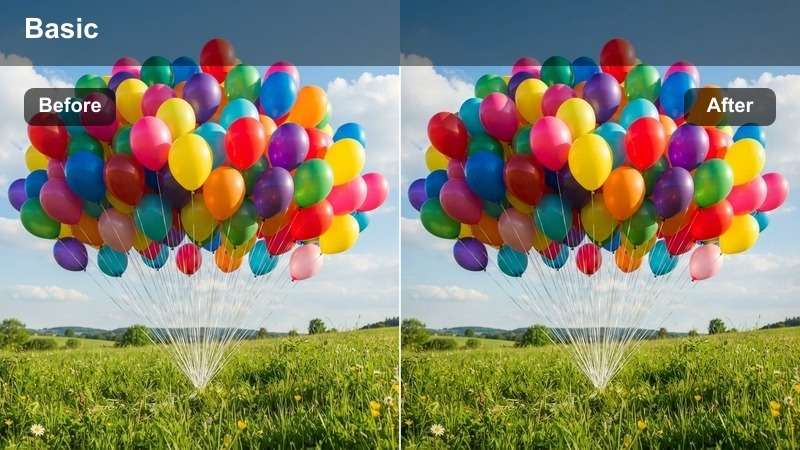
- Effect look: High-contrast, saturated neons that make LED walls and lasers pop with crisp, inky blacks.
- Best for: EDM concerts, DJ sets, and high-energy club performances with lots of LED screens.
- Editing tip: Lower exposure slightly after applying and add a touch of clarity to keep skin from looking oversharpened under intense lights.
Electric Neon Punch is designed to make modern LED rigs, lasers, and saturated color washes explode off the screen. It boosts contrast and saturation in the neon spectrum while anchoring blacks, so your crowd and stage silhouettes feel deep and dramatic instead of washed out.
Inside Filmora, apply this filter to your wide crowd shots and DJ close-ups, then fine-tune exposure in the color panel for each angle. If the lighting design is extremely bright, gently pull back highlights and tweak clarity so faces stay clean while the background lights remain aggressive and energetic.
Dial In Concert Color in Seconds with AI
Filmora s AI tools quickly analyze your concert footage to automatically balance exposure, fix harsh color casts, and recover detail in bright LED screens and lasers before you start fine-tuning. You get a cleaner base image that responds better to creative filters and LUT-style looks.
Combine these Free Concert Video LUTs for Vibrant Live Performances with Filmora s AI color match to keep multiple cameras, venues, and nights of a tour looking consistent without manual shot-by-shot grading.
 secure download

Preview Concert Filters in Real Time
Filmora s live preview panel lets you hover over different concert filters and instantly see how they change your clip, from neon-heavy club looks to warmer indie tones. You can compare bold, high-contrast options against softer, filmic grades without committing a single adjustment.
Load a short performance clip into the timeline, test several presets rapidly in the Effects panel, and pick the one that matches your track s energy and venue mood before batch-applying it to the full edit.
secure download1000+ Video Filters and 3D LUTs
Beyond these free concert-focused looks, Filmora includes a large built-in library of creative video filters and 3D LUTs for music videos, vlogs, promos, and social edits. You can stack filters, adjust their strength, and combine them with HSL tuning to build a style that feels unique to your artist or tour.
Save your favorite combinations as custom presets so every new show you edit starts from a proven, on-brand look instead of a blank timeline.
secure downloadMagenta Club Glow
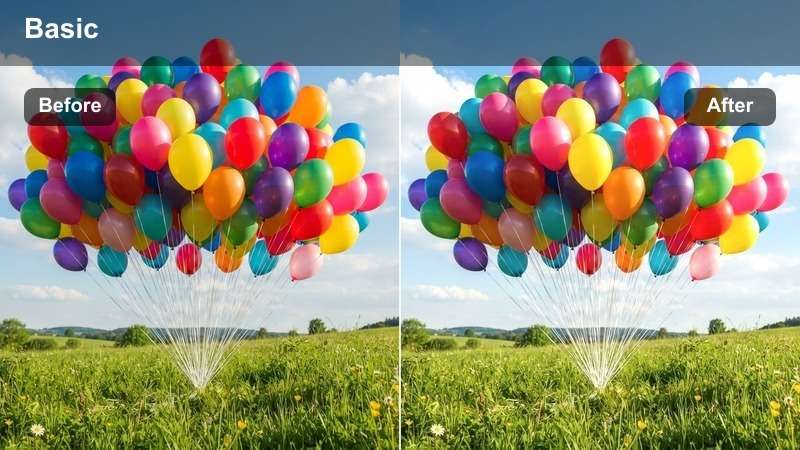
- Effect look: Soft magenta and purple emphasis with gentle bloom around bright stage lights.
- Best for: Intimate club shows and small venues with pink, purple, or red stage washes.
- Editing tip: Add a slight vignette after applying this filter to pull focus onto the performer in cluttered club spaces.
Magenta Club Glow leans into the pink and purple hues common in small venues, adding a mild bloom that makes spotlights and backlights feel dreamy and atmospheric. It softens hard digital edges, which helps cheap LEDs and tight stages look more cinematic.
In Filmora, drop this filter onto handheld crowd shots and mid-shot performances where the background is busy. Use the vignette tool and keyframed exposure to keep the artist s face bright in the center of the frame while letting cables, walls, and bar clutter fade into a stylish, magenta-tinted haze.
Laser Line Intensity
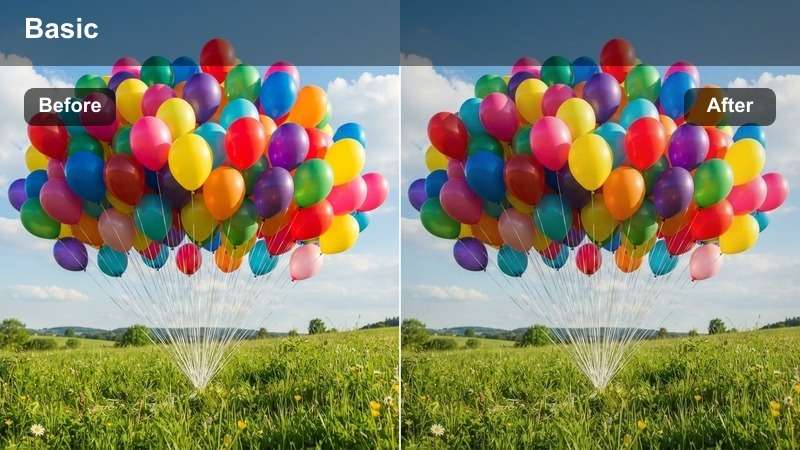
- Effect look: Crisp highlights and boosted clarity that carve out laser beams and light rays in the crowd.
- Best for: Large halls and arenas with strong laser rigs and heavy fog effects.
- Editing tip: Use subtle noise reduction after this filter if your footage was shot at high ISO in dark arenas.
Laser Line Intensity focuses on defining bright beams, strobes, and haze, adding clarity so each ray of light reads clearly across the crowd. It pushes contrast in the brightest areas while keeping midtones relatively controlled, so you see both the performer and the lighting design.
In Filmora, apply this filter to sweeping crane shots, drone views, or back-of-house angles where lasers slice across the venue. Follow up with light noise reduction and a small highlight reduction to keep beams strong without clipping, and consider using keyframes to balance exposure as strobes hit the lens.
Moody Live Indie and Rock Sessions
Amber Stage Warmth
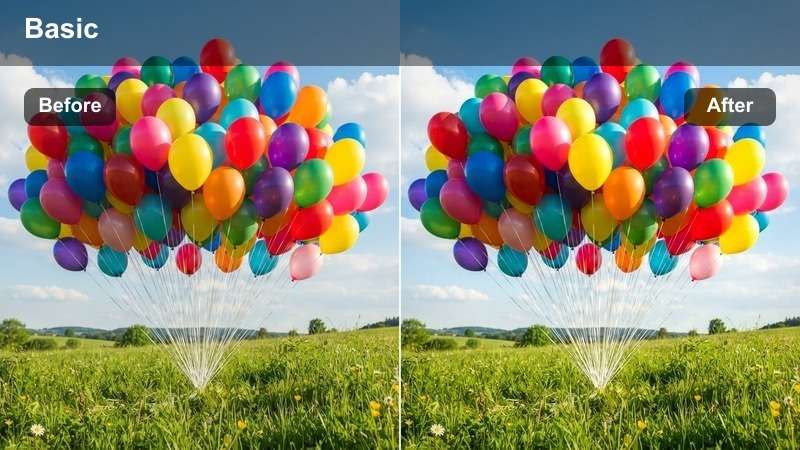
- Effect look: Rich amber and golden tones that mimic tungsten stage lights and warm gels.
- Best for: Indie rock sets, acoustic concerts, and small theater performances with warm lighting.
- Editing tip: Dial back color temperature slightly if your footage was already shot very warm to avoid yellowish skin.
Amber Stage Warmth enhances the natural glow of tungsten and gelled fixtures, deepening oranges and golds to create a cozy, nostalgic stage feeling. It works especially well on guitarists, singer-songwriters, and seated bands where the mood is more intimate than explosive.
Inside Filmora, apply this filter to your close-ups and mid-shots, then refine white balance so skin tones stay believable while the background lights feel richly amber. If your camera captured very warm footage, cool the temperature just a touch and raise shadows slightly to avoid muddy or overly yellow low-light areas.
Gritty Venue Matte
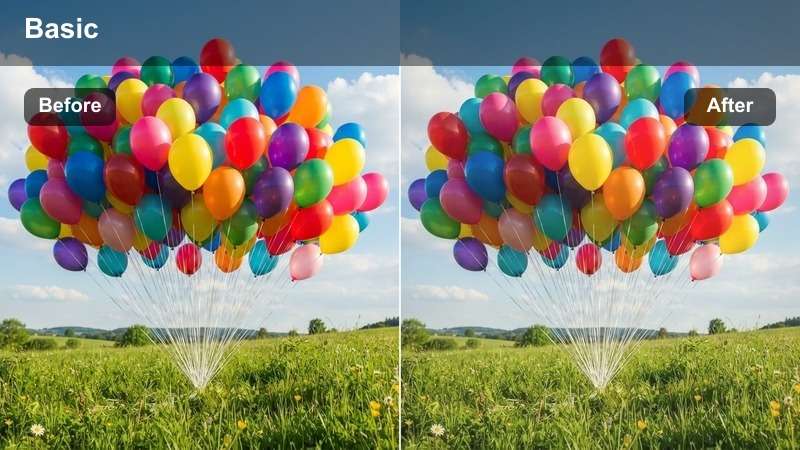
- Effect look: Desaturated, matte finish with lifted blacks and textured, filmic contrast.
- Best for: Garage rock shows, rehearsal rooms, and DIY venue performances.
- Editing tip: Pair this filter with a subtle film grain overlay to enhance the raw, documentary feel.
Gritty Venue Matte pulls saturation down and lifts the blacks to create a flat, film-inspired aesthetic that suits rough clubs and DIY spaces. Instead of chasing glossy perfection, it leans into the imperfections and texture of cramped stages, scuffed floors, and overdriven amps.
In Filmora, use this on handheld footage, rehearsal visuals, or any performance where authenticity matters more than polish. Add a light grain overlay from the Effects panel and nudge local contrast or clarity on the band to keep instruments and faces defined while backgrounds remain gently muted and matte.
Smoke Haze Cinema
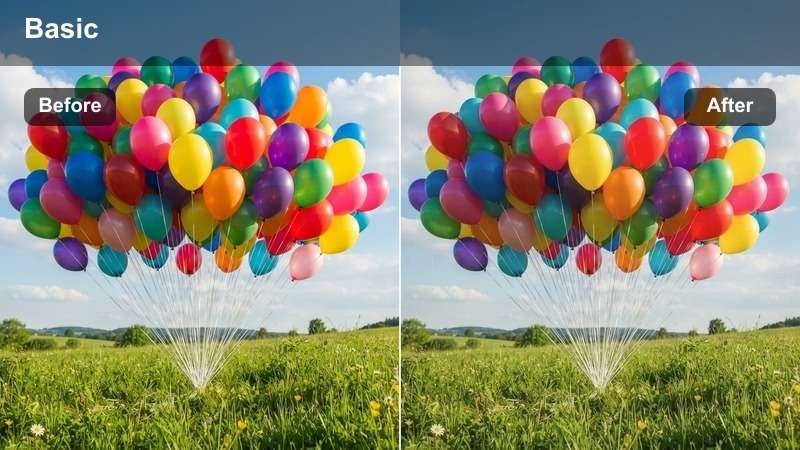
- Effect look: Soft halation around lights with cool shadows and slightly faded midtones.
- Best for: Indie concerts with smoke machines, moody rock ballads, and cinematic live sessions.
- Editing tip: Add a gentle push of cyan into the shadows for a more dramatic cinematic split-tone effect.
Smoke Haze Cinema emphasizes atmosphere by softening highlights and letting light gently bloom through the fog. Cool shadows give the frame a cinematic tone, while slightly faded midtones keep the image from feeling too harsh, even when backlights are strong.
In Filmora, drop this filter on slow-motion crowd shots, ballads, and side angles where haze fills the frame. Use split-toning or color wheels to nudge shadows toward cyan or teal, then add a vignette and a bit of dehaze or clarity around the performer so they stay crisply visible against the dreamy, smoky background.
Arena Pop Spectacle and Big Productions
Stadium Pop Bright
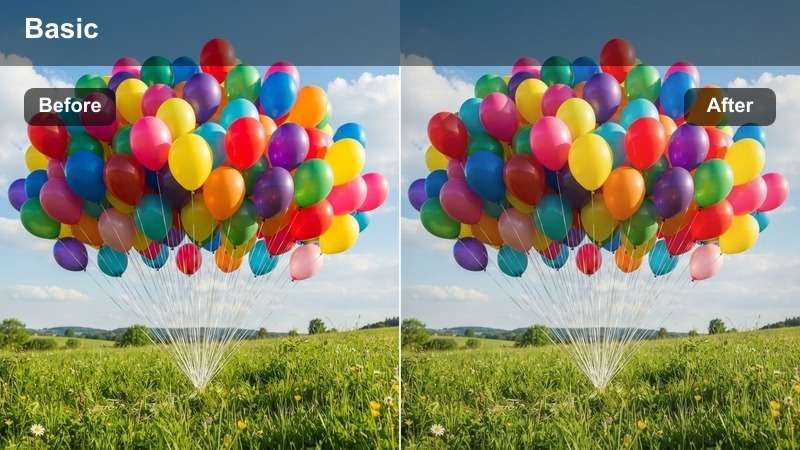
- Effect look: Clean, vibrant colors with bright mids and punchy but controlled contrast.
- Best for: Pop tours, K-pop concerts, and large arena shows with bright multi-color lighting.
- Editing tip: Increase saturation mostly in primary colors while keeping secondary hues slightly muted to avoid a chaotic palette.
Stadium Pop Bright aims for a glossy, mainstream concert look with crisp details, clear skin tones, and bold but not overwhelming color. It keeps midtones bright so costumes, choreography, and stage design all read clearly, even when the frame is packed with LEDs and movement.
Within Filmora, use this filter on wide shots that show the full stage and crowd, as well as on choreographed group performances. Boost saturation selectively in reds, blues, and greens for a branded tour feel, and consider using masks to subtly brighten the lead performer so they stand out amidst the spectacle.
Crowd Surf Contrast
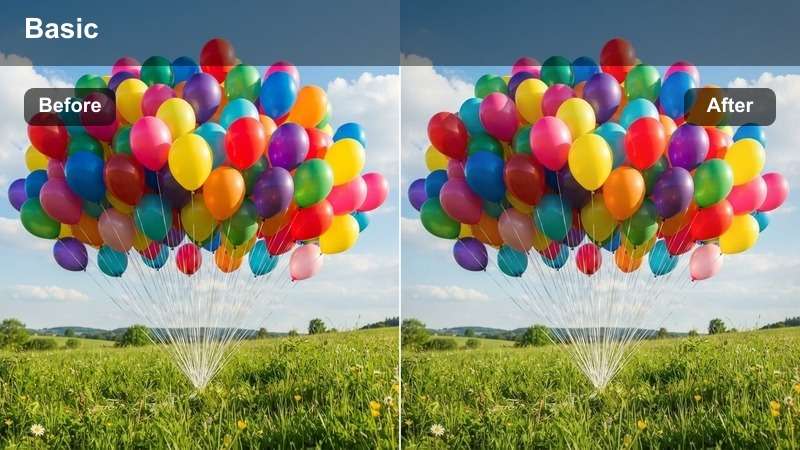
- Effect look: Boosted contrast and darker edges to emphasize silhouettes in the crowd and on stage.
- Best for: Wide crowd shots, mosh pits, and hype moments captured from the pit or back of house.
- Editing tip: Use keyframed exposure to keep the artist legible when moving between spotlights and backlights.
Crowd Surf Contrast deepens blacks and darkens frame edges to highlight silhouettes, hands in the air, and kinetic audience movement. It embraces the drama of backlighting and bright stages, turning crowd shots into graphic, high-energy frames that cut nicely with cleaner performance coverage.
In Filmora, apply this filter to back-of-house or pit shots looking toward the stage, then slightly pull back blacks if you need a bit more detail in clothing and faces. Combine it with keyframed exposure and saturation adjustments so the performer stays readable when they step in and out of direct light or disappear into the audience.
Headline Spotlight Clean
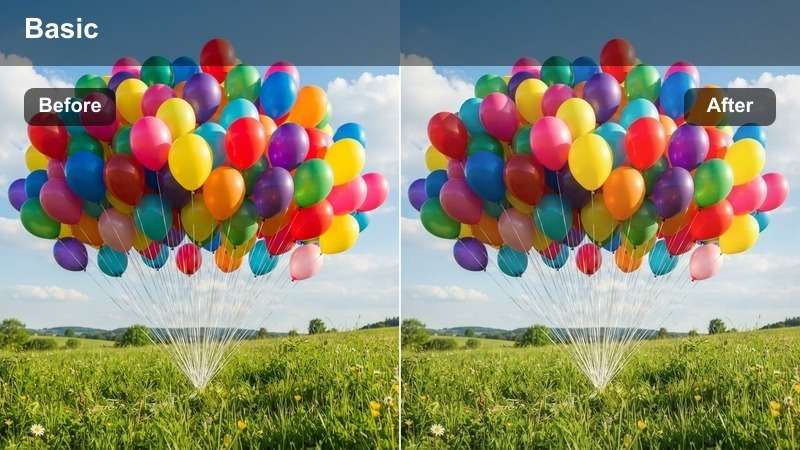
- Effect look: Neutral, polished color correction with flattering skin tones and reduced color cast.
- Best for: Close-ups of lead singers, soloists, and presenters under white or lightly colored spotlights.
- Editing tip: Apply a slight skin-smoothing effect after this filter, but keep sharpness on hair and wardrobe.
Headline Spotlight Clean strips away heavy color casts to deliver neutral, professional-looking close-ups. It prioritizes natural skin tones and moderate contrast so the artist looks good on big screens, social clips, and broadcast-friendly edits alike.
In Filmora, use this LUT-style filter as your base correction for all hero shots of the main performer, especially when cutting between multiple cameras. After applying it, adjust white balance per clip to unify skin tones, then selectively soften skin while preserving detail in eyes, hair, and costume for a refined yet realistic look.
Documentary-Style Live Sessions and Rehearsals
Backstage Documentary
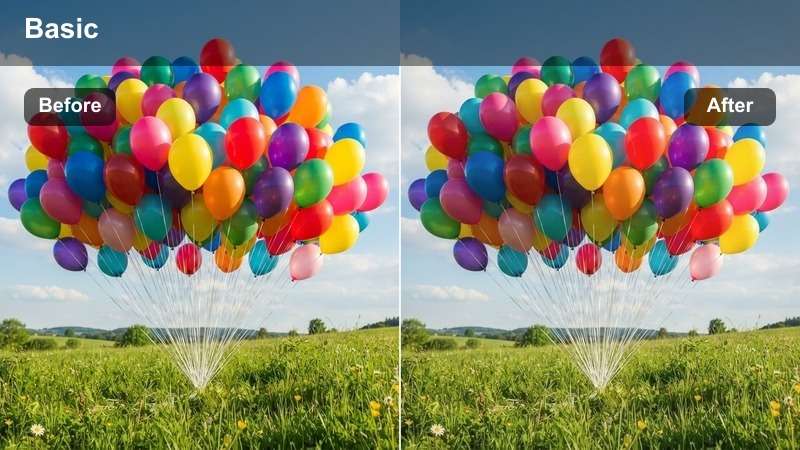
- Effect look: Natural contrast with slightly muted colors and a gentle filmic curve.
- Best for: Behind-the-scenes moments, green room shots, and candid pre-show footage.
- Editing tip: Lower saturation on distracting background colors so faces and key actions stand out more.
Backstage Documentary keeps concert storytelling grounded by softening overly vivid colors and adding a mild filmic roll-off to highlights. It is ideal for casual, handheld clips in dressing rooms, corridors, and side-of-stage areas where lighting is practical rather than theatrical.
Inside Filmora, apply this filter to all your behind-the-scenes moments, then gently desaturate any bright wall paint, posters, or furniture so the focus stays on the band. Use simple masks to slightly brighten faces and hands, creating a cohesive documentary tone that cuts smoothly with more stylized performance footage.
Rehearsal Room Neutral
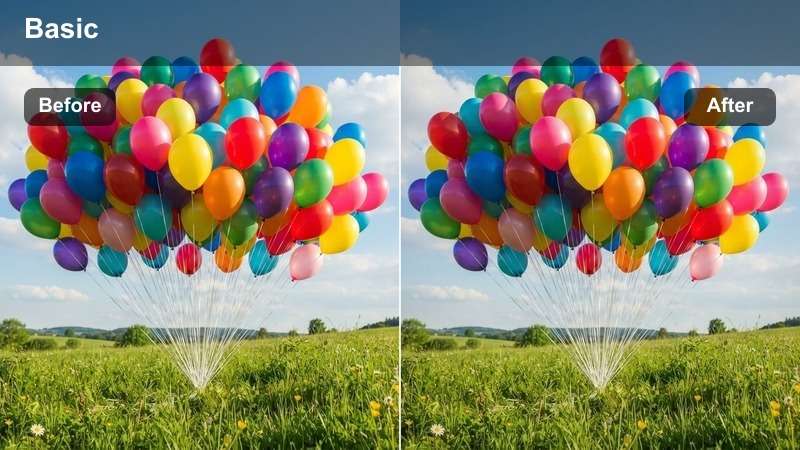
- Effect look: Even, neutral color with mild contrast that works well under practical room lights.
- Best for: Practice spaces, sound checks, and jam sessions recorded without stage lighting.
- Editing tip: Fine-tune white balance manually after applying so walls and instruments look true-to-life.
Rehearsal Room Neutral is built to handle flat, overhead lighting from rehearsal studios and practice spaces. It straightens out color casts, introduces gentle contrast, and leaves you with a realistic but pleasing base grade that pairs well with both live performance and interview content.
In Filmora, use this filter on tripod shots, room mics footage, and multicam rehearsals where you want viewers to feel like they are in the room with the band. Adjust white balance until the walls and instruments look accurate, then apply a touch of local contrast to faces and gear while subtly darkening bright ceilings with gradient masks.
Live Session Film Soft
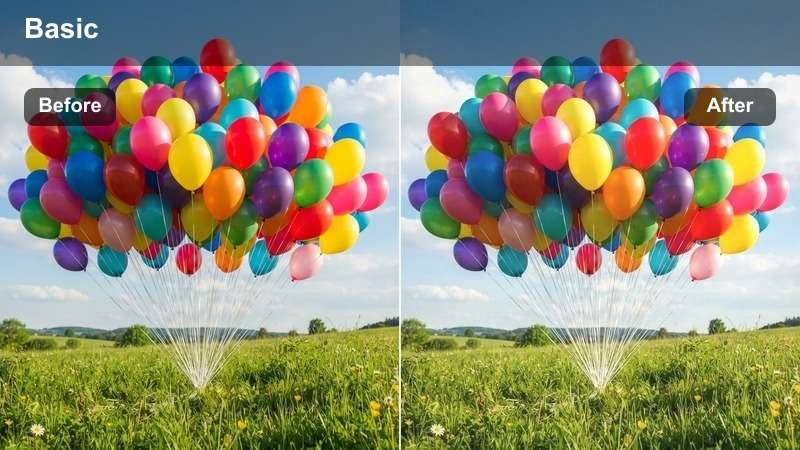
- Effect look: Soft highlights, gentle fade in shadows, and a subtle warm-cool split tone.
- Best for: Studio live sessions, acoustic sets, and stripped-down performance videos.
- Editing tip: Add a small vignette and reduce sharpness slightly to complete the filmic live-session feel.
Live Session Film Soft gives intimate performances a classic session look with lowered micro-contrast, slightly lifted blacks, and a delicate warm-cool split tone. It works well with soft key lights and shallow depth of field, helping performances feel emotional and cinematic rather than clinical.
In Filmora, apply this filter to acoustic studio performances, piano sessions, or stripped-down band arrangements. Reduce sharpness a bit, add a gentle vignette, and use masks to brighten faces and hands on instruments so the audience s attention lands squarely on the emotion of the performance, not on background details.
Tips for Using Concert Video Luts Filters in Filmora
- Shoot a short reference clip at each concert or live show and test your chosen filters on that sample in Filmora before batch-applying the look to all footage.
- When working with heavily colored stage lights, adjust saturation in individual color channels instead of global saturation to protect skin tones from looking unnatural.
- If fast strobe effects feel harsh after you apply a contrasty filter, slightly reduce highlights and consider adding motion blur for smoother playback.
- Match your filter choice to the music genre: neon and high-contrast for EDM, warm and soft for acoustic and indie sets, and clean neutral looks for pop and mainstream acts.
- Always preview filters on both close-ups and wide crowd shots so your final concert edit feels cohesive from stage details to full-venue views.
- Use Filmora s AI color tools and color match features to keep multiple camera angles consistent before you start layering creative filters or LUT-style presets.
- Stack filters sparingly and adjust their intensity sliders in Filmora so you keep control over contrast, noise, and color shifts in darker venues.
- Save your favorite filter and adjustment combinations as custom presets so you can reuse the same concert look across a full tour or series.
These Free Concert Video LUTs for Vibrant Live Performances give music creators and videographers fast, reliable starting points for grading concerts, live shows, and stage performances inside Filmora.
Combine them with careful exposure tweaks, AI-powered color tools, and simple channel-specific adjustments so every live moment, from small club gigs to full arena tours, looks as powerful on screen as it sounds in the room.
secure downloadNext: Free Festival Video Filters for Colorful Event Footage
