

 100% Security Verified | No Subscription Required | No Malware

These free festival video filters are made for event creators and vloggers who want bold color, clear detail, and a cinematic vibe without heavy grading work.
Use these presets on music festivals, cultural festivals, and outdoor events to quickly balance harsh stage lights, boost crowd energy, and keep skin tones looking natural on the go.
In this article
Sunset and Golden Hour Festival Moments
Sunset Glow Vibes
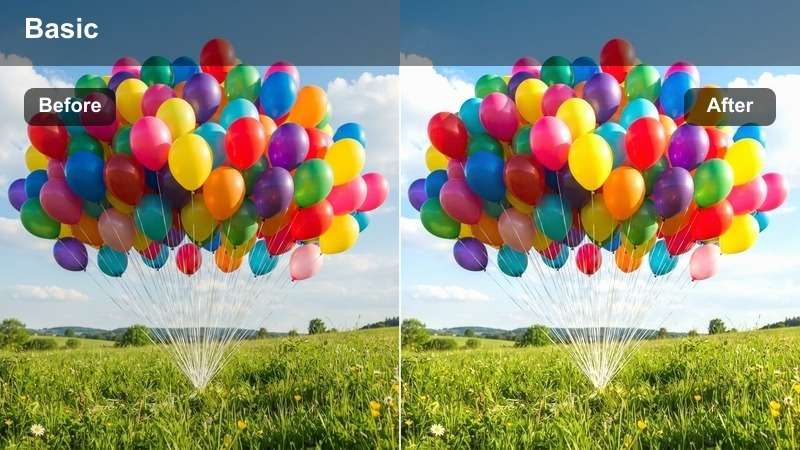
- Effect look: Soft warm contrast that pushes oranges and pinks for glowing late-afternoon festival scenes.
- Best for: Music festivals shot at golden hour with backlit stages and dancing crowds.
- Editing tip: Lower the filter intensity to around 60 percent if skin tones start to look too orange against the sun.
Sunset Glow Vibes is designed to amplify the natural warmth of golden hour while keeping your festival footage punchy and cinematic. In Filmora, you can drop this filter onto clips where the sun sits low behind the stage to deepen oranges and pinks, giving flares and lens haze a dreamy glow without losing clarity on key performers.
After applying the preset, use the intensity slider to fine tune warmth so faces stay flattering and do not turn overly saturated. If your camera pushed exposure high, lightly reduce highlights in the Color panel, then let the filter add the final polish. This is especially effective on slow-motion crowd shots, hands in the air, and cutaway b roll of friends walking between stages.
Match Festival Colors Automatically with AI
Filmora s AI tools can quickly smooth out harsh stage lighting, mixed color temperatures, and uneven skin tones before you stack creative festival video filters. By auto balancing contrast and color, your Sunset Glow Vibes and other presets will look more consistent from clip to clip.
Import a short reference shot from your favorite festival aftermovie, then let AI Color Palette analyze it and apply a similar balance across your own footage. Once your base is clean, you can confidently layer festival LUTs and filters to get a bold, stylized look in just a few clicks.
 secure download

See Festival Filters in Action on Real Event Footage
Once your base colors are corrected, test different festival video filters on a mix of wide crowd shots, stage close ups, and campsite clips. In Filmora, you can preview filters live in the Viewer and instantly compare how each option handles flares, smoke, and LED lighting.
Toggle the filter eye icon on and off over the same clip to judge what actually supports your story, whether that is a subtle warm wash or a high energy neon effect. Then experiment with combining filters, transitions, and titles to build a complete festival sequence that feels cohesive from start to finish.
secure download1000 plus Video Filters and 3D LUTs
Beyond these free festival video filters, Filmora includes a large library of cinematic filters and 3D LUTs for different genres, from travel vlogs to narrative short films. You can mix festival LUTs with subtle HSL adjustments to fine tune individual color ranges like stage magentas, teal shadows, or warm skin tones.
If you like building your own looks, use LUTs as a base grade, then add Filmora filters and keyframed adjustments on top. Once you have a combination that fits your channel, save it as a custom preset so every new festival or event can match your established style in seconds.
secure downloadAmber Stage Wash
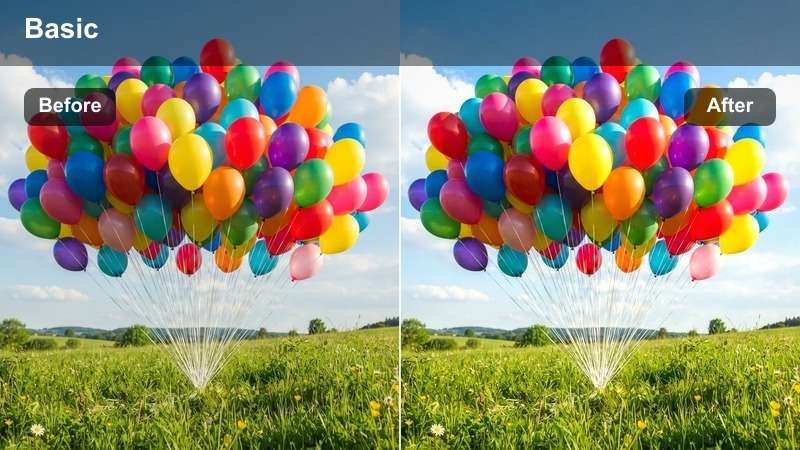
- Effect look: Rich amber cast that evens out strong stage lights and deepens blacks for a moody glow.
- Best for: Close ups of performers under warm spotlights at outdoor festival stages.
- Editing tip: Add a touch of clarity to keep facial features sharp when the stage haze is heavy.
Amber Stage Wash helps you turn uneven warm spotlights and hazy stages into a cohesive cinematic frame. When you apply it in Filmora, the filter deepens blacks, tames harsh edges in the lights, and adds a unified amber tone that feels intentional rather than accidental.
For best results, lightly cool overly red footage with the white balance slider before dropping on this filter so skin and instruments do not skew too orange. Then increase clarity or sharpness slightly around the performer to cut through haze, and if the background falls too dark, gently raise shadows so you can still see the crowd without flattening the moody look.
Dusty Gold Field
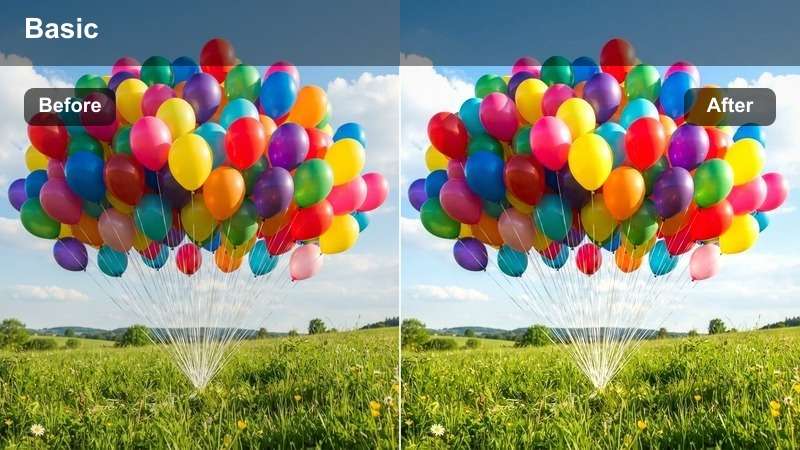
- Effect look: Hazy golden cast with soft highlights that mimic a dusty festival field at sunset.
- Best for: Wide shots of festival grounds, tents, and walking crowds during late afternoon.
- Editing tip: Add a light film grain on top for a nostalgic documentary feel.
Dusty Gold Field is tailored for wide establishing shots of festival grounds, giving them a sun drenched, slightly nostalgic vibe. In Filmora, this filter softens highlights and gently mutes contrast to mimic real dust in the air, while still preserving enough detail so tents, stages, and signage remain readable.
Use it on drone shots, wide pans across campgrounds, or slow walking clips that introduce a new area of the event. To enhance the mood, layer subtle film grain and a small vignette, then adjust midtone contrast instead of global contrast to keep shadows from crushing while still adding definition to key elements like vendor rows and main pathways.
Night Stages and Neon Festival Lights
Neon Rave Pop
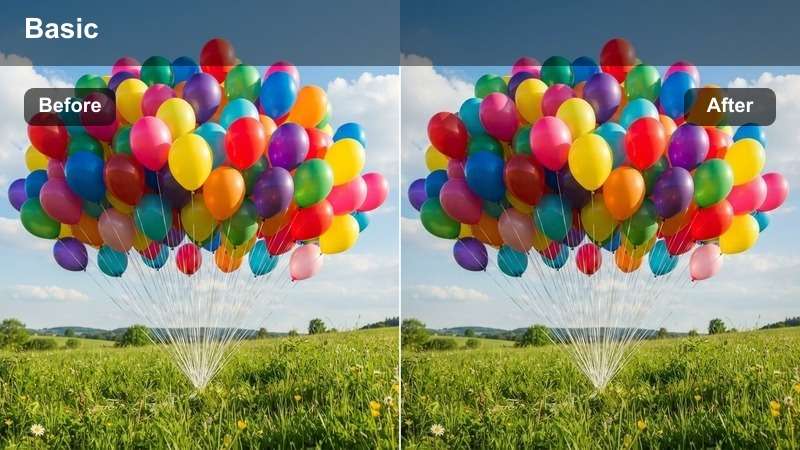
- Effect look: Punchy contrast with saturated blues, purples, and magentas for late night electronic sets.
- Best for: Music festival stages with LED walls, lasers, and moving neon lights.
- Editing tip: Reduce saturation on greens if lasers overpower performers faces.
Neon Rave Pop is built to handle the intense colors of EDM and electronic stages, pushing blues, purples, and magentas while keeping highlight clipping under control. In Filmora, this filter instantly adds club like energy to LED walls and lasers so your night footage feels alive and dynamic.
Apply it on your most energetic performance moments, then fine tune with the HSL controls to calm down any overbearing greens or yellows. If faces sink into shadow, use Filmora s masking tools to locally lift exposure or shadows around the DJ or singer, leaving the crowd and beams darker so the depth of the scene remains intact.
Midnight City Stage
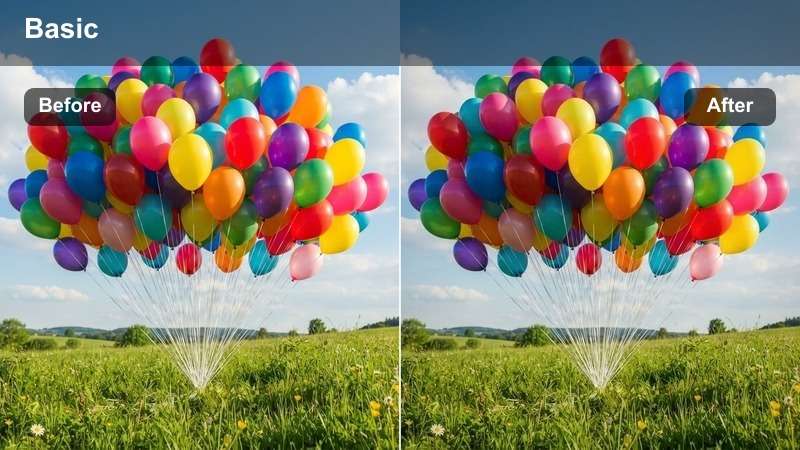
- Effect look: Cool toned filter that deepens blues and teals while preserving natural skin in spotlights.
- Best for: Urban music festivals and rooftop stages with city lights in the background.
- Editing tip: Increase vibrance instead of saturation to keep the city skyline from looking cartoonish.
Midnight City Stage gives rooftop and city based festivals a polished, metropolitan finish by enhancing blue and teal tones in the skyline and ambient light. When you apply it in Filmora, the filter maintains realistic skin colors under spotlights so performers still look natural against stylized city backgrounds.
Use it on wide establishing shots of the stage with skyscrapers behind, and on mid shots where city bokeh fills the frame. If the skyline starts to distract from your artists, add a gradient mask to slightly darken or blur the background, then boost vibrance just enough to make neon signs and windows shimmer without tipping into oversaturated territory.
Electric Confetti
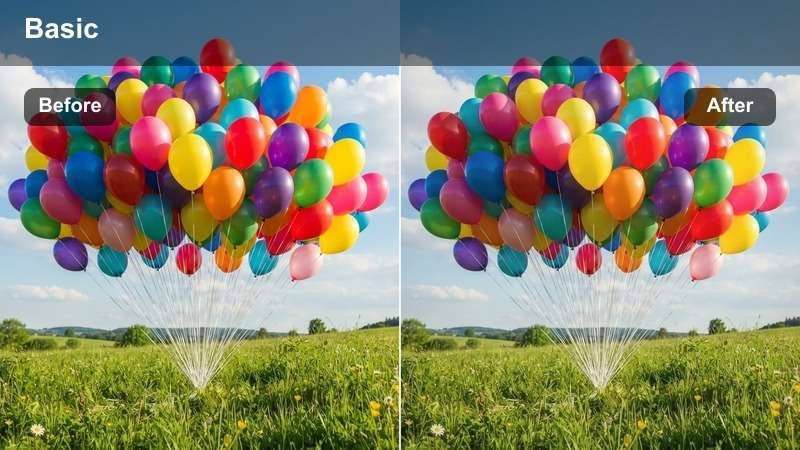
- Effect look: High energy, saturated filter that makes confetti, smoke, and light bursts stand out.
- Best for: Climactic drops, fireworks, and confetti moments during headliner performances.
- Editing tip: Use short, punchy cuts with this filter to keep the energy high and avoid viewer fatigue.
Electric Confetti is your go to filter for the biggest festival payoffs, from confetti cannons to fireworks and pyro. In Filmora, this preset intensifies colors in smoke, paper bursts, and stage beams while maintaining enough contrast that details in the crowd and performers remain visible.
Apply it sparingly on the most impactful parts of your timeline, like beat drops and chorus hits, and cut quickly between angles to ride the energy. You can sync its use to your soundtrack by placing it only on clips that align with musical peaks, and if the frame becomes too busy, slightly blur or darken the background so the artist or key crowd reactions stay front and center.
Daytime Crowds and Cultural Festival Scenes
Color Parade Bright
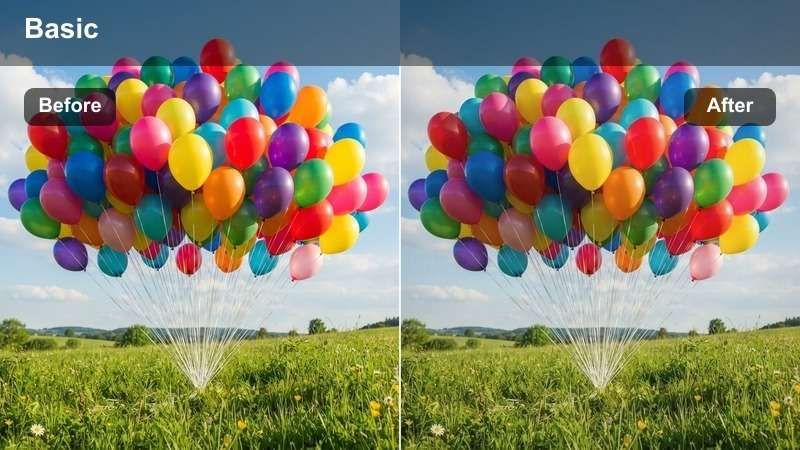
- Effect look: Clean, bright filter that boosts primary colors while keeping whites crisp.
- Best for: Cultural festivals with colorful costumes, flags, and daytime parades.
- Editing tip: Use a gentle curve to recover detail in white clothing or banners if they look blown out.
Color Parade Bright is crafted to make daytime cultural festivals and parades look vivid and celebratory without losing detail in bright costumes or flags. In Filmora, it boosts primary colors while protecting whites, so embroidered outfits, painted faces, and banners all stand out clearly against the sky.
Use this filter for front row parade shots, medium angles on performers, and any clip where flags or props fill the frame. If mid day sun causes highlights to clip, adjust your curves slightly to pull back detail in white clothing, then fine tune saturation so reds and blues feel rich but not neon, preserving a realistic cultural atmosphere.
Street Fest Soft
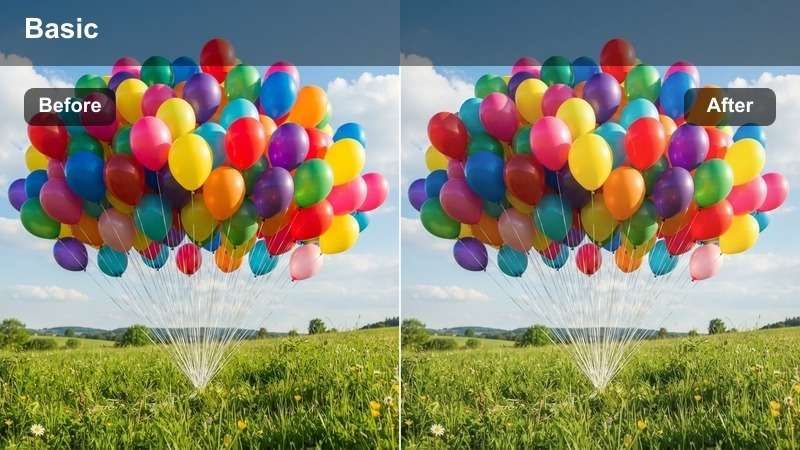
- Effect look: Soft, low contrast filter with gentle saturation for casual street festival coverage.
- Best for: Vlogs walking through local street fairs, food stalls, and daytime performances.
- Editing tip: Combine with handheld footage and light motion blur for a relaxed documentary style.
Street Fest Soft brings a relaxed, approachable tone to your street fair and market festival videos by slightly lowering contrast and saturation. In Filmora, this filter works especially well with handheld clips, making casual walk and talk vlogs feel cozy and inviting rather than harsh or clinical.
Apply it across sequences where you are exploring food stalls, craft booths, or small side stages, then blend shots with gentle crossfades or simple cuts to maintain a smooth pace. If key signs or landmarks need extra clarity, selectively sharpen or brighten only those areas using masks, so viewers can easily follow your route without losing the overall softness of the scene.
Heritage Fest Warm
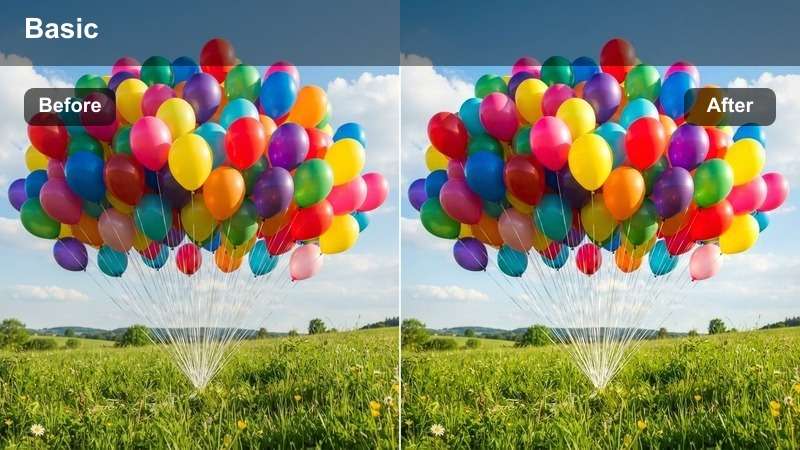
- Effect look: Subtle warm tonal shift with slightly lifted blacks for a storytelling, documentary feel.
- Best for: Cultural performances, traditional dances, and interviews with participants in natural light.
- Editing tip: Pair with slower cuts and ambient sound to emphasize atmosphere over spectacle.
Heritage Fest Warm is designed to support thoughtful storytelling at cultural events, adding a gentle warmth and soft blacks that evoke documentary film. In Filmora, this filter is ideal for interviews, traditional dances, and performance pieces where authenticity matters more than extreme stylization.
Use it on clips where you capture conversations, rehearsals, or quiet audience reactions, and keep your edits slower to let the atmosphere breathe. Avoid cranking saturation too high on traditional clothing; instead, let the filter subtly enrich tones while you focus on clean audio and steady framing to honor the real stories being shared on camera.
Campgrounds, Aftermovies, and Behind-the-Scenes
Campfire Ambient
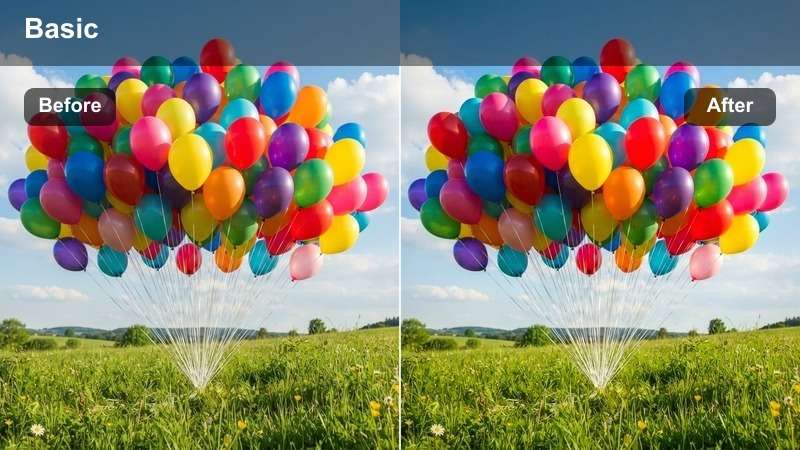
- Effect look: Low light friendly warm filter that softens shadows and emphasizes orange campfire tones.
- Best for: Festival campgrounds at dusk, campfires, and acoustic jam sessions.
- Editing tip: Apply mild noise reduction before the filter on high ISO clips to keep the image clean.
Campfire Ambient gives your dusk and night campground scenes a cozy, story by the fire feeling by enhancing warm oranges and gently lifting dark shadows. In Filmora, this filter helps noisy, high ISO clips from tents and jam sessions look smoother and more cinematic without stripping away the nighttime mood.
Run a light dose of noise reduction on your clips before applying the filter, then avoid pushing exposure too high so the campfire remains the main light source. If faces near the fire are still too dim, slightly raise midtones only, keeping backgrounds darker so the scene feels intimate and true to how it looked in person.
Afterglow Aftermovie
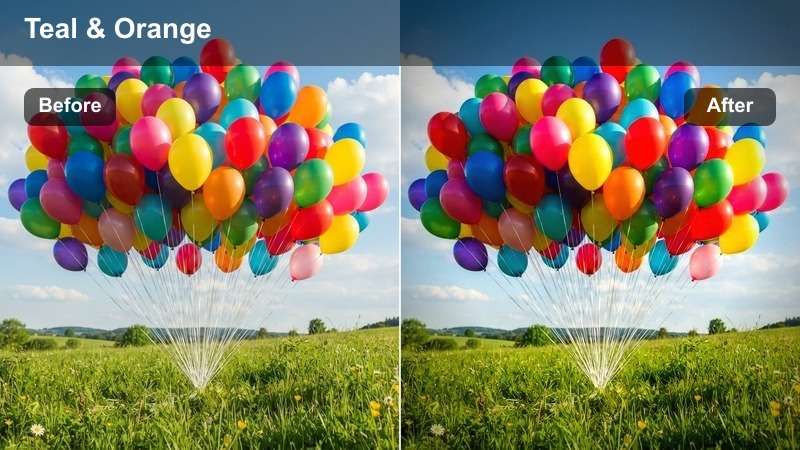
- Effect look: Cinematic contrast with teal shadows and warm highlights for polished recap videos.
- Best for: Festival aftermovies that mix performance highlights, crowd shots, and location b roll.
- Editing tip: Use consistent color grading across clips so the entire aftermovie feels cohesive.
Afterglow Aftermovie is built for polished recaps, using a modern teal and warm highlight combination that ties together all parts of your festival story. In Filmora, this filter works well across daytime, sunset, and night clips, giving your entire timeline a unified cinematic identity.
Apply it as a base grade across your best selects, then adjust intensity per clip if some shots were captured under very different lighting. To build a satisfying narrative arc, sequence your edit from calm arrivals to peak performances, slightly increasing contrast or saturation toward the climax while keeping the core Afterglow look consistent from start to finish.
BTS Creator Mode
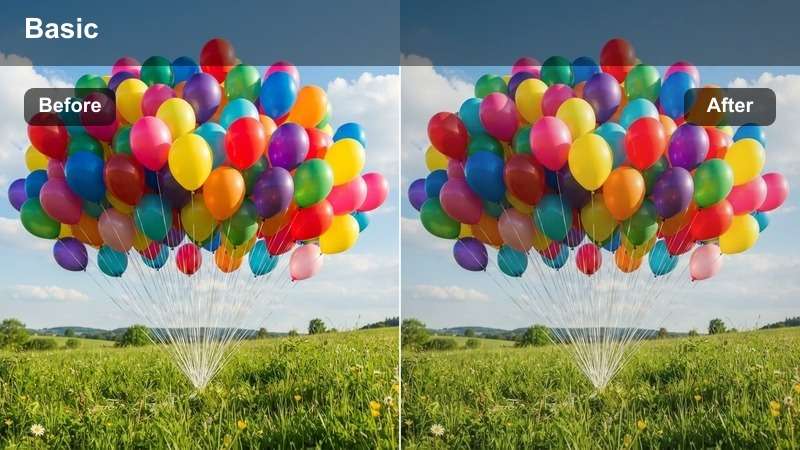
- Effect look: Clean, neutral filter with a slight clarity boost to highlight gear, faces, and candid moments.
- Best for: Behind the scenes vlogs of creators filming, setting up rigs, and meeting fans at festivals.
- Editing tip: Use jump cuts and on camera dialogue with this filter to keep the creator focused style consistent.
BTS Creator Mode is designed to keep your behind the scenes clips sharp and realistic so viewers can clearly see your gear, expressions, and interactions. In Filmora, the filter adds a subtle clarity lift and balanced color, making it ideal for talking head pieces, setup time lapses, and candid meetups with your audience.
Use this as your baseline look for any creator facing footage, then cut in more stylized festival filters only on b roll and performance shots to create contrast. Keep your edits snappy with jump cuts, on screen text, and simple transitions so your personality and process stay at the center of the story, while the festival itself becomes an exciting backdrop.
Tips for Using Festival Video Filters Filters in Filmora
- Shoot a short white balance reference clip at each stage or area so your filters apply consistently across the whole festival.
- Organize your festival footage into bins by time of day and lighting type before applying filters to speed up your color workflow.
- Lower filter intensity on talking head vlogs so your face stays natural while the background keeps the festival vibe.
- Export a short 10 to 20 second test edit with your chosen filter stack and watch it on your phone to check how it feels in real world viewing.
- Mix wide crowd shots with tight reaction shots under the same filter so your festival story feels connected and intentional.
- Use Filmora s keyframing and masking tools to apply stronger filters only to certain parts of a frame, like skies or LED walls, while leaving faces natural.
Free festival video filters in Filmora help you move fast from raw clips to colorful, shareable edits that capture the energy of your event.
Once you have a festival look you love, save it as a preset and reuse it on future music festivals, cultural events, and outdoor shows to keep your channel visually consistent.
secure download