

 100% Security Verified | No Subscription Required | No Malware

Give your Discord videos a consistent visual identity with this free Discord video LUT pack for Filmora. These color grading filters are designed for gaming communities, online educators, server announcements, community events, and highlight compilations.
Use the pack to turn raw gameplay, webcam footage, screen recordings, and community clips into polished videos with a clear mood. Apply a filter, adjust its strength, and fine-tune exposure or contrast so every announcement and shared moment feels ready for your server.
In this article
Server Announcements That Stand Out
Neon Server Alert
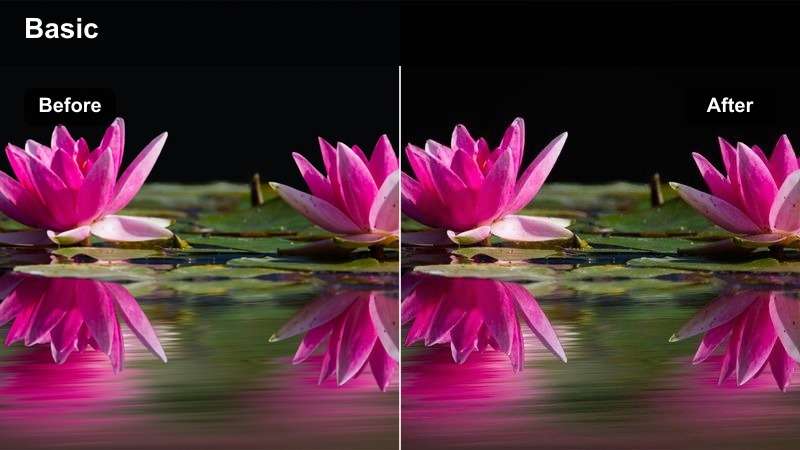
- Effect look: Adds cool cyan shadows, electric blue contrast, and vivid magenta accents for a high-energy Discord announcement style.
- Best for: Server rule updates, moderation notices, channel launches, and gaming community announcements.
- Editing tip: Reduce the filter intensity on webcam footage so skin tones remain natural while interface graphics stay vibrant.
Neon Server Alert is a bold cyber-inspired look for important server updates and community notices. Its cool shadows and vivid accent colors can give a static announcement or gameplay background more energy while reinforcing a gaming-focused identity.
In Filmora, apply the filter before adding titles and graphics, then adjust the intensity to protect skin tones and preserve readable interface details. A subtle dark overlay behind announcement text can help maintain contrast when the footage becomes highly saturated.
Build a Discord Color Palette With AI
Use AI color palette tools to find coordinated hues for server branding, community event graphics, and gaming clip thumbnails.
Start with your server icon or existing brand colors, then choose accent colors that work across gameplay footage, webcam shots, and announcement cards.
Create a consistent community look before you begin editing.
 secure download

Preview Discord Video Filters in Filmora
Filmora makes it easy to compare different filter looks on gameplay, screen recordings, webcam footage, and community event clips.
Preview each style, adjust intensity, and use transitions or keyframes to make the color treatment match the pace of your edit.
Test the pack on your next server announcement or clip compilation.
secure downloadCombine Filters and LUTs for Flexible Color Grading
Start with a LUT for the overall color direction, then use a Filmora filter to refine contrast, saturation, and mood for each scene.
This workflow helps different recordings feel connected even when they come from different games, cameras, creators, or Discord events.
Download the free Discord video LUT pack and shape a signature community style.
secure downloadClean Community Post
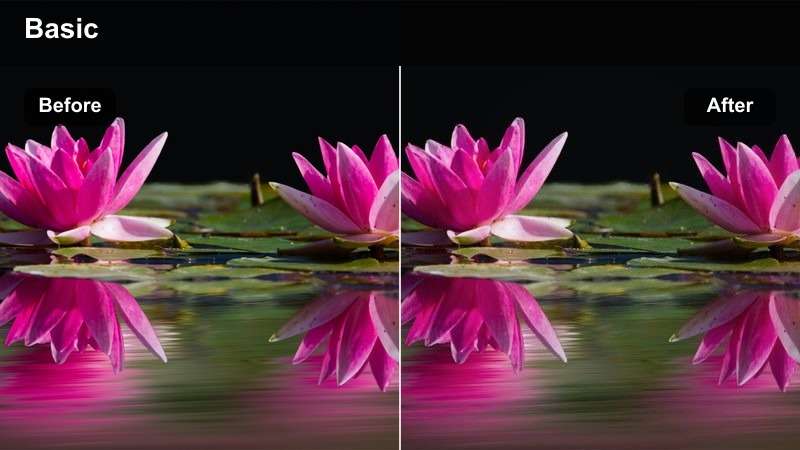
- Effect look: Balances neutral whites, softens harsh highlights, and creates a clean modern finish for clear informational videos.
- Best for: Welcome videos, community guidelines, educational posts, and creator introductions.
- Editing tip: Pair the filter with gentle sharpening and a modest contrast increase when working with screen recordings.
Clean Community Post creates a polished and approachable finish for educational or informational Discord content. It keeps whites balanced and highlights controlled, making it useful when viewers need to focus on instructions, presenters, or community graphics.
Use Filmora's preview zoom to check small channel names and labels after grading. Keep sharpening and contrast modest so screen recordings remain crisp without making interface text look jagged.
Midnight Mod Update
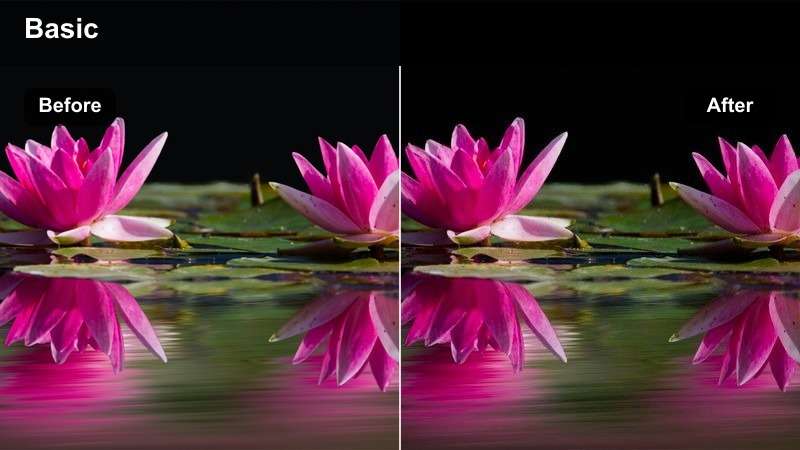
- Effect look: Creates deep navy shadows, controlled highlights, and a serious cinematic tone for focused communications.
- Best for: Moderation updates, safety reminders, event policy videos, and late-night server announcements.
- Editing tip: Lift the shadow level slightly if your source gameplay or webcam footage already appears dark.
Midnight Mod Update uses navy shadows and restrained highlights to create a serious cinematic mood. It suits moderation messages and policy videos that need a focused tone without distracting visual effects.
Raise exposure slightly before applying the look when using dark webcam footage, then keep the filter intensity moderate. This helps preserve facial expressions and other visual cues that can disappear in deep shadows.
Community Events Full of Energy
Tournament Hype
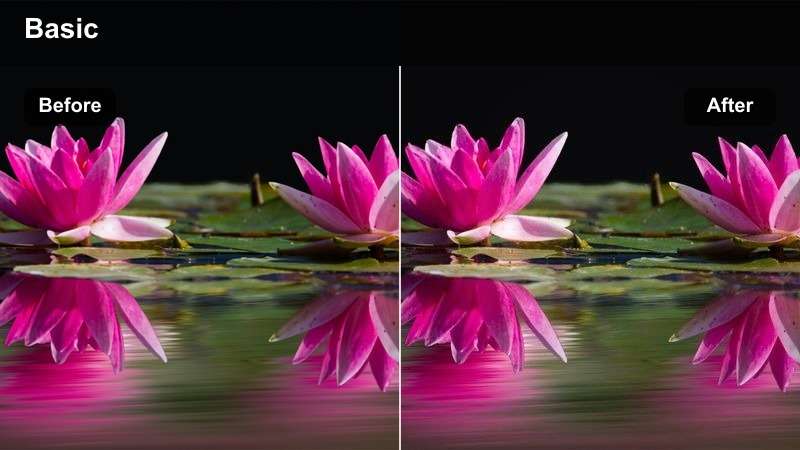
- Effect look: Boosts reds, oranges, and contrast to create a fast-paced competitive look for action-heavy footage.
- Best for: Esports brackets, tournament countdowns, match recaps, and competitive gaming streams.
- Editing tip: Use short bursts of this filter on highlight segments and soften it during scoreboards or detailed commentary.
Tournament Hype is a high-impact filter for competitive gaming events and fast highlight edits. Warm reds and stronger contrast make action moments feel more immediate and help key clips stand out in a montage.
Use the strongest treatment alongside quick cuts and impact sounds, then soften it during scoreboards or commentary. Alternating between this look and a neutral grade gives longer recaps more visual breathing room.
Community Night Glow
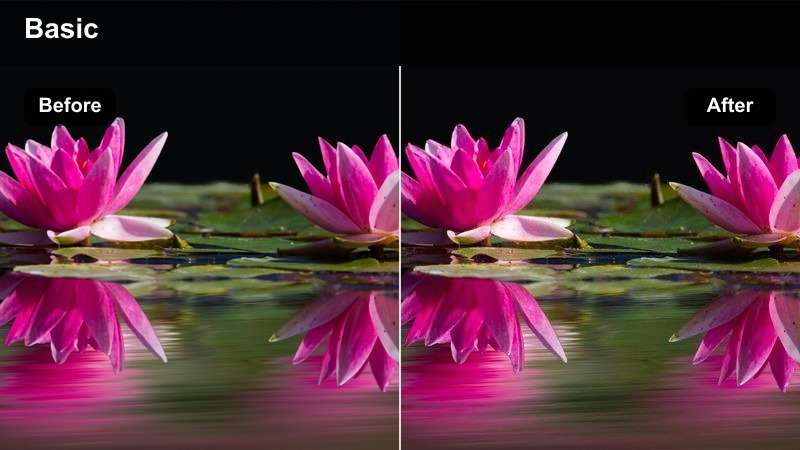
- Effect look: Adds purple shadows, soft neon highlights, and a vibrant evening atmosphere for social community footage.
- Best for: Game nights, voice chat gatherings, watch parties, and community livestream recaps.
- Editing tip: Lower highlight intensity on bright monitor screens to prevent distracting white patches in the final video.
Community Night Glow adds a friendly neon-purple style to relaxed group events and community hangouts. Purple shadows and soft highlights can connect webcam tiles, gameplay scenes, and event graphics into one evening atmosphere.
Apply the same adjusted filter across the full edit so separate recordings feel connected. Save the settings as a custom Filmora preset when you plan to produce a recurring community night series.
Bright Event Recap
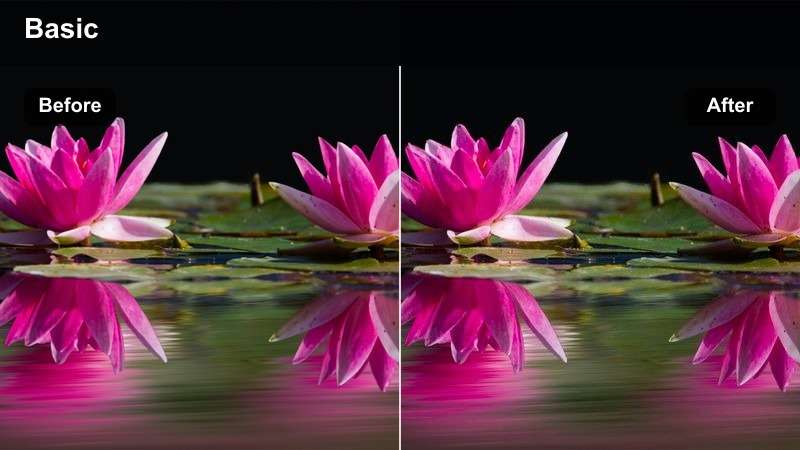
- Effect look: Lifts exposure, brightens midtones, and adds clean color separation for an upbeat recap style.
- Best for: Community challenge recaps, charity streams, celebration videos, and event thank-you posts.
- Editing tip: Reduce exposure before applying the filter if the source clips were recorded with bright overlays or white backgrounds.
Bright Event Recap is a cheerful filter for celebrating participation, milestones, and memorable community moments. Lifted exposure and clear color separation can make a thank-you video feel open, energetic, and welcoming.
Watch for clipped highlights in bright menus and overlays, especially when the source footage already contains neon graphics. If colors become too intense, reduce saturation after applying the filter in Filmora.
Clip Compilations With a Signature Look
Creator Highlight
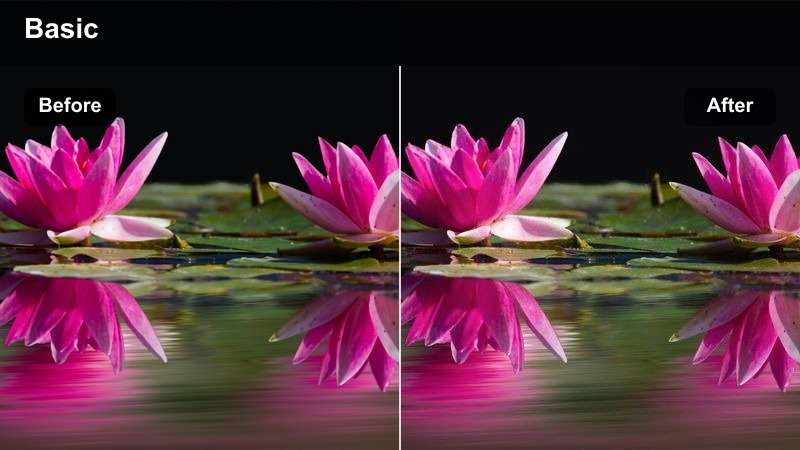
- Effect look: Adds crisp contrast, warm skin tones, and subtle teal shadows for a polished creator-focused finish.
- Best for: Streamer introductions, creator spotlights, channel trailers, and personal best compilations.
- Editing tip: Use a lower intensity on face-cam shots and a higher intensity on gameplay clips to balance the complete edit.
Creator Highlight is a versatile look for connecting webcam footage with gameplay highlights. Warm skin tones help presenters feel natural while crisp contrast and teal shadows give action clips a polished creator-focused finish.
Correct white balance and exposure on each camera source before applying the filter. In Filmora, use lower intensity for face-cam clips and slightly higher intensity for gameplay to unify recordings with different color profiles.
Retro Clip Rewind
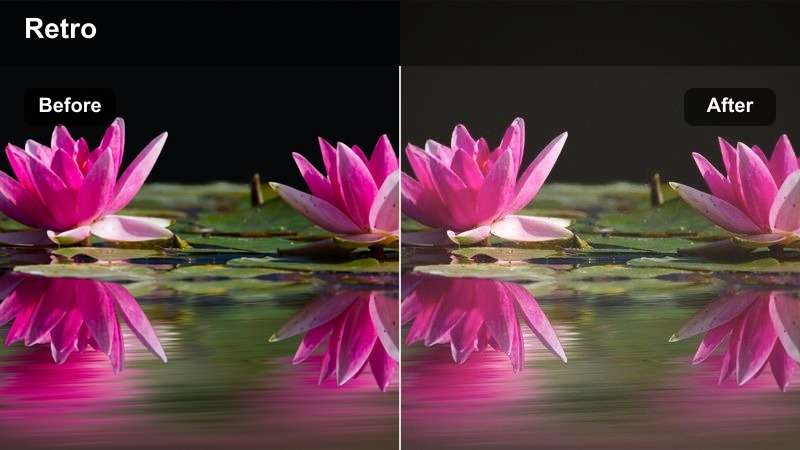
- Effect look: Adds faded contrast, warm highlights, and a subtle nostalgic tone inspired by classic gaming video edits.
- Best for: Throwback clips, server anniversaries, old tournament memories, and community history videos.
- Editing tip: Combine the filter with light film grain and a slower transition style to reinforce the archival feeling.
Retro Clip Rewind gives old gameplay and community memories a faded, warm treatment. It is useful for server anniversaries, throwback clips, and history videos where the visual style should suggest an earlier era.
Keep grain and fade effects subtle when the edit includes usernames, dates, scores, or chat messages. Filmora's transitions can support the archival feeling without obscuring the original story or important details.
Competitive Cyan
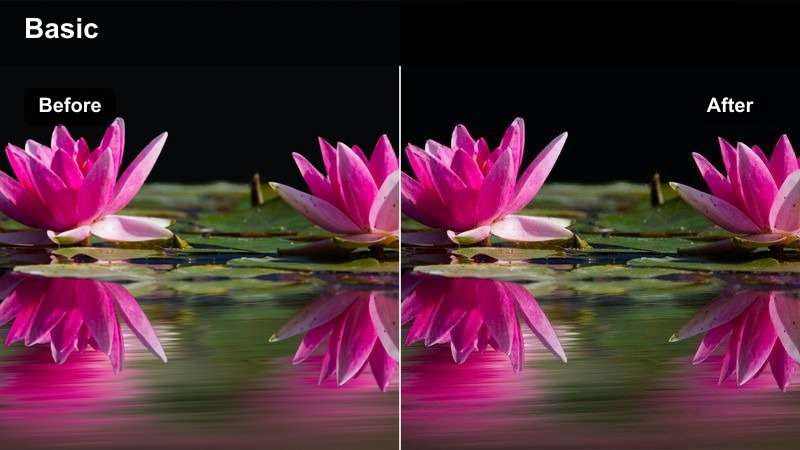
- Effect look: Creates sharp cyan highlights, cooler shadows, and punchy contrast for a modern esports compilation style.
- Best for: Ranked gameplay clips, clutch moments, team montages, and competitive community reels.
- Editing tip: Use keyframes to increase filter strength during eliminations, wins, and other major gameplay beats.
Competitive Cyan creates a sleek esports style for fast competitive clips and high-impact montage edits. Cool shadows and cyan highlights can make team branding and clutch gameplay feel more modern and dramatic.
Use Filmora keyframes to increase filter strength during eliminations, wins, and other major beats. Animate the change over a few frames so the color shift feels connected to the gameplay instead of abrupt.
Online Lessons and Community Guides
Clear Tutorial
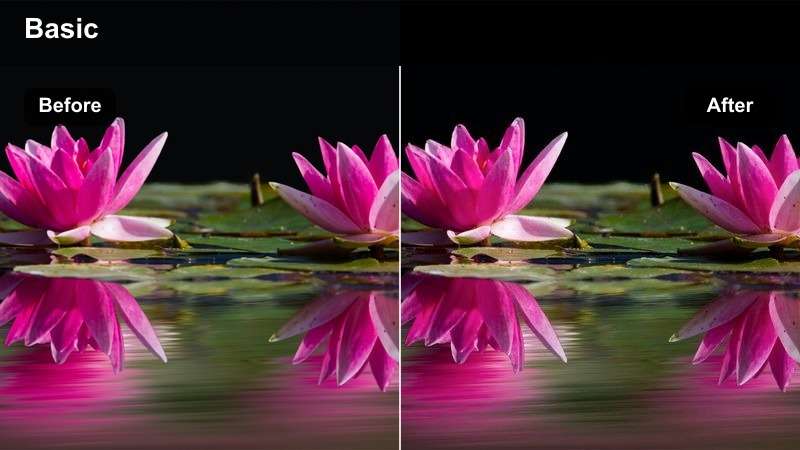
- Effect look: Produces balanced contrast, accurate interface colors, and a bright neutral finish for instructional videos.
- Best for: Discord setup guides, moderator tutorials, software lessons, and online educator content.
- Editing tip: Keep saturation moderate so buttons, channel icons, and screen highlights remain close to their original appearance.
Clear Tutorial is a dependable educational look for videos where clarity and screen accuracy matter most. Balanced contrast and neutral color help viewers follow setup steps, software lessons, and moderator instructions.
Keep saturation moderate so familiar Discord colors remain close to their original appearance. Add zooms and callout graphics after color grading in Filmora to preserve a consistent visual hierarchy throughout the lesson.
Focused Study
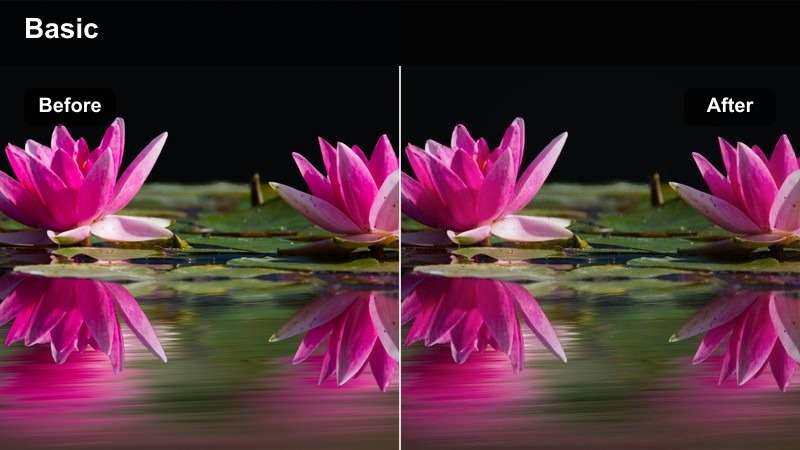
- Effect look: Softens saturation, reduces visual distractions, and creates a calm blue-gray tone for focused educational content.
- Best for: Study servers, productivity lessons, coding tutorials, and long-form online classes.
- Editing tip: Use gentle fade transitions and moderate sharpness to keep extended screen recordings comfortable to watch.
Focused Study creates a calm, low-distraction style for educational Discord channels and learning videos. Its soft blue-gray tone is well suited to coding tutorials, productivity lessons, and longer screen recordings.
Use softer contrast and restrained saturation to reduce visual fatigue on bright monitors. Preview the finished lesson on desktop and mobile screens to make sure text and interface details remain comfortable to read.
Warm Welcome Guide
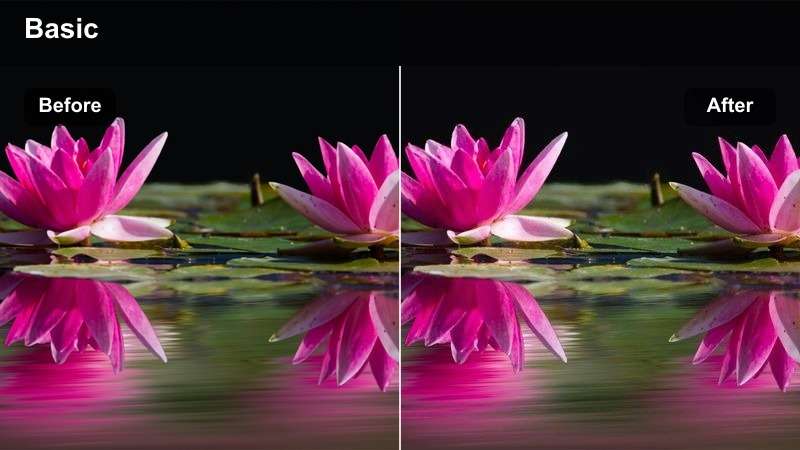
- Effect look: Adds gentle warmth, soft highlights, and inviting midtones for friendly onboarding and community education.
- Best for: New member guides, mentor introductions, onboarding videos, and community resource explainers.
- Editing tip: Apply the filter lightly to preserve the neutral look of screenshots while giving presenter footage a welcoming tone.
Warm Welcome Guide adds a friendly introductory tone to onboarding videos and community resource explainers. Gentle warmth and soft highlights can help new members feel comfortable while keeping the presentation polished.
Apply the filter lightly to screenshots and interface footage, then save the adjusted look with your intro and title animation as a reusable Filmora project template. Consistency can make a series of onboarding videos feel like one connected resource library.
Tips for Using Discord Lut Download Filters in Filmora
- Correct exposure and white balance before applying a Discord video filter so the final colors remain consistent.
- Use lower filter intensity on webcam footage and higher intensity on gameplay clips when combining both in one edit.
- Match the filter mood to the purpose of the video, such as clean grading for tutorials and stronger contrast for tournament highlights.
- Check small Discord interface text after grading, especially in server guides, moderation updates, and screen recordings.
- Save your favorite adjusted settings as a Filmora preset for recurring community events and clip series.
- Preview the final export on desktop and mobile screens to confirm that shadows, highlights, and text remain visible.
This free Discord video LUT pack gives gaming communities and online educators a practical starting point for polished announcements, event recaps, tutorials, and clip compilations. Choose a style that matches the moment, then fine-tune the intensity for your footage.
Download the pack, test the filters in Filmora, and build a recognizable color style for your Discord server, creator channel, or community education project.
secure download