

 100% Security Verified | No Subscription Required | No Malware

Give your Kick broadcasts a cleaner, more consistent look with the Free Kick Stream LUT Pack. These ready-to-use filter styles are designed for livestreamers and gaming creators who want stronger color, better contrast, and a polished visual identity without complicated grading workflows.
Use the filters for Kick streams, live reactions, creator broadcasts, gaming highlights, and webcam scenes. Apply a subtle look for long sessions or choose a more energetic style when you want your stream visuals to stand out.
In this article
Neon Gaming Room Energy
Neon Cyan Boost
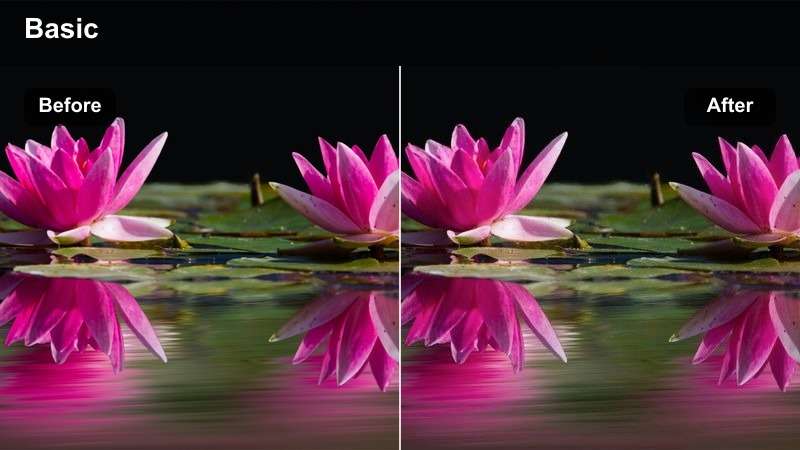
- Effect look: Crisp cyan highlights with balanced shadows and a modern esports finish
- Best for: Gaming streams, competitive matches, and RGB-lit webcam setups
- Editing tip: Lower saturation slightly if blue LEDs make skin tones appear too cool
Neon Cyan Boost gives Kick stream footage a sharp cyan-forward appearance with clean contrast and balanced shadows. It works especially well with gaming scenes that already include blue LED lighting, RGB hardware, or a modern esports-style setup.
Apply the filter to your webcam footage in Filmora and check the preview for natural skin tones. Neon lighting can push faces toward blue or green, so reduce the intensity or add a small amount of warmth when needed to keep the creator looking natural.
Build a Matching Kick Stream Color Palette
Use your chosen filter as the starting point for a complete broadcast palette. Match your webcam lighting, overlay accents, alerts, and thumbnail colors so every part of your Kick channel feels connected.
For a gaming setup, pull one accent color from the filter and repeat it in your RGB lighting or scene graphics. A consistent palette helps viewers recognize your content across live sessions and clips.
Choose a filter first, then create a simple palette around its main highlight and shadow colors.
 secure download

Purple RGB Pulse
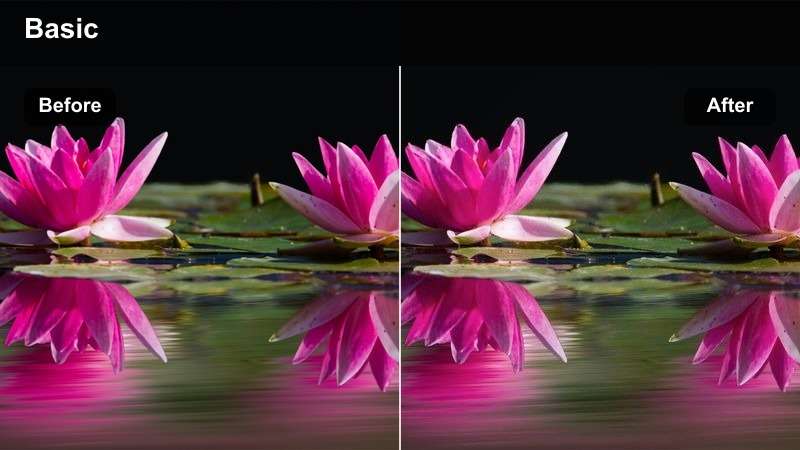
- Effect look: Vivid purple shadows, luminous highlights, and saturated RGB color
- Best for: Late-night gaming, reaction clips, and colorful creator broadcasts
- Editing tip: Use a moderate intensity so purple accents do not overwhelm facial detail
Purple RGB Pulse creates a vibrant futuristic look with rich violet shadows and luminous magenta highlights. It is a strong choice for late-night gaming streams, reaction clips, and creator broadcasts with colorful lighting.
For the most intentional result, match the filter to purple or magenta room accents instead of increasing the effect strength. If your background is neutral, add a purple practical light behind the camera and keep the face detail clear.
Electric Blue Arena
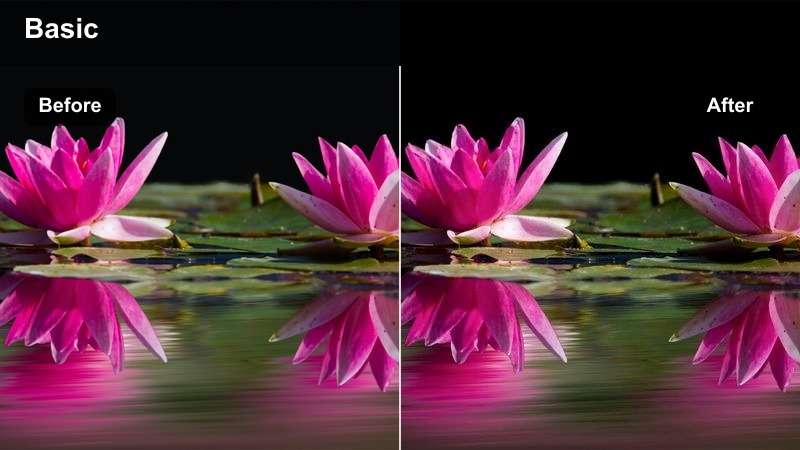
- Effect look: Cool blue contrast with bright highlights and a clean competitive edge
- Best for: Esports broadcasts, tournament watch parties, and action-heavy streams
- Editing tip: Keep highlight recovery active to preserve bright game capture and LED details
Electric Blue Arena adds cool contrast, bright highlights, and a focused competitive finish to fast-paced Kick content. The look suits esports broadcasts, tournament watch parties, and streams where game action and screen color are central.
Reduce exposure slightly before applying the filter if monitors or LED panels look too bright. A soft key light near the camera can also separate your face from the cool background while preserving the energetic arena style.
Warm Reaction Studio Looks
Creator Warmth
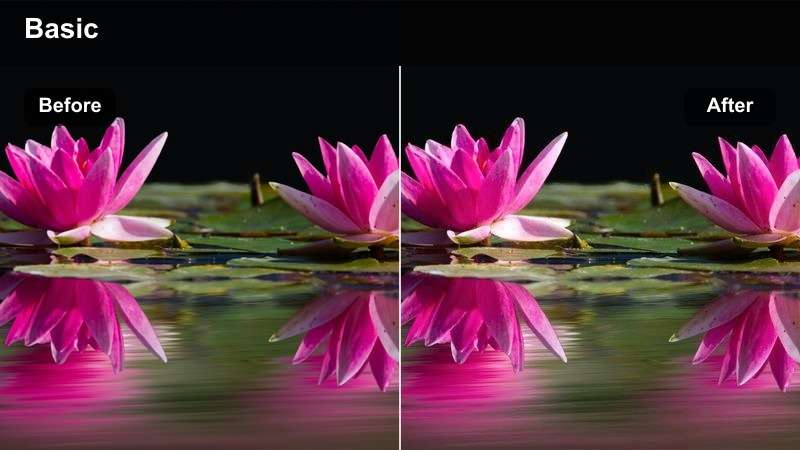
- Effect look: Soft golden highlights, natural contrast, and a welcoming studio tone
- Best for: Live reactions, discussion streams, and face-focused broadcasts
- Editing tip: Use a gentle intensity to keep skin tones warm without adding orange casts
Creator Warmth gives face-focused Kick broadcasts soft golden highlights and natural contrast. The welcoming tone works well for live reactions, discussions, commentary, and other formats where the host should feel approachable.
Keep the intensity gentle so skin tones do not become overly orange. Pair the filter with a neutral background and a small warm lamp behind the creator to build a cohesive studio look without overwhelming facial expressions.
Sunset Commentary
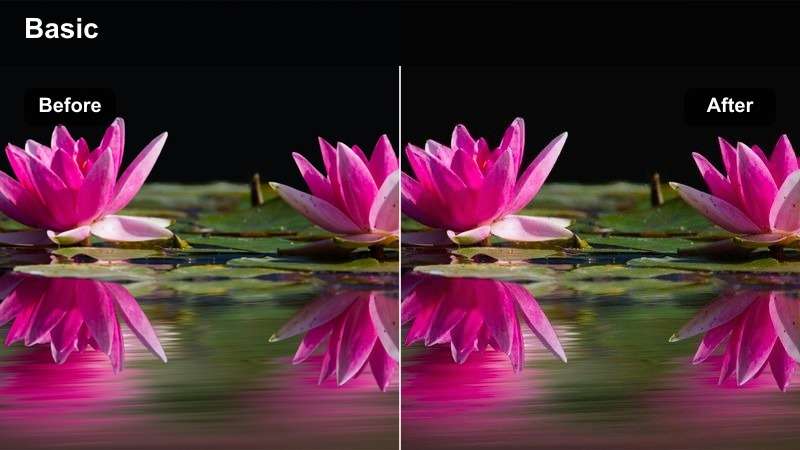
- Effect look: Amber highlights, gentle reds, and a relaxed editorial finish
- Best for: Evening broadcasts, storytelling segments, and creator commentary
- Editing tip: Reduce red intensity when using a red microphone or red background light
Sunset Commentary delivers amber highlights, gentle reds, and a relaxed editorial finish for evening streams. It is useful for storytelling segments, personal commentary, and broadcasts recorded after dark.
Check the filter against your existing white balance before increasing its strength. If your webcam, microphone, or background already includes warm red tones, lower red intensity so the face and overlays do not become too orange.
Soft Spotlight
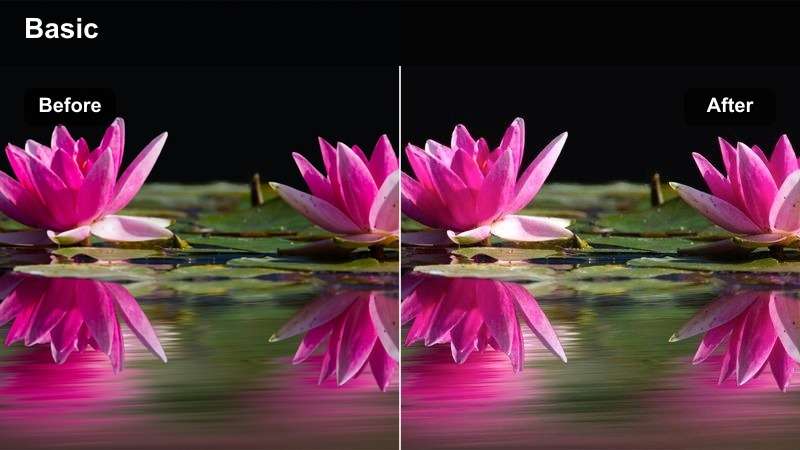
- Effect look: Smooth highlights, lifted midtones, and low-intensity cinematic contrast
- Best for: Host segments, interviews, community chats, and relaxed broadcasts
- Editing tip: Add a little contrast if the webcam image looks flat after applying the filter
Soft Spotlight creates smooth highlights, lifted midtones, and subtle cinematic contrast for calm, professional broadcasts. It keeps the host visually clear during interviews, community chats, and longer facecam segments.
Maintain enough midtone contrast around the eyes and mouth so expressions remain readable. A diffused key light placed slightly above eye level reinforces the polished effect without creating harsh shadows.
Clean Broadcast and Webcam Finishes
Clean Kick Daylight
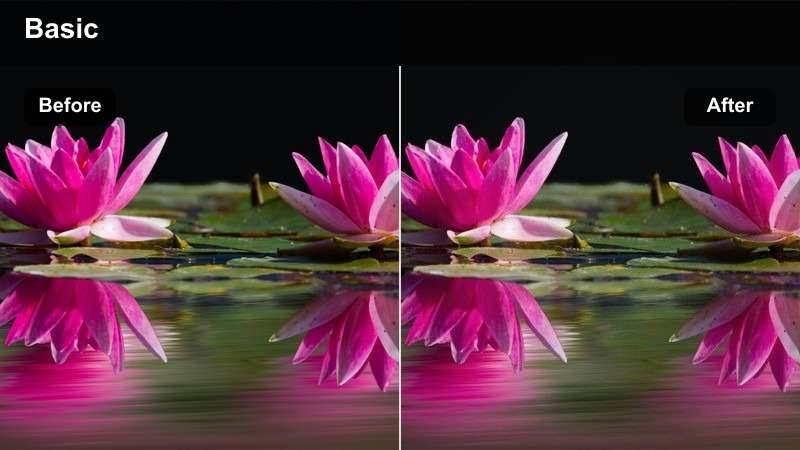
- Effect look: Balanced daylight color, clear whites, and natural moderate contrast
- Best for: Daytime streams, tutorials, setup tours, and general creator broadcasts
- Editing tip: Set white balance first so the neutral finish does not amplify mixed lighting
Clean Kick Daylight is a versatile natural filter with clear whites, balanced color, and moderate contrast. Use it for daytime streams, tutorials, setup tours, and general creator broadcasts that need a reliable webcam finish.
Adjust webcam exposure and white balance before judging the result. Because the style stays neutral, it is a strong default for long broadcasts and remains readable across different games, backgrounds, and lighting changes.
High Contrast Facecam
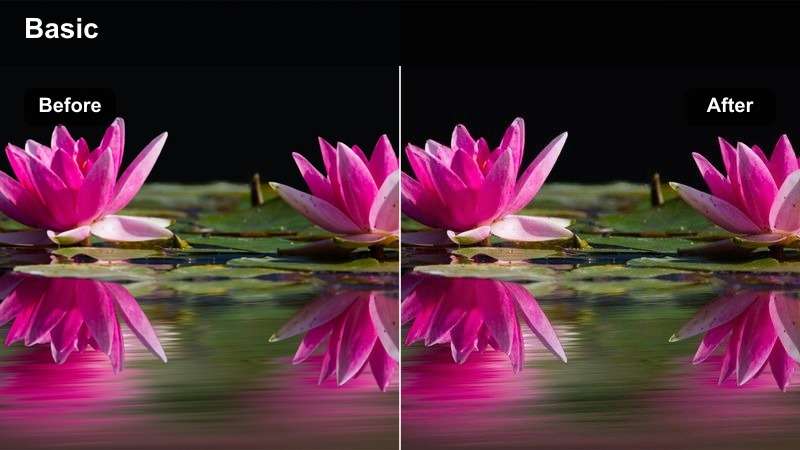
- Effect look: Defined edges, deeper shadows, and a bold facecam presence
- Best for: Fast reactions, competitive commentary, and high-energy creator moments
- Editing tip: Reduce shadow depth if facial details become lost against a dark background
High Contrast Facecam gives expressive Kick content defined edges, deeper shadows, and a stronger on-camera presence. It works well for fast reactions, competitive commentary, and moments where facial energy is part of the entertainment.
Preview the effect at a small player size and make sure eyes, mouth movement, and gestures remain visible. If the shadows become too deep, use a low-power fill light to open the face while keeping the bold contrast.
Streamer Soft Matte
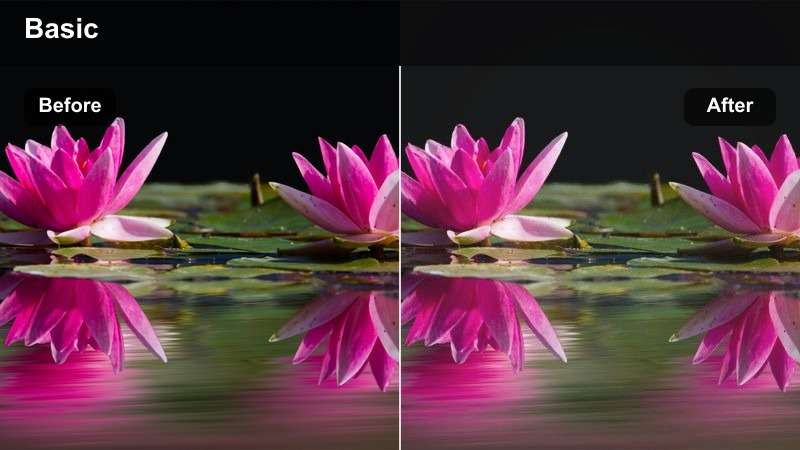
- Effect look: Muted highlights, smooth contrast, and a refined matte texture
- Best for: Chatting streams, creative sessions, and long-form creator broadcasts
- Editing tip: Add a small amount of saturation if the room and wardrobe look too subdued
Streamer Soft Matte uses muted highlights and smooth contrast to create a comfortable look for chatting streams and creative sessions. Its lower-fatigue appearance is useful when viewers may watch for extended periods.
Keep one accent color in the background, such as a monitor glow or LED strip, so the scene does not feel flat. If the room or wardrobe looks too subdued, add a small amount of saturation after applying the filter.
Cinematic Highlights and Big Moments
Cinematic Teal Orange
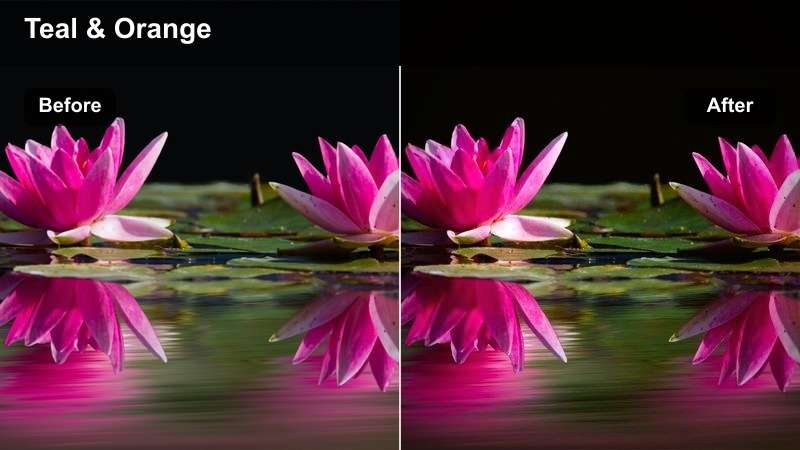
- Effect look: Teal shadows, warm skin tones, and strong highlight separation
- Best for: Stream intros, highlight reels, reaction peaks, and announcement segments
- Editing tip: Use a restrained intensity on live footage to avoid exaggerated skin tones
Cinematic Teal Orange combines cool teal shadows with warm skin tones and strong highlight separation. It gives stream intros, reaction peaks, announcements, and edited highlight reels a recognizable cinematic identity.
Use a lighter version during a live broadcast and save full intensity for short-form clips. This keeps the effect from becoming tiring across a long stream while still giving important moments a noticeable visual shift.
Midnight Violet
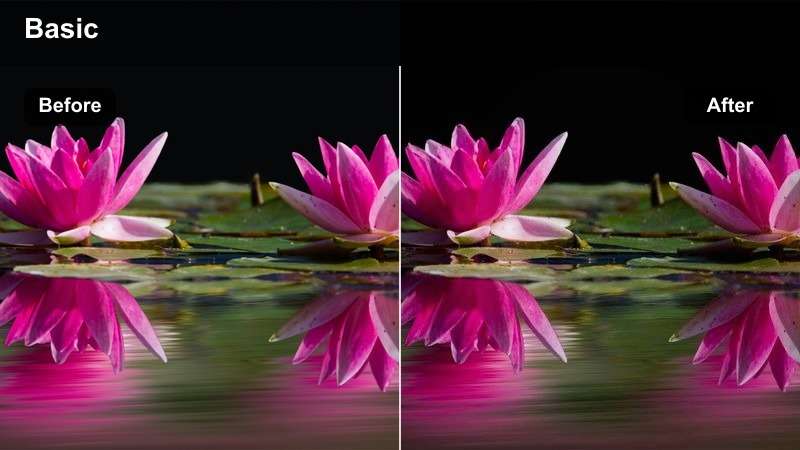
- Effect look: Deep violet shadows, cool highlights, and a dramatic late-night atmosphere
- Best for: Night gaming sessions, horror reactions, and dramatic creator announcements
- Editing tip: Lift the shadow level slightly when the source webcam is already very dark
Midnight Violet creates deep violet shadows, cool highlights, and an immersive late-night atmosphere. It is well suited to night gaming, horror reactions, dramatic announcements, and other moody creator formats.
Keep the room and facial expression visible by lifting the shadows when the source webcam is already dark. A small violet light behind the desk can add atmosphere without forcing the filter to carry the entire look.
Broadcast Gold
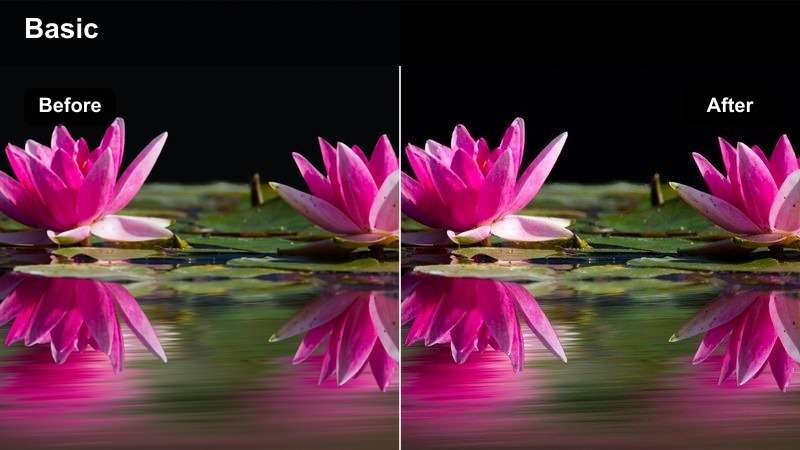
- Effect look: Rich golden highlights, confident contrast, and a premium event finish
- Best for: Milestone streams, creator announcements, finals, and special broadcasts
- Editing tip: Keep gold accents controlled so white graphics and text remain neutral
Broadcast Gold adds rich golden highlights and confident contrast for milestone streams, finals, announcements, and other special events. The premium finish can make an important broadcast feel distinct without requiring a completely different set design.
Apply the style to the facecam, intro, and highlight clips for a consistent event identity. Review overlays after grading so white logos, alerts, and text stay neutral, clean, and easy to read.
Preview Kick Stream Video Filters Before Going Live
Compare filter styles on a short webcam test before starting your broadcast. Look for changes in facial detail, screen brightness, skin tone, and background separation rather than choosing a filter from color alone.
A quick preview also helps you select different strengths for gaming, live reactions, and creator broadcasts. The best live streaming color grading improves the image while keeping the content easy to watch.
Test your top two looks in the same lighting and choose the one that stays consistent on camera.
secure downloadCombine Filters and LUTs for a Consistent Broadcast
Filters are useful for quick visual changes, while LUTs can help establish a repeatable color foundation across recorded clips and edited highlights. Start with a balanced source image before adding either effect.
Use the Free Kick Stream LUT Pack when you want a stronger grading workflow for stream recaps, reaction edits, and promotional content. Keep live effects subtle and save more dramatic looks for short-form highlights.
Download the pack, test each style on your own footage, and save the looks that match your channel identity.
secure downloadTips for Using Kick Stream Lut Download Filters in Filmora
- Correct exposure and white balance before applying a Kick stream video filter.
- Preview the filter with your actual webcam, room lighting, overlays, and game capture.
- Use lower intensity for long broadcasts so viewers can watch comfortably.
- Check skin tones, bright monitors, alert graphics, and white text after grading.
- Keep one consistent filter family across live reactions, gaming sessions, and creator announcements.
- Save a clean unfiltered version of your footage so you can adjust the look later.
- Use dramatic cinematic styles for intros and highlights when a full-stream effect feels too strong.
The Free Kick Stream LUT Pack gives livestreamers and gaming creators a practical way to improve Kick stream color grading with fast, flexible filter styles. From neon gaming rooms to warm reaction studios and cinematic milestone broadcasts, each look can help your content feel more intentional.
Download the pack, test the filters with your own lighting, and build a repeatable visual style for Kick streams, live reactions, and creator broadcasts.
secure download