

 100% Security Verified | No Subscription Required | No Malware

Give Rumble uploads a more consistent look with this free Rumble video LUT pack for commentary creators and independent publishers. These commentary video filters are designed for talking-head footage, interviews, desk setups, and on-location reporting.
Use the presets as a starting point for Rumble color grading, then adjust exposure, white balance, contrast, and skin tones in Filmora. Each filter supports a different publishing scenario, from urgent news commentary to polished studio discussions.
In this article
Studio Desks and Direct-to-Camera Commentary
Studio Neutral
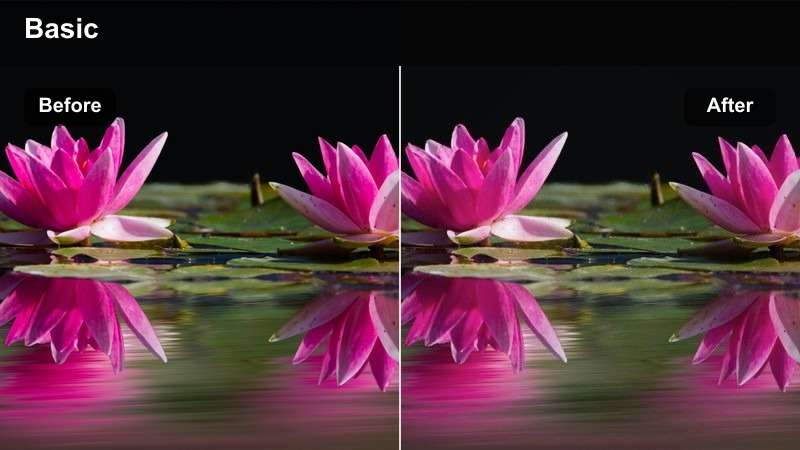
- Effect look: Clean contrast with balanced skin tones and natural whites
- Best for: Rumble commentary videos recorded at a desk or home studio
- Editing tip: Set white balance first, then reduce highlights slightly if practical lights look harsh
Studio Neutral is a dependable everyday filter for clear and credible commentary uploads. It keeps the image close to natural while adding enough contrast to separate the presenter from the desk, walls, and studio equipment.
In Filmora, use this look as a starting point for talking-head footage with even lighting. Correct exposure and white balance first, then make small adjustments to contrast, highlights, and skin tones before exporting the Rumble video.
Studio Warm
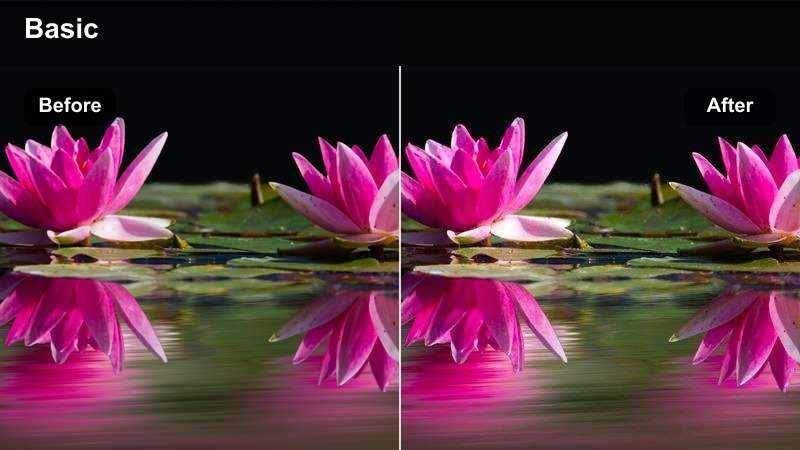
- Effect look: Warm highlights with soft contrast and approachable skin tones
- Best for: Personal commentary, opinion segments, and relaxed creator updates
- Editing tip: Lower temperature slightly if the filter makes skin tones look too orange
Studio Warm adds a welcoming tone to conversational Rumble videos. Its softer contrast and warmer highlights can make personal updates, opinion segments, and informal discussions feel more inviting.
Use Filmora temperature and tint controls to keep the warmth under control when your room already has tungsten bulbs or amber LED panels. Check the face at full size and reduce saturation if the effect begins to look orange.
Studio Crisp
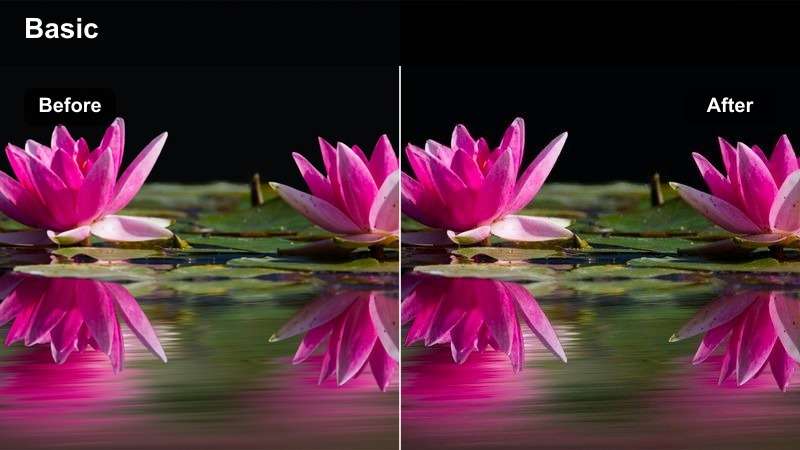
- Effect look: Sharper midtone definition with controlled blacks and vivid detail
- Best for: Technology commentary, media analysis, and screen-focused presentations
- Editing tip: Reduce sharpening when the footage has compression noise or a busy background
Studio Crisp makes well-lit studio footage feel precise and information-focused. The filter emphasizes midtone detail and controlled blacks, which works well for technology commentary, product discussions, and media analysis.
In Filmora, compare the presenter with nearby monitors and graphic overlays before finalizing the look. Lower highlights or reduce screen brightness when displays become more prominent than the person delivering the commentary.
Build a Consistent Rumble Color Palette
Filmora's color tools can help you establish a repeatable palette for commentary thumbnails, talking-head footage, interviews, and supporting b-roll.
Start with one filter from this Rumble video LUT pack, then tune warmth, contrast, and saturation to match your channel identity.
Use Filmora's color controls to refine your Rumble publishing style.
 secure download

Preview Commentary Video Filters Before Export
Compare several filter looks on the same clip to find the right balance for your subject, lighting, and publishing format.
Preview the result at full screen and on a smaller display so faces, captions, and important background details remain easy to follow.
Test each filter on a short sample before applying it to the complete upload.
secure downloadCombine Filters and LUTs Carefully
A LUT can establish the overall color direction, while Filmora filter adjustments help you correct exposure and adapt the look to each recording setup.
Avoid stacking multiple strong effects at full intensity. Use one primary look, then make small corrections for skin tones, highlights, and shadows.
Download the pack and fine-tune each look for your next Rumble video.
secure downloadInterviews in Offices and Public Spaces
Interview Soft
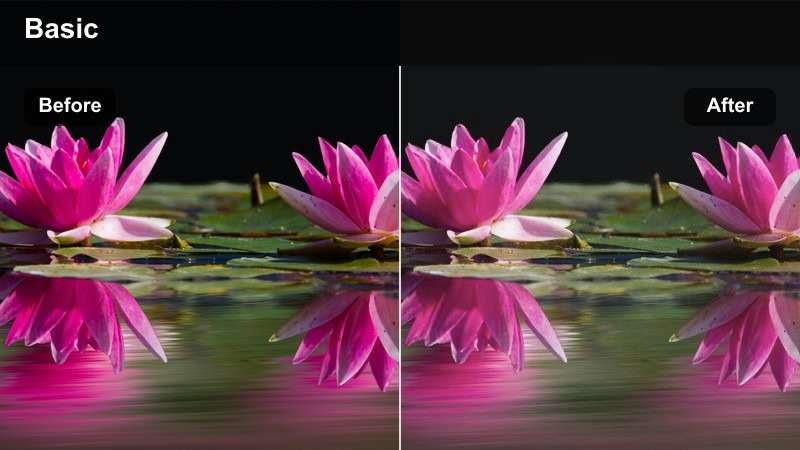
- Effect look: Gentle contrast with softened highlights and natural complexion detail
- Best for: Indoor interviews, guest conversations, and publisher profiles
- Editing tip: Use a subtle exposure lift on the guest if the background is brighter than the subject
Interview Soft creates a polished but comfortable look for longer interview conversations. It reduces harsh highlights while preserving enough complexion detail to keep the guest natural and recognizable.
Apply the preset lightly in Filmora, especially when the source footage already has flattering window light. Compare the eyes, hair, and clothing edges before adding any additional softness or noise reduction.
Interview Documentary
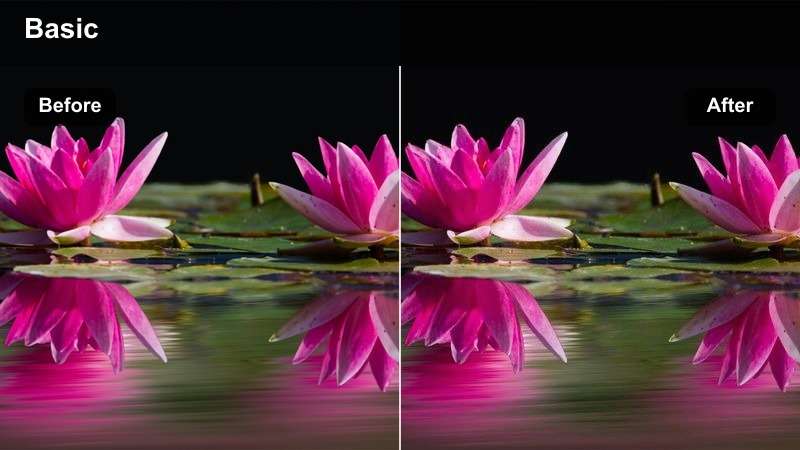
- Effect look: Muted color with grounded shadows and a realistic editorial finish
- Best for: Field interviews, issue-based reporting, and documentary-style Rumble uploads
- Editing tip: Add a small saturation increase when cloudy daylight makes the source look flat
Interview Documentary supports serious interviews with a restrained editorial mood. Muted color and grounded shadows help the setting feel realistic without distracting from the conversation.
Use this Rumble video filter in Filmora when the location is part of the story. Check signs, clothing, and skin tones for unwanted shifts, and add only a small saturation adjustment if cloudy daylight makes the footage appear lifeless.
Interview Cool
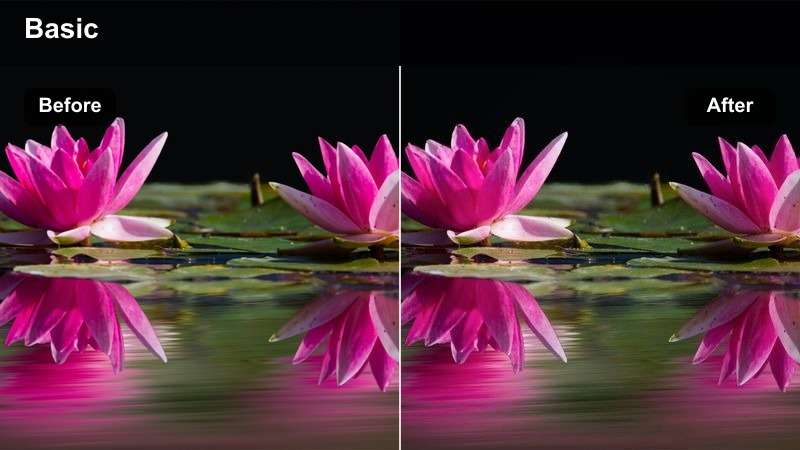
- Effect look: Cooler neutrals with firm contrast and a focused newsroom tone
- Best for: Current-events interviews, political discussions, and serious analysis
- Editing tip: Warm skin tones selectively if the overall grade makes the guest look pale
Interview Cool adds a composed, analytical feeling to formal interview footage. Its blue-gray balance and firm contrast suit current-events discussions, political interviews, and serious analysis.
In Filmora, use the filter as a foundation and correct the subject separately from the background when needed. Excessive blue in faces can reduce trust and clarity, so warm skin tones selectively if the guest appears pale.
On-Location Reports and Mobile Commentary
Mobile Daylight
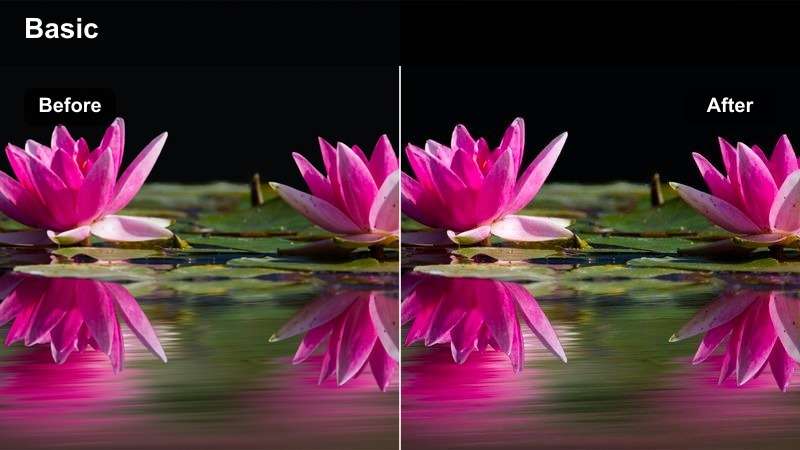
- Effect look: Balanced daylight with lifted shadows and clear outdoor detail
- Best for: Phone-shot Rumble uploads, street commentary, and outdoor updates
- Editing tip: Reduce highlights before adding contrast when the sky or pavement is overexposed
Mobile Daylight helps handheld footage look cleaner and more consistent in outdoor conditions. Lifted shadows reveal useful detail while balanced daylight keeps the creator and location easy to see.
Before judging the filter in Filmora, stabilize brightness when the phone changes exposure during a take. Use keyframes or short adjustment clips when moving between shade and direct sunlight.
Mobile Overcast
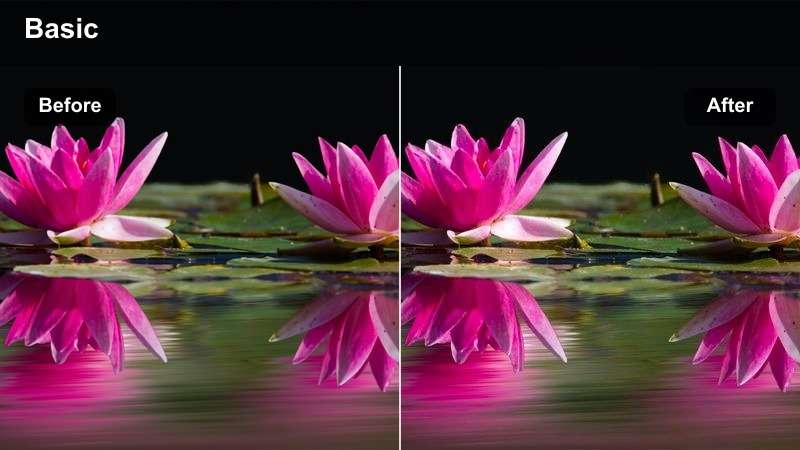
- Effect look: Slightly warmer mids with improved separation and gentle saturation
- Best for: Cloudy-day reporting, outdoor interviews, and location-based commentary
- Editing tip: Raise midtones carefully so gray skies do not flatten the subject
Mobile Overcast adds life to flat footage without making the image look artificial. Warmer mids and improved subject separation help the speaker stand out against gray skies and subdued backgrounds.
Use Filmora local contrast or mild background darkening instead of relying on heavy saturation. This keeps outdoor commentary believable while directing attention toward the speaker.
Mobile Evening
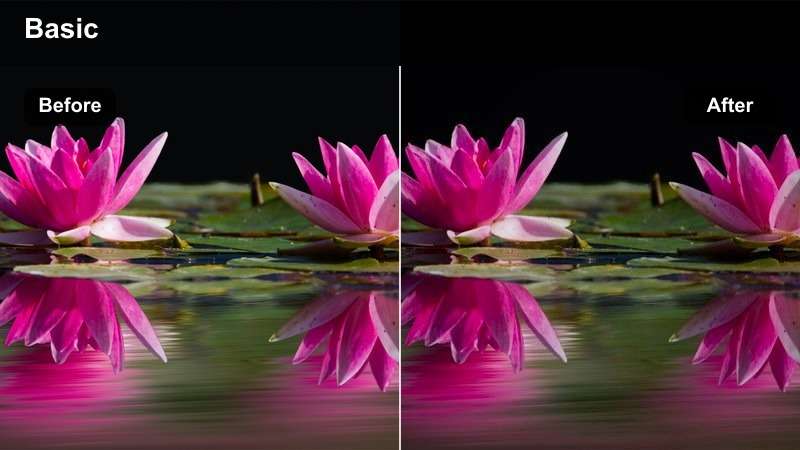
- Effect look: Deepened shadows with controlled practical lights and cinematic evening balance
- Best for: Evening commentary, event recaps, and late-day Rumble reports
- Editing tip: Lift shadows slightly if facial detail disappears after the preset is applied
Mobile Evening brings structure to low-light mobile footage while preserving the atmosphere of the location. Controlled practical lights and deep blue shadows create a cinematic balance for late-day reports and event recaps.
In Filmora, watch dark areas for blocky compression noise. Lift the darkest tones modestly and apply noise reduction before adding final sharpening to preserve facial detail.
Publisher Branding and Recurring Series
Publisher Bold
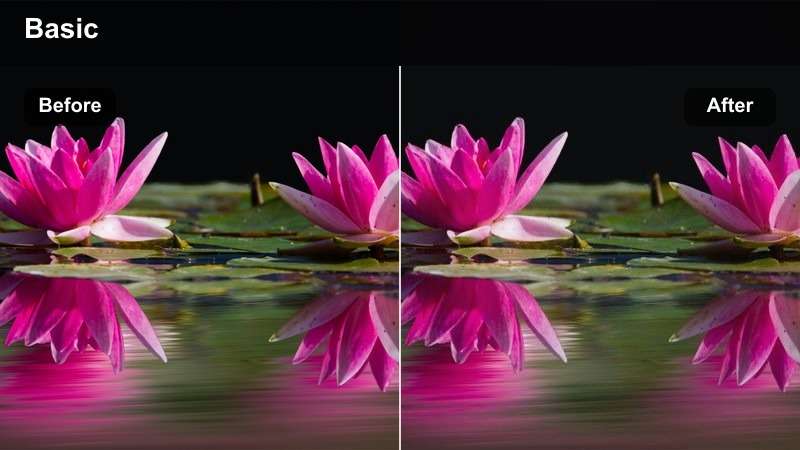
- Effect look: Stronger contrast with richer color and clear branded energy
- Best for: Series openers, channel updates, and high-energy commentary segments
- Editing tip: Apply the effect to b-roll and titles consistently so the episode feels unified
Publisher Bold gives recurring publisher content a confident and recognizable finish. Stronger contrast and richer color can add energy to series openers, channel updates, and fast-paced commentary.
Use Filmora to apply the look consistently to the host, b-roll, and title graphics. Save your preferred exposure, contrast, and saturation limits as a reusable adjustment preset for future episodes.
Publisher Muted
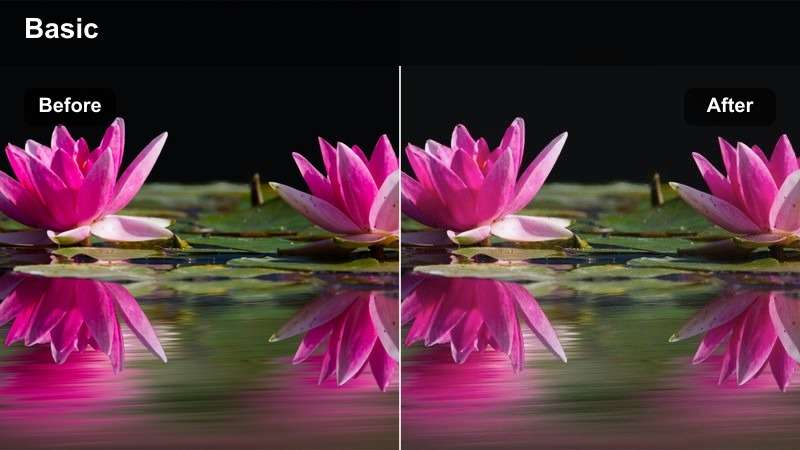
- Effect look: Low-saturation palette with soft blacks and a measured editorial tone
- Best for: Investigative commentary, long-form analysis, and serious publisher series
- Editing tip: Keep title cards and charts brighter than the background for easier viewing
Publisher Muted creates a restrained look for thoughtful, research-driven programming. Its low-saturation palette and soft blacks support investigative commentary and long-form analysis without competing with the subject.
When editing in Filmora, keep lower-thirds, charts, captions, and evidence brighter than the background. Preview the project at phone size to confirm that important information remains readable.
Publisher Clean
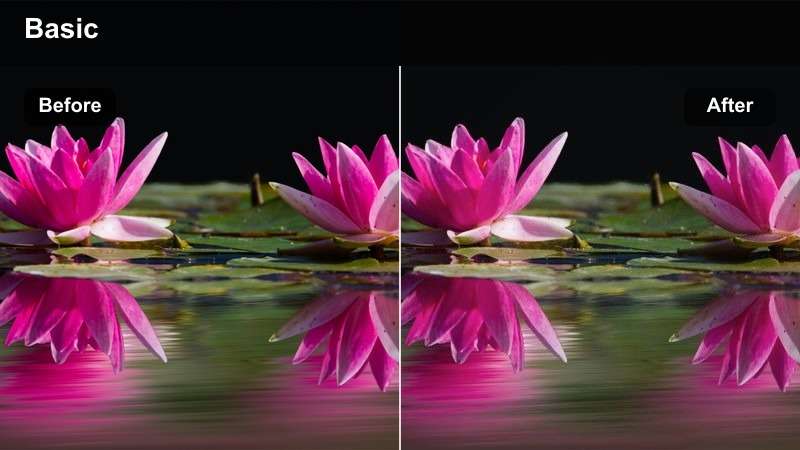
- Effect look: Bright neutral color with polished contrast and consistent presentation
- Best for: Publisher announcements, collaboration videos, and professional channel updates
- Editing tip: Match camera angles with the same white balance before applying the filter across the timeline
Publisher Clean delivers a polished channel-wide look for professional Rumble publishing. Bright neutral color and even contrast work well for announcements, collaboration videos, and updates featuring multiple hosts.
Use Filmora to match white balance between camera angles before applying the filter across the timeline. Keep the same adjustment order in every project so your Rumble archive feels visually connected.
Tips for Using Rumble Lut Download Filters in Filmora
- Correct exposure and white balance before judging the final filter look.
- Apply filters consistently across the host, guest, and supporting footage in an interview.
- Use lower filter intensity when the source video already has strong lighting or a branded color scheme.
- Check skin tones, white backgrounds, and text overlays after applying any LUT or filter.
- Export a short test clip before rendering the full Rumble upload.
- Save your preferred Filmora adjustments as a reusable preset for recurring commentary series.
This free Rumble video LUT pack gives commentary creators and independent publishers a practical starting point for cleaner, more consistent uploads. Choose a scene-based filter that matches your footage, then adjust it for exposure, skin tones, and channel branding.
For more options, explore the full Rumble LUT collection and build a small set of reliable looks for studio commentary, interviews, field reports, and publisher announcements.
secure download