

 100% Security Verified | No Subscription Required | No Malware

Create more polished Facebook Stories with the Free Facebook Story LUT Pack, a practical collection of video filters for community creators and small businesses. These looks are designed for quick story video color grading in Filmora, helping local updates, announcements, and event promos feel more consistent and engaging.
Use the filters as a starting point for your Facebook story color grading workflow. Apply a look, adjust exposure and contrast, then fine-tune the intensity to match indoor clips, outdoor updates, branded announcements, and fast-moving event footage.
In this article
Sunlit Local Updates
Warm Neighborhood
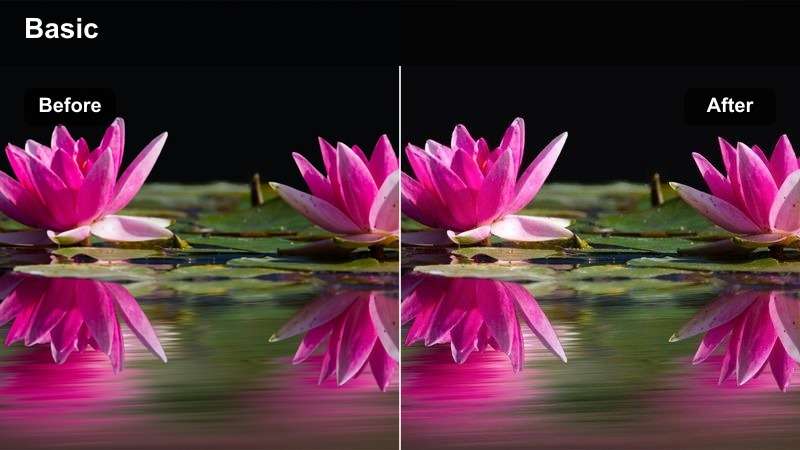
- Effect look: Soft golden warmth with lifted shadows and a friendly everyday finish.
- Best for: Neighborhood announcements, local business updates, and daytime Facebook Stories.
- Editing tip: Lower the filter strength slightly when skin tones or pale walls look too yellow.
Warm Neighborhood adds a welcoming tone to casual community footage. Its golden highlights and lifted shadows can make a local update feel more approachable while keeping the scene natural enough for Facebook Stories.
In Filmora, apply the look at medium strength, then adjust white balance before adding extra saturation. This helps preserve clear faces, readable storefront signs, and believable colors in sunny neighborhood clips.
Build a Consistent Facebook Story Color Palette
Use the Free Facebook Story LUT Pack to establish a repeatable visual direction across local updates, business announcements, and event promos. Choose warmer looks for friendly updates, cleaner looks for practical information, and richer contrast for event highlights.
Filmora users can combine a filter with small exposure, white balance, and saturation adjustments to keep different clips visually connected without losing the character of each scene.
Choose a filter that matches the message before fine-tuning the intensity.
 secure download

Clear Daylight
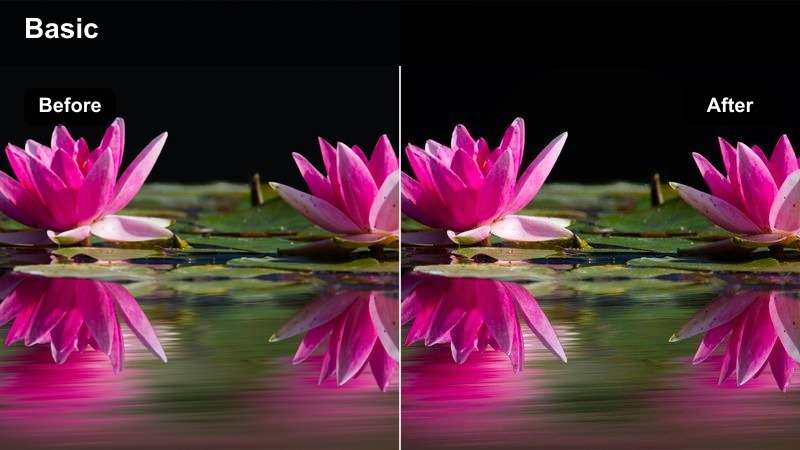
- Effect look: Clean daylight contrast with balanced color and crisp detail.
- Best for: Outdoor community notices, street interviews, and local service announcements.
- Editing tip: Reduce highlights if bright skies or reflective windows become distracting.
Clear Daylight gives outdoor footage a bright and dependable appearance. Balanced contrast helps preserve detail in faces, buildings, and background activity without making the Facebook Story look overly processed.
Use Filmora to recover highlights before sharpening the clip. This keeps bright skies and reflective windows under control while maintaining enough clarity for text, storefronts, and local announcements.
Fresh Community
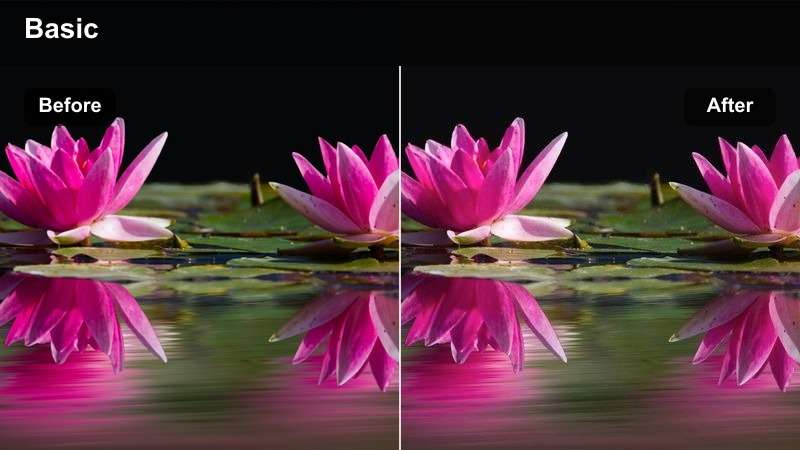
- Effect look: Lightly refreshed colors with gentle greens, clear blues, and open midtones.
- Best for: Community cleanups, public notices, and volunteer-focused Facebook Stories.
- Editing tip: Use a small saturation boost only after checking the color of signs and clothing.
Fresh Community gives volunteer activities and public updates a clean, optimistic finish. Gentle greens, clear blues, and open midtones help the footage feel active without losing its natural character.
In Filmora, check signs, posters, and clothing before increasing saturation. A moderate adjustment keeps branded colors believable and makes the filter useful for community cleanups and volunteer recaps.
Evening Event Promos
Golden Event
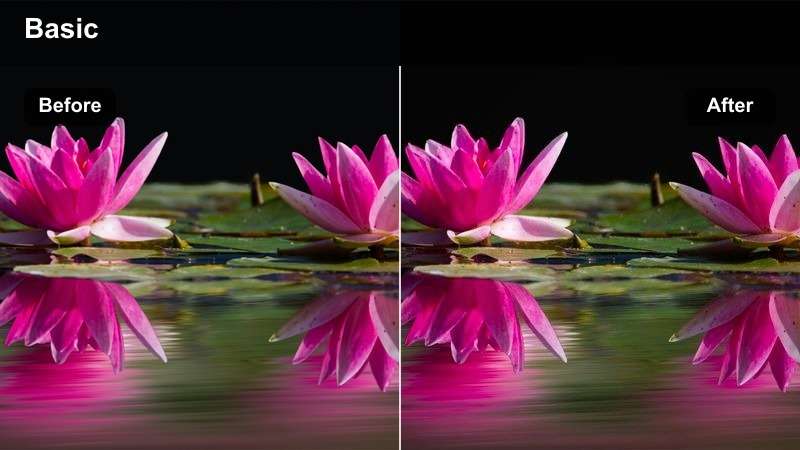
- Effect look: Rich golden highlights with softened contrast for a celebratory atmosphere.
- Best for: Evening event promos, fundraiser previews, and community gathering invitations.
- Editing tip: Lift shadows gently to reveal faces without flattening the warm atmosphere.
Golden Event creates a warm, celebratory atmosphere for footage recorded at dusk or under event lighting. Its softened contrast helps invitations and fundraiser previews feel welcoming on mobile screens.
Use Filmora to lift shadows slightly before increasing filter intensity. This keeps faces visible while preserving the warm lights and inviting mood of the venue.
Neon Social
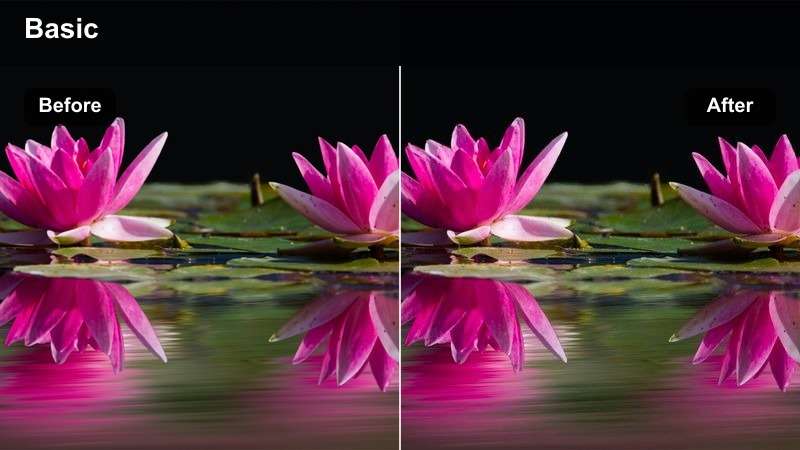
- Effect look: Punchy contrast with vivid colored lights and a modern social-video finish.
- Best for: Night markets, youth events, music promotions, and energetic Facebook Stories.
- Editing tip: Reduce saturation in red and magenta areas when stage lighting becomes overpowering.
Neon Social is designed for fast-paced nighttime content with colorful lighting. Punchy contrast and vivid tones can give night markets, music promotions, and youth events a bold social-media finish.
In Filmora, reduce saturation in the strongest red or magenta channel when stage lights overpower the scene. Preserve some shadow detail so viewers can still follow the crowd and event setting.
Soft Twilight
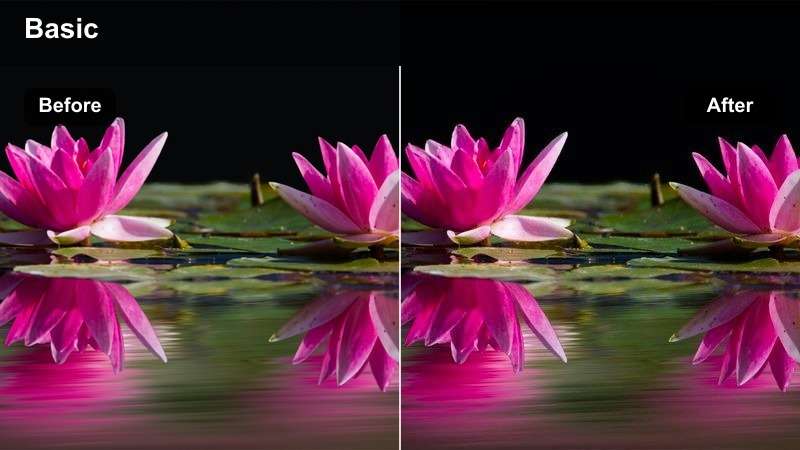
- Effect look: Muted evening tones with gentle blue shadows and smooth highlight rolloff.
- Best for: Outdoor event invitations, sunset recaps, and calm community announcements.
- Editing tip: Add a small amount of warmth to skin tones if the scene feels too cool.
Soft Twilight brings a calm editorial feel to sunset recaps and outdoor invitations. Muted tones and smooth highlights preserve the remaining natural light while adding a gentle evening mood.
Apply the look at a restrained strength in Filmora, then warm skin tones slightly if needed. This keeps the scene inviting instead of pushing the entire image into heavy blue shadows.
Indoor Small Business Stories
Clean Counter
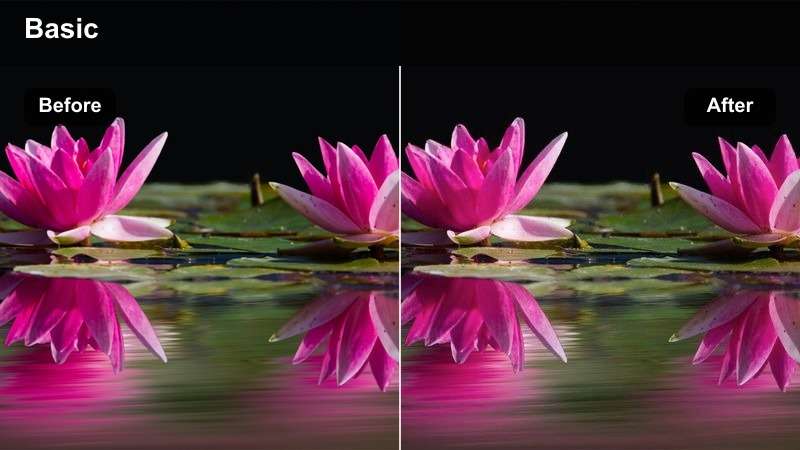
- Effect look: Neutral whites, tidy contrast, and a polished commercial finish.
- Best for: Small business introductions, service updates, and behind-the-scenes Facebook Stories.
- Editing tip: Correct mixed indoor lighting before applying the filter to keep whites consistent.
Clean Counter gives indoor business footage a polished, neutral appearance. It works well when a local owner needs to introduce a service, share an update, or show a behind-the-scenes moment.
Correct mixed lighting in Filmora before applying the filter. Neutral white balance helps counters, walls, packaging, and other interior details remain consistent and natural.
Cozy Brand
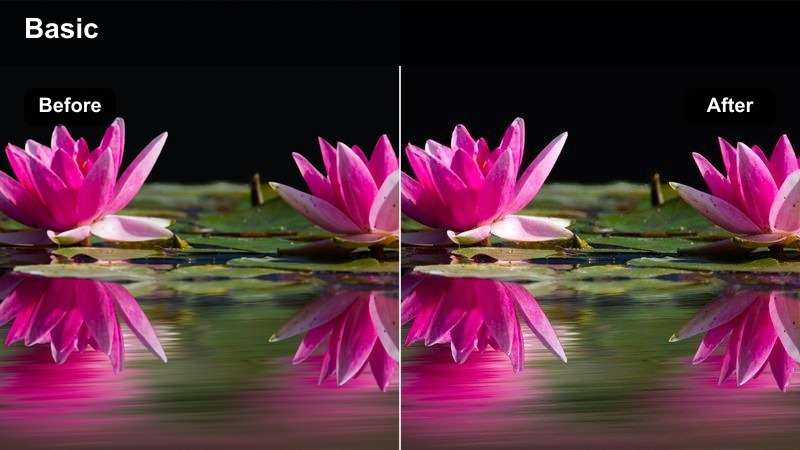
- Effect look: Warm midtones, gentle contrast, and a personable boutique-style finish.
- Best for: Owner introductions, customer testimonials, and small business story updates.
- Editing tip: Keep the warmth below maximum strength so brand colors remain recognizable.
Cozy Brand makes direct-to-camera updates feel personal and approachable. Warm midtones and gentle contrast suit owner introductions, customer testimonials, and boutique-style business stories.
After applying the look in Filmora, compare the footage with the business logo, packaging, and signage. Keeping the warmth moderate ensures the color treatment supports rather than changes the brand identity.
Bright Service
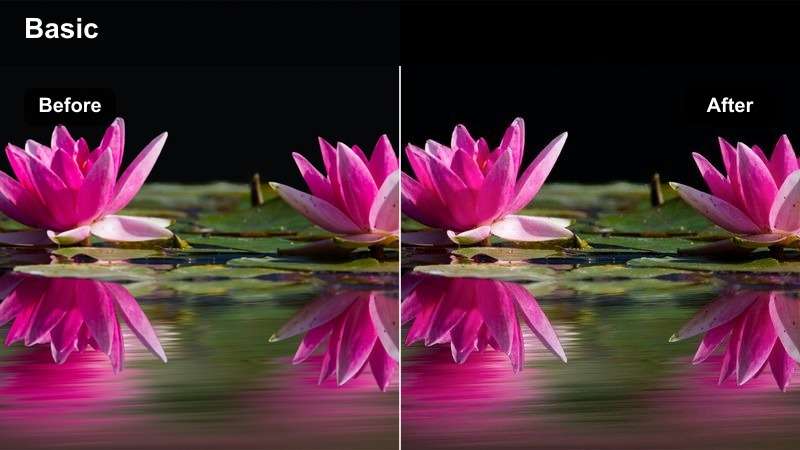
- Effect look: Lifted exposure with clean detail and moderate saturation for quick information.
- Best for: Appointment reminders, opening-hour updates, and service announcements.
- Editing tip: Add contrast after lifting exposure if the footage begins to look flat.
Bright Service prioritizes readability for practical business updates. Lifted exposure and clean detail help viewers see opening hours, appointment information, faces, and on-screen text.
Use Filmora to add a small amount of contrast after raising exposure if the clip looks flat. Keep the effect subtle and review the export on a phone before publishing.
Community Recap Moments
Documentary Recap
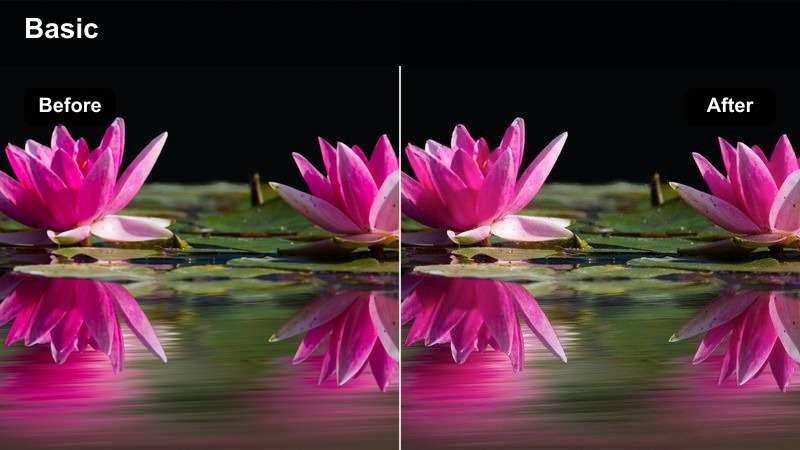
- Effect look: Balanced contrast, restrained saturation, and a natural documentary feel.
- Best for: Community recaps, local interviews, and Facebook Stories covering public activities.
- Editing tip: Keep skin tones neutral and use clip-by-clip exposure adjustments for mixed locations.
Documentary Recap supports authentic coverage of public activities, local interviews, and community events. Its restrained saturation keeps attention on the people and activities rather than an obvious visual effect.
In Filmora, use clip-by-clip exposure adjustments when locations change. Maintain consistent contrast while allowing each shot to retain its natural light and atmosphere.
Vibrant Crowd
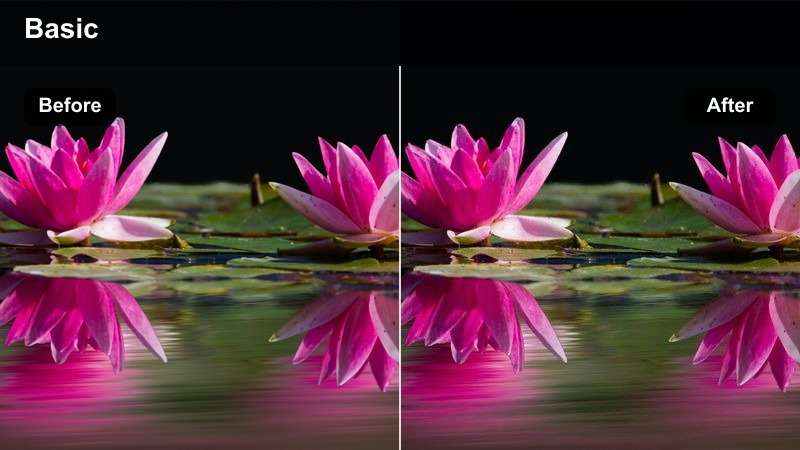
- Effect look: Colorful midtones, energetic contrast, and a lively social-media finish.
- Best for: Crowd reactions, event highlights, community celebrations, and volunteer recaps.
- Editing tip: Use a lower intensity on clips with bright clothing or colorful banners.
Vibrant Crowd adds energy to celebrations, event highlights, and volunteer recaps. Colorful midtones help capture movement and reactions while giving the sequence a lively social-video style.
Apply the filter at moderate intensity in Filmora when the footage already contains bright clothing or banners. Use contrast to guide attention toward the main moment instead of overwhelming the frame with saturation.
Calm Story
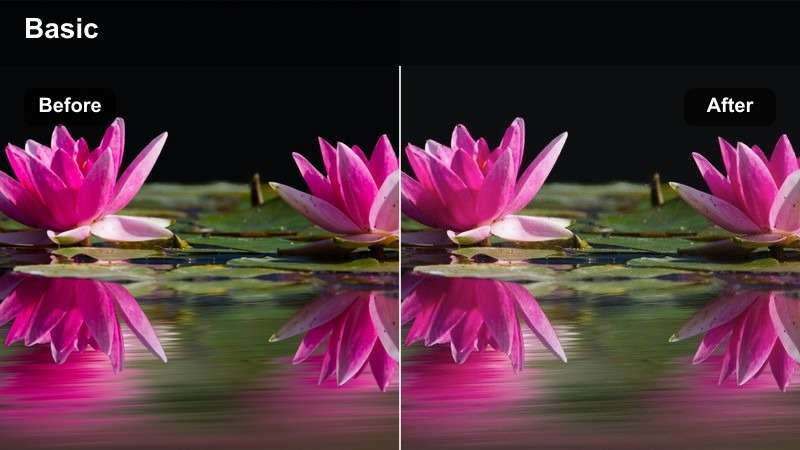
- Effect look: Soft contrast, gentle muted colors, and a thoughtful editorial finish.
- Best for: Thank-you messages, reflective community recaps, and nonprofit update videos.
- Editing tip: Add a small amount of clarity to speech clips while keeping the overall tone soft.
Calm Story is suited to thank-you messages, nonprofit updates, and reflective community recaps. Soft contrast and muted colors keep the visual treatment supportive without distracting from the speaker.
Use Filmora to add a small amount of clarity to speech clips while preserving the gentle tone. Pair the grade with clean audio and readable text so the message remains trustworthy on mobile screens.
Tips for Using Facebook Story Lut Download Filters in Filmora
- Correct exposure and white balance before increasing the filter intensity.
- Preview Facebook Story color grading on a phone because mobile screens can make contrast and saturation feel stronger.
- Use the same filter family across a multi-clip event promo to create a more consistent visual identity.
- Reduce saturation when bright clothing, signs, or stage lights compete with the main subject.
- Keep text overlays readable by protecting highlights and avoiding overly bright backgrounds.
- Export a short test clip before rendering the full Facebook Story video.
Preview Facebook Story Video Filters Before Publishing
A quick preview helps you compare how each look handles faces, signage, indoor lighting, and bright outdoor backgrounds. This is especially useful when a Facebook Story combines phone footage recorded in different locations.
Test the filter on the first, middle, and final clips of your sequence. A look that works for a sunny local update may need a lower strength for an evening event promo or indoor business video.
Preview your strongest and weakest clips before exporting the full Story.
secure downloadUse LUTs and Filters Together in Filmora
The filters in this pack can serve as a fast creative starting point for story video color grading. After applying a look, use Filmora controls to correct exposure, balance color temperature, and preserve natural skin tones.
Keep the final treatment readable on a mobile screen. Moderate contrast and controlled saturation often perform better for Facebook Stories than an aggressive grade that hides details in shadows or clips bright highlights.
Apply the look first, then make precise corrections for your footage.
secure downloadThe Free Facebook Story LUT Pack gives community creators and small businesses a flexible starting point for Facebook story color grading. With 12 scene-focused filters, you can move quickly from raw phone footage to polished local updates, business announcements, and event promos.
Download the pack, test the looks in Filmora, and adjust each filter to fit your footage, message, and audience. For more options, explore the next collection of Facebook Story LUTs for additional color grading styles.
secure downloadNext: Free X Video LUT Pack
