

 100% Security Verified | No Subscription Required | No Malware

Give short videos a polished visual identity with the Free X Video LUT Pack for Filmora. This collection is designed for news creators, commentary channels, and anyone producing fast-moving content for X posts, news explainers, and opinion clips.
Use these video filters to build consistent color grading without slowing down your editing workflow. Each look helps shape a specific mood, from crisp newsroom clarity and bold commentary contrast to cinematic color for attention-grabbing social clips.
In this article
Breaking News Studio Looks
Clean Newsroom
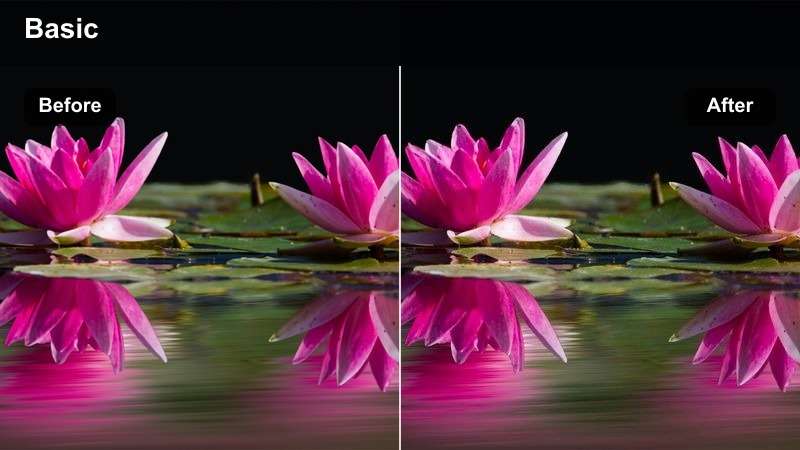
- Effect look: bright neutral whites, balanced skin tones, controlled saturation, crisp midtones
- Best for: news explainers, live updates, headline videos
- Editing tip: Apply the LUT lightly, then raise exposure slightly if the presenter was recorded in a dim room.
Clean Newsroom is a clear and professional filter for fast-paced reporting and presenter-led updates. It keeps whites bright, skin tones balanced, and saturation controlled so viewers can focus on the information.
In Filmora, apply this X video LUT lightly before making small exposure adjustments. It works well with simple lower thirds, headline text, and footage recorded in a modern newsroom or home studio.
Build a Consistent X Video Color Palette
Filmora's color tools can help you coordinate your presenter footage, screen recordings, source clips, and social graphics around a repeatable visual palette.
Use cooler tones for factual updates, warmer tones for personal analysis, and higher contrast for opinion-led hooks while keeping skin tones natural.
 secure download

Urgent Alert
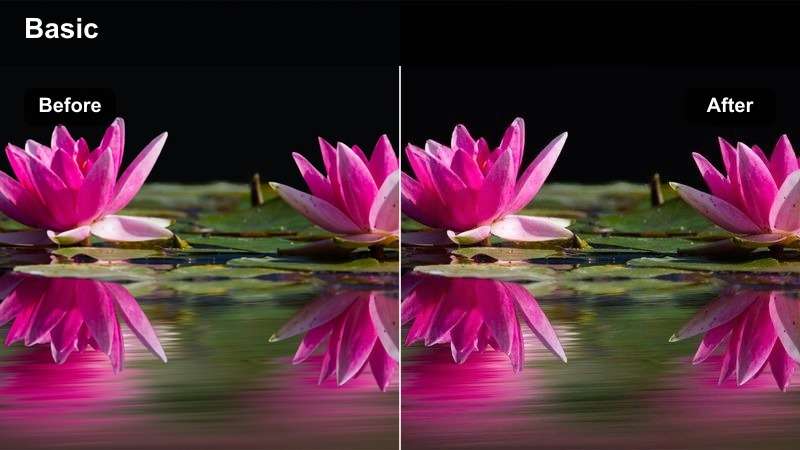
- Effect look: strong contrast, cool shadows, vivid red accents, sharpened detail
- Best for: breaking updates, urgent commentary, fast reaction clips
- Editing tip: Reduce intensity on footage with red graphics so alert colors remain readable without overpowering the frame.
Urgent Alert adds energy to short updates and reaction-driven posts through cool shadows, bold red accents, and sharpened detail. The high-contrast treatment helps a clip feel immediate during the opening seconds.
Use this filter in Filmora for breaking updates, but reduce its strength when your footage already includes red graphics or heavy compression. Keep the subject clear so the effect supports the message instead of competing with it.
Press Room Neutral
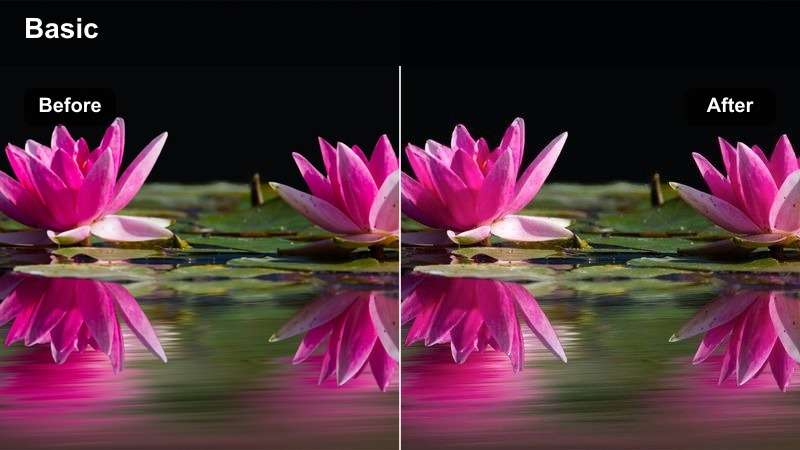
- Effect look: soft contrast, muted colors, natural highlights, balanced cool tones
- Best for: interviews, press briefings, source-based explainers
- Editing tip: Pair the filter with a gentle vignette to direct attention toward the speaker without making the footage look dramatic.
Press Room Neutral is a restrained look for credible reporting, interviews, and information-heavy videos. Soft contrast and natural highlights keep the footage realistic while giving clips a consistent finish.
Apply it in Filmora when captions, quotes, and source references matter more than visual drama. A gentle vignette can guide attention toward the speaker without making a press briefing appear overly stylized.
Commentary Desk Contrast
Bold Commentary
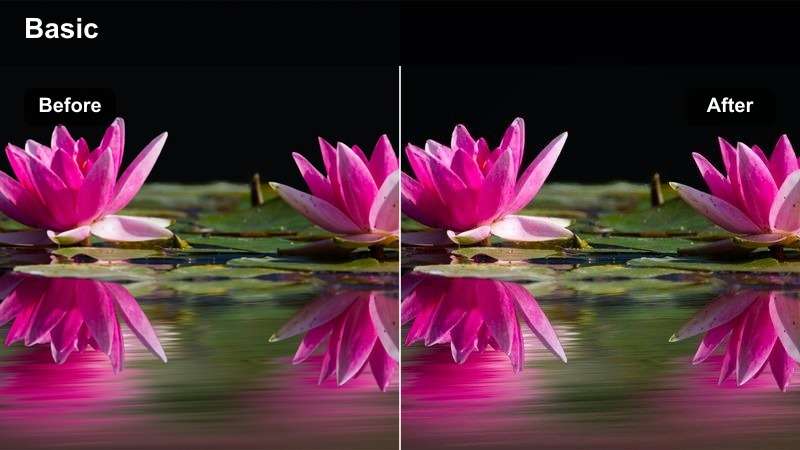
- Effect look: deep blacks, warm highlights, punchy contrast, saturated skin tones
- Best for: opinion clips, debate reactions, direct-to-camera commentary
- Editing tip: Check facial highlights after applying the filter and lower highlights if the subject appears overly bright.
Bold Commentary creates a confident visual tone with deep blacks, warm highlights, and punchy contrast. It is suited to opinion-led content that needs a strong and recognizable identity.
In Filmora, check facial highlights after applying the LUT and lower them if the presenter looks too bright. Pair the grade with a bold opening title and a darker background to keep attention on the speaker.
Late Night Opinion
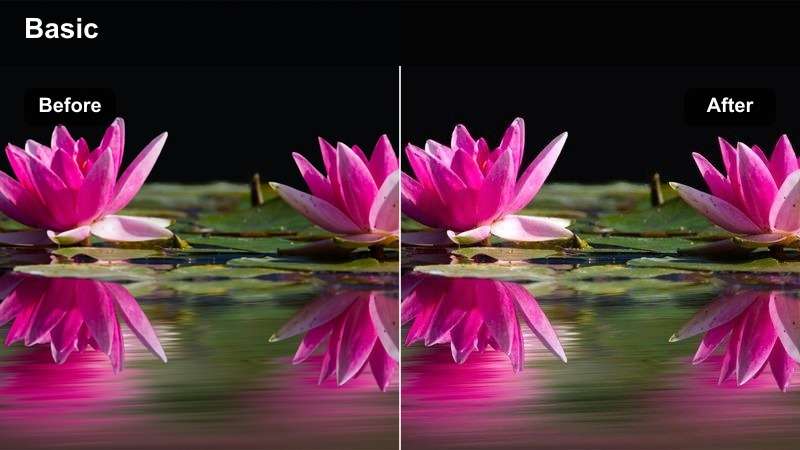
- Effect look: moody shadows, amber highlights, softened detail, cinematic depth
- Best for: evening commentary, reflective opinion clips, long-form highlights
- Editing tip: Use a lower filter strength on footage with warm practical lights to preserve detail in the background.
Late Night Opinion gives reflective commentary an intimate atmosphere through moody shadows, amber highlights, and cinematic depth. The softened detail works well for thoughtful or personal messages.
Use a lower strength in Filmora when practical lights are already warm. Leave enough separation around captions so the darker grade remains readable on mobile screens.
Studio Pop
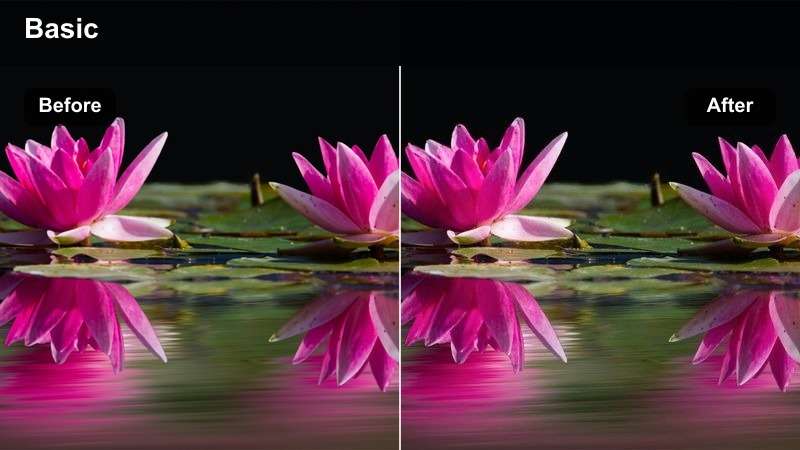
- Effect look: bright color, clean contrast, vivid backgrounds, polished skin tones
- Best for: creator updates, channel announcements, social video intros
- Editing tip: Match the LUT intensity to your channel graphics so the presenter and branding feel like one visual system.
Studio Pop is a bright creator-friendly look for social posts that need energy and visual consistency. It combines vivid backgrounds with clean contrast and polished skin tones.
Use it in Filmora for channel announcements, recurring intros, and creator updates. Match the LUT intensity to your logo, title cards, and other graphics so the video feels like part of one visual system.
Preview Filters Before Exporting
Test each filter on the first few seconds of your clip before grading the entire timeline. This makes it easier to compare clarity, contrast, skin tones, and caption readability.
A quick preview is especially useful for short social videos because small changes in exposure or saturation can strongly affect how the clip looks on a phone.
secure downloadDocumentary Cool
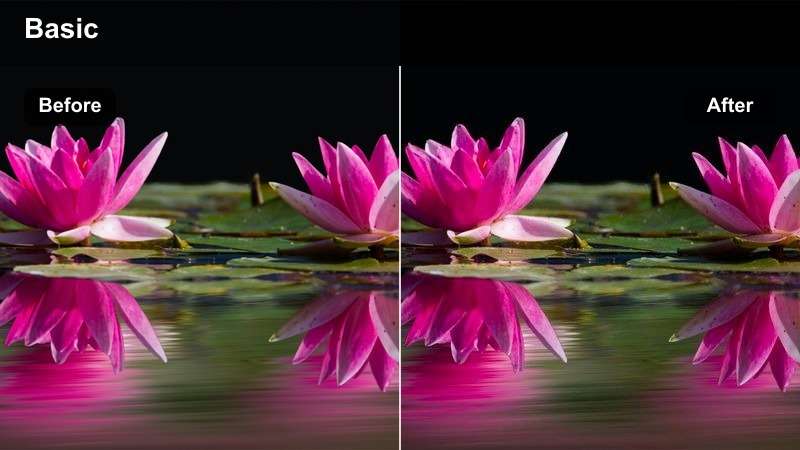
- Effect look: cool blue shadows, subdued saturation, textured contrast, natural highlights
- Best for: investigative explainers, context videos, documentary-style posts
- Editing tip: Add a small amount of grain after the LUT to create texture without obscuring captions or fine details.
Documentary Cool creates a grounded, observational tone with cool blue shadows, restrained saturation, and textured contrast. It helps archival material, charts, and talking-head footage feel connected.
Apply the same look to b-roll and presenter footage in Filmora, then adjust exposure shot by shot. A small amount of grain can add texture, but keep it subtle enough to preserve captions and fine details.
Golden Context
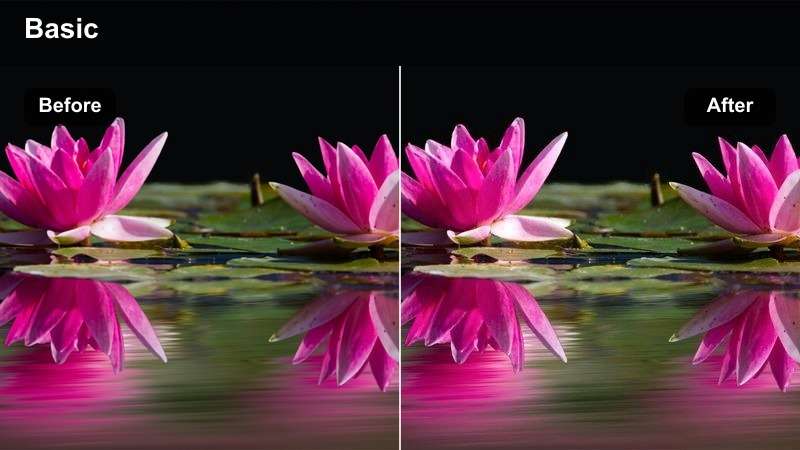
- Effect look: warm highlights, soft contrast, golden midtones, gentle shadows
- Best for: background explainers, personal analysis, human-interest commentary
- Editing tip: Lower the warmth when footage already contains strong yellow lighting or warm skin tones.
Golden Context makes explainers feel welcoming through warm highlights, golden midtones, and gentle shadows. It works well when analysis is paired with a personal, accessible presentation.
Lower the warmth in Filmora if the source footage already has yellow lighting or warm skin tones. Combine the grade with clear labels and steady pacing so the friendly color supports the explanation.
Monochrome Focus
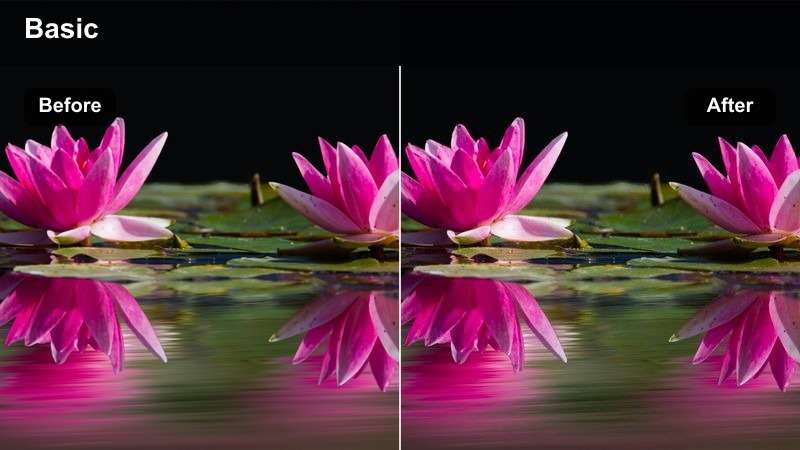
- Effect look: near-monochrome tones, strong luminance contrast, defined highlights, graphic shadows
- Best for: quote clips, archival commentary, dramatic opinion openings
- Editing tip: Reserve the effect for short sections or key statements so it creates emphasis without making the whole video feel flat.
Monochrome Focus creates graphic emphasis with near-monochrome tones, defined highlights, and strong luminance contrast. It is especially effective for quotes, statements, and dramatic transitions.
Reserve this Filmora filter for short sections or key statements rather than the entire video. Use a clean cut or brief fade into the effect and keep captions bright enough for mobile viewing.
Fast Social Scroll Styles
Scroll Stop
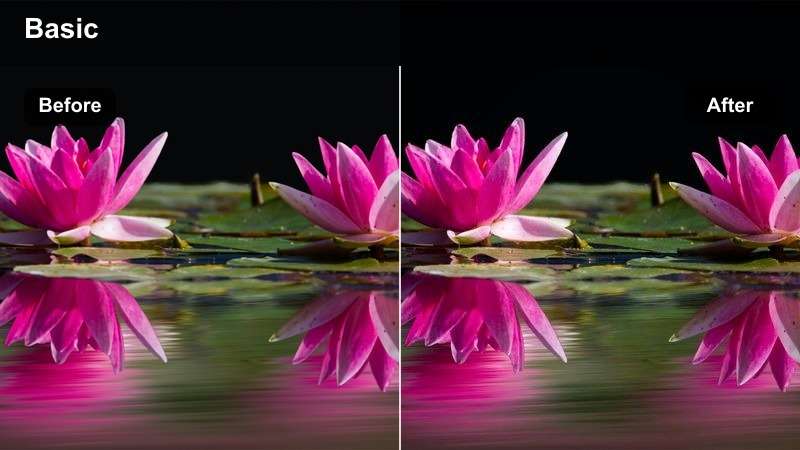
- Effect look: high clarity, lifted color, strong subject separation, crisp highlights
- Best for: X posts, short hooks, reaction videos
- Editing tip: Use the filter from the first frame and combine it with a tight crop to create immediate visual focus.
Scroll Stop is a punchy social filter designed to help short clips stand out in a busy feed. High clarity, lifted color, and strong subject separation make the visual message easier to understand quickly.
Use it from the first frame in Filmora and combine it with a tight crop. Keep the opening simple, place the main message in the center-safe area, and avoid competing background details.
Mobile Vivid
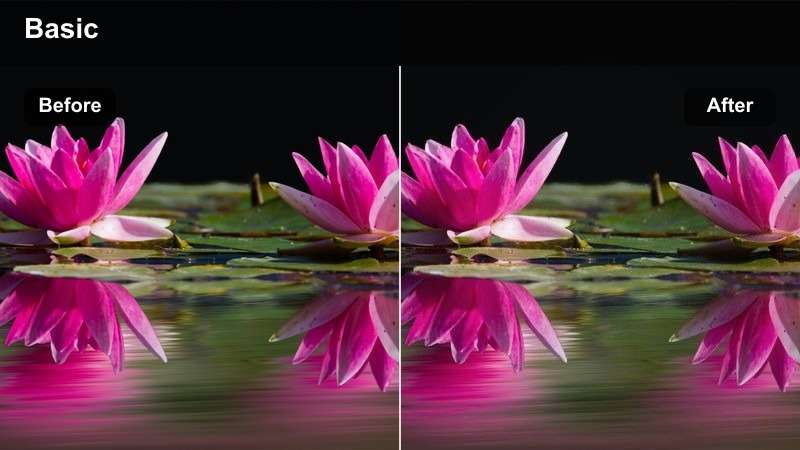
- Effect look: vivid midtones, clean blacks, bright skin tones, enhanced color separation
- Best for: vertical explainers, mobile-first updates, creator tips
- Editing tip: Preview the finished clip on a phone before exporting because vivid color can appear stronger on smaller displays.
Mobile Vivid keeps vertical videos lively and legible through vivid midtones, clean blacks, and enhanced color separation. It is designed for compact screens where clear subject and caption visibility matter.
Preview the finished clip on a phone after applying the LUT in Filmora. Check reduced brightness settings as well, since dark backgrounds can hide important information on mobile displays.
Rapid Recap
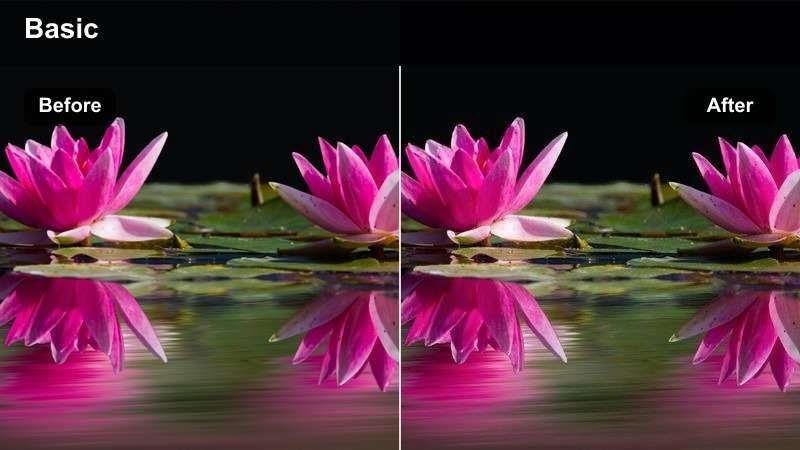
- Effect look: balanced saturation, quick-cut clarity, moderate contrast, consistent skin tones
- Best for: daily recaps, news roundups, multi-clip commentary posts
- Editing tip: Apply the same filter to every source clip, then fine-tune exposure so rapid cuts feel consistent.
Rapid Recap is a flexible filter for videos assembled from multiple recordings and source clips. Balanced saturation, moderate contrast, and consistent skin tones help quick edits feel intentional.
In Filmora, normalize exposure before applying the LUT to every source clip. Fine-tune each shot afterward so rapid cuts maintain continuity without losing the character of the recap.
Combine Video Filters and LUTs in Filmora
Start with a suitable X video LUT or filter to establish the overall mood, then use manual adjustments for exposure, white balance, highlights, and shadows.
This two-step workflow gives news creators and commentary channels a faster way to maintain consistency without forcing every clip into the same look.
secure downloadTips for Using X Video Lut Download Filters in Filmora
- Match the filter to the message: neutral grades support reporting, while stronger contrast works well for opinion clips.
- Correct exposure and white balance before applying a LUT so the final color remains predictable.
- Preview every export on a phone because short social videos are usually watched on mobile screens.
- Keep captions bright, high-contrast, and separate from busy backgrounds after applying a cinematic filter.
- Use the same core filter across recurring series to make your X posts easier for viewers to recognize.
- Lower LUT intensity when footage contains harsh lighting, strong colored LEDs, or already saturated graphics.
- Save a Filmora preset for your most-used news, commentary, and explainer workflows.
The Free X Video LUT Pack gives news creators and commentary channels a practical starting point for short social video color grading. From clean newsroom looks to bold opinion styles, these filters can help your X posts feel more consistent and intentional.
Download the pack, test each look in Filmora, and adjust the intensity for your footage, captions, and mobile audience. A reliable color workflow can make daily explainers, reaction clips, and rapid updates faster to finish and easier to recognize.
secure download