

 100% Security Verified | No Subscription Required | No Malware

Give Threads updates, behind-the-scenes clips, and mini vlogs a consistent look with this free Threads video LUT pack. The collection is designed for fast social editing, helping conversation creators and lifestyle publishers add personality without making footage feel overly processed.
Use these Threads video filters in Filmora to create warm, clean, cinematic, or softly faded color styles. Each preset works as a starting point for casual social color grading, so you can fine-tune exposure, contrast, and skin tones before publishing.
In this article
Sunlit Conversation Updates
Warm Thread
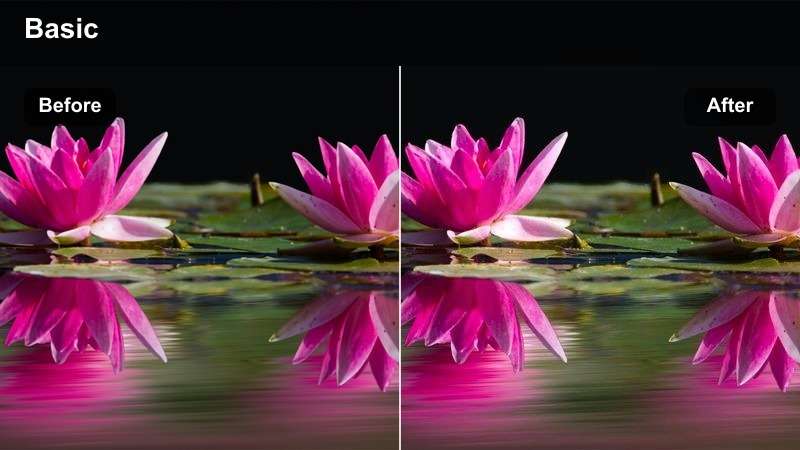
- Effect look: Soft warmth with lifted highlights and friendly skin tones
- Best for: Daytime Threads updates, talking-head posts, and casual creator commentary
- Editing tip: Lower saturation slightly when bright backgrounds or colorful clothing dominate the frame
Warm Thread adds a welcoming tone to everyday conversation videos. Its lifted highlights and friendly skin tones help daytime footage feel approachable while keeping the spontaneous character that suits Threads posts.
In Filmora, apply the filter at a moderate strength and then adjust exposure to match the original clip. If the video was recorded beside a bright window, lower highlights slightly to preserve detail in the background and on the subject's face.
Build a Consistent Threads Color Palette
Use Filmora's color tools to create a repeatable palette for your Threads video content. Match skin tones, background neutrals, and accent colors across updates, behind-the-scenes clips, and mini vlogs.
Start with one filter from the pack, then adjust temperature, tint, saturation, and contrast to fit your personal publishing style.
 secure download

Preview Threads Video Filters Before Export
Compare several filter looks on the same clip to find the right mood for your message. Warm styles suit friendly updates, while softer or cinematic looks can support reflective stories and process footage.
Keep filter intensity moderate and review the result on a mobile-sized preview before publishing to Threads.
secure downloadTurn Quick Filters Into a Reusable LUT Workflow
After finding a look you like, save your adjustments as a reusable preset or LUT workflow in Filmora. This makes it easier to keep a consistent appearance across recurring Threads series.
Use the included filters as creative starting points, then fine-tune exposure and white balance for every recording environment.
secure downloadClean Daylight
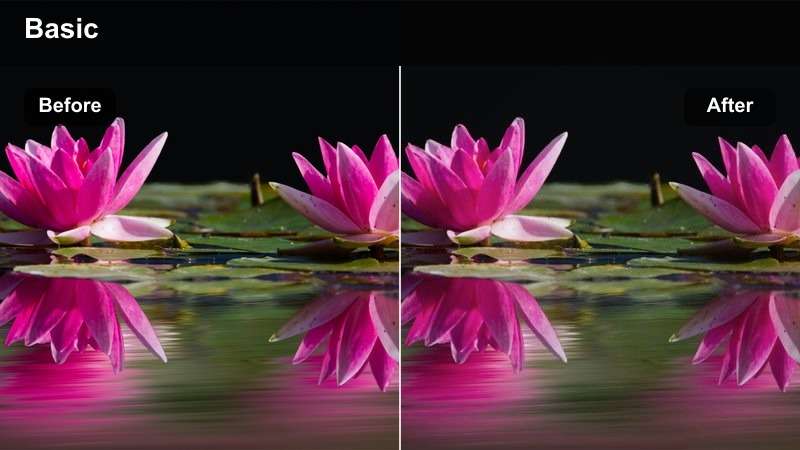
- Effect look: Balanced contrast with crisp whites and clear midtones
- Best for: Quick news-style updates, desk videos, and lifestyle publishing clips
- Editing tip: Add a small amount of contrast only after checking white walls and pale clothing
Clean Daylight creates a bright, straightforward look that keeps social video clear and readable. Balanced contrast and crisp whites work well for updates where the speaker, workspace, or product needs to remain easy to see.
Use it in Filmora without aggressive sharpening, then check the brightest parts of the frame. A small contrast adjustment is usually enough for polished footage, especially when white walls or open windows appear behind the subject.
Peachy Prompt
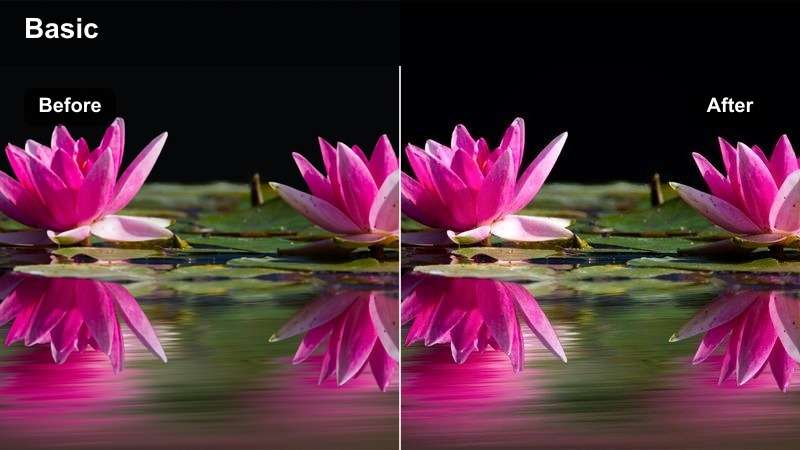
- Effect look: Gentle peach warmth with softened contrast and rosy highlights
- Best for: Personal reflections, friendly replies, and relaxed indoor mini vlogs
- Editing tip: Reduce red saturation if skin tones appear too pink under warm indoor lighting
Peachy Prompt adds gentle warmth and rosy highlights to intimate creator-led clips. The softened contrast gives personal reflections and relaxed replies a friendly social feel without making the image look heavily processed.
In Filmora, correct white balance first if the room already looks yellow. Then lower filter intensity for a more understated finish and reduce red saturation if skin tones become too pink.
Behind-the-Scenes Creator Moments
Studio Soft
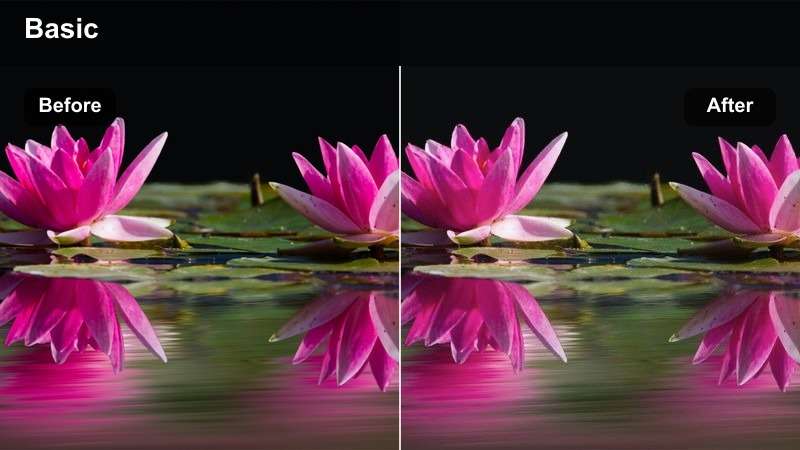
- Effect look: Muted contrast with smooth shadows and gentle highlight rolloff
- Best for: Editing desk footage, filming setups, and behind-the-scenes production clips
- Editing tip: Raise shadows slightly when the workspace includes dark equipment or black clothing
Studio Soft gives behind-the-scenes footage a calm, low-contrast appearance. Smooth shadows and gentle highlights help show the creative process without making equipment or workspace details compete for attention.
Apply the filter in Filmora and lift shadows enough to separate cameras, stands, cables, and black clothing from the background. Use a subtle vignette only when the workspace feels especially busy.
Neutral Process
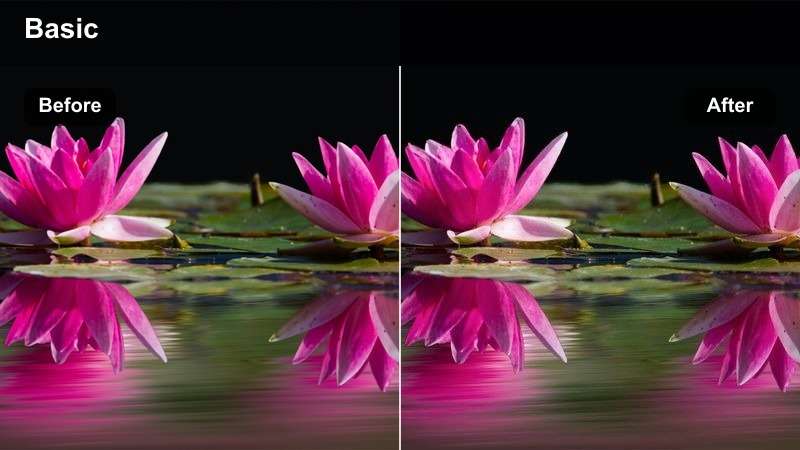
- Effect look: Natural color with restrained saturation and dependable skin tones
- Best for: Editing tutorials, creator workflows, and candid production updates
- Editing tip: Use exposure and white balance controls to match clips recorded at different times
Neutral Process is a reliable everyday look for practical updates and workflow content. Restrained saturation keeps the footage natural while dependable skin tones help separate clips recorded in different conditions.
Use this filter across a series of behind-the-scenes posts to make separate recording days feel connected. In Filmora, compare shots side by side and correct exposure differences instead of increasing filter strength.
Moody Workroom
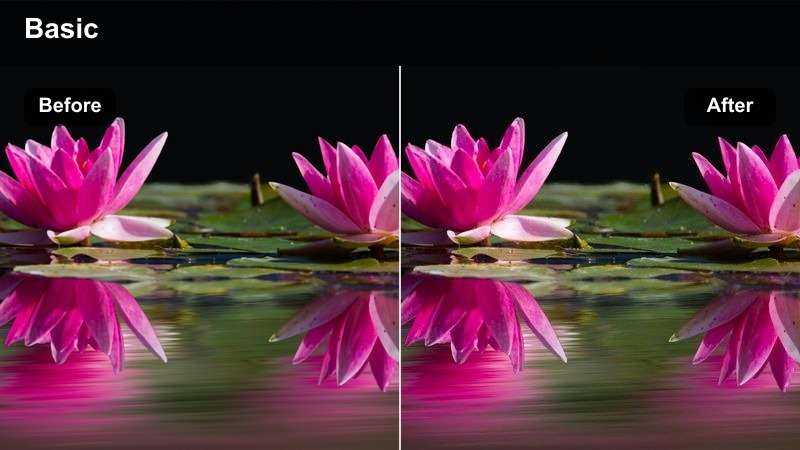
- Effect look: Deeper shadows with cool mids and controlled warm highlights
- Best for: Late-night editing sessions, quiet workflow updates, and creative process reels
- Editing tip: Lift the blacks slightly when the original footage is underexposed
Moody Workroom creates a cinematic but approachable look for focused creator spaces. Cool mids and warm practical lights add atmosphere while keeping the footage suitable for casual social storytelling.
In Filmora, preserve separation between room shadows and warm lamps instead of making the whole frame too dark. Lift blacks or exposure slightly if facial detail disappears on a small mobile screen.
Mini Vlog Movement and Daily Life
Street Casual
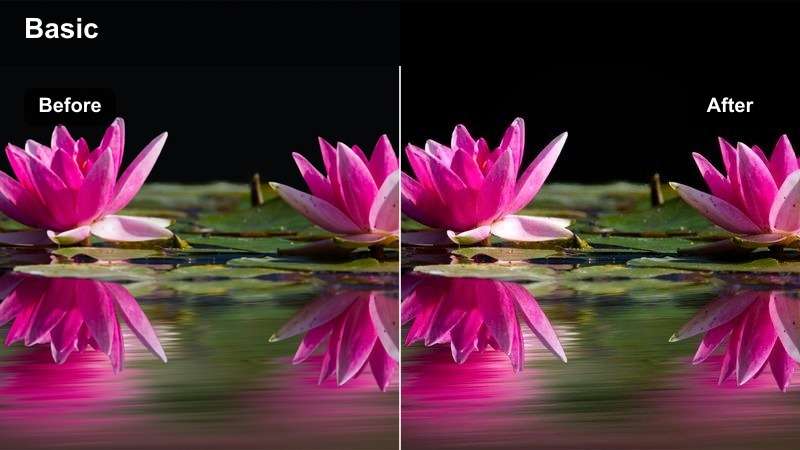
- Effect look: Urban contrast with natural blues and lightly warmed skin tones
- Best for: Walking updates, city errands, and quick outdoor mini vlogs
- Editing tip: Reduce contrast in harsh midday footage before adding the filter
Street Casual adds lively urban contrast while keeping blues natural and skin tones lightly warm. It suits mobile-first walking updates, city errands, and daily clips that move through changing outdoor light.
In Filmora, reduce contrast before applying the filter when the source was recorded in harsh midday sun. Use keyframed exposure or short adjustment clips when a walk moves quickly between shade and direct light.
Film Walk
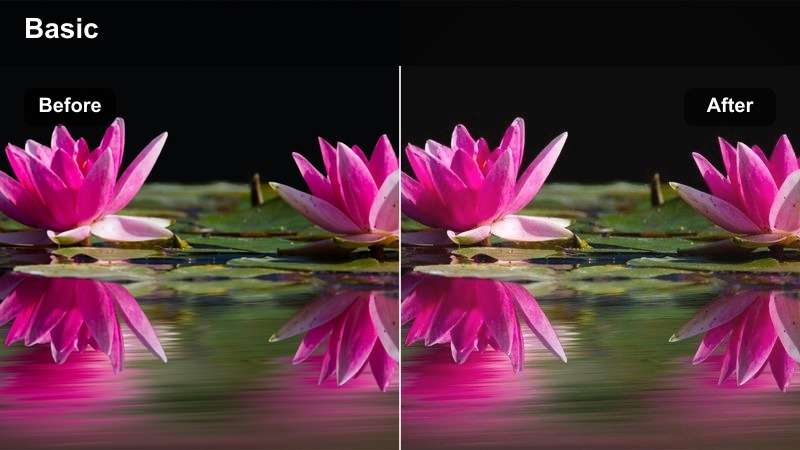
- Effect look: Subtle film softness with warm mids and lightly faded blacks
- Best for: Neighborhood walks, travel-style updates, and reflective lifestyle clips
- Editing tip: Add light grain after resizing for a more natural texture on mobile screens
Film Walk gives movement-based posts a relaxed film-inspired style. Warm mids and faded blacks add character to neighborhood walks, travel-style updates, and reflective lifestyle footage.
Apply light grain after resizing in Filmora so the texture feels natural on mobile screens. Keep it restrained because heavy grain can distract from captions and small details after social compression.
Fresh Motion
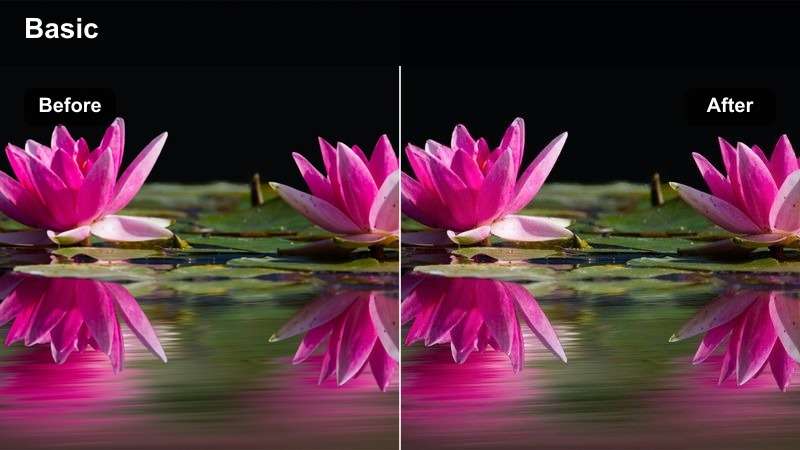
- Effect look: Clean brightness with energetic color and defined motion detail
- Best for: Fast-cut mini vlogs, event arrivals, and upbeat daily Threads posts
- Editing tip: Lower saturation on colorful signs or clothing to keep the frame from becoming distracting
Fresh Motion is a bright, energetic filter for quick cuts and active social storytelling. Clean brightness and defined detail help movement stay readable in short vertical clips.
Use moderate sharpening and clear exposure in Filmora, then stabilize footage before applying the color filter when camera movement is fast. Lower saturation if colorful signs or clothing pull attention away from the story.
Evening Replies and Personal Stories
Evening Glow
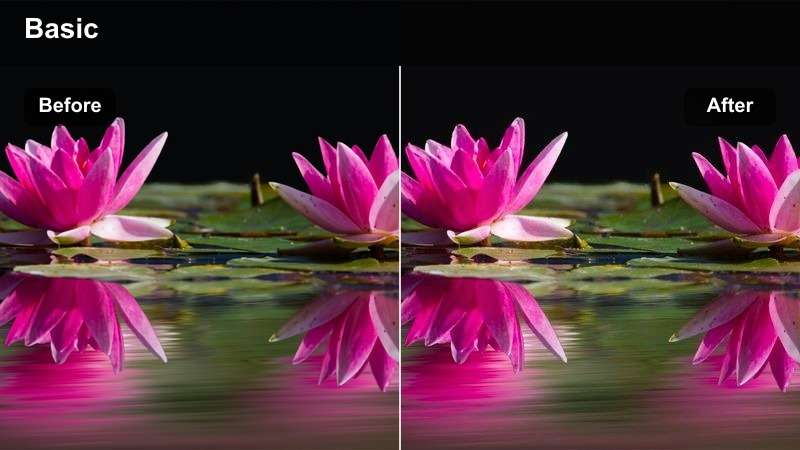
- Effect look: Warm low-light balance with soft highlights and gentle contrast
- Best for: Evening updates, personal stories, and indoor conversation videos
- Editing tip: Reduce noise before applying the filter when recording under dim room lighting
Evening Glow brings warmth to low-light updates while keeping highlights soft and contrast gentle. It works well for personal stories and indoor conversation videos that need a cozy but natural finish.
Reduce noise in Filmora before applying the filter, then avoid deepening shadows too much. A small exposure lift can preserve facial detail and make the evening scene feel more open.
Quiet Fade
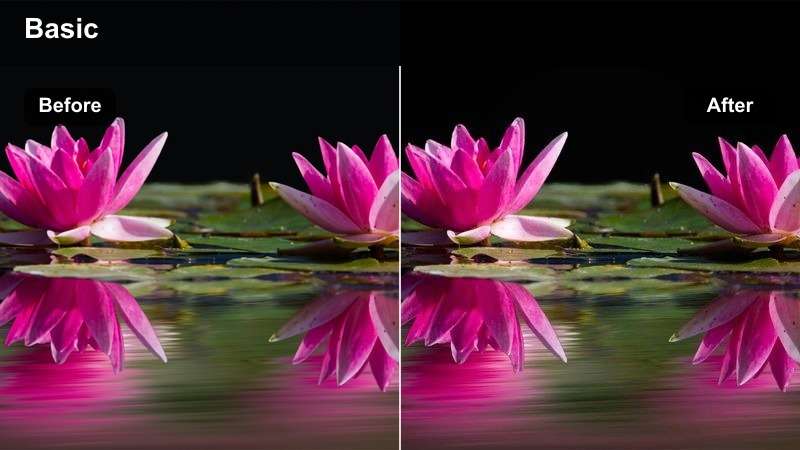
- Effect look: Softly faded contrast with cool shadows and subdued color
- Best for: Reflective updates, slower mini vlogs, and thoughtful conversation posts
- Editing tip: Add a small amount of warmth if the source footage feels too blue or distant
Quiet Fade creates a restrained and reflective style for slower personal storytelling. Cool shadows, subdued color, and faded contrast let captions, voice, and expression remain the focus.
Use a small amount of warmth in Filmora if the source feels too blue. Keep transitions simple and avoid fast zooms that could undermine the calm tone of the post.
Social Night
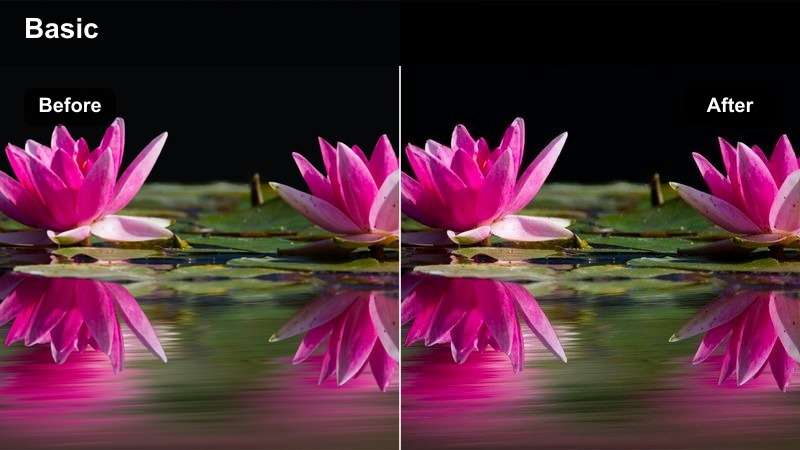
- Effect look: Rich evening color with polished contrast and balanced skin tones
- Best for: Nighttime event updates, creator meetups, and polished social recaps
- Editing tip: Lower highlights around practical lights and signs to maintain detail in the night scene
Social Night adds rich evening color and polished contrast to event updates and creator meetups. Balanced skin tones help faces remain natural among signs, screens, and other artificial light sources.
In Filmora, adjust white balance before increasing saturation, then lower highlights around practical lights and signs. Preview the final clip at reduced screen brightness to confirm that faces and captions remain visible.
Tips for Using Threads Video Lut Download Filters in Filmora
- Correct exposure and white balance before applying a Threads video filter.
- Use moderate filter strength so faces, captions, and real-world colors remain natural.
- Match clips from different recording days with small exposure and temperature adjustments.
- Preview every export on a phone because social compression can change contrast and saturation.
- Save your favorite Filmora adjustments as a reusable preset for recurring Threads updates.
- Use stabilization and noise reduction before color grading shaky or low-light mini vlog footage.
This free Threads video LUT pack gives conversation creators and lifestyle publishers a flexible starting point for casual social color grading. From bright daytime updates to warm evening stories, each filter helps you create a polished look without losing the spontaneous character of Threads content.
Download the pack, test the styles in Filmora, and adjust each look to match your footage, voice, and publishing rhythm. For more preset ideas, continue with the Threads video LUT collection.
secure download