

 100% Security Verified | No Subscription Required | No Malware

Give your LinkedIn videos a polished, consistent look with the Free LinkedIn Video LUT Pack. These creator-friendly filters help career coaches, B2B creators, and company teams improve the visual style of LinkedIn posts, company updates, and expert clips.
Use the filters in Filmora to create professional video color grading without a complicated workflow. Adjust intensity, contrast, and skin tones to match your brand while keeping speakers, products, and workplace scenes clear and natural.
In this article
Bright Office Openers for LinkedIn Posts
Daylight Leadership
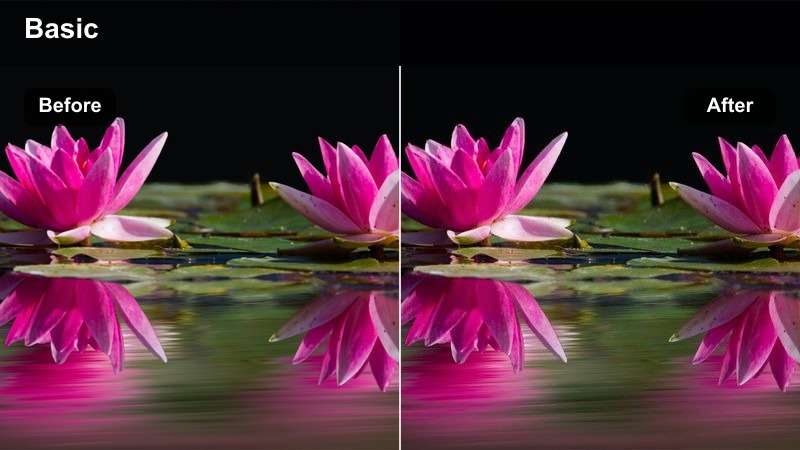
- Effect look: Clean daylight tones with lifted shadows, balanced contrast, and a confident professional finish.
- Best for: Career coach introductions, leadership advice, and talking-head LinkedIn posts recorded near windows.
- Editing tip: Lower the filter intensity slightly when the room already has strong natural light.
Daylight Leadership gives LinkedIn creator videos a bright, credible appearance by opening up shadows and balancing contrast around the speaker. It works especially well for career advice, leadership content, and personal-brand videos recorded in modern offices or near large windows.
In Filmora, correct exposure before applying the filter and keep the subject evenly lit. This look works best when the window is not dramatically brighter than the face, so use exposure and highlights controls before increasing saturation. A moderate intensity also helps preserve natural skin tones.
Build a LinkedIn Color Palette with AI Support
Use Filmora's creative tools to explore a professional palette that fits your personal brand or company identity. Start with neutral workplace tones, then add one controlled accent color for titles, graphics, or wardrobe.
A consistent palette makes posts, company updates, and expert clips feel connected even when they are recorded in different locations. Create a repeatable LinkedIn color direction before applying your favorite filter.
 secure download

Whiteboard Focus
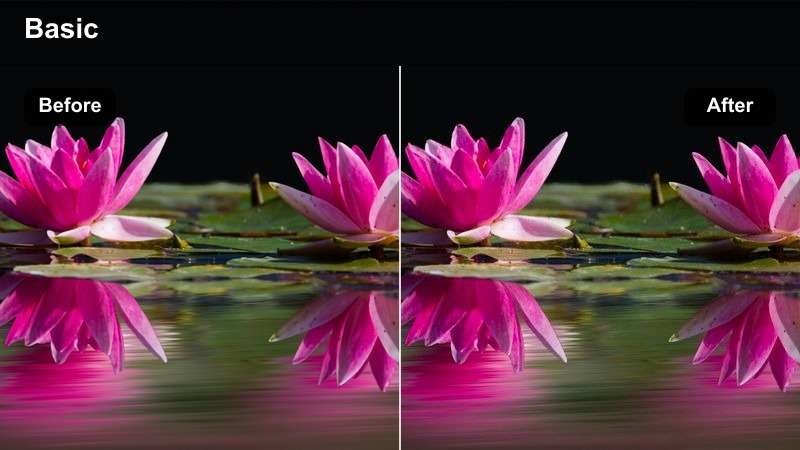
- Effect look: Crisp whites, readable midtones, and restrained color that keeps text and gestures easy to follow.
- Best for: Educational LinkedIn posts, coaching walkthroughs, and strategy videos filmed beside a whiteboard.
- Editing tip: Reduce highlights if the whiteboard becomes too bright or loses visible writing.
Whiteboard Focus is built for business explainers where the audience needs to read text, follow gestures, and understand the speaker without visual distractions. Its crisp whites and controlled color keep strategy diagrams, notes, and presentation details easy to see.
Use Filmora to correct exposure first, especially when a whiteboard or presentation screen is brighter than the presenter. Then add a small amount of contrast and review the result on a mobile screen before publishing. Prioritize legibility over a dramatic effect.
Soft Founder
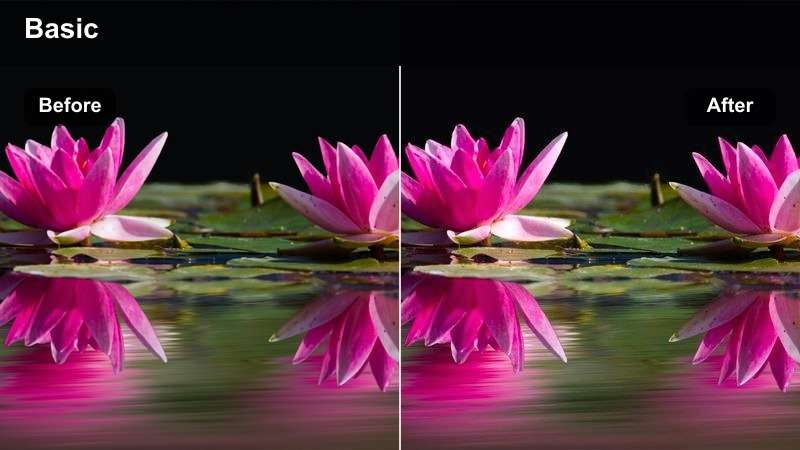
- Effect look: Warm highlights, gentle contrast, and softened shadows for an approachable personal-brand style.
- Best for: Founder stories, client testimonials, and conversational LinkedIn posts from small business leaders.
- Editing tip: Use a moderate strength setting to preserve natural skin tones and authentic office color.
Soft Founder adds warm highlights and gentle contrast to founder-led stories, testimonials, and conversational videos. The approachable finish supports authentic storytelling without making a simple office scene appear heavily stylized.
Apply the filter at a moderate strength in Filmora and keep the framing simple with an eye-level camera and a quiet background. Match the look with natural delivery and balanced practical lighting so the audience stays focused on the speaker and the story.
Confident Color for Company Updates
Boardroom Neutral
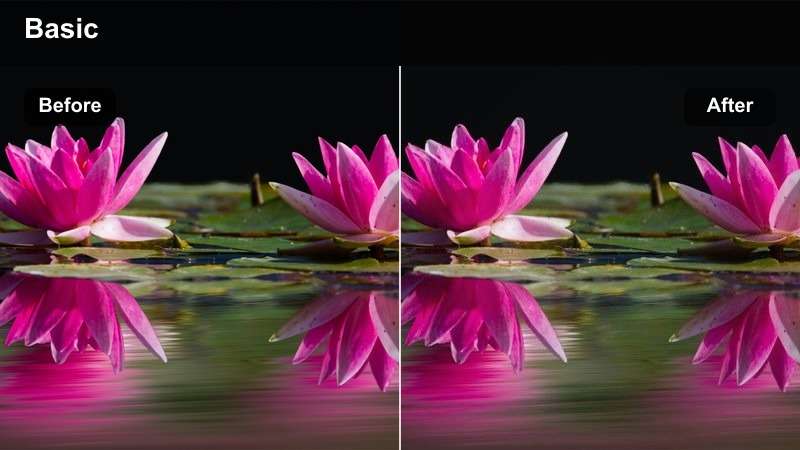
- Effect look: Balanced neutrals, controlled saturation, and structured contrast for a refined corporate appearance.
- Best for: Company announcements, executive updates, quarterly recaps, and internal culture videos shared on LinkedIn.
- Editing tip: Apply the filter consistently across multiple camera angles to maintain a unified company look.
Boardroom Neutral creates a refined corporate appearance with balanced neutrals, controlled saturation, and structured contrast. It is a dependable choice for executive updates, company announcements, quarterly recaps, and internal culture content.
For multi-camera projects, correct white balance on each clip before applying the filter. Fine-tune the intensity across every angle so different rooms and cameras share one unified company look without making the footage feel artificial.
Brand Accent
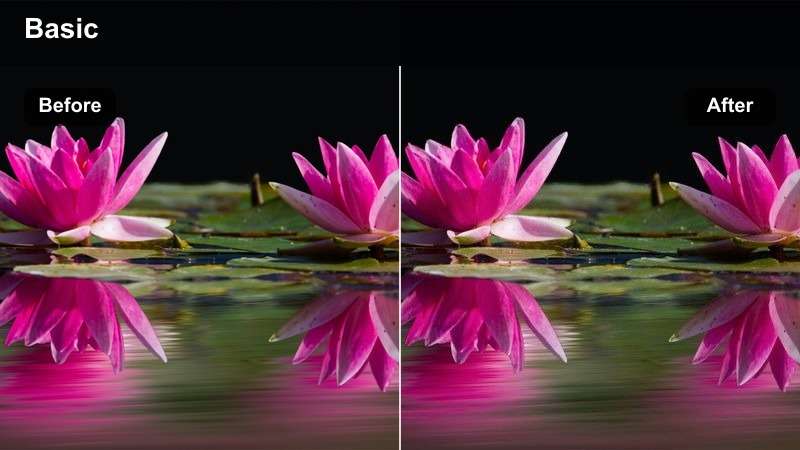
- Effect look: Clean contrast with enhanced brand color separation for energetic but controlled business visuals.
- Best for: Product announcements, campaign launches, office tours, and branded company updates.
- Editing tip: Check brand colors against your official guidelines before exporting the final LinkedIn video.
Brand Accent helps branded business visuals stand out with clean contrast and stronger separation between key colors. It works well for product announcements, campaign launches, office tours, and company updates that need a little more energy in the LinkedIn feed.
Use the filter at a moderate strength in Filmora and compare logos, graphics, and wardrobe colors with your official brand palette. Strong color effects can shift branded elements away from their intended appearance, so accuracy should come before extra saturation.
Team Culture
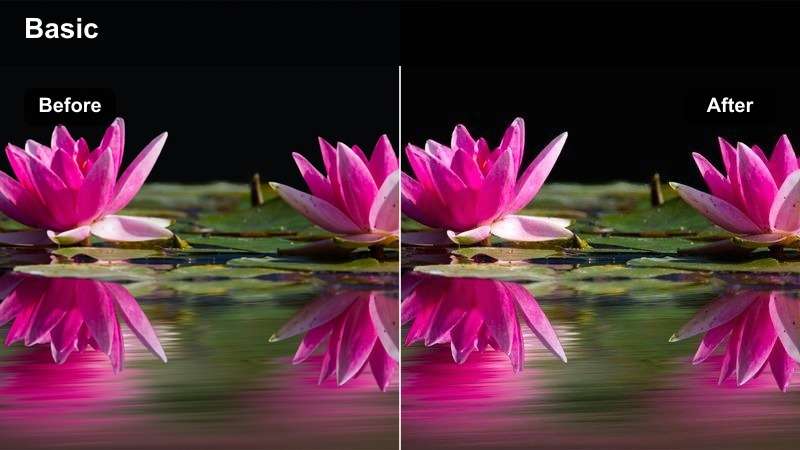
- Effect look: Bright midtones, natural skin tones, and a subtle warm lift that makes group footage feel inviting.
- Best for: Team introductions, workplace culture posts, hiring updates, and employee spotlight videos.
- Editing tip: Keep the effect light when several people with different skin tones appear in the same shot.
Team Culture gives group footage bright midtones, natural skin tones, and a subtle warm lift. It is designed for team introductions, hiring updates, employee spotlights, and workplace culture posts where every person should remain recognizable.
Keep the effect light in Filmora and check skin tones, window exposure, and overhead lighting before adding warmth. The best result keeps the room looking authentic while making the team feel welcoming and connected.
Focused Looks for Expert Clips
Deep Expertise
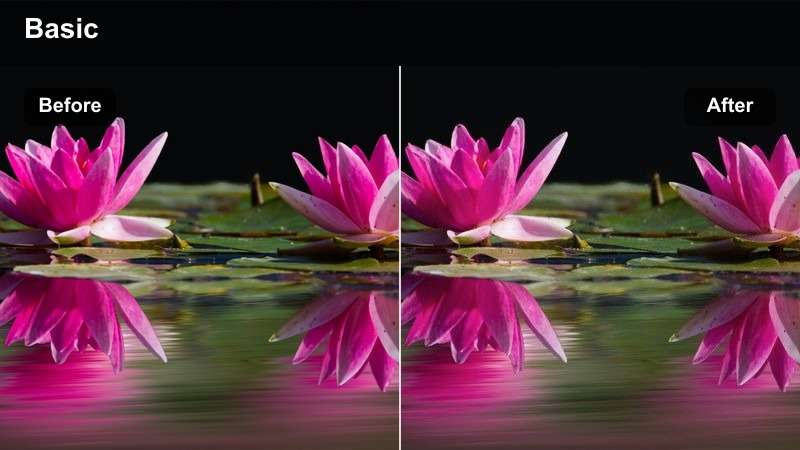
- Effect look: Deeper contrast, refined shadows, and slightly muted colors for an authoritative editorial finish.
- Best for: Subject-matter expert clips, industry commentary, consulting advice, and analytical LinkedIn videos.
- Editing tip: Lift shadow levels if facial details disappear in a dim office or studio setup.
Deep Expertise gives subject-matter expert clips a more authoritative editorial finish through deeper contrast, refined shadows, and slightly muted color. It suits industry commentary, consulting advice, research explanations, and analytical videos.
Make sure the speaker's face remains clear before increasing filter strength. In Filmora, use shadow recovery and a subtle fill light for dim setups, then apply the look at a controlled intensity so the footage feels credible rather than overly dramatic.
Studio Presenter
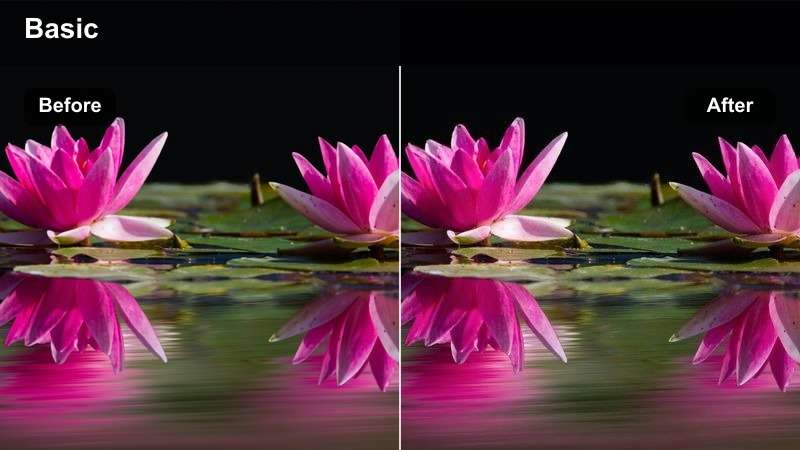
- Effect look: Neutral skin tones, clean whites, and controlled contrast suited to a polished presenter setup.
- Best for: Webinar excerpts, podcast clips, interview highlights, and professional presenter videos.
- Editing tip: Use the same filter and intensity on the full clip so cuts between answers feel seamless.
Studio Presenter delivers neutral skin tones, clean whites, and controlled contrast for polished presenter footage. It is useful for webinar excerpts, podcast clips, interview highlights, and recurring expert series.
Apply the same filter and intensity across the full sequence so cuts between answers feel seamless. After establishing a look that matches your camera and lighting, save the Filmora settings as a reusable preset for faster future edits.
Cool Analysis
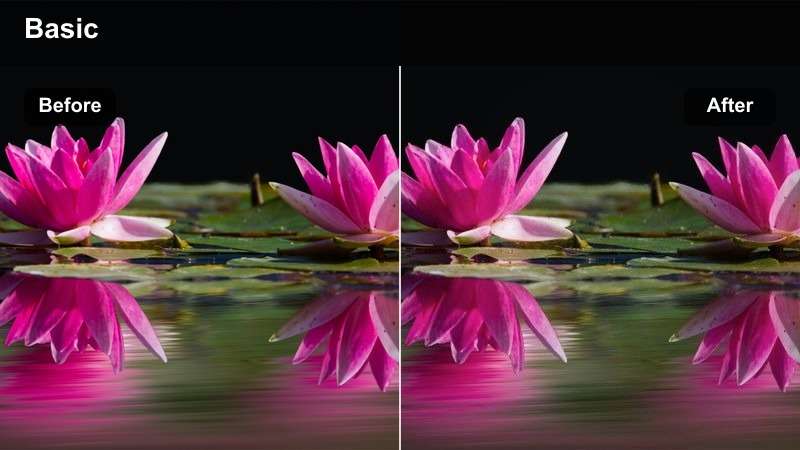
- Effect look: Cooler shadows, crisp detail, and moderate contrast for a precise modern business aesthetic.
- Best for: Data commentary, technology explainers, research summaries, and forward-looking expert clips.
- Editing tip: Add a small amount of warmth to skin tones if the office lighting already looks blue.
Cool Analysis uses cooler shadows, crisp detail, and moderate contrast to create a precise modern business aesthetic. It works especially well for technology explainers, data commentary, research summaries, and forward-looking expert clips.
Keep the background cool while maintaining a realistic complexion by using Filmora temperature and tint controls. If the office lighting already looks blue, add a small amount of warmth to the skin tones before adjusting the filter strength.
Mobile-First Finishes for the LinkedIn Feed
Feed Pop
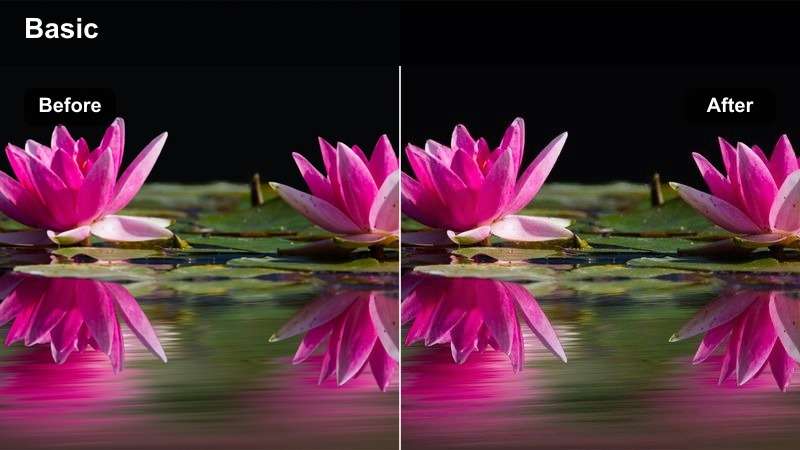
- Effect look: Clear contrast, readable color, and a subtle saturation boost designed to attract attention without looking loud.
- Best for: Short LinkedIn posts, vertical creator videos, quick tips, and scroll-stopping opening moments.
- Editing tip: Preview the effect at mobile size and reduce saturation if clothing or graphics become distracting.
Feed Pop is designed for fast-moving LinkedIn content that needs to remain clear and visible in a compact feed. Its clean contrast and subtle saturation boost help short posts, quick tips, and vertical videos attract attention without looking loud.
Preview the result at mobile size in Filmora and export a short test before finishing the edit. A filter that looks subtle on a large monitor may appear much stronger on a phone, so reduce contrast or saturation if clothing and graphics become distracting.
Clean Caption
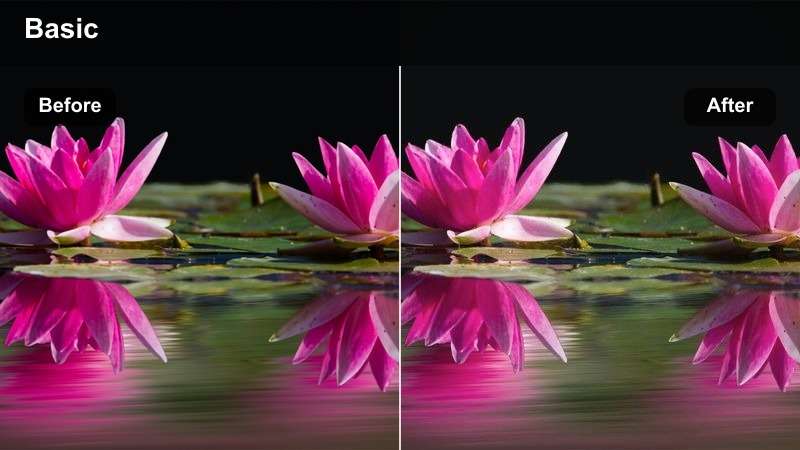
- Effect look: Soft contrast, neutral color, and open shadows that leave space for captions and on-screen text.
- Best for: Caption-led posts, accessibility-focused videos, interview quotes, and silent autoplay content.
- Editing tip: Avoid heavy shadows behind text and place captions over simple, evenly exposed areas.
Clean Caption uses soft contrast, neutral color, and open shadows to support videos that rely on captions and on-screen text. It is a low-distraction choice for interview quotes, accessibility-focused posts, and silent autoplay content.
Keep backgrounds calm and place captions over evenly exposed areas in Filmora. Use high-contrast caption styling that matches your brand, while maintaining enough visual separation for the message to remain readable without sound.
Polished Recap
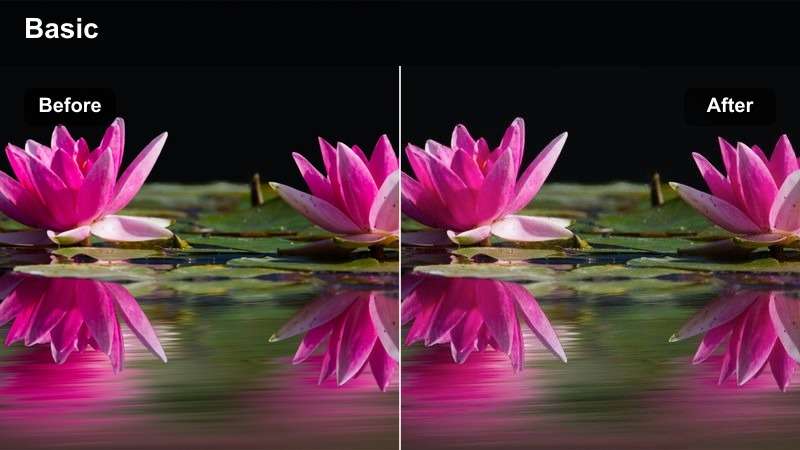
- Effect look: Balanced color, smooth contrast, and a refined finish that connects clips from different moments or locations.
- Best for: Event recaps, conference highlights, client visits, and multi-scene company posts.
- Editing tip: Apply the filter after basic exposure correction so indoor and outdoor clips feel visually connected.
Polished Recap creates a refined shared finish for event videos that combine interviews, venue shots, presentations, and candid moments. It helps clips from different locations feel connected while keeping color and contrast balanced.
Correct exposure and white balance on each source clip in Filmora before applying the filter as a finishing layer. This workflow helps phone footage, camera footage, indoor scenes, and outdoor scenes work together in one cohesive LinkedIn post.
1000+ Video Filters and 3D LUTs
Use the Free LinkedIn Video LUT Pack as a starting point for a consistent visual system across posts, company updates, and expert clips. Keep the strength moderate so your content remains authentic and readable.
Save your preferred settings as reusable presets in Filmora, making future LinkedIn edits faster while keeping your creator or company branding consistent. Download the pack and turn your best LinkedIn look into a repeatable editing workflow.
secure downloadTips for Using Linkedin Lut Download Filters in Filmora
- Correct exposure and white balance before applying a LinkedIn creator filter.
- Keep skin tones natural so career advice and expert commentary feel credible.
- Preview every export on a mobile device because most LinkedIn viewers may see the video in a compact feed.
- Use one main filter across a series to build recognizable personal or company branding.
- Reduce filter intensity when adding captions, logos, or other on-screen graphics.
- Save successful Filmora settings as presets for faster professional video color grading.
The Free LinkedIn Video LUT Pack helps career coaches, B2B creators, and company teams create polished LinkedIn content without making the editing process complicated. Choose a scene-appropriate filter, correct the basics, and keep the final look clear, credible, and consistent.
Download the pack in Filmora, test the filters on your next LinkedIn post or company update, and save the settings that best represent your professional brand.
secure download