

 100% Security Verified | No Subscription Required | No Malware

Give your live streams, gameplay highlights, and just chatting videos a more consistent visual identity with this free Twitch stream LUT pack. These filter styles are designed to help gaming creators create polished color grading without spending hours adjusting every clip by hand.
Download the pack and test each look in Filmora or your preferred editing workflow. Use lighter presets for webcam scenes, stronger contrast for gameplay footage, and atmospheric color treatments when you want your stream overlay and video content to feel more cinematic.
In this article
Neon Broadcast Scenes
Cyber Neon Pop
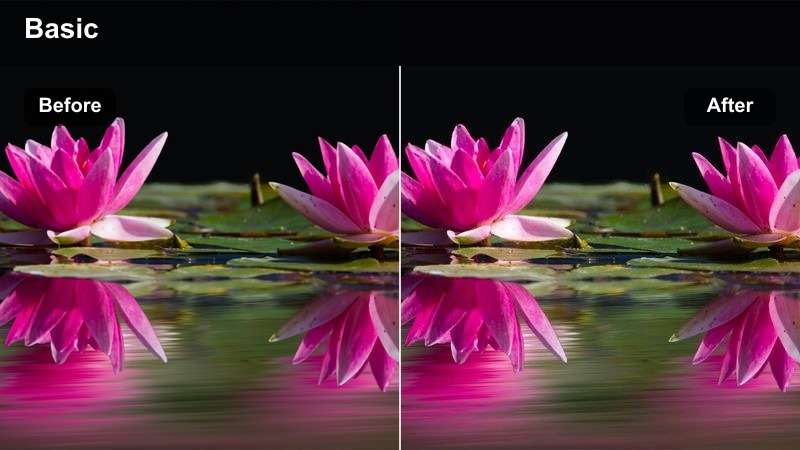
- Effect look: Bright cyan and magenta highlights with crisp contrast
- Best for: RGB gaming setups, esports intros, and energetic gameplay highlights
- Editing tip: Reduce intensity on bright overlays so neon accents do not overpower webcam details
Cyber Neon Pop gives high-energy Twitch scenes a vivid combination of cyan and magenta highlights with crisp contrast. It is a strong choice for RGB gaming setups, esports intros, and fast-paced gameplay highlights that need an immediate visual boost.
In Filmora, apply this look after balancing exposure and white balance so the neon colors stay bold without clipping skin tones. Reduce the intensity on bright overlays, and use the preset for stream starting screens, highlight reels, or dramatic transitions between gameplay clips.
Electric Blue Focus
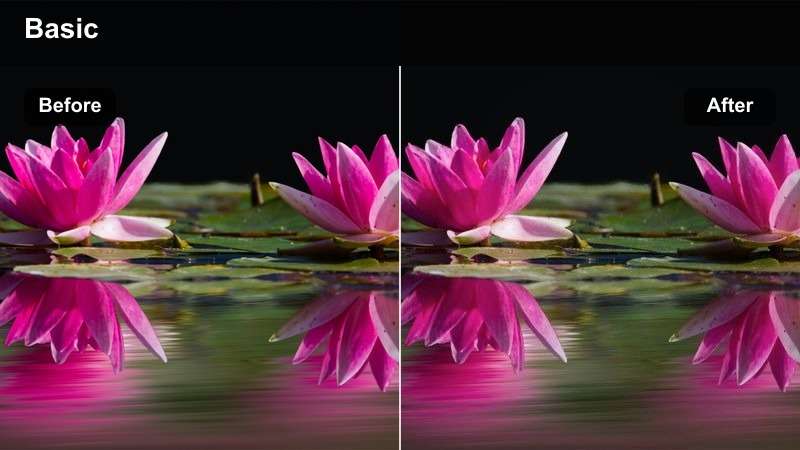
- Effect look: Cool blue shadows with clean whites and focused midtones
- Best for: Competitive gameplay, reaction clips, and cool-toned stream overlays
- Editing tip: Lift the shadows slightly when recording in a dim gaming room
Electric Blue Focus creates cool blue shadows, clean whites, and focused midtones that keep fast gameplay footage sharp and readable. The controlled grade works well for competitive matches, reaction clips, and futuristic game environments.
Use it in Filmora when your footage already contains blue interface elements or cool stream graphics. Lift the shadows slightly in a dim gaming room, and keep saturation moderate when the game includes intense blue effects or bright HUD graphics.
Purple Hype Room
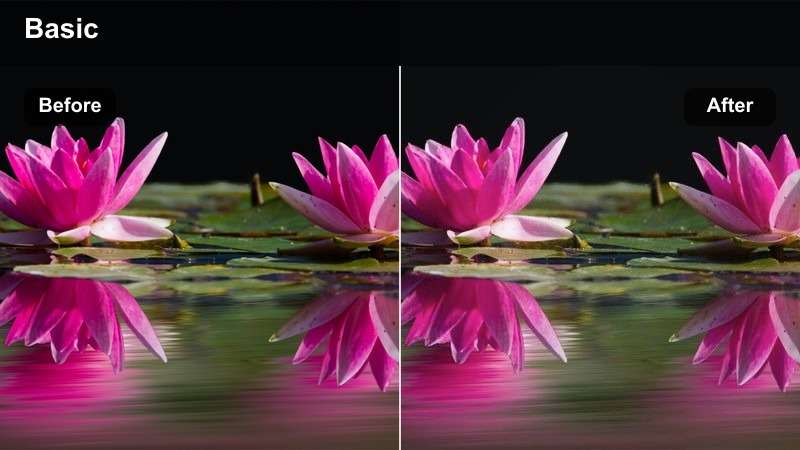
- Effect look: Rich violet shadows with vibrant highlights and soft contrast
- Best for: Stream announcements, creator intros, and celebratory gameplay moments
- Editing tip: Add a small amount of glow after the filter for a more immersive broadcast feel
Purple Hype Room adds rich violet shadows, vibrant highlights, and soft contrast for memorable creator branding. It is especially effective for stream announcements, creator intros, and celebratory gameplay moments with purple or lavender overlay accents.
Apply the look in Filmora and add a small amount of glow for a more immersive broadcast feel. Lower the effect strength for webcam footage so natural facial detail remains clear, then save the adjusted version if purple is part of your channel identity.
Build a Twitch Color Palette with AI
Use AI color tools to explore palettes that match your channel logo, stream overlay, webcam lighting, and favorite game genres. A consistent palette can make every scene feel connected before you even apply a filter.
Start with one main brand color, one highlight color, and neutral background tones. Then adjust your LUT or filter intensity so the grade supports your channel design instead of competing with it.
 secure download

Preview Twitch Video Filters Before Exporting
Filmora makes it easy to compare filter styles across gameplay, webcam footage, and overlay-heavy layouts. Preview each look on representative clips before choosing a final grade for your stream highlights.
For the most reliable results, check skin tones, dark game areas, alert graphics, and small chat text. A filter should improve the mood while keeping the important stream information clear.
secure downloadTurn Filter Looks into Reusable LUT Presets
Once you find a style that fits your channel, save the adjusted color treatment as a reusable preset. This helps you maintain consistent Twitch color grading across live stream recordings, gameplay highlights, and just chatting videos.
Organize presets by scene type, such as webcam, gameplay, intro, and community chat. Keeping a small collection of dependable looks makes editing faster and gives your content a more professional finish.
secure downloadWarm Creator Studio
Golden Chat
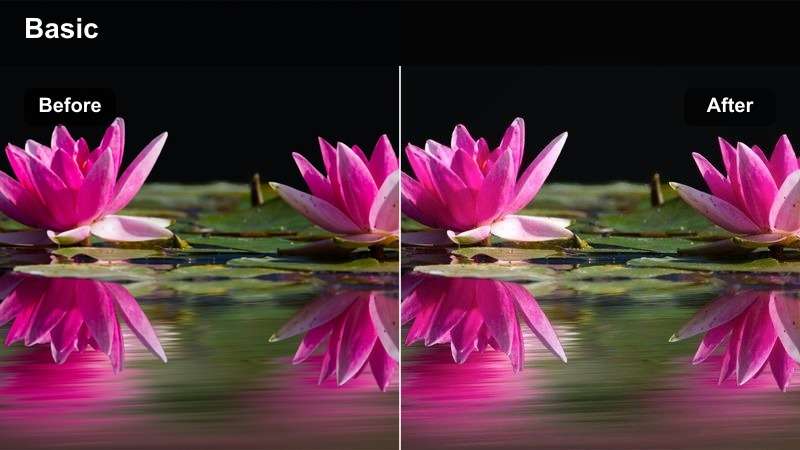
- Effect look: Warm highlights, honey-toned skin, and gentle contrast
- Best for: Just chatting streams, Q&A segments, and creator update videos
- Editing tip: Use a lower strength when warm room lights are already visible in the frame
Golden Chat uses warm highlights, honey-toned skin, and gentle contrast to make conversational content feel welcoming and polished. It works well for just chatting streams, Q&A segments, and creator update videos where the face-cam is the main focus.
Use a lower strength in Filmora when warm room lights are already visible, and match the grade with amber lighting and warm alert graphics. Its softer contrast is comfortable for longer face-cam segments and helps maintain a friendly channel presentation.
Sunset Stream
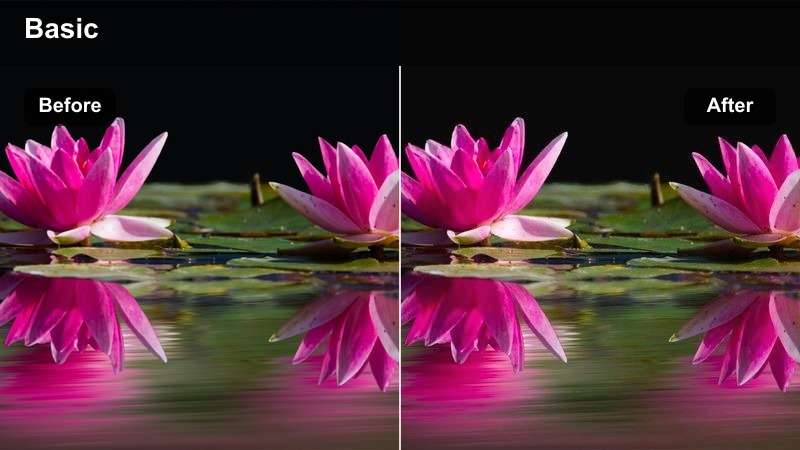
- Effect look: Peach highlights, rosy midtones, and softened shadows
- Best for: Evening broadcasts, personal stories, and relaxed community streams
- Editing tip: Protect skin tones by reducing red saturation if the camera lighting is already warm
Sunset Stream adds peach highlights, rosy midtones, and softened shadows for relaxed evening-focused Twitch content. It is a natural fit for personal stories, channel updates, and community broadcasts with a calm, intimate mood.
In Filmora, reduce red saturation if the camera lighting is already warm to protect skin tones. This filter can also help unify clips recorded at different times when the footage shares a similar warm lighting style.
Clean Studio Light
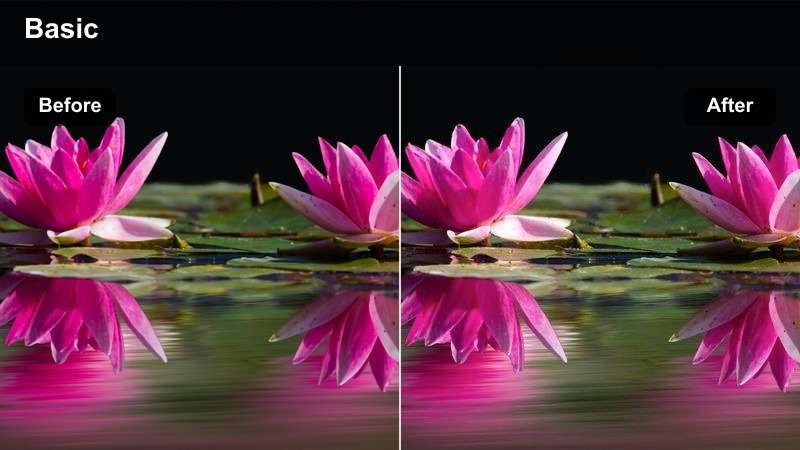
- Effect look: Balanced exposure, neutral whites, and natural skin tones
- Best for: Tutorial streams, product showcases, and professional creator content
- Editing tip: Use this as a base filter before adding a subtle brand color or vignette
Clean Studio Light provides balanced exposure, neutral whites, and natural skin tones for a clear and professional broadcast appearance. It is useful for tutorial streams, product showcases, announcements, and other creator content that depends on visual clarity.
Use it as a starting point in Filmora before adding a subtle brand color or vignette. This preset helps keep webcam recordings, tutorials, and announcements consistent while allowing your channel identity to come through in graphics and borders.
Cinematic Gameplay Highlights
Deep Game Cinema
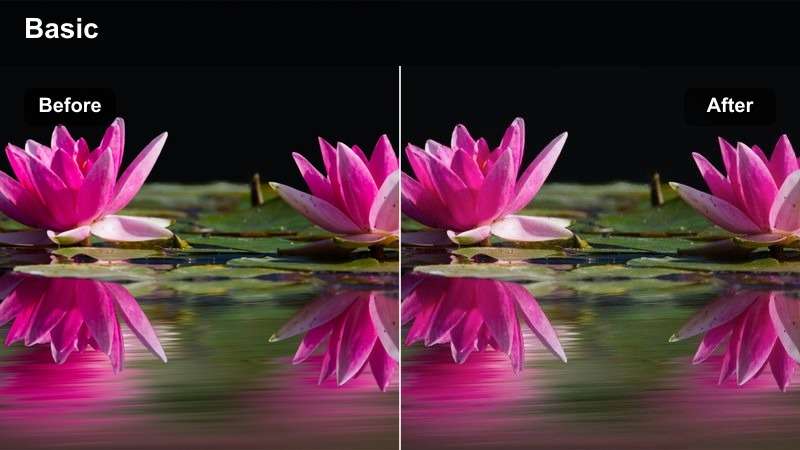
- Effect look: Deeper blacks, controlled highlights, and cinematic color separation
- Best for: Story-driven gameplay, boss battles, and edited highlight videos
- Editing tip: Check dark game areas carefully and lift shadows if important details disappear
Deep Game Cinema creates deeper blacks, controlled highlights, and cinematic color separation for story-driven gameplay. It can turn boss battles and important gameplay moments into more dramatic highlight sequences.
Use this effect selectively in Filmora rather than applying it to every scene, so the strongest parts of your video feel more impactful. Check dark game areas carefully, lift shadows when details disappear, and combine the grade with clean transitions or subtle letterboxing.
Arcade Crush
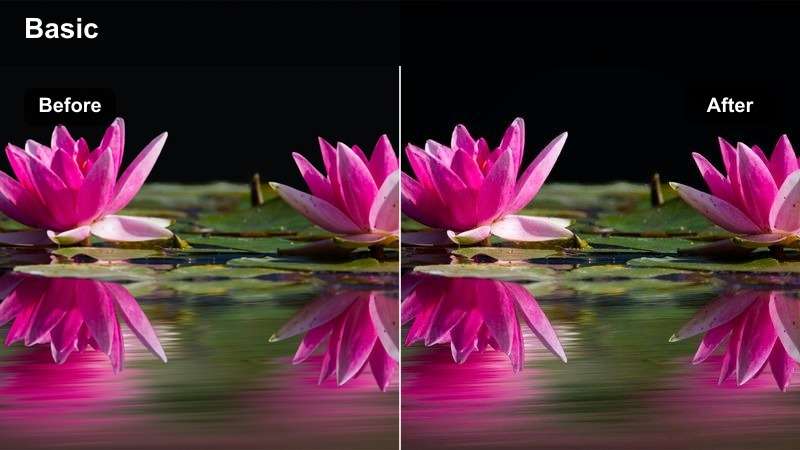
- Effect look: Punchy saturation, bold contrast, and energetic game color
- Best for: Arcade games, multiplayer wins, speedruns, and short-form clips
- Editing tip: Lower saturation slightly when game graphics already use intense primary colors
Arcade Crush combines punchy saturation, bold contrast, and energetic color for short clips that need immediate visual impact. It is well suited to arcade games, multiplayer wins, speedruns, and fast highlight compilations.
Lower saturation slightly in Filmora when the game already uses intense primary colors. The strong color separation works especially well with fast cuts, beat-synced transitions, and concise on-screen captions for social feeds.
Moody Stealth
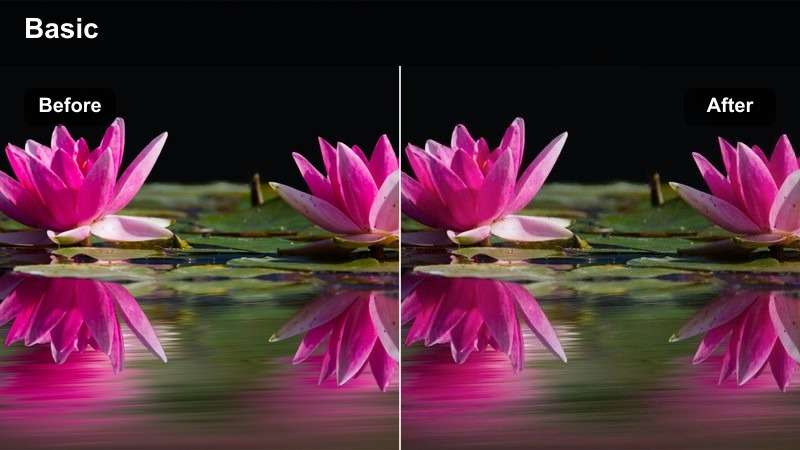
- Effect look: Muted color, cool shadows, and restrained highlight detail
- Best for: Stealth games, suspenseful gameplay, and serious commentary clips
- Editing tip: Preserve shadow detail so dark game environments remain easy to follow
Moody Stealth uses muted color, cool shadows, and restrained highlight detail to support suspenseful footage and focused storytelling. It is a strong choice for stealth games, serious commentary clips, and low-key gameplay sequences.
Preserve shadow detail in Filmora so dark environments remain easy to follow, and raise exposure slightly during face-cam sections. The restrained style creates a serious mood without relying on heavy effects or distracting graphics.
Community and Overlay Moments
Chat Room Soft
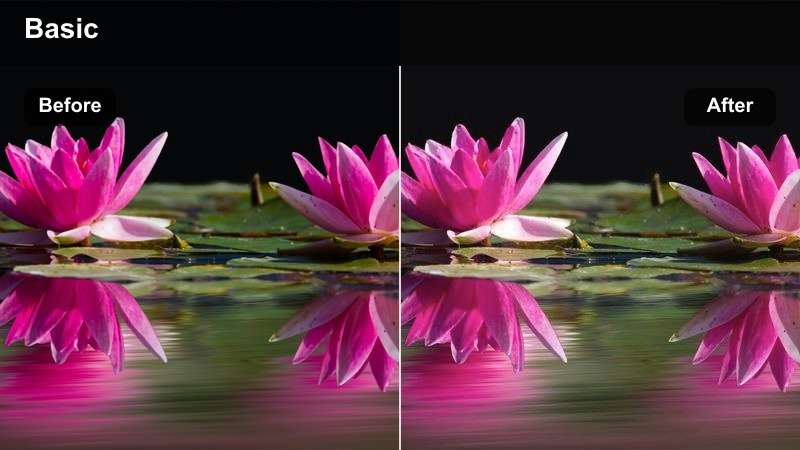
- Effect look: Soft contrast, gentle warmth, and smooth highlight rolloff
- Best for: Community chats, viewer call-ins, and relaxed just chatting broadcasts
- Editing tip: Keep the filter subtle so chat widgets and alert text stay easy to read
Chat Room Soft provides soft contrast, gentle warmth, and smooth highlight rolloff for conversational broadcasts where the creator and community are the focus. It is useful for viewer call-ins, relaxed chats, and longer just chatting segments.
Keep the filter subtle in Filmora so chat widgets and alert text remain easy to read. Pair it with uncluttered overlays and comfortable lighting to create a low-fatigue viewing experience that keeps attention on the interaction.
Overlay Contrast
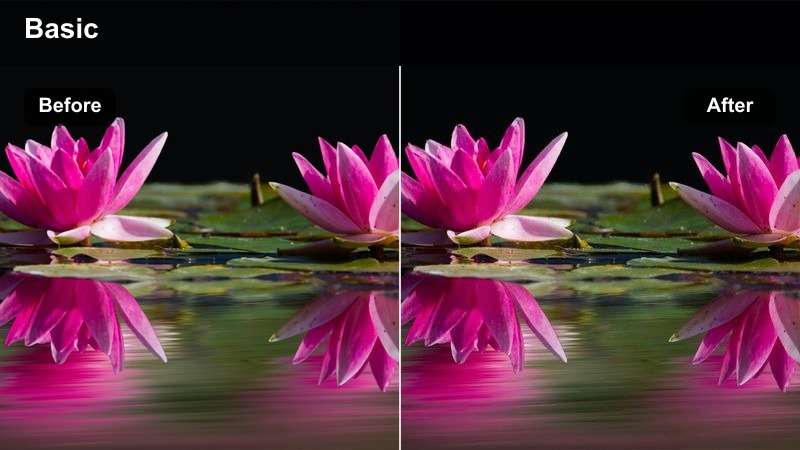
- Effect look: Clear subject separation, moderate contrast, and graphic-friendly color
- Best for: Stream layouts with alerts, webcam frames, donation panels, and large labels
- Editing tip: Test the filter with every overlay layer to prevent text and borders from blending into the background
Overlay Contrast keeps the camera image and broadcast graphics visually distinct through clear subject separation, moderate contrast, and graphic-friendly color. It works well for layouts with alerts, webcam frames, donation panels, and large labels.
Test the filter with every overlay layer in Filmora, including animated alerts and bright borders. Preview the design at the size viewers may see on mobile or smaller displays so text remains readable and the grade does not become too strong.
Creator Brand Tone
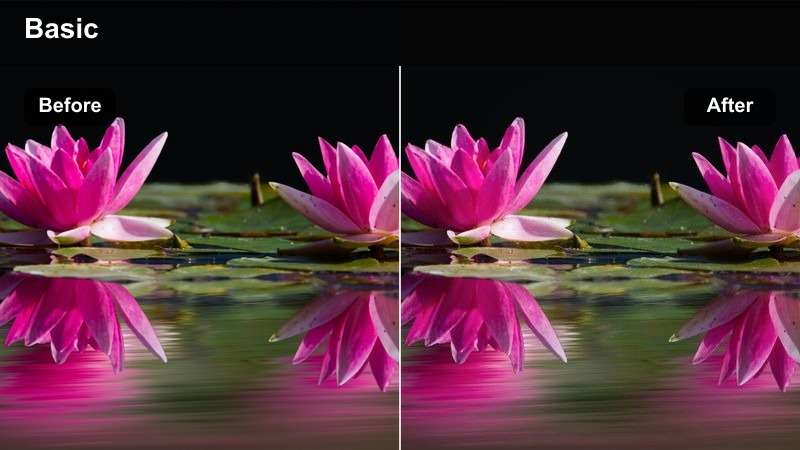
- Effect look: Balanced contrast with a flexible tint for recognizable channel branding
- Best for: Channel trailers, recurring segments, sponsor clips, and branded stream recaps
- Editing tip: Adjust the tint to match your established overlay colors before exporting a reusable preset
Creator Brand Tone uses balanced contrast and a flexible tint to keep different Twitch content visually connected. It is a versatile choice for channel trailers, recurring segments, sponsor clips, and branded stream recaps.
Adjust the tint in Filmora to match your established overlay colors, then save the result as a custom preset. Choose one signature tint and use it consistently across recaps, short clips, and promotional videos to strengthen your visual identity.
Tips for Using Twitch Lut Download Filters in Filmora
- Correct exposure and white balance before applying a Twitch video filter.
- Use stronger grades for gameplay highlights and softer grades for face-cam or just chatting footage.
- Check your stream overlay after applying the filter to make sure alerts, borders, and text remain readable.
- Keep skin tones natural by lowering saturation or tint intensity when necessary.
- Save customized versions as reusable presets for consistent color grading across future uploads.
- Preview filters on both bright gameplay and dark scenes before exporting a complete highlight reel.
A well-chosen Twitch stream LUT pack can give your channel a more consistent look across live broadcasts, gameplay highlights, and community-focused videos. Start with a filter that matches the mood of your content, then fine-tune exposure, contrast, and intensity for your specific setup.
Download the free pack, test the styles in Filmora, and save the looks that best support your stream overlay color grading and creator brand.
secure downloadNext: Free Vimeo LUT Pack
