

 100% Security Verified | No Subscription Required | No Malware


 ChatGPT
 Perplexity
 Gemini
 Claude
 Grok
Grok
This free LUT bundle cinematic collection is designed for creators and editors who want quick, filmic color grades without complex node trees or endless tweaking.
Inside this pack you will find 12 cinematic-inspired filters tuned for Filmora, with looks ranging from subtle natural contrast to stylized teal and orange, each paired with editing tips to help you match different scenes and skin tones.
In this article
Moody Urban Dusk Dramas
Neo Noir City
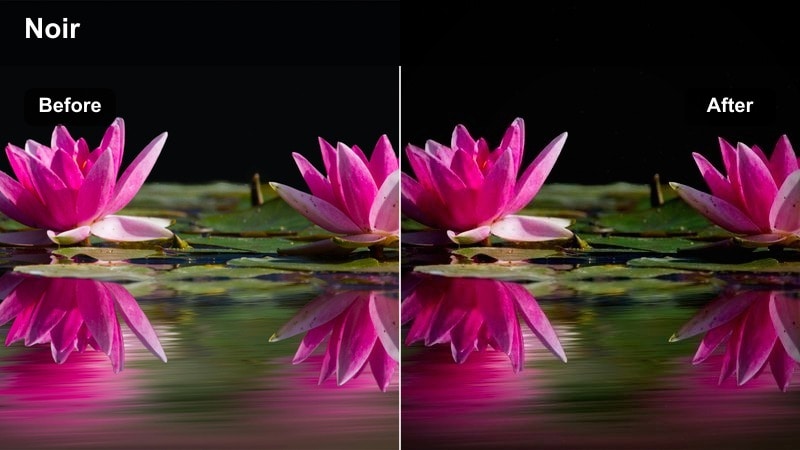
- Effect look: High-contrast cool shadows with muted highlights for a gritty, cinematic noir feel.
- Best for: Night city B-roll, moody vlogs, and short narrative thrillers shot in urban streets.
- Editing tip: Underexpose the base clip slightly and pull down saturation a touch to keep skin tones from going too cyan.
Neo Noir City pushes your footage toward a classic crime-thriller aesthetic, with deep cool shadows, controlled highlights, and a subtle desaturation that emphasizes shape and contrast over color. Apply it to night streets, rain-soaked sidewalks, and neon-lit storefronts in Filmora to turn ordinary B-roll into tense cinematic sequences.
For the best results, correct exposure and white balance first, then apply the LUT and fine-tune saturation so faces remain natural while backgrounds stay moody. Use Filmora vignettes and a little film grain to sell the noir vibe, and combine with slow push-ins or tripod shots for dramatic tension.
AI-Assisted Cinematic Color in Filmora
Combine this free LUT bundle cinematic pack with Filmoras AI color tools to get filmic looks in just a few clicks. Let AI balance exposure and white balance so your Neo Noir City and other filters start from a clean, neutral base.
Once the image is balanced, stack these LUTs for style, then refine with Filmoras curves and HSL controls to keep neon signs punchy while skin tones stay believable.
 secure download

See the Filters in Action on Real Scenes
Preview how each cinematic filter behaves on different lighting setups by testing them on city exteriors, interiors, and night scenes in one Filmora timeline. This makes it easier to see which LUT best matches your story tone before you commit.
Create quick before and after comparisons on duplicate clips, so you can judge contrast, saturation, and skin tones at a glance and build a reusable reference project for future edits.
secure download1000+ Video Filters and 3D LUTs
Alongside this free LUT bundle cinematic pack, Filmora includes a large library of built in filters, overlays, and 3D LUTs for every genre. You can mix these with the bundle to create layered, customized grades without leaving the editor.
Save your favorite combinations as Filmora presets so you can apply consistent looks across full series, client projects, or your YouTube channel with a single click.
secure downloadAmber Dusk Streets
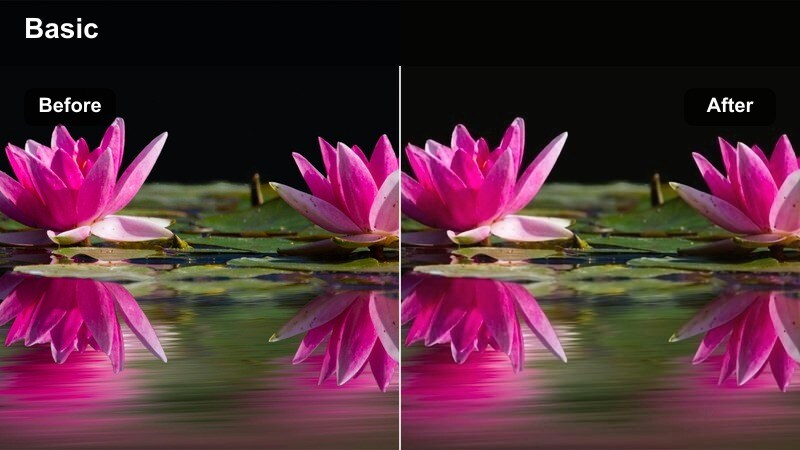
- Effect look: Warm, amber-tinted highlights with soft contrast for golden-hour city footage.
- Best for: Sunset walk-and-talk vlogs, street portraits, and lifestyle B-roll in downtown areas.
- Editing tip: Push white balance slightly cooler before applying the filter to avoid overly orange midtones.
Amber Dusk Streets enhances natural golden hour with a subtle amber cast that flatters skin and concrete alike. It softens contrast so details in hair, clothing, and architecture remain visible while still feeling warmly cinematic.
Use it on late afternoon vlogs or lifestyle sequences where you want a cozy, inviting city atmosphere. In Filmora, correct overly warm footage with a small blue shift before adding the LUT, then adjust the oranges in HSL to fine tune skin tones without dulling the sky.
Subway Thriller
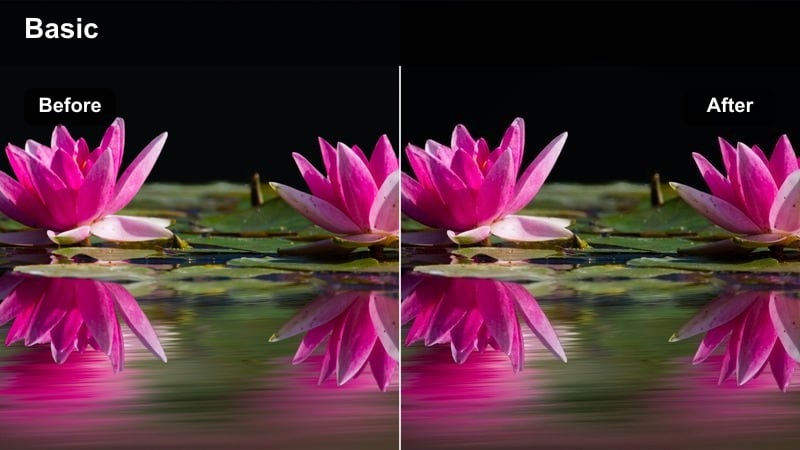
- Effect look: Green-tinted fluorescent highlights with deepened shadows for tense underground scenes.
- Best for: Subway chases, underground parking scenes, and tense dialogue in transit spaces.
- Editing tip: Drop saturation in the greens and yellows slightly so the tint feels cinematic rather than sickly.
Subway Thriller pushes fluorescent lighting into a cool, suspenseful palette, with a gentle green cast and heavier shadows to underline tension. It is ideal for underground spaces where practical lights create harsh, uneven illumination.
After adding the LUT in Filmora, soften the greens and yellows with HSL to prevent an unnatural sickly look while keeping the cinematic mood. Pair this look with slower shutter-style motion blur or handheld footage to emphasize anxiety, and add a vignette to keep attention on your subject amid busy backgrounds.
Natural Skin Tone Storytelling
Soft Portrait Film
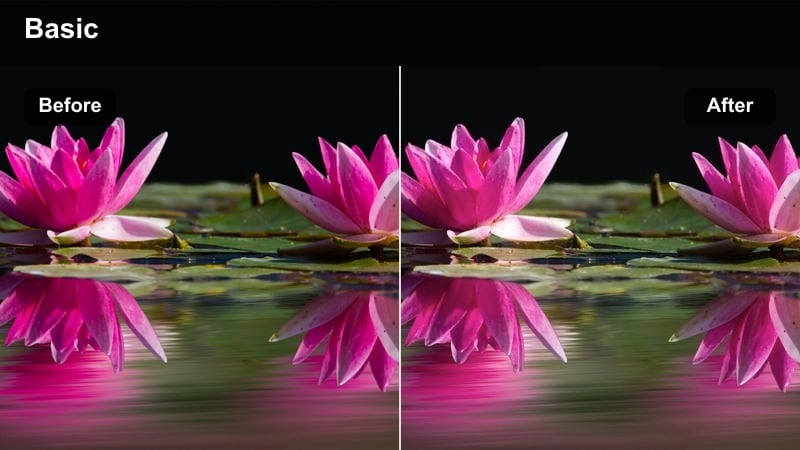
- Effect look: Gentle contrast with slightly lifted blacks and neutral, flattering skin tones.
- Best for: Talking-head content, beauty videos, interviews, and sit-down storytelling.
- Editing tip: Use the filter at 70–80 percent intensity and add a small clarity boost to keep eyes crisp.
Soft Portrait Film is tuned to keep faces natural and flattering, with lifted shadows and carefully controlled contrast. It smooths transitions between highlights and midtones, which helps skin look soft while still retaining enough detail for 4K and close-up shots.
Apply it to interview setups, beauty tutorials, or any sit-down content where your subject is the focus. In Filmora, reduce the LUT intensity slightly, then add a touch of clarity or sharpen only the eyes using masks so the face feels cinematic yet still realistic.
Window Light Cinema
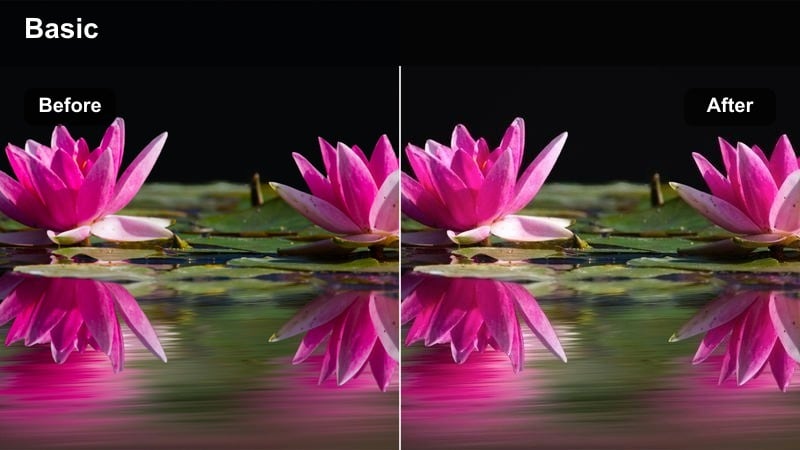
- Effect look: Soft highlight roll-off with cool ambient tones and warm, clean skin.
- Best for: Indoor daytime scenes near windows, documentary interviews, and quiet narrative moments.
- Editing tip: Expose a touch darker than usual to preserve highlight detail in the window before applying the filter.
Window Light Cinema emphasizes the natural contrast between cool room interiors and warm daylight on skin. It softens highlight roll-off so bright windows stay controlled while faces remain luminous and inviting.
Use it on reflective conversations, documentary interviews, or creative B-roll framed around windows. In Filmora, slightly underexpose your footage, then apply the LUT and adjust curves to lift midtones while keeping the brightest highlights capped for a filmic roll-off.
Neutral Studio Clean
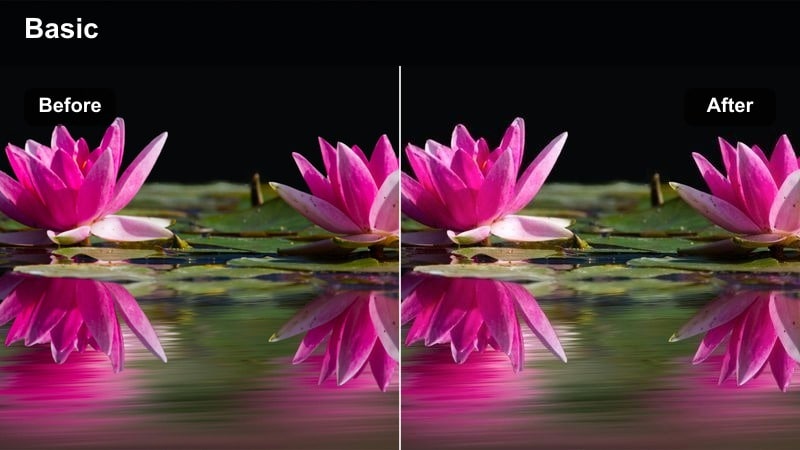
- Effect look: Low-contrast, color-accurate look that keeps whites clean and skin tones true.
- Best for: Tutorials, explainer videos, product demos, and any content with brand colors on screen.
- Editing tip: Apply the filter lightly, then fine-tune white balance using a gray object or backdrop in the shot.
Neutral Studio Clean is built for clarity and accuracy, giving you a polished studio aesthetic without pushing colors into a stylized direction. Whites stay crisp, blacks stay open, and skin tones remain faithful to reality.
This LUT is perfect when you need UI, logos, or product colors to stay on brand in tutorials and demos. In Filmora, use the LUT at a subtle intensity, then dial in white balance with a gray reference and add a small clarity increase so text and on screen elements stay easy to read.
Cinematic Travel and Road Movies
Teal Orange Highway
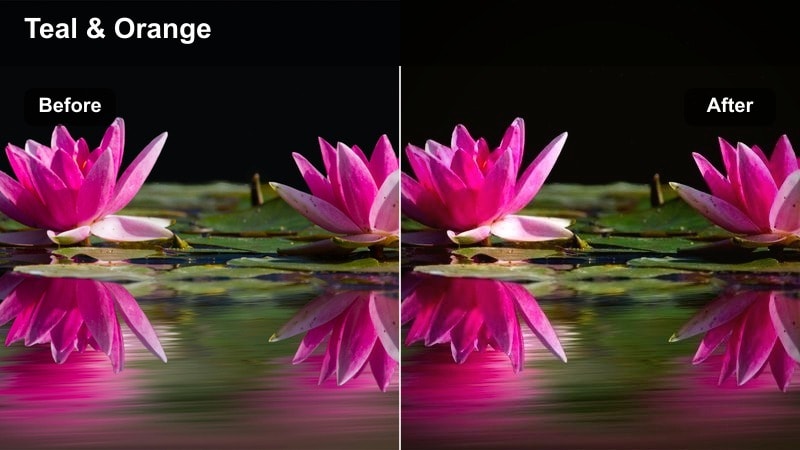
- Effect look: Classic teal shadows with warm highlights that accent road trip skies and skin tones.
- Best for: Road trips, van life vlogs, and cinematic highway B-roll with big skies.
- Editing tip: Dial back teal saturation on shadows if asphalt and cars start to look unnaturally blue.
Teal Orange Highway gives travel footage an energetic blockbuster feel, separating cool shadows from warm highlights to make skies, roads, and faces pop. It is especially effective on wide highway shots, drone passes, and moving car footage.
In Filmora, apply the LUT, then use HSL to restrict teal mostly to darker areas like asphalt and vehicle bodies so midtones and skin stay natural. Combine with a slight contrast boost and stabilization or speed ramping for dynamic, cinematic travel sequences.
Sun Faded Backpack
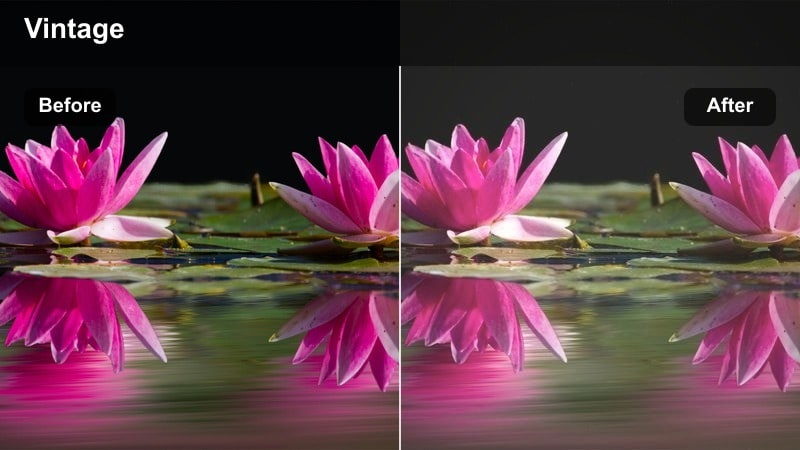
- Effect look: Desaturated colors with lifted blacks and a soft vintage travel postcard vibe.
- Best for: Backpacking montages, handheld travel diaries, and nostalgic city wandering.
- Editing tip: Add a slight blur vignette and reduce sharpness to enhance the worn, analog feeling.
Sun Faded Backpack leans into nostalgia with muted saturation and raised blacks that mimic aged film and weathered prints. It smooths out harsh edges and softens bright colors to create a dreamy, reflective mood.
Apply it across a full travel montage in Filmora to unify clips from different cameras and lighting conditions. Reduce overall sharpness slightly, add a gentle vignette, and consider subtle grain to complete the vintage postcard impression.
City Rooftop Sunset
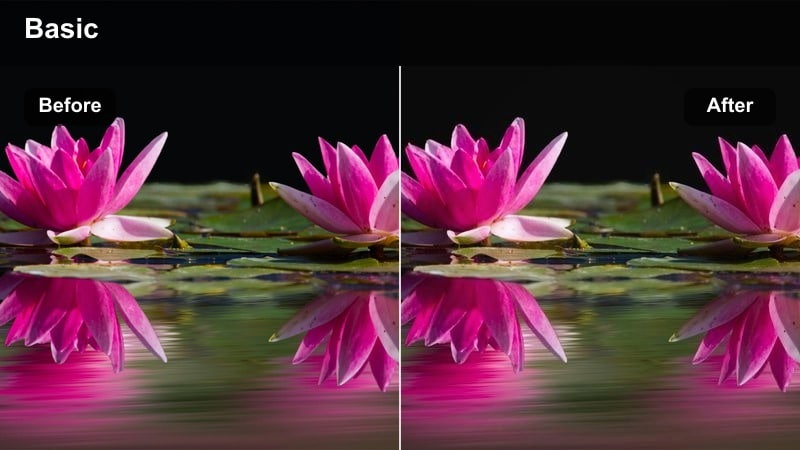
- Effect look: Rich contrast with magenta-tinted skies and warm midtones for elevated city views.
- Best for: Rooftop B-roll, drone flyovers near sunset, and timelapses of city skylines.
- Editing tip: Push saturation in blues and magentas while keeping luminance slightly lower for punchy skies.
City Rooftop Sunset intensifies evening skylines with vibrant magenta and orange tones, making clouds and reflections stand out dramatically. Contrast is boosted to give buildings and silhouettes a crisp, graphic look.
Use this LUT on rooftop sequences, drone shots, or timelapses that capture the city transitioning from day to night. In Filmora, watch the skies in the scopes, then enhance blues and magentas while keeping their luminance moderate to avoid banding and preserve smooth gradients.
Nightlife and Music Video Vibes
Club Neon Glow
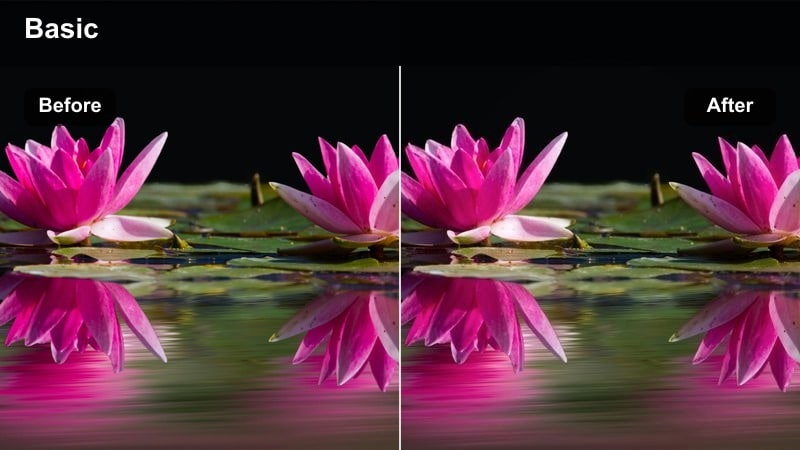
- Effect look: Punchy contrast with saturated neon blues and magentas for crowded nightlife scenes.
- Best for: Music videos, DJ sets, dance floors, and nightlife reels in clubs or bars.
- Editing tip: Use selective color to tame oversaturated reds so faces do not clip in intense lighting.
Club Neon Glow amplifies the energy of nightclubs and live events, pushing neon blues and magentas while deepening shadows for a dramatic, music video-ready aesthetic. It helps strobes and LED walls feel intense without completely washing out your subject.
In Filmora, apply the LUT after slightly lowering exposure and highlights to keep flashing lights under control. Then use HSL or selective color tools to hold reds in check so skin and lips do not blow out, and pair with slow motion or stutter edits to emphasize rhythm.
Back Alley Session
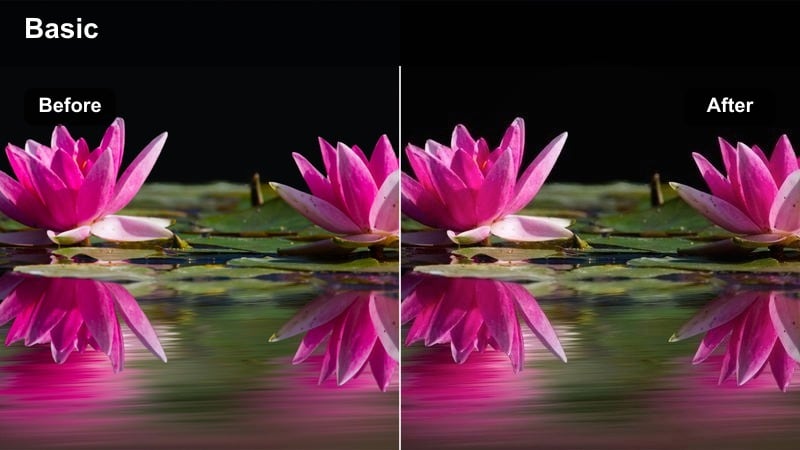
- Effect look: Muted colors with strong contrast and cool shadows for gritty performance shots.
- Best for: Rap videos, indie performances, and street music sessions in alleys or loading docks.
- Editing tip: Crank up local contrast but keep saturation modest to maintain the raw, grounded atmosphere.
Back Alley Session strips away glossy color, favoring desaturated tones and heavy contrast that highlight texture in brick, concrete, and metal. Cool shadows and restrained saturation support a raw, underground performance mood.
Use it on performance pieces, cypher style videos, or narrative scenes set in alleys and industrial zones. In Filmora, combine the LUT with vignettes and masks to darken the environment while adding a slightly warmer masked spotlight over your artist so they stand out from the cool, gritty background.
Late Night Ride
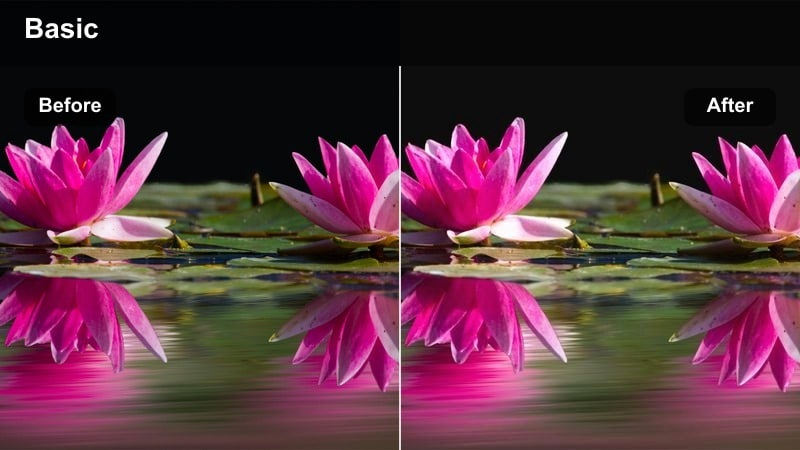
- Effect look: Cinematic car interiors with deep blues, soft specular highlights, and warm skin.
- Best for: Night drives, in-car dialogue, ride-along vlogs, and reflective character moments.
- Editing tip: Reduce black levels slightly after the filter so details outside the windows are not completely crushed.
Late Night Ride balances cool exterior blues with warm interior tones to create intimate car scenes that still feel connected to the city outside. Highlights from streetlights and passing cars are softened while faces retain a gentle warmth.
Apply this LUT to in car conversations, reflective monologues, or ride along vlogs. In Filmora, slightly lift the black point after adding the LUT to recover detail outside windows, then use masks to darken distracting reflections and keep focus on your subject framed by the night.
Tips for Using Free Lut Bundle Cinematic Filters in Filmora
- Always correct exposure and white balance in Filmora before applying any LUT from the free cinematic bundle.
- Start with a lower LUT intensity and gradually increase until the look supports your story without overpowering it.
- Use Filmora scopes to watch for crushed shadows and clipped highlights, especially with high contrast noir or nightlife looks.
- After strong teal, neon, or club grades, slightly reduce orange saturation to keep skin tones believable.
- Group similar scenes on your timeline and copy color settings so your grade stays consistent from shot to shot.
- Combine each LUT with light curves, HSL tweaks, and a touch of grain instead of heavy global saturation changes.
- Export short test clips and review them on phones, laptops, and TVs to make sure your cinematic grade holds up everywhere.
- Save your favorite LUT plus adjustment combinations as Filmora presets to speed up future edits.
This free LUT bundle cinematic set gives creators and editors a fast way to achieve polished, story-driven color without heavy technical work.
Download the pack, try each filter on your next project in Filmora, and refine a signature look that you can reuse across future edits.
secure download