

 100% Security Verified | No Subscription Required | No Malware


 ChatGPT
 Perplexity
 Gemini
 Claude
 Grok
Grok
These free LUTs skin tone natural style Filmora filters are designed for creators and editors who want cinematic color grading without sacrificing realistic faces.
Use the presets below to softly shape contrast, warmth, and saturation so every scene feels polished while keeping skin tones clean, flattering, and true to life.
In this article
Soft Daylight Portraits and Talking-Head Videos
Creamy Day Balance
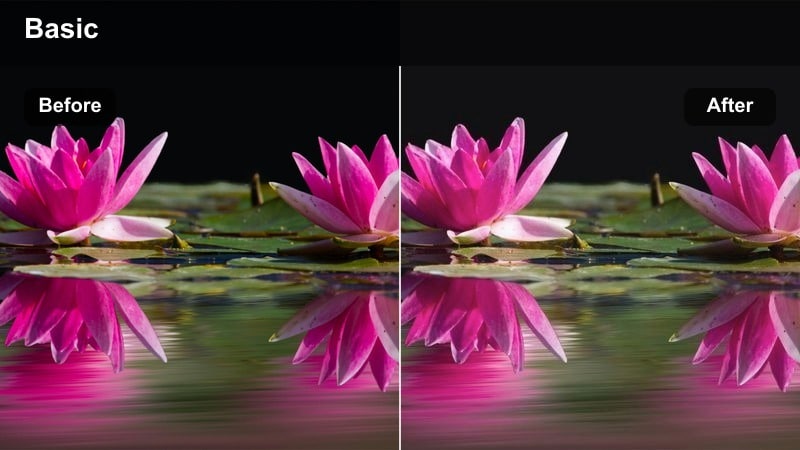
- Effect look: Soft, low-contrast daylight filter with gentle highlight rolloff and creamy midtones.
- Best for: Talking-head YouTube videos, vlogs filmed near windows, and educational content with bright rooms.
- Editing tip: Lower overall contrast slightly, then use the skin tone slider or HSL panel to subtly warm oranges without oversaturating reds.
Creamy Day Balance is built to smooth out hard window light while keeping faces believable and flattering. In Filmora, it slightly lifts shadows and eases harsh highlights so skin texture stays visible instead of turning shiny or blown out.
Apply this preset to talking-head clips, then fine-tune exposure and white balance to match your background. If you switch camera angles, copy and paste the look across cuts so skin tone remains consistent throughout the whole video.
AI-Assisted Natural Skin Color in Filmora
Filmora's AI color tools help you clean up exposure and white balance fast, so these free LUTs skin tone natural filters sit on top of a solid base. Correct big shifts in temperature or tint in one click instead of manually guessing with sliders.
Once your clip is balanced, add Creamy Day Balance or any other preset to refine contrast and warmth around the face without fighting against bad lighting.
 secure download

Preview Filters on Real Skin Tone Footage
To see which free LUTs skin tone natural preset fits best, duplicate a few clips on your Filmora timeline and test different filters side by side. Watching how each one treats highlights, cheeks, and lips makes it easier to spot subtle color issues.
Compare close-ups from several people so you are not grading only for one skin tone. The ideal preset keeps all faces neutral, avoiding strange tints in shadows or overly rosy midtones.
secure download1000+ Video Filters and 3D LUTs
Beyond these natural skin tone looks, Filmora offers a large library of filters and 3D LUTs for cinematic, vintage, and stylized moods. You can stack them with subtle presets to build a unique grade that still respects realistic faces.
After applying any filter pack, fine-tune skin with Filmora's color tools, then save your adjustments as a custom preset so you can reuse your signature style on future edits.
secure downloadNeutral YouTube Clean
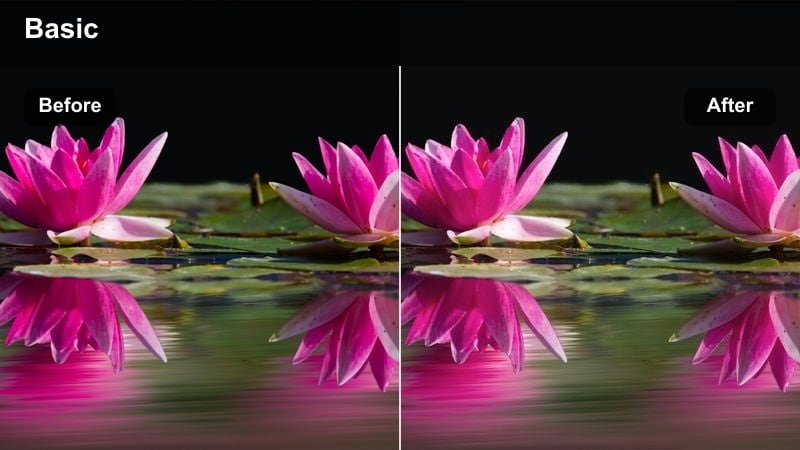
- Effect look: Balanced, modern YouTube filter with crisp yet natural skin and neutral background tones.
- Best for: Tutorials, tech reviews, productivity channels, or any clean studio-style talking head.
- Editing tip: Drop saturation a touch on blues and greens so your shirt or background lights do not overpower the subject's face.
Neutral YouTube Clean gives your studio or desk setup a polished, broadcast-style finish while preserving lifelike skin. It slightly refines contrast and color balance so whites, grays, and wall colors stay neutral instead of drifting blue or yellow.
Use this preset in Filmora when you want consistent, professional talking-head videos across a whole series. After applying it, adjust saturation on colorful background elements so faces remain the focal point even when RGB lights or posters are in frame.
Windowlight Soft Warmth
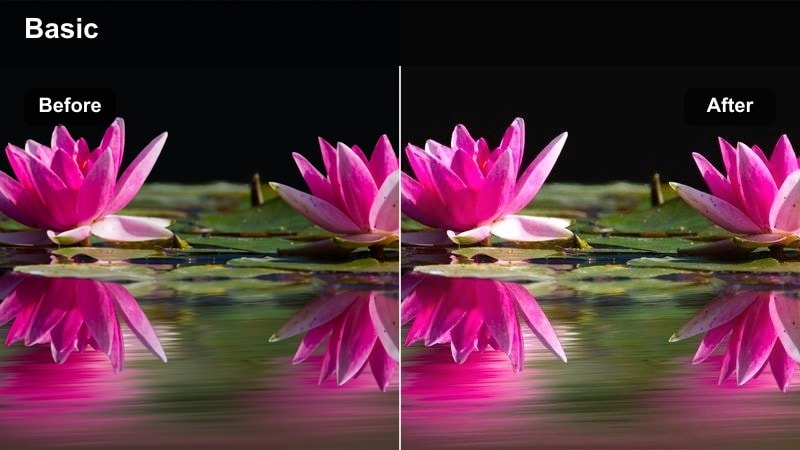
- Effect look: Warm daylight filter that adds subtle amber glow while preserving neutral skin undertones.
- Best for: Lifestyle vlogs, indoor candid moments, and casual interview setups beside windows.
- Editing tip: If your footage is already warm, slightly cool the white balance first so the warmth from the filter feels intentional, not orange.
Windowlight Soft Warmth is ideal when you want a cozy, sunlit feeling without pushing skin too far into orange territory. It adds a delicate golden cast to highlights while keeping midtones and shadows under control so faces still look realistic.
In Filmora, apply this preset to clips shot near windows during the day, especially lifestyle or conversation scenes. Balance white balance and tint first, then use the filter to gently enhance the existing light rather than trying to fix strong color problems.
Golden Hour and Outdoor Lifestyle Scenes
Sunset Film Soft
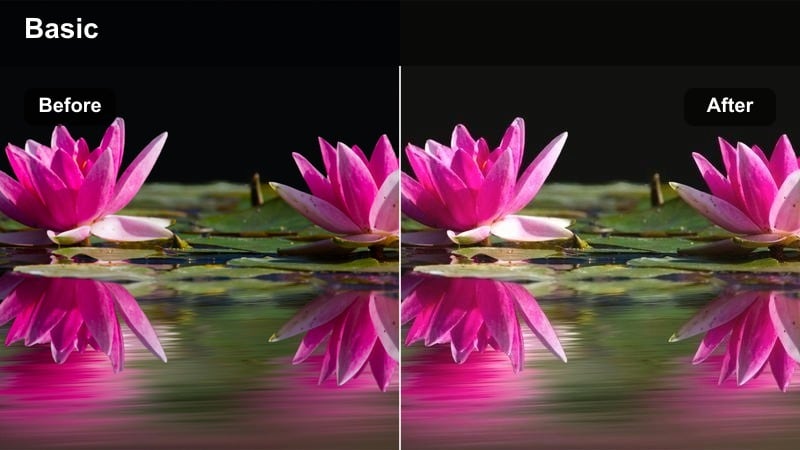
- Effect look: Soft cinematic sunset filter with pastel highlights and smooth, glowing skin.
- Best for: Golden hour portraits, outdoor couples shots, travel lifestyle reels, and slow-motion b-roll.
- Editing tip: Lower the overall exposure slightly, then bring up midtones so faces hold detail while the sky stays rich and colorful.
Sunset Film Soft turns harsh end-of-day sun into a gentle, cinematic glow that flatters skin. It rolls off highlights and infuses warm pastel tones into the brightest areas so your subjects look bathed in soft sunset light instead of harsh orange streaks.
Use this preset in Filmora on backlit or side-lit golden hour shots where you want dreamy warmth but still need detail in faces and skies. Adjust exposure first, then fine-tune midtones so skin remains the focus while clouds and background colors stay saturated.
Park Day Natural
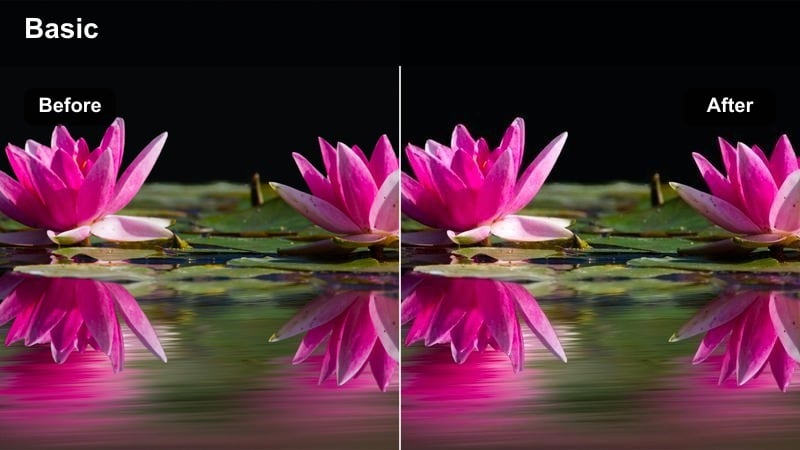
- Effect look: Clean outdoor filter that tames green backgrounds while leaving skin tones neutral and fresh.
- Best for: Family park footage, outdoor vlogs, exercise routines, and handheld walk-and-talks.
- Editing tip: Gently reduce saturation and luminance of greens so foliage looks soft and cinematic without casting color onto faces.
Park Day Natural is designed to calm down strong greens from grass and trees that often spill onto faces. It subtly desaturates and darkens greens while protecting accurate skin tones, keeping your subject from looking sickly or tinted.
Apply this filter in Filmora to daytime park footage, fitness videos, or outdoor interviews where backgrounds can be visually busy. After applying, refine the HSL controls on greens and yellows to remove any color cast on cheeks and forehead while keeping the environment lush.
Street Golden Neutral
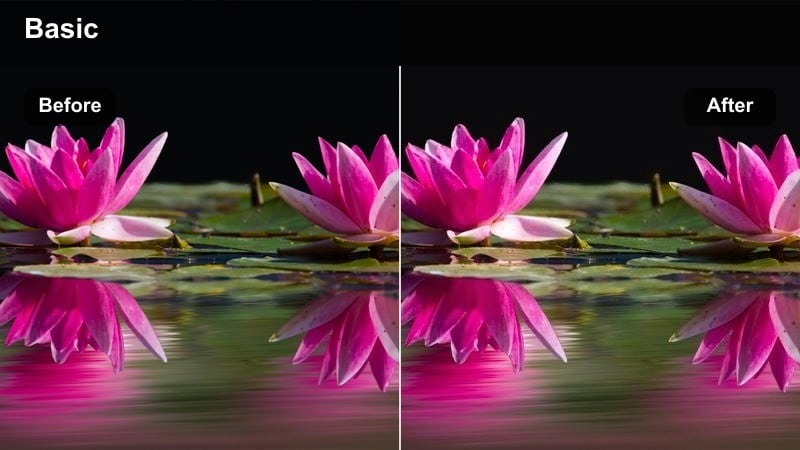
- Effect look: Warm street-style filter that adds golden tones to highlights while keeping urban shadows neutral.
- Best for: Urban golden hour walks, rooftop scenes, and city lifestyle content shot in soft sun.
- Editing tip: Boost contrast slightly in the shadows to retain structure in buildings while allowing faces to stay soft and bright.
Street Golden Neutral gives city scenes a stylish evening glow, adding warmth to sunlit edges while leaving concrete and shadows grounded. Skin retains a realistic hue so your subject does not clash with colorful shop signs or reflections.
In Filmora, use this preset on rooftop b-roll, sidewalk walk-and-talks, or lifestyle montages. Shape contrast with curves to keep architectural lines defined, then tweak highlight warmth so faces and sky feel cohesive without crossing into oversaturated orange.
Indoor Warm Ambient and Practical-Light Scenes
Cozy Room Neutral
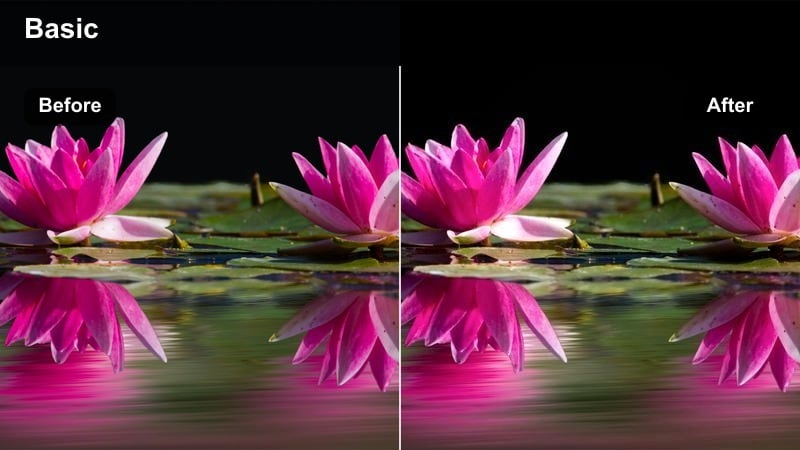
- Effect look: Soft indoor filter that cleans up yellow and orange casts from lamps while preserving warmth in skin.
- Best for: Cozy bedroom vlogs, desk setups with warm bulbs, and late-night conversation videos.
- Editing tip: Lower saturation on yellows but slightly boost warmth in midtones so faces feel inviting, not overly tungsten.
Cozy Room Neutral is tuned to handle strong tungsten or warm LED bulbs that can turn walls and skin overly yellow. It balances those warm sources so the overall scene still feels cozy while keeping skin tone closer to neutral.
Apply this preset in Filmora for bedroom chats, booktube videos, or any indoor content lit mainly by lamps. After adding it, refine yellow and orange saturation so furniture and decor do not compete with your face for attention.
Studio Soft Panel
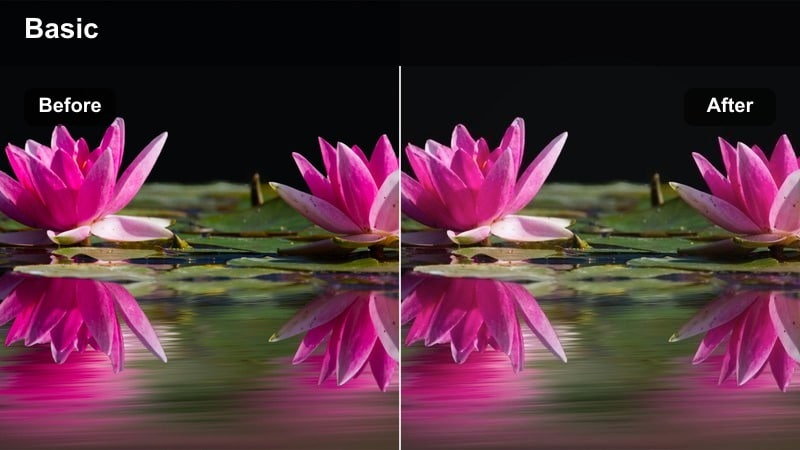
- Effect look: Modern studio filter crafted for LED panels, offering smooth complexion and controlled contrast.
- Best for: Podcast sets, dual-host interviews, and talking heads lit with soft boxes or LED panels.
- Editing tip: Fine-tune tint to neutralize any green from budget LED panels and add a tiny bit of clarity only on the eyes.
Studio Soft Panel smooths contrast and refines color for panel-lit sets, making skin look clean and evenly lit. It gently manages highlights from soft boxes so foreheads and cheeks do not look oily or overly reflective on camera.
Use this preset in Filmora for podcast shows, multi-guest interviews, or any studio backdrop. Once applied, adjust tint and saturation using Filmora's color tools to counteract any green or magenta shifts from your specific lights, ensuring all guests match in tone.
Evening Desk Focus
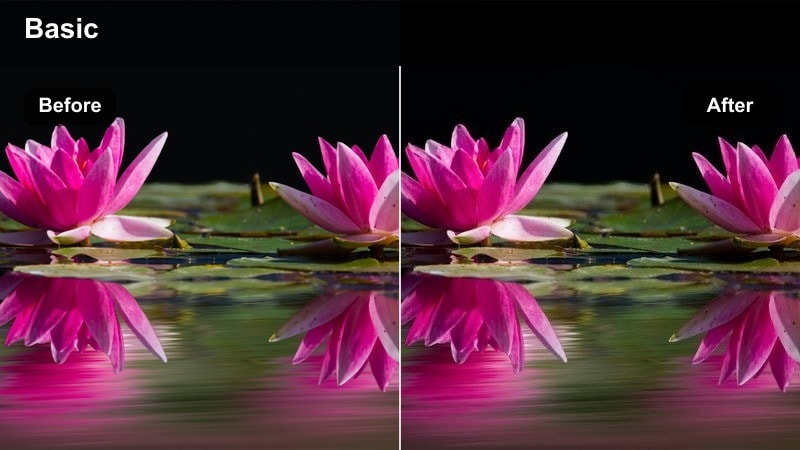
- Effect look: Low-light filter that lifts shadows and reduces noise contrast while keeping skin subtle and calm.
- Best for: Nighttime productivity vlogs, coding streams, and desk setups with minimal light sources.
- Editing tip: Lift shadows just enough to reveal facial features, then add a slight vignette to keep background darkness cinematic.
Evening Desk Focus is made for dim rooms lit mainly by screens or a single lamp. It raises shadow detail and softens harsh digital noise so your face remains clear without destroying the moody, late-night atmosphere.
In Filmora, apply this preset to nighttime desk b-roll, streaming intros, or study-with-me content. Combine it with gentle noise reduction and a vignette so the subject stays visible at the center while the edges of the frame stay naturally dark.
Subtle Cinematic and Filmic Narrative Looks
Soft Film Neutral
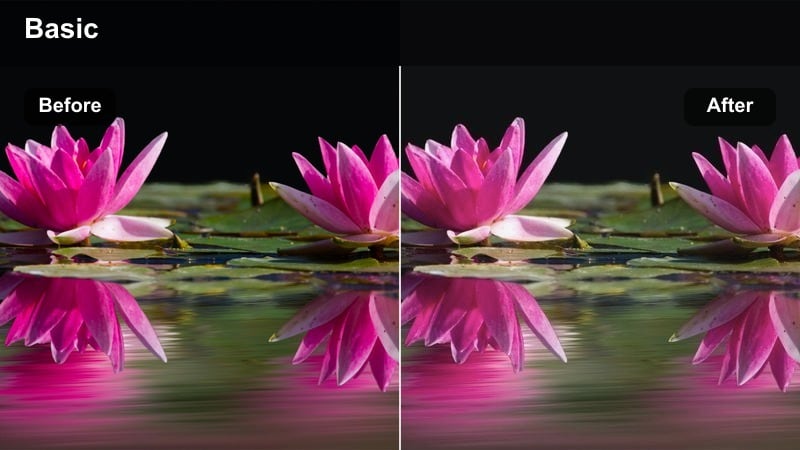
- Effect look: Gentle filmic curve with lifted blacks, softened contrast, and neutral yet slightly creamy skin.
- Best for: Short films, narrative scenes, and branded content needing a light cinematic touch.
- Editing tip: Use the filter as a base, then tweak midtone contrast with curves to match the mood of each scene while keeping skin intact.
Soft Film Neutral introduces a subtle analog-style curve that gently lifts shadows and adds a touch of creaminess to skin. It avoids heavy color casts so you keep storytelling flexibility while still gaining a cohesive, cinematic baseline.
In Filmora, apply this preset across your entire project to unify shots from different cameras or locations. Then, per scene, nudge exposure and curves to match mood while preserving stable skin tone from one sequence to the next.
Urban Film Muted
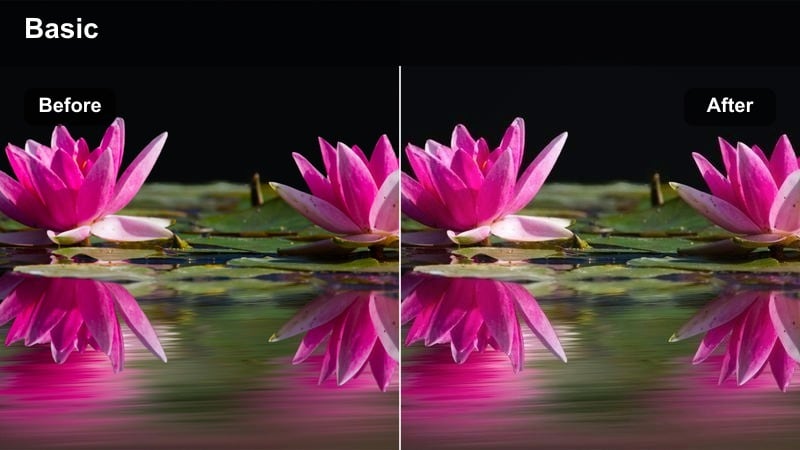
- Effect look: Desaturated urban filter that mutes environment colors while leaving skin natural and slightly warm.
- Best for: Street documentaries, moody city B-roll, character walks, and handheld narrative scenes.
- Editing tip: Gently desaturate blues and cyans in buildings and sky so the subject's face is the most vivid color in frame.
Urban Film Muted softens the intensity of city colors so your character stands out against buildings, signs, and traffic. Skin retains a subtle warmth and natural saturation, drawing the eye toward expressions rather than neon lights.
Use this preset in Filmora for character-focused city walks, documentary sequences, or moody travel edits. After applying it, fine-tune the saturation of blues, cyans, and greens so the environment supports the story without overpowering the subject.
Documentary True Skin
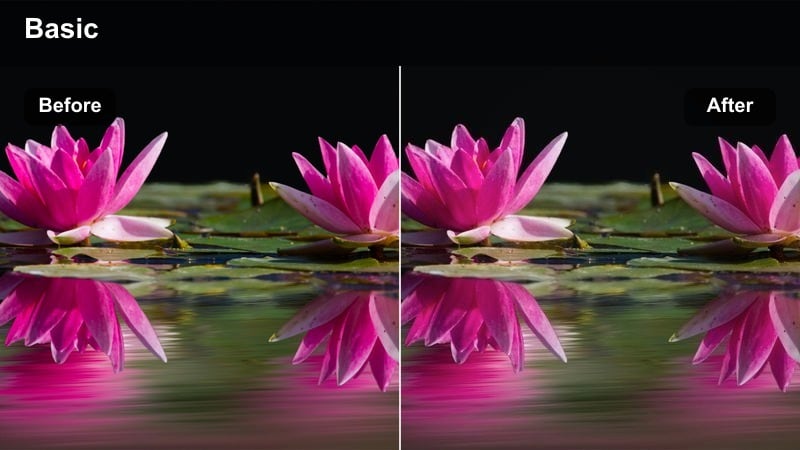
- Effect look: Realistic documentary filter prioritizing accurate skin across diverse tones with minimal stylization.
- Best for: Interviews, real-world events, documentary sequences, and social impact stories.
- Editing tip: Perform a basic white balance correction first, then fine-tune skin using HSL so all subjects look natural and respected.
Documentary True Skin focuses on honest, lifelike representation across a wide range of skin tones. It keeps contrast moderate and color neutral so the viewer pays attention to the story and emotion, not to heavy grading.
In Filmora, apply this preset to interviews and observational footage where authenticity matters most. Adjust white balance and HSL controls per shot to ensure every person looks accurate and consistent, even when lighting conditions vary during the shoot.
Tips for Using Free Luts Skin Tone Natural Filters in Filmora
- Always correct exposure and white balance before judging how a natural skin tone LUT or filter truly looks on your footage.
- Check your graded clips on both bright and dim screens to be sure skin does not look too flat, oversaturated, or washed out for viewers.
- Use Filmora scopes like waveform and vectorscope to keep saturation controlled and avoid clipping highlights in faces.
- Test each preset on several people with different skin tones so your final choice works fairly for everyone in the project.
- Keep contrast gentle in close-ups, since overly strong contrast can exaggerate texture and break the soft, natural look.
- If skin shifts too orange, reduce saturation in the orange channel instead of simply cooling the overall color temperature.
- Add selective sharpening to eyes, brows, and hair only, leaving skin slightly softer and more flattering.
- Create a short reference timeline with your favorite clips graded well, and use it as a template for future Filmora projects.
Natural-looking skin is the anchor of any professional video, and these free LUTs skin tone natural style filters in Filmora give you an easy way to protect faces while still adding cinematic polish.
Experiment with the presets that match your lighting and scene type, then refine them with small color tweaks so you can build a consistent, recognizable look for every edit.
secure downloadNext: Free LUTS Film Look
