

 100% Security Verified | No Subscription Required | No Malware


 ChatGPT
 Perplexity
 Gemini
 Claude
 Grok
Grok
This free LUT pack with 100 LUTs gives creators and editors a fast way to transform raw footage into polished, cinematic visuals inside Filmora.
Explore a curated selection of filmic, travel, social, and dramatic filters from the pack so you can quickly match a look to your project and grade with confidence.
In this article
Moody City Streets and Neon Dusk Scenes
Neon Noir Contrast
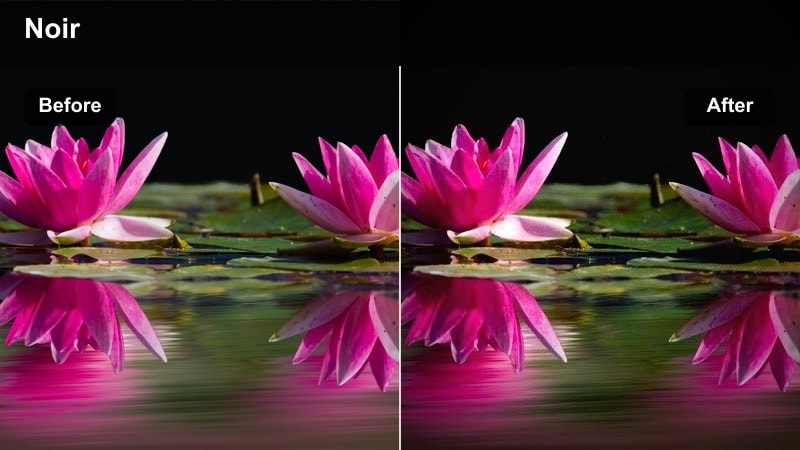
- Effect look: High-contrast, cool shadows with saturated neon highlights that carve out silhouettes in busy night streets.
- Best for: Urban b-roll, cyberpunk-inspired city walks, rainy street sequences, and handheld nightlife montages.
- Editing tip: Lower overall exposure slightly and add a subtle vignette to emphasize the neon glow and keep faces from clipping.
Neon Noir Contrast is built for punchy, cinematic night streets, turning flat low-light footage into bold frames with electric signage and deep blue shadows. Apply it to your raw clips in Filmora to immediately sculpt silhouettes and signage, then fine-tune exposure to keep key details in wet asphalt, umbrellas, and crowd movement.
For talking shots or character moments under neon, combine this filter with mild noise reduction and Filmora masks around faces so skin does not go too cyan. Subtle vignettes and a touch of additional bloom on the brightest signs will help you create a stylized cyberpunk atmosphere without losing important midtone detail.
Match Any Clip to Your Favorite LUT Instantly
Filmora's AI color tools help you align footage with your chosen look from the free LUT pack 100 LUTs in just a few clicks. Instead of manually chasing contrast and saturation between shots, you can let AI push each clip toward the same overall mood.
Analyze a reference frame, then let Filmora intelligently nudge exposure, contrast, and color so your clips feel cohesive across an entire edit, from neon nights to soft daytime cityscapes. Experiment with AI-driven color matching alongside your new LUT filters to build a consistent visual identity.
 secure download

Preview Filters on Real City Footage
Use Filmora's preview window to cycle through filters modeled on these LUTs and see how they respond to different city lighting conditions. You can quickly compare looks for neon-lit alleys, golden-hour streets, or overcast rooftops without baking in a final decision.
Test them on daytime streets, neon nights, and overcast blocks so you can bookmark the perfect filters for each scenario before committing. Drag a clip to the timeline and apply several filters back-to-back to quickly compare and choose your favorite look.
secure download1000+ Video Filters and 3D LUTs
On top of the free LUT pack 100 LUTs, Filmora gives you access to a large library of built-in filters, overlays, and 3D LUTs for every genre. You can mix and match them with your downloaded LUTs to build layered looks that feel unique to your channel or brand.
Use HSL and other advanced controls to refine each filter so your final grade remains flexible and on-brand, even when you push colors in a bold, stylized direction.
secure downloadUrban Haze Soft
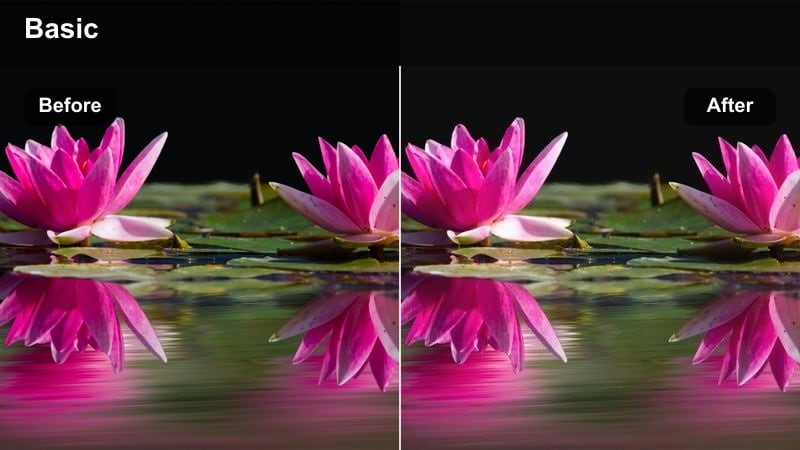
- Effect look: Low-contrast, muted colors with a gentle lift in the blacks for a dreamy city haze effect.
- Best for: Slow-motion street shots, lifestyle vlogs in downtown areas, and establishing shots at golden hour.
- Editing tip: Add a touch of clarity or sharpness to keep building details crisp while leaving contrast low for a soft, cinematic feel.
Urban Haze Soft is ideal when you want the city to feel calm and atmospheric rather than gritty or high-energy. In Filmora, it takes harsh edges out of your footage, giving glass, concrete, and sky a more pastel, daydream quality that works beautifully for lifestyle intros or reflective sequences.
Apply it to wide city scenes, then add a small clarity or sharpness boost so windows, railings, and skylines still read clearly. Combined with slow-motion b-roll and gentle camera moves, this filter creates a cohesive, airy aesthetic across vlogs and travel edits without overwhelming viewers with heavy contrast.
Midnight Commuter Glow
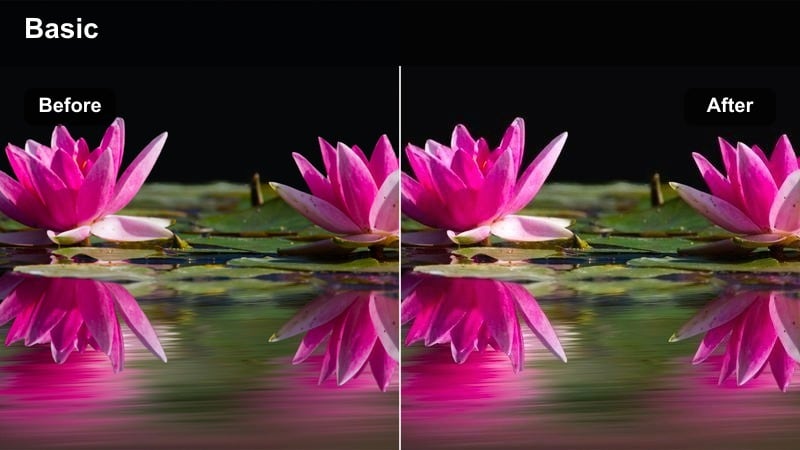
- Effect look: Warm streetlights, soft halation around car headlights, and rich blacks for late-night commuting scenes.
- Best for: Subway stations, taxi rides, car window reflections, and nighttime commuting b-roll.
- Editing tip: Increase saturation only in warm tones and gently reduce highlights to preserve detail in bright car lights and signage.
Midnight Commuter Glow is designed to make late-night infrastructure and car lights feel cinematic rather than simply dark. When you apply it in Filmora, it enriches oranges and ambers from streetlights while holding onto deep blacks in the background so commuters and vehicles stand out with a subtle halo.
Use this filter on shots from inside cars, buses, or trains to emphasize reflections on glass and metallic surfaces. If headlight bloom starts to dominate, dial back highlight levels and pair the look with Filmora keyframing to gently increase glow as vehicles approach, synchronizing light intensity with your music or narrative beats.
Bright Travel Vlogs and Sunlit Cityscapes
Wanderlust Clean Day
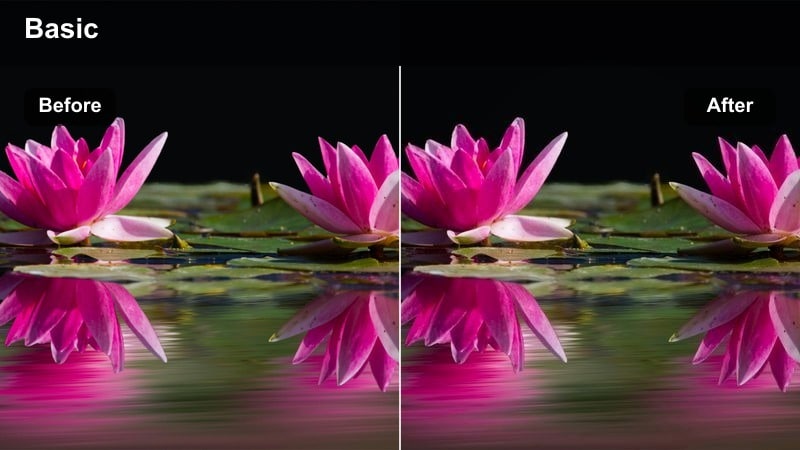
- Effect look: Clean, bright colors with neutral whites and slightly boosted saturation for travel clarity.
- Best for: Daytime walk-throughs, city tours, and travel vlogs shot in open streets or plazas.
- Editing tip: Raise midtones gently while keeping highlights in check to avoid clipping sky details in wide shots.
Wanderlust Clean Day keeps your travel footage natural while making plazas, monuments, and skylines feel crisp and inviting. In Filmora, it is a great baseline look for city tours because it lifts midtones just enough for faces and architecture to pop without skewing white balance.
Apply this LUT-based filter across entire vlog sequences so your cuts feel seamless as you move from wide plazas to medium shots and close-ups. Combine it with gradient masks to protect bright skies, and you will maintain both vibrant building colors and readable cloud detail, even in harsh midday sun.
Sunny Block Warm
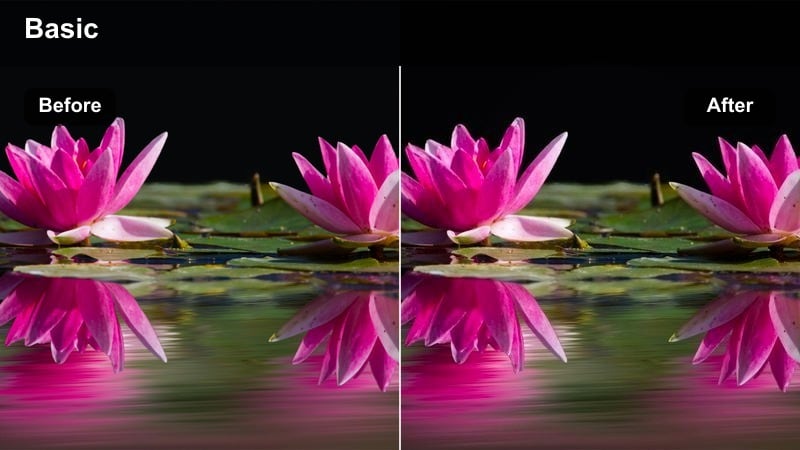
- Effect look: Warm, inviting tones with golden highlights that enhance buildings and street details.
- Best for: Afternoon explorations, cafe exteriors, and lifestyle content shot along sunlit city blocks.
- Editing tip: Reduce orange saturation slightly to keep skin tones natural when shooting directly under harsh sun.
Sunny Block Warm leans into the golden character of afternoon light, coating storefronts, cobblestones, and cafe terraces in a subtle amber glow. When you apply it in Filmora, it makes your city blocks feel friendlier and more cinematic, especially in lifestyle and travel content.
Use it on walking shots past shop windows, food b-roll outdoors, or candid street photography clips to unify your warm visual tone. If faces shift too orange, simply back off saturation in the orange channel while preserving the overall golden ambiance, and consider saving that adjustment as a custom preset for future sunny shoots.
Metro Rooftop Pop
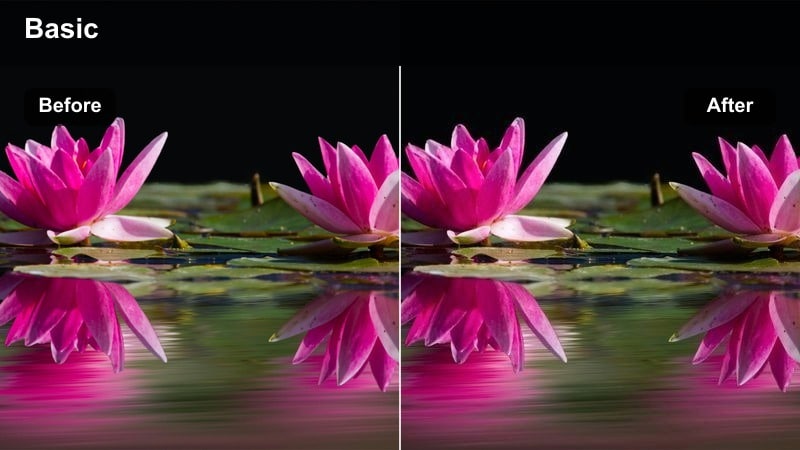
- Effect look: Punchy saturation with slightly cooler shadows and bright highlights for energetic rooftop views.
- Best for: City skyline reveals, rooftop meetups, and upbeat travel montages with lots of color.
- Editing tip: Use a small amount of film grain or texture so the boosted saturation still feels cinematic, not overly digital.
Metro Rooftop Pop is crafted for skyline reveals and energetic city montages where strong color is part of the story. In Filmora, this LUT-based filter adds saturation and cools your shadows to emphasize building shapes against a bright sky, making transitions and whip pans feel extra punchy.
Apply it to rooftop gatherings, drone passes, or sweeping pans, then layer in a touch of grain or texture from Filmora's effects to avoid a plastic, oversharpened look. Monitor vibrant reds and blues on scopes so you can pull back any clipped channels, keeping your saturated scenes bold yet controlled.
Social Media Ready Cinematic Street Looks
Creator Portrait Street
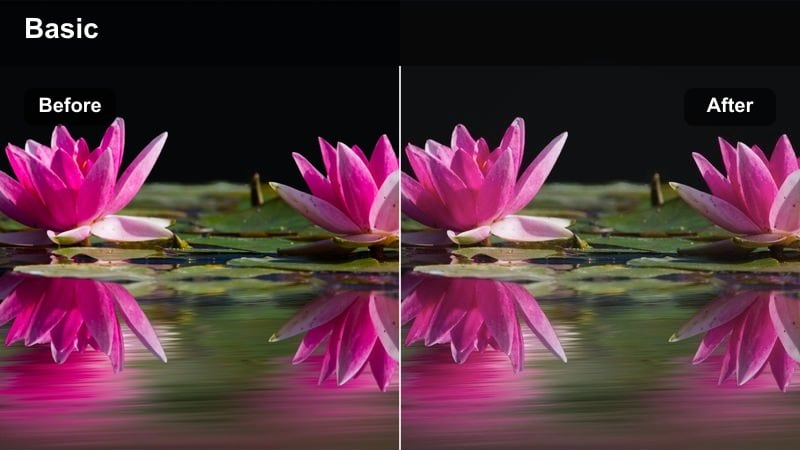
- Effect look: Softened contrast with flattering skin tones and slightly blurred backgrounds for creator-focused shots.
- Best for: Reels, TikToks, and talking-to-camera clips filmed on sidewalks, alleys, or near storefronts.
- Editing tip: Add a touch of background blur or bokeh effect to separate you from busy city elements behind you.
Creator Portrait Street centers you in the frame while turning the city into a gentle backdrop, perfect for vertical and horizontal creator content. In Filmora, this look softens contrast just enough to flatter skin while reducing visual noise in signage, traffic, and pedestrians behind you.
Combine it with Filmora's portrait tools and background blur effects to further isolate your subject and keep attention on expressions and gestures. Slight face-targeted exposure adjustments will help your videos remain readable on small screens, making it a strong default look for street interviews, announcements, and brand messaging.
Street Fashion Teal
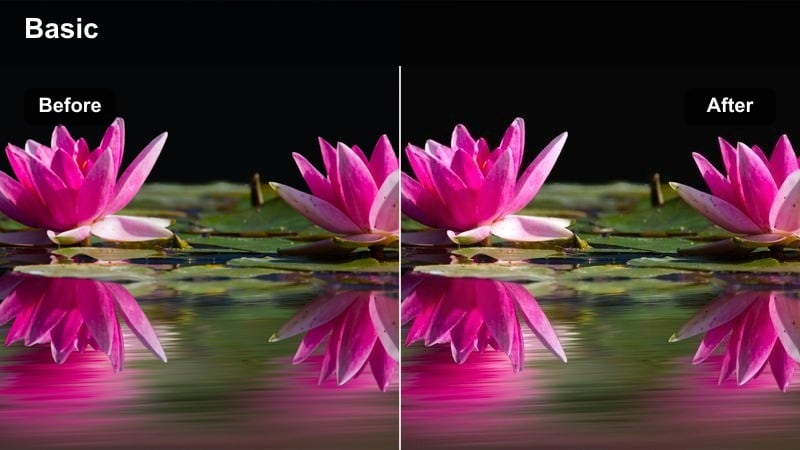
- Effect look: Teal-tinted shadows with warm skin tones for stylish, fashion-forward street content.
- Best for: Outfit-of-the-day clips, fashion lookbooks, and brand promos shot in urban corridors or crosswalks.
- Editing tip: Keep contrast moderate so outfits and brand colors stay rich without crushing dark fabrics.
Street Fashion Teal gives your footage a trendy teal-and-orange inspired grade, with cool sidewalks and walls contrasting against warm, appealing skin tones. It works especially well in Filmora when you want outfits and accessories to stand out against urban backdrops without losing brand color accuracy.
Apply this filter across a sequence of outfit changes, then refine HSL settings for specific garment hues that must remain true to life. By balancing contrast carefully, you can retain detail in dark fabrics and logos while still delivering a distinctly cinematic fashion aesthetic that feels at home in lookbooks and social campaigns.
Reel Snap Contrast
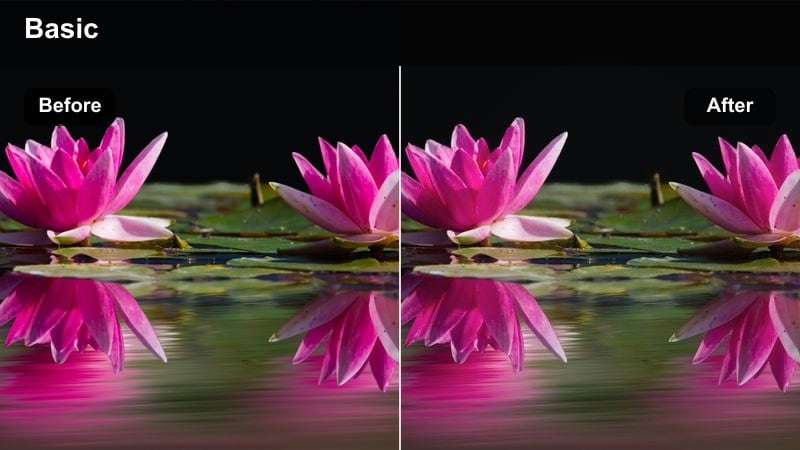
- Effect look: High-impact contrast and crisp edges that make short clips pop on vertical feeds.
- Best for: Quick transitions, speed ramps, and punchy city b-roll used in vertical social content.
- Editing tip: Pair this look with fast cuts and on-beat transitions so the strong contrast enhances energy instead of feeling harsh.
Reel Snap Contrast is tuned for short, punchy edits where every frame needs to grab attention instantly. In Filmora, this LUT-style look boosts contrast and micro-detail, making crosswalks, traffic, and architectural lines appear sharper and more impactful on phone screens.
Use it on speed ramps, whip pans, and quick-cut montages synced to music, then layer in on-beat transitions like flashes or zooms to amplify the effect. If shadows begin to crush, raise black levels slightly so you keep energy high without losing important movement or texture in darker parts of the frame.
Dramatic Urban Stories and Gritty Scenes
Grit Alley Film
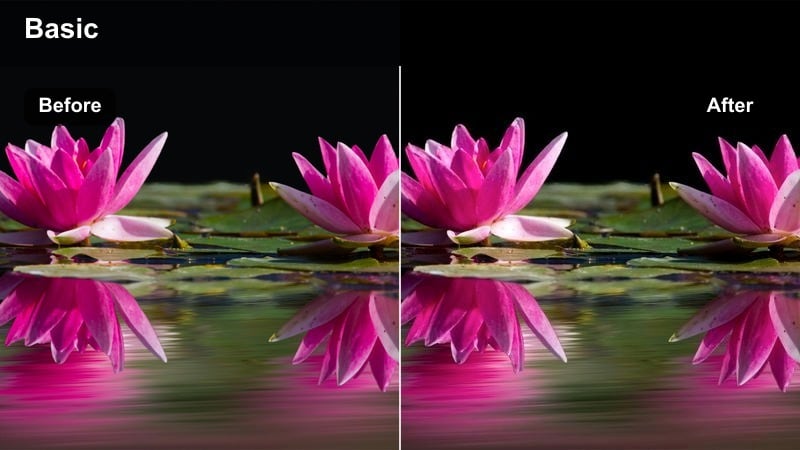
- Effect look: Desaturated colors, lifted blacks, and subtle film grain for a gritty, cinematic alleyway feel.
- Best for: Short films, narrative pieces, and moody b-roll shot in side streets, alleys, or parking structures.
- Editing tip: Dial in a bit of noise reduction before adding grain so the texture looks deliberate and not like sensor noise.
Grit Alley Film shifts your footage toward a muted, film-inspired palette that suits narrative and documentary work set in backstreets and industrial zones. In Filmora, it raises black levels and introduces soft grain, making concrete, brick, and metal feel textured and lived-in.
Apply this filter to scenes with slow camera movement or locked-off shots to emphasize performance and composition over color. Run mild noise reduction first on noisy clips, then blend in Filmora's grain effects so the texture feels intentional, giving your project a cohesive indie-film atmosphere from scene to scene.
Overcast Block Drama
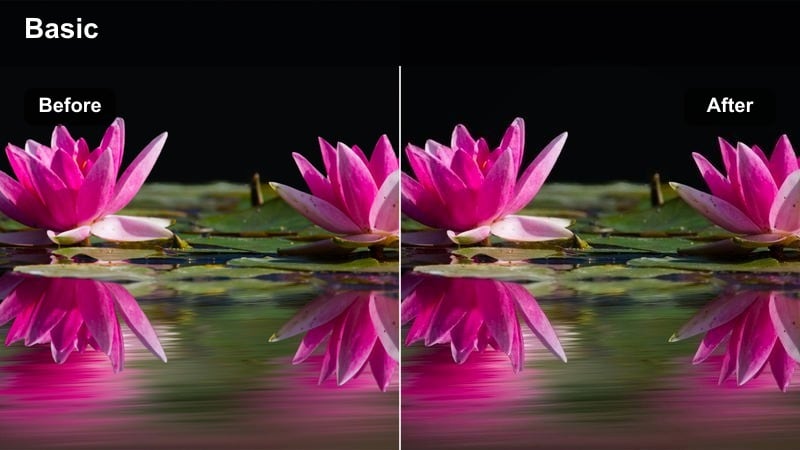
- Effect look: Cool, moody tones with strong midtone contrast for cloudy-day city blocks and dramatic narratives.
- Best for: Rainy or overcast scenes, introspective vlogs, and dramatic monologues filmed on quiet streets.
- Editing tip: Slightly lower saturation across the board and emphasize midtones to keep details alive under gray skies.
Overcast Block Drama amplifies the somber mood of cloudy days, turning flat natural light into a cinematic, cool-toned environment. When used in Filmora, it adds contrast mainly in the midtones, preserving detail in faces and buildings while letting skies stay soft and gray.
Use this look for moody walks, reflective narrative moments, or rainy establishing shots where you want to lean into the melancholy. Lower global saturation a touch and keyframe subtle saturation dips during emotional lows, creating a visual rhythm that mirrors the tone of your voiceover or dialogue.
Terminal Thriller Tone
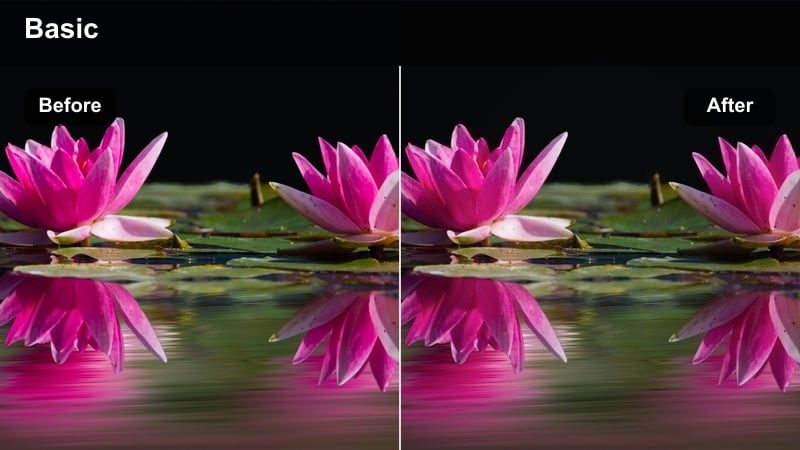
- Effect look: Cool greenish cast with deep shadows, inspired by thriller and heist scenes in stations and terminals.
- Best for: Parking garages, train terminals, subway platforms, and tense narrative sequences.
- Editing tip: Use minimal camera movement and let the strong color cast create tension instead of overusing transitions.
Terminal Thriller Tone brings a suspenseful, cinematic edge to stations, corridors, and underground structures by infusing shadows with a cool green cast. In Filmora, this LUT-based look deepens blacks and pushes ambient light toward teal-green, ideal for heist, mystery, or sci-fi-inspired scenes.
Apply it to slow, deliberate camera moves or static shots where characters wait, watch, or plan, letting the color do most of the tension-building. If skin tones drift too sickly, warm up the orange channel and slightly neutralize midtones while keeping shadows stylized, then save this refined version as your go-to thriller preset for future projects.
Tips for Using Free Lut Pack 100 Luts Filters in Filmora
- Group similar shots on the timeline and apply the same filter so your sequence feels unified instead of patchy.
- Always adjust exposure and white balance before grading with filters to get cleaner, more predictable results.
- Create a few go-to looks from the free LUT pack 100 LUTs and reuse them as a visual signature across your content.
- Use Filmora keyframes to animate subtle changes in intensity so filters adapt smoothly between scenes.
- Check your grades on both a phone and a computer to be sure contrast and saturation work on different screens.
- Save any refined LUT and filter combinations as Filmora presets so you can instantly reuse them on future edits.
- Mix LUTs with Filmora effects like grain, vignettes, and blur to give your color grades extra depth and character.
- Use Filmora's scopes to monitor exposure and color channels whenever you apply more extreme, stylized looks.
With this free LUT pack 100 LUTs as your base and Filmora's filters on top, you can move from flat city footage to cinematic visuals in just a few steps.
Pick a handful of looks that match your style, save them as presets, and you will be ready to color any new project quickly and consistently.
secure download