

 100% Security Verified | No Subscription Required | No Malware


 ChatGPT
 Perplexity
 Gemini
 Claude
 Grok
Grok
This free LUT pack with 50 LUTs download is perfect for creators and editors who want fast, cinematic color without spending hours in grading panels.
Below you will find 12 Filmora-friendly filter styles inspired by the free LUT pack 50 LUTs download, each with clear use cases and editing tips so you can match the right look to every scene.
In this article
Golden Hour City Vibes
Sunset Amber Glow
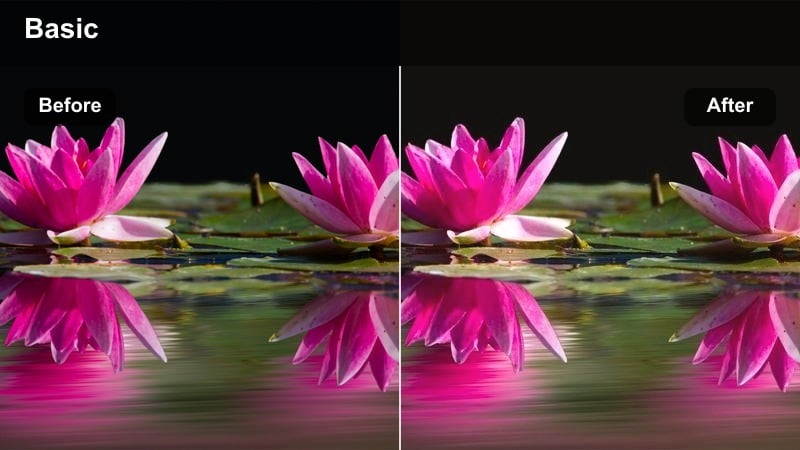
- Effect look: Warm, hazy glow that mimics golden hour sunlight over city streets.
- Best for: Urban b-roll, rooftop vlogs, street fashion reels shot near sunset.
- Editing tip: Lower contrast slightly and add a subtle vignette to keep attention on faces and skyline silhouettes.
Sunset Amber Glow gives your footage that late-afternoon, golden hour feel even if you shot a little earlier or later in the day. In Filmora, you can pair this look with soft contrast and gentle highlights to wrap warm light around buildings, hair, and skin without losing important detail.
Apply the LUT or filter to your clip, then use Filmora color controls to nudge temperature warmer and dial back contrast so shadows do not crush. Finish by adding a subtle vignette and a touch of saturation to oranges and yellows so rooftops, windows, and faces feel cinematic but still natural.
Speed Up Color With AI-Powered Filmora Tools
Instead of building every look from scratch, use Filmora AI tools to jump-start the style that matches your free LUT pack 50 LUTs download. AI can quickly detect color balance and exposure, giving you a polished base before you layer creative filters.
AI color and style detection can analyze each clip and suggest auto-adjustments that pair well with LUT-based looks, so you spend less time tweaking and more time cutting your story together.
 secure download

Preview Filters Before You Commit
In Filmora you can hover over filters in the Effects panel and preview them instantly on your clip, making it easy to test which style from your free LUT pack 50 LUTs download feels best. This saves you from constant undo steps and lets you compare looks in seconds.
Use split-screen or side-by-side comparisons to judge how each filter affects skin tones, city highlights, and sky detail so you lock in the most flattering option for every shot.
secure downloadBlend Filmora Filters With Your 50 LUT Pack
Your free LUT pack 50 LUTs download becomes even more powerful when you stack Filmora filters on top for final polish. Light glow, extra contrast, or a hint of fade can help you tailor a global LUT to match specific locations or camera angles.
Keep filter intensity low and use them as subtle finishing touches so your LUT remains the main look while Filmora filters fine-tune mood, depth, and texture.
secure downloadCity Copper Film
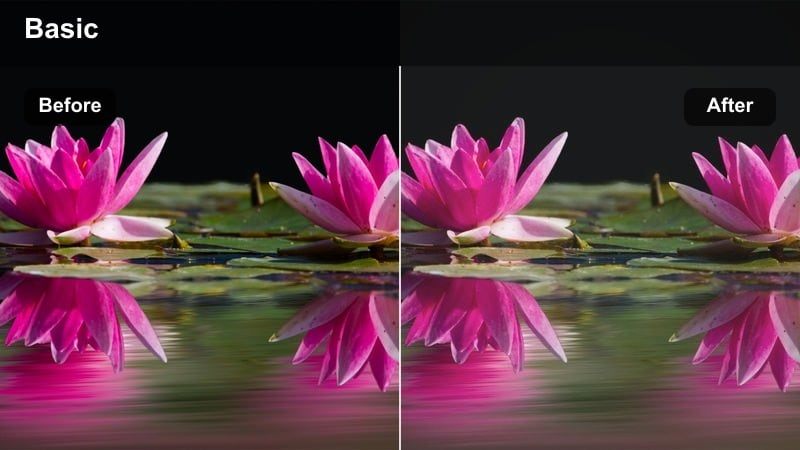
- Effect look: Soft copper highlights with gentle fade for a film-inspired street look.
- Best for: City walk vlogs, POV clips of sidewalks, metro entrances, and urban lifestyle shots.
- Editing tip: Reduce saturation in blues to keep skies calm and let copper signs and streetlights stand out.
City Copper Film adds a relaxed, analog charm to everyday street scenes, gently lifting blacks while giving highlights a warm metal sheen. It is especially effective on signage, windows, and vehicles where the copper tone creates a cohesive, story-driven palette.
In Filmora, apply your copper LUT and then tweak the HSL controls to pull down blue saturation and shift oranges slightly toward red for a more intentional film feel. Add a mild fade using curves and, if you like texture, layer in a low-opacity film grain overlay to complete the retro-inspired city mood.
Urban Gold Rush
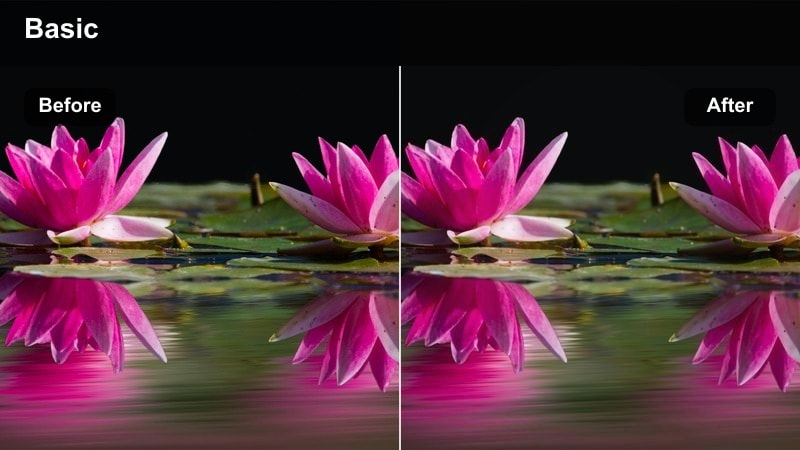
- Effect look: High-energy golden highlights with boosted clarity for sharp city details.
- Best for: Time-lapses of traffic, business district b-roll, hyperlapse sequences.
- Editing tip: Increase sharpening slightly but keep noise reduction on to avoid crunchy building edges at night.
Urban Gold Rush is built for fast-paced edits where light streaks, glass, and metal surfaces need to pop. The golden bias boosts energy while increased clarity and contrast emphasize architectural lines, making downtown skylines and traffic sequences feel more dynamic.
Use this look in Filmora on clips with plenty of structure and motion, like car trails or crowd rushes. After applying the LUT, fine-tune sharpness and noise reduction so details stay crisp without turning grainy, and experiment with speed ramps or motion blur effects that complement, rather than overpower, the strong golden highlights.
Moody Night Streets
Neon Noir Drift
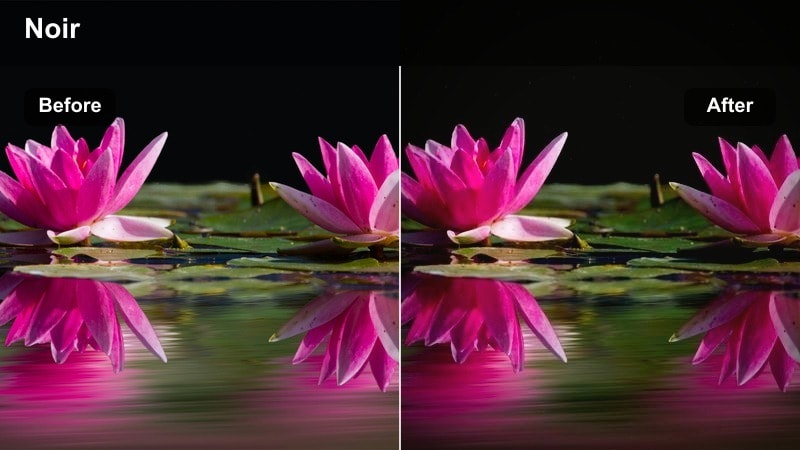
- Effect look: Deep contrast with cool shadows and saturated neon signs for a noir feel.
- Best for: Nighttime city streets, cyberpunk-themed b-roll, driving shots under neon lights.
- Editing tip: Lower midtone saturation so only neon colors pop, then add a slow push-in for a cinematic drift effect.
Neon Noir Drift turns any rain-soaked street into a stylized, cinematic frame with inky shadows and glowing neon color. This look favors signs, reflections, and wet asphalt, creating a strong separation between dark background areas and bright color accents.
In Filmora, combine this LUT with selective saturation: keep reds, magentas, and cyans rich while taming midtones so the scene does not feel overly busy. Add a subtle camera push, slow zoom, or keyframed crop to create the drifting motion that matches the noir atmosphere, and consider a light film grain layer for extra texture in the darkest areas.
Midnight Teal Contrast
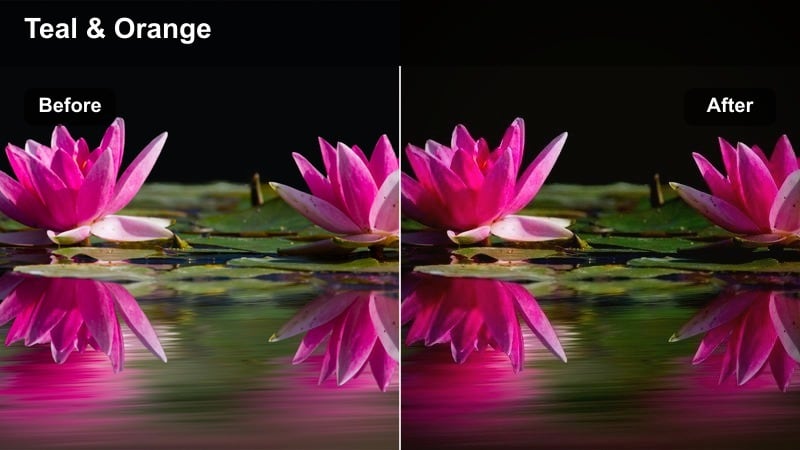
- Effect look: Teal-tinted shadows with clean highlights for cinematic night exteriors.
- Best for: Parking lot scenes, skyline shots at night, handheld vlogs under city lamps.
- Editing tip: Add a subtle glow to bright streetlights to avoid harsh clipping and keep things dreamy.
Midnight Teal Contrast delivers a classic blockbuster-style teal grade in the shadows while preserving neutral, bright highlights. It makes night exteriors look intentional and cinematic, especially when there is a mix of building lights, car lamps, and dark sky tones.
After applying the look in Filmora, refine your exposure by pulling back highlights just enough to keep lamp posts and windows from clipping. Then add a soft glow or light bloom effect on the brightest spots, and if skin tones drift too cool, use masked color correction on faces to reintroduce warmth without flattening the teal mood.
Sidewalk Rain Glow
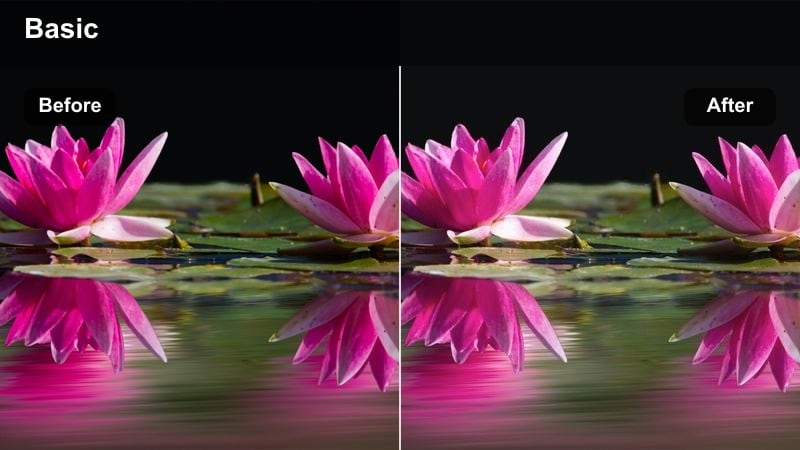
- Effect look: Soft, glowing reflections on wet streets with slightly lifted blacks.
- Best for: Rainy-night B-roll, slow-motion city walks under umbrellas, moody storytelling.
- Editing tip: Slow the footage to 60 percent or 50 percent speed and add subtle sound design for footsteps and rain to match the dreamy tone.
Sidewalk Rain Glow focuses on atmosphere, brightening reflections and gently lifting blacks so your night streets feel soft and inviting instead of harsh. The look works especially well when water is visible on the ground or when there are multiple light sources reflecting across the frame.
In Filmora, apply this look to clips you plan to play in slow motion, then use a combination of reduced contrast and light bloom to enhance the dreamy reflections. Blend in ambient sound layers or sound effects for rain, cars, and footsteps to match the visual softness, and keep camera moves slow to avoid breaking the tranquil mood.
Travel and Aerial Cityscapes
Drone Skyline Clean
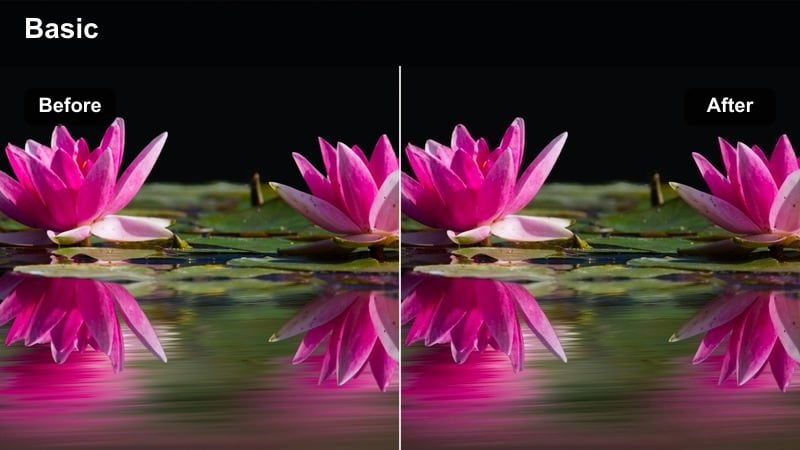
- Effect look: Neutral but polished look with crisp contrast and natural colors.
- Best for: Drone passes over downtown, establishing shots for travel vlogs, city intros.
- Editing tip: Reduce saturation slightly on greens and yellows so rooftops and roads look modern and not overly vibrant.
Drone Skyline Clean is designed to keep aerial footage looking realistic while still polished enough for professional intros and travel sequences. It balances contrast and saturation so buildings, roads, and waterways are easy to read from above without cartoonish colors.
In Filmora, pair this LUT with subtle dehaze or clarity adjustments to cut through atmospheric fog, especially on long-distance shots. Dial down greens and yellows a bit so rooftops and parks look refined, and avoid heavy sharpening to prevent moire or shimmering along dense building grids.
City Travel Postcard
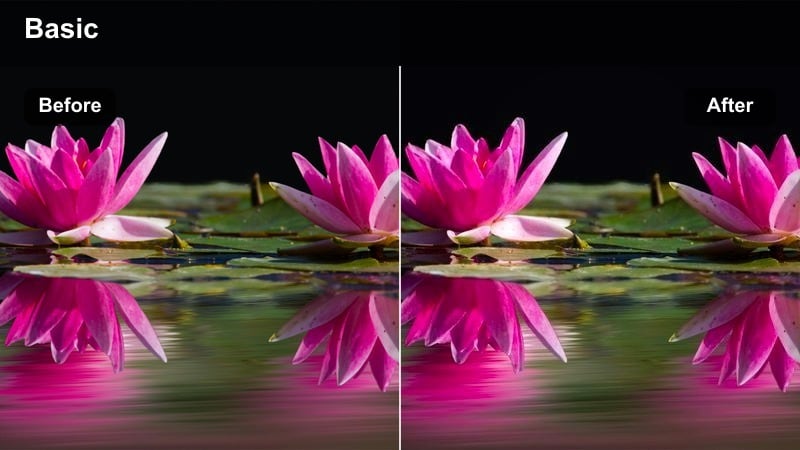
- Effect look: Bright, punchy colors with slightly warm midtones for travel vlog energy.
- Best for: Daytime sightseeing, city plazas, tourist landmarks, handheld walk-and-talk clips.
- Editing tip: Increase exposure by a small amount and add gentle motion blur to hide micro-shake from handheld shots.
City Travel Postcard brings out the joy and excitement of sightseeing days with rich colors and a touch of warmth. It is ideal for making historic buildings, plazas, and city squares feel vibrant on platforms like YouTube, Instagram, or TikTok.
Apply the look in Filmora and bump exposure slightly so faces stay bright against busy backgrounds. If you shot handheld, add a light motion blur or stabilization to hide minor shake, and control saturation so colorful walls and signs pop without overpowering your subject in the frame.
Hazy Morning Overlook
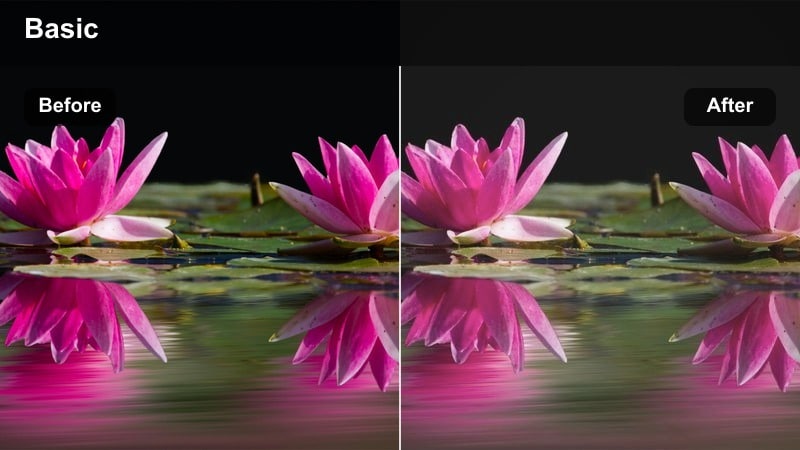
- Effect look: Soft, low-contrast morning look with muted tones and gentle bloom.
- Best for: Early-morning overlook shots, balcony views, calm city intros for storytelling.
- Editing tip: Lower clarity slightly and add a touch of film grain so the softness feels intentional, not just out of focus.
Hazy Morning Overlook emphasizes calm and quiet, giving your cityscape a soft, pastel tone that feels like early daylight. The low contrast and bloom help smooth out harsh edges, making it perfect for reflective voiceovers, intros, or chapter breaks in longer edits.
In Filmora, apply this look to wide shots or gentle pans, then lower clarity and contrast just enough to keep detail visible. Add a bit of grain for texture so the softness reads as a stylistic choice rather than a focus mistake, and consider pairing it with slow background music and minimal on-screen text.
Social Vlogs and Street Lifestyle
Creator Street Neutral
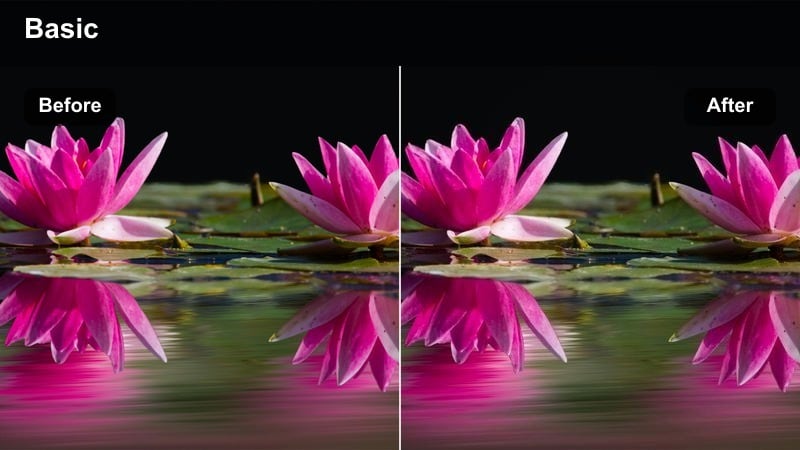
- Effect look: Balanced street look that keeps skin tones natural and backgrounds slightly desaturated.
- Best for: Talking-head vlogs in city parks, coffee shop entrances, sidewalk intros.
- Editing tip: Add a subtle vignette and increase midtone contrast to keep your face readable even in busy locations.
Creator Street Neutral is built for everyday vlogging, where you want your face to look accurate and flattering while the city sits slightly in the background. It gently mutes non-essential colors so viewers focus on you, not the passing traffic or crowds.
In Filmora, use this look on any talking-head clip and then adjust midtone contrast to bring extra definition to your features. A light vignette and minor background blur or depth-of-field effect can further separate you from the environment, keeping your story and expressions front and center.
Streetwear Pop Edit
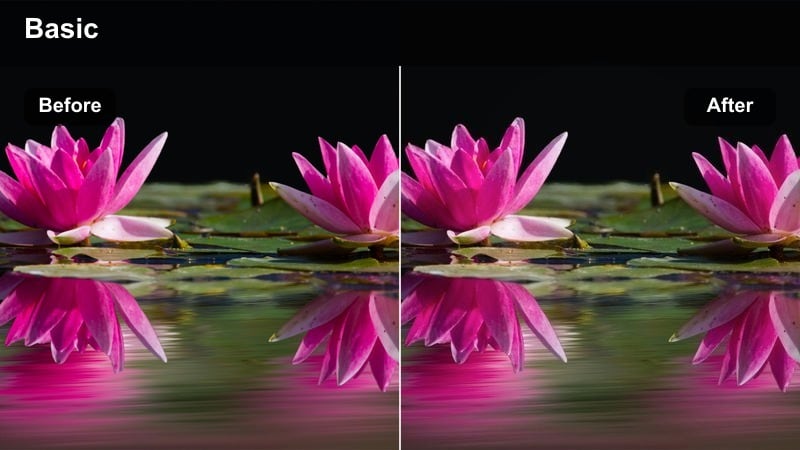
- Effect look: High-contrast, colorful look that makes clothing and signage stand out.
- Best for: Streetwear lookbooks, fashion walks, TikTok and Reels shot in downtown alleys.
- Editing tip: Use this filter at slightly lower intensity for close-ups so fabrics stay textured and not over-saturated.
Streetwear Pop Edit is all about punchy, high-impact visuals that make outfits and graphic elements jump off the screen. Strong contrast and boosted saturation suit fast cuts, transitions, and music-driven edits for social platforms.
When editing in Filmora, apply this look generously to wide shots and mid-shots, then roll back intensity on close-ups so skin and fabric detail stay clean. You can fine-tune key brand colors with HSL controls, and save the combination as a custom preset so every new lookbook or Reel shares the same signature style.
Metro Diary Soft
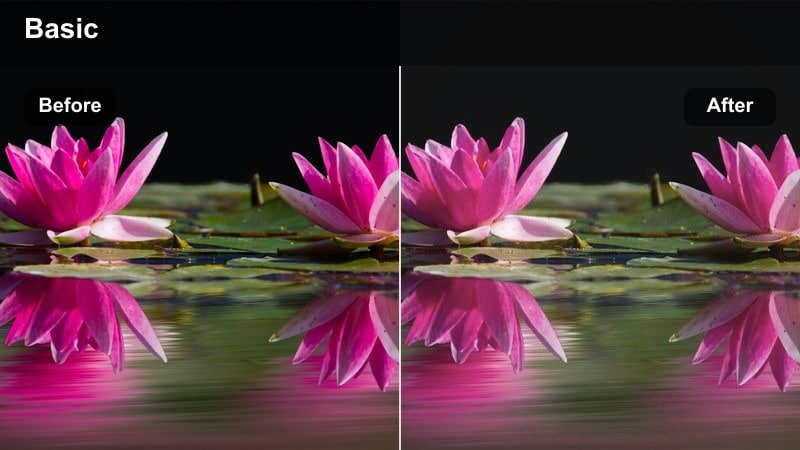
- Effect look: Gentle pastel treatment with softened highlights for diary-style vlogs.
- Best for: Subway rides, cafe journaling, quiet walking monologues in the city.
- Editing tip: Layer light music and ambient station sounds under your voice to match the calm visual mood.
Metro Diary Soft turns crowded urban environments into calm, reflective spaces by lowering contrast and shifting colors toward gentle pastels. It fits slower, more personal content like journaling, reflections, or behind-the-scenes monologues.
Use this style in Filmora on clips with natural window light or overhead train lighting, then reduce highlight harshness and slightly warm the overall tone. Combine the look with subtle background music and carefully mixed ambient sounds so the soothing visual grade is matched by an equally relaxed audio atmosphere.
Tips for Using Free Lut Pack 50 Luts Download Filters in Filmora
- Always capture a quick gray-card or neutral reference shot at each location so your free LUT pack 50 LUTs download and Filmora filters stay consistent across the project.
- Use Filmora adjustment layers to apply your chosen LUT and filter stack once and affect multiple clips, instead of copying settings one by one.
- When you apply stronger cinematic looks from the pack, keep filter intensity between roughly 20 and 60 percent so details in shadows and highlights remain visible.
- Combine LUTs with Filmora AI color tools to fix exposure and white balance first, then fine-tune creative mood with filters on top.
- Export a short 10 to 15 second test sequence with two or three variations of the same scene to see how your grades look on phones and social platforms.
- Save your favorite LUT plus filter combinations as custom presets in Filmora so your next vlog, travel film, or reel can match instantly.
- Group clips by scene or lighting condition on the timeline and apply shared adjustment layers, making it easier to maintain a unified style.
The free LUT pack 50 LUTs download gives you a huge head start on cinematic color, and pairing it with focused Filmora filters lets you dial in the perfect look for every city scene, vlog, or travel sequence.
Try a few of the styles above on your next project, then move on to the free LUT pack 100 LUTs to expand your creative toolbox even further.
secure downloadNext: Free LUT Pack 100 LUTS
