

 100% Security Verified | No Subscription Required | No Malware


 ChatGPT
 Perplexity
 Gemini
 Claude
 Grok
Grok
This free LUTs color grading pack gives creators and editors a set of ready-made filters designed to add instant cinematic style to any project in Filmora.
From clean studio videos to moody travel edits and high-impact social clips, these filters help you lock in a consistent look with just a few clicks.
In this article
Golden Hour Vlog and Travel Scenes
Sunset Glow Vlog
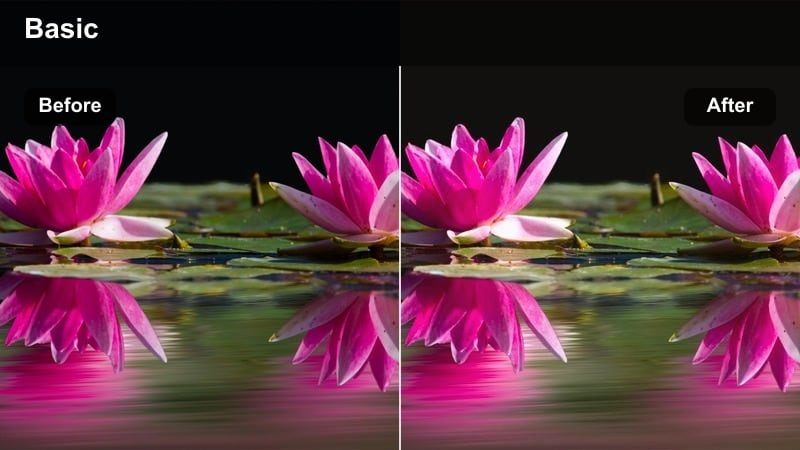
- Effect look: Warm, soft contrast glow that enhances skin tones and sunset skies.
- Best for: Travel vlogs, evening city walks, outdoor lifestyle B-roll around sunset.
- Editing tip: Lower the filter intensity to around 60% if the original footage is already very warm to avoid orange skin tones.
Sunset Glow Vlog adds a gentle golden wash over your footage, boosting oranges and yellows while keeping contrast soft enough for flattering skin tones. In Filmora, this look works especially well on handheld vlog clips where the sun is low in the sky, pulling out detail in clouds and city backdrops without making the image look over-processed.
Apply the filter to your golden hour sequences, then fine-tune intensity with the adjustment slider so skies stay rich but faces do not skew too orange. In Filmora, you can combine this LUT with basic exposure and curves adjustments to preserve highlight detail, and use subtle sharpening so your sunset travel stories feel cinematic but still natural.
Speed up grading with AI-powered color tools in Filmora
Use Filmora s AI color and auto-correction features to push your clips to a neutral baseline before testing this free LUTs color grading pack. A quick AI pass helps balance exposure and white balance so your footage from different cameras and locations reacts consistently when you start applying filters.
Once your base is set, you can cycle through the LUTs in this pack to compare warm, cool, and punchy looks side by side. This workflow cuts down manual tweaking and lets you focus on storytelling while Filmora keeps your colors under control.
 secure download

Preview each filter on real creator footage
In Filmora, you can quickly audition each filter from this pack on sample clips or your own b-roll to see how they respond to different lighting conditions. Try them on vlog intros, city walk sequences, and studio shots to find a core set of looks that match your channel.
Because these filters are optimized to work with Filmora s built-in effects, you can layer transitions, text, and overlays on top without destroying the overall color balance. This makes it easy to keep your edits fast while still achieving a stylized, cinematic finish.
secure download1000+ Video Filters and 3D LUTs
Beyond this free LUTs color grading pack, Filmora includes a large library of filters and 3D LUTs you can stack and customize for any project. Mix cinematic looks with glitch, vintage, or stylized effects to create unique visuals for travel films, tutorials, or social edits.
You can start from one LUT in this pack, make a few adjustments, and then combine it with additional Filmora filters to build complex looks in just a few clicks. Save your favorite combinations as presets so your grading workflow gets faster with every project.
secure downloadSun-Drenched Trails
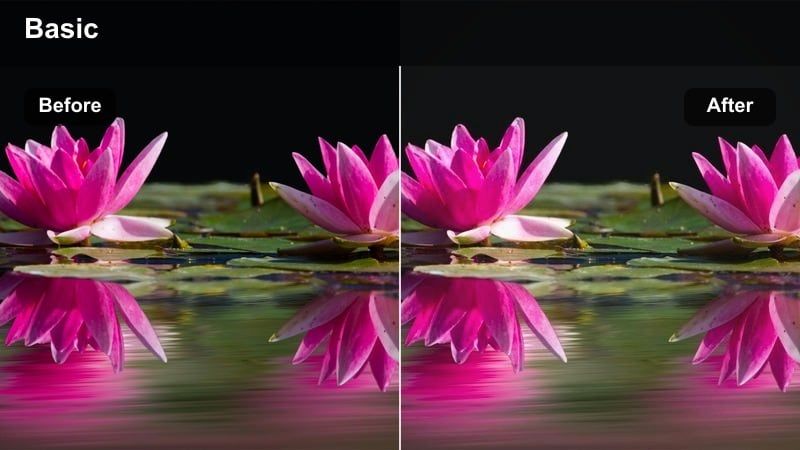
- Effect look: Bright, airy contrast with lifted shadows and subtle golden highlights.
- Best for: Daytime hikes, road trips, handheld POV shots, and adventure vlogs.
- Editing tip: Add a slight vignette after this filter to draw attention to the center of the frame without darkening the overall mood.
Sun-Drenched Trails brightens outdoor footage, lifting shadows so details in trees, rocks, and trails stay visible while a hint of golden tone keeps the frame warm. In Filmora, this filter helps flatten harsh midday sun and gives hiking or road trip clips a more polished, cinematic travel atmosphere.
After applying the LUT, refine brightness and contrast so skies remain controlled and the subject stays the focus. A gentle vignette and light sharpening in Filmora can help guide the viewer s eye down the trail or toward your subject while preserving the overall airy, feel-good mood of your daytime adventures.
Golden City Rush
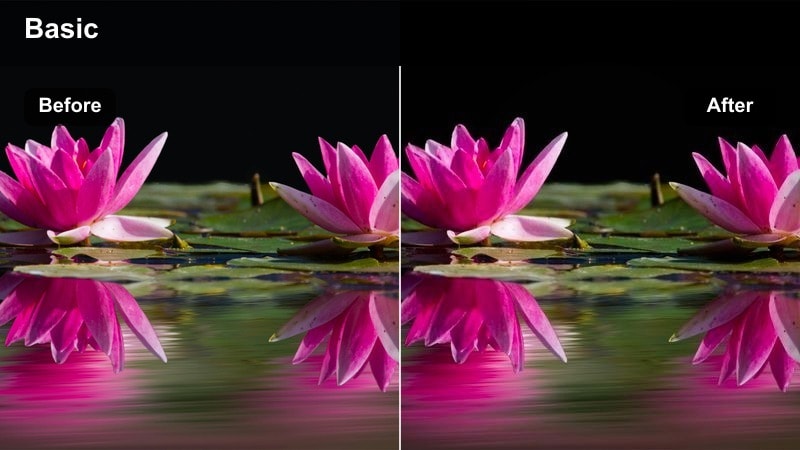
- Effect look: Warm, contrasty city look with rich midtones and glowing street lights.
- Best for: Urban b-roll, time-lapses, handheld walk-and-talk vlogs at dusk.
- Editing tip: Combine this filter with a slight speed ramp and motion blur for fast-paced city montages.
Golden City Rush pushes midtone contrast and warmth to make city streets feel energetic and cinematic, especially around dusk when lights are just turning on. In Filmora, it adds extra punch to traffic, storefronts, and skyline cutaways, helping your urban sequences stand out in vlogs or travel films.
Use this LUT on b-roll of cars, crowds, and city details, then add speed ramps and motion blur effects in Filmora to accentuate movement. If skin tones start to look too intense under street or neon lighting, slightly reduce orange saturation and tweak exposure so your subjects stay flattering against the vivid, glowing environment.
Moody Cinematic Storytelling Scenes
Urban Cinema Fade
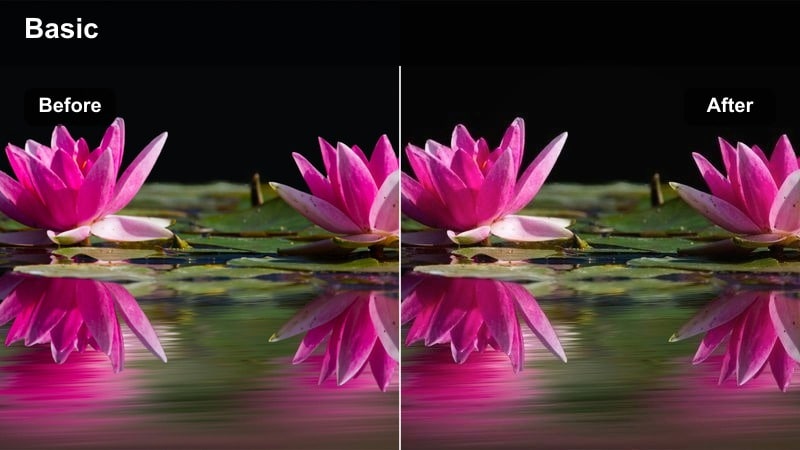
- Effect look: Low-contrast, faded blacks with cool shadows and subtle teal tones.
- Best for: Narrative shorts, slow-motion street b-roll, urban storytelling sequences.
- Editing tip: Use slightly slower cuts with this filter so the audience has time to soak in the textures and mood.
Urban Cinema Fade softens contrast and lifts blacks to create a washed, film-inspired look with a cool teal push in the shadows. It is ideal for reflective or slow-paced city sequences where you want the viewer to feel immersed in textures, reflections, and ambient light rather than raw sharpness.
In Filmora, apply this LUT to slow-motion or locked-off shots, then tweak curves to protect depth if the image feels too flat. Add a hint of film grain and keep your cuts slower and more deliberate, so the teal-tinted shadows and muted color palette have time to set the mood for your story.
Noir Side Street
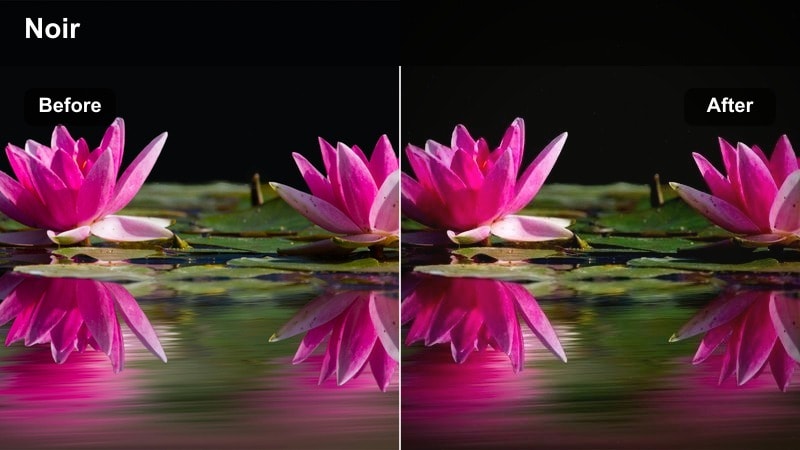
- Effect look: High-contrast monochrome-inspired color with deep shadows and cool highlights.
- Best for: Night scenes, rainy sidewalks, dramatic dialogue moments in the city.
- Editing tip: Dial down saturation slightly to approach a near-monochrome look while preserving key accent colors like neon.
Noir Side Street creates a dramatic, high-contrast aesthetic that leans toward noir-inspired visuals, with deep shadows and sharp highlights. It works especially well on rainy pavements, backlit characters, and night city shots where silhouettes and light pools are central to the composition.
In Filmora, apply this LUT to night scenes, then carefully manage the shadow slider so you do not lose your subject to pure black. Slightly lowering global saturation or selectively desaturating everything except key neon or signage can amplify the noir feel, giving your dialogue scenes and cutaways a stylish, thriller-like edge.
Misty Subway Drift
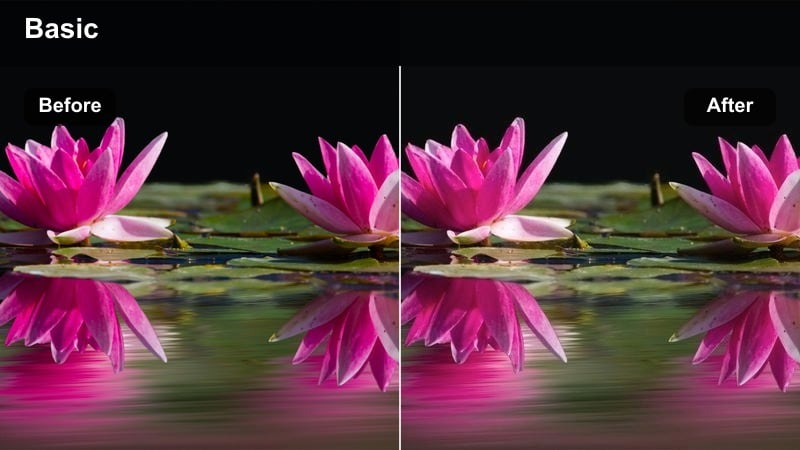
- Effect look: Soft, hazy contrast with muted colors and teal-leaning midtones.
- Best for: Subway platforms, underground tunnels, quiet travel sequences in public transit.
- Editing tip: Add a subtle blur or glow effect on bright elements to push the dreamy, drifting feeling further.
Misty Subway Drift lowers contrast and mutes color while nudging midtones toward teal, producing a dreamy, in-transit atmosphere. It is ideal for subway stations, bus rides, and quiet travel interludes where you want the scene to feel introspective and slightly surreal.
In Filmora, pair this LUT with footage that already has shallow depth of field or strong directional lighting. Enhance the effect by adding a slight glow or blur to highlights, and if your source footage is too sharp, introduce a touch of film blur so the soft palette and hazy mood feel cohesive instead of overly digital.
Clean Studio and Talking Head Content
Creator Studio Clean
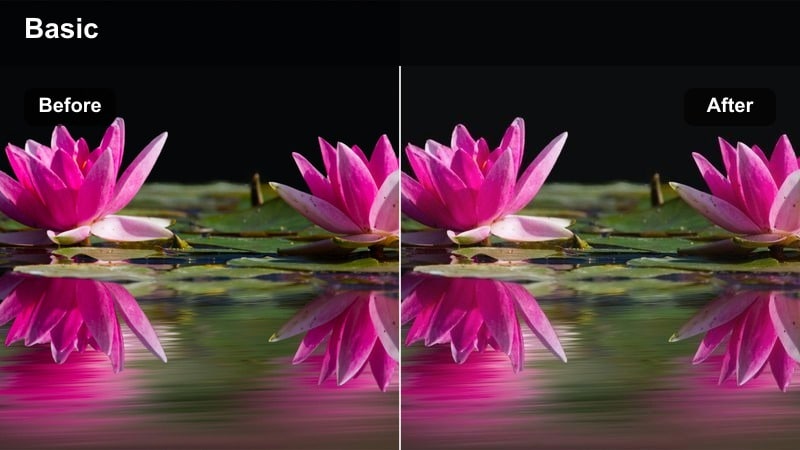
- Effect look: Neutral, high-clarity look with soft contrast and balanced saturation.
- Best for: YouTube tutorials, talking head explainers, desk setups, and product demos.
- Editing tip: Adjust skin-tone saturation individually if your lights are too warm or cool to keep faces looking realistic.
Creator Studio Clean is built to keep your talking head videos professional and approachable, with neutral tones, soft contrast, and clear detail. It gently polishes skin tones and background elements without adding heavy stylistic color casts, so viewers focus on your message.
In Filmora, apply this LUT to your A-roll, then use the color tools to fine-tune skin tones if your lighting setup leans too warm or cool. Once you are happy with the look, save it as a preset and reuse it across your tutorials, reviews, and explainers so every upload on your channel shares the same consistent, branded studio aesthetic.
Soft Tech Desk
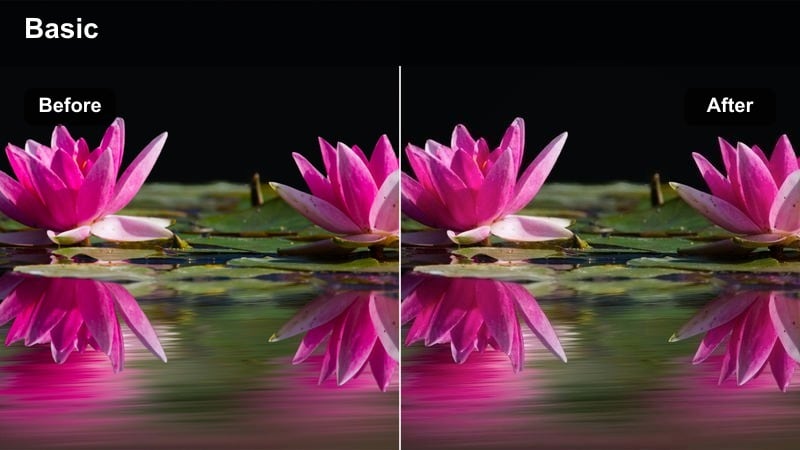
- Effect look: Cool-neutral tone with crisp edges, slightly lowered saturation, and clean whites.
- Best for: Tech reviews, unboxings, desk setups, productivity and workflow videos.
- Editing tip: If screens in your shot clip to white, reduce highlights and use the curve tool before applying this filter.
Soft Tech Desk introduces a subtle cool-neutral shift and slightly reduced saturation that makes gadgets, monitors, and peripherals look sleek and modern. Whites stay clean, and edges appear crisp, which is perfect for product-focused videos where clarity and color accuracy matter.
Before applying this LUT in Filmora, tame any clipped highlights on monitors or light panels using the curves and highlight controls. Then drop the LUT on your clips and fine-tune exposure so product details are visible without blooming. This look pairs well with minimalistic graphics overlays and screen recordings for a cohesive tech-review style.
Brand Color Pop
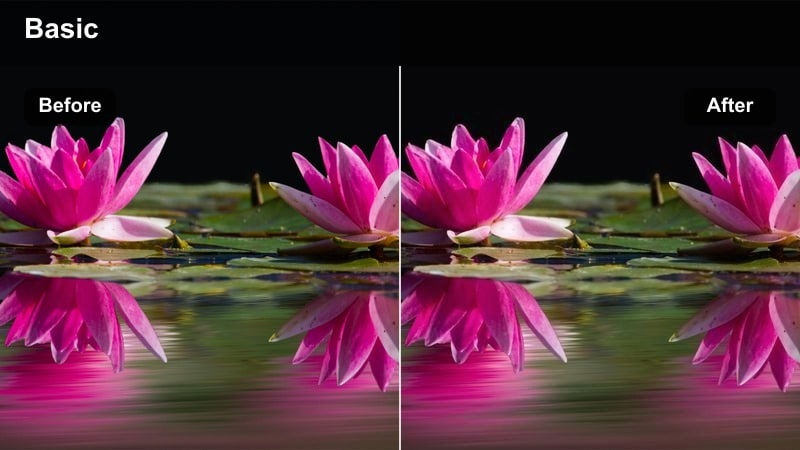
- Effect look: Balanced base contrast with selective saturation boost focused on midtone colors.
- Best for: Studio intros, branded segments, creator logos, and channel trailers.
- Editing tip: Use masks or adjustment layers to push your brand colors while keeping skin and background more neutral.
Brand Color Pop keeps your overall image neutral while giving an extra push to select colors, making LEDs, logos, and decor elements tied to your brand stand out. It is ideal for intros, bumpers, and channel trailers where you want viewers to instantly recognize your visual identity.
In Filmora, apply this LUT to your studio shots, then use HSL and masks to selectively boost just the hues that match your brand palette. Keep skin tones and neutral backgrounds more controlled, and once you dial in a look you love, save it as a reusable preset so every branded segment across your channel feels cohesive.
Social Media and Snackable Clips
Vertical Street Punch
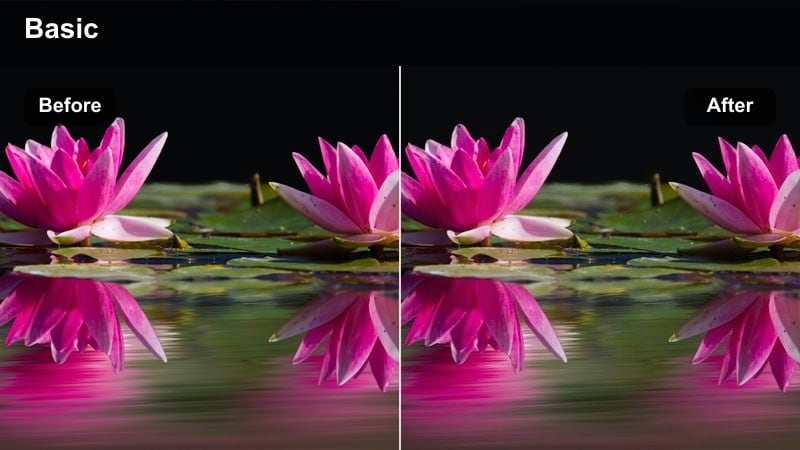
- Effect look: High-contrast, saturated look with vibrant primaries and crisp edges.
- Best for: Vertical Reels, Shorts, and TikTok clips shot in busy city streets or markets.
- Editing tip: After applying, crop your frame for vertical and use overlays or text to match the bold color energy.
Vertical Street Punch is tuned for attention-grabbing mobile content, driving up contrast and saturation so city scenes explode with color on small screens. It brings out bold primaries in signs, clothing, and architecture, helping your Reels, Shorts, and TikTok videos stand out in fast-moving feeds.
In Filmora, first reframe your footage into a vertical aspect ratio, then apply this LUT and adjust intensity so faces do not look oversaturated. Layer bold text, motion graphics, and quick cuts on top of the punchy grade, and always preview your export on a phone to ensure the look remains crisp without introducing excessive noise or artifacts.
Loopable Neon Loop
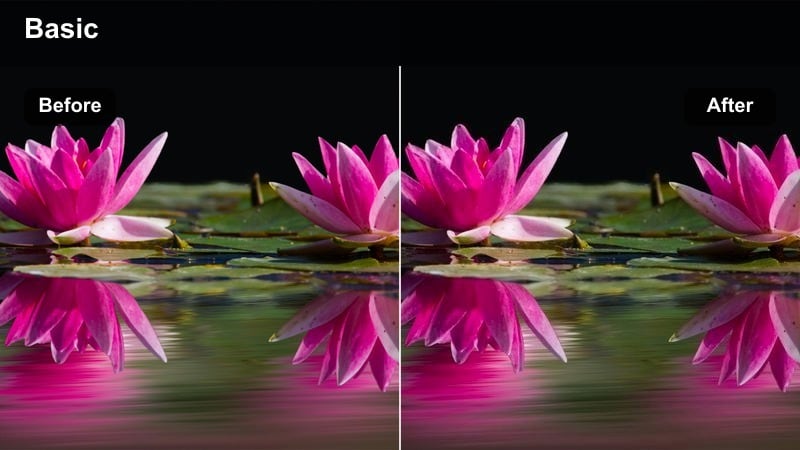
- Effect look: Vibrant neon-focused color with boosted blues and magentas and deep blacks.
- Best for: Night loops, neon signs, rooftop b-roll, and city nightlife shorts.
- Editing tip: Cut your clips to the beat of the music and let neon colors guide transitions and text animations.
Loopable Neon Loop emphasizes blues, magentas, and other neon hues while driving blacks deep for a striking nightlife aesthetic. It is perfect for short, looping clips of city streets, signs, and nightlife b-roll that rely on color and rhythm more than dialogue.
In Filmora, clean up noise in dark areas before adding this LUT, then tweak saturation so neon colors feel intense but still readable after social media compression. Cut clips to music, letting bright signs or color changes mark your transitions, and use simple text or shape animations that pick up the same neon color palette for a cohesive, loop-ready style.
Social Teaser Film
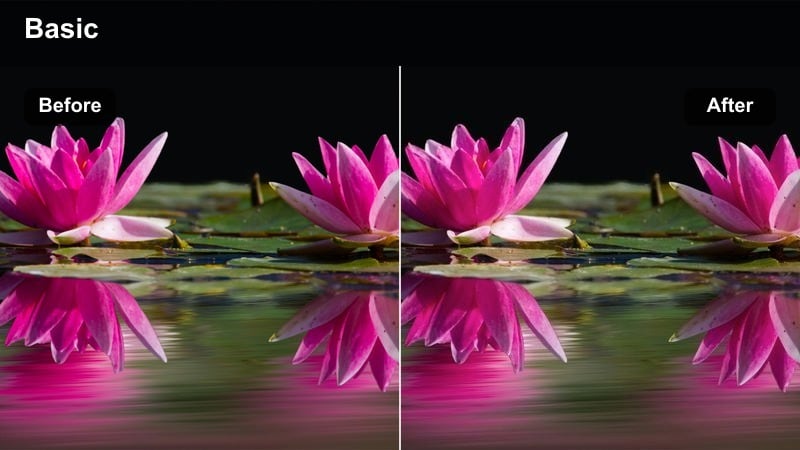
- Effect look: Soft cinematic contrast with gentle highlight roll-off and mid-level saturation.
- Best for: Short teasers, channel trailers, episodic promos, and behind-the-scenes clips.
- Editing tip: Use this filter consistently across a teaser series so your audience instantly recognizes your show or channel.
Social Teaser Film delivers a polished cinematic feel with smooth highlight roll-off and controlled saturation, making short promos feel like a mini-movie. It works across a variety of scenes, from city exteriors to close-up talking shots, helping you maintain a unified trailer style.
In Filmora, apply this LUT to all shots in a teaser or promo series, then make small exposure tweaks shot by shot to keep the grade consistent. Combine it with recurring title designs, music, and transitions so every new teaser immediately feels like part of the same show or channel, strengthening your visual branding across platforms.
Tips for Using Free Luts Color Grading Pack Filters in Filmora
- Organize your clips into scene types, then test two or three filters per scene to quickly find a consistent look.
- Always adjust exposure and white balance before applying filters so the color grading pack behaves predictably.
- Lower filter intensity on mobile content to keep skin tones natural and avoid over-processed results.
- Save your favorite filter combinations as custom Filmora presets so you can apply them across entire timelines.
- Use scopes to double-check that your highlights are not clipping after adding punchy or high-contrast looks.
- Mix filters from this pack with Filmora s built-in effects and transitions to build a signature style without heavy manual grading.
- Preview your exports on both desktop and mobile screens to confirm the LUTs look balanced across different devices.
This free LUTs color grading pack gives creators and editors an easy way to add cinematic personality to vlogs, studio content, and social clips without complex color workflows.
Import the pack into Filmora, try each filter on your key scenes, and refine your favorites into a signature look that you can reuse across every new video.
secure downloadNext: Free LUTS High Contrast
