

 100% Security Verified | No Subscription Required | No Malware


 ChatGPT
 Perplexity
 Gemini
 Claude
 Grok
Grok
These free LUT-style filters for beach video in Filmora help creators and editors get cinematic ocean colors, glowing skin tones, and punchy sunsets with just a few clicks.
Browse the presets below by scene style, from bright lifestyle days to moody golden hour, and apply them like LUTs to quickly match the vibe of your beach footage.
In this article
Bright Lifestyle Beach Days
Sunny Soft Pastel
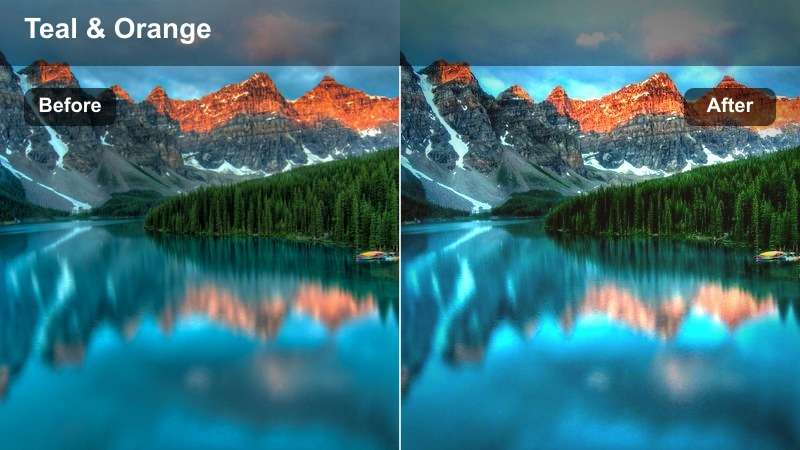
- Effect look: Soft pastel beach tones with bright whites and gentle teal water.
- Best for: Vlogs, lifestyle content, and casual travel clips shot in harsh midday sun.
- Editing tip: Lower contrast slightly after applying to keep skin tones creamy and avoid crunchy highlights.
Sunny Soft Pastel works like a one-click LUT-style filter that softens the hardest beach light while keeping your frame bright and inviting. Whites stay clean instead of gray, water shifts into a gentle teal, and skin tones gain a creamy, flattering glow that is ideal for fashion or lifestyle creators filming on busy shorelines.
In Filmora, apply this filter to your entire midday sequence using an adjustment layer, then fine-tune with the Highlights and Contrast sliders to keep skies detailed. If your subject turns a bit cool, use the Temperature control or skin-tone mask to warm faces slightly while preserving that airy, pastel look across sand, sky, and sea.
Speed Up Beach Grading With AI Color Tools
Filmora AI color tools can automatically balance exposure and white balance on beach footage before you stack any creative filter or LUT-style preset. This first pass protects sky detail, fixes mixed color temperatures, and gives you a neutral base grade.
Once your clips are balanced, you can apply any beach filter from this guide with fewer manual tweaks and more reliable, consistent results across different cameras and lighting setups.
 secure download

Preview Filters on Multiple Beach Scenes
Filmora makes it easy to compare beach filters by duplicating clips or using split-screen layouts on the same shot. You can quickly see how each free LUT-style preset treats sky gradients, skin tones, and water color side by side.
This workflow helps you decide which filter best matches your project style before you commit the look across a whole sequence or export a final cut.
secure download1000+ Video Filters and 3D LUTs
Beyond these free beach LUT-style filters, Filmora includes a large library of filters and 3D LUTs for every genre. You can blend them with color tools, masking, and overlays to build a signature look that fits your brand.
Stack a corrective LUT on an adjustment layer, then add a creative beach filter per scene so you can switch styles or refine the grade at any time during the edit.
secure downloadClear Day Natural Beach
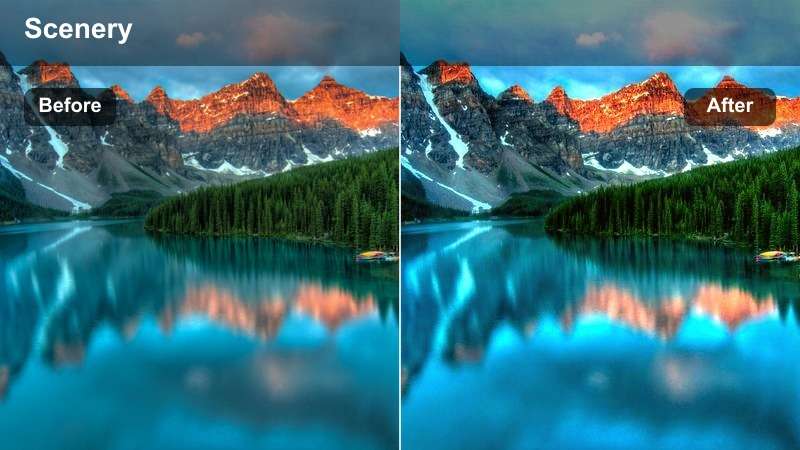
- Effect look: Clean, true-to-life colors with crisp blues and neutral sand tones.
- Best for: Product shots, B-roll, and beach clips where accurate colors matter.
- Editing tip: Increase sharpness subtly to highlight water texture and sand details without making footage look overprocessed.
Clear Day Natural Beach is your go to filter when you want realistic beach colors that still look polished. It keeps blue tones believable, maintains neutral sand, and avoids heavy stylization, making it ideal for client work, branded content, or product features filmed at the shore.
In Filmora, drop this filter on your base layer and treat it like a foundational LUT before adding any stylized effects. You can then layer light color adjustments, titles, or overlays on top, confident that your entire timeline shares the same balanced, natural beach palette.
Crisp Travel Postcard
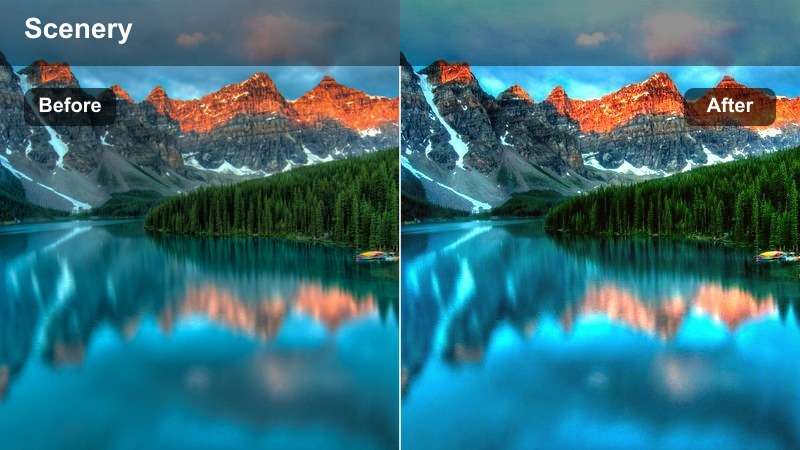
- Effect look: High-clarity postcard look with punchy blues and bright, inviting sand.
- Best for: Travel reels, tourism promos, and establishing shots of beaches.
- Editing tip: If the blues become too intense, slightly reduce saturation in the blue channel instead of overall saturation.
Crisp Travel Postcard gives your beach clips that brochure ready pop with vivid water and sparkling sand. It adds clarity and contrast that make destinations look larger than life, perfect for opening shots, drone passes, or any scene you want to feel instantly aspirational.
Inside Filmora, combine this filter with smooth motion transitions and upbeat music to build high-energy intros and reels. Use color controls to selectively tame blue saturation if needed, and let this look carry your most cinematic shots in tourism, resort, or travel influencer edits.
Warm Golden Hour and Sunset
Sunset Gold Glow
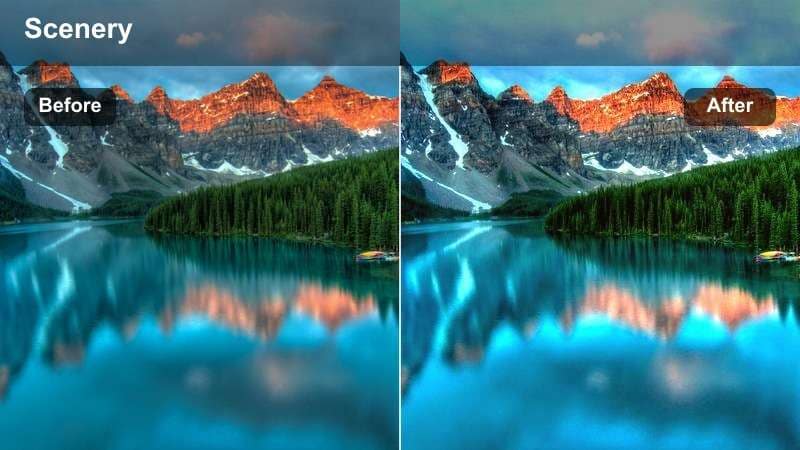
- Effect look: Rich golden highlights with soft contrast and warm, glowing skin tones.
- Best for: Couple shoots, cinematic b-roll, and slow-motion sunset walks.
- Editing tip: Add a subtle vignette after applying to draw more focus to your subject against the glowing sky.
Sunset Gold Glow amplifies the natural warmth of golden hour, wrapping your subjects in rich sunlight while preserving softness in the shadows. It is ideal for emotional, cinematic storytelling where you want the light itself to feel like a character in the scene.
Use this filter in Filmora on slow-motion walking shots, silhouettes, and close-ups taken near sunset. Add a gentle vignette and tweak exposure between angles so faces stay consistently bright, keeping your entire sunset montage smooth and cohesive from clip to clip.
Amber Retro Film
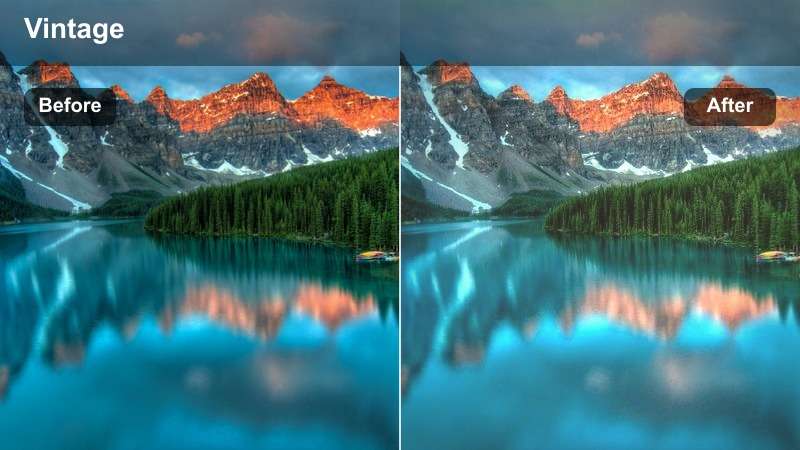
- Effect look: Vintage amber tones with slight fade in the shadows and creamy highlights.
- Best for: Nostalgic beach memories, 8mm-style edits, and retro travel montages.
- Editing tip: Add a subtle grain effect on top to sell the retro look and hide minor noise in low light.
Amber Retro Film transforms modern beach footage into something that feels like it was pulled from an old vacation reel. Warm amber hues, gentle fading, and softer contrast create an instant nostalgic mood that works perfectly for memory sequences or throwback edits.
In Filmora, pair this filter with film grain, light leaks, and slower crossfades to enhance the vintage vibe. You can contrast it against clean, modern clips inside one timeline to show time jumps, flashbacks, or generational stories set along the same coastline.
Peachy Romantic Sunset
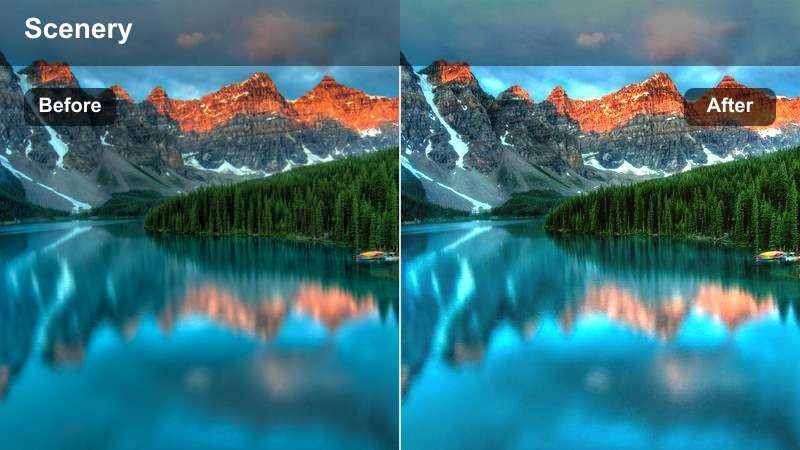
- Effect look: Soft peach and rose tones that flatter skin and smooth out harsh sunset contrast.
- Best for: Engagement shoots, cinematic portraits, and romantic beach scenes.
- Editing tip: Reduce clarity slightly on close-ups to keep faces smooth while leaving background sharpness intact.
Peachy Romantic Sunset leans into rose and peach hues to create dreamy, flattering portraits at the beach. It smooths harsh sunset contrast, softens color transitions, and enhances warmth in skin tones, making it ideal for couples, proposals, or fashion content.
Inside Filmora, apply this filter to your close-ups and medium shots, then lightly reduce clarity and sharpen the background if needed using masking tools. This way, your subjects stay soft and luminous while the ocean and horizon remain detailed, giving your romantic sequences a cinematic finish.
Tropical Water and Sand Colors
Deep Teal Ocean Pop
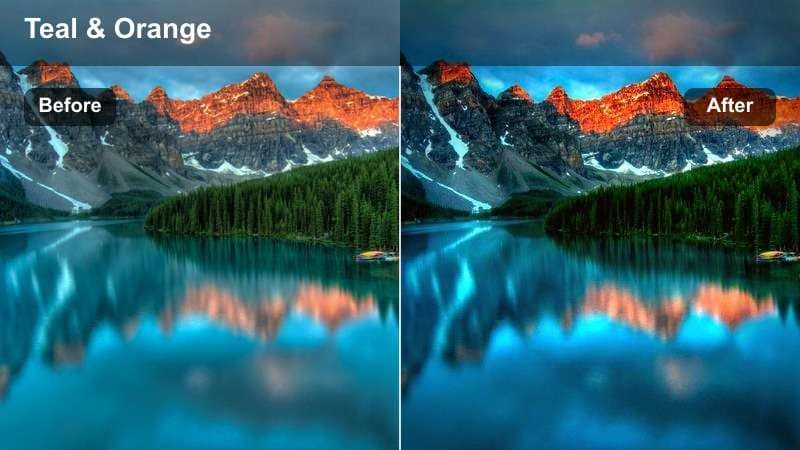
- Effect look: Strong teal water with rich contrast and slightly cooled shadows.
- Best for: Drone passes, snorkeling clips, and wide shots of turquoise coves.
- Editing tip: Mask your subject if their skin turns too cool and warm just the mask area to keep them natural.
Deep Teal Ocean Pop pushes your ocean footage into bold, saturated teals with punchy contrast that screams tropical getaway. It is especially effective on wide shots where large areas of water dominate the frame, helping coastlines and reef details stand out from above.
Use this filter on drone footage, boat shots, and underwater clips inside Filmora, then add masks to protect skin tones and key subjects. By combining it with subtle edge darkening or vignettes, you can guide the viewer s eye toward the brightest water areas and create powerful travel intros.
Soft Turquoise Lagoon
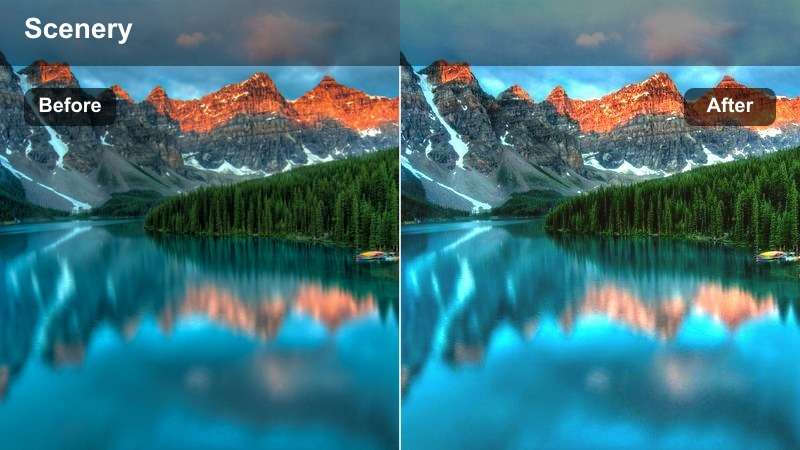
- Effect look: Gentle turquoise water with lowered contrast and subtle pastel sand.
- Best for: Relaxed travel vlogs, yoga sessions, and calm B-roll of quiet beaches.
- Editing tip: Lower saturation slightly on bright clothing so it does not overpower the soft water palette.
Soft Turquoise Lagoon creates a calm, spa-like atmosphere with pastel sand and gentle turquoise water. Instead of going for maximum punch, it lowers contrast and saturation just enough to make your beach scenes feel peaceful and minimal.
In Filmora, pair this filter with slow motion, gentle camera moves, and ambient soundtracks to craft meditative sequences. Desaturate any overly bright clothing or props so they do not distract from the soothing color palette, and use longer cuts to let the relaxed mood fully land.
Bright Sand Contrast
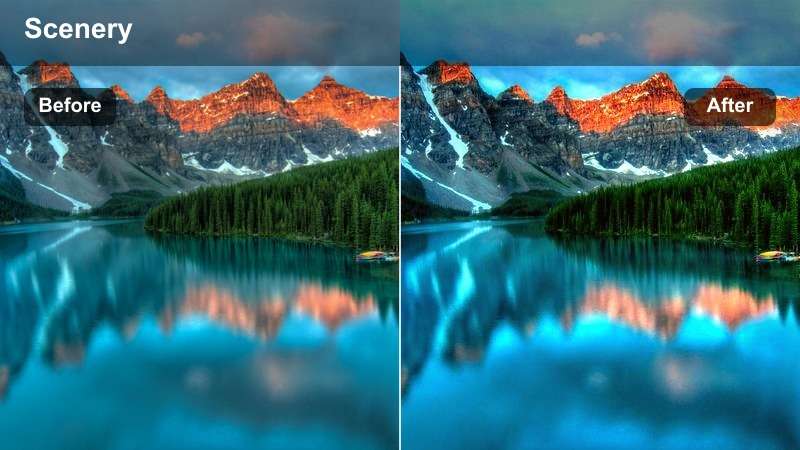
- Effect look: Very bright, clean sand with crisp edges and moderately saturated sea tones.
- Best for: Beach sports, walking shots, and dynamic lifestyle content in full sun.
- Editing tip: Dial back highlights on overexposed sand to avoid losing texture and detail in footprints.
Bright Sand Contrast is tuned for high-energy action under hard sunlight, making sand appear bright and clean while keeping edges sharp. It holds enough detail in shadows and midtones to keep moving subjects clear, from surfers and volleyball players to runners on the shore.
Apply this filter in Filmora to your most active clips, then slightly adjust Highlights and Sharpness so motion looks crisp without halos. Combine it with faster cut pacing, speed ramps, and rhythmic music to boost the excitement of sports montages or lifestyle campaigns shot on the beach.
Moody Shade and Overcast Beach
Cool Overcast Mood
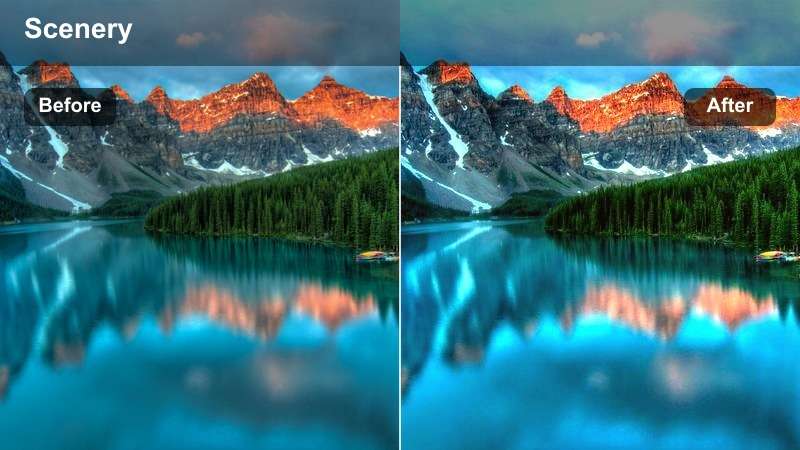
- Effect look: Cool, muted tones with gentle contrast and desaturated blues for cloudy days.
- Best for: Story-driven vlogs, reflective moments, and calm overcast beach walks.
- Editing tip: Raise shadows slightly to keep details in darker clothing and avoid muddy midtones.
Cool Overcast Mood embraces the natural softness of cloudy beach days by muting colors and shifting them slightly cooler. This reduces the flat, gray feeling that ungraded overcast footage often has while preserving the introspective, cinematic character of the scene.
Use this filter in Filmora on narrative vlogs, documentary sequences, or any moment where you want the beach to feel calm and reflective rather than bright. Lift shadows just enough to keep detail in clothing and faces, and pair with slower editing rhythms and gentle background music for maximum emotional impact.
Shade Skin Fix
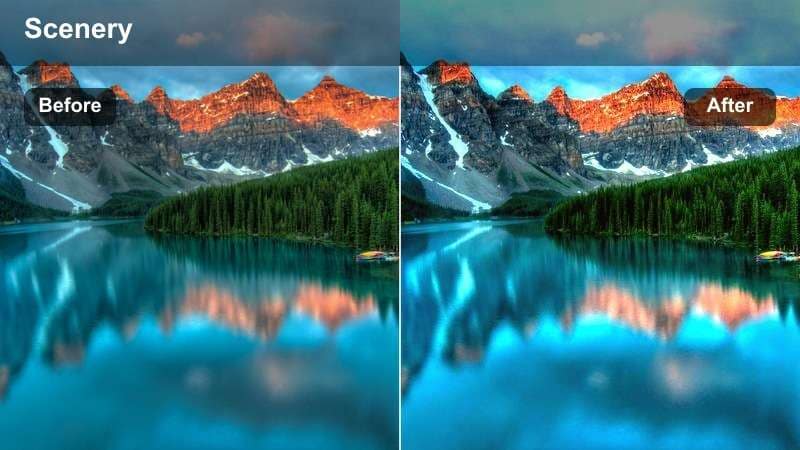
- Effect look: Balanced, slightly warm tones that correct green or blue casts in shady beach areas.
- Best for: Interviews under umbrellas, shaded beach bars, and boardwalk scenes.
- Editing tip: Add a touch of local exposure to faces to bring them forward against a darker shaded background.
Shade Skin Fix is designed to repair the cool, sometimes greenish cast that appears when filming people in beach shade. It warms skin slightly, evens out color shifts from umbrellas or reflective surfaces, and keeps backgrounds natural without overcompensating.
In Filmora, apply this filter across all shaded interviews, bar scenes, or boardwalk shots, then use local exposure or face detection tools to brighten subjects. Adjust warmth so these clips cut smoothly with sunlit shots, helping your entire beach story feel cohesive despite changing light conditions.
Stormy Coast Cinematic
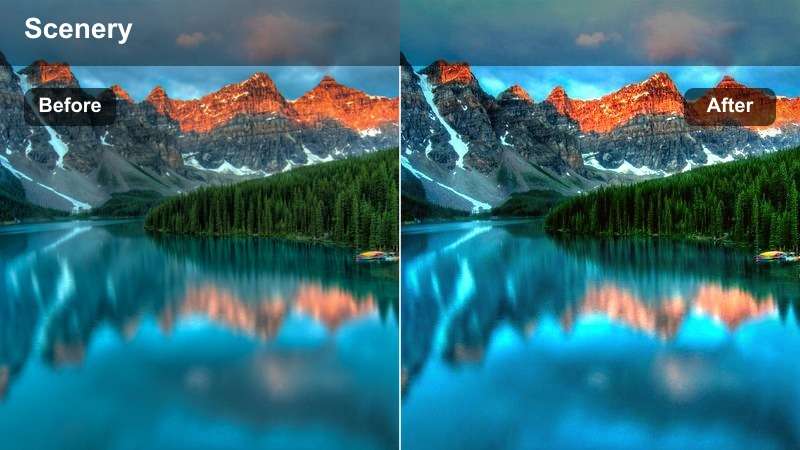
- Effect look: Dramatic contrast with deep blues, muted sand, and a slightly cinematic fade.
- Best for: Stormy seas, big waves, and narrative short films set on the coast.
- Editing tip: Use slower shutter-style motion blur or longer shots to really show wave movement with this dramatic grade.
Stormy Coast Cinematic turns rough seas and dark clouds into striking, high-contrast visuals. Deep blues, muted sand, and a mild cinematic fade emphasize texture in the waves and sky, lending a serious, dramatic tone to your coastal footage.
Inside Filmora, combine this filter with impactful sound design, minimal transitions, and slower pacing to let each shot breathe. It works especially well for short films, moody B-roll, or tension-building sequences where the power of the ocean is central to your story.
Tips for Using Free Luts For Beach Video Filters in Filmora
- Expose slightly darker than usual on the beach to protect sky detail, then use filters to bring back brightness in post.
- Group clips by time of day and lighting so you can apply the same beach filter to each group for consistency.
- Always check skin tones after adding strong teal or blue looks and warm them up slightly if they start to look unnatural.
- Use adjustment layers in Filmora to apply a single filter across an entire beach sequence instead of clip by clip.
- Create a custom preset once you tweak any of these filters so you can reuse your beach look across future projects.
- Test several filters on the same shot using duplicated clips so you can quickly pick the style that matches your beach video s mood.
- Combine a neutral corrective LUT with one creative beach filter to keep colors accurate while still achieving a stylized look.
With the right free LUT-style filters, you can turn raw beach footage into polished, cinematic scenes without spending hours on manual color grading.
Save your favorite combinations as presets in Filmora so every new beach video starts with a strong, consistent visual style you can build on quickly.
Filmora can also export compatible color adjustments from a selected clip as a standard .cube LUT, providing a reusable starting point for other beach sequences, future projects, or footage edited in DaVinci Resolve, Adobe Premiere Pro, and Final Cut Pro.
secure downloadNext: Free LUTS for City Video
