

 100% Security Verified | No Subscription Required | No Malware


 ChatGPT
 Perplexity
 Gemini
 Claude
 Grok
Grok
If you are an influencer or content creator, free LUT-style filters can instantly upgrade your feed, giving your videos a cohesive and professional look without deep color grading skills.
Below are handpicked Filmora filters that behave like ready-made LUTs, tailored to influencer content such as Reels, TikToks, Shorts, and vlogs, so you can keep a consistent aesthetic while editing fast.
In this article
Warm Lifestyle and Golden Hour Influencer Looks
Sunset Street Glow
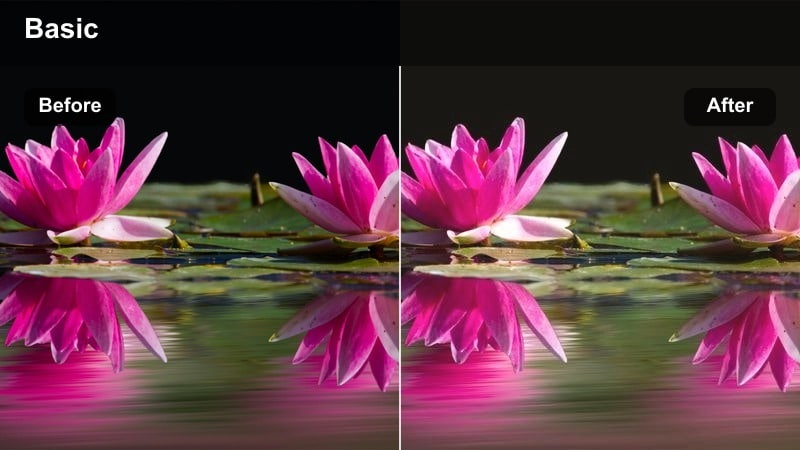
- Effect look: Soft golden contrast with warm highlights and gentle fade in the shadows.
- Best for: Golden hour outfit shots, lifestyle B-roll, and warm travel transitions.
- Editing tip: Lower the filter intensity to 60-70 percent and slightly boost saturation on skin tones for natural warmth.
Sunset Street Glow gives your footage that instantly recognizable golden hour vibe, even if the light was not perfect when you filmed. It wraps your scene in warm highlights, softens the shadows, and adds gentle contrast so your outfits and background details feel cinematic rather than harsh.
In Filmora, apply this filter to all clips from the same outdoor session, then fine-tune intensity so skin tones stay flattering across different angles. Use it on both A-roll and B-roll, and combine with subtle transitions to keep your Reels, TikToks, and Shorts visually consistent within a single post.
Speed Up Color Matching With AI Tools in Filmora
Filmora includes AI-driven color matching tools that help you copy the look of your favorite filtered clip across an entire sequence. Instead of manually recreating settings on every shot, you can let the AI analyze your reference and automatically match other clips to it.
Pick a clip that uses your preferred influencer filter as the reference, run AI Color Match, and apply those matched settings to your remaining Reels or Shorts. This workflow keeps your feed cohesive while saving significant time in post-production.
 secure download

Preview Filters on Social-First Aspect Ratios
With Filmora, you can switch your project to vertical formats like 9:16 to see exactly how each LUT-style filter will play on Reels, TikToks, and Shorts. Testing filters in a phone-sized preview helps you avoid looks that crush detail or oversaturate skin on small screens.
Cycle through multiple filters while monitoring how text overlays, faces, and backgrounds appear in the vertical frame. This makes it easier to lock in a signature style that still looks clean and scroll-stopping on mobile.
secure downloadSave Your Favorite Filters as Custom Presets
Filmora lets you turn any adjusted filter into a reusable preset, effectively creating your own free LUT library tailored to your niche. Once you dial in intensity, contrast, and color, save the combination so you can apply that same branded look to future content in one click.
Over time, you can build separate presets for lifestyle, travel, product reviews, and more. This keeps your visual identity consistent while dramatically speeding up your editing workflow.
secure downloadCozy Apartment Warmth
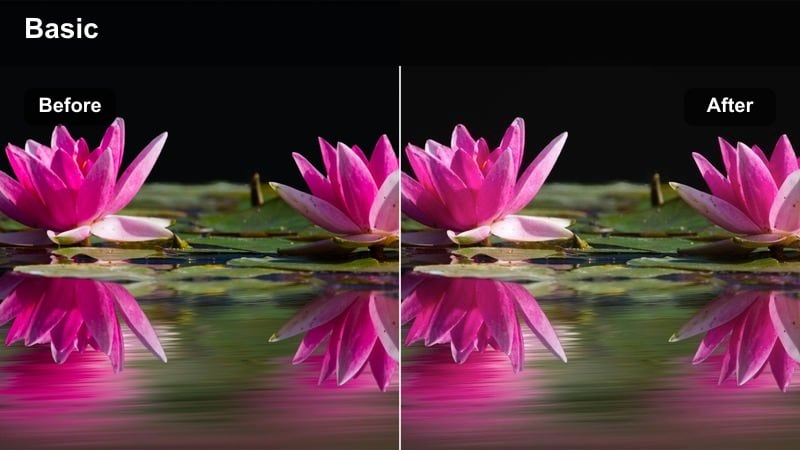
- Effect look: Creamy warmth with soft shadows and slightly muted contrast for an intimate feel.
- Best for: Room tours, desk setup videos, and aesthetic indoor lifestyle content.
- Editing tip: Increase brightness a little and add subtle vignette to draw attention toward the center of the frame.
Cozy Apartment Warmth is designed to make everyday indoor spaces look intentionally styled, even if you are filming in a small room. The soft shadows and creamy tones smooth out harsh lighting and add a welcoming, cinematic mood that works well for talking-head clips and slow lifestyle B-roll.
In Filmora, pair this filter with a gentle vignette to keep focus on you or your subject in the center of the frame. Slightly reducing clarity in the background can also help hide clutter and push more attention toward your face, products, or key decor details.
Sunlit Coffee Run
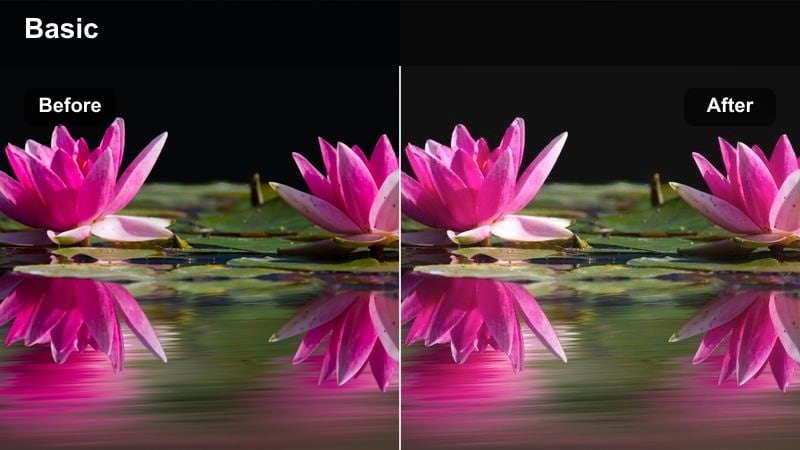
- Effect look: Bright, airy highlights with a slight pastel warmth and lifted blacks.
- Best for: Day-in-the-life vlogs, coffee runs, and casual city lifestyle montages.
- Editing tip: Use speed ramps and this filter together to create dynamic, aesthetic B-roll sequences.
Sunlit Coffee Run is perfect for turning quick errand clips into aesthetic filler that keeps your audience engaged between main talking segments. It brightens highlights, lifts shadows, and adds a hint of pastel warmth so sidewalks, cafes, and storefronts feel light and inviting.
Apply this filter in Filmora to short handheld shots like grabbing coffee, crossing the street, or entering shops. Combine it with speed ramps, match cuts, and upbeat music to build trendy lifestyle sequences that easily fit into Reels and Shorts.
Urban Streetwear and City Influencer Aesthetics
Neon City Pop
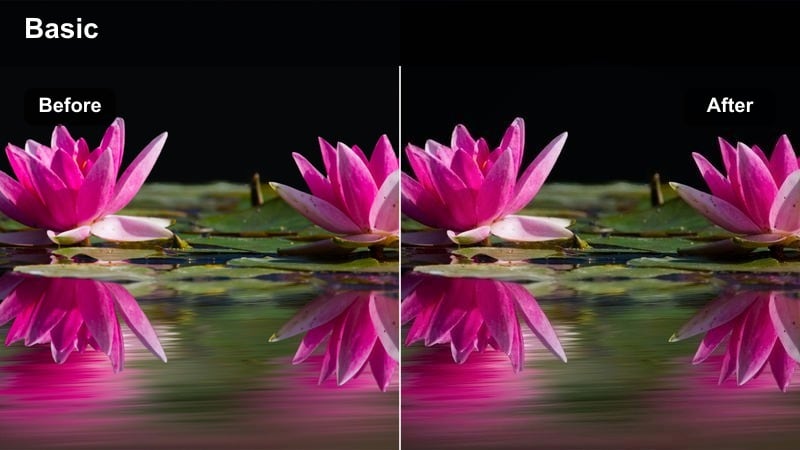
- Effect look: Punchy contrast with boosted neon hues, deep shadows, and cool highlights.
- Best for: Night street shoots, city sign close-ups, and edgy streetwear videos.
- Editing tip: Turn down the filter intensity slightly if skin tones start to look too magenta under mixed lighting.
Neon City Pop is built for night content where signs, billboards, and RGB lights are part of your brand. It pushes neon colors, deepens shadows, and cools the overall tone so your streetwear and accessories grab attention in busy city environments.
Inside Filmora, apply this filter to all clips from your night shoot and then tweak intensity per shot to keep faces balanced. Use it with slow-motion walks, close-ups of sneakers, and quick whip pans around neon signs to create a bold, recognizable city-night aesthetic.
Gritty Subway Matte
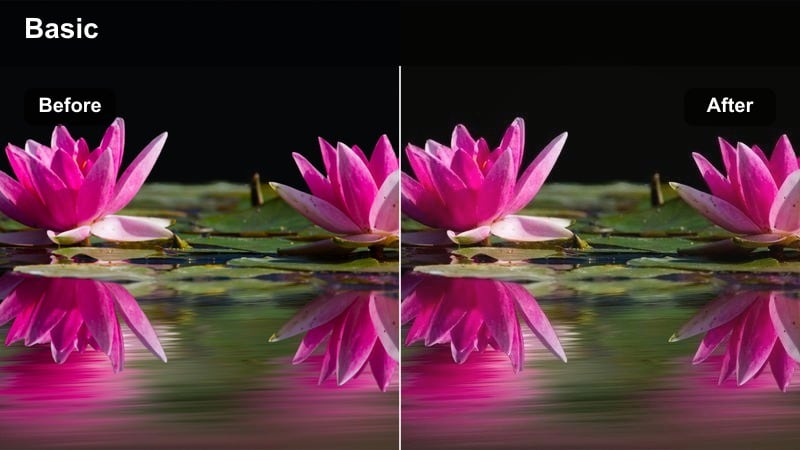
- Effect look: Desaturated urban colors with matte blacks and subtle teal shadows.
- Best for: Subway transitions, alleyway walks, and moody lookbooks.
- Editing tip: Reduce saturation of greens slightly to avoid dirty-looking tiles or walls in underground scenes.
Gritty Subway Matte leans into a raw, cinematic feel by lowering overall saturation and softening blacks into a matte finish. The subtle teal shadows give hallways, tunnels, and platforms a filmic edge that works well with streetwear and documentary-style shooting.
In Filmora, use this filter across sequences shot in subways, alleys, or parking garages, then trim clips tightly to keep pacing energetic. Pair it with handheld camera moves, motion blur transitions, and layered ambient audio to make your city stories feel immersive and cinematic.
Rooftop Contrast Boost
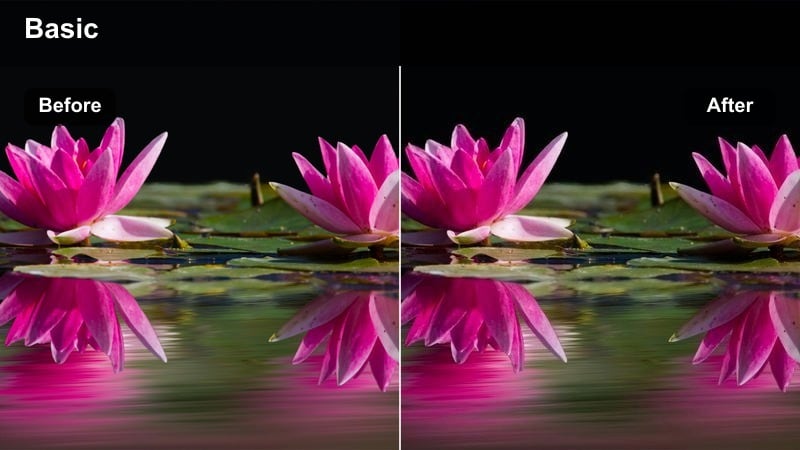
- Effect look: Strong contrast with crisp details and slightly cool midtones for skyline shots.
- Best for: Rooftop photo dumps, city skyline reveals, and outfit showcases against tall buildings.
- Editing tip: Increase sharpness a touch for wide shots, but ease off for close-ups to keep skin flattering.
Rooftop Contrast Boost is tailored for wide city views, giving buildings and skylines a crisp, dramatic presence. The cooler midtones and enhanced contrast make horizon lines, windows, and architectural details stand out, which is ideal for reveal shots and outfit showcases.
Apply this filter in Filmora to your opening and closing rooftop clips, then mix in a few slow push-ins or drone shots if available. For close-ups, reduce overall sharpness slightly so skin remains smooth while still benefiting from the bold city backdrop.
Desk Setups, Tech Reviews, and Productivity Shots
Minimal Desk Clean
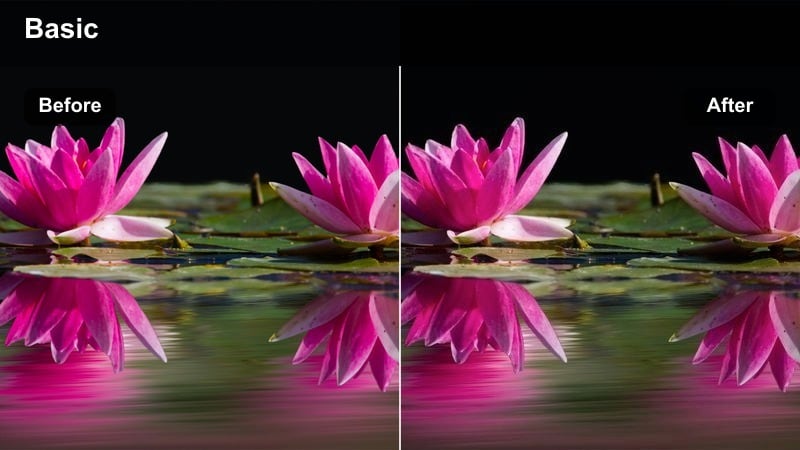
- Effect look: Neutral, slightly cool whites with lowered saturation and tidy contrast.
- Best for: Desk setup tours, productivity reels, and workspace organization content.
- Editing tip: Use subtle sharpening and noise reduction together to keep text on screens crisp and readable.
Minimal Desk Clean keeps your workspace footage looking tidy and premium by neutralizing color casts and gently lowering saturation. Whites stay clean, edges stay defined, and distractions in the background are toned down so your layout and gear are the main focus.
In Filmora, use this filter anytime your desk appears on camera, from quick reels to full setup tours. Combine it with straight, symmetrical framing and a slight sharpen to ensure monitors, keyboards, and accessories look crisp in both landscape and vertical exports.
Screen Glow Focus
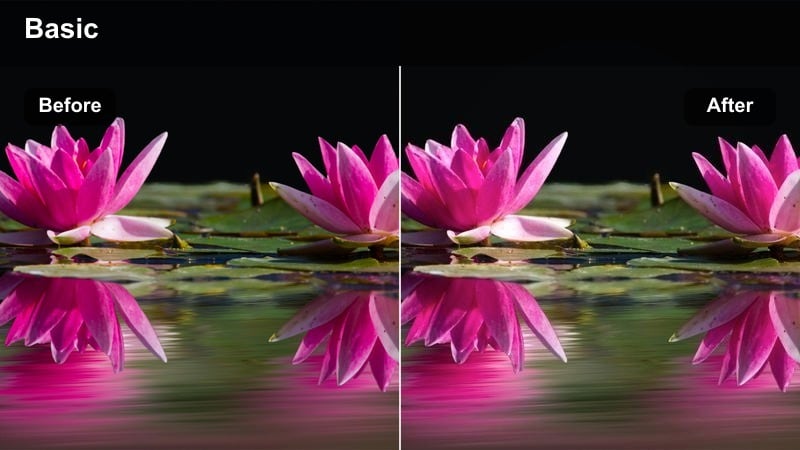
- Effect look: Cool digital tones with gentle bloom on bright screens and slightly darker surroundings.
- Best for: Tutorials, software demos, and tech influencer explainers.
- Editing tip: Lower the filter strength for outdoor laptop shots to avoid losing contrast in brighter environments.
Screen Glow Focus is optimized for content where the display is the hero, like software walkthroughs and app tutorials. It keeps screens bright and legible while slightly darkening and cooling the surrounding environment to center the viewer s attention on what you are demonstrating.
Apply this filter in Filmora to close-ups of your monitor, phone, or laptop, then use built-in zoom and highlight tools to emphasize key interface elements. Adjust intensity based on ambient lighting so you maintain contrast while still achieving that polished, tech-focused glow.
Product Review Soft Spot
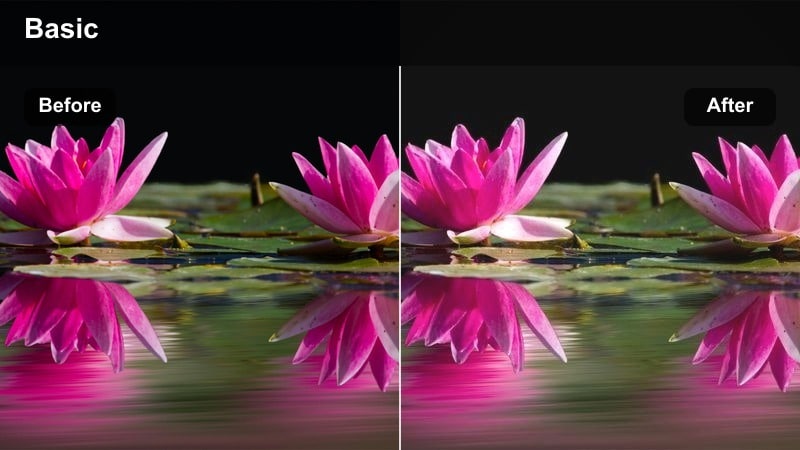
- Effect look: Soft contrast with slightly warm highlights and gentle background fade.
- Best for: Sponsored segments, unboxings, and product close-up shots on your desk.
- Editing tip: Drop the background saturation slightly to keep the viewer focused on the item you are reviewing.
Product Review Soft Spot is crafted to flatter both you and the products you showcase, adding gentle warmth and softening harsh contrast. Background elements subtly fade so the audience naturally looks at the item in your hands or on the table.
In Filmora, use this filter for sponsored reads, unboxings, and any segment where brands expect a polished look. Slightly lower saturation and clarity in the background, then keep the product area sharp to highlight textures, labels, and details that matter for potential buyers.
Travel Reels, City Breaks, and Day-in-the-Life Vlogs
City Travel Filmic
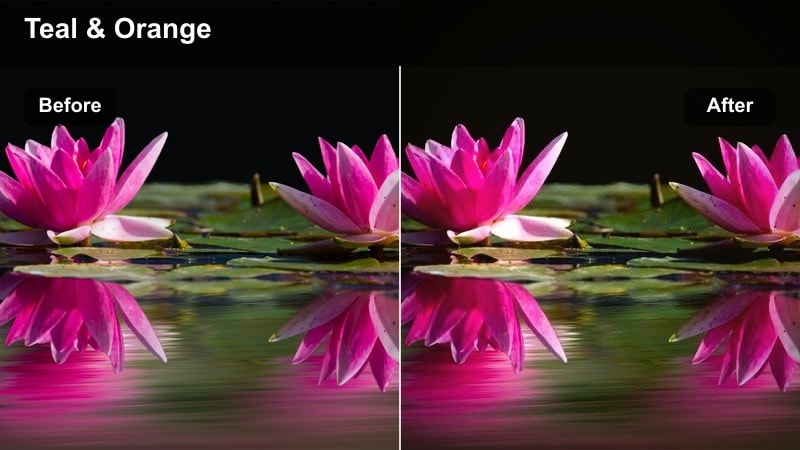
- Effect look: Cinematic contrast with gentle teal shadows and warm skin-friendly highlights.
- Best for: Travel vlogs, hotel room tours, and walking-through-the-city shots.
- Editing tip: Use it on both A-roll and B-roll so your entire travel episode feels like one cohesive story.
City Travel Filmic gives your travel content a classic vlog-style movie look, balancing teal shadows with warm highlights that keep skin tones natural. It works equally well indoors and outdoors, making it easier to maintain a unified style across hotel rooms, streets, and cafes.
Apply this filter in Filmora across an entire travel episode or playlist, from talking intros to B-roll montages. Add gentle camera moves, ambient city audio, and text labels for locations to turn simple clips into a cohesive travel storytelling experience.
Weekend City Break Soft
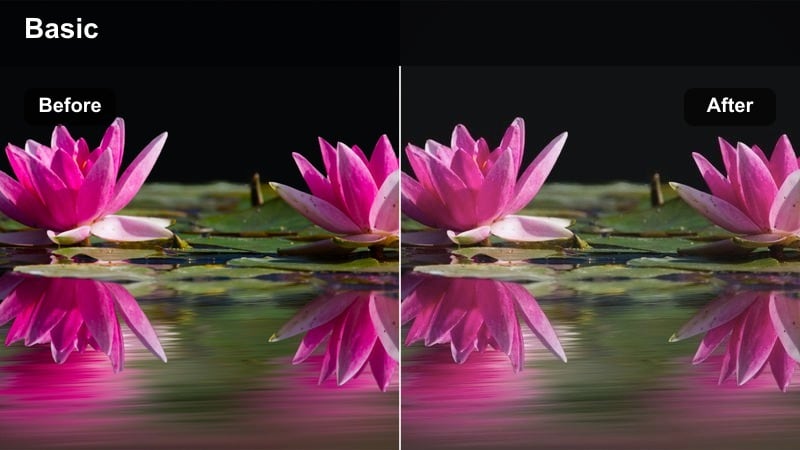
- Effect look: Light pastel tones with softened contrast and gently brightened midtones.
- Best for: Weekend recap reels, brunch walks, and soft casual travel diaries in the city.
- Editing tip: Keep clips short and add subtle film grain on top for an aesthetic, memory-like feel.
Weekend City Break Soft is ideal for turning casual weekend footage into dreamy recap reels. The softened contrast, bright midtones, and pastel shift give your clips a memory-like quality that works well with lo-fi music and overlay text.
In Filmora, apply this filter to handheld phone clips of brunch, window shopping, and strolling through streets. Keep individual shots short, add light film grain, and overlay simple captions with dates or place names to create scrollable micro-vlogs your audience will want to save.
Airport Transit Hustle
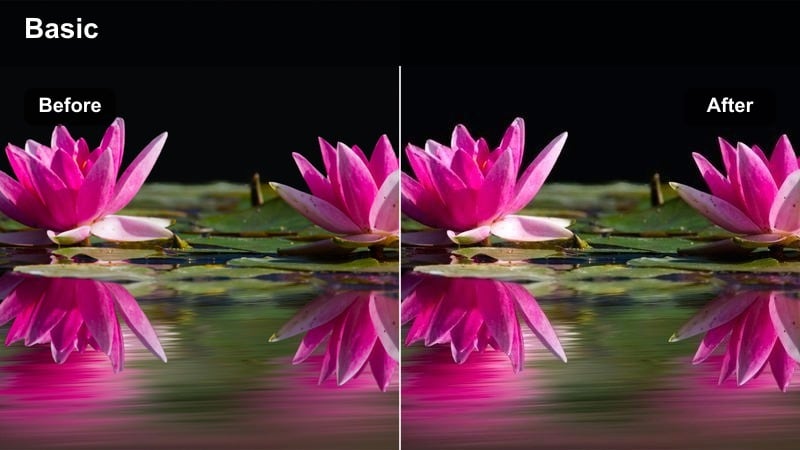
- Effect look: Clean, cool travel tones with neutral skin and a slight clarity boost.
- Best for: Airport transitions, train stations, and quick on-the-move travel sequences.
- Editing tip: Pair this filter with motion blur transitions to emphasize movement and pace.
Airport Transit Hustle is tuned for bright terminals, stations, and fast-paced travel sequences. It keeps whites clean and cool while preserving neutral skin tones, adding just enough clarity to make signs, gates, and architecture look sharp and modern.
Use this filter in Filmora for fast-cut montage intros that show flights, check-ins, and transit moments before your main vlog. Combine it with motion blur transitions, bold text overlays for destinations, and rhythmic cuts synced to music to create strong hooks that stop viewers from scrolling away.
Tips for Using Free Luts For Influencers Filters in Filmora
- Batch-edit several short clips using the same filter so your carousel or reel feels visually unified from start to finish.
- Watch skin tones closely and reduce filter intensity when faces begin to look too orange, red, or washed out on mobile screens.
- Create separate custom presets for indoor, outdoor, and night scenes in Filmora so you can switch looks quickly while editing.
- Test your filtered videos on both bright and dim phone brightness levels to ensure important details remain visible.
- Combine subtle filters with good lighting on set rather than relying on heavy grading to fix very dark or noisy footage.
- Use Filmora s AI Color Match to copy a favorite filtered look across all clips in a project for a consistent influencer aesthetic.
- Adjust saturation and contrast per clip after applying a filter to prevent overprocessed scenes in mixed lighting conditions.
- Save variations of your favorite filters at different intensities, so you can choose the right strength for Reels, vlogs, or sponsored content.
Using the right free LUT-style filters inside Filmora helps influencers keep their videos consistent, polished, and recognizable without spending extra time on complex grading.
Save your favorite options as presets, organize them by scene type, and you will be able to produce on-brand content for every platform in just a few clicks.
secure downloadNext: Free LUTS for Beginners
