

 100% Security Verified | No Subscription Required | No Malware


 ChatGPT
 Perplexity
 Gemini
 Claude
 Grok
Grok
These free LUT-style filters for outdoor video help creators and editors quickly fix harsh daylight, faded colors, and flat skies while keeping skin tones natural.
Use these Filmora presets to give your outdoor travel, vlog, and adventure footage a polished, cinematic look without complex color grading.
In this article
Bright Daylight and Blue-Sky Outdoor Scenes
Crisp Daylight Boost
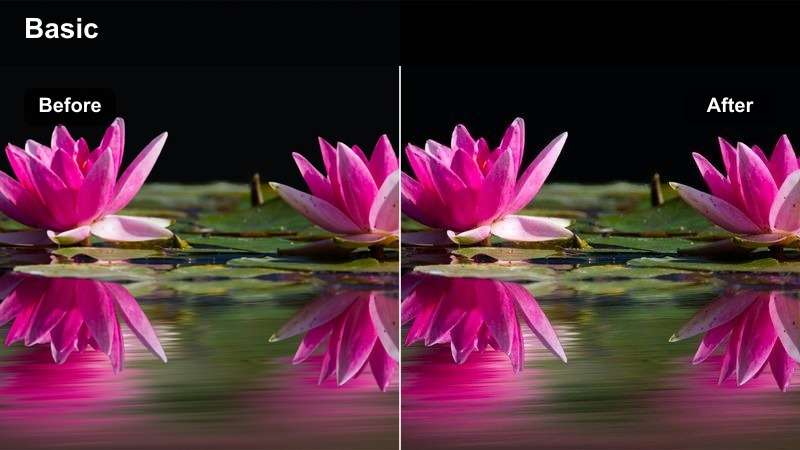
- Effect look: Clean, bright enhancement that adds contrast and clarity for mid-day sun shots.
- Best for: Walking vlogs, city parks, scenic overlooks shot between late morning and early afternoon.
- Editing tip: Lower the filter intensity slightly if highlights on faces start to clip, and pair with a small shadow lift for balanced exposure.
Use Crisp Daylight Boost in Filmora when your outdoor footage looks sharp but slightly flat or hazy under strong noon light. The filter tightens contrast, adds clarity, and gives blue skies and foliage more definition so simple walk-and-talk clips feel cleaner and more professional.
In your Filmora timeline, drop this filter on an adjustment layer over all midday shots, then dial the intensity down until skin highlights look controlled. For a polished vlog look, combine it with a small shadow lift and gentle vignette so the viewer stays focused on your subject even in harsh, high-contrast daylight.
Match Outdoor LUT-Style Filters With AI Color Tools
After you pick an outdoor LUT-style filter, Filmora's AI color tools help you quickly fine-tune exposure, contrast, and white balance so every location still feels like part of the same video. This is especially useful when you mix bright city streets, shaded parks, and high-contrast overlooks in one edit.
Start by adjusting a single hero clip with AI color correction, then copy those settings across similar shots. You get the creative style of your chosen filter plus consistent, polished color with only a few clicks.
 secure download

Preview Outdoor Filters in Real Time
Filmora lets you hover over each outdoor filter to preview how your clip will look before you apply anything. This makes it easy to test bright, moody, or cinematic styles on the same shot and quickly choose the one that matches your story.
With split-screen preview, you can compare your original footage to the filtered version side by side. It is a fast way to confirm that skies, foliage, and skin tones still look natural while you push the overall style further.
secure download1000+ Video Filters and 3D LUTs
Beyond these free outdoor LUT-style filters, Filmora includes a large library of creative looks, cinematic 3D LUTs, and HSL color controls. You can stack filters, tweak individual color ranges, and build a style that fits your channel instead of relying on a single preset.
Once you have tuned a look with filters and HSL, you can save it as a reusable preset and apply it across new projects. This keeps your outdoor footage consistent and saves time on every edit.
secure downloadSky Tone Balancer
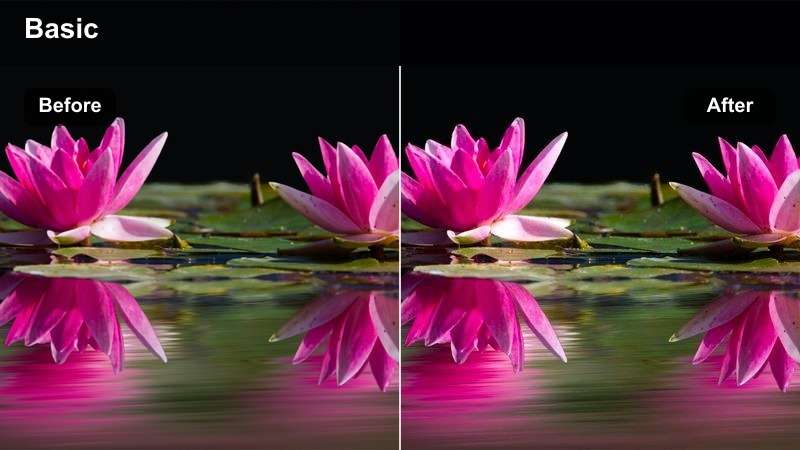
- Effect look: Deepens blue skies and slightly warms skin tones for balanced outdoor color.
- Best for: Beach days, rooftop shots, and open landscapes with lots of visible sky.
- Editing tip: Use this when the sky looks washed out; reduce saturation on blues if logos or clothes are overly intense.
Sky Tone Balancer is ideal for any outdoor clip where the sky looks pale or washed out, but you still want people in the frame to look natural. In Filmora, it adds depth to blues and a touch of warmth to skin, making rooftops, beaches, and open fields feel more cinematic without heavy grading.
Apply this LUT-style filter to B-roll and talking clips that feature a lot of sky, then fine-tune blue saturation in the color controls if clothing or signage becomes too intense. It works especially well on drone shots where you want vivid skies and clouds that stand out clearly against the horizon.
Vivid Nature Pop
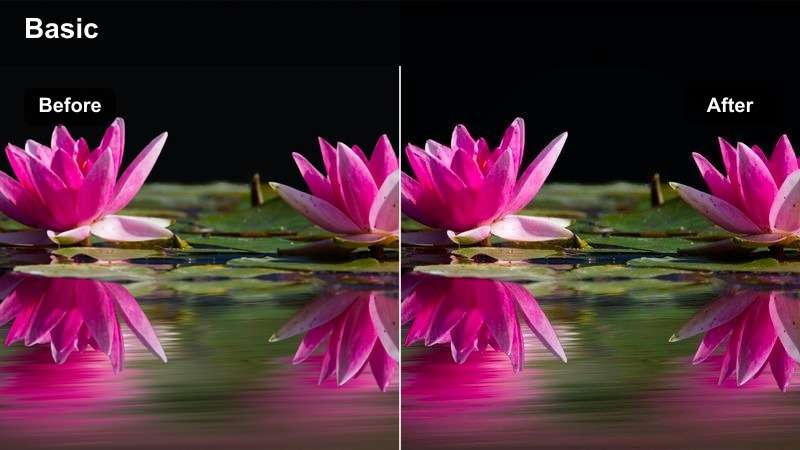
- Effect look: Punchy saturation and contrast that makes greenery and skies stand out.
- Best for: Hiking vlogs, mountain views, lakeside walks, and outdoor sports in full sun.
- Editing tip: Use sparingly with already colorful footage; reduce overall intensity if skin tones begin to look too orange.
Vivid Nature Pop is designed to make outdoor landscapes feel energetic and bold, pushing greens and blues so forests, lakes, and open trails really stand out. In Filmora, this filter is great for B-roll sequences and montage edits where you want the environment to be the star of the scene.
For mixed shots that include faces, apply this filter on an adjustment layer and lower the intensity until skin tones look realistic again. If the foliage starts to look too neon, tweak green saturation in the color panel while keeping the boosted contrast to maintain that crisp, adventurous feel.
Golden Hour and Sunset Outdoor Looks
Soft Golden Glow
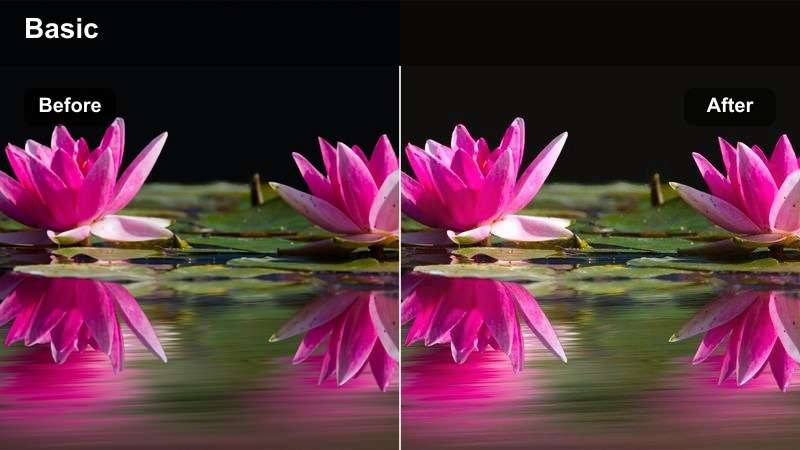
- Effect look: Warm, gentle glow that wraps subjects in soft golden light.
- Best for: Golden hour portraits, engagement shoots, and cinematic travel b-roll at sunset.
- Editing tip: Apply first, then slightly reduce contrast to keep the glow dreamy instead of crunchy.
Soft Golden Glow in Filmora is perfect when you want that romantic, backlit golden-hour look with minimal effort. It warms skin tones, softens highlights, and adds a subtle halo effect around bright areas, ideal for portraits, couples, and solo travel shots at sunset.
Use this filter on footage that already has some directional light, then lower contrast a little to keep shadows gentle and flattering. On overcast clips, combine it with a touch of extra warmth in the white balance to mimic sunset light even when the sky is more muted.
Sunset Travel Cinema
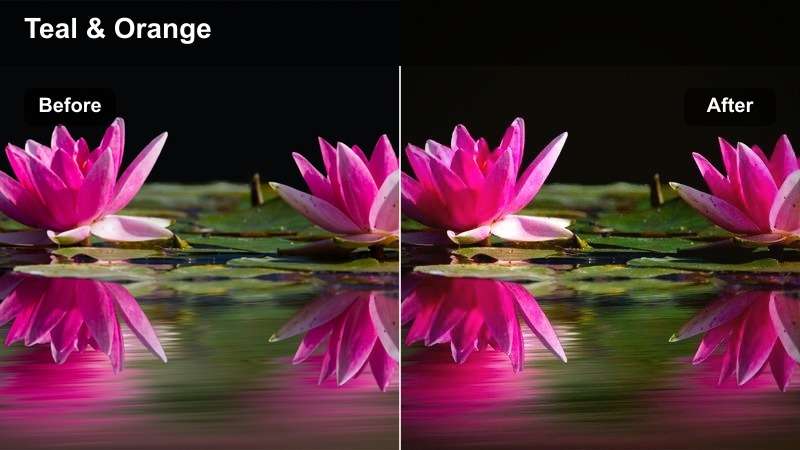
- Effect look: Cinematic color shift with rich oranges and teals tailored for sunset horizons.
- Best for: Travel vlogs, beach sunsets, city skyline time-lapses shot at dusk.
- Editing tip: Increase local contrast around the horizon line to highlight the gradient in the sky.
Sunset Travel Cinema gives your evening B-roll that classic orange-and-teal movie look, emphasizing warm horizons and cool shadows. It works especially well on silhouettes, skyline views, and water shots that catch the last light of the day.
Apply this LUT-style filter in Filmora, then add a bit of extra contrast or sharpness around the horizon so clouds and color gradients stand out. If shadows push too far into teal, gently raise the temperature or reduce blue saturation until buildings, streets, and people feel stylized but still believable.
Dusk City Warmth
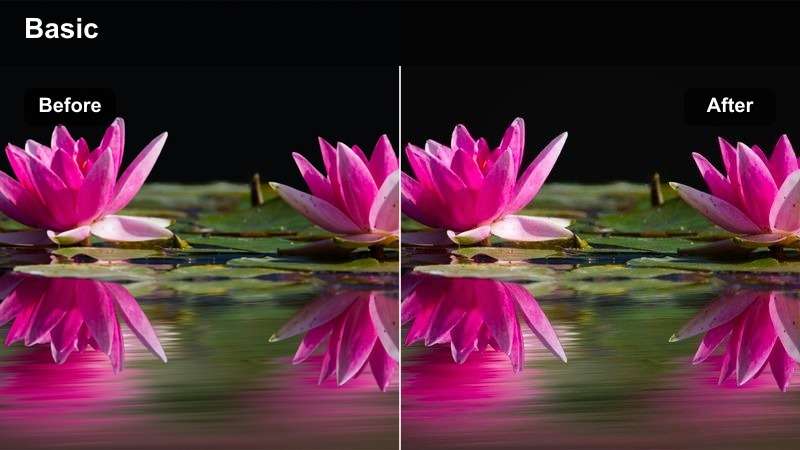
- Effect look: Subtle warmth and lifted shadows tuned for late-evening outdoor city scenes.
- Best for: Street vlogs, riverside walks, and plazas right after sunset when lights start turning on.
- Editing tip: Lift shadows only as needed to keep the scene moody but still readable on mobile screens.
Dusk City Warmth helps you smooth the transition from day to night by adding gentle warmth and softening deep shadows. It is ideal in Filmora when you are editing street vlogs or b-roll right after sunset and want to keep faces visible while preserving the evening mood.
Use it on clips where city lights and signs are just starting to glow, then carefully lift shadows until details are readable without flattening the scene. If highlights from signs or windows become distracting, slightly reduce highlight intensity so your subject remains the focus.
Adventure, Action, and Travel Outdoor Shots
Trail Adventure Boost
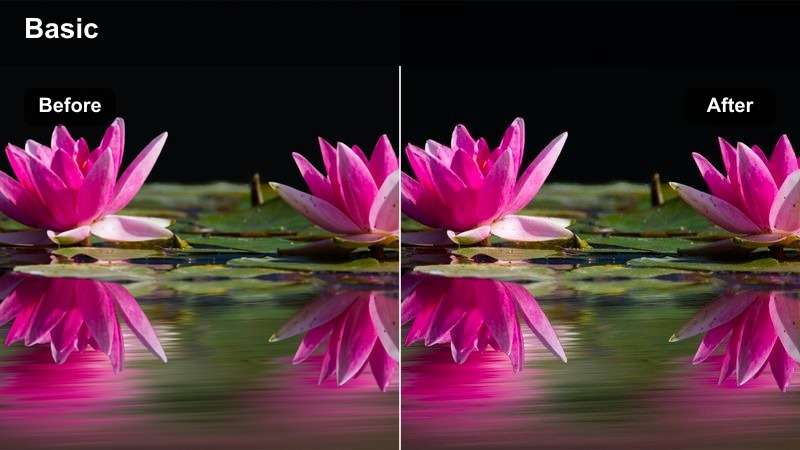
- Effect look: High-energy, contrasty look that sharpens details and boosts natural colors.
- Best for: POV hiking, mountain biking, running shots, and outdoor fitness content.
- Editing tip: Use on stabilized clips first; too much sharpness on shaky footage can feel harsh and distracting.
Trail Adventure Boost is built for high-energy outdoor action: dirt trails, rocky paths, and fast-moving POV shots. In Filmora, this filter increases contrast and texture so gravel, leaves, and terrain have extra depth while still keeping sky and foliage saturated.
Apply it to stabilized clips from action cameras or gimbals to enhance speed and impact without emphasizing shake. If the environment starts to feel visually busy, slightly lower clarity or midtone contrast so your subject remains clear against the detailed background.
Travel Postcard Clean
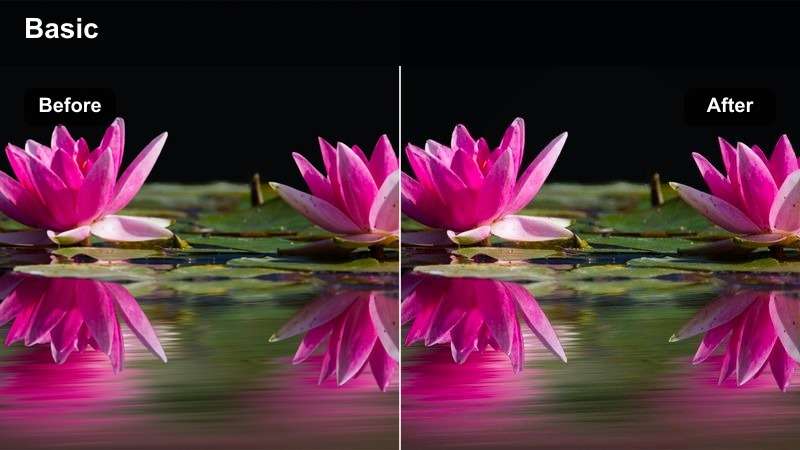
- Effect look: Balanced, bright look that cleans up haze and gently boosts color.
- Best for: Tourist landmarks, city viewpoints, bridges, and iconic outdoor locations.
- Editing tip: Combine with a slight dehaze adjustment for distant skylines or mountains lost in atmospheric haze.
Travel Postcard Clean gives sightseeing clips a crisp, polished finish that feels ready for thumbnails and social posts. It adds a touch of brightness, reduces haze, and boosts color just enough to make landmarks and cityscapes stand out without looking overly edited.
In Filmora, use this filter on your hero shots of famous locations, then add a gentle dehaze effect for far-off skylines or mountains. Keep intensity at a medium level when people share the frame so faces look natural while the background still has that postcard-ready clarity.
Coastal Adventure Teal

- Effect look: Teal-tinted shadows with crisp highlights tailored for oceans, rivers, and lakes.
- Best for: Surf sessions, kayak rides, coastal road trips, and seaside drone shots.
- Editing tip: Watch for color shifts in skin tones; if faces look too cool, warm the white balance slightly.
Coastal Adventure Teal leans into modern teal shadows to make water-heavy scenes feel stylish and cinematic. It works well in Filmora on drone passes over shorelines, surf clips, and boat footage where you want the water to be the visual centerpiece.
Apply it primarily to clips dominated by oceans or rivers, then adjust white balance if people in the frame start to look too cool. If rocks, buildings, or sand pick up too much teal, selectively reduce cyan or blue saturation to keep those elements more neutral while the water remains vibrant.
Cloudy, Overcast, and Moody Outdoor Conditions
Overcast Clarity Lift
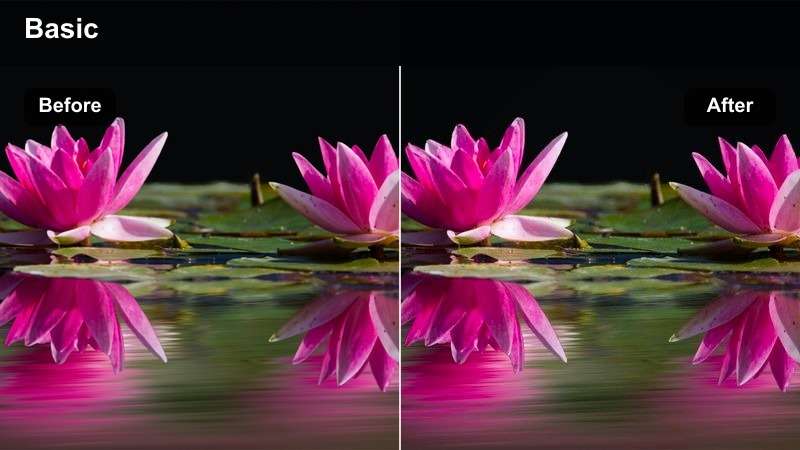
- Effect look: Neutral, contrast-boosting filter that brings definition to flat gray scenes.
- Best for: Cloudy park walks, city streets on rainy days, and documentary-style outdoor footage.
- Editing tip: Add a slight saturation boost after the filter if colors still feel dull, but keep it subtle.
Overcast Clarity Lift is designed to rescue dull, gray footage by adding structure and definition without drastically changing color. It is a strong choice in Filmora for everyday vlogs, city walks, or documentary clips shot under flat skies when everything looks washed out.
Apply the filter to clips with low contrast, then make small adjustments to saturation if the scene still feels lifeless. Avoid crushing blacks too far; a gentle S-curve will keep details in jackets, buildings, and trees visible while still giving the shot more presence.
Moody Forest Walk
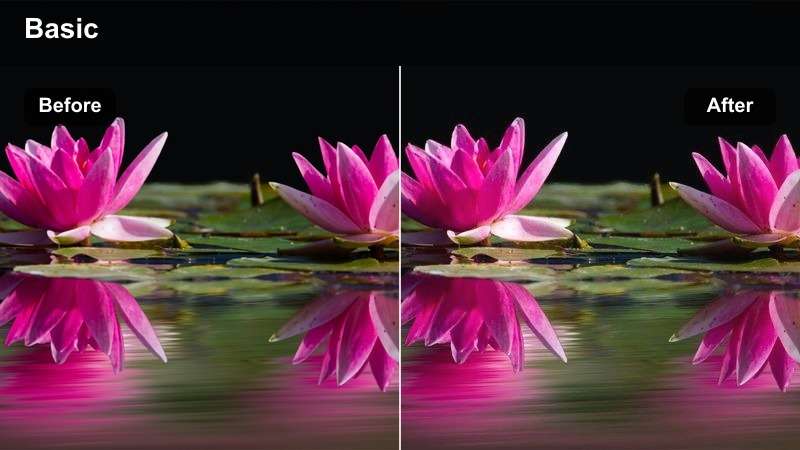
- Effect look: Desaturated, cinematic mood with deeper shadows and cool highlights.
- Best for: Forest paths, mountain fog, riverside trails, and storytelling b-roll in bad weather.
- Editing tip: Reduce the intensity if you need to keep brands and clothing recognizable in sponsored content.
Moody Forest Walk turns rainy or foggy outdoor days into dramatic, story-led visuals with rich shadows and cool-toned highlights. In Filmora, this LUT-style filter is perfect for narrative sequences, intros, or chapter breaks where you want nature to feel atmospheric instead of bright and colorful.
Use it on woodland paths, riverside trails, and misty mountain shots, then pull back the intensity if logos or clothing need to remain clearly visible. Combine it with subtle exposure adjustments around your subject so faces stay readable while the background keeps that cinematic, low-saturation mood.
Urban Rain Reflections
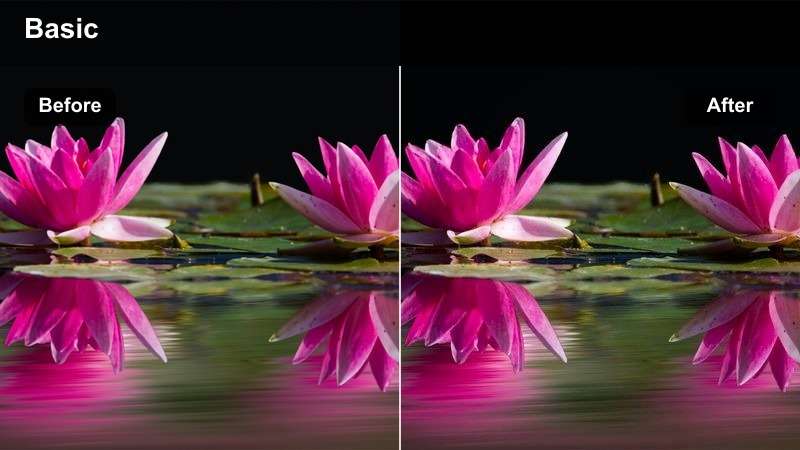
- Effect look: Cool-toned contrast with subtle highlights on wet pavement and reflections.
- Best for: Rainy streets, puddle reflections, umbrellas, and night-after-rain city walks.
- Editing tip: Lower the effect on shots with bright signage to prevent neon colors from dominating the frame.
Urban Rain Reflections emphasizes cool tones and contrast so wet pavement, puddles, and reflections catch the viewer's eye. In Filmora, it works well on city b-roll after a storm, creating a sleek, cinematic feel with glistening streets and glowing highlights.
Apply it to wide city shots and close-ups of reflections, then monitor neon signs or car lights so they do not overpower the scene. If particular colors feel too strong, selectively reduce saturation for reds and greens so the viewer's focus stays on the reflective textures instead of bright signage.
Tips for Using Free Luts For Outdoor Video Filters in Filmora
- Shoot in a flat or neutral picture profile when possible so these free LUT-style filters have more room to work and retain highlight and shadow detail.
- Apply outdoor filters on adjustment layers above your clips in Filmora so you can tweak one layer and instantly update every cut in that sequence.
- Always check skin tones after adding a strong outdoor filter, adjusting warmth or saturation until faces look natural and consistent across shots.
- Group clips by lighting conditions such as midday sun, golden hour, and overcast, then use one main filter per group to keep your color grade cohesive.
- Reduce filter intensity slightly for social media exports, since viewers often watch on small, bright phone screens that exaggerate contrast and saturation.
- Combine LUT-style filters with Filmora's AI and manual color tools so you can correct exposure first, then layer on creative style without breaking the image.
- Save versions of your project with different filter intensities to compare on multiple devices before publishing your final outdoor edit.
These free LUT-style filters for outdoor video give creators and editors a fast way to fix exposure, add style, and keep colors consistent across changing weather and light.
Experiment with mixing these looks at different intensities, then save your favorites as presets so every outdoor shoot can match your signature visual style.
Filmora can also export compatible color adjustments from a selected clip as a standard .cube LUT when the same outdoor color base is needed across future shoots, footage batches, or edits in DaVinci Resolve, Adobe Premiere Pro, and Final Cut Pro.
secure download