

 100% Security Verified | No Subscription Required | No Malware


 ChatGPT
 Perplexity
 Gemini
 Claude
 Grok
Grok
These free LUTs for product video are designed for creators and editors who need fast, consistent, and on-brand color in just a few clicks.
From clean e-commerce shots to dramatic hero promos, you can stack these looks with Filmora filters to build a product style that feels premium and still exports quickly.
In this article
Clean E-commerce Shelf and Tabletop Shots
Soft Daylight Polish
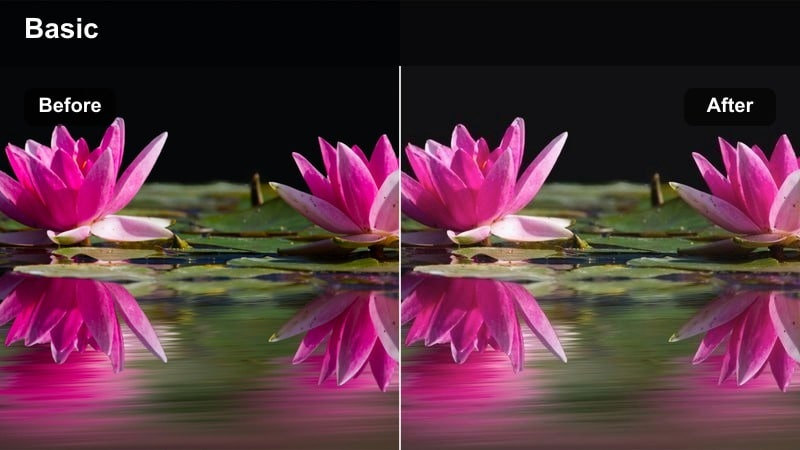
- Effect look: Bright, low-contrast daylight that flattens harsh shadows for clean catalog-style product shots.
- Best for: White-background e-commerce videos, tabletop unboxings, and Amazon listing demos.
- Editing tip: Pair with a subtle clarity or sharpen filter and keep saturation slightly reduced to avoid color casts on white backdrops.
Soft Daylight Polish gives your product videos a neutral, studio-daylight feel that keeps whites clean and product colors accurate. Apply this LUT-style filter to footage shot on white or light backdrops, then fine-tune exposure and temperature in Filmora so packaging, plastics, and fabrics look true-to-life.
For best results, correct white balance first using Filmora scopes, then lower saturation a touch and add a light sharpen filter to bring back edges. This keeps online catalog and marketplace footage consistent, while avoiding ugly color casts or over-processed highlights on bright packaging.
Match Free Product LUTs with AI Color Palette Suggestions
Use Filmora AI Color Palette to scan your product shots and automatically suggest color palettes that match your packaging, logo, or background sets. Once the AI has locked in your core palette, you can layer these free LUT-style filters on top without losing brand consistency.
This is especially useful when you shoot products in different locations or with mixed lighting. The AI helps normalize your base colors, and the filters add the final polish across catalog, promo, and social cuts.
 secure download

Fine-Tune Product Colors with HSL and LUTs
After choosing a LUT-style filter, use Filmora HSL controls to isolate problem colors such as brand reds, skin tones, or neon highlights. This workflow lets you keep the overall mood from the filter while correcting any hues that drift away from your brand guidelines.
You can key specific colors, adjust their saturation and luminance, and then save the combination as a preset. Over time, this builds a reusable grading toolkit tailored to your products.
secure downloadPreview Product Filters in Real Time
Filmora lets you preview these LUT-style filters directly on your clips in real time, so you can compare clean e-commerce, dramatic hero, and social-first looks side by side. Use split-screen or stacked timelines to A/B test color grades on the same shot before you commit.
This makes it easy to decide which filter sells the texture, color, and packaging of each product best, whether you are cutting horizontal videos for marketplaces or vertical teasers for social platforms.
secure downloadCrisp Storefront Glow
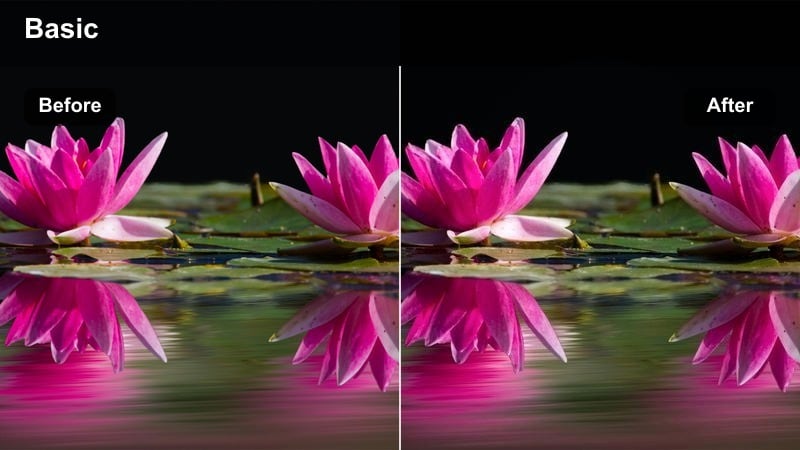
- Effect look: Cool, slightly high-contrast look that makes packaging edges and logos pop under store lighting.
- Best for: Retail shelf b-roll, in-store walkthroughs, and product placement near windows or light strips.
- Editing tip: Combine with a vignette filter around the frame to pull focus onto the product label or logo in the center.
Crisp Storefront Glow is tuned for retail environments where mixed fluorescents and window light can make footage feel flat. The cooler tone and added contrast sharpen edges, helping logos, barcodes, and typography read clearly in busy shelves and aisle shots.
Drop this filter onto handheld b-roll from supermarkets or tech stores, then add a subtle vignette in Filmora to guide the viewer s eye to the product label. You can also mask around key logos and slightly boost exposure or saturation to make featured items stand out without overexposing the background.
Neutral Catalog Balance
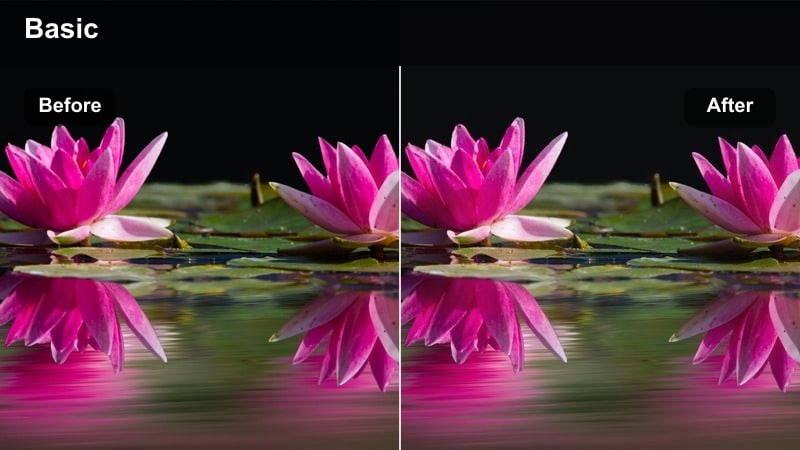
- Effect look: Balanced, low-saturation tone that keeps product colors accurate for catalog and marketplace uploads.
- Best for: Product spins, 360-degree turntable clips, and catalog-style explainer videos.
- Editing tip: Apply a subtle highlight roll-off filter to protect bright product labels from clipping while keeping midtones clean.
Neutral Catalog Balance focuses on accurate color and smooth tonal response, which is ideal for marketplace requirements where buyers expect the product to match official photos. It slightly lowers saturation to prevent overshooting vivid colors while preserving detail in midtones and neutrals.
Use this filter on 360 turntable shots or simple explainer angles, then add gentle highlight roll-off in Filmora to keep white labels, chrome details, and reflective plastics from clipping. You can compare the graded video with your brand product photos using split-screen preview and nudge temperature or tint until they match closely.
Hero Product Promos and Launch Trailers
Cinematic Spotlight Contrast
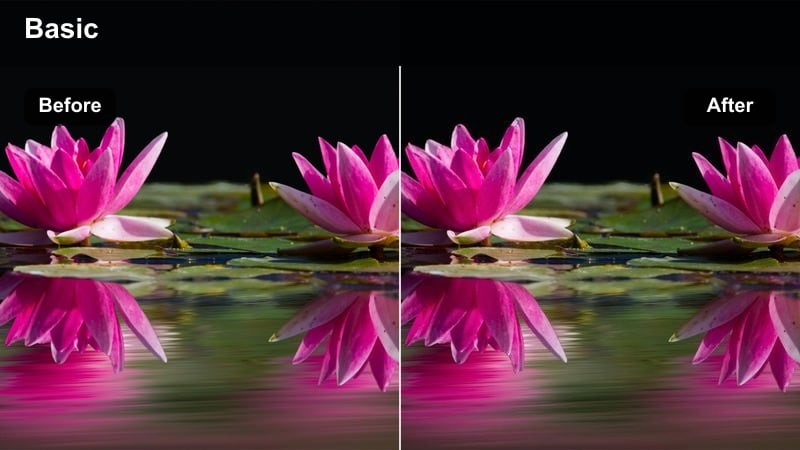
- Effect look: Deep contrast with rich shadows and a subtle vignette feel that isolates the product as the hero.
- Best for: Launch trailers, hero shots on pedestals, and dramatic slow-motion product reveals.
- Editing tip: Stack with a soft light glow filter on highlights to keep specular reflections on packaging looking cinematic, not harsh.
Cinematic Spotlight Contrast is built for dramatic hero moments where your product sits in a pool of light against a darker backdrop. The strong contrast and soft vignette emphasize shape and texture, making reflective surfaces, bevels, and engravings feel more premium.
After applying the filter, use Filmora curves to lift crucial shadow detail if your packaging is very dark, then add a soft light glow on highlights. This combination preserves detail in logos and edges while keeping the overall image bold enough for launch trailers and reveal shots.
Launch Trailer Teal Gold
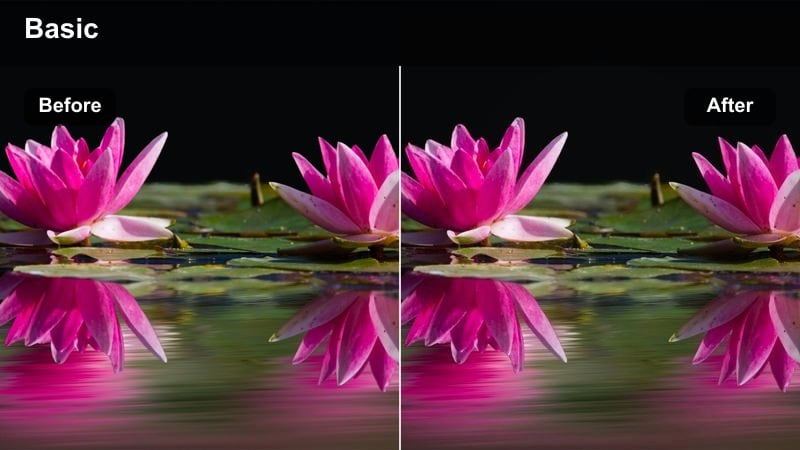
- Effect look: Stylized teal shadows and warm highlights that give tech and lifestyle products a blockbuster launch feel.
- Best for: Tech gear promos, gaming accessories, and bold lifestyle product campaigns.
- Editing tip: Reduce saturation in skin tones with a HSL filter when models are holding the product to avoid overly orange faces.
Launch Trailer Teal Gold brings a cinematic blockbuster color scheme to your product videos by cooling shadows toward teal and warming highlights to a rich golden tone. This instantly gives tech products, gaming gear, and performance accessories a high-budget trailer aesthetic.
Apply it to scenes with dramatic lighting and reflective surfaces, then fine-tune skin tones using Filmora HSL if talent appears in frame. You can gently lower the filter intensity if your brand color clashes with teal and then selectively re-boost brand hues with HSL or color wheels to maintain overall style without sacrificing identity.
Matte Flagship Focus
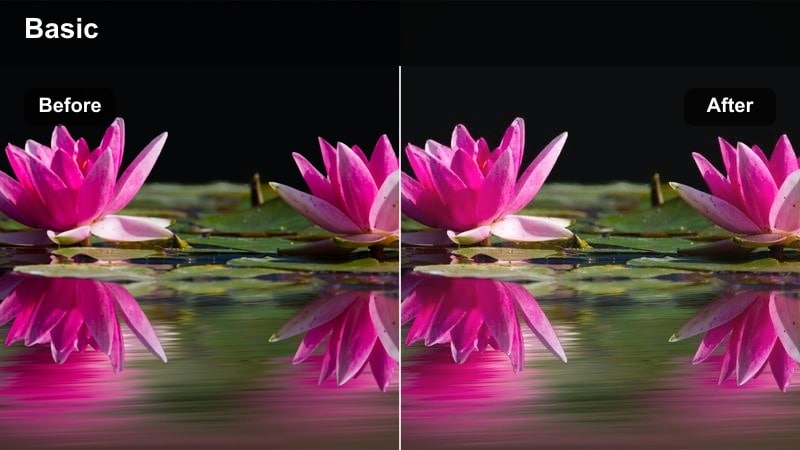
- Effect look: Soft contrast with a matte curve in the shadows, giving high-end products a refined, flagship feel.
- Best for: Premium electronics, designer accessories, and flagship product lines.
- Editing tip: Combine with a subtle depth-of-field blur filter on the background to push the matte product surface forward.
Matte Flagship Focus softens contrast and lifts shadows slightly to introduce a matte, editorial-style finish across your frame. This treatment works especially well on high-end materials such as brushed metal, soft-touch plastics, leather, and glass, helping them feel expensive and carefully crafted.
Use this LUT-style filter on close-ups of flagship items, then add a slight background blur in Filmora to separate the product from its environment. If dark materials start to look washed out, reduce the shadow fade or add a local contrast boost on the product only so the background stays soft while key details remain crisp.
Social Media UGC, Reels, and TikTok Product Clips
Phone Shot Clean-Up
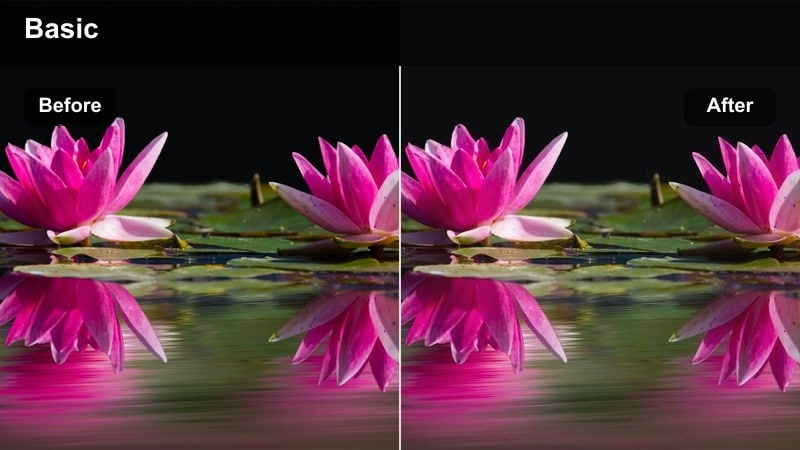
- Effect look: Gentle denoise-style smoothing and soft contrast to fix noisy handheld phone footage of products.
- Best for: UGC reviews, handheld unboxings, and vertical product demos shot on smartphones.
- Editing tip: Add a light sharpening filter afterward and keep exposure slightly higher for vertical feeds.
Phone Shot Clean-Up is designed for smartphone content where high ISO noise, mixed lighting, and shaky framing can make products look unprofessional. The filter softens digital noise and slightly eases contrast, giving a smoother, more cohesive look that feels ready for social media.
Stabilize your clips first in Filmora, then apply this filter and follow it with a light sharpening effect focused on the product area. Bump exposure up a bit for vertical feeds so details remain visible on smaller screens, and adjust skin softening by masking the filter if faces appear too smooth compared to the product.
Pastel Lifestyle Soft
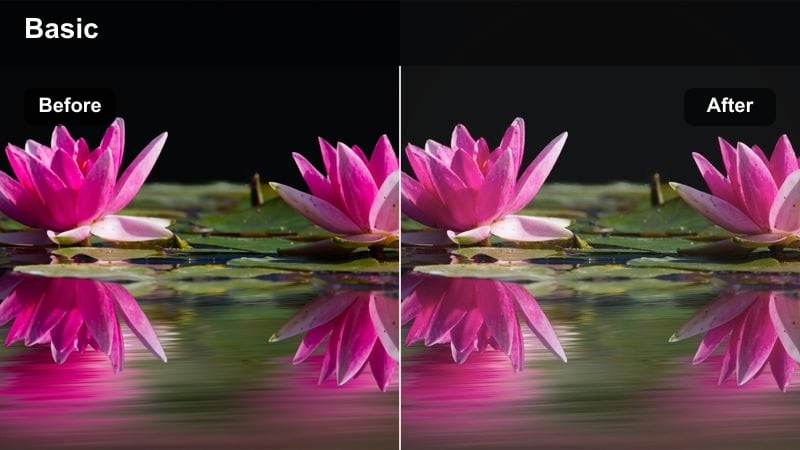
- Effect look: Soft pastel tint with gentle highlights that give lifestyle products a cozy, social-friendly aesthetic.
- Best for: Home decor items, beauty products, and lifestyle accessories in UGC or influencer content.
- Editing tip: Dial back the filter in darker scenes and use a separate brightness filter to avoid muddy shadows.
Pastel Lifestyle Soft gives your clips a warm, inviting aesthetic with pastel-inspired tones and softened highlights. It is ideal for desk setups, vanity shots, and casual lifestyle scenes where the goal is an approachable, shareable mood rather than strict color accuracy.
Apply it to daylight or softly lit interiors, then control brightness separately in Filmora if your footage is underexposed. Keep an eye on darker corners where the pastel tint can turn muddy, and consider adding a small contrast or clarity boost only to the product and any on-screen text overlays to maintain readability.
Punchy Swipe Stop-Scroll
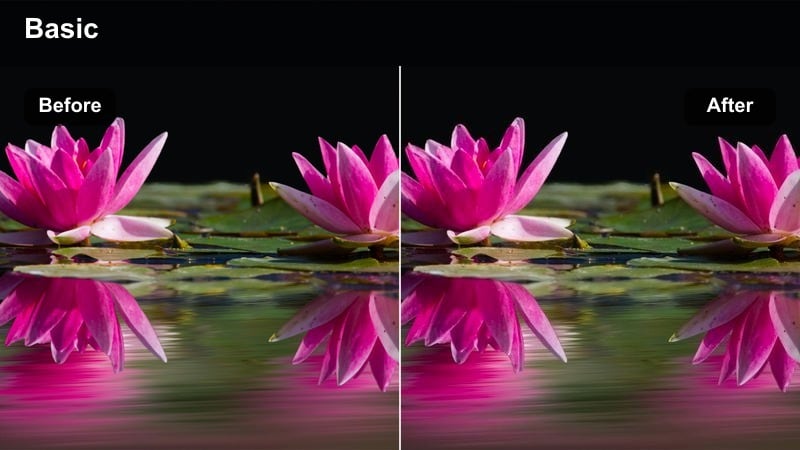
- Effect look: High saturation and strong micro-contrast to grab attention in fast-scrolling social feeds.
- Best for: Short TikTok and Reels ads, fast cuts, and bold product callouts.
- Editing tip: Use sparingly on skin and pair with a highlight recovery filter to keep bright packaging details visible.
Punchy Swipe Stop-Scroll is tuned to make colors jump off the screen with boosted saturation and crisp micro-contrast. This look works best on bold packaging, neon accents, and quick product spins that need to stand out in crowded vertical feeds.
Use it on short clips with minimal skin tones, or mask the effect away from faces to avoid oversaturated complexions. In Filmora, follow with a highlight recovery or curves adjustment to control blown-out areas on glossy packaging, and test exports on different devices to ensure reds and neons stay within a comfortable viewing range.
On-Location Brand Story and Contextual Product Shots
Warm Urban Commuter
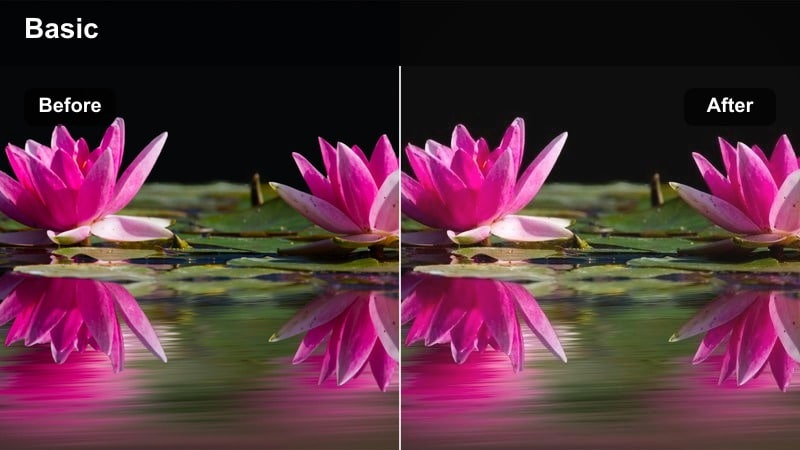
- Effect look: Warm, slightly faded tones that make wearables and gadgets feel natural in city commutes and street scenes.
- Best for: Backpacks, headphones, and daily-carry products filmed in subways, sidewalks, or transit hubs.
- Editing tip: Use a subtle motion blur filter on background movement to keep attention on the product in busy city frames.
Warm Urban Commuter adds a gentle warmth and slight fade to city footage, helping everyday carry products feel grounded in real-life commutes. It softens harsher urban tones while keeping enough contrast so straps, zippers, and logos remain legible even in cluttered backgrounds.
Apply it to on-the-go shots at stations, crosswalks, or inside trains, then combine it with Filmora motion blur on the background to separate your subject from crowds and vehicles. You can also desaturate non-brand colors with masks, allowing the product and wardrobe to stay the visual focus within the warm, cinematic city atmosphere.
Cool Studio Desk Setup
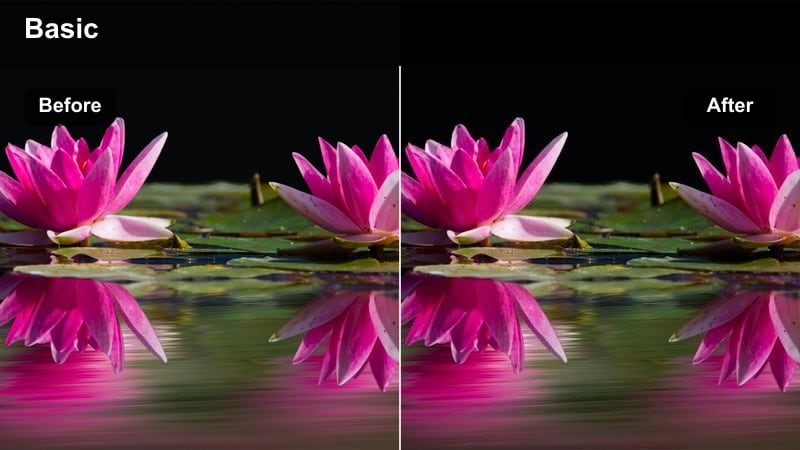
- Effect look: Cool, clean tones with crisp highlights for product shots in workstations, gaming setups, or studios.
- Best for: Keyboards, monitors, desk accessories, and creator tools filmed on modern desks.
- Editing tip: Pair with a lens blur filter on RGB lights and background monitors to avoid distracting color noise.
Cool Studio Desk Setup turns desk and studio scenes into sleek, modern environments with cool-balanced tones and clean highlights. It is particularly effective for tech products and creator tools where you want to emphasize precision, clarity, and a futuristic vibe.
Use it on shots that include RGB lighting, monitors, and desk accessories, then add a lens blur or bokeh effect in Filmora to soften busy background lights. Neutralize any yellow overhead lighting with color wheels before applying the filter for properly balanced whites, and slightly desaturate background RGB strips so they enhance rather than compete with your main product.
Organic Brand Story Neutral
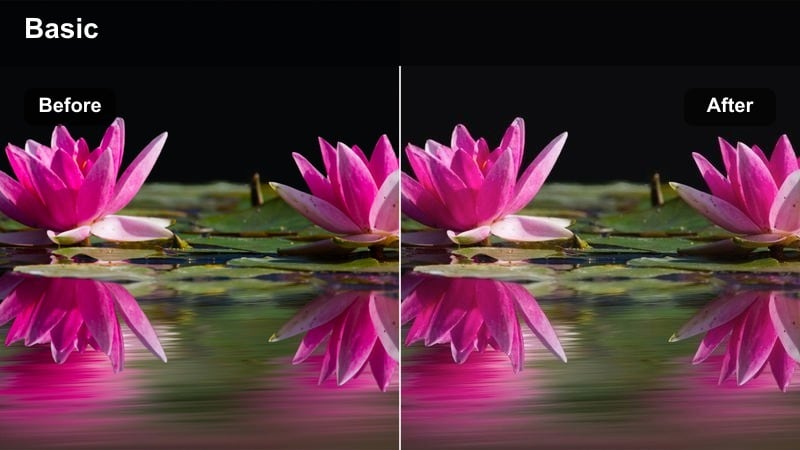
- Effect look: Soft, neutral color grade that keeps real-world textures and tones honest in brand story segments.
- Best for: Behind-the-scenes factory tours, workshop demonstrations, and founder story clips featuring products.
- Editing tip: Use this as a base filter, then add localized contrast on the product only for a subtle hero effect.
Organic Brand Story Neutral is a documentary-style filter that preserves the natural look of workshops, studios, and production spaces. It smooths out harsh color casts and moderates contrast so wood, metal, fabrics, and skin tones feel authentic and trustworthy.
Apply it across your brand story timeline to keep a consistent baseline look, then use local adjustments in Filmora to quietly lift contrast or brightness on the featured product. This approach maintains a down-to-earth atmosphere while still giving the hero item enough visual weight to guide viewers through the narrative.
Tips for Using Free Luts For Product Video Filters in Filmora
- Shoot with the flattest picture profile your camera allows, then apply these LUT-style filters at reduced intensity to preserve accurate product colors.
- Create dedicated Filmora presets for catalog, hero promo, and social formats so you can swap looks quickly while batch-editing product videos.
- Use Filmora scopes to check exposure and ensure bright labels and reflective packaging are not clipping when using high-contrast filters.
- Combine LUT-style filters with AI Color Palette or HSL tools to lock in on-brand hues while still enjoying creative grading options.
- Stabilize handheld or phone footage before applying heavy contrast or sharpening filters to avoid emphasizing camera shake.
- Export short test clips and review them on both desktop monitors and phones to confirm your grades look good in different viewing environments.
- Save your favorite filter stacks as custom presets so every new product launch can instantly match your established visual style.
- Use masks and local adjustments to treat skin tones and products separately, especially when social or UGC clips mix faces with bright packaging.
These free LUT-style product filters give creators and editors a fast way to move from flat footage to on-brand, ready-to-publish product videos.
Import your footage into Filmora, test a few looks by scenario, and save your favorites as reusable presets so every new product launch stays visually consistent.
secure download