

 100% Security Verified | No Subscription Required | No Malware


 ChatGPT
 Perplexity
 Gemini
 Claude
 Grok
Grok
These free LUT-style filters for social media are designed to give your videos an instant, on-trend look without complex color grading. Whether you post Reels, TikToks, or YouTube Shorts, you can drop these Filmora filters onto your clips to match different moods and platforms fast.
Below you will find 12 curated Filmora filters grouped by scene and vibe, with practical tips on where to use each one so your social media videos stay consistent, cinematic, and eye-catching in the feed.
In this article
Golden Hour City Vibes for Lifestyle and Travel Posts
Sunset Social Glow
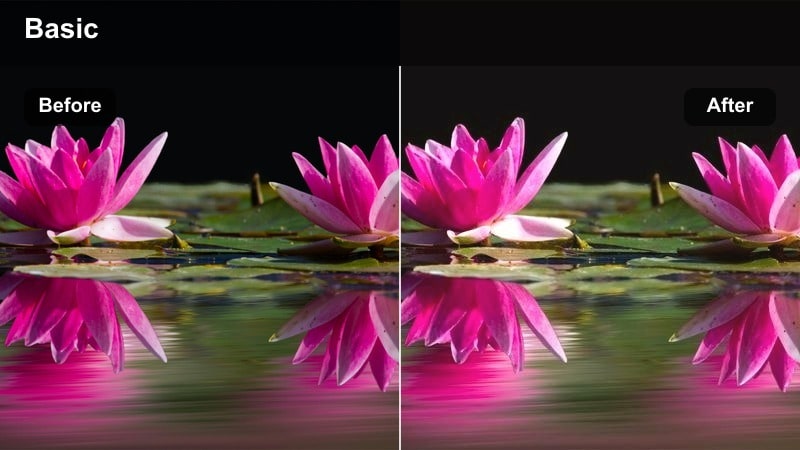
- Effect look: Warm, soft highlight roll-off with gentle contrast and a slightly lifted black level for dreamy golden hour shots.
- Best for: Instagram Reels and TikTok montages of evening city walks, rooftop hangouts, and travel lifestyle B-roll.
- Editing tip: Lower saturation on strong reds and oranges so skin tones stay flattering when your footage already has warm streetlights or sunset skies.
Sunset Social Glow is ideal when you already have a touch of natural warmth in your footage and want to push it into a dreamy, scroll-stopping look. In Filmora, drop this filter onto clips from rooftop sessions, balcony shots, or evening city strolls to instantly add a cinematic golden roll-off to highlights while keeping shadows soft and inviting.
Because the blacks are slightly lifted, this filter is forgiving on smartphone footage that may not have perfect dynamic range. Apply it early in your edit, then fine-tune saturation and exposure to keep faces natural while building a cohesive warm vibe across all your sunset Reels, TikToks, and Shorts.
Speed Up Your Social Color Grading with AI
Filmoras AI tools can quickly analyze your footage and suggest exposure and color tweaks that work perfectly with these free LUT-style filters for social media. Instead of manually guessing white balance or contrast for every clip, you get a clean, neutral starting point.
Run an AI color pass on one short clip from your series, then save the results as a preset so future edits snap into the same polished baseline before you apply your favorite filters.
 secure download

See Filters in Action on Real Social Clips
To understand how each filter reacts to your footage, test them on short 5 to 10 second vertical edits inside Filmora. Mix different lighting situations, like interiors, exteriors, and night shots, to find which looks stay strong across your typical scenes.
Once you know which styles pop in your feed, you can stack them with light exposure, contrast, and saturation tweaks to create a LUT-style signature that still starts from Filmoras proven presets.
secure download1000+ Video Filters and 3D LUTs
Beyond these curated social filters, Filmora includes a large library of filters and 3D LUTs that can match almost any platform trend or aesthetic. You can build layered looks by combining filters, LUTs, and manual color controls in a single preset.
Save your favorite combinations into a reusable toolkit so every Reel, TikTok, or Short opens with your preferred grade already applied, keeping your brand color story consistent with minimal effort.
secure downloadCopper Street Film
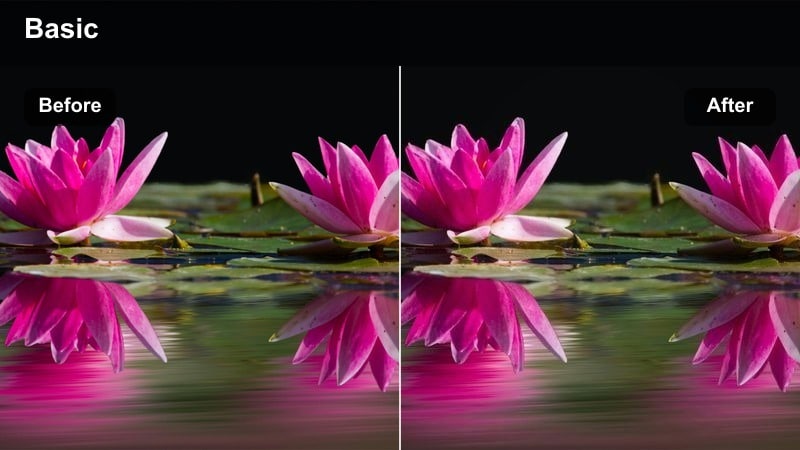
- Effect look: Muted teal shadows with copper highlights and a subtle film grain feel that adds character to city streets.
- Best for: Urban B-roll for YouTube Shorts, cinematic walking shots, and handheld coffee runs through downtown.
- Editing tip: Slightly increase contrast and clarity on soft or hazy footage so building textures and pavement lines stand out under this cinematic tone.
Copper Street Film brings a classic teal and copper scheme to your urban footage, instantly giving city walks and crosswalk shots a film-inspired vibe. It is especially effective on overcast days or flat smartphone clips, where the cooler shadows and warm highlights create depth without heavy grading.
Apply this filter to a sequence of street-level B-roll in Filmora, then layer in light stabilization for walking shots and subtle speed ramps for crosswalk or traffic moments. The result is a cinematic street montage ready for YouTube Shorts, Reels, or TikTok city edits.
Amber City Reels
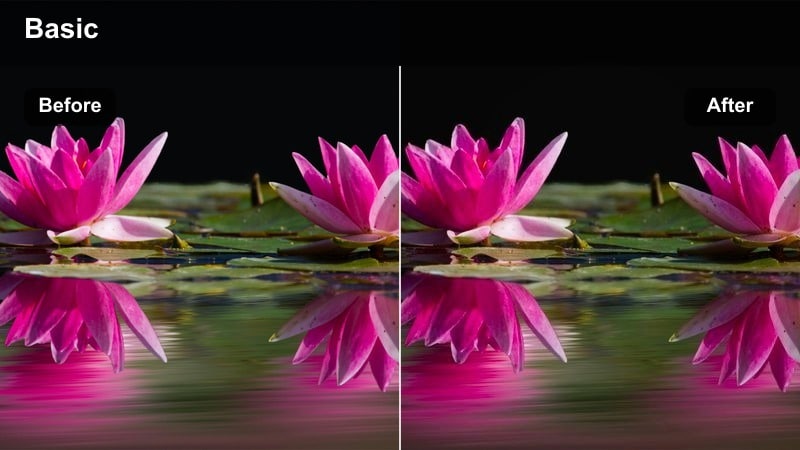
- Effect look: Bright, amber-tinted highlights with crisp shadows and punchy contrast that make skyline edges stand out.
- Best for: Fast-paced Reels and TikToks with hyperlapse city shots, timelapse traffic, and skyscraper B-roll.
- Editing tip: Speed up repetitive motion clips then add this filter plus a slight vignette so viewers focus on the most dynamic parts of the frame.
Amber City Reels is built for speed and energy, turning skyline shots, traffic timelapses, and hyperlapse walks into bold, high-contrast sequences. The amber-tinted highlights push windows and streetlights forward in the frame, helping your vertical edits pop on busy social feeds.
In Filmora, combine this filter with motion effects like speed ramps, hyperlapse-style speed-ups, and beat-synced cuts. Add a light vignette around the frame to direct attention toward the brightest, most active areas, and you will get short, impactful edits perfect for hooks and transitions.
Clean Minimal Studio Looks for Talking-Head and Tutorials
Creator Desk Clean
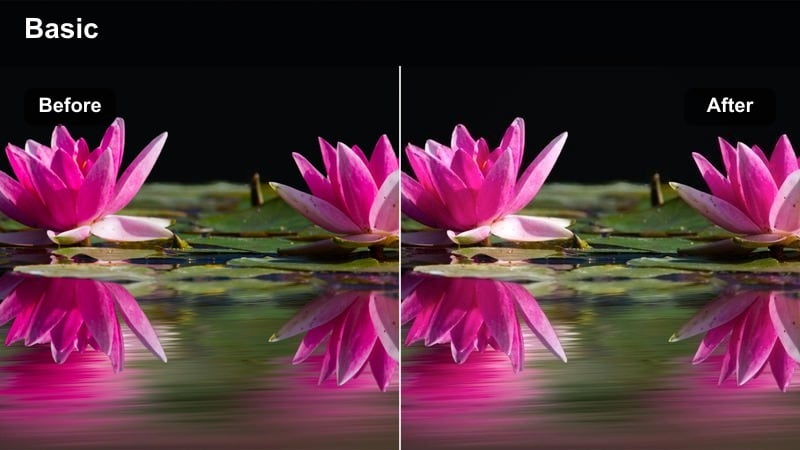
- Effect look: Neutral, brightened whites with softened contrast and natural skin tones for simple desk or studio setups.
- Best for: YouTube Shorts explainers, Instagram carousels with embedded video, and productivity or tech tutorials.
- Editing tip: Dial back sharpness slightly so text on screens stays legible and your face looks polished but not overly digital.
Creator Desk Clean is designed to keep your talking-head content clear, readable, and professional without looking overprocessed. It brightens whites and maintains believable skin tones, making it especially useful for tech explainers, productivity tips, or any desk-based videos you repurpose across platforms.
Drop this filter into your default Filmora project for studio recordings, then adjust exposure and shadow levels so your face is well lit while the background remains tidy and neutral. The subtle contrast helps text on slides or screen captures stay readable, making this a reliable everyday look for series content.
White Wall Pro
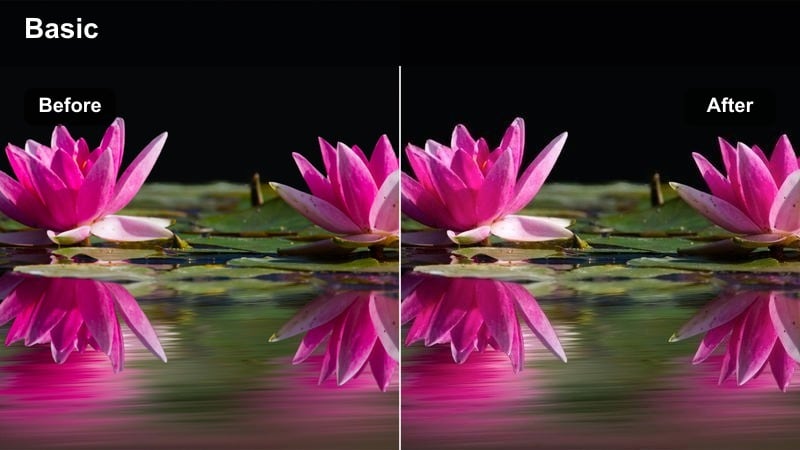
- Effect look: High-key, slightly cool whites with reduced saturation in the background for a modern, editorial feel.
- Best for: Vertical talking-head clips for LinkedIn, Instagram Reels, and expert tips series shot against plain walls.
- Editing tip: Use Filmora's auto reframing to keep your face centered, then apply this filter so negative space stays bright and clean.
White Wall Pro turns a simple blank wall into a polished backdrop that feels deliberate and editorial. By slightly cooling the whites and muting background saturation, it pulls focus toward your face and any on-screen text, which is ideal for expert mini-lectures, LinkedIn clips, and professional Reels.
In Filmora, combine this filter with auto reframing to keep your head and shoulders perfectly centered for vertical formats. Record multiple bites in the same setup, apply the filter to them as a batch, and you will instantly have a clean, consistent series ready for scheduling.
Soft Coach Pastel
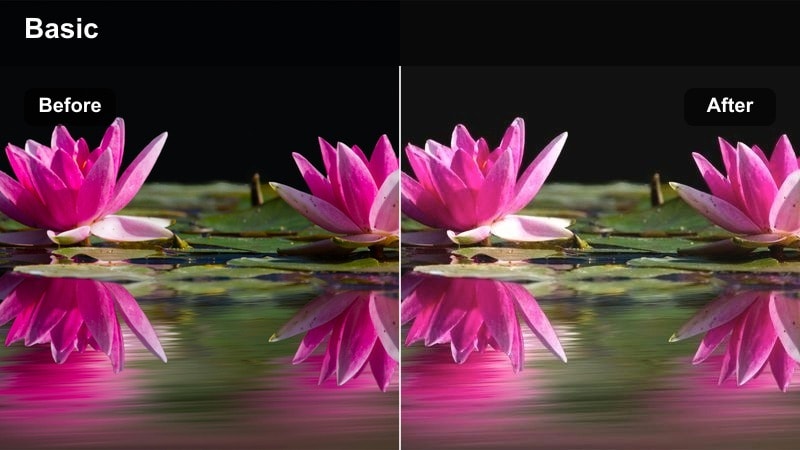
- Effect look: Gentle pastel lift in midtones with softened contrast and a slightly warm skin-tone bias.
- Best for: Lifestyle coaching content, wellness tips, and calm, encouraging talking-head clips on Instagram and TikTok.
- Editing tip: Lower the saturation of any strong accent objects in the background so the pastel feel stays subtle and soothing.
Soft Coach Pastel gives your coaching and lifestyle videos an inviting, gentle look that matches reflective or emotional topics. The pastels soften midtones and add a touch of warmth to skin, making your presence feel more approachable in wellness, self-care, or mindset-focused clips.
Use this filter in Filmora when you are creating carousel intros, calm Reels, or TikToks built around affirmations and advice. Keep backgrounds neutral and reduce any overly bright accent colors so the pastel mood stays cohesive from clip to clip in your series.
Nightlife and Neon Scenes for Clubs, Street, and Events
Neon Feed Pop
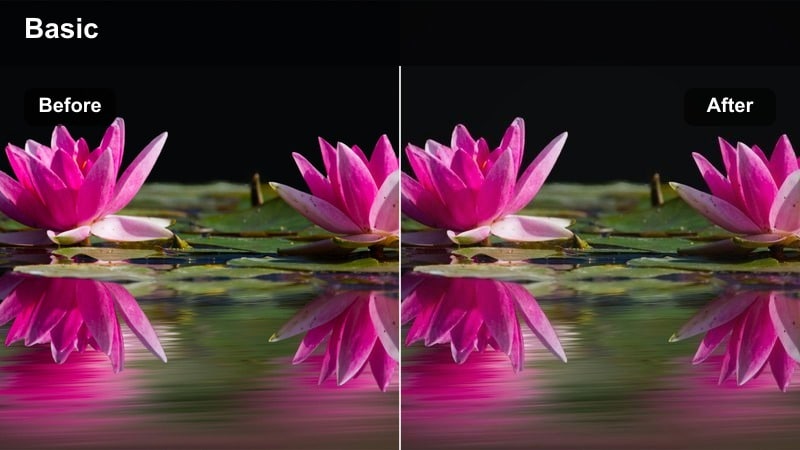
- Effect look: Intense neon saturation with deep, inky shadows and crisp edges that make lights and signage jump out.
- Best for: TikTok edits of nightlife, arcades, concerts, and neon street signs shot in vertical format.
- Editing tip: Pull down highlights slightly to avoid clipping bright signs while keeping saturation strong for a bold, punchy look.
Neon Feed Pop is built for dark, high-contrast environments where light sources are the main subject. It deepens shadows and intensifies neon saturation, helping arcade lights, billboards, and club signage leap off the screen on phones.
Apply this filter in Filmora to vertical clips from city nights, bar crawls, or concert walks between venues. Use highlight controls to keep bright signs from blowing out, and cut quickly between wide scenes and close-ups to build dynamic, visually loud edits that grab attention in seconds.
Club Story Glow
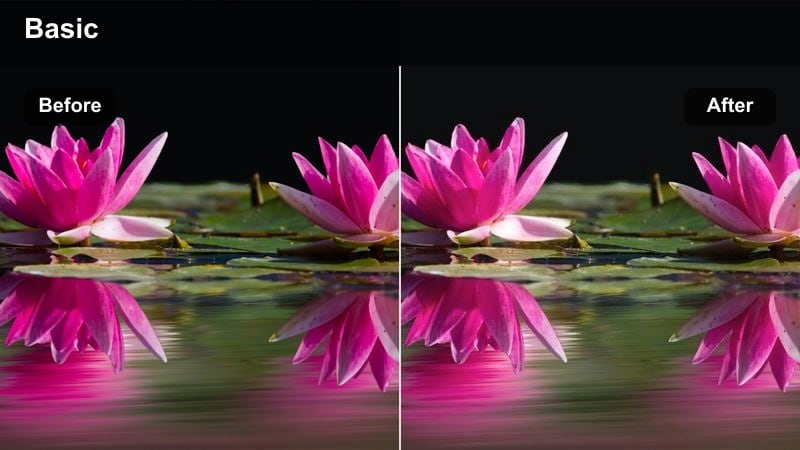
- Effect look: Soft blooming highlights around colored lights with gentle contrast and boosted magentas and blues.
- Best for: Stories and Reels of DJ sets, club nights, and live events with colorful stage lighting.
- Editing tip: Use noise reduction before applying this filter if your footage is very grainy, so the glow looks smooth and intentional.
Club Story Glow adds a subtle bloom to colored lights, making stage washes and lasers feel more atmospheric and less harsh. It leans into magentas and blues, which are common in club lighting, to create a dreamy, immersive mood ideal for event recaps and Stories.
In Filmora, clean up high-ISO noise first with noise reduction, then apply this filter to your best wide crowd shots and DJ close-ups. Cut on major light changes or beat drops and you will get soft, glowing edits that feel like a polished version of what viewers experienced at the event.
Street Cyber Cool
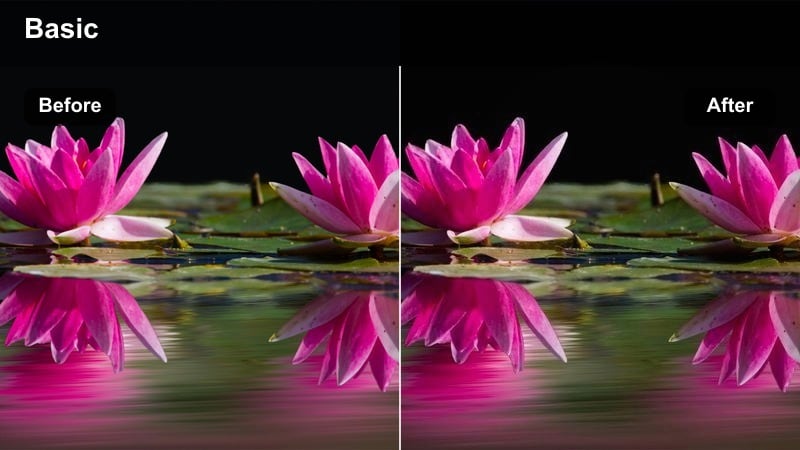
- Effect look: Cool cyan and magenta color cast with high contrast and slightly crushed blacks for a futuristic cyberpunk feel.
- Best for: Night street photography videos, tech fashion looks, and edgy product reveals in urban environments.
- Editing tip: Frame silhouettes against bright signs or screens, then use this filter to deepen blacks and emphasize strong graphic shapes.
Street Cyber Cool gives you a futuristic, cyberpunk-inspired palette by pushing cyans and magentas while deepening blacks. It works best when you already have bold light sources or reflective surfaces, turning alleys, crosswalks, and glass storefronts into stylized, graphic frames.
Use this filter in Filmora for techwear lookbooks, edgy product teasers, or moody night walks. Prioritize silhouettes and bold shapes in your compositions, then let the crushed blacks and saturated colors carry the mood across your TikToks, Reels, and Shorts.
Mobile Vlog Everyday Looks for Fast Social Posting
Daily Vlog Soft Boost
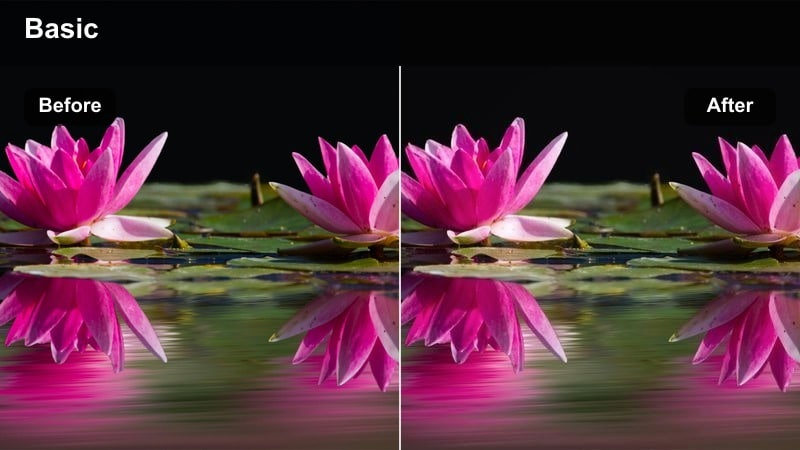
- Effect look: Gentle contrast and saturation lift with slightly warm midtones that make handheld clips feel polished but casual.
- Best for: Day-in-the-life vlogs, behind-the-scenes content, and quick handheld shots filmed on a phone.
- Editing tip: Trim away shaky starts and ends, then apply this filter to smooth out color and unify clips shot in different rooms.
Daily Vlog Soft Boost is a go-to look for casual phone vlogs where you want footage to feel real but slightly elevated. The mild contrast and warmth help everyday scenes like commutes, coffee runs, and desk check-ins look more cohesive when stitched together.
In Filmora, apply this filter as your default for daily vlog timelines, then trim out shaky or unusable bits before you add transitions or text. It is especially helpful when your day includes multiple lighting environments, because the filter ties them together into one consistent visual story.
Snack Vertical Sharp
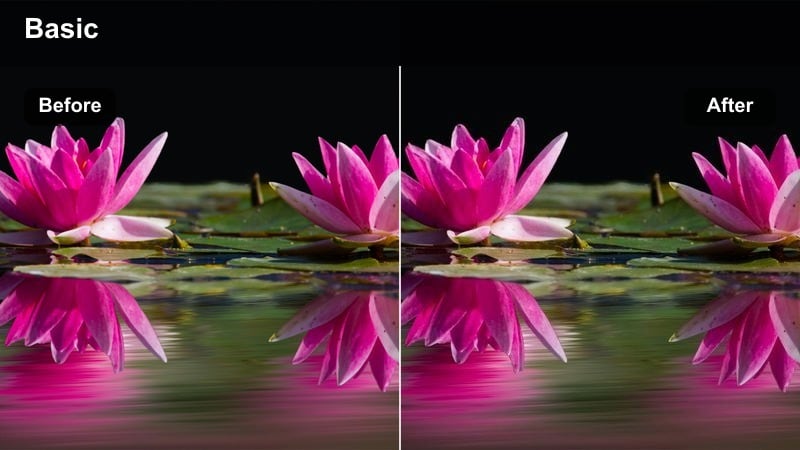
- Effect look: Crisp micro-contrast and clarity with slightly boosted saturation for details that read clearly on small phone screens.
- Best for: Fast tips, unboxings, and vertical B-roll sequences that rely on texture, text, or small objects in frame.
- Editing tip: Avoid over-sharpening already compressed clips; instead, let this filter do the work and focus on clean framing and lighting.
Snack Vertical Sharp is tailored for short, detail-heavy clips where viewers need to see text, textures, or product features clearly on small screens. The added clarity and micro-contrast help fine details stand out without needing extreme zooms.
Use this filter in Filmora for product demos, quick how-tos, and snackable tips. Combine it with bold, on-screen captions and clean, centered framing, and your clips will stay legible and impactful even on fast-scrolling feeds.
Story Casual Film
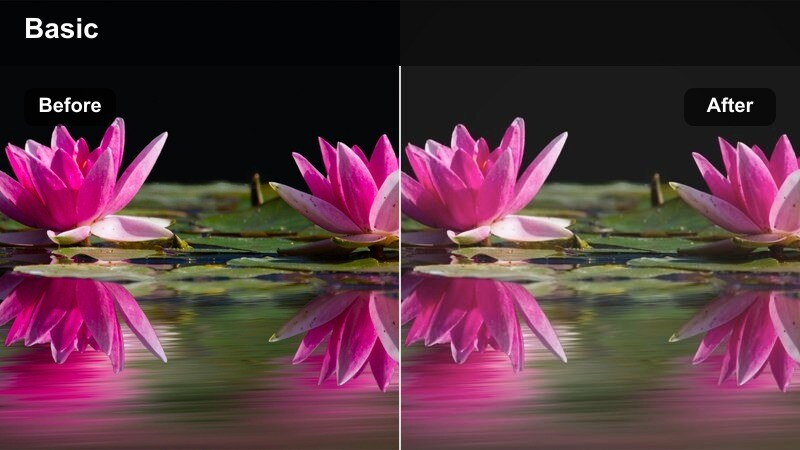
- Effect look: Low-contrast filmic tone with a gentle fade and slightly desaturated colors for relaxed everyday moments.
- Best for: Instagram Stories, casual check-ins, and behind-the-scenes clips you want to feel honest and low-pressure.
- Editing tip: Skip heavy color adjustments and let this filter sit lightly on top so your stories feel effortless and authentic.
Story Casual Film adds a subtle faded look to your footage, giving everyday moments a relaxed, almost nostalgic tone. It is perfect for off-the-cuff Stories, behind-the-scenes clips, or quick subway and commute updates that you want to feel low-pressure and real.
Apply this filter lightly in Filmora for content that is meant to feel separate from your polished feed posts. Keep edits minimal, avoid heavy transitions, and let the slightly desaturated colors signal that viewers are getting a more candid side of your day.
Tips for Using Free Luts For Social Media Filters in Filmora
- Pick one or two core filters and use them on most of your social content so your feed feels branded and recognizable.
- Always adjust exposure and white balance before applying filters so the effect stays predictable across clips.
- Test your filters on both bright and dark scenes to make sure your chosen look works in multiple lighting conditions.
- Export short test clips and preview them on your phone, since social media viewers will mostly see your work on small screens.
- Use Filmoras presets and AI tools to build a repeatable workflow instead of grading each clip from scratch.
- Save your favorite filter and adjustment combinations as presets so you can apply a consistent look in one click.
Using free LUT-style filters in Filmora is one of the fastest ways to give your social media videos a consistent, professional finish without deep color grading knowledge. With the right base look, even simple phone footage can feel cinematic and on-trend.
Build a small toolkit of favorite looks from this list, save them as presets, and reuse them across your Reels, TikToks, and Shorts so every post clearly reflects your visual brand and stands out in a crowded feed.
secure download