

 100% Security Verified | No Subscription Required | No Malware


 ChatGPT
 Perplexity
 Gemini
 Claude
 Grok
Grok
Story-driven videos live or die on mood, and free LUTs for storytelling give creators and editors an easy way to lock in a consistent visual tone from scene to scene.
Below you will find curated Filmora-ready filter looks inspired by popular narrative styles, so you can quickly match your visuals to the emotions and beats of your story.
In this article
Intimate Dialogue and Character-Driven Moments
Warm Quiet Confessions
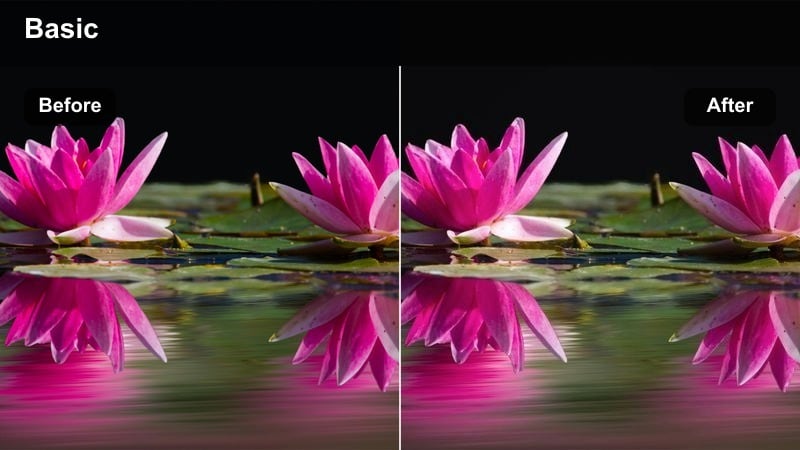
- Effect look: Soft, warm, and gently diffused tones that draw focus to faces and subtle expressions.
- Best for: Close-up conversations, heartfelt monologues, romantic scenes, and warm family moments.
- Editing tip: Lower contrast slightly and reduce sharpness on the background to keep attention on your subjects eyes and micro-expressions.
Warm Quiet Confessions wraps your dialogue in a soft, amber glow that naturally guides the eye toward faces and the space between characters. In Filmora, this kind of look works especially well when you are cutting between close-ups and over-the-shoulder shots, because the gentle warmth keeps skin tones flattering while the diffusion calms down distracting textures in the background.
After applying a similar LUT or filter in Filmora, fine-tune it by slightly lowering contrast and using background blur or reduced sharpness so busy rooms do not steal focus. You can also add a subtle vignette and keep midtones clean to emphasize eyes and small shifts in expression, letting your performances carry the emotional weight of the scene.
Shape Story Mood Faster with AI Color Tools
Filmora s AI-driven color tools help you match your free LUTs for storytelling to the exact emotional tone you want, without needing advanced grading skills. You can quickly harmonize shots from different cameras or lighting setups so your intimate dialogue scenes stay visually consistent.
Use AI color matching and automatic balance to lock in a base mood, then layer your chosen warm or neutral filters on top. This keeps your timeline organized while ensuring every reaction shot and cutaway supports the same emotional atmosphere.
 secure download

Preview Storytelling Filters in Real Time
Filmora s filter and LUT preview lets you audition narrative looks live on your timeline so you can quickly see which mood best fits each scene. Instead of committing blindly to a grade, you can scrub through an entire dialogue or montage while toggling filters on and off.
This makes it easy to compare warm, cool, or muted storytelling LUTs back to back and decide which one best highlights your characters and performances. Once you find a look you like, apply it to similar clips and adjust intensity per shot.
secure download1000+ Video Filters and 3D LUTs
Filmora includes a large library of built-in video filters and 3D LUTs you can combine with your favorite free LUTs for storytelling. This gives you fine control over tone, from gentle character moments to high-intensity climaxes, without building grades from scratch.
Start by choosing a base LUT that matches your overall narrative style, then stack scene-specific filters for flashbacks, travel, or confrontations. Adjust opacity and blend settings so the color supports the story rather than overpowering it.
secure downloadMuted Realism Dialogue
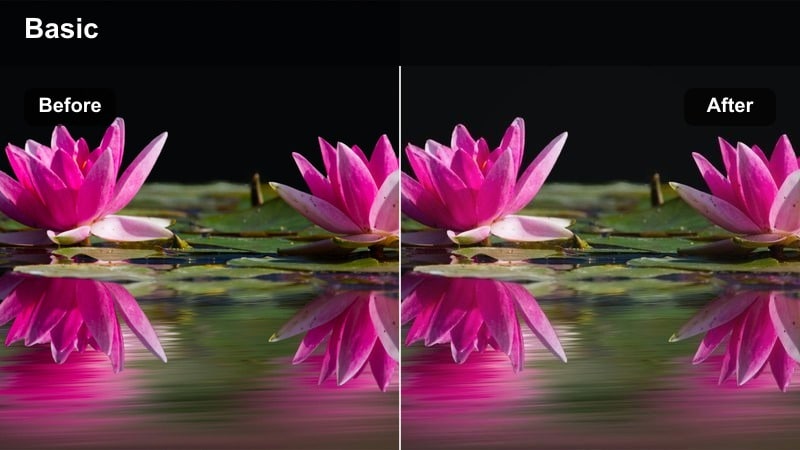
- Effect look: Desaturated, grounded tones with gentle contrast that feel honest and documentary-like.
- Best for: Serious conversations, dramatic confrontations, social realism, and documentary-style storytelling.
- Editing tip: Pair with tighter framing and subtle room tone in the audio mix to reinforce the naturalistic mood.
Muted Realism Dialogue dials back saturation and keeps contrast moderate so your scenes feel closer to real life than a stylized movie. In Filmora, you can reach this grounded look by choosing a neutral LUT and then using the Color panel to slightly reduce saturation and keep black levels from crushing.
This approach is ideal when performances and story are more important than flashy visuals. Combine the look with steady framing, minimal transitions, and clean audio in Filmora so viewers stay absorbed in the conversation and the authenticity of the moment.
Cool Distance Exchange
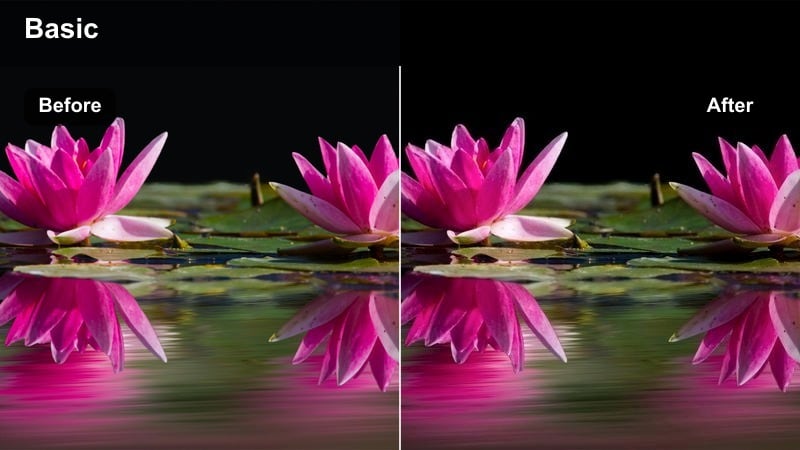
- Effect look: Cool, slightly bluish tones with higher contrast that suggest emotional distance or tension.
- Best for: Breakup talks, tense negotiations, interrogations, or any scene where characters are disconnected.
- Editing tip: Cut more slowly and hold on reaction shots to let the cool palette amplify awkward pauses and tension.
Cool Distance Exchange shifts your image toward blues and cyans while adding contrast, which instantly makes the space between characters feel more rigid and uncomfortable. Inside Filmora, you can apply a cool LUT and refine it by lowering temperature and nudging midtones cooler without oversaturating blues.
Use this kind of look on wider shots that emphasize separation as well as on close-ups where lack of warmth in skin tones echoes the strain in relationships. Slow pacing, minimal music, and careful holding of reaction shots in Filmora will let the cool palette do extra narrative work by accenting silence and unspoken conflict.
Adventure, Journey, and Travel Story Beats
Sunlit Journey
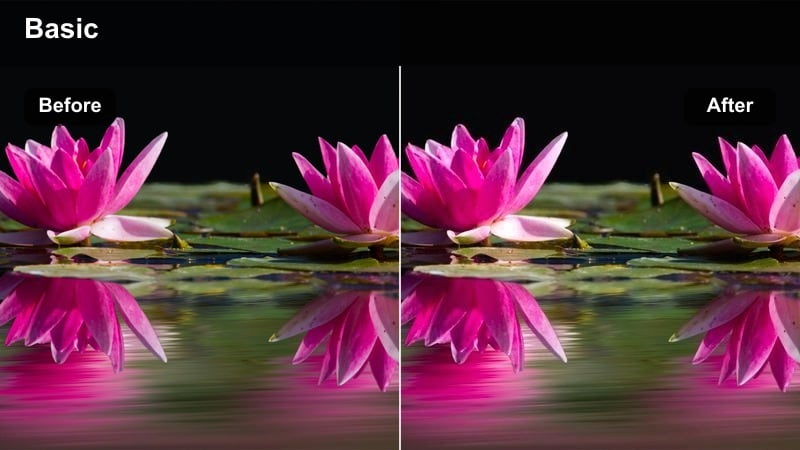
- Effect look: Bright, golden highlights with gentle contrast that evoke optimism and discovery.
- Best for: Road trips, first-day-of-the-journey montages, lighthearted explorations, and character travel sequences.
- Editing tip: Increase playback speed slightly on b-roll and cut on movement to match the energetic, upward feel of the color.
Sunlit Journey pushes highlights into warm, golden territory while keeping shadows relatively clean, which makes every exterior feel like the start of something new. In Filmora, you can lean into this look with a warm travel LUT, then boost exposure slightly and add a bit of glow or light flare overlays to reinforce the sense of adventure.
Use this look on establishing shots, walking sequences, and upbeat montages where your character is moving toward new experiences. Paired with slightly faster cuts, time remapping, and music synced to transitions in Filmora, the golden palette helps sell optimism and forward momentum in your story arc.
Dusty Road Odyssey
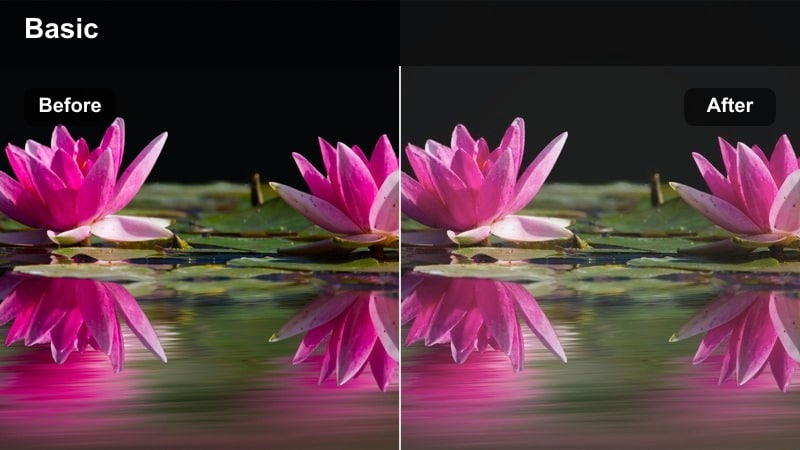
- Effect look: Soft, earthy tones with a touch of faded contrast that make long journeys feel worn-in and nostalgic.
- Best for: Long drives, cross-country bus rides, character transitions between locations, and reflective travel scenes.
- Editing tip: Use longer cross-dissolves and dissolve-to-black transitions so the faded color feels like a memory being pieced together.
Dusty Road Odyssey trades bright saturation for earthy browns and soft contrast, suggesting miles traveled, fatigue, and reflection. In Filmora, reach this look by adding a LUT with muted greens and browns, lowering overall contrast, and lifting blacks slightly so nothing feels too crisp or modern.
Apply it to window views, passing landscapes, and quiet travel moments where your character is thinking rather than acting. Pair the grade with slower cross-dissolves, gentle camera moves, and ambient soundscapes in Filmora to create the feeling of a long, introspective journey between story beats.
Neon Night Drive
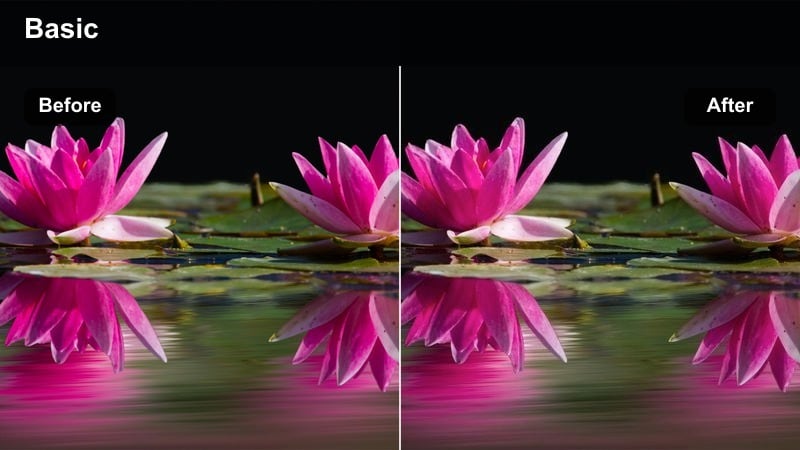
- Effect look: Deep shadows with punchy neon highlights that emphasize city lights and reflections.
- Best for: Night car rides, city drives, late-night wanderings, and noir-leaning travel sequences.
- Editing tip: Cut on the rhythm of passing lights or music beats and hold some silhouettes in near-black to let neon signs pop.
Neon Night Drive dives into rich blacks and saturated neon hues, turning city lights and reflections into graphic shapes that define your frame. In Filmora, you can build this by underexposing a bit, boosting saturation in magenta, cyan, and blue channels, and keeping contrast high so faces and signs carve clean silhouettes out of the darkness.
Reserve this look for sequences where the city itself becomes a character, like late-night drives or rainy street walks. Sync your edits to the passing of headlights and neon flickers, use whooshes or synth-heavy tracks in your Filmora timeline, and let the bold color contrast represent mystery, temptation, or danger in your narrative.
Memory, Flashback, and Emotional Recall
Soft Pastel Memory
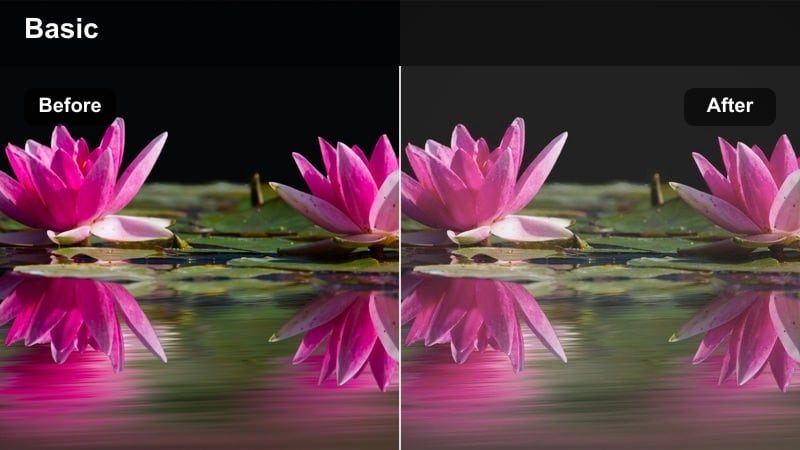
- Effect look: Hazy highlights, gentle pastels, and low contrast for dreamy, idealized memories.
- Best for: Positive flashbacks, childhood recollections, happy montage sequences, and sentimental cutaways.
- Editing tip: Add a slight blur or glow effect on transitions into the flashback and return to a sharper, more neutral grade in the present.
Soft Pastel Memory wraps your frame in low-contrast light, pastel colors, and a hint of bloom that makes everything feel kinder and larger than life. In Filmora, select a soft, warm LUT, reduce contrast, and add a light Gaussian blur or glow effect to highlights so windows and skies gently spill into surrounding areas.
Use this grade only on flashbacks and cherished moments, then cut back to a crisper, more neutral look for present-day scenes. Switch grades using Filmora keyframes on LUT intensity or by stacking adjustment layers, so the transition into and out of memory feels like drifting in and out of a dream.
Faded Polaroid Past
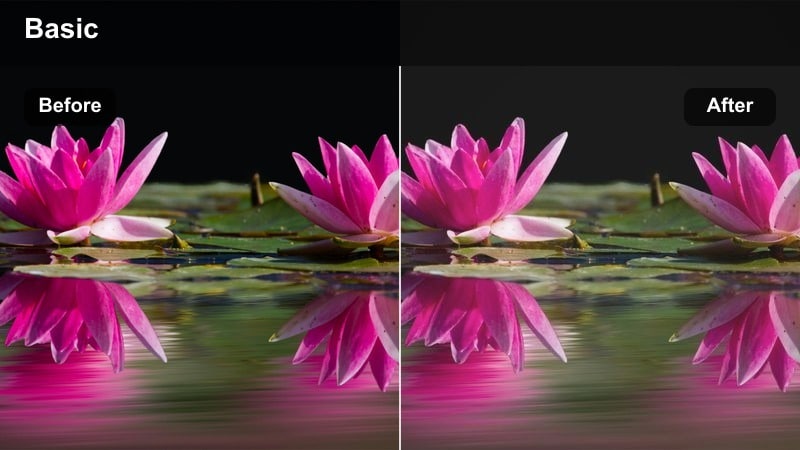
- Effect look: Muted colors with gentle sepia and lifted blacks, mimicking old printed photos.
- Best for: Old family memories, backstory reveals, archival-style recreations, and retro flashbacks.
- Editing tip: Cut to this look with a quick white flash or photo shutter sound to hint that you are entering an older part of the story.
Faded Polaroid Past introduces slight sepia, desaturation, and lifted shadows so your footage resembles an aged print found in a shoebox. In Filmora, combine a vintage LUT with adjustments to raise black levels and pull down saturation, then subtly warm the midtones to suggest old paper.
Apply it to scenes that represent distant history, family archives, or stylized recreations of events characters only remember in fragments. Add quick white flashes, photo-frame overlays, or shutter sounds on your Filmora timeline to underscore the idea that the audience is looking at an old snapshot brought to life.
Cold Fractured Memory
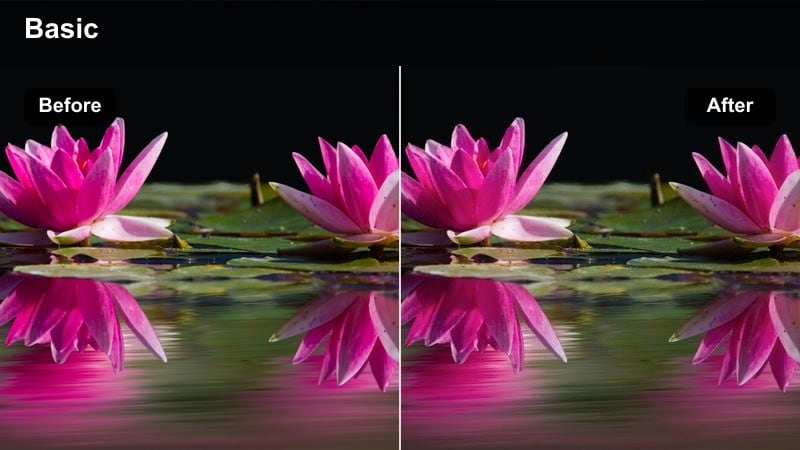
- Effect look: Cool, slightly green-shifted tones with harsher contrast that make memories feel fragmented or painful.
- Best for: Traumatic flashbacks, regretful recollections, nightmare sequences, and fractured backstory moments.
- Editing tip: Use jump cuts, brief flashes of overexposed frames, or rapid sound design hits while this filter is active to emphasize emotional disorientation.
Cold Fractured Memory leans into eerie greens and hard contrast, stripping warmth from the frame so past events feel unsettling and jagged. In Filmora, you can achieve this by cooling white balance, shifting tint slightly toward green, and boosting contrast while keeping saturation moderate to avoid a cartoonish horror look.
Use this effect sparingly in quick bursts for traumatic flashes, nightmares, or fragmented recollections. Combine it with jump cuts, sudden audio stings, and frame holds inside Filmora to make each appearance of this look feel like an emotional shock that interrupts the main narrative flow.
Climax, Resolution, and Final Story Beats
High Contrast Showdown
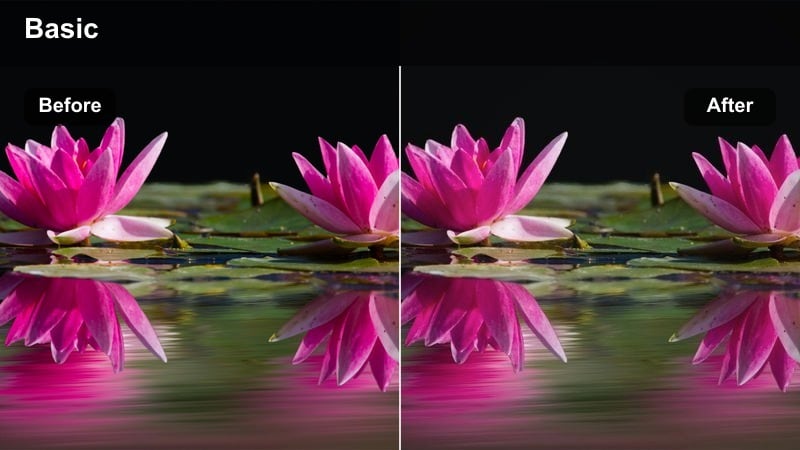
- Effect look: Bold contrast with deep blacks and crisp highlights that make climactic scenes feel intense and decisive.
- Best for: Final confrontations, major decisions, courtroom scenes, and high-stakes turning points.
- Editing tip: Use tighter cuts and more reaction shots under this look so every line and movement feels like it carries weight.
High Contrast Showdown pushes blacks down and pops highlights so every gesture and line of dialogue feels sharper and more final. In Filmora, start with a punchy LUT, then fine-tune with the curve controls to deepen shadows while protecting detail in faces using midtone adjustments.
Apply this look only to the crucial confrontations in your story so the audience feels an immediate shift when it appears. Combine it with tighter coverage, faster cutting, and impactful sound design in Filmora, letting the heightened contrast visually mark that your characters have reached a point of no return.
Golden Resolution
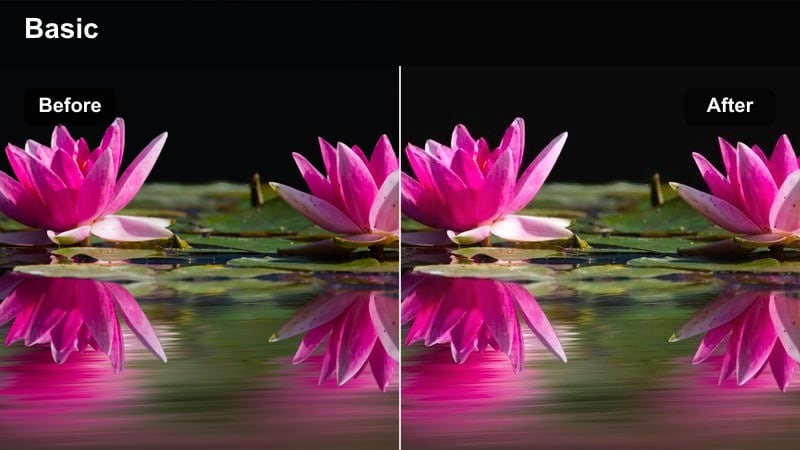
- Effect look: Warm, balanced tones with gentle contrast and slightly lifted shadows, evoking relief and closure.
- Best for: Happy endings, reconciliations, final hugs, and hopeful last montages.
- Editing tip: Gradually fade into this warmer filter from your main grade over several shots to make the resolution feel earned rather than sudden.
Golden Resolution introduces soft warmth and slightly raised shadows, signaling that tension has eased and characters have reached a place of peace. In Filmora, blend a warm LUT over your existing grade using adjustment layers and gradually increase its intensity across several shots leading to the ending.
Use it for final embraces, reconciliations, or hopeful montages that show life after the main conflict. Pair the color shift with slower cuts, gentle camera movement, and a resolving music cue in Filmora to make the emotional landing feel satisfying and organic.
Quiet Open Ending
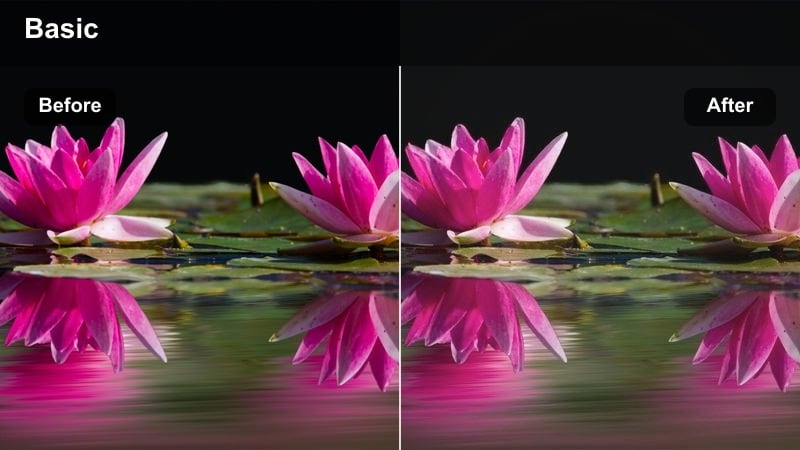
- Effect look: Neutral, slightly softened tones with gentle fade in the blacks that suggest ambiguity and reflection.
- Best for: Bittersweet finales, walking-away shots, contemplative closing scenes, and unresolved endings.
- Editing tip: Hold your final shot a second longer than feels comfortable and let ambient sound breathe under this look to invite audience reflection.
Quiet Open Ending keeps color largely neutral but softens sharp edges and slightly fades blacks, creating a calm, contemplative mood without spelling out how viewers should feel. In Filmora, reduce contrast a touch, soften clarity or sharpness, and add a faint fade-to-black effect in the last few seconds of your closing shot.
Use this look for endings where questions remain or where the character s journey is not quite finished. Let ambient sound or minimal music sit underneath in your Filmora edit, hold the final frame longer than usual, and allow the gentle grade to invite reflection rather than deliver a definitive emotional answer.
Tips for Using Free Luts For Storytelling Filters in Filmora
- Plan your visual arc before editing by assigning one primary look to each story phase: setup, conflict, and resolution.
- Keep skin tones natural whenever possible; reserve extreme color shifts for short, targeted emotional beats.
- Use stronger, more stylized filters on b-roll, cutaways, and transition shots while keeping most dialogue scenes more restrained.
- Save your boldest LUT or filter combination for the climax so your color story has room to build tension first.
- Always test chosen filters on both bright and dark shots from the same scene to avoid surprises in your final export.
- Organize Filmora adjustment layers by story phase so you can tweak entire sections of your narrative grade with a few clicks.
- Mix opacity of LUTs and filters rather than using them at 100 percent intensity to keep your storytelling looks flexible and subtle.
- Regularly compare your graded timeline with a neutral version in Filmora to confirm that color is supporting, not distracting from, the story.
Free LUTs for storytelling and carefully chosen filters give creators and editors a fast way to turn simple footage into emotionally coherent narratives.
Use these looks as a starting point, then refine exposure, contrast, and saturation inside Filmora so every scene reinforces the story you want to tell.
secure download