

 100% Security Verified | No Subscription Required | No Malware


 ChatGPT
 Perplexity
 Gemini
 Claude
 Grok
Grok
These Filmora filter presets work like free LUTs for YouTube creators, giving your videos a fast cinematic upgrade without complex color grading.
Pick a style that matches your channel, apply it in one click, then fine-tune intensity to keep your brand visuals consistent across every upload.
In this article
Daylight City Vlogs and Lifestyle Walkthroughs
Bright City Pop
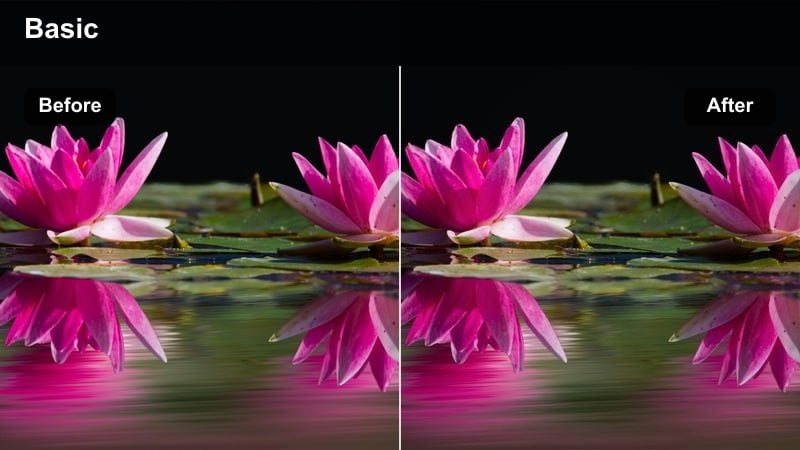
- Effect look: Clean, bright, high-contrast city look with boosted saturation for clothing and street signs.
- Best for: Lifestyle city vlogs, shopping hauls, college campus videos, and handheld street intros.
- Editing tip: Lower contrast slightly if your footage is shot at noon to avoid blown-out highlights on buildings and pavement.
Bright City Pop works like a one-click LUT for daytime YouTube vlogs, instantly lifting exposure, sharpening contrast, and pushing color so storefronts, outfits, and street details stand out. In Filmora, you can drop this filter on your A-roll and b-roll to quickly transform flat, overcast footage into something vibrant, then adjust the strength slider if your camera already shoots punchy colors.
Use this style when you want your city energy to feel bold without making skin look unnatural. Apply it to your talking head segments, then duplicate the filter onto your cutaway shots so the color tone stays consistent across the entire vlog. If you are mixing phones and cameras, Bright City Pop can also help unify mismatched footage with one shared look.
Tap Into AI-Powered Color for Faster Grading
Filmora's AI color tools analyze your clips and suggest balanced, cinematic looks, so you can get to a polished base grade without touching complex wheels or curves. This gives YouTube creators a fast starting point before dialing in any stylized filters.
Once your base is set, layer the free LUT-style filters from this guide on top, then tweak intensity and exposure so every upload stays on-brand while still matching the original scene.
 secure download

Preview Filters on Your Footage in Seconds
With Filmora, you do not have to guess how a LUT-style filter will affect your YouTube video. Drag a filter onto a clip, toggle the preview to compare before and after, and fine-tune the strength slider until you find the sweet spot for your channel.
Audition several filters on the same shot to test different moods, then save the winners as custom presets so your next upload can reuse the exact same look in one click.
secure download1000+ Video Filters and 3D LUTs
Beyond the presets in this guide, Filmora includes a large library of filters, cinematic LUTs, and HSL controls so you can build your own unique YouTube aesthetic. Mix creative looks with precise color tools to match brand palettes, tweak specific hues, or correct tricky lighting.
As you experiment, you can stack filters, blend them with LUTs, and then save the combination as a reusable preset, giving you a personal color toolkit that behaves just like a custom LUT pack.
secure downloadSoft Street Journal
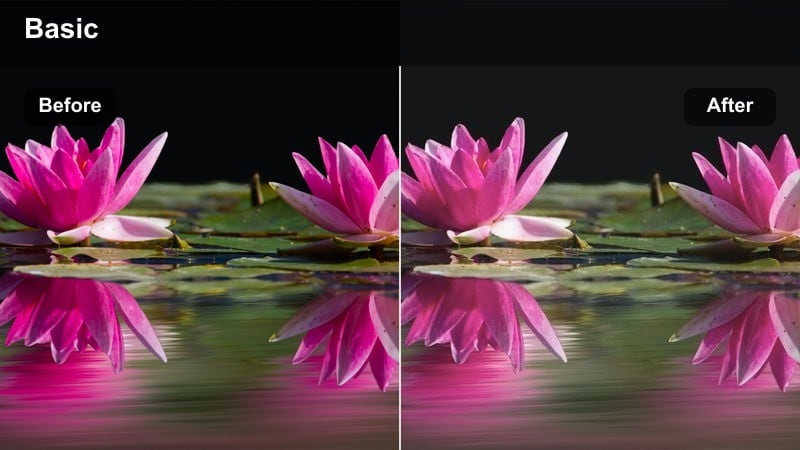
- Effect look: Low-contrast, soft highlight filter with gentle pastel colors and calm skin tones.
- Best for: Reflective city walks, voice-over storytelling, study vlogs, and lifestyle journals.
- Editing tip: Add a tiny bit of film grain and reduce sharpness to push the gentle, diary-like mood even further.
Soft Street Journal takes the edge off harsh city lighting, rolling off highlights and pushing colors toward soft pastels for a more reflective mood. In Filmora, this is a helpful look when you are telling personal stories or layering voice-over across B-roll and want the visuals to feel calm rather than hyper-saturated.
Apply this filter on walking shots, bench sit-downs, or study sequences to distinguish them from your high-energy segments. You can also combine it with a slight reduction in sharpness and a touch of film grain, creating a journal-style visual that pairs nicely with lo-fi music and quieter narration.
Urban Neutral Grade
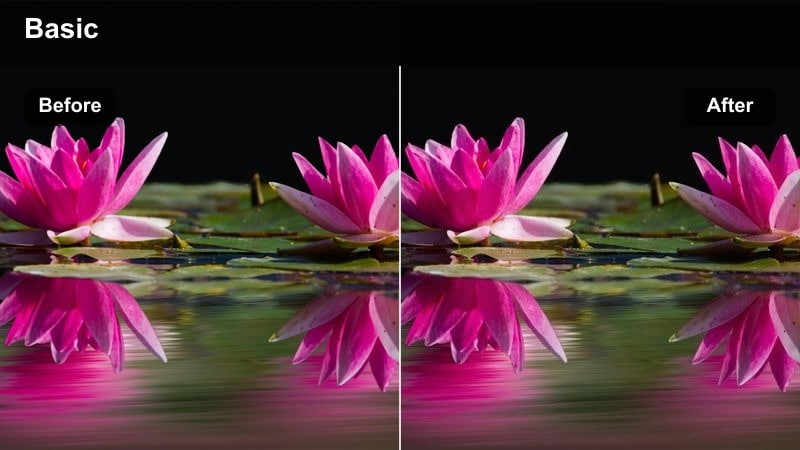
- Effect look: Balanced, neutral LUT-style filter with clean whites, controlled shadows, and realistic saturation.
- Best for: Tech reviews, sit-down commentaries, productivity vlogs, and co-working space scenes.
- Editing tip: Use this filter at lower intensity on screen recordings and b-roll overlays to keep your channel looking cohesive.
Urban Neutral Grade is a versatile base look that behaves like a clean, professional LUT for most city and indoor office setups. It keeps whites neutral, skies realistic, and saturation under control, making it ideal for tech and productivity channels that want a modern but not overly stylized aesthetic.
In Filmora, you can apply this filter across your main camera angles, B-roll, and even screen recordings at reduced strength to unify the entire video. Save it as a preset, then make it your default grade for series playlists so viewers immediately recognize your consistent, polished visual style.
Home Studio Talking Heads and Tutorials
Creator Desk Clean
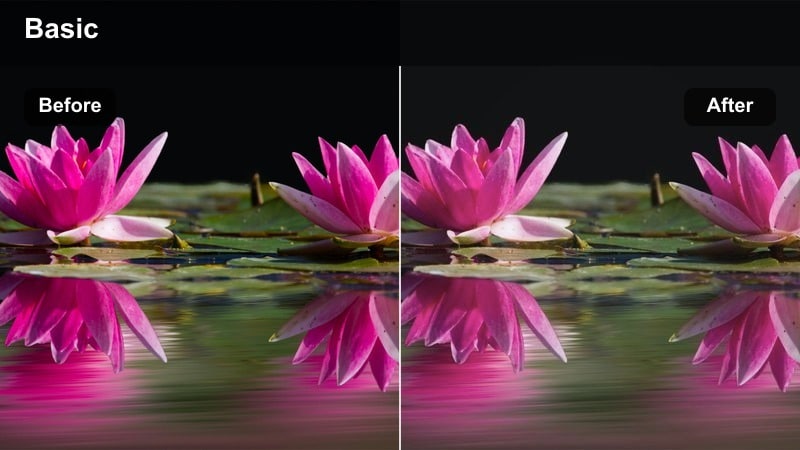
- Effect look: Soft contrast, bright midtones, and natural skin tones that flatter faces in home setups.
- Best for: Talking head YouTube videos, podcasts filmed at a desk, and educational tutorials.
- Editing tip: Use the vignette control lightly to draw focus to your face without making edges too dark.
Creator Desk Clean is tailored for home studios, webcams, and DSLR setups where your face is the focus. It gently brightens midtones and protects skin tones, helping you look well-lit and professional even if your room lighting is not perfect.
Use this filter on all your A-roll teaching or commentary segments in Filmora, then add a subtle vignette to guide the viewer toward your eyes without turning the background into heavy shadows. Once you like the look, save it as a preset and reuse it on every sit-down video for reliable, repeatable color.
Tutorial Soft Focus
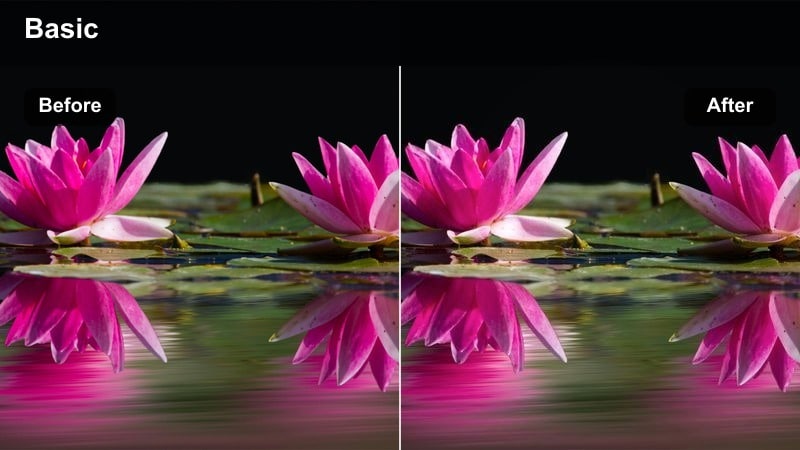
- Effect look: Gentle bloom on highlights with slightly lifted blacks to create a friendly, approachable feel.
- Best for: How-to videos, beginner tutorials, course intros, and welcome videos on YouTube.
- Editing tip: Keep text overlays high contrast and simple since the image is softer and more forgiving.
Tutorial Soft Focus adds a mild glow to bright areas and lifts the darkest shadows, creating a forgiving, friendly picture that works well for educational content. This softer aesthetic can make dense topics feel less intimidating, especially for beginner audiences.
In Filmora, combine this filter with clean, high-contrast text graphics so instructions remain easy to read even on phone screens. It pairs especially well with pastel backgrounds or bedroom studios, helping you strike a balance between cozy, approachable visuals and clear, legible information on screen.
Studio Pro Contrast
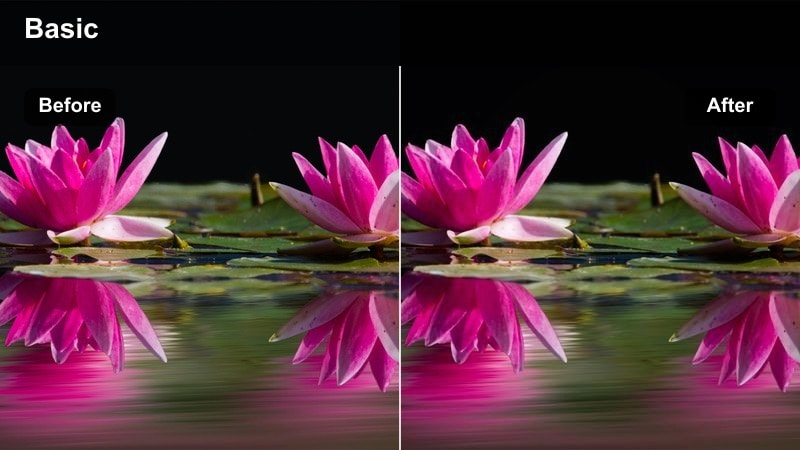
- Effect look: Crisp contrast with rich blacks and subtle color enhancement for a polished studio feel.
- Best for: Opinion pieces, camera-facing commentary, reaction videos, and channel trailers.
- Editing tip: Dial down saturation if your RGB lights are intense to avoid distracting color clipping behind you.
Studio Pro Contrast is designed to make home studios look like high-end YouTube sets, deepening blacks and sharpening edges while leaving enough color detail for RGB lights and props. This LUT-style filter is ideal for creators who want a bold, cinematic punch without losing clarity on their face.
Use it on commentary, reactions, and trailers shot in front of shelves or LED lighting, then adjust saturation inside Filmora if your background colors start to clip. Always preview the result on a smaller device to ensure your face remains slightly brighter than the set so viewers focus on your expressions first.
Travel B-Roll, Skylines, and Movement Shots
Travel Teal Cityline
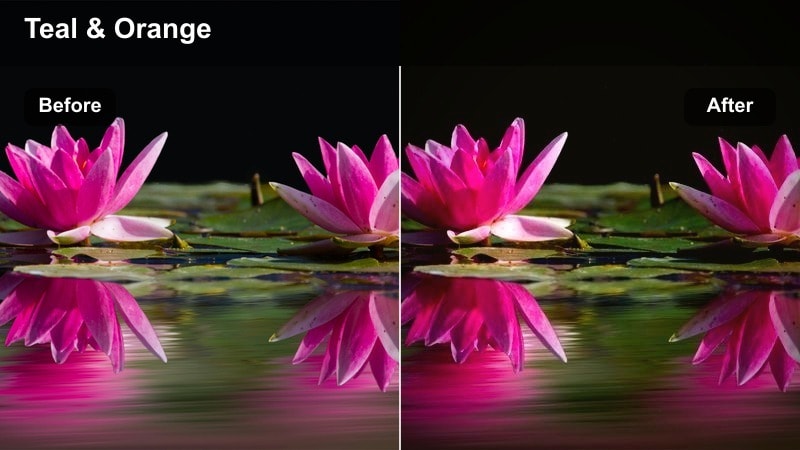
- Effect look: Teal-and-orange inspired grade with cool shadows and warm highlights for dramatic cityscapes.
- Best for: City travel b-roll, skyline time-lapses, bridge sequences, and drone flyovers.
- Editing tip: Add speed ramps and sync cuts to music beats to maximize the cinematic impact of this stylized look.
Travel Teal Cityline brings the classic teal-and-orange movie palette to your YouTube travel edits, cooling down shadows while warming up highlights for dramatic skies and building edges. It is especially effective on wide shots where architecture, water, and sunsets take center stage.
In Filmora, apply this filter to your drone clips, timelapses, and establishing shots, then combine it with speed ramps and beat-synced cuts to create high-energy sequences. If you appear in frame, consider lowering the filter intensity or slightly correcting skin tones to keep faces from turning overly cyan.
Morning Commute Glow
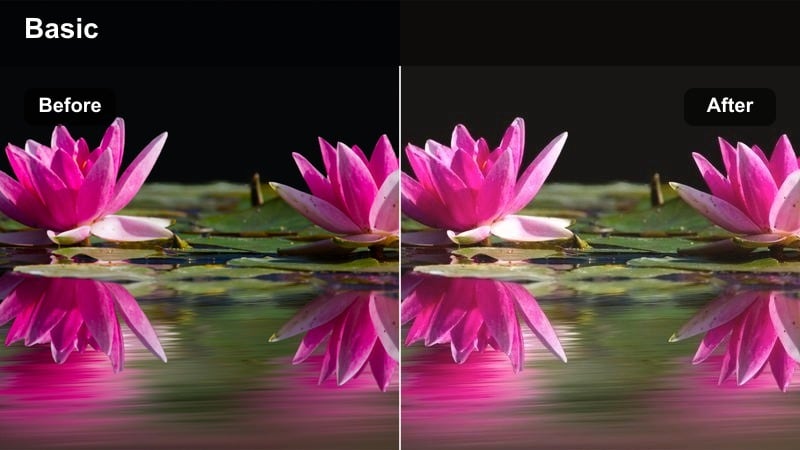
- Effect look: Warm highlights and soft faded blacks for cozy sunrise and early commute scenes.
- Best for: Subway rides, bus windows, bike commutes, and first-person travel vlogs in early light.
- Editing tip: Combine this filter with subtle motion blur transitions to enhance the feeling of movement through the city.
Morning Commute Glow leans into warm, golden tones and slightly faded blacks to turn everyday commutes into nostalgic, cinematic sequences. It works particularly well during sunrise or early morning blue hour when natural light is already soft.
Use it in Filmora on train, bus, or bike POV shots to signal the start or end of a day in your vlog narrative. Pair the filter with gentle motion blur transitions and quieter background music to emphasize the reflective, in-transit feeling at the beginning or closing chapters of your videos.
Night Drive Neon
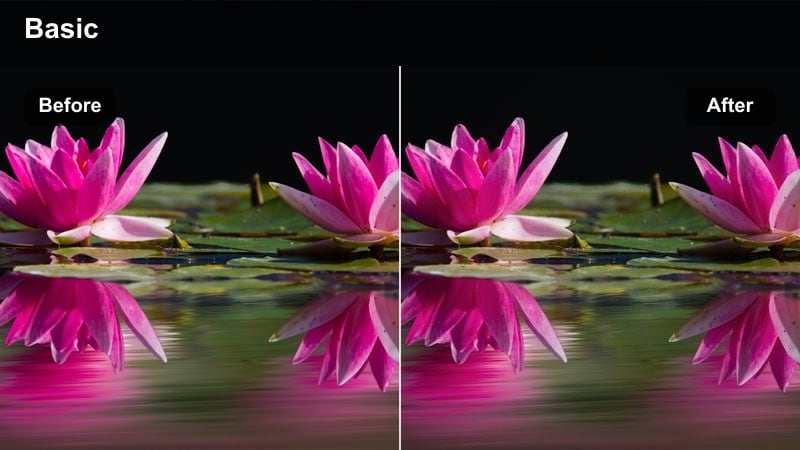
- Effect look: Deep contrast with boosted neon colors and controlled noise for nighttime street scenes.
- Best for: Night drives, scooter POV shots, late-night city walks, and cinematic b-roll sequences.
- Editing tip: Apply a slight denoise before this filter on high ISO footage to avoid exaggerated grain in the shadows.
Night Drive Neon is built for low-light cityscapes, pushing neon signs and taillights while holding onto detail in darker areas. It adds a moody, cyberpunk edge to your YouTube night sequences, making car windows, wet streets, and storefronts pop with color.
Before applying this filter in Filmora, run a light denoise on noisy clips to keep grain under control once the contrast increases. Afterward, fine-tune the exposure and shadow sliders so roads and buildings retain texture rather than sinking into pure black, especially if your audience watches on older or dimmer devices.
YouTube Shorts, Reels, and Vertical Clips
Vertical Pop Quick
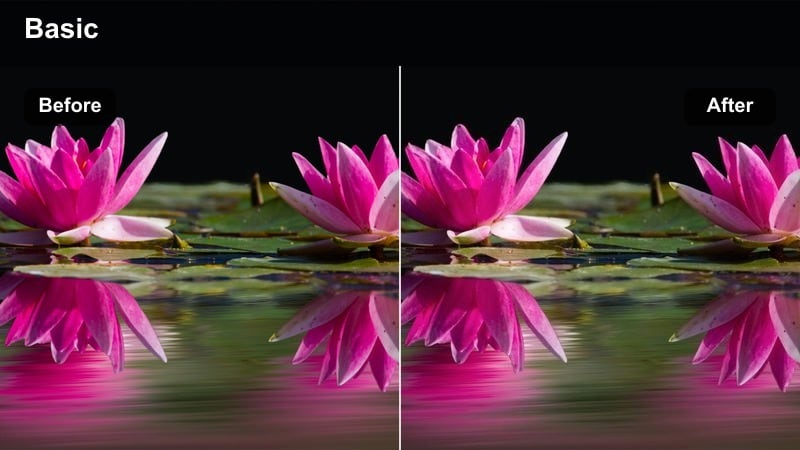
- Effect look: High-clarity, bright saturation, and sharp edges that read clearly on small screens.
- Best for: YouTube Shorts, quick tips, meme-style clips, and fast-paced vertical edits.
- Editing tip: Use this look at full strength for b-roll but slightly lower it on close-up faces to avoid over-sharpening skin.
Vertical Pop Quick is optimized for phone viewing, cranking clarity and color so your video stands out in fast-scrolling feeds. It sharpens edges and boosts saturation enough that text, outfits, and objects stay visible even on smaller screens.
In Filmora, use this filter for kinetic Shorts, meme cutouts, quick tips, or vertical B-roll reels. Run it at full strength on city backdrops or product shots, then reduce intensity slightly on close-up faces to avoid emphasizing skin texture while still keeping that high-impact, scroll-stopping look.
Street Candid Chill
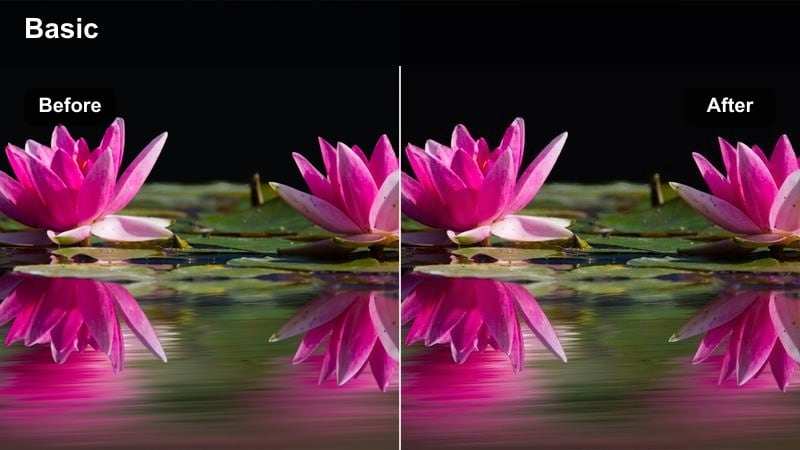
- Effect look: Muted highlights and gently desaturated colors for lo-fi, documentary-style vertical content.
- Best for: IRL clips, candid street moments, public interviews, and low-key storytelling Shorts.
- Editing tip: Add subtitles in high-contrast white or bright colors so dialogue stays readable over the muted image.
Street Candid Chill dials back saturation and softens highlights to give your vertical clips a lo-fi, documentary feeling. This style works well for behind-the-scenes content, honest commentary, or public interactions where you want the focus on authenticity rather than polish.
Apply it in Filmora to walking-and-talking Shorts, quick IRL updates, or interview snippets, then overlay bold, high-contrast subtitles so speech stays legible on mobile. You can also intercut these muted segments with brighter, more stylized clips to clearly separate raw, real-life moments from produced content.
Creator Brand Consistent
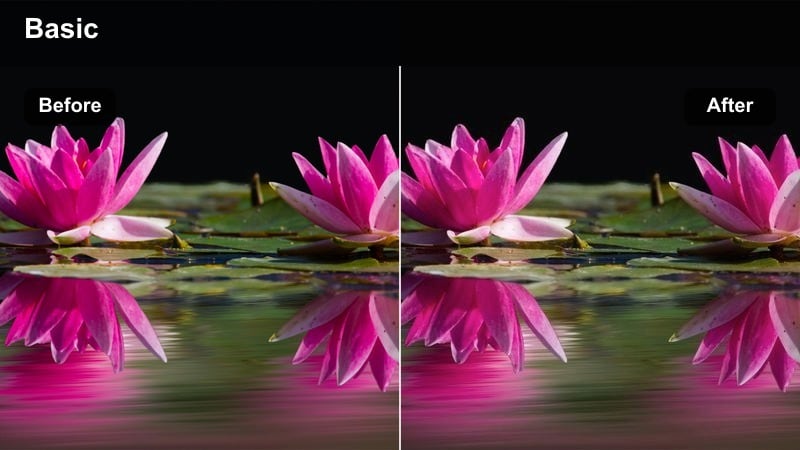
- Effect look: Moderate contrast, slight vibrance boost, and stable whites that work across phones and desktops.
- Best for: Channel-wide branding, intros, outros, and repurposed horizontal clips into vertical format.
- Editing tip: Apply this filter to both long-form and Shorts so viewers instantly recognize your visual style.
Creator Brand Consistent is a flexible, all-rounder filter designed to look good on both horizontal videos and vertical clips. It gently enhances color and contrast while keeping whites stable, helping your brand identity feel the same whether viewers are on a laptop or a phone.
Use it in Filmora for your intros, outros, pinned channel trailers, and any clips you repurpose from long-form to Shorts. By saving this as your go-to branding preset, you create a recognizable visual signature across all platforms without having to rebuild your grade from scratch every time.
Tips for Using Free Luts For Youtube Creators Filters in Filmora
- Always test your chosen filter on both indoor and outdoor clips to make sure it works across different lighting conditions.
- Check your video on a phone screen before publishing, since many viewers will see your filtered footage only on mobile.
- Keep filter intensity lower on skin tones than on city b-roll so faces stay natural and unclipped.
- Save at least one neutral, low-contrast preset for talking heads to balance out any heavily stylized travel or night looks.
- Use the same two or three filters across a full YouTube series so your content feels visually connected for returning viewers.
- Combine Filmora's AI color base with these LUT-style filters to speed up grading while still keeping control over your final look.
- Create separate presets for A-roll and B-roll so you can grade faces gently and city details more aggressively.
Using free LUT-style filters inside Filmora helps YouTube creators lock in a consistent, professional look without learning complex color grading. With just a few clicks, even vloggers working with basic lighting or mixed camera gear can bring their timelines up to a cinematic standard.
Pick a few presets from this guide that match your channel style, save them as custom looks, and you will grade every future upload in just a few clicks. Over time, those repeated choices become your visual brand, making your videos instantly recognizable in the YouTube feed.
secure download