

 100% Security Verified | No Subscription Required | No Malware


 ChatGPT
 Perplexity
 Gemini
 Claude
 Grok
Grok
These free LUTs moody tone style filters are built for creators and editors who love cinematic shadows, muted colors, and atmospheric contrast without spending hours on manual grading.
Apply them directly in Filmora to give your footage a dark, emotional edge that fits trailers, vlogs, travel films, and narrative shorts with consistent moody tone across every scene.
In this article
Moody Night Streets and Neon Alleys
Noir Alley
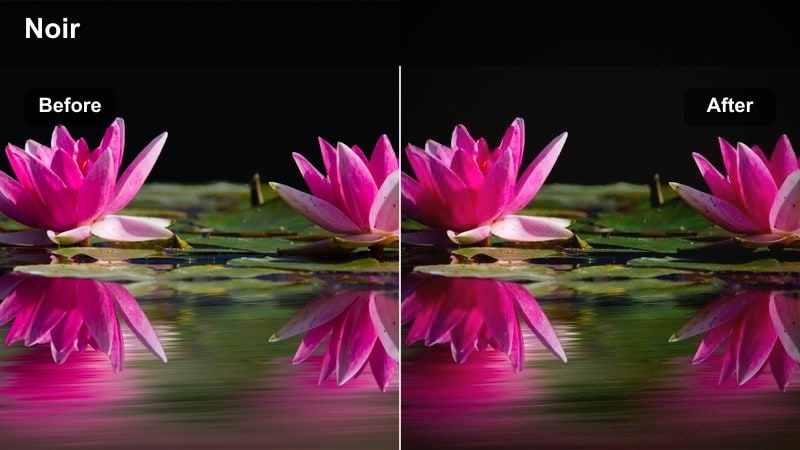
- Effect look: High-contrast, almost monochrome toning with deep shadows and slight blue in the midtones for a modern noir mood.
- Best for: Rainy city streets, alleyway sequences, and handheld night walks lit by street lamps.
- Editing tip: Lower overall exposure slightly and add a subtle vignette to push the subject into the light pockets.
Noir Alley is built to turn ordinary night footage into a stylized noir sequence where silhouettes, reflections, and pockets of light carry the story. In Filmora, it quickly cools midtones and deepens shadows so your subjects stand out against dark alleys, wet pavements, and narrow urban spaces.
Use this LUT on night b roll or dialogue scenes shot under street lamps, then fine tune exposure and contrast inside Filmora to keep details in faces while backgrounds fall into rich blacks. Pair it with slow push ins or static locked off shots to emphasize tension, mystery, or solitude in your scene.
Match Moody LUTs to Your Scene with AI Color Tools
Filmora's AI color tools quickly analyze your footage and suggest the moody tone filters that best fit contrast, lighting, and color temperature. Instead of guessing which free LUTs moody tone preset to start with, you can lean on AI to narrow down the most cinematic options.
Use these recommendations as a base grade, then make light tweaks to exposure and saturation so every frame keeps consistent mood across city nights, interiors, and transitions.
 secure download

Preview Moody Tone Filters in Real Time
Filmora's real time preview lets you hover over each moody filter or LUT and instantly see how it transforms your shot in the Viewer. This makes it easy to compare several free LUTs moody tone presets on the same clip without committing to a full render.
Once you find a look that fits, you can adjust intensity, exposure, and color temperature directly in the interface until the cinematic tone supports your story.
secure download1000+ Video Filters and 3D LUTs
Beyond these free moody LUTs, Filmora includes a large library of filters, overlays, and 3D LUTs you can stack to create deeper cinematic looks. Mix stylistic filters with subtle correction LUTs to refine contrast, de saturate colors, or introduce consistent teal and orange or dark tone styles.
You can further refine your grade using HSL and other color tools, giving each clip a polished finish that still feels cohesive across your entire project.
secure downloadNeon Gloom
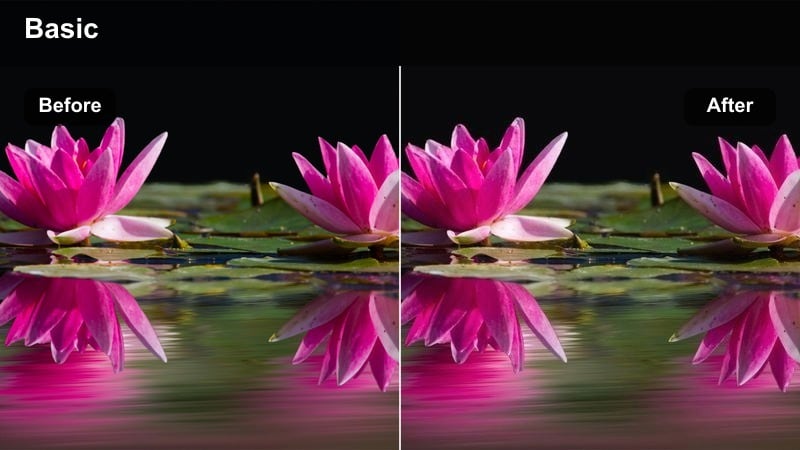
- Effect look: Desaturated base with pops of neon magenta and teal, plus lifted blacks for a hazy cyberpunk mood.
- Best for: Neon signs, nightlife b roll, rainy window reflections, and cyberpunk inspired montages.
- Editing tip: Crank up the glow or bloom effect around light sources to make neon accents feel more dreamy and surreal.
Neon Gloom gives your nightlife and downtown shots a stylized cyberpunk flair by muting most colors while letting magenta and teal highlights stay bold. In Filmora, this helps neon signs, LED panels, and car lights pop from an otherwise subdued city palette.
Apply it to night streets, clubs, or rooftop scenes, then adjust saturation of non neon colors to keep attention centered on glowing signs and reflections. You can add a light blur or bloom effect around bright pixels in Filmora to enhance the surreal, dreamlike quality of the scene.
Subway Shadow
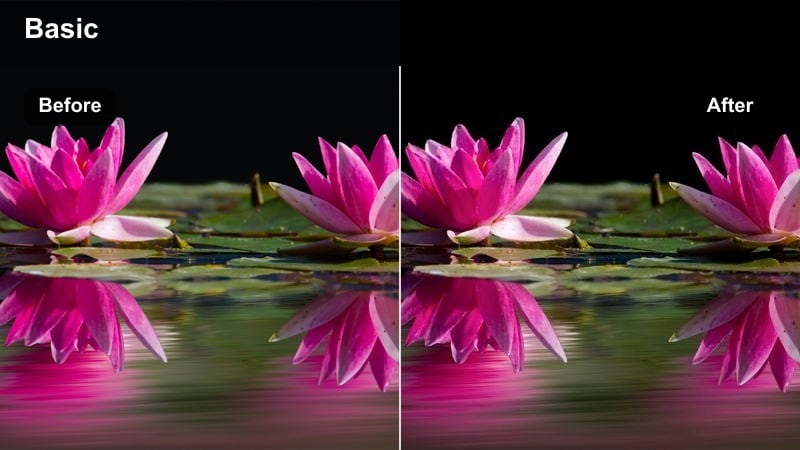
- Effect look: Cool, desaturated tones with crushed blacks and gritty texture that emphasize fluorescent tunnel lighting.
- Best for: Subway platforms, underground parking garages, and dim transit stations with harsh overhead light.
- Editing tip: Add a touch of film grain and slightly slow your footage to accentuate the heavy, tense subway atmosphere.
Subway Shadow is designed to turn flat fluorescent lighting into a cinematic, oppressive environment with cool tones and strong shadows. In Filmora, it helps carve your subject out from long tunnels and platforms, emphasizing isolation and tension.
Use it on handheld or tripod subway shots, then layer in film grain and subtle motion blur for a documentary style edge. By lowering saturation and pushing blacks deeper, this LUT makes even simple commute footage feel like part of a thriller or gritty urban drama.
Brooding Indoor Scenes and Intimate Rooms
Room Hush
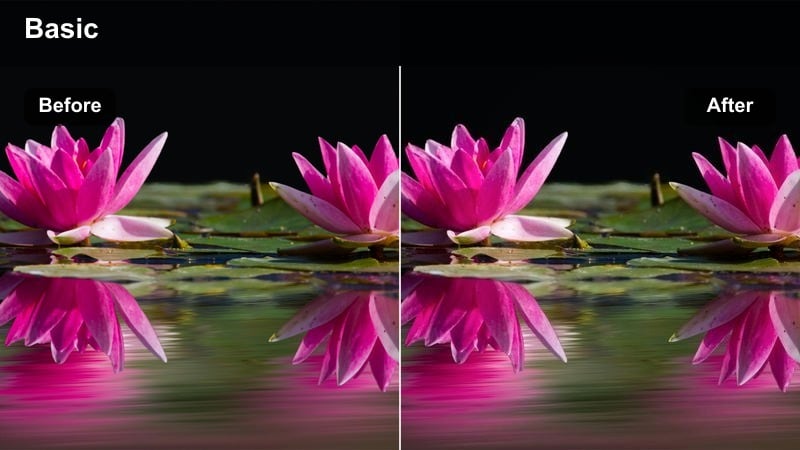
- Effect look: Soft, low-contrast moody tone with muted colors and slightly lifted blacks for a quiet, introspective feel.
- Best for: Bedroom vlogs, reflective monologues, window side portraits, and low key interviews.
- Editing tip: Reduce clarity or sharpness slightly and keep camera movement slow to match the calm, hushed atmosphere.
Room Hush focuses on creating a calm, introspective mood by softening contrast and taming saturation, ideal for indoor stories centered on emotion or reflection. In Filmora, it gently lifts blacks so shadows feel soft rather than harsh, keeping skin tones delicate and flattering.
Apply it to vlogs, interviews, or narrative scenes set in bedrooms and small rooms, then fine tune sharpness and exposure to avoid any harsh edges. This LUT works especially well with natural window light or a single lamp, helping your subject feel grounded in a quiet, personal space.
Smoke and Lamps
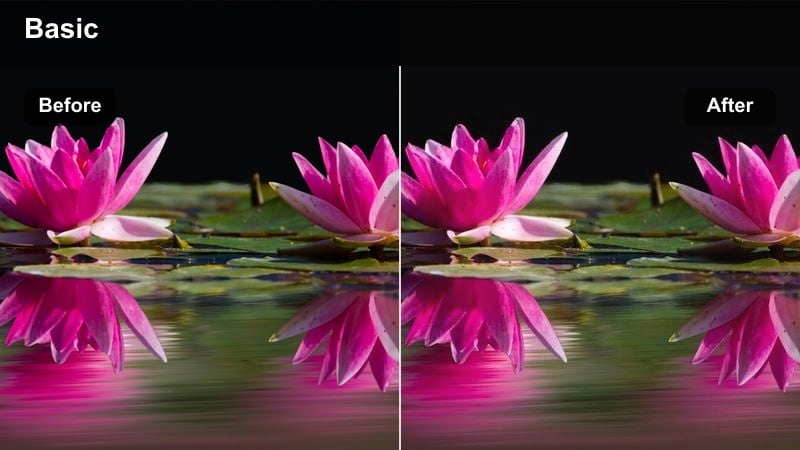
- Effect look: Warm highlights with cool, muted shadows and slightly hazy contrast for smoky, cinematic interiors.
- Best for: Bar scenes, practice studios, backstage rooms, and interiors with visible haze or dust.
- Editing tip: Add light rays or atmosphere overlays where lamps and windows are visible to enhance the smoky glow.
Smoke and Lamps leans into a split tone look, letting warm lamps and candles glow against cooler, desaturated shadows. Inside Filmora, it adds subtle haze and lowers contrast so light feels like it is hanging in the air, perfect for bars, rehearsal spaces, and backstage rooms.
Use it on scenes with visible smoke, haze, or dust, then enhance the mood with Filmora overlays like light rays or particles. By gently separating warm and cool zones, this LUT adds depth to your frame and makes practical light sources feel rich and cinematic.
Lonely Office
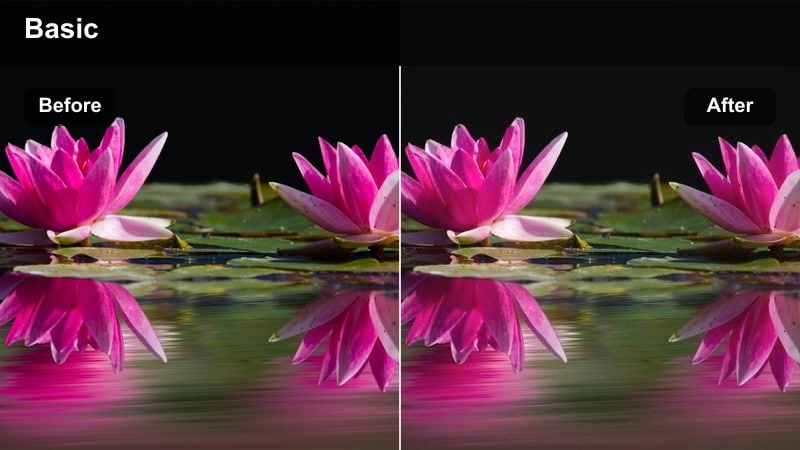
- Effect look: Flat fluorescents are turned into moody teal shadows with slightly faded contrast to reveal quiet corporate tension.
- Best for: Late-night office sequences, editing suites, desk setups, and coworking b roll after hours.
- Editing tip: Drop saturation a bit more and reduce background brightness so monitors and desk lamps stand out.
Lonely Office transforms sterile fluorescent lighting into a cinematic teal tinted environment with restrained contrast, ideal for late nights at the desk or after hours workplace scenes. In Filmora, it helps you cool down shadows and subtly fade colors so the space feels empty and emotionally charged.
Apply it to office, studio, or editing room footage, then adjust brightness to keep monitors and desk lamps as key visual anchors. Add a gentle vignette or selective blur around the edges so the viewer's eye stays on faces, screens, and small details that suggest stress, focus, or isolation.
Foggy Streets, Rainy Windows, and Overcast Days
Rainy Crosswalk
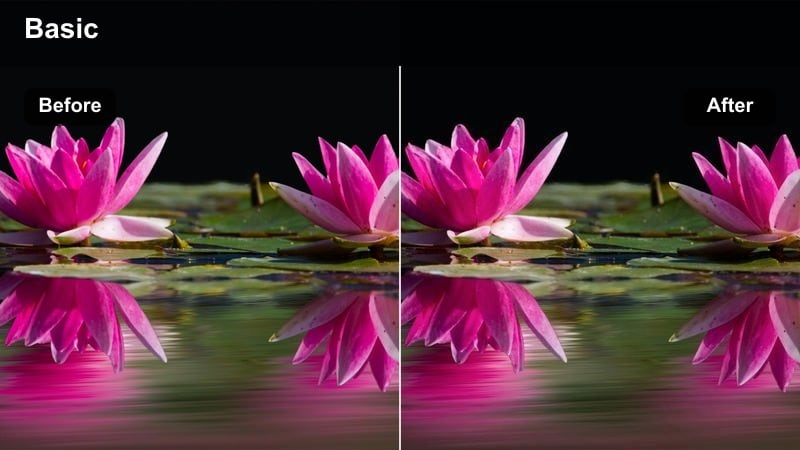
- Effect look: Cool, desaturated tones with glossy highlights on wet surfaces and slightly lifted blacks for a filmic drizzle.
- Best for: City crosswalks, traffic shots, people under umbrellas, and car-mounted rain sequences.
- Editing tip: Slow your shutter speed while shooting to get longer light streaks that this filter will emphasize.
Rainy Crosswalk is tuned for wet city environments, pushing tones cooler while letting highlights on puddles and wet asphalt shine. In Filmora, it adds a cinematic drizzle mood, making umbrellas, headlights, and reflections feel melancholic and reflective.
Use it on city traffic, pedestrian shots, or car mount footage captured during or after rain. Combine the LUT with slightly slower motion or gentle speed ramps in Filmora so light streaks and reflections have time to read, strengthening the emotional weight of transitions and travel scenes.
Window Thoughts
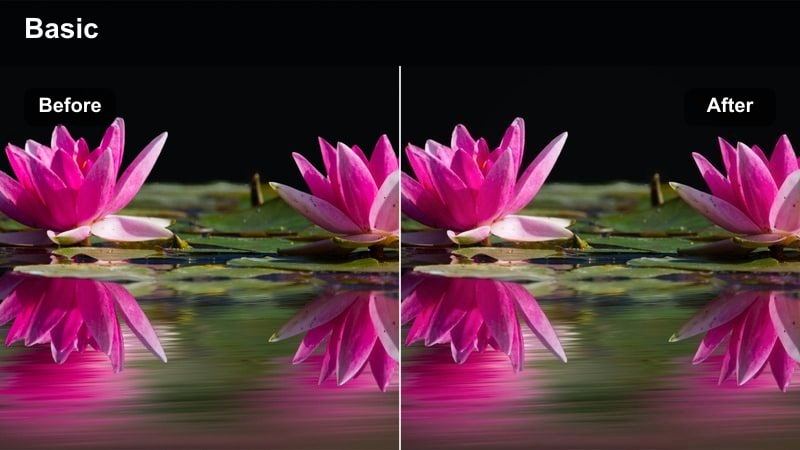
- Effect look: Soft, low-saturation look with cool shadows and gentle highlight bloom for introspective window gazes.
- Best for: Close-ups through rainy windows, train rides, and pensive characters looking outside on overcast days.
- Editing tip: Place your subject slightly out of focus and let raindrops stay sharp to enhance the reflective mood.
Window Thoughts is crafted for intimate, reflective shots framed through glass, especially when raindrops or condensation add texture. In Filmora, it softens contrast, cools shadows, and slightly blooms highlights so your subject feels lost in thought behind the window.
Apply it to train rides, car windows, or interior scenes facing outside, then fine tune focus and depth of field in camera to separate droplets from the face. In editing, keep motion minimal and consider longer takes so viewers can read both the character and reflections layered in the glass.
Grey City Walk
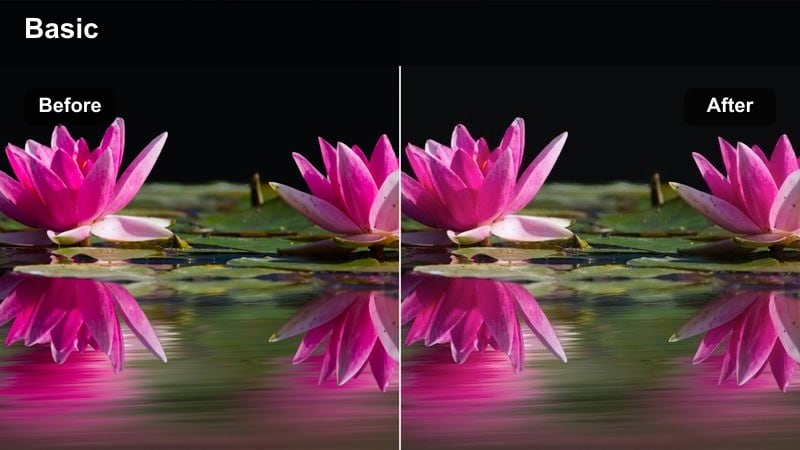
- Effect look: Muteds greys and soft contrast with a slight greenish tint in shadows for overcast urban walks.
- Best for: Sidewalks, parks inside the city, bridges, and handheld walking b roll on cloudy days.
- Editing tip: Stabilize your footage lightly but keep some natural bob to enhance the documentary-like melancholy.
Grey City Walk is optimized for overcast days, introducing soft greys and a touch of green in the shadows to heighten a grounded, documentary style mood. In Filmora, it gently lowers contrast and saturation so everyday streets and bridges feel more introspective and cinematic.
Use it on walking b roll, transitional shots between scenes, or reflective solo walks through the city. Apply light stabilization in Filmora while leaving some natural handheld motion to preserve authenticity, then extend cross dissolves between clips to emphasize unhurried, contemplative pacing.
Cinematic Story Transitions and Emotional Beats
Memory Fade
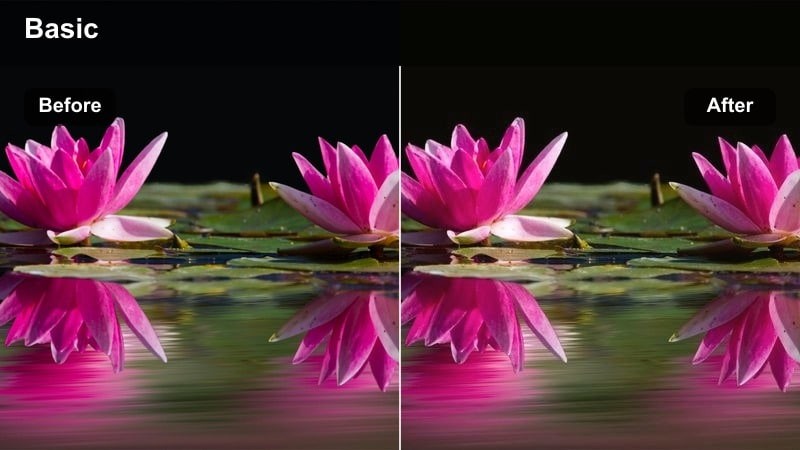
- Effect look: Faded contrast with milky blacks, lowered saturation, and subtle warm highlights for nostalgic flashbacks.
- Best for: Flashbacks, diary style vlogs, relationship montages, and memory sequences between present day scenes.
- Editing tip: Reduce frame rate or add a slight motion blur effect to make memories feel distant and imperfect.
Memory Fade gives you an instant flashback aesthetic with soft, milky blacks and gentle warmth in the highlights, perfect for past tense storytelling. In Filmora, it pulls saturation and contrast down just enough to separate memory sequences from present day scenes without breaking visual continuity.
Apply it to key emotional moments, then add slow crossfades, subtle motion blur, or a slightly reduced frame rate to accentuate distance and imperfection. This LUT works well across vlogs, narrative pieces, and wedding films where you need a clear but tasteful shift into nostalgic territory.
Chapter Break
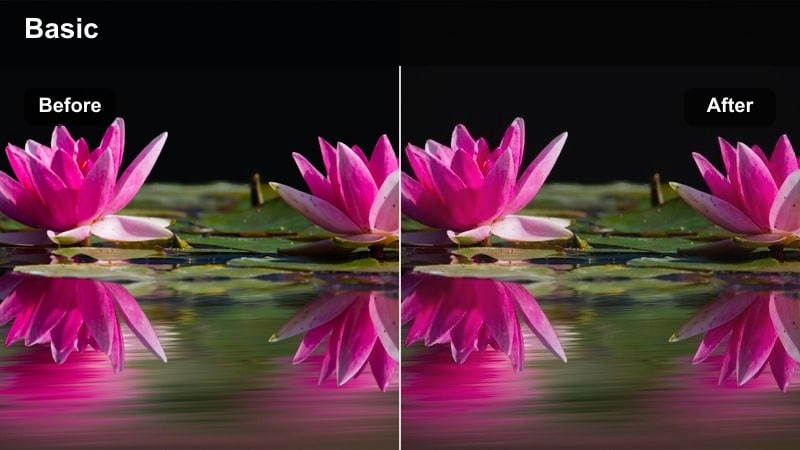
- Effect look: Subtle matte finish with slightly darker edges and cool midtones to mark shifts between story sections.
- Best for: Title cards, location changes, time jumps, and section breaks in narrative or documentary edits.
- Editing tip: Combine with slow push-ins or pull-outs and on-screen chapter text to anchor the new section.
Chapter Break is a restrained, cinematic LUT that slightly darkens edges and cools midtones to signal a new section without overwhelming your footage. In Filmora, it is ideal for opening cityscapes, landscape shots, or simple plates where you plan to overlay chapter titles or timestamps.
Use it on transitional shots between locations or acts, then add keyframed zooms or text animations in Filmora to clearly label each chapter. Keeping this look consistent throughout your edit helps structure long projects, documentaries, or multi part vlogs into coherent, easy to follow segments.
Final Glow
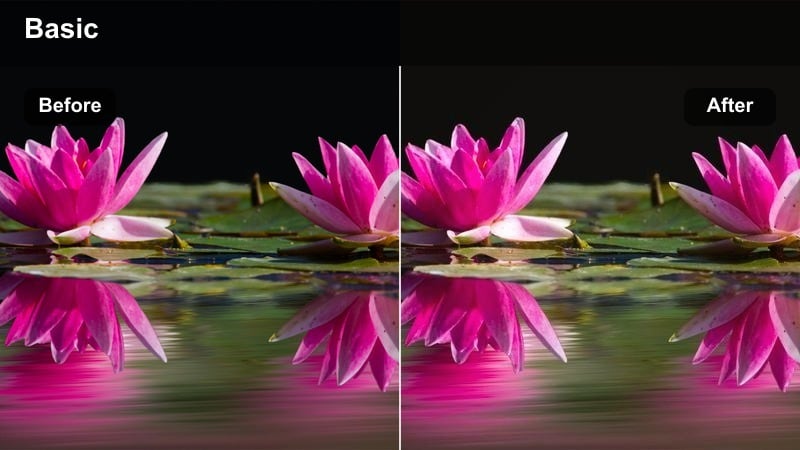
- Effect look: Dark moody base with a subtle warm lift in highlights to bring a hint of hope into closing scenes.
- Best for: Endings, closing monologues, goodbye scenes, and last shots of urban sunsets or night drives.
- Editing tip: Slow down movement and extend your last shot a bit longer than usual to let the emotional glow settle.
Final Glow is built for endings, balancing a dark, moody base with a gentle warmth in the highlights to leave viewers with a sense of quiet hope. In Filmora, it works beautifully on sunsets, final cityscapes, or intimate closing moments where the story resolves.
Apply it to your last sequence, then slightly lengthen the final shot and use gradual audio and exposure fades for a clean, intentional finish. The subtle warm tones on top of darker shadows help your conclusion feel resonant without becoming overly bright or sentimental.
Tips for Using Free Luts Moody Tone Filters in Filmora
- Shoot slightly flatter in camera so moody tone filters have more detail in shadows and highlights to work with.
- Keep your light sources motivated and visible in frame to justify strong contrast and deep shadows.
- Use one core moody filter per sequence to maintain color consistency across your entire edit.
- Adjust filter intensity before changing individual color sliders to preserve the intended look.
- Add subtle film grain and a vignette after grading to tie together mixed lighting and camera sources.
- Test different moody LUTs on a short reference clip first, then batch apply your favorite to matching scenes.
- Use Filmora's scopes and histograms to avoid crushing blacks or clipping highlights when stacking LUTs and filters.
Moody tone filters and free LUTs give creators and editors a fast way to add depth, drama, and atmosphere without complicated grading setups.
Test a few presets on your key scenes, then refine exposure and contrast so every frame supports the emotional story you want to tell.
secure downloadNext: Free LUTS Warm Tone
