

 100% Security Verified | No Subscription Required | No Malware


 ChatGPT
 Perplexity
 Gemini
 Claude
 Grok
Grok
This collection of free LUTs warm tone style filters is designed for creators and editors who want quick, cinematic warmth without complex color grading. Every preset pushes skin tones, sunsets, and interiors into a rich, inviting look that feels polished and professional.
Use these warm tone filters to build a consistent visual identity across vlogs, travel videos, lifestyle content, and short films. Stack them with Filmora's basic corrections for exposure and contrast, then fine-tune intensity until the warmth feels natural, not overpowering.
In this article
Golden Hour Outdoor Vibes
Sunset Street Glow
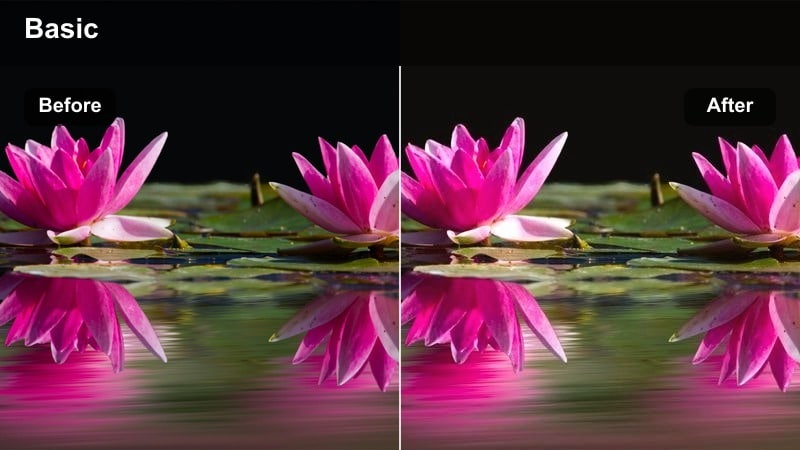
- Effect look: Soft amber glow with rich highlights that mimic late-afternoon sun on city streets.
- Best for: Urban golden hour B-roll, walking vlogs, rooftop views, and handheld street scenes.
- Editing tip: Lower contrast slightly and add a touch of film grain to keep the glow cinematic instead of harsh.
Apply Sunset Street Glow in Filmora when your city clips feel flat or slightly overcast but you want that sun-drenched golden hour mood. The filter deepens amber highlights and warms midtones so sidewalks, glass reflections, and buildings feel like they are catching the last light of the day without needing manual color wheels.
For best results, start with a basic color correction to normalize exposure, then add this warm tone filter and dial back intensity until skin tones stay natural. Use Filmora's film grain and a gentle reduction in contrast to keep halos soft, and keyframe filter strength if your subject moves from shade into direct light.
Speed Up Warm Tone Looks with AI Color Tools
Instead of starting every project from scratch, combine these warm tone filters with Filmora's AI-powered color tools to lock in a cohesive palette quickly. Let AI analyze your footage to balance exposure and white balance, so your warm LUT-style filters sit on a clean, neutral base.
Once the AI correction is applied, drop in your preferred warm tone filter and fine-tune intensity to match your style, from a subtle cozy glow to bold cinematic amber. This workflow keeps color consistent across clips, cameras, and shooting days with minimal manual tweaking.
 secure download

Preview Warm Tone Filters in Real Time
With Filmora's real-time preview, you can quickly compare different warm tone filters on the same clip and see which version best fits your story. Scrub through your scene while switching filters to check how each preset handles faces, bright highlights, and deep shadows.
When you find a look you love, save it as a custom preset so you can reuse the same warm style across vlogs, interviews, or travel series. This helps you maintain a recognizable visual identity without repeating complex manual grading steps.
secure download1000+ Video Filters and 3D LUTs
Filmora includes a large library of built-in video filters and 3D LUTs that you can combine with these free warm tone looks. Start with a subtle warm filter, then stack a cinematic LUT to fine-tune contrast, saturation, and overall color character.
By mixing filters and LUTs, you can quickly create signature warm grades tailored to travel, lifestyle, or narrative content. Adjust LUT opacity in Filmora to keep details in skies and skin while still benefiting from stylized color.
secure downloadTravel Gold Wander
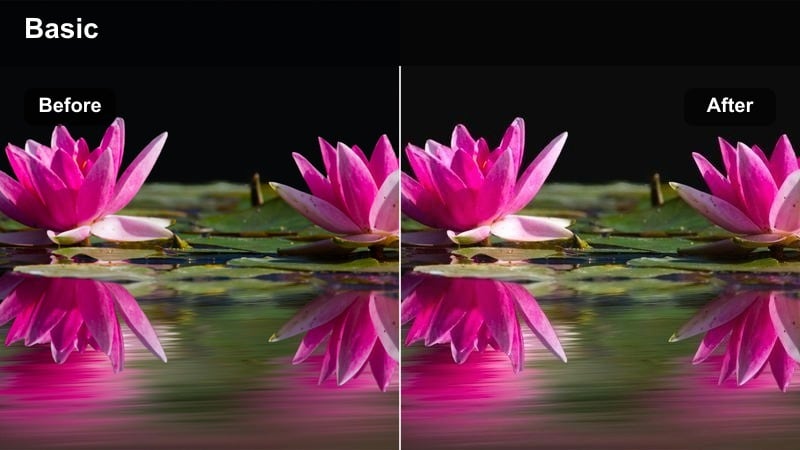
- Effect look: Golden, sun-kissed contrast that makes landscapes and city horizons feel adventurous and dreamy.
- Best for: Travel vlogs, drone reveals, city skyline timelapses, and destination B-roll.
- Editing tip: Add a subtle vignette and slow zoom to create a postcard-style travel opener with instant mood.
Use Travel Gold Wander in Filmora to instantly turn raw location footage into cinematic postcards. The filter deepens warm midtones and adds gentle contrast, so mountains, skylines, and beaches pop with a golden sheen while skies remain detailed.
Drop this filter onto your travel B-roll track, then add a vignette and keyframed zoom to your opening shot for an instant intro sequence. For multi-city edits, apply the filter across the whole sequence and tweak white balance on individual clips so every destination feels unified but still true to its local light.
Bronze Urban Haze
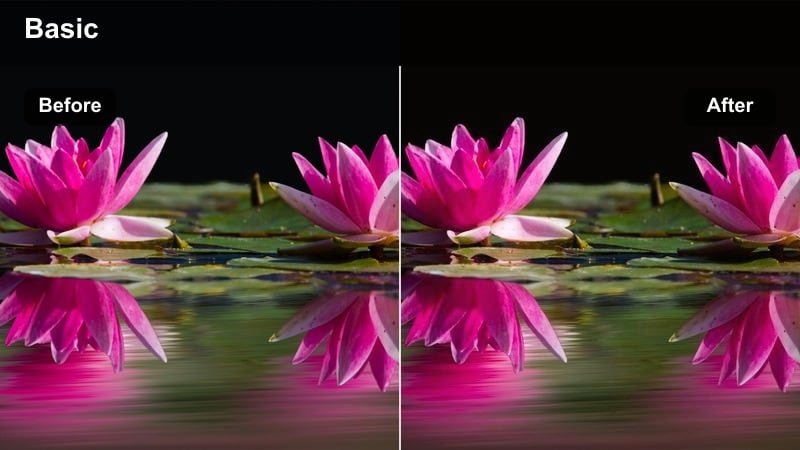
- Effect look: Muted bronze warmth with a slight haze that softens sharp city edges and street lighting.
- Best for: Moody urban B-roll, slow-motion street footage, skate edits, and lifestyle reels.
- Editing tip: Reduce clarity in Filmora and keep saturation moderate so the bronze feel remains cinematic instead of cartoonish.
Bronze Urban Haze is ideal in Filmora when you want your city visuals to feel dreamy and nostalgic instead of crisp and clinical. The filter leans into bronze highlights and slightly lifts blacks, adding a cinematic softness to signs, cars, and concrete without losing overall shape.
Apply it to slow-motion street shots, skating sequences, or lifestyle B-roll, then trim clarity and saturation for a filmic vibe. For portraits against city backgrounds, combine the filter with a shallow depth-of-field shot or background blur effect to enhance the hazy bokeh while keeping your subject clear.
Cozy Indoor Scenes and Studio Setups
Studio Warm Softbox
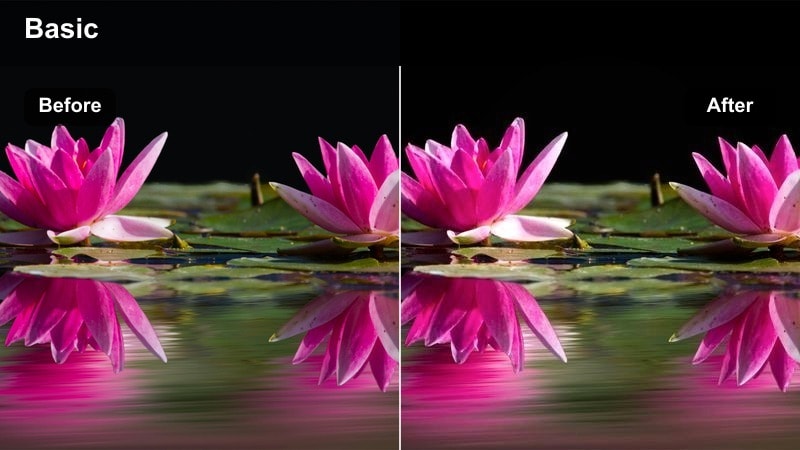
- Effect look: Clean, soft warm tone that flatters skin and smooths edges without looking overly filtered.
- Best for: Talking-head YouTube videos, tutorials, reviews, and webcam-style creator setups.
- Editing tip: Lower saturation on reds slightly to stop cheeks from clipping, especially under strong key lights.
Studio Warm Softbox is built for creators filming at desks or in small studios, where lighting can be bright and unflattering. The filter gently warms midtones and rolls off highlights to make skin look smoother and more inviting while keeping background details pleasantly soft.
In Filmora, apply this filter to your A-cam talking-head track, then lightly desaturate reds or oranges if your lighting makes cheeks too intense. If you use RGB or neon accents in the background, reduce overall filter intensity so your colored lights stay distinct while your face retains a natural warm glow.
Coffeehouse Ambient
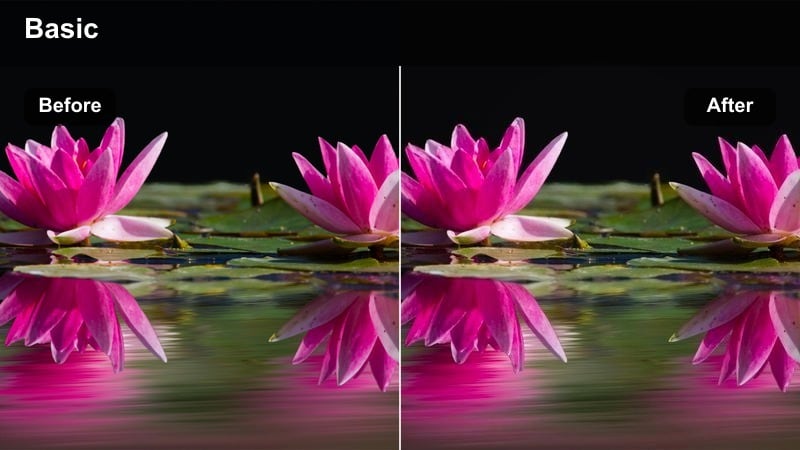
- Effect look: Deep terracotta and amber warmth that mimics cozy cafe lighting and ambient reflections.
- Best for: Indoor vlogs, study-with-me clips, podcast shorts, and casual conversation scenes.
- Editing tip: Drop highlights slightly and keep exposure balanced so warm lamps do not blow out in the frame.
Use Coffeehouse Ambient when you want any interior to feel like a warm, cinematic cafe. The filter adds rich terracotta and amber hues to lamps, wooden tables, and walls, making simple rooms feel stylized and intimate without heavy grading work.
In Filmora, pair this filter with careful highlight control to prevent practical lights from clipping white. Add a mild vignette and a bit of background blur to emphasize your subject at a desk or table, and consider slightly cooling the deepest shadows with the color wheels to keep depth while midtones stay cozy.
Apartment Evening Glow
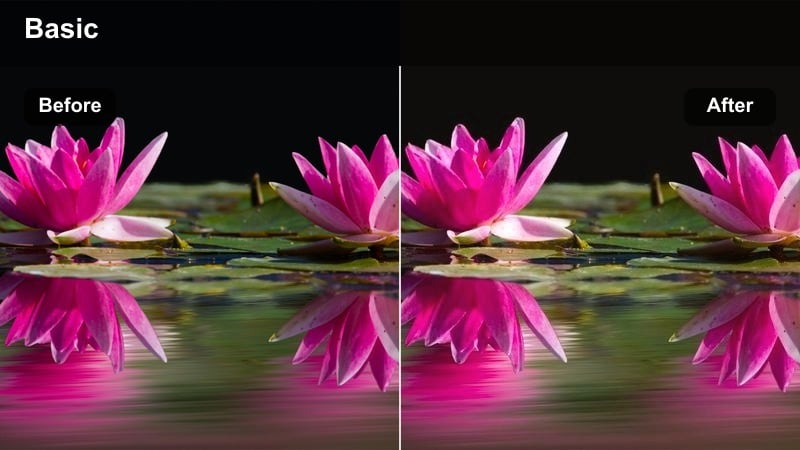
- Effect look: Soft, low-contrast warm tone that simulates sunset light spilling through apartment windows.
- Best for: Lifestyle vlogs, daily routine sequences, and handheld evening room tours.
- Editing tip: Combine with gentle camera movements and slower cuts to sell the relaxed, end-of-day atmosphere.
Apartment Evening Glow is perfect for daily routine and lifestyle vlogs that take place in small indoor spaces. The filter warms highlights and midtones while keeping contrast low, so scenes feel calming and cinematic, like real sunset light filling your room.
In Filmora, apply this filter to sequences shot near windows or lamps at dusk, and slightly lift blacks to avoid noisy shadows. Add slow camera moves, crossfades, and relaxed background music to reinforce the end-of-day vibe, then fine-tune filter intensity so walls and furniture look warm without turning overly orange.
Warm Portraits and Lifestyle Shots
Skin Tone Honey Glow
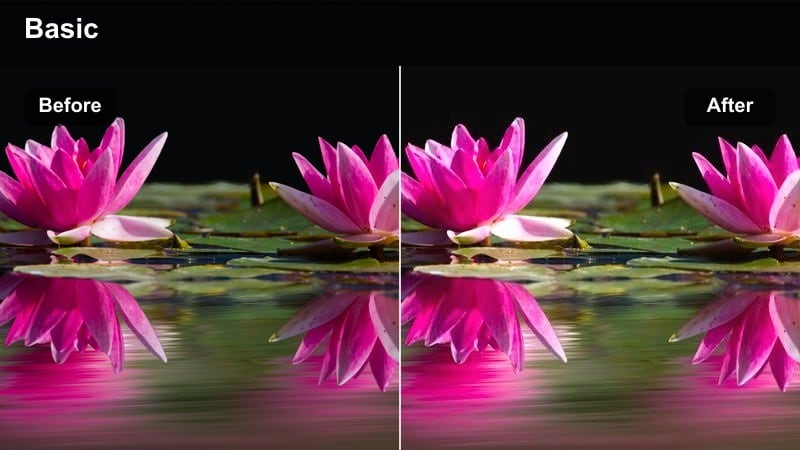
- Effect look: Honey-colored warmth that enhances skin tones while keeping whites and neutrals clean.
- Best for: Portrait B-roll, beauty content, fashion lookbooks, and engagement-style videos.
- Editing tip: Use selective color controls to dial in skin ranges if you see any orange color cast on clothing.
Skin Tone Honey Glow is designed to flatter faces by adding a gentle honey warmth that keeps natural texture intact. Whites and neutral backgrounds remain clean, so your subject stands out with healthy, radiant skin rather than a heavy color cast.
In Filmora, use this filter on close-ups, makeup shots, and lifestyle portraits, then adjust orange and yellow saturation in HSL if clothing picks up too much warmth. Slightly raise highlights around the eyes and add a soft vignette to draw focus to facial features while maintaining an overall warm, cinematic feel.
Street Style Warm Pop
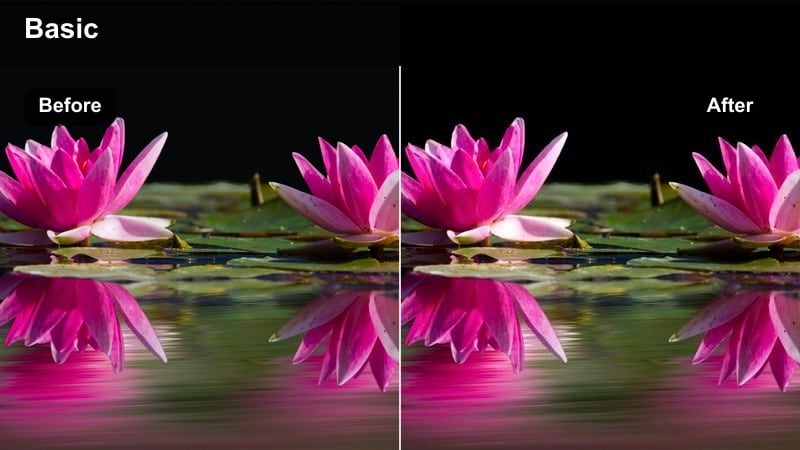
- Effect look: Punchy warm contrast with crisp shadows and vibrant midtones for dynamic portrait movement.
- Best for: Street fashion edits, dance reels, and fast-paced lifestyle montages.
- Editing tip: Pair with snappy cuts and beat-synced transitions; keep exposure slightly under so highlights stay controlled.
Street Style Warm Pop is a bold look that adds strong contrast and saturated warm midtones, perfect for fast, energetic content. It makes skin, clothing, and city elements feel vivid and modern, especially in vertical formats like reels and shorts.
Inside Filmora, combine this filter with tight edits and beat-synced transitions to amplify movement in fashion or dance clips. Keep your base exposure a touch under and monitor scopes so shadows do not crush on small screens, then fine-tune highlight roll-off to retain detail in bright signage and reflective surfaces.
Backlit Warm Halo
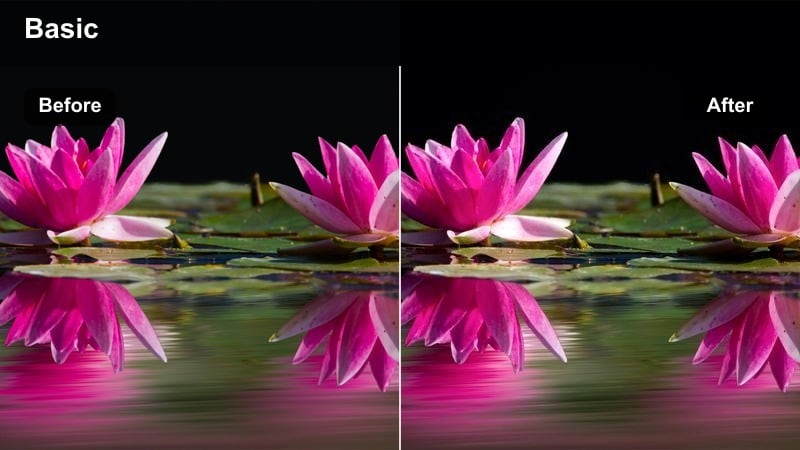
- Effect look: Glowing warm halo around backlit subjects with softened edges and rolled-off highlights.
- Best for: Backlit portraits, sun-through-window shots, and silhouette-style lifestyle clips.
- Editing tip: Lift highlights but keep whites in check; add a slow push-in to emphasize the halo around your subject.
Backlit Warm Halo enhances scenes where your subject stands in front of windows, sunsets, or bright city lights. The filter emphasizes warm glow around edges while softening transitions between bright backgrounds and darker silhouettes for a dreamy, cinematic look.
In Filmora, reduce overall exposure first if windows or skies are overblown, then apply the filter so the glow feels intentional rather than clipped. Add a slow push-in or fade-in to your shot to gradually introduce the halo, and use highlight and white controls to keep detail in bright areas while preserving the warm flare.
Warm Nightlife and City Light Scenes
Neon Warm Mix
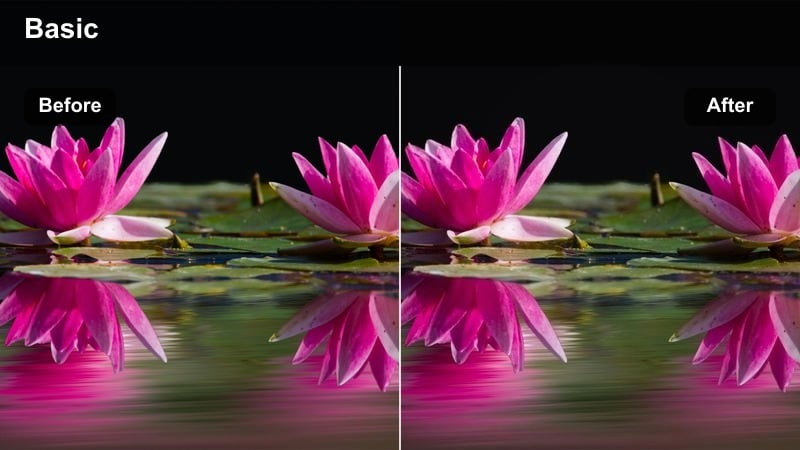
- Effect look: Balanced warm tones that soften harsh neon while keeping colorful signs vivid.
- Best for: Night street vlogs, handheld city walks, and nightlife B-roll with strong signage.
- Editing tip: Reduce midtone saturation a bit to prevent bright neon from overpowering faces in the frame.
Neon Warm Mix is tuned for urban nights packed with bright signs and reflections. The filter warms overall color while taming harsh digital neon edges, so streets and shop fronts feel cinematic without sacrificing the punchy vibrancy that defines nightlife footage.
In Filmora, apply this filter to your night street vlogs or B-roll, then control midtone saturation and use HSL to tame individual colors that feel too intense. If a subject walks through mixed neon, keyframe filter intensity and exposure so skin stays consistent even as they move from cool to warm light sources.
Late Night Amber Ride
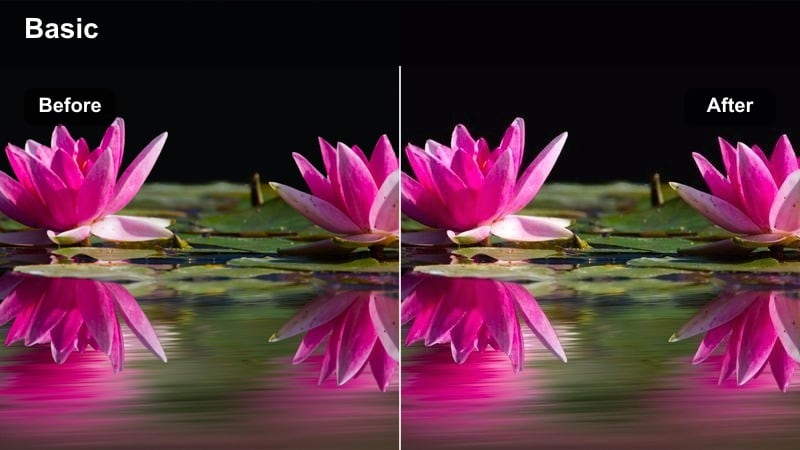
- Effect look: Deep amber warmth with slightly lifted blacks for car interiors and street-view shots.
- Best for: Car vlogs, ride-along stories, and dashboard-view footage through lit city streets.
- Editing tip: Stabilize handheld clips and keep the filter intensity moderate to avoid muddying already dark areas.
Late Night Amber Ride gives in-car and dashboard shots a rich, cinematic amber cast that fits story-driven vlogs and ride-along narratives. It warms streetlights and interior details while lifting blacks a touch so you can still see faces and dashboards in low light.
Use Filmora's stabilization first on bumpy handheld car clips, then apply this filter and adjust intensity so shadows do not turn muddy. Add gentle noise reduction before grading to prevent grain from being exaggerated, and lift shadows slightly so you maintain a moody night feel without losing important details inside the vehicle.
City Rooftop Warm Nights
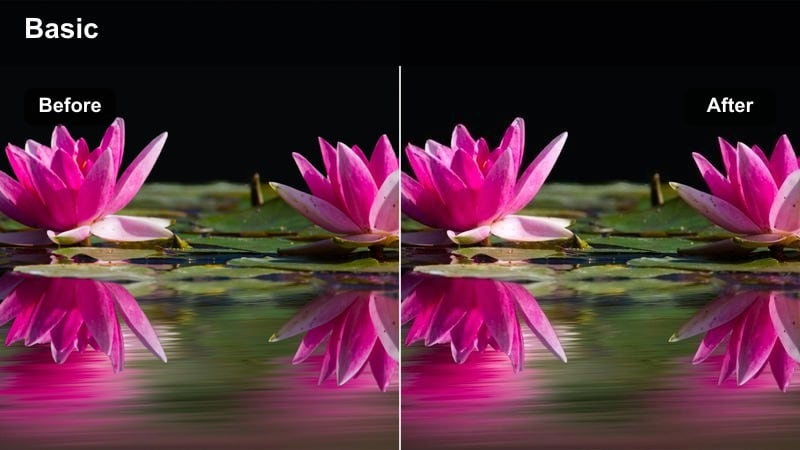
- Effect look: Subtle, cinematic warm overlay that enhances skyline lights and keeps the sky deep and rich.
- Best for: Rooftop hangouts, skyline time-lapses, and cinematic establishing shots.
- Editing tip: Push clarity slightly and add a slow pan to emphasize depth across the buildings and light trails.
City Rooftop Warm Nights is ideal for skyline shots and rooftop scenes where you want a refined cinematic warmth, not an overpowering color shift. The filter enhances building lights and windows with a soft amber tone while preserving the depth and richness of the night sky.
In Filmora, use this filter on establishing shots, time-lapses, or rooftop gatherings, then slightly increase clarity and add slow pans or tilts to emphasize city depth. Keep exposure conservative so illuminated windows retain detail, and optionally add a gentle teal shift in shadows for a classic teal-and-amber look powered by the warm midtones of this filter.
Tips for Using Free Luts Warm Tone Filters in Filmora
- Shoot slightly flatter in-camera so your free LUTs warm tone filters have room to shape contrast and color.
- Always check skin tones on a neutral monitor; if faces look too orange, reduce filter intensity or pull back orange saturation.
- Match white balance across clips before applying warm filters so your final grade stays consistent from shot to shot.
- Use keyframes to fade warm tone filters in and out during scene transitions for smoother, more cinematic changes in mood.
- Export a short test sequence with different warm looks and review it on both phone and desktop before committing to a grade.
- Combine Filmora filters with 3D LUTs and AI color tools to quickly build a consistent warm tone style for your channel.
- Keep an eye on highlight clipping when using strong amber filters on sunsets, lamps, and streetlights.
- Create project-specific presets in Filmora once you love a warm look so you can apply it in one click on future edits.
Warm tone filters and LUT-style looks give creators and editors an easy way to make everyday footage feel cinematic, cohesive, and inviting without advanced grading skills.
Combine these free LUTs warm tone inspired filters with Filmora's color tools and a free LUTs color grading pack to build a repeatable signature look across all your videos.
secure download