

 100% Security Verified | No Subscription Required | No Malware

These Free Neon City Video Filters are designed for filmmakers and nightlife creators who want to turn ordinary city nights into glowing cyberpunk and nightlife visuals in Filmora.
From moody back alleys to bright club districts, use these neon video filters and city night filters to push saturation, contrast, and color separation so your urban videos feel cinematic and electrifying.
In this article
Electric Downtown Alleys
Electric Violet Glow
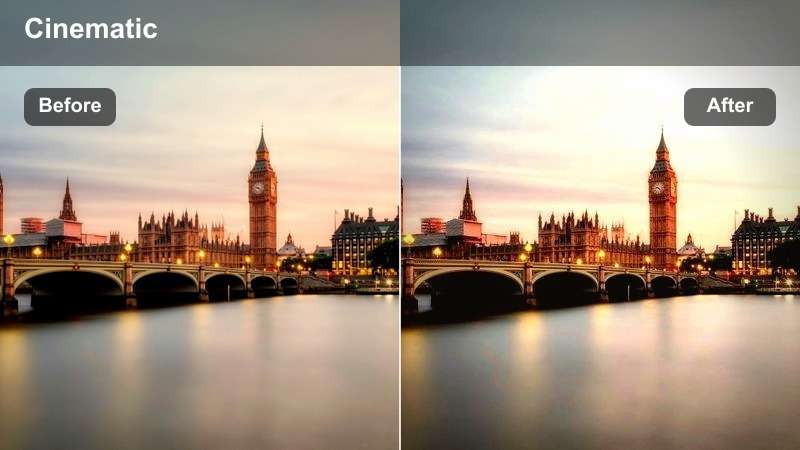
- Effect look: Punchy violet-magenta glow over shadows with crisp contrast and cool highlights.
- Best for: Handheld alley shots, graffiti walls, and slow walks under neon signs.
- Editing tip: Lower midtone saturation slightly to avoid oversaturation on skin while keeping signs vibrant.
Electric Violet Glow wraps your night footage in a rich magenta-violet wash that immediately pushes alleys and backstreets toward a cyberpunk aesthetic. In Filmora, this look is perfect when your source footage has pockets of practical neon or LED, because the filter leans into those colors, deepens the shadows, and crisps up the edges for a graphic, posterized feel.
Use it on tracking shots, slider moves, or slow handheld passes where neon signs, reflections on wet pavement, and graffiti details can catch the light. In Filmora, balance the intensity with the Color and HSL panels, gently easing back magenta in skin ranges while letting signage and reflections remain bold so your characters stay natural against a stylized urban backdrop.
Dial In Your Neon Palette with Filmora's AI Tools
After you apply a strong look like Electric Violet Glow, Filmora's AI color tools help lock a consistent neon palette across every clip in your sequence. You can quickly harmonize saturation, contrast, and temperature so alleys, rooftops, and subway scenes all share the same magentas, teals, and ambers.
Use AI color matching on a few hero shots first, then sync that look to your remaining clips. This keeps different camera angles and locations aligned, even if they were shot under mixed lighting or on different nights.
 secure download

See Neon Filters in Action on Real Night Footage
To really understand how each neon filter behaves, test them on a mix of alley shots, skyline views, and metro rides inside a single Filmora project. You will see how LEDs, car trails, and window highlights react, making it easier to choose the style that supports your story instead of just chasing the loudest colors.
Build a short sequence with a few contrasting looks, then toggle filters on and off or switch between presets on the same clip. This side by side comparison quickly reveals which neon aesthetic fits your pacing, soundtrack, and narrative tone.
secure downloadExplore 1000+ Video Filters and 3D LUTs in Filmora
Beyond these Free Neon City Video Filters, Filmora includes a large library of filters and 3D LUTs for color grading everything from cinematic dramas to fast paced vlogs. You can stack neon styles with film emulations, vintage looks, and subtle correction LUTs to build a unique visual signature.
Adjust filter intensity with simple sliders, combine multiple layers on the same clip, and save your favorite combinations as custom presets. This workflow lets you move quickly from experimentation to a polished, repeatable neon city grade.
secure downloadChrome Blue Noir
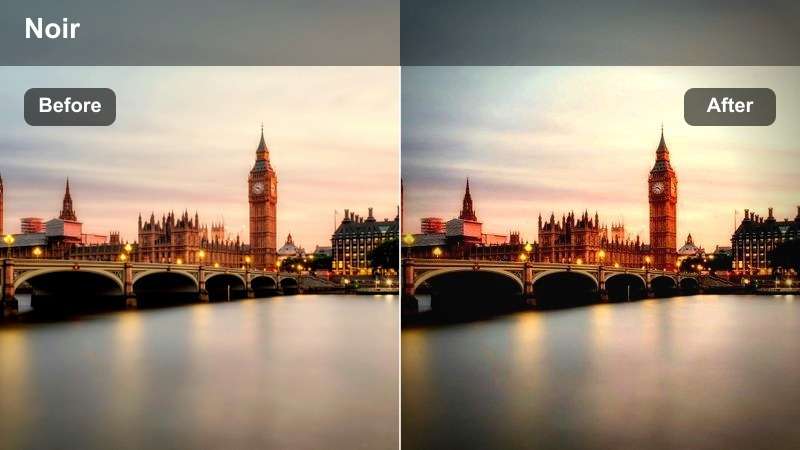
- Effect look: Deep teal and electric blue emphasis with lifted blacks and slight bloom.
- Best for: Moody downtown corners, rainy street scenes, and noir-inspired B-roll.
- Editing tip: Push clarity and sharpness to emphasize reflections on wet roads and metal surfaces.
Chrome Blue Noir shifts your footage into a cool, atmospheric palette that leans heavily on teal and electric blue. With lifted blacks and gentle bloom, it is ideal for rain soaked nights and reflective surfaces, giving city streets a futuristic noir quality without crushing important detail.
In Filmora, combine this filter with clarity, sharpness, and a touch of contrast to carve out reflections on pavement, glass, and metal. Use it on slow motion car passes, lonely corners, and B roll cutaways, then adjust the Color panel to keep skintones slightly warmer so your subjects stand out against the cold blue city around them.
Magenta Shadow Pulse
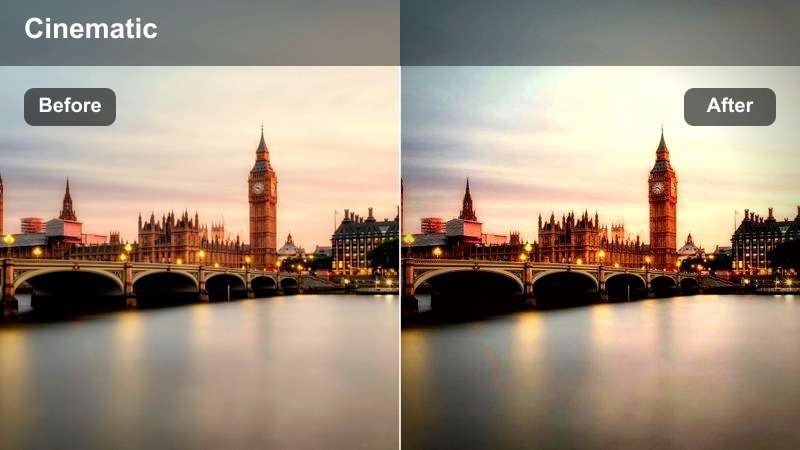
- Effect look: Crushed shadows with magenta tint and pulsing saturation in mids.
- Best for: Close-up character moments in backstreets and club entrances.
- Editing tip: Use keyframed exposure to subtly dim and brighten, matching the magenta pulse to ambient light changes.
Magenta Shadow Pulse adds a heavy, drama driven magenta cast to your mids while pushing shadows deeper for a high contrast, graphic look. It works especially well for character introductions, dialogue outside clubs, and emotionally charged beats where color can echo the intensity of the scene.
Inside Filmora, pair this filter with exposure keyframes and subtle zooms to create a visual heartbeat that follows the music or ambient lighting. Fine tune the HSL controls so magenta and red dominate clothing and signage, while you preserve enough neutral space in faces and backgrounds to keep the frame readable and cinematic.
Bustling Neon High Streets
Synced Signs Pop
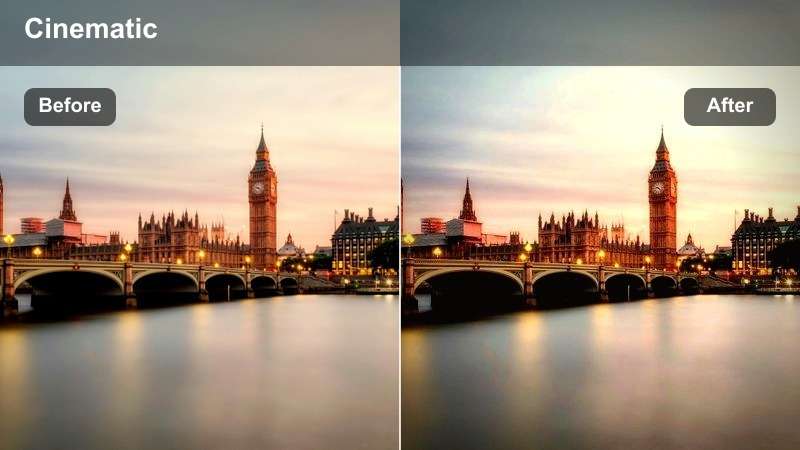
- Effect look: Hyper-saturated sign colors with slightly desaturated crowds and neutral skin.
- Best for: Busy shopping streets lined with LED panels and billboards.
- Editing tip: Use masking to keep faces natural while allowing signage to reach near-maximum saturation.
Synced Signs Pop is designed to make storefronts, billboards, and LED panels leap off the screen while crowds stay pleasantly understated. By selectively boosting sign saturation and holding skin tones close to neutral, the filter helps you tell stories where commercial lights and city branding are key visual characters.
In Filmora, combine the filter with masks around key signs or screens so you can push those elements even further without affecting everything else. This is particularly effective in travel vlogs, city montages, and documentary style walkthroughs where you want viewers to read signage clearly and feel immersed in the glow of a high street at night.
Cyber Strip Teal Pink
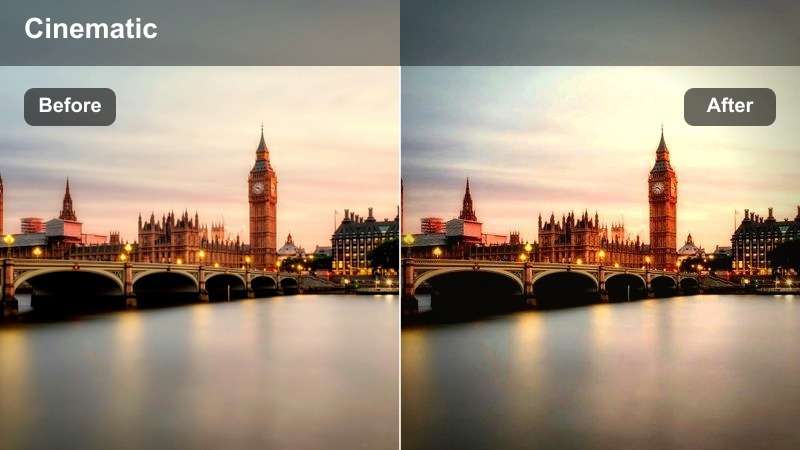
- Effect look: Teal shadows and hot pink highlights for an unmistakable cyber-strip color split.
- Best for: Wide establishing shots of nightlife districts and city party strips.
- Editing tip: Reduce warm white balance and introduce slight cool tint to keep teal dominant in shadows.
Cyber Strip Teal Pink locks your scene into a bold teal shadow and hot pink highlight combination, instantly giving nightlife districts a futuristic, synthwave inspired identity. It works best on wide establishing shots where multiple signs, screens, and streetlights can showcase the strong color separation.
Inside Filmora, nudge white balance a bit cooler and lightly lower overall warmth to keep teal shadows rich and cohesive from shot to shot. Use the filter on gimbal passes, car window shots, or sweeping drone clips over party streets, then add a bit of motion blur or speed ramping so the teal and pink streaks feel fluid and energetic.
Hologrid Market Glow
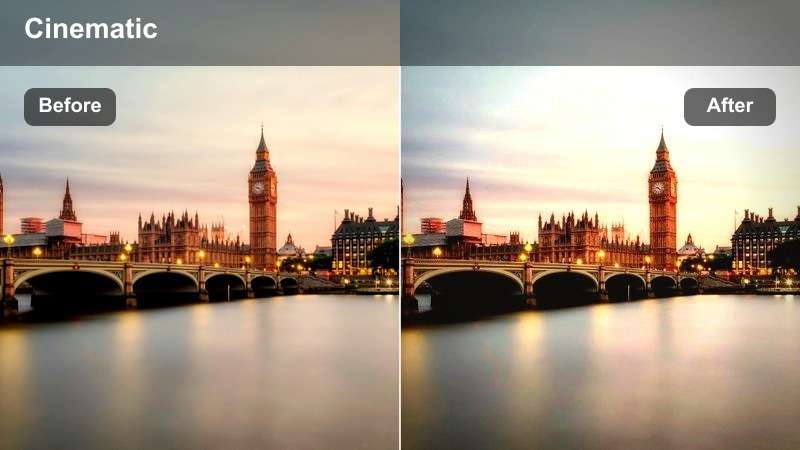
- Effect look: Soft bloom on lights, bright holographic-style colors, and gently lifted blacks.
- Best for: Street markets, open food courts, and pop-up stalls with colorful LEDs.
- Editing tip: Pull down highlights slightly to protect signage text while keeping the overall glow intact.
Hologrid Market Glow wraps market scenes in a gentle bloom that makes LEDs, lanterns, and stall lighting feel dreamy and almost holographic. Lifted blacks prevent the image from becoming too harsh, helping you maintain a friendly, inviting atmosphere even in busy, contrasty locations.
In Filmora, use this filter on handheld walkthroughs, food close-ups, and wide market overviews to unify all those competing light sources into one cohesive neon wash. After applying, fine tune highlights and exposure to keep signs and menus readable, then add a touch of grain so the glow feels organic rather than overly digital.
Rooftops and Skyline Views
Neon Skyline Contrast
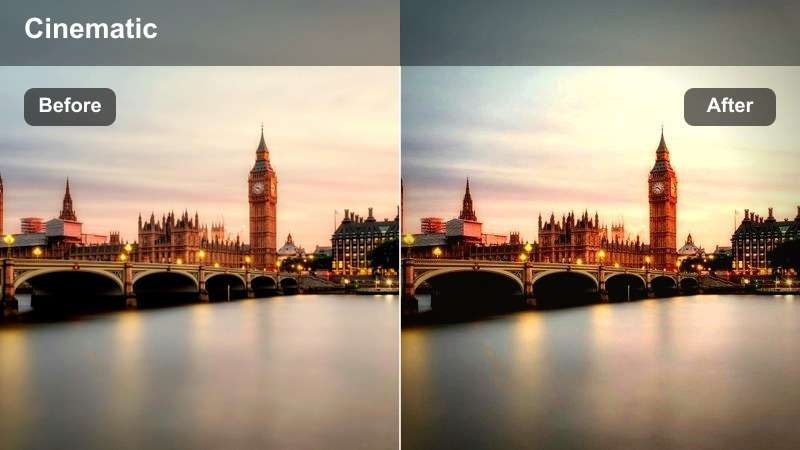
- Effect look: Strong contrast, deep blues in the sky, and vivid neon windows and billboards.
- Best for: Static skyline shots, drone flyovers, and rooftop establishing clips.
- Editing tip: Add subtle local contrast around the horizon line to separate buildings from the sky.
Neon Skyline Contrast is tuned for cityscapes, intensifying the gap between deep blue skies and brightly lit windows, signs, and billboards. It adds punchy contrast that helps building silhouettes stand out, perfect for establishing shots that open your night sequence or transition between locations.
In Filmora, pair this filter with gentle vignette and local contrast adjustments near the horizon so your skyline layers feel distinct and three dimensional. Use it on static tripod frames, slow pans, or drone moves, and keep camera movement smooth so viewers can take in the neon grid and architectural details without distraction.
Rooftop Club Spectrum
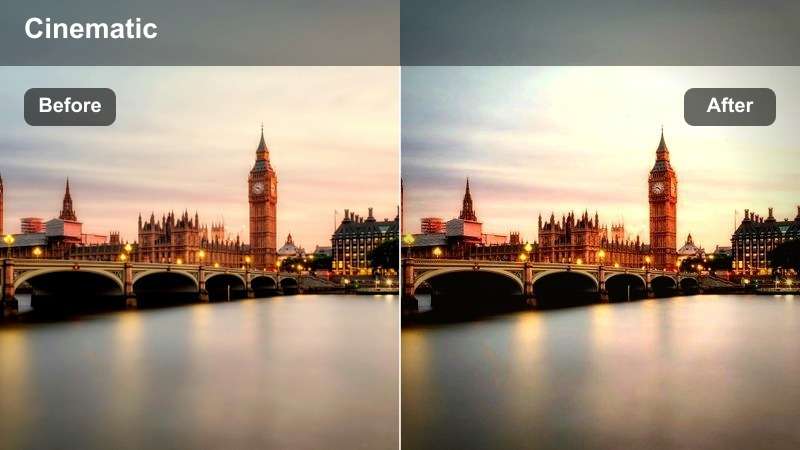
- Effect look: Multi-color spectrum highlight boost with warm skin tones and cooler backgrounds.
- Best for: Rooftop parties, DJ sets, and social nightlife scenes overlooking the city.
- Editing tip: Increase midtone contrast to separate performers from the colorful city bokeh behind them.
Rooftop Club Spectrum enhances party lighting by boosting a full spectrum of colors in the highlights while preserving warm, flattering skin tones. It lets DJs, hosts, and guests stay natural in the foreground as the skyline turns into a vibrant, colorful bokeh behind them.
Within Filmora, apply the filter to your performance and crowd shots, then slightly raise midtone contrast and clarity on your subjects so they pull forward from the busy lightscape. Cutting between close ups, medium shots, and wide views that all share this spectrum rich look gives your rooftop sequences a cohesive, premium nightclub feel.
Aerial Neon Trails
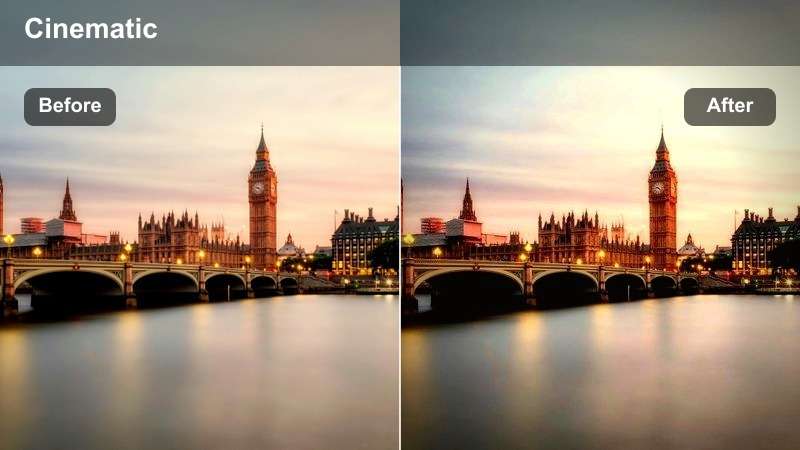
- Effect look: High clarity with brightened car light trails and slightly softened building textures.
- Best for: Drone shots tracking main roads, overpasses, and elevated highways through the city.
- Editing tip: Add directional blur to car lights for an exaggerated neon streak effect.
Aerial Neon Trails is optimized for top down or high angle views of traffic, making car lights and roadways glow like flowing neon rivers. The filter sharpens and brightens light trails while softening some building textures, drawing the eye to the movement patterns crisscrossing the city grid.
Use it in Filmora on drone passes, timelapses, or speed ramped clips of highways and intersections. Combine the filter with directional blur, speed ramps, and gentle stabilization so the motion of traffic feels smooth and stylized while the surrounding skyline remains stable and legible.
Subway and Side Street Vibes
Underground Neon Tunnel
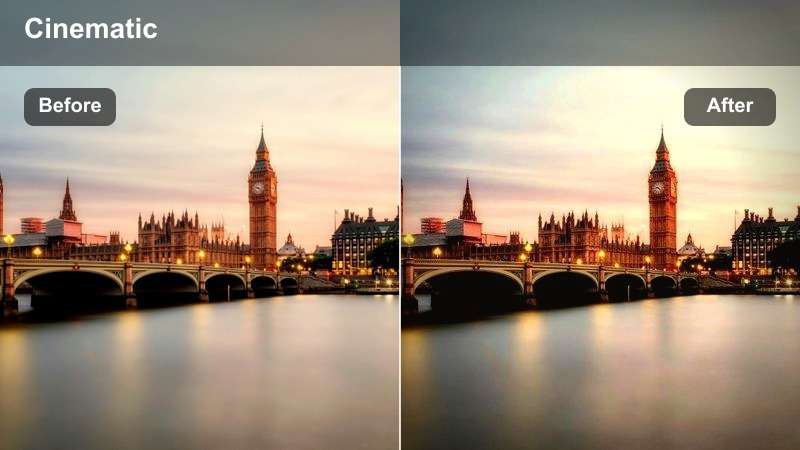
- Effect look: High contrast with cyan and magenta split-toning in tunnel lights and walls.
- Best for: Subway platforms, underground passageways, and escalator shots.
- Editing tip: Tilt the white balance slightly cooler to strengthen the cyan cast in tunnel shadows.
Underground Neon Tunnel splits your midtones and highlights into cyan and magenta, turning otherwise plain stations into stylized transit corridors. Increased contrast helps structural lines, tiles, and rails pop, giving escalator rides and platform shots a more graphic, sci fi tone.
Inside Filmora, cool down the white balance a touch and use the filter on tracking shots along platforms, POV escalator rides, or walks through underpasses. Layer in subtle warp or lens distortion effects so the cyan magenta tunnel feels like it is pulling viewers forward, enhancing travel montages and character commutes.
Side Street Amber Neon
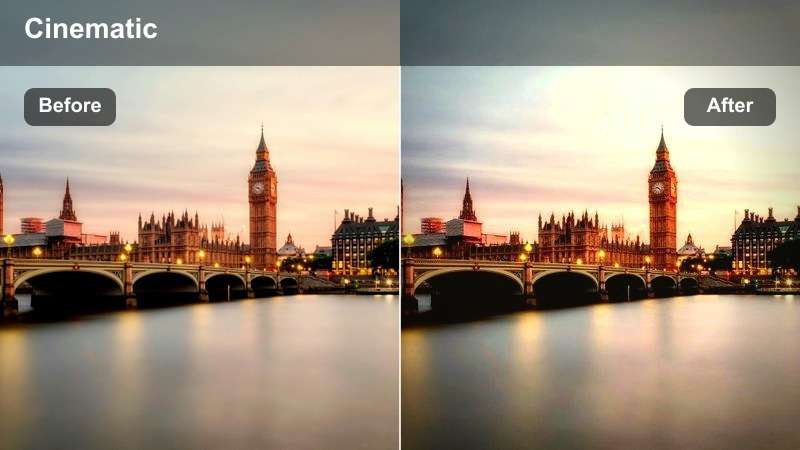
- Effect look: Warm amber and orange neon emphasis with softened contrast and subtle bloom.
- Best for: Quiet side streets, bar exteriors, and parked cars under signage.
- Editing tip: Slightly lower overall saturation and push vibrance instead to keep amber tones rich but controlled.
Side Street Amber Neon brings out the warmth in bar signs, street lamps, and window glows, softening contrast so quiet alleys feel cinematic and inviting rather than harsh. The subtle bloom on amber tones can turn parked cars and brick facades into pleasing reflective surfaces.
In Filmora, apply this filter to slower, moodier sequences where you want an intimate, late night vibe. Drop overall saturation a little, raise vibrance, and leave generous pockets of darkness in the frame so the amber highlights become focal points that guide the audience toward doorways, characters, or key story details.
Metro Cyber Strobe
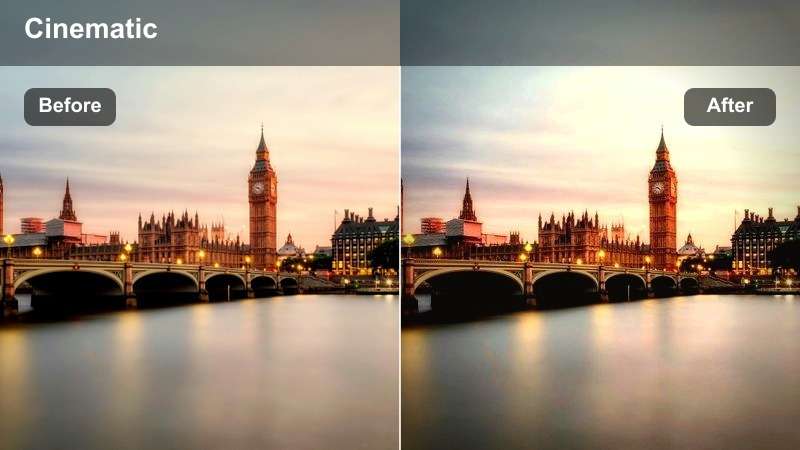
- Effect look: Hard contrast, sharp edges, and amplified colored LEDs in train interiors and station ads.
- Best for: Riding trains, fast cuts in transit montages, and ad-heavy station corridors.
- Editing tip: Use quick cuts and jump zooms to match the aggressive, strobe-like color pops.
Metro Cyber Strobe is a high energy filter that pushes contrast and sharpness so LED panels, ad screens, and interior train lights feel intense and electrified. It is built for kinetic edits with fast cuts, making everyday commutes look like stylized cyberpunk transits.
In Filmora, combine this look with jump cuts, speed ramps, and zoom transitions to sync visual hits with train doors opening, station flashes, or music beats. Keep clips short and punchy, and consider alternating this filter with softer looks in calmer scenes so the strobe like metro sequences deliver maximum impact in your overall neon city edit.
Tips for Using Neon City Video Filters Filters in Filmora
- Shoot with slightly lower in-camera contrast at night so these neon filters have more detail to work with in shadows and highlights.
- Expose for the brightest signs or screens to avoid clipping, then recover shadow detail with Filmora before applying heavy neon styling.
- Group all your city night clips and apply the same base filter, then make per-shot tweaks so the sequence feels unified but not identical.
- Use masks and keyframes to keep skin tones natural while pushing neon saturation in backgrounds and reflections.
- Combine neon filters with Filmora's AI color tools to quickly balance mixed lighting from different streets, venues, and transit locations.
- Export a short test sequence with multiple filters and watch it on a phone and a larger screen to check that neon intensity feels comfortable everywhere.
- Mix bold neon filters with a few more neutral shots in between to avoid overwhelming viewers with constant high-saturation frames.
These Free Neon City Video Filters give filmmakers and nightlife creators fast, stylized looks for city nights, subways, rooftops, and busy neon streets without complicated grading.
Load them into Filmora, pair them with your favorite colorful night LUTs, and shape the glow, contrast, and saturation until your urban videos match the neon story you want to tell.
secure download