

 100% Security Verified | No Subscription Required | No Malware


 ChatGPT
 Perplexity
 Gemini
 Claude
 Grok
Grok
These free portrait LUTs and filter presets are designed to give faces soft contrast, clean skin tones, and a professional finish in just a few clicks, ideal for creators and editors working in Filmora.
Browse the portrait-ready looks below, pick the style that fits your scene, and download to speed up your workflow for interviews, vlogs, and social content.
In this article
Soft Daylight Portraits
Soft Natural Glow
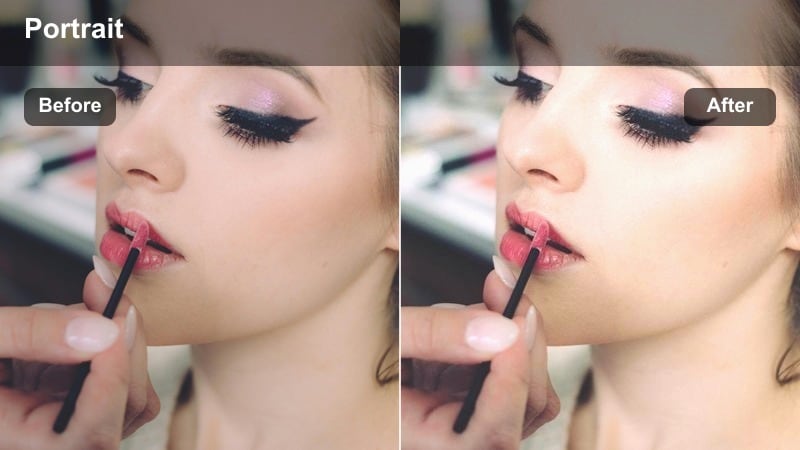
- Effect look: Gentle contrast with soft highlights and warm, natural skin tones.
- Best for: Window-lit portraits, lifestyle vlogs, and talking-head videos in bright rooms.
- Editing tip: Lower the filter intensity to 60-70 percent if your original footage is already high contrast to avoid over-bright skin.
Soft Natural Glow is built for bright interiors where daylight wraps gently around your subject. In Filmora, it smooths out harsh transitions between light and shadow, adds a touch of warmth to skin tones, and keeps whites from clipping, so faces look flattering and natural on any display.
Use this portrait LUT on interviews, vlogs, or how-to videos where you want a clean, inviting look without obvious grading. Apply the filter to your clip, dial back the intensity until facial detail looks balanced, then combine it with Filmora masking or AI portrait tools to lift exposure around the eyes and keep them as the main focus.
Speed up portrait grading with AI-powered skin tone control
Filmora AI color tools can automatically analyze your footage and correct exposure and color balance before you touch any portrait LUTs. That means cleaner, more consistent skin tones and less time spent fixing problems clip by clip.
Once AI has created a neutral base grade, you can stack your favorite free portrait filters on top and fine-tune intensity for each scene while keeping faces natural.
 secure download

Try portrait filters live on your footage
With Filmora, you can preview each portrait LUT directly on the timeline so you immediately see how it reacts to different skin tones and lighting setups. This lets you compare looks in real time without committing to a full grade.
Adjust filter intensity, pair the LUT with Filmora beauty and skin smoothing tools, and then save your favorite combinations as presets you can apply to future portrait projects in seconds.
secure download1000+ Video Filters and 3D LUTs
Filmora includes a large library of built-in filters and 3D LUTs you can mix with these free portrait looks. From subtle broadcast-style corrections to bold cinematic grades, you can quickly switch between moods while keeping skin tones under control.
As you find portrait-friendly combinations you like, save them as custom presets, then build a dedicated portrait LUT toolkit for daylight, studio, and night shoots.
secure downloadClean Daylight Neutral
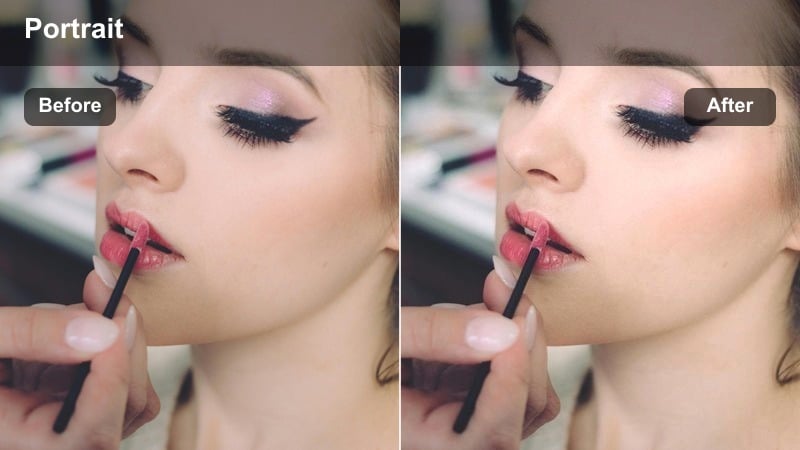
- Effect look: Neutral, low-saturation finish with controlled contrast and true-to-life skin color.
- Best for: Professional interviews, corporate headshots, and product explainers shot in daylight.
- Editing tip: Use Filmora's color wheels to nudge midtones slightly warmer or cooler to match different cameras while keeping the filter consistent.
Clean Daylight Neutral delivers a professional, broadcast-ready look that keeps skin tones accurate and avoids heavy color styling. It gently controls highlights and contrast so faces remain clear and consistent across multiple setups without drawing attention to the grade itself.
Apply this LUT at the start of your workflow in Filmora for interviews, LinkedIn content, or corporate explainers. Once it is on all your clips, fine-tune white balance and midtone temperature per camera angle so every face in a multi-camera sequence matches, then save the result as a custom preset for future shoots.
Airy Pastel Portrait
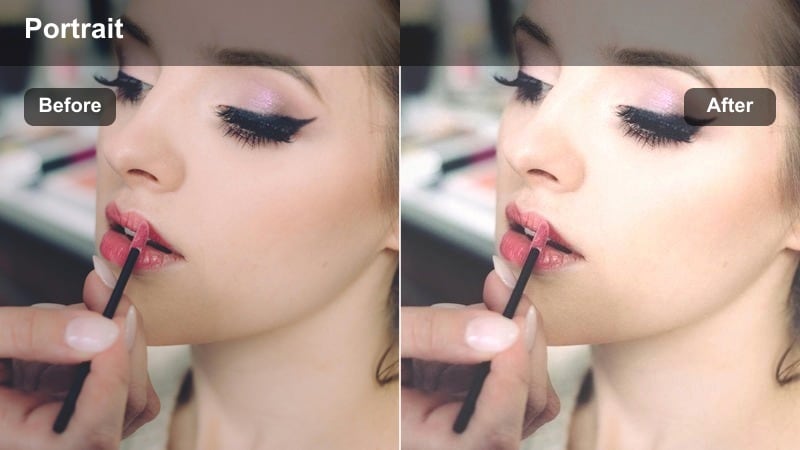
- Effect look: Bright, low-contrast portrait look with soft pastels and slightly lifted blacks.
- Best for: Fashion reels, pastel-themed social portraits, and lifestyle creator content shot in soft light.
- Editing tip: Add a small clarity boost in Filmora if your footage looks too hazy so the eyes and hair maintain detail.
Airy Pastel Portrait brightens your image and shifts colors into soft, social-media-friendly tones while keeping skin flattering. Blacks are lifted to create a gentle, dreamy feel, making it ideal for feminine aesthetics, lookbooks, and lifestyle content filmed in diffused daylight.
In Filmora, drop this filter on clips that already have soft lighting, then slightly reduce exposure and add a touch of clarity if details in the eyes or hair fade. Pair it with light skin smoothing at low strength so you keep texture while reinforcing the soft, pastel mood.
Golden Hour Glow
Sunset Warm Skin
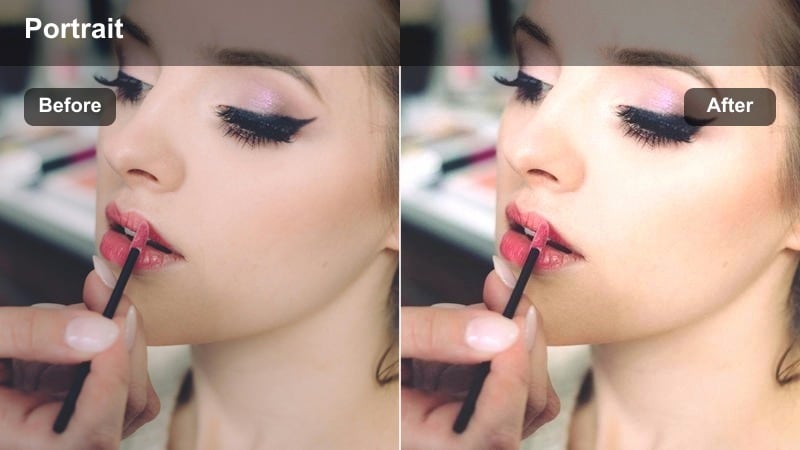
- Effect look: Rich golden tones with warm highlights and gentle contrast for glowing faces.
- Best for: Outdoor golden-hour portraits, engagement shoots, and cinematic creator b-roll.
- Editing tip: If skin becomes too orange, slightly reduce saturation in the orange and red channels while keeping the warmth from the filter.
Sunset Warm Skin intensifies the golden tones already present during magic hour, giving faces a healthy, sun-kissed glow and slightly richer highlights. It keeps contrast moderate so you retain detail in both lit and shaded parts of the face, which is crucial for dynamic sunset conditions.
Use this LUT in Filmora on outdoor portraits and romantic b-roll, then refine individual colors through the HSL controls to keep skin from tipping into an artificial orange. Lower filter intensity in shadowed shots and, if needed, use keyframed exposure tweaks to maintain consistent warmth as the sun drops.
Hazy Backlight Glow
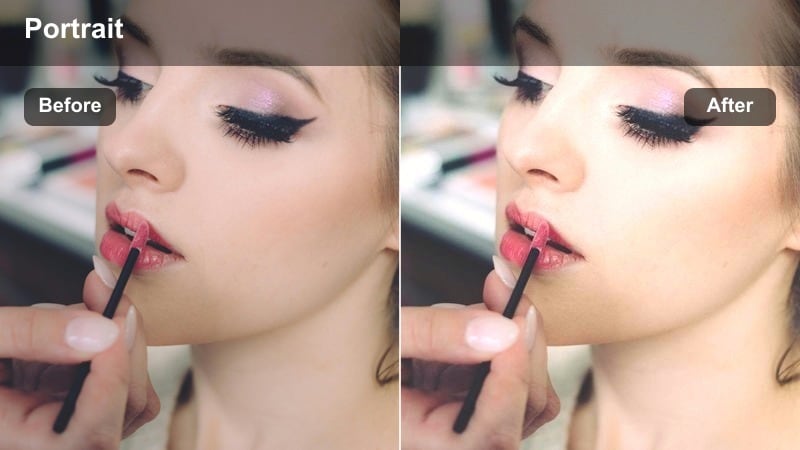
- Effect look: Soft, hazy halos around highlights with warm midtones and lifted blacks.
- Best for: Backlit outdoor portraits, creator thumbnails, and slow-motion hair shots at sunset.
- Editing tip: Lower contrast and add a touch of vignette in Filmora to keep the face readable against bright backlight.
Hazy Backlight Glow is tuned for portraits where the sun sits behind your subject, wrapping their hair and shoulders in light. It enhances that halo effect while keeping midtones warm and blacks gently raised, preventing the front of the face from turning into a harsh silhouette.
Apply this portrait LUT in Filmora when you shoot strong backlight or rim light, then adjust highlights down to protect facial detail. A subtle vignette and a tiny sharpen pass on the eyes and lips will help your subject stand out crisply against the bright background without losing that dreamy glow.
Cinematic Warm Portrait
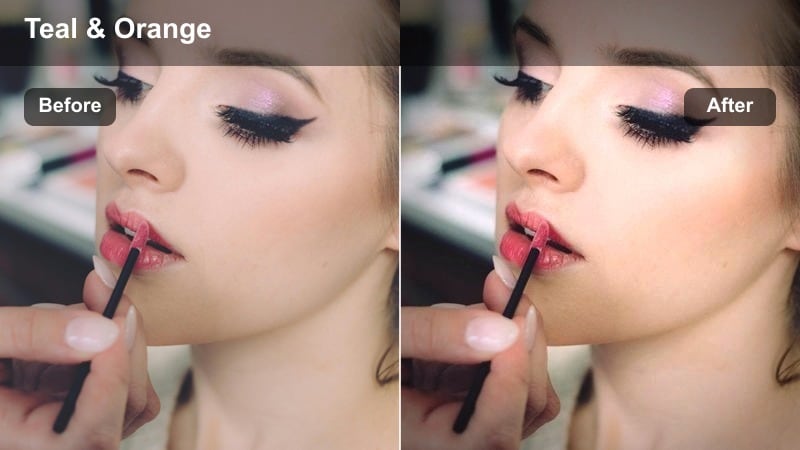
- Effect look: Film-inspired warm tones with deeper shadows and subtle teal in the background.
- Best for: Cinematic creator intros, storytelling vlogs, and dramatic outdoor portraits.
- Editing tip: Raise midtone detail and slightly desaturate blues if the background competes with your subject's face.
Cinematic Warm Portrait leans into a classic teal-and-orange style, pushing skin to a rich warmth while gently cooling background elements. Deeper shadows add drama and depth, giving your footage a filmic character that suits narrative content and stylized creator intros.
In Filmora, drop this LUT onto B-roll and talking heads shot in natural light, then refine the balance so the face remains the most saturated element. Use HSL to calm bright blues or greens in the environment, and if clothing draws too much attention, pull its saturation back so viewers are always guided to the subject's expression.
Indoor and Studio Portraits
Studio Soft Contrast
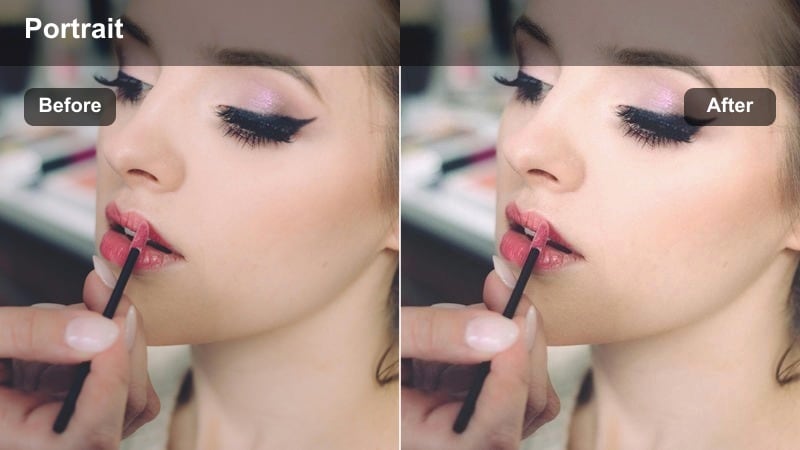
- Effect look: Controlled contrast with gentle highlights and accurate skin tones for studio lights.
- Best for: Studio interviews, tutorials, and streaming setups with key and fill lights.
- Editing tip: Fine-tune white balance in Filmora to remove any color cast from LED lights before increasing filter intensity.
Studio Soft Contrast is optimized for controlled lighting setups with softboxes or ring lights. It refines contrast so facial features stay defined without harsh edges, and it keeps skin tones looking neutral and professional even under LEDs that can shift color.
Use this portrait LUT inside Filmora for educational content, livestream replays, and desk tutorials. First correct your white balance using a neutral object in the frame, then apply the filter and raise intensity until skin looks polished but not plastic, adjusting temperature or tint if your lights change during longer recordings.
Low Key Portrait Depth
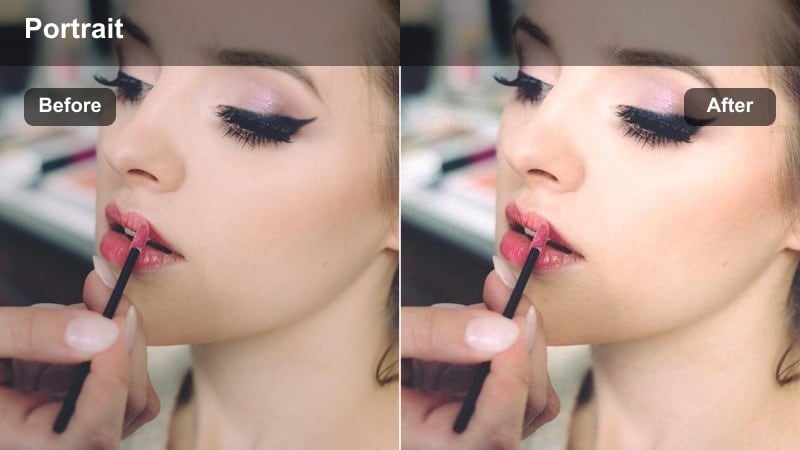
- Effect look: Deep shadows, controlled highlights, and rich midtones for moody portraits.
- Best for: Low-key studio portraits, dramatic creator intros, and moody talking-head pieces.
- Editing tip: Raise shadows slightly on the face while keeping the background dark using local adjustments or masking tools.
Low Key Portrait Depth shapes your image with strong contrast and rich midtones, ideal for serious or emotional content. It holds highlights on key facial areas while letting backgrounds fall toward black, giving your portraits a stage-lit, cinematic atmosphere.
In Filmora, pair this LUT with single-source lighting or grids that already create directionality. After applying it, carefully lift shadow detail on the face using masks or local adjustments so eyes, hair, and clothing retain texture, and check the histogram to avoid crushing blacks entirely in the background.
Neutral Office Portrait
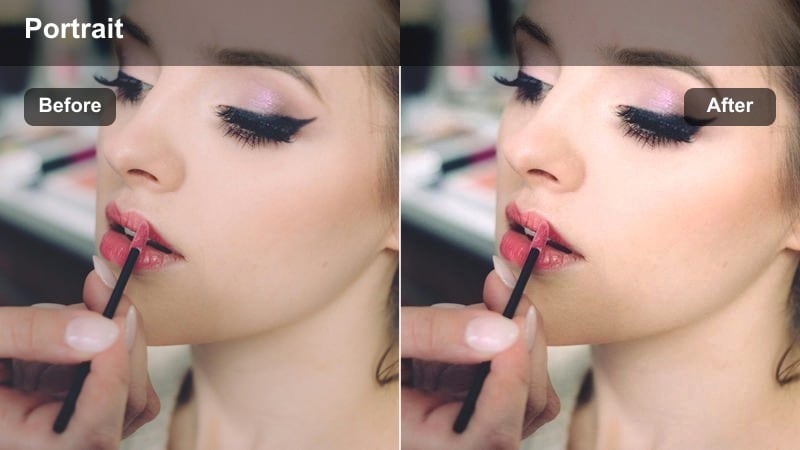
- Effect look: Clean, slightly cool tone with moderate contrast and minimal saturation shifts.
- Best for: Office vlogs, remote meeting recordings, and desk tutorials under mixed indoor lights.
- Editing tip: Reduce green and yellow saturation if overhead fluorescents tint the skin, then increase vibrance slightly for a healthier tone.
Neutral Office Portrait is designed for everyday indoor environments lit by a mix of windows, fluorescents, and desk lamps. It slightly cools the overall image for a fresh, modern feel while holding skin within a natural range and avoiding heavy color stylization.
Use this LUT in Filmora when polishing webcam recordings or desk setups where lighting is not fully controlled. Dial back greens and yellows in the HSL panel to cancel fluorescent casts, add a little vibrance so faces look lively, and finish with a subtle vignette to separate your subject from a busy office background.
Night and Creative Portraits
Neon City Portrait
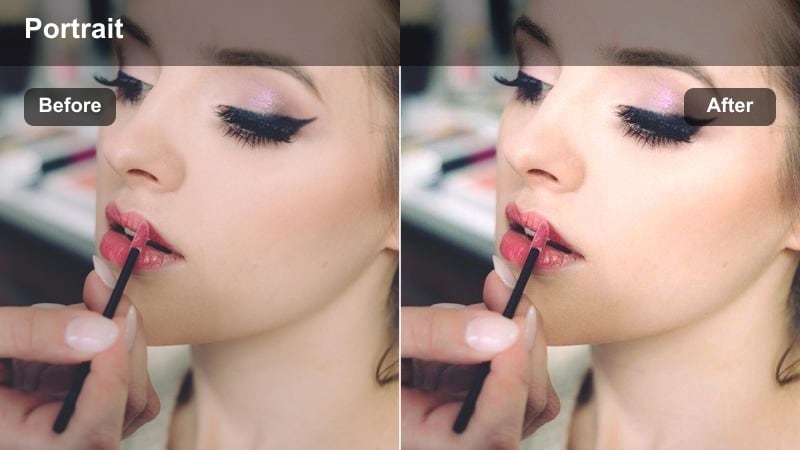
- Effect look: Vivid neon highlights with boosted saturation and crisp contrast on facial features.
- Best for: Night city portraits, creator street shoots, and urban thumbnails shot under neon signs.
- Editing tip: Lower overall saturation slightly to prevent colored lights from overpowering the natural skin tone.
Neon City Portrait amplifies the color and contrast of urban night scenes, making neon signs and reflections pop while keeping your subject's face defined. It adds punch to saturated highlights and shapes midtones so facial features remain readable against deep, cinematic shadows.
In Filmora, apply this LUT to night street portraits or city B-roll, then pull back global saturation until skin tones feel believable again. Use the HSL panel to tame the dominant neon color and lift midtones slightly on the face so expressions stay clear even when surrounded by intense light sources.
Cinematic Night Soft
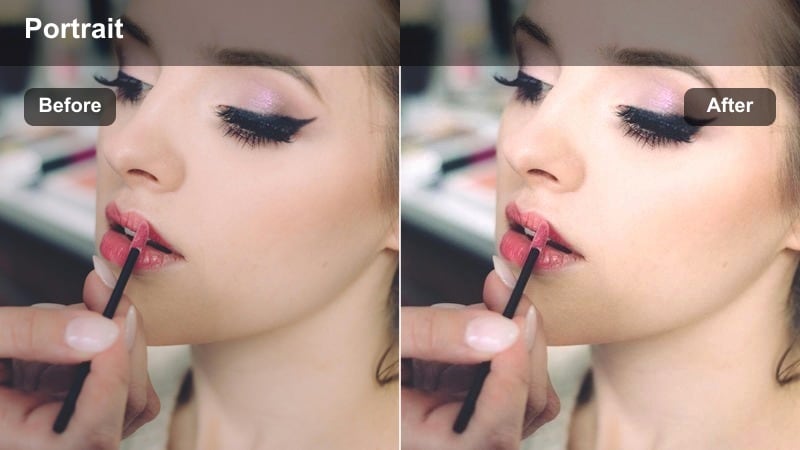
- Effect look: Soft, low-noise night look with gentle contrast and slightly cool shadows.
- Best for: Street portraits at night, quiet city walks, and reflective late-night vlogs.
- Editing tip: Apply subtle noise reduction before this filter in Filmora to prevent grain from becoming too visible in midtones.
Cinematic Night Soft is tuned to calm the harshness of low-light footage, smoothing noise and dialing in a gentle contrast curve with cooler shadows. It preserves mood while keeping skin clean and flattering, making late-night walks and reflective monologues look more polished.
Before adding this LUT in Filmora, run a light pass of noise reduction, then apply the filter and fine-tune exposure so faces stay readable without pushing ISO noise back up. Finish with a small sharpen adjustment on key facial features to balance softness with enough texture and detail.
Monochrome Portrait Dramatic
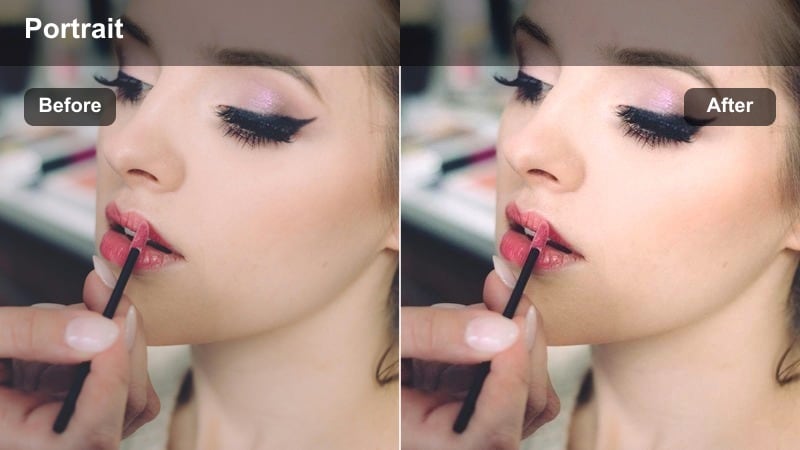
- Effect look: High-contrast black-and-white portrait style with strong midtone detail.
- Best for: Artistic portraits, dramatic storytelling pieces, and serious interview segments.
- Editing tip: After converting to monochrome, fine-tune face brightness with curves so the eyes and cheekbones draw the most attention.
Monochrome Portrait Dramatic strips away color and builds your image with bold contrast and rich midtone detail. This emphasizes bone structure, expression, and light direction, making it ideal for emotional storytelling, artist profiles, and stylized talking-head segments.
Apply this black-and-white LUT in Filmora when you want to focus entirely on emotion and texture. Then shape the tonal range with curves, slightly lifting midtones on the face and protecting highlights in the eyes, and add a soft vignette so the brightest part of the frame sits around your subject's gaze.
Tips for Using Free Portrait Luts Download Filters in Filmora
- Shoot with a slightly flatter picture profile in-camera so these free portrait LUTs have room to shape contrast without clipping highlights or crushing shadows.
- Always judge your grade by skin tones first, then adjust background color and saturation so the face remains the clearest, most natural element in the frame.
- Treat filter intensity like a volume knob in Filmora and rarely leave it at 100 percent if you want subtle, realistic portrait results.
- Use Filmora masks, vignettes, and AI portrait tools to locally brighten eyes and faces instead of globally overexposing the entire image.
- Match multiple cameras by applying the same portrait LUT to all clips, then fine-tuning white balance and midtones per angle to align skin color.
- Save different versions of your favorite portrait filter for daylight, indoor, and night scenes so you can swap looks quickly while keeping a consistent style.
- Combine portrait LUTs with gentle skin smoothing and sharpening in Filmora to balance flattering softness with enough detail and texture.
- Organize your most-used portrait presets into a dedicated folder inside Filmora so you can grade new portrait projects in minutes instead of hours.
These free portrait LUTs and filters give creators and editors fast, reliable ways to polish faces and unify their visual style across every video. Whether you shoot in daylight, the studio, or at night, you can quickly land on a look that flatters skin and fits your story.
Download a few favorites, test them on your own footage in Filmora, and build a compact portrait toolkit you can trust for interviews, vlogs, thumbnails, and any other portrait scenario you shoot.
secure downloadNext: Free Food Video LUTS
