

 100% Security Verified | No Subscription Required | No Malware

Make Snapchat Spotlight clips look more polished with a free Snapchat Spotlight LUT pack designed for fast, vertical-first editing. These short-form video filters help young creators and trend publishers create consistent color across quick tutorials, Spotlight clips, and vertical stories.
Use each look as a starting point for Snapchat Spotlight color grading, then adjust exposure, contrast, and skin tones to match your footage. The collection includes clean daylight styles, bold night looks, soft lifestyle tones, and energetic effects for content that needs to stand out quickly.
In this article
Sunlit Spotlight Scenes
Sunlit Pop
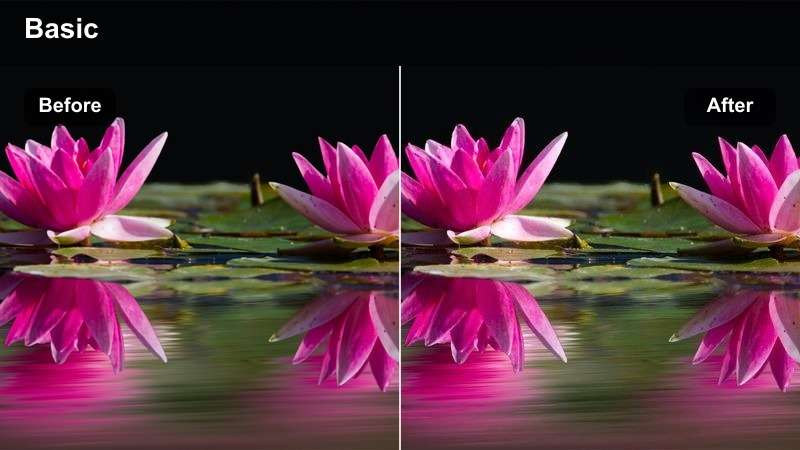
- Effect look: Bright, warm, and crisp with lifted highlights and lively color
- Best for: Outdoor Spotlight clips, summer transitions, and upbeat vertical stories
- Editing tip: Reduce highlights slightly when filming under direct midday sunlight
Sunlit Pop gives outdoor footage a cheerful, polished finish by adding clean warmth, crisp contrast, and lively color. It works especially well for bright street clips, summer transitions, and fast-moving vertical stories.
Apply the look in Filmora before making detailed corrections. If the source footage was captured in strong midday light, lower highlights slightly and reduce saturation where white clothing or reflective surfaces look too intense.
Clean Daylight
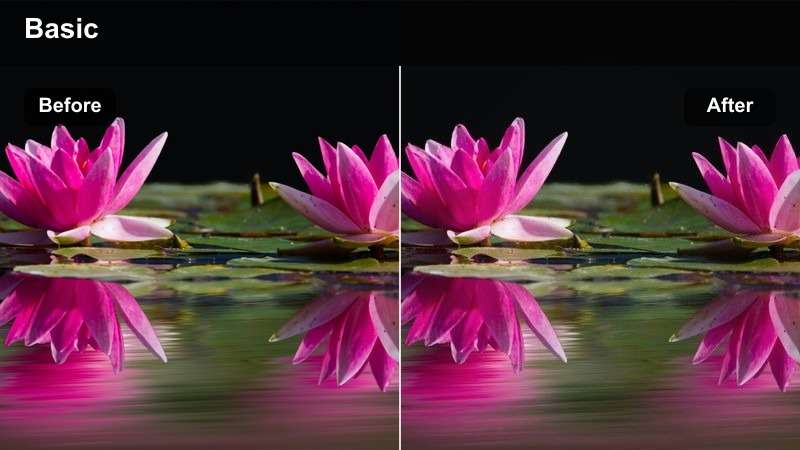
- Effect look: Neutral whites, clear details, and balanced natural color
- Best for: Quick tutorials, product demonstrations, and talking-head Spotlight videos
- Editing tip: Use a small contrast increase to add definition without changing skin tones
Clean Daylight is a dependable Snapchat Spotlight video filter for footage that needs polished color without a dramatic mood shift. Neutral whites, clear details, and natural skin tones make it a strong choice for tutorials and product demonstrations.
Use it across a complete sequence when clips were recorded in different rooms or on different phones. Apply the filter to the full edit first, then make small exposure corrections to individual shots in Filmora.
Golden Hour Glow
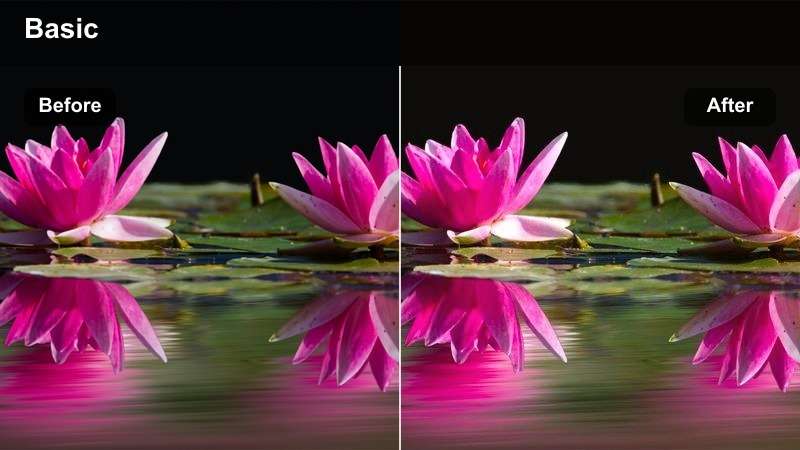
- Effect look: Soft amber highlights, gentle contrast, and a smooth cinematic finish
- Best for: Lifestyle stories, sunset transitions, and reflective creator updates
- Editing tip: Pair with slightly lowered clarity for a softer sunset atmosphere
Golden Hour Glow turns late-day light into a warm and inviting visual signature. Its amber highlights and gentle contrast suit lifestyle stories, sunset transitions, and reflective creator updates.
Because the filter already adds warmth, avoid pushing the temperature too far when orange sunlight is strong. If faces look overly yellow, cool the shadows slightly while keeping the highlights warm in Filmora.
Build a Consistent Snapchat Spotlight Color Palette
Use Filmora's color tools to turn the LUT-inspired looks into a repeatable palette for your channel. Match skin tones, background color, and caption accents so every vertical post feels connected.
Start with one dominant mood, such as warm daylight or cool neon, then adjust individual clips to keep the series consistent without making every video identical.
Create a signature color direction for your next Spotlight series.
 secure download

Neon Night Verticals
Neon Pulse
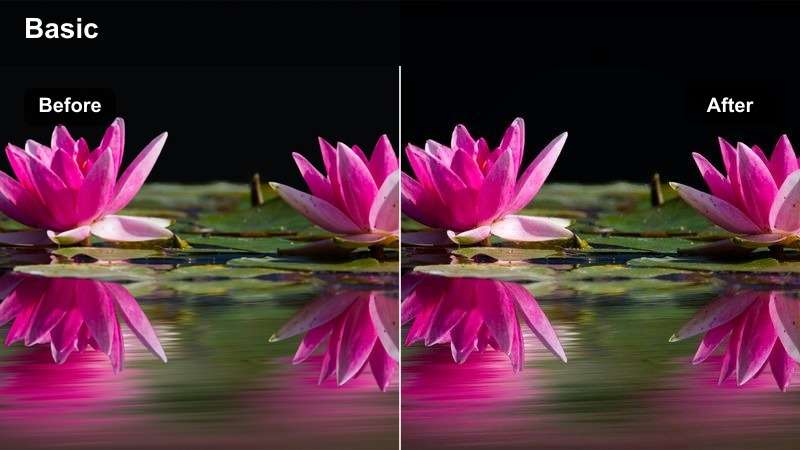
- Effect look: Electric color, rich shadows, and vivid cyan-magenta accents
- Best for: Nighttime Spotlight clips, dance edits, and fast-paced trend videos
- Editing tip: Lift shadows slightly to preserve detail in dark backgrounds
Neon Pulse adds electric cyan and magenta energy to nighttime footage while keeping shadows rich and dramatic. It is built for dance edits, nightlife clips, and fast-paced trend videos.
In Filmora, lift shadows slightly before increasing vibrance so dark backgrounds retain detail. Reduce saturation in the brightest color channels if LED signs or neon lighting begin to clip.
Midnight Blue
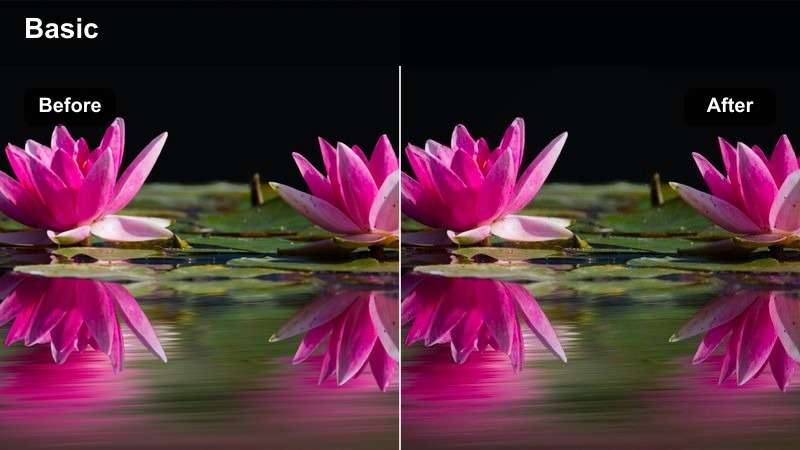
- Effect look: Cool blue shadows, restrained highlights, and a sleek nocturnal mood
- Best for: Late-night tutorials, moody voiceovers, and cinematic vertical stories
- Editing tip: Add a small amount of warmth to skin tones after applying the filter
Midnight Blue creates a sleek nocturnal mood with cool shadows and restrained highlights. The style works well for late-night tutorials, voiceovers, and cinematic vertical stories.
Use selective skin-tone adjustments in Filmora when the original lighting already has a strong blue cast. Keeping the subject slightly warmer than the background helps preserve clarity and depth.
Streetlight Contrast
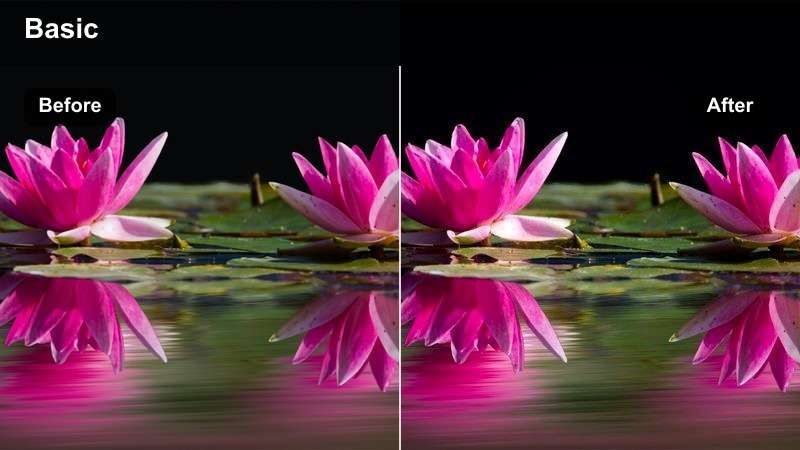
- Effect look: Defined contrast, warm practical lights, and textured urban shadows
- Best for: City walking clips, quick street interviews, and nighttime trend edits
- Editing tip: Lower contrast if the source video was captured under harsh overhead lighting
Streetlight Contrast gives urban footage more shape through defined contrast, warm practical lights, and textured shadows. It suits city walks, quick street interviews, and nighttime trend edits.
Use it when pools of light and darker areas already create depth in the scene. A subtle vignette in Filmora can guide attention toward the center of a vertical frame without overwhelming the background.
Preview Snapchat Spotlight Video Filters Before Export
Test these filters on different lighting conditions before publishing. A look that works for bright outdoor footage may need a lower intensity for indoor tutorials or nighttime city clips.
Preview the full vertical edit with captions, stickers, and transitions enabled so color effects support the complete viewing experience.
Compare filter strength across your most common shooting scenarios.
secure downloadSoft Creator Stories
Pastel Story
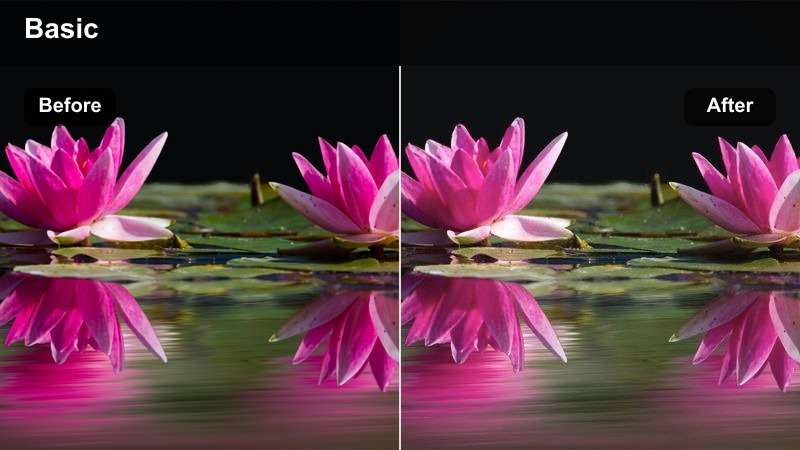
- Effect look: Muted saturation, airy highlights, and soft pastel color
- Best for: Daily vlogs, desk tutorials, and calm vertical storytelling
- Editing tip: Increase midtone contrast slightly when the footage feels too flat
Pastel Story softens the frame with muted saturation, airy highlights, and gentle color. It is a natural fit for daily vlogs, desk tutorials, and slower-paced personal updates.
Increase midtone contrast slightly in Filmora if the footage feels flat. Avoid stacking the look with heavy blur when the video contains small tutorial details, captions, or stickers.
Peachy Portrait
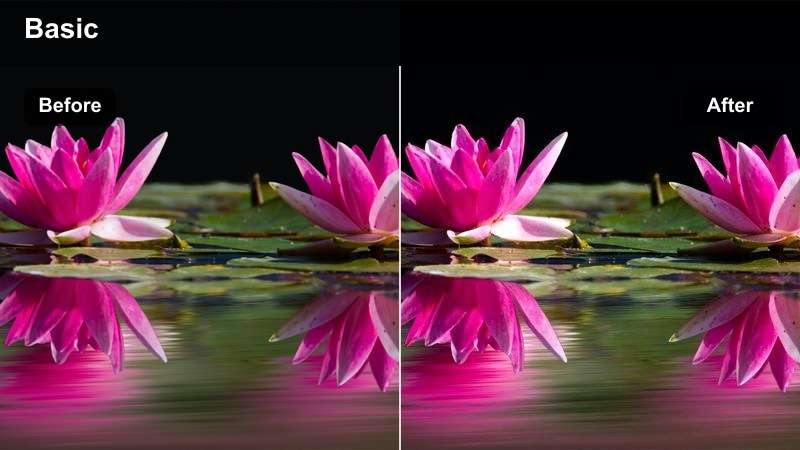
- Effect look: Warm peach skin tones, smooth highlights, and friendly midtone contrast
- Best for: Creator introductions, beauty tutorials, and close-up vertical videos
- Editing tip: Check facial highlights at full brightness before exporting for mobile viewing
Peachy Portrait adds warm peach tones, smooth highlights, and friendly contrast to face-focused footage. It works particularly well for creator introductions, beauty tutorials, and close-up vertical videos.
Use it with neutral or slightly cool source lighting for the most natural result. If skin becomes too orange, reduce orange saturation in Filmora instead of lowering the entire filter strength.
Film Softness
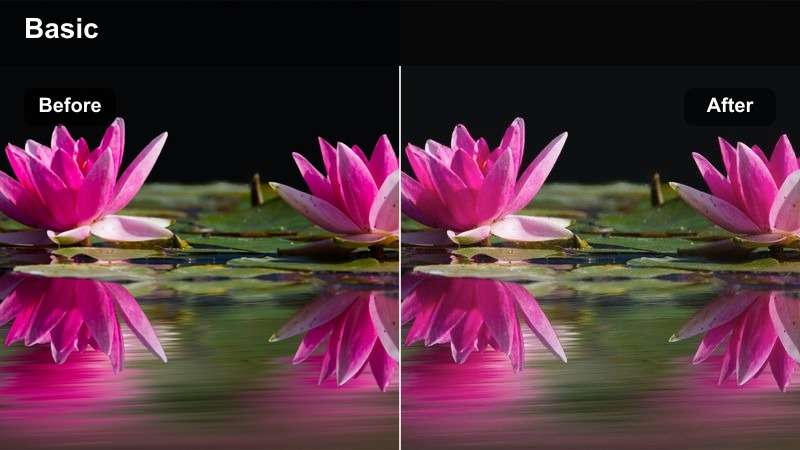
- Effect look: Subtle grain, faded blacks, and understated cinematic color
- Best for: Storytime videos, behind-the-scenes clips, and reflective vertical posts
- Editing tip: Keep sharpening low to maintain the soft analog-inspired finish
Film Softness gives clean phone footage a relaxed, analog-inspired character through subtle grain, faded blacks, and understated color. It suits storytime videos, behind-the-scenes clips, and reflective posts.
Keep sharpening low in Filmora so the soft finish remains cohesive. Preview the export on a phone because excessive grain can compete with captions, stickers, and other mobile elements.
Turn Quick Filters Into Reusable LUT Presets
Apply the free Snapchat Spotlight LUT pack as a starting point, then save your preferred adjustments for faster editing. Reusable presets help trend publishers move from filming to posting with fewer repetitive corrections.
Keep separate versions for daylight, indoor, and night footage so your final color stays natural while your channel maintains a recognizable style.
Organize your favorite Snapchat Spotlight LUT looks for faster vertical editing.
secure downloadHigh-Energy Trend Edits
Viral Vibrance
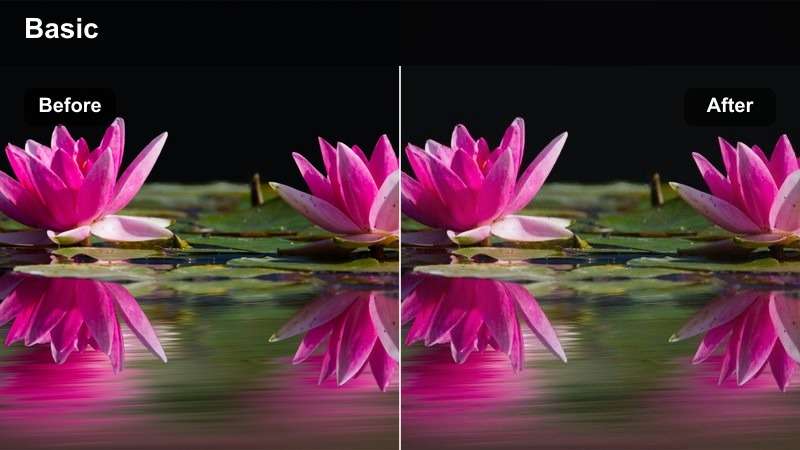
- Effect look: High color energy, crisp detail, and boosted visual impact
- Best for: Trending transitions, reaction videos, and fast-cut Spotlight edits
- Editing tip: Apply at moderate strength when the video already contains bright wardrobe colors
Viral Vibrance is designed for fast-scrolling feeds, adding high color energy, crisp detail, and immediate visual impact. It works well for trending transitions, reactions, and quick-cut Spotlight edits.
Use moderate strength when wardrobe colors are already bold. In Filmora, reduce the effect for clips dominated by red, orange, or fluorescent colors so captions and facial details remain readable.
Crisp Action
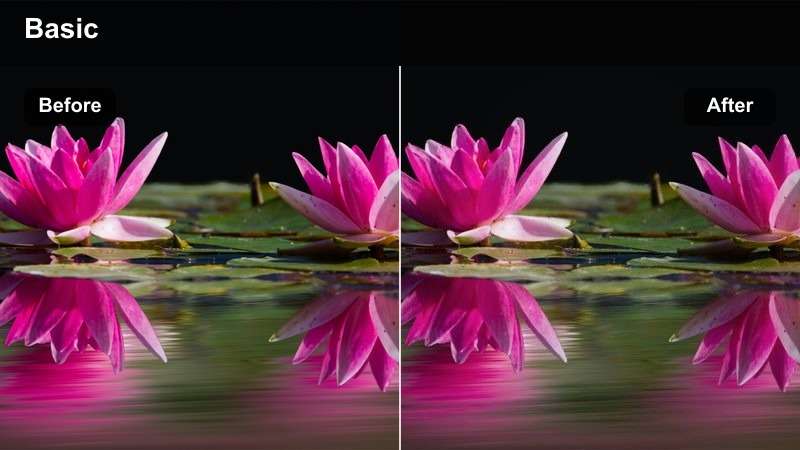
- Effect look: Sharp motion detail, clean contrast, and energetic neutral color
- Best for: Movement tutorials, challenge clips, and quick-cut vertical sequences
- Editing tip: Keep motion blur natural and use the filter mainly to define midtone detail
Crisp Action helps movement-heavy videos feel immediate by defining midtone detail and adding clean contrast. It is useful for movement tutorials, challenge clips, and quick vertical sequences.
Keep motion blur natural and avoid over-sharpening compressed phone footage. The result should make gestures and transitions easier to follow without creating harsh edges after social platform processing.
Electric Editorial
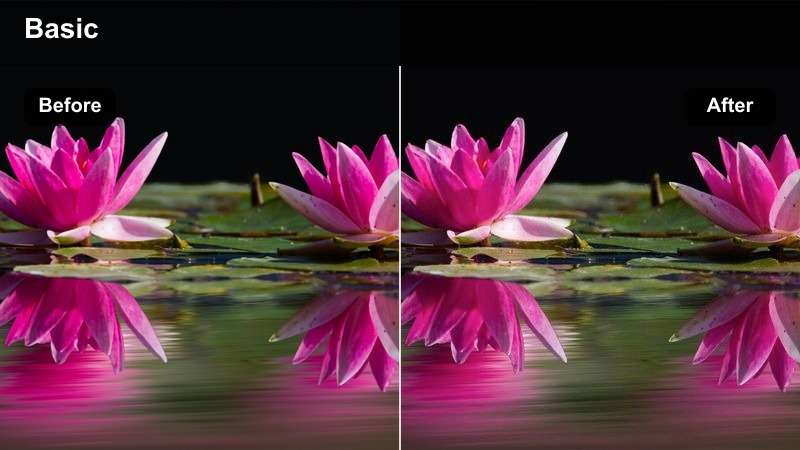
- Effect look: Graphic contrast, saturated accents, and a fashion-forward editorial finish
- Best for: Trend announcements, outfit transitions, and stylized creator campaigns
- Editing tip: Use clean backgrounds and consistent lighting to make the graphic color feel intentional
Electric Editorial creates a bold visual identity with graphic contrast, saturated accents, and a fashion-forward finish. It is suited to outfit transitions, trend announcements, and stylized creator campaigns.
Use clean backgrounds and consistent lighting so the color feels intentional. Save a custom Filmora version with your preferred intensity to keep every clip in a trend series visually connected.
Tips for Using Snapchat Spotlight Lut Download Filters in Filmora
- Shoot vertical footage with consistent exposure so the same filter can work across a complete Spotlight series.
- Apply the LUT or filter before fine-tuning exposure, contrast, white balance, and skin tones.
- Preview every export on a mobile screen because social compression can make shadows darker and colors more intense.
- Use moderate filter strength when clips include bold captions, stickers, or highly saturated wardrobe colors.
- Save separate presets for daylight, indoor, and nighttime footage to speed up future Snapchat Spotlight edits.
- Check skin tones and bright highlights after applying any high-energy or warm filter.
This free Snapchat Spotlight LUT pack gives young creators and trend publishers a fast way to improve color across Spotlight clips, quick tutorials, and vertical stories. Choose a look that fits the lighting and energy of your footage, then make small adjustments for a natural final result.
For more coordinated styles, explore the next collection and build a broader library of Snapchat Spotlight color grading options for every short-form video idea.
secure download