

 100% Security Verified | No Subscription Required | No Malware

Make Telegram channel videos look more consistent with this free Telegram video LUT pack. The collection includes 12 filter styles for community managers and channel creators who need polished visuals for announcements, updates, and short tutorials.
Use these Telegram video video filters as a starting point for fast color grading. Apply a style, adjust exposure and skin tones, then export a clear, readable video that fits your channel identity across mobile screens.
In this article
Channel Intros and Daily Updates
Clean Channel Intro
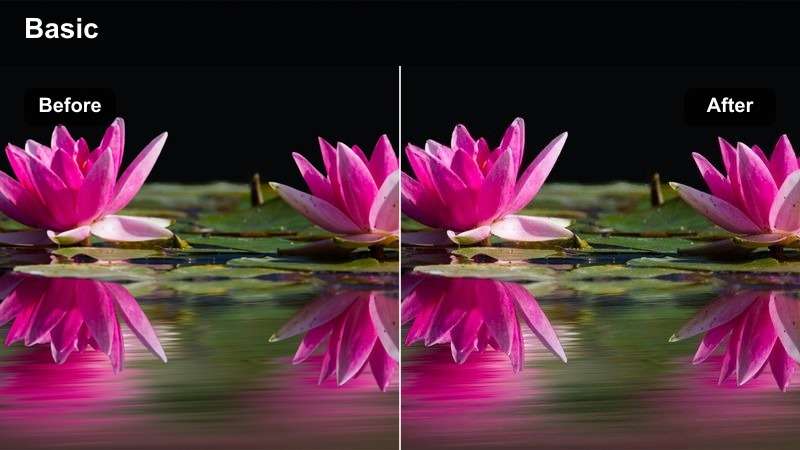
- Effect look: bright neutral contrast with crisp whites and balanced skin tones
- Best for: Telegram channel intros, profile videos, and recurring community updates
- Editing tip: Keep saturation moderate and raise shadows slightly so logos and captions remain readable
Clean Channel Intro gives everyday Telegram videos a bright, balanced appearance without pushing color too far. Crisp whites and natural skin tones help presenters, logos, and channel graphics look polished on mobile screens.
Use this style for recurring intros and community updates in Filmora. Start with the LUT, then lift shadows slightly and keep the first frame focused on the channel name or main message.
Build a Telegram Channel Color Palette
Use AI color suggestions to find a repeatable palette for channel avatars, announcement graphics, subtitles, and video accents. A stable palette makes different Telegram posts feel connected.
Start with one main brand color, one supporting color, and neutral text tones. Then compare the palette against each filter in this Telegram video LUT pack before publishing.
 secure download

Soft Community Update
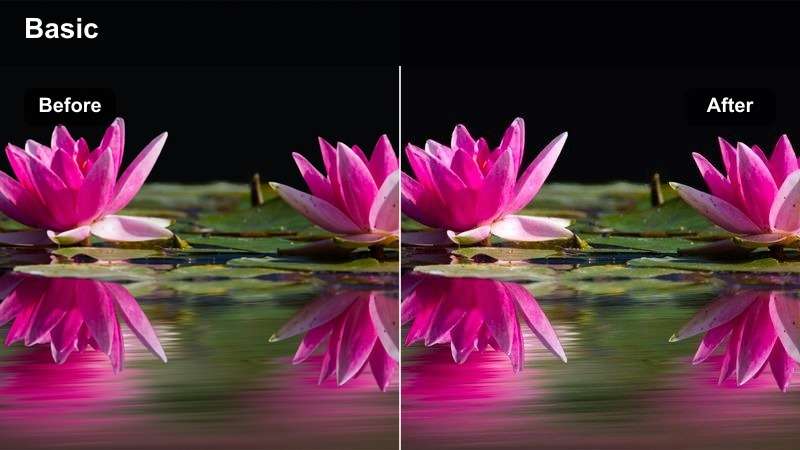
- Effect look: gentle highlights with warm midtones and smooth low contrast
- Best for: community check-ins, member updates, and friendly Telegram announcements
- Editing tip: Lower highlights before applying the filter if the original footage includes bright screens or windows
Soft Community Update adds gentle warmth and smooth contrast to personal messages. It makes a community manager or creator feel approachable while keeping the overall image clean and comfortable to watch.
Apply it to check-ins, member updates, and friendly announcements in Filmora. Reduce warmth for serious topics, and lower bright highlights when the clip includes windows, screens, or other strong light sources.
Bright Admin Desk
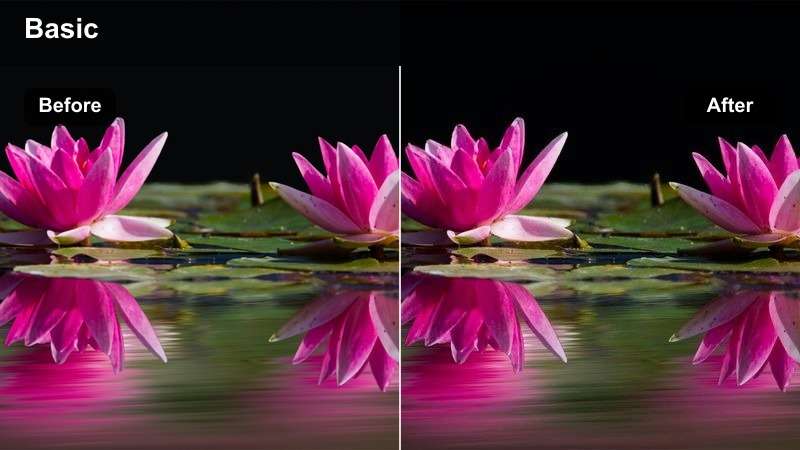
- Effect look: clean brightness with cool whites and controlled blue shadows
- Best for: community manager updates, moderation notices, and channel administration videos
- Editing tip: Protect white text and interface elements by checking highlights at full mobile brightness
Bright Admin Desk creates a practical, polished look for videos about channel management. Cool whites and controlled blue shadows make desk scenes, phones, and interface graphics feel organized.
Use it for moderation notices and administrative updates, then preview the export on a phone. Check that small handles, icons, message previews, and notification elements remain readable after grading.
Announcements and Important Notices
Urgent Announcement
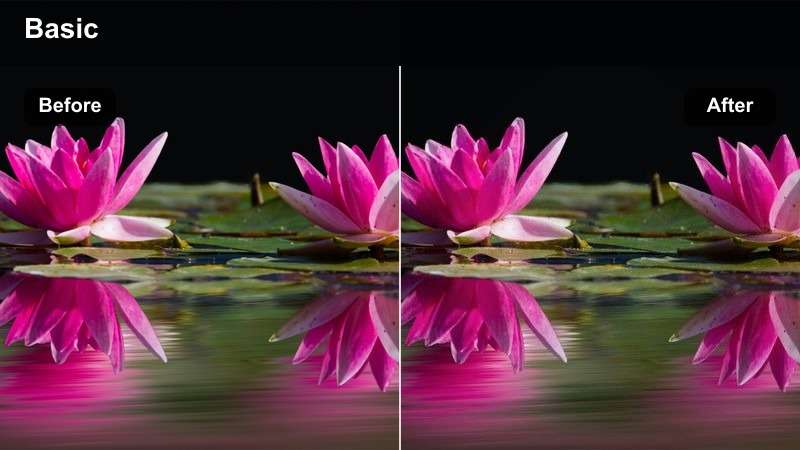
- Effect look: strong contrast with focused reds and deep but visible shadows
- Best for: urgent Telegram announcements, deadline reminders, and service notices
- Editing tip: Use a light vignette only when it does not cover important text or channel branding
Urgent Announcement uses stronger contrast and focused red accents to make priority messages stand out in a busy channel feed. Visible shadows keep the frame dramatic without losing essential detail.
Use this Telegram video filter for deadlines, service notices, and time-sensitive updates. Apply it selectively, and keep vignettes away from titles, logos, and other important channel branding.
Official Channel Notice
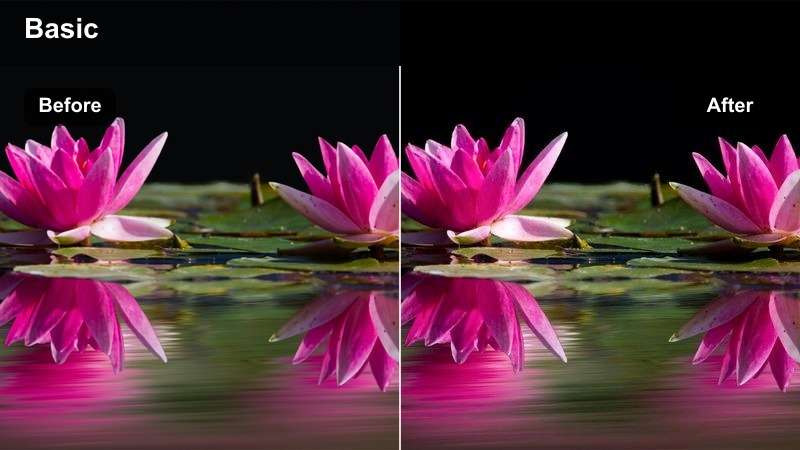
- Effect look: cool professional contrast with neutral skin tones and restrained saturation
- Best for: official Telegram channel notices, policy updates, and organizational statements
- Editing tip: Keep whites neutral and avoid excessive teal or orange shifts that can reduce institutional clarity
Official Channel Notice provides a structured, trustworthy look for formal Telegram communication. Neutral skin tones and restrained saturation help policy updates and organizational statements feel clear.
Apply the same style to recurring official messages in Filmora. Pair it with consistent logo placement, title treatment, and opening animation so viewers quickly recognize trusted information.
Evening Alert
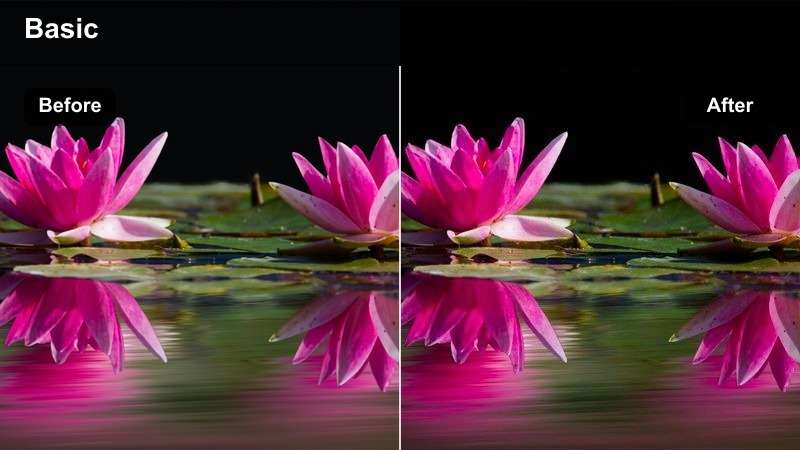
- Effect look: moody blue shadows with warm highlights and focused center exposure
- Best for: late-day Telegram updates, event reminders, and after-hours channel alerts
- Editing tip: Lift facial shadows before export so the mood stays cinematic without making the speaker look too dark
Evening Alert combines blue shadows and warm highlights for polished low-light communication. Focused exposure keeps the center of the frame visible while adding a cinematic after-hours mood.
Use it for event reminders and evening alerts, but raise faces and titles separately when needed. This preserves readability for viewers watching Telegram videos with reduced screen brightness.
Preview Telegram Video Filters Before Export
Test each filter on talking-head footage, screen recordings, and announcement graphics before choosing a final look. Previewing multiple scenes helps reveal changes in skin tones, interface readability, and branded colors.
For community managers, a quick comparison can save editing time and prevent inconsistent color across recurring announcements and short tutorials.
secure downloadScreen Tutorial Clear
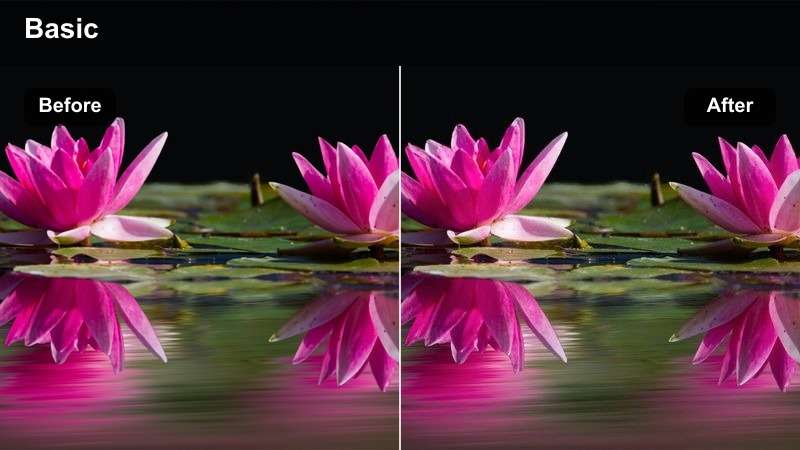
- Effect look: neutral brightness with sharp interface contrast and restrained color
- Best for: Telegram app tutorials, screen recordings, and quick setup instructions
- Editing tip: Reduce sharpening if text edges flicker after compression or screen capture
Screen Tutorial Clear prioritizes readable menus, buttons, and labels over dramatic cinematic color. Neutral brightness and controlled contrast help viewers follow app actions on a small screen.
Use it for screen recordings and quick setup instructions in Filmora. Avoid excessive sharpening, and check the final export after Telegram compression so fine interface details do not flicker.
Creator How-To
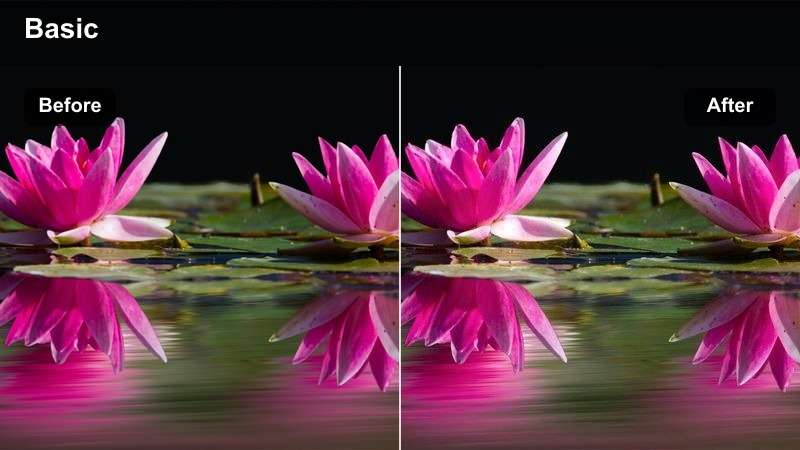
- Effect look: warm natural skin tones with lively midtones and soft background contrast
- Best for: creator-led Telegram tutorials, editing tips, and short educational clips
- Editing tip: Apply facial exposure adjustments before adding warmth so the presenter remains natural
Creator How-To gives presenter-led videos a friendly educational appearance. Warm midtones and soft background contrast keep attention on the speaker while preserving natural skin tones.
Apply facial exposure corrections before adding warmth in Filmora. Keep orange tones controlled so the creator remains credible and comfortable to watch throughout the tutorial.
Fast Tip Pop
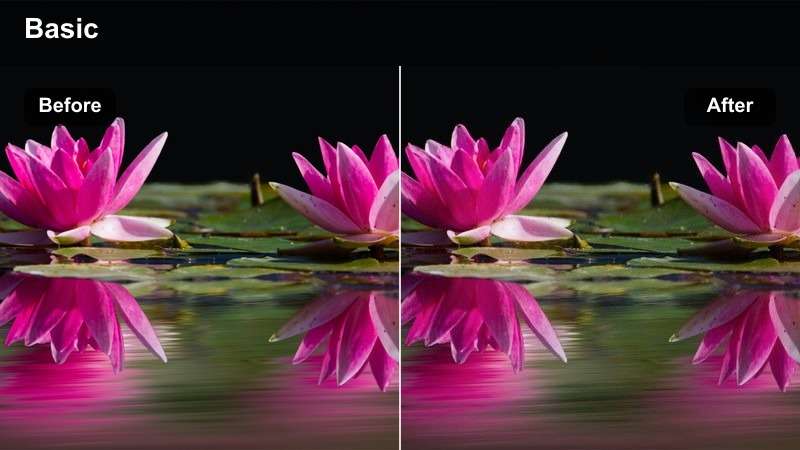
- Effect look: vivid accent colors with clean whites and punchy medium contrast
- Best for: short Telegram tips, feature highlights, and quick channel growth tutorials
- Editing tip: Limit boosted saturation to branded accents so the video stays energetic without looking harsh
Fast Tip Pop adds lively color and punchy contrast to compact educational clips. It works especially well with tap indicators, animated labels, and quick feature highlights.
Use boosted saturation mainly on branded accents in Filmora. Keep each text callout visible long enough for viewers to understand the instruction before moving to the next step.
Short Tutorials and How-To Clips
Brand Blue Consistent
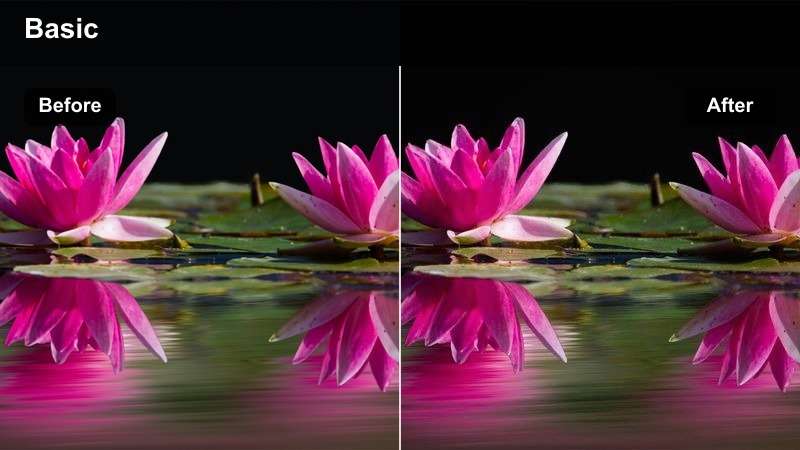
- Effect look: balanced cool tones with controlled blue accents and clean midtone detail
- Best for: Telegram channels using blue brand colors across recurring video series
- Editing tip: Compare the filter with your channel avatar and banner so blue accents do not shift toward cyan
Brand Blue Consistent helps channels build a recognizable cool visual system. Controlled blue accents connect video footage with channel avatars, banners, and recurring graphic elements.
Save the exposure, contrast, and saturation settings as a repeatable Filmora preset. Correct white balance for each camera source so the shared brand color stays consistent.
Muted Editorial
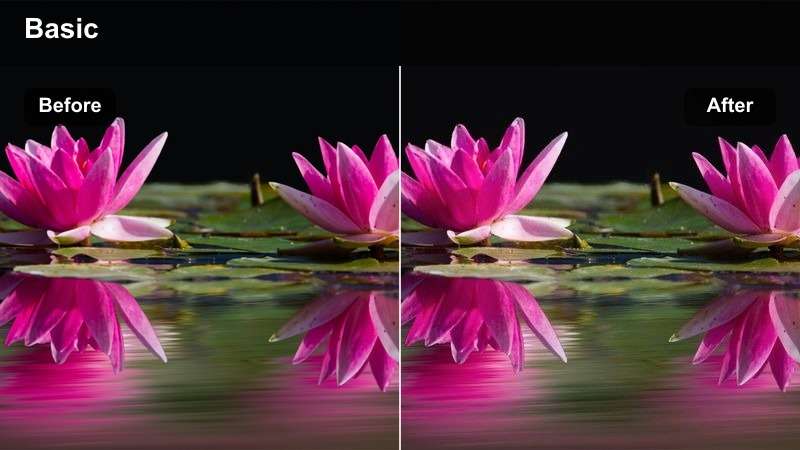
- Effect look: soft desaturation with refined contrast and subtle neutral warmth
- Best for: editorial Telegram posts, thought leadership clips, and carefully designed channel campaigns
- Editing tip: Add color selectively to logos or key graphic elements instead of increasing global saturation
Muted Editorial gives Telegram campaigns a refined, design-led appearance. Soft desaturation lets typography, spacing, and layout carry more of the visual identity.
Use selective color on logos or key graphics instead of raising global saturation. A consistent typeface and caption position can make different clips feel like one editorial series.
High-Energy Community
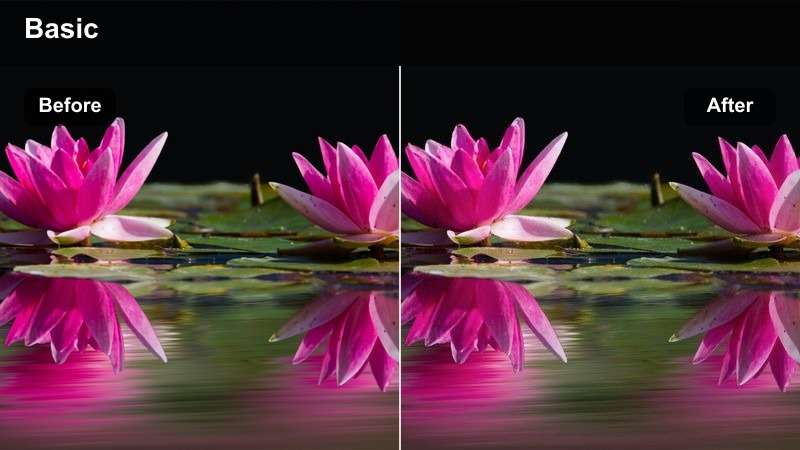
- Effect look: vibrant contrast with bright highlights and energetic branded color accents
- Best for: community campaigns, event promotions, launch announcements, and creator collaborations on Telegram
- Editing tip: Balance the filter with lower music levels and short captions so the content does not feel visually overloaded
High-Energy Community delivers stronger visual impact for campaigns, launches, and creator collaborations. Bright highlights and vivid accents help event content stand out in a fast-moving Telegram feed.
Use the same accent colors and motion style across teasers, launch announcements, and follow-up posts. Export a short test clip first to check that saturated colors remain balanced after compression.
Apply LUTs for Faster Telegram Color Grading
Use the included styles as a starting point for Telegram video color grading. Apply a LUT or filter first, then correct white balance, exposure, contrast, and saturation for the specific clip.
The best result comes from treating a LUT as a creative base rather than a final setting. Small adjustments help preserve readable captions and natural faces after Telegram compression.
secure downloadTips for Using Telegram Video Lut Download Filters in Filmora
- Preview every graded clip on a phone because Telegram viewers often watch on small screens.
- Correct white balance before applying a filter so skin tones and channel colors remain natural.
- Keep captions high contrast and away from dark or highly detailed backgrounds.
- Use the same filter family for recurring announcements to build visual recognition.
- Export a short test clip and check how Telegram compression affects fine text, shadows, and saturated colors.
- Save separate versions for talking-head footage, screen recordings, and graphic-heavy announcements.
This free Telegram video LUT pack gives community managers and channel creators a practical set of filter styles for announcements, daily updates, short tutorials, and branded campaigns. Start with the closest visual direction, then make small corrections for each clip.
Consistent Telegram video color grading can make a channel feel more professional without slowing down the publishing workflow. Test the styles on your own footage, keep important text readable, and build a repeatable look that members recognize.
secure download