

 100% Security Verified | No Subscription Required | No Malware

A consistent visual style can help regional creators and brand publishers make every WeChat Channels post feel recognizable. This free WeChat Channels LUT pack includes practical video filters for creator clips, product updates, announcements, and everyday vertical content.
Use the presets in Filmora to build a repeatable short video color grading workflow. Start with a filter that matches your scene, adjust exposure and skin tones, and export a clean result that works across Channels posts and campaign content.
In this article
Sunlit Channel Stories
Warm Daylight
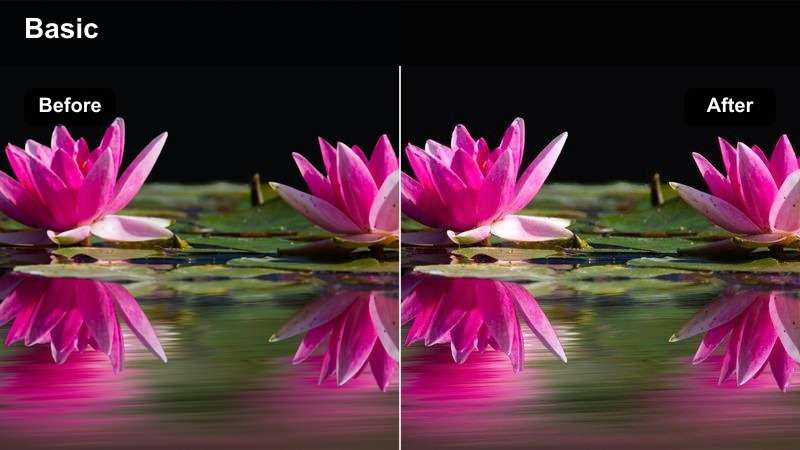
- Effect look: Soft golden highlights with a gentle warm balance
- Best for: Outdoor creator clips, daytime lifestyle posts, and regional event coverage
- Editing tip: Lower intensity slightly when skin tones look too orange
Warm Daylight gives bright footage a welcoming finish through soft golden highlights and a gentle warm balance. It is a practical choice for outdoor creator clips, daytime lifestyle posts, and regional event coverage where the image should feel friendly and approachable.
In Filmora, balance the original exposure before applying the look, especially when facial highlights are already bright. If the background becomes too vivid, reduce saturation before lowering filter strength so faces remain natural and the final Channels video stays inviting.
Build a WeChat Channels Color Palette with AI
Use Filmora's AI-assisted color tools to identify the dominant mood of your footage and create a repeatable palette for regional campaigns, creator series, or brand updates.
After choosing a filter, refine skin tones, brand colors, and background saturation so every video remains recognizable without looking over-processed.
 secure download

Start with one reference clip, save the adjusted palette, and apply it consistently across your next Channels posts.
Preview WeChat Channels Video Filters Before Export
A quick side-by-side preview helps you compare warm daylight, clean studio, urban night, and cinematic options before committing to an edit.
Check the filter at vertical 9:16 size and review faces, subtitles, logos, and bright signage because mobile viewing can make contrast and saturation feel stronger.
secure downloadPreview several looks in Filmora and choose the one that supports your message within the first few seconds.
Turn Filter Adjustments into a Reusable LUT Workflow
The presets in this pack can serve as starting points for a broader WeChat Channels LUT workflow. Adjust exposure and white balance first, then fine-tune the look for each camera and lighting setup.
Save your preferred settings for recurring product updates, creator clips, and branded posts so your team can edit faster while keeping a consistent visual identity.
secure downloadDownload the free pack, test each look on your own footage, and save the adjustments that best match your Channels content.
Clear Sky Pop
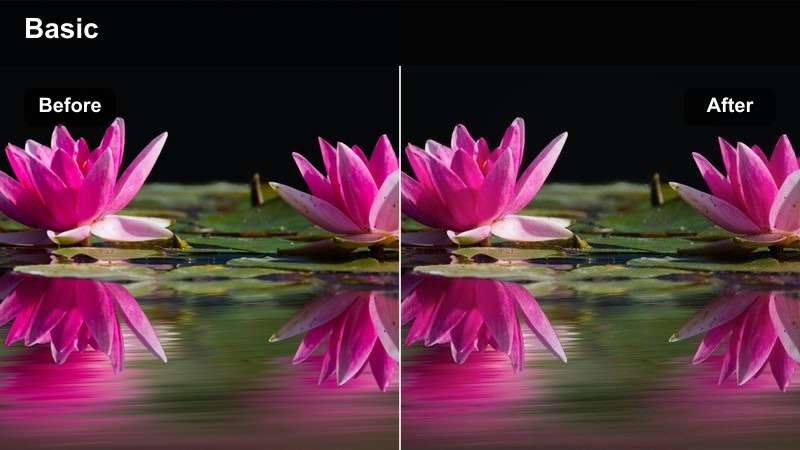
- Effect look: Crisp contrast with clean blues and lively midtones
- Best for: City walks, venue previews, product update clips, and bright location posts
- Editing tip: Add a small amount of shadow lift to retain detail in dark clothing
Clear Sky Pop creates crisp contrast, clean blues, and lively midtones that help daylight footage feel sharp and energetic on mobile screens. It works well for city walks, venue previews, product updates, and bright location posts.
After applying the look in Filmora, inspect pale skies and bright surfaces because stronger contrast can make highlights feel harsh. Use highlight recovery or reduce contrast slightly before sharpening, and lift shadows when dark clothing loses important detail.
Soft Coral Glow
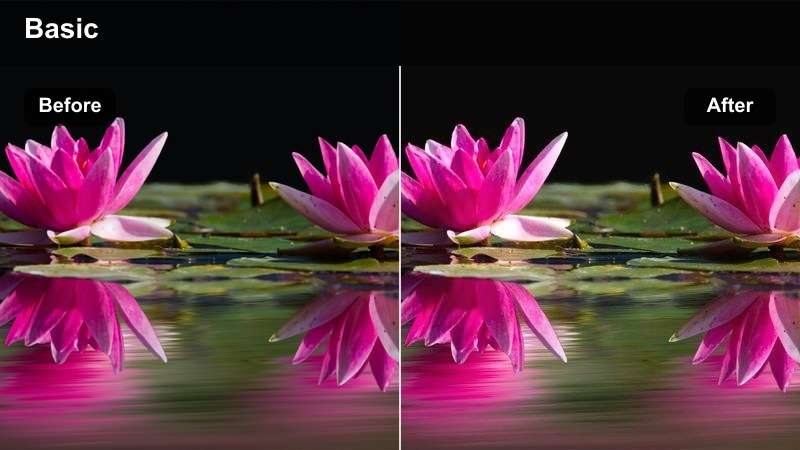
- Effect look: Subtle coral warmth with smooth highlights and softened contrast
- Best for: Personal creator introductions, community updates, and casual Channels posts
- Editing tip: Keep the effect below medium strength for realistic skin tones
Soft Coral Glow adds subtle coral warmth, smooth highlights, and softened contrast for a gentle social-video finish. It is suited to personal introductions, community updates, and casual Channels posts where the subject should feel approachable.
Keep the effect below medium strength in Filmora to preserve realistic skin tones and facial detail. Pair the look with simple lower-thirds and clean subtitles so the color supports the conversation without distracting from the message.
Urban Brand Updates
Modern Neutral
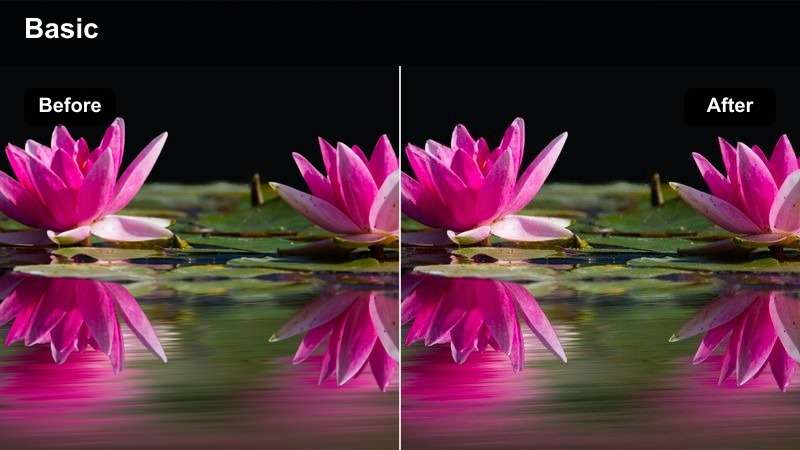
- Effect look: Balanced whites, controlled saturation, and polished medium contrast
- Best for: Product updates, retail announcements, and branded WeChat Channels posts
- Editing tip: Match white balance before applying the filter to keep brand colors accurate
Modern Neutral delivers balanced whites, controlled saturation, and polished medium contrast for clear business-ready videos. Use it for product updates, retail announcements, and branded posts where packaging, logos, and interface colors need to remain trustworthy.
Match white balance before applying the filter in Filmora, then compare the result with the original footage before export. Reduce tint if white surfaces shift noticeably, and keep the adjustment consistent across recurring brand content.
Neon Business
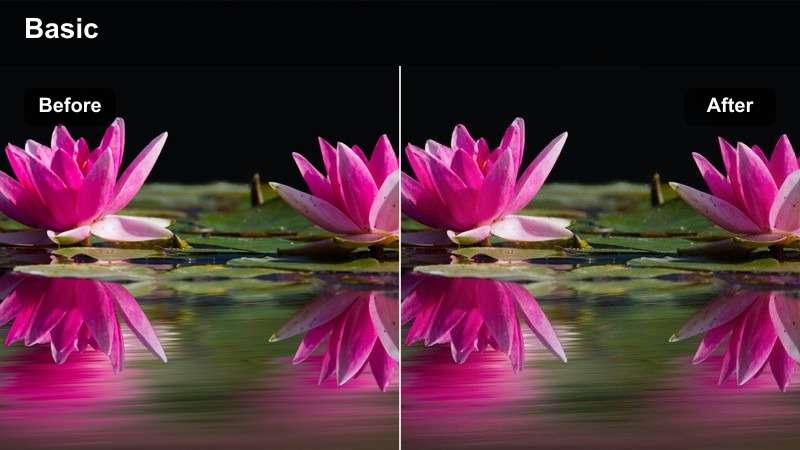
- Effect look: Deep urban shadows with controlled cyan and magenta accents
- Best for: Nighttime product launches, technology updates, and city-based campaign clips
- Editing tip: Lift shadow detail slightly when shooting under mixed artificial lighting
Neon Business combines deep urban shadows with controlled cyan and magenta accents for a contemporary nighttime identity. It suits technology updates, product launches, and city-based campaign clips that need confidence without sacrificing readability.
Mixed lighting can affect skin tones, so inspect faces carefully after applying the look in Filmora. Lift shadows slightly when needed, then use selective HSL adjustments to soften the strongest neon colors while preserving the urban mood.
Concrete Contrast
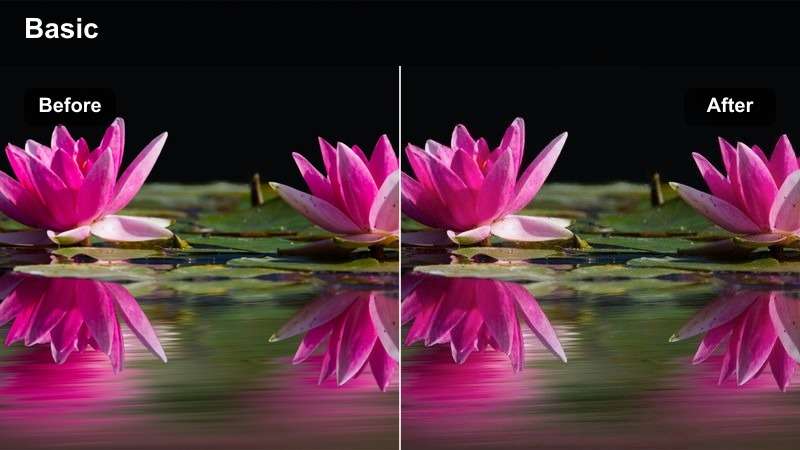
- Effect look: Cool gray shadows, firm contrast, and restrained color intensity
- Best for: Architecture reels, office updates, public venue clips, and production announcements
- Editing tip: Add a touch of warmth to skin tones when the location has gray concrete surfaces
Concrete Contrast emphasizes cool gray shadows, firm contrast, and restrained color intensity for a structured editorial mood. It is useful for architecture reels, office updates, public venues, and production announcements that benefit from a sharper visual identity.
In Filmora, add a touch of warmth to skin tones when gray concrete dominates the scene. Avoid excessive clarity on compressed footage because it can exaggerate noise along concrete, glass, and other high-contrast edges.
Creator Studio Moods
Clean Studio
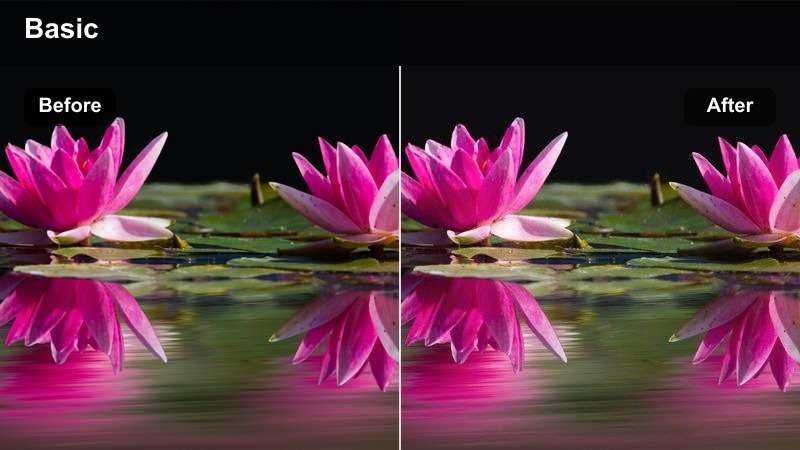
- Effect look: Bright neutral exposure with soft contrast and clear skin tones
- Best for: Tutorials, presenter-led updates, interviews, and recurring creator series
- Editing tip: Use a consistent white balance across every episode before saving the preset
Clean Studio provides bright neutral exposure, soft contrast, and clear skin tones for repeatable presenter-led content. It works especially well for tutorials, interviews, recurring creator series, and regular updates that need a polished appearance.
Match camera exposure and white balance across episodes before saving your adjusted Filmora settings as a custom preset. Applying the same baseline grade helps viewers recognize the series quickly in their Channels feed.
Film Room
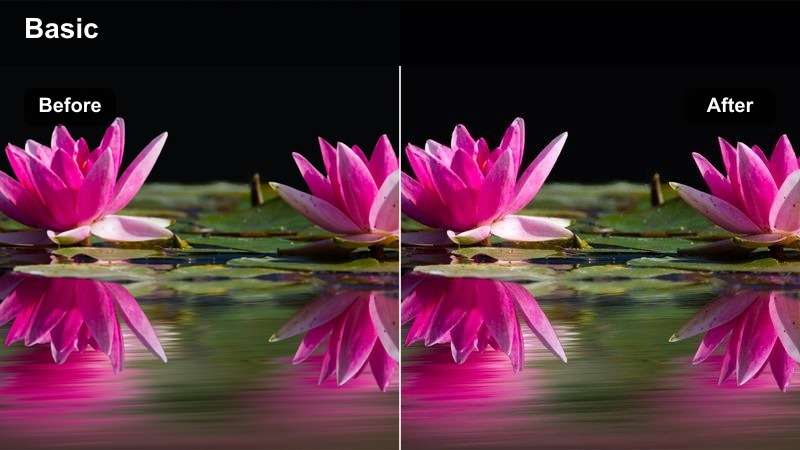
- Effect look: Muted highlights, gentle grain character, and cinematic warm shadows
- Best for: Behind-the-scenes clips, creator stories, campaign recaps, and reflective posts
- Editing tip: Reduce grain and contrast when the source video is already low light
Film Room uses muted highlights, gentle grain character, and cinematic warm shadows to give creator content a thoughtful narrative finish. It fits behind-the-scenes clips, campaign recaps, reflective posts, and selected story moments.
Reduce grain and contrast when the source is already low light, and use the look on selected segments when dialogue or captions must remain clear. In Filmora, slower cutaways and restrained adjustments can add atmosphere without overpowering the main action.
Pastel Creator
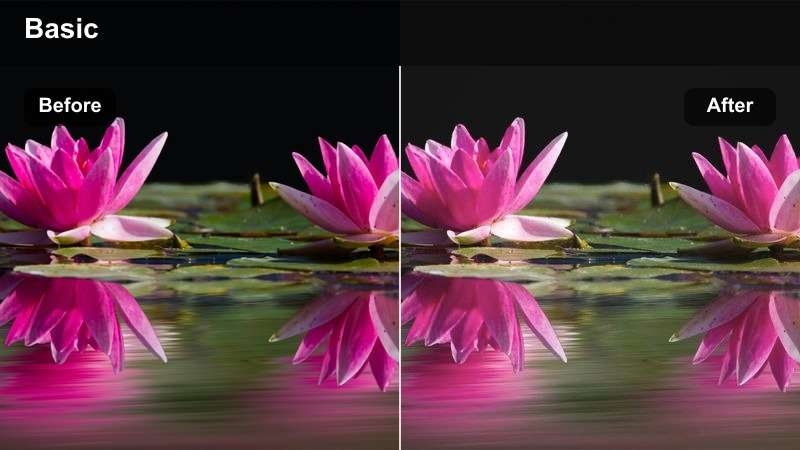
- Effect look: Light pastel colors with lifted shadows and low visual harshness
- Best for: Creator clips, educational explainers, community messages, and approachable announcements
- Editing tip: Increase clarity modestly if text or fine details appear too soft
Pastel Creator brings light pastel colors, lifted shadows, and low visual harshness to regular Channels content. It is a calm option for educational explainers, community messages, creator clips, and approachable announcements.
Because lifted shadows can reduce separation between captions and pale backgrounds, add a subtle text outline or background panel in Filmora when necessary. Increase clarity modestly if fine details appear too soft, while keeping the overall look gentle.
Evening Channel Recaps
City Evening
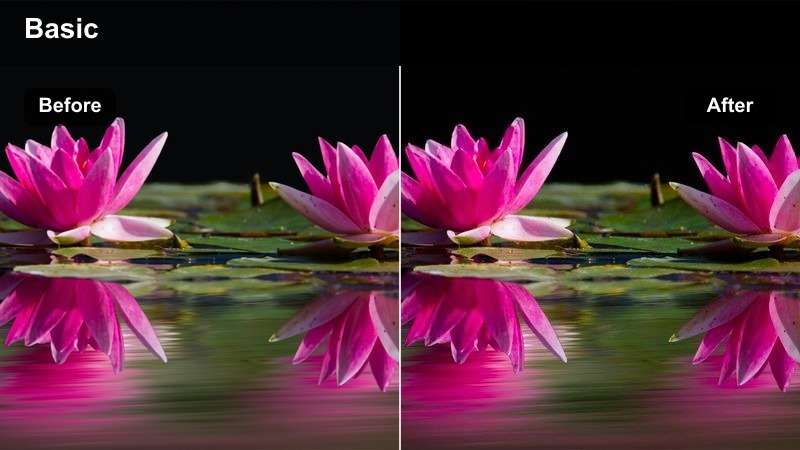
- Effect look: Balanced twilight tones with warm practical lights and smooth shadows
- Best for: Event recaps, evening creator clips, venue visits, and local campaign posts
- Editing tip: Reduce saturation in red signage to prevent distracting color clipping
City Evening balances twilight tones with warm practical lights and smooth shadows for polished footage after sunset. It suits event recaps, venue visits, evening creator clips, and local campaign posts that combine cool ambient light with warm signage.
Review the brightest lamps at full-screen size in Filmora and reduce highlights if they distract from the subject. Lower saturation in red signage when needed, then check the export on a phone to confirm that darker areas retain detail.
Deep Blue Night
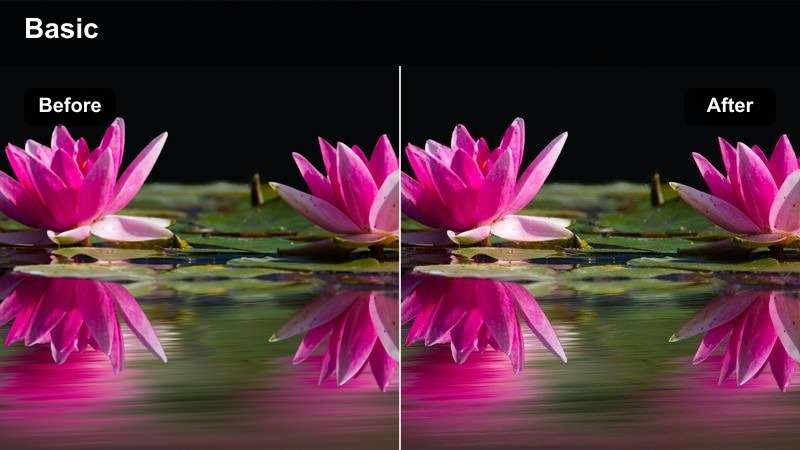
- Effect look: Cool blue shadows, rich blacks, and selective warm highlights
- Best for: Nighttime creator clips, late product announcements, and urban storytelling posts
- Editing tip: Lift blacks slightly when the original footage contains heavy compression noise
Deep Blue Night creates cool blue shadows, rich blacks, and selective warm highlights for dramatic nighttime storytelling. Use it for urban creator clips, late product announcements, and posts that need depth and a strong city identity.
Lift blacks slightly when compression noise is heavy so dark areas retain texture on mobile screens. Review the final export on a phone because platform compression can remove shadow detail that remains visible in the desktop preview.
After Hours Film
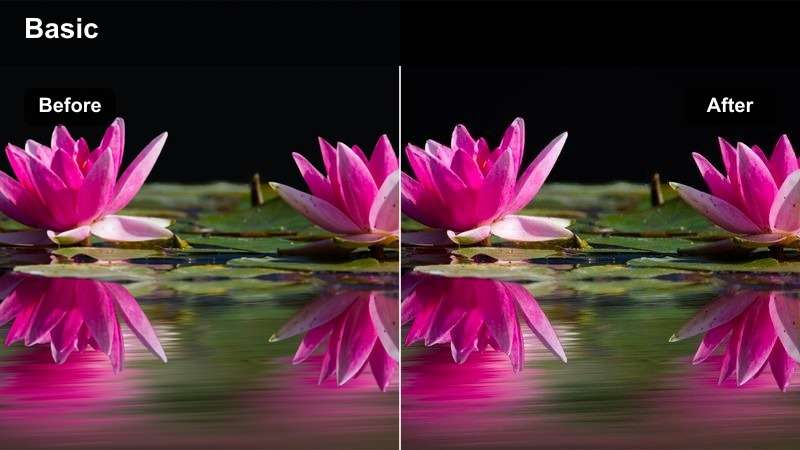
- Effect look: Low-key contrast with subtle amber highlights and cinematic desaturation
- Best for: Campaign wrap-ups, reflective creator stories, and late-night Channels updates
- Editing tip: Use a short fade and moderate grain to make transitions feel more cohesive
After Hours Film combines low-key contrast, subtle amber highlights, and cinematic desaturation for a memorable closing tone. It works well for campaign wrap-ups, reflective creator stories, and late-night Channels updates.
Reserve this stronger narrative look for selected recap scenes rather than every upload. In Filmora, pair moderate grain and a short fade with slower cuts, concise captions, and a clear closing message for a cohesive campaign finish.
Tips for Using Wechat Channels Lut Download Filters in Filmora
- Correct exposure and white balance before applying a WeChat Channels video filter.
- Keep skin tones natural even when using cinematic or neon-inspired looks.
- Preview every export on a phone to check contrast, subtitles, and shadow detail.
- Use one primary look across a recurring creator series for stronger visual recognition.
- Reduce filter intensity when the original footage already has strong lighting or saturated colors.
- Save custom Filmora presets after matching your camera profile and brand color requirements.
This free WeChat Channels LUT pack gives regional creators and brand publishers a practical starting point for short video color grading. Choose a scene-based filter, adjust it to your footage, and keep the final look clear on mobile screens.
For more options, explore the upcoming WeChat Channels LUT collection and build a flexible library for Channels posts, product updates, and creator clips.
secure download