

 100% Security Verified | No Subscription Required | No Malware


 ChatGPT
 Perplexity
 Gemini
 Claude
 Grok
Grok
If you want your YouTube channel to look like a top-tier influencer brand, filters and color grades are the fastest way to get there. Instead of trying to color correct every clip from scratch, you can apply ready-made influencer video filters for YouTube and lock in a recognizable look across your content.
Below you will find a curated set of creator-friendly filters that work for YouTube influencer content, brand videos, and sponsored uploads. Each filter includes when to use it, what it looks like, and an easy editing tip so you can stay consistent, on-brand, and ready for your next collaboration.
In this article
Soft Aesthetic Filters for Lifestyle and Daily Vlogs
Soft Pastel Influencer Glow
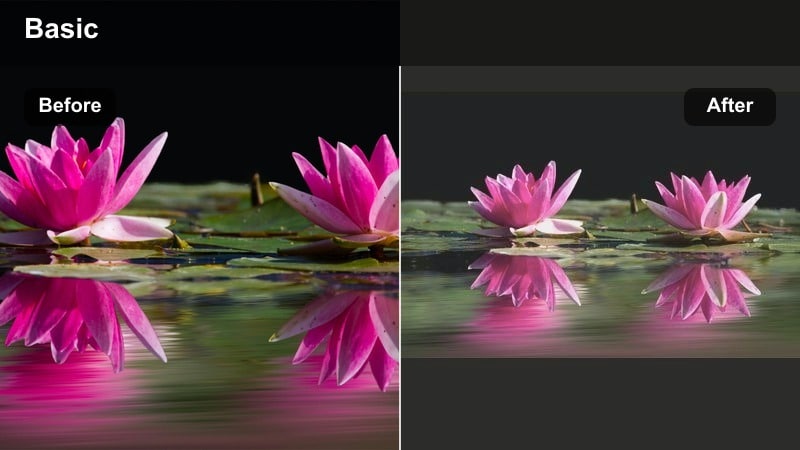
- Effect look: Creamy skin tones with pastel highlights and softened contrast for a dreamy aesthetic vlog feel.
- Best for: Lifestyle vlogs, morning routines, study with me content, cozy bedroom or desk setups on YouTube.
- Editing tip: Lower the filter intensity to around 60-70 percent for close-up talking shots so skin still looks natural while keeping the pastel mood.
A soft pastel influencer filter like Soft Pastel Influencer Glow instantly brightens skin and adds a dreamy wash to your footage, perfect for cozy lifestyle and daily vlog content. In Filmora, you can apply this filter to your entire timeline, then fine-tune its strength on specific clips to keep your aesthetic consistent from intro to outro.
Use it on morning routine b-roll, desk setups, and aesthetic room shots where you want a light, airy atmosphere. When you add text overlays or widgets in Filmora, stick to soft, neutral colors that complement the pastel highlights so your overall look feels intentional and on-brand.
Lock In a Signature Influencer Look with Filmora AI
Filmora s AI tools can scan your favorite influencer video filters for YouTube and help you create a consistent, channel-wide color style. Instead of manually recreating your grade, you can build a signature look once and reuse it across every upload.
Use AI-powered color matching to transfer the vibe of one clip or preset to new footage, even when lighting or camera changes. This keeps your brand videos, sponsored uploads, and vlogs visually aligned without hours of manual grading.
 secure download

Preview Filters on Real YouTube Scenarios
Before committing to a full color grade, drop these influencer filters onto short test sequences like your intro, B-roll, and product close-ups. Watching the look across multiple scenes will reveal whether it truly fits your channel.
Filmora lets you stack and adjust filters in real time, so you can quickly compare soft vlogs, commercial looks, and cinematic tones side by side. Save the combinations that feel most like your brand as custom presets.
secure downloadTurn Filters into Influencer LUT-Style Presets
Once you find a filter combination that fits your YouTube influencer identity, you can treat it like an influencer LUT by saving it as a reusable preset in Filmora. This gives you a one-click way to apply your pro YouTube color grade across future videos.
You can build variations of the same look for vlogs, brand integrations, and sponsored uploads, so everything feels cohesive while still matching the tone of each video type.
secure downloadClean Bright Vlogger
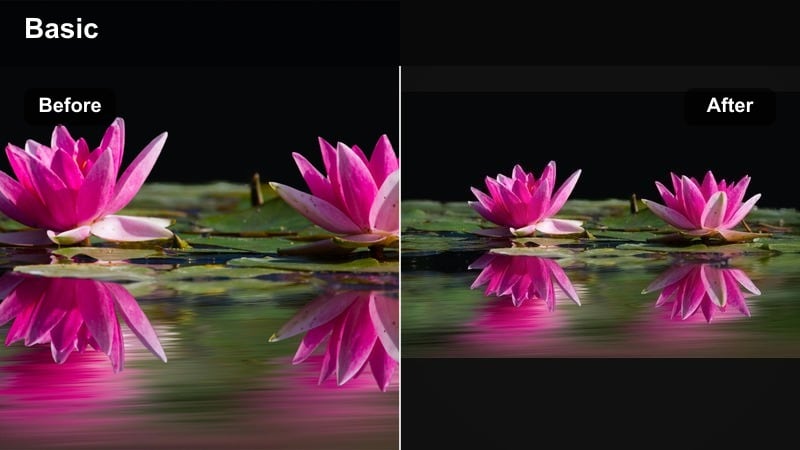
- Effect look: High-key brightness, neutral whites, and crisp details that make your space feel bigger and more premium.
- Best for: Talking-head sit-down videos, how-to tutorials, productivity content, and channel introductions.
- Editing tip: Use the filter first, then slightly reduce highlights and add a touch of clarity so your face stays bright without blowing out the background.
Clean Bright Vlogger is designed to make your room and face pop on camera without looking overexposed. In Filmora, apply the filter to your A-roll, then adjust the highlight and clarity sliders to control how bright your background appears while keeping your eyes and facial features sharp.
This look works especially well for productivity, how-to, and talking-head content where your viewers need to clearly see your expressions. Combine it with Filmora s background blur or depth-of-field effects for an influencer-style studio look that feels professional even in a small room.
Soft Film Vlog
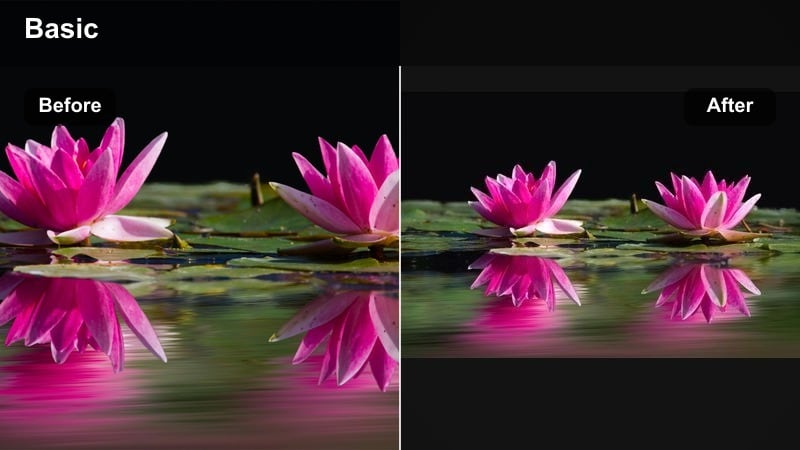
- Effect look: Muted contrast with a light film-inspired wash and subtle warm tint for nostalgic yet modern vlogs.
- Best for: Day-in-the-life vlogs, travel diaries, cinematic b-roll, and aesthetic montages between scenes.
- Editing tip: Combine this filter with gentle camera shake and a light film grain effect to create an elevated cinematic vlog sequence.
Soft Film Vlog gives your influencer vlogs a nostalgic warmth and cinematic feel, especially during b-roll sequences and travel montages. Inside Filmora, apply the filter to your transitional clips and overlay light film grain and subtle camera shake to deepen the cinematic mood.
Use this look to separate storytelling or emotional moments from your main talking-head footage. By saving it as a preset in Filmora and applying it only to b-roll sections, you create a visual language that tells viewers they are entering a more cinematic chapter in your vlog.
Professional Filters for Brand and Sponsored YouTube Videos
Brand Neutral Pro Grade
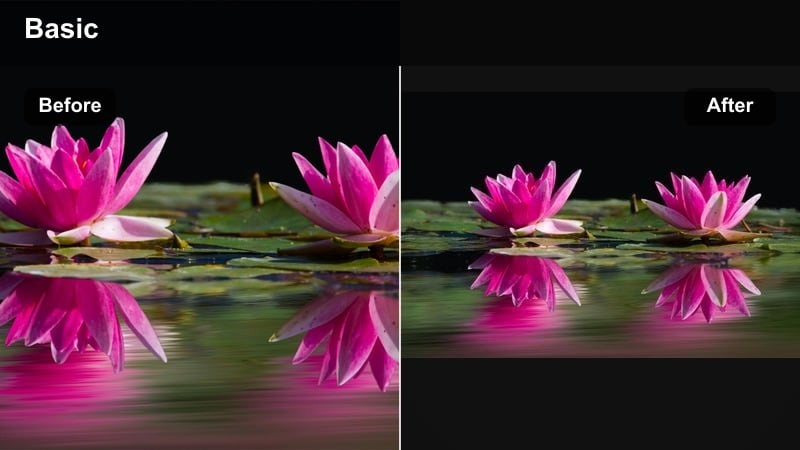
- Effect look: Balanced contrast, true-to-life colors, and polished skin tones that fit most brands and product categories.
- Best for: Sponsored segments, product demos, tech reviews, and brand-focused intros on YouTube.
- Editing tip: Apply this filter and then slightly boost saturation on the product color only using a color mask so the brand item subtly stands out.
Brand Neutral Pro Grade keeps your footage clean, accurate, and safe for a wide range of brands and sponsorships. In Filmora, apply this filter as your base layer, then use color masking on the product itself to gently raise saturation or brightness so it stands out without breaking brand guidelines.
This is an ideal default for product reviews, tech breakdowns, and branded intros where clarity and professionalism matter more than heavy stylization. Save it as part of a Filmora project template that includes your logo animation and lower thirds so every sponsored video starts with a polished, repeatable setup.
Studio Commercial Pop
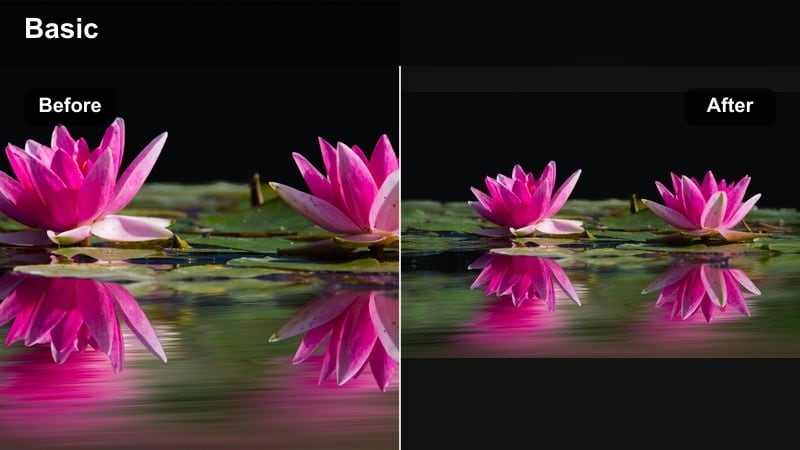
- Effect look: Punchy contrast, clean whites, and rich saturation for a bold, ad-ready commercial style.
- Best for: High-energy brand spots, launch announcements, product hero shots, and YouTube pre-roll style edits.
- Editing tip: Lower saturation slightly on skin after applying this filter while keeping product colors vibrant to avoid an over-processed look.
Studio Commercial Pop is built to make products and sets look bold and campaign-ready with punchy contrast and rich color. Apply it in Filmora to your hero shots, launch montages, and high-energy intros, then fine-tune saturation on skin tones so faces remain flattering even with intense colors.
Use this filter for the key frames you plan to export as thumbnails so your ad-style color matches across video and preview image. When combined with dynamic text animations and fast cuts in Filmora, you get a polished, commercial-grade look suitable for brand launches and promotions.
Minimal Brand Matte
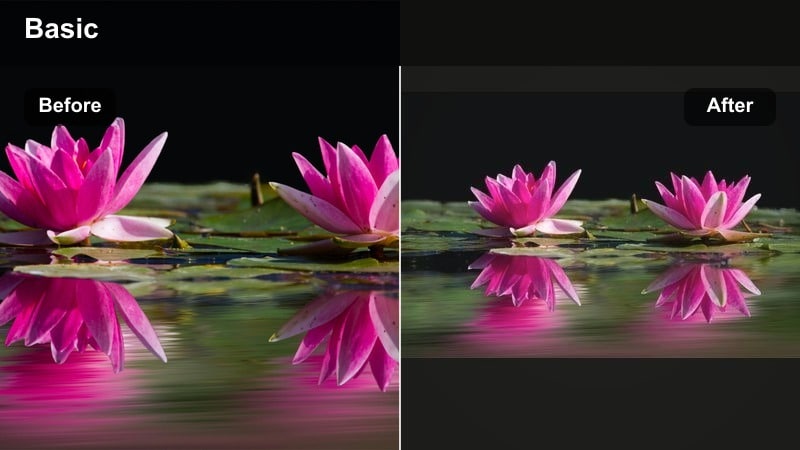
- Effect look: Softened contrast with a subtle matte finish and modern, desaturated color for minimalist brands.
- Best for: Beauty sponsorships, fashion lookbooks, and premium lifestyle brand videos where subtlety is key.
- Editing tip: Apply this filter and slightly reduce saturation on background elements so logos and key props remain the main focus.
Minimal Brand Matte delivers an editorial, magazine-style feel with soft contrast and modern, slightly desaturated tones. In Filmora, apply this filter to sponsorships and lookbooks where you want the content to feel premium and understated rather than loud and colorful.
Use color adjustments or masks to pull back saturation in the background while keeping products and logos clear and readable. Paired with slow, intentional camera moves and simple on-screen graphics, this filter gives your brand collaborations a luxury vibe that aligns well with beauty and fashion partners.
High-Energy Filters for Challenges and Fast-Paced Content
Vibrant Challenge Pop
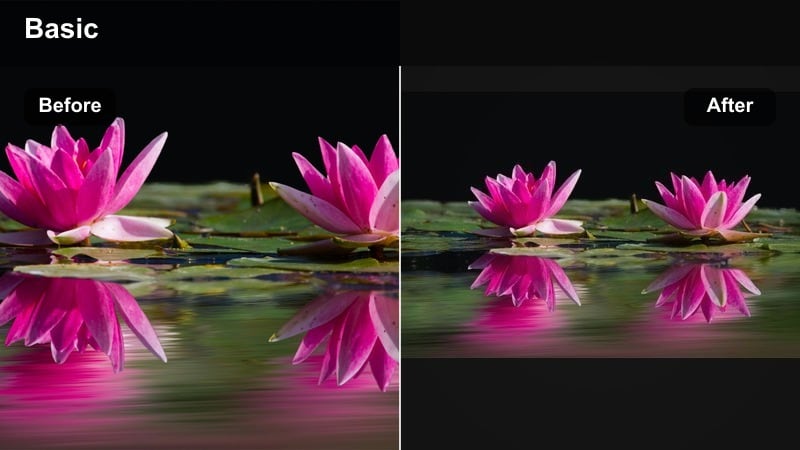
- Effect look: Bright, saturated colors with lifted midtones that keep everything fun and high-energy for fast cuts.
- Best for: YouTube challenges, group collabs, unboxings, and high-energy reaction videos.
- Editing tip: Pair this filter with snappy jump cuts and bold text overlays so the energetic color grade matches the pace of your edit.
Vibrant Challenge Pop is designed to keep challenge videos and group collabs looking fun, clickable, and full of energy. Apply it in Filmora to your entire challenge sequence, then lean into fast jump cuts, speed ramps, and bold motion titles so the visual energy matches the color intensity.
If colors start to feel too strong on skin, use Filmora s skin-tone adjustment tools to selectively lower saturation on faces while keeping outfits, props, and backgrounds bright. This balance lets your videos stand out in the YouTube feed without looking overly processed.
Gamer Neo Glow
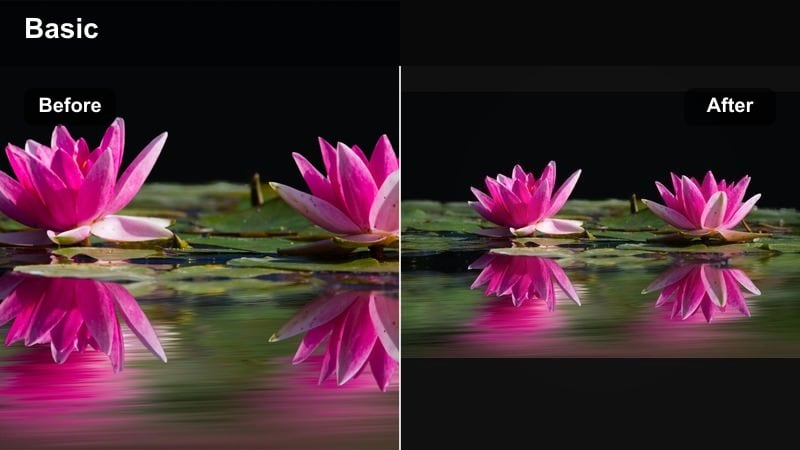
- Effect look: Deep contrast with boosted blues and magentas that emphasize RGB lights and screens.
- Best for: Gaming videos, reaction streams, tech desk setups, and RGB-heavy studio shots.
- Editing tip: Darken shadows slightly after applying the filter to keep your face visible while letting background lights feel dramatic and neon.
Gamer Neo Glow pushes blues and magentas to emphasize RGB lighting, monitors, and neon accents in your gaming setup. In Filmora, apply this filter to all your gameplay intros, webcam footage, and desk b-roll so your gaming playlist shares a unified, neon-inspired identity.
After applying the filter, tweak overall shadows so your face stays readable while your lights remain dramatic. You can save this as your default gaming LUT-style preset in Filmora, then apply it automatically to every new gaming or tech video you create.
Sports Hype Boost
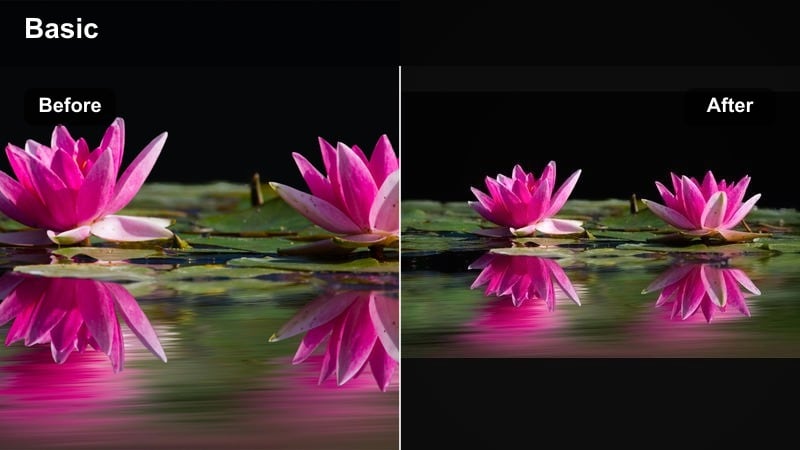
- Effect look: High contrast with crisp edges and vivid greens and reds for outdoor and action-heavy scenes.
- Best for: Fitness content, sports challenges, outdoor collabs, and IRL vlogs with lots of motion.
- Editing tip: Add a small amount of motion blur and dynamic zoom with this filter for powerful, hype-building sequences.
Sports Hype Boost is tuned for outdoor fitness and action-heavy scenes, boosting contrast and sharpening edges so motion feels intense and exciting. In Filmora, apply it to running shots, workout sequences, and sports challenges where you want the energy to feel high and the environment vivid.
Combine the filter with motion blur, dynamic zooms, and beat-synced cuts to music to create hype-building highlight reels. Batch apply the look to sets of clips shot in the same lighting, then adjust exposure per clip while keeping the filter consistent to maintain continuity across your workout or challenge video.
Cinematic Filters for Storytelling and Long-Form YouTube Content
Cinematic Neutral Story
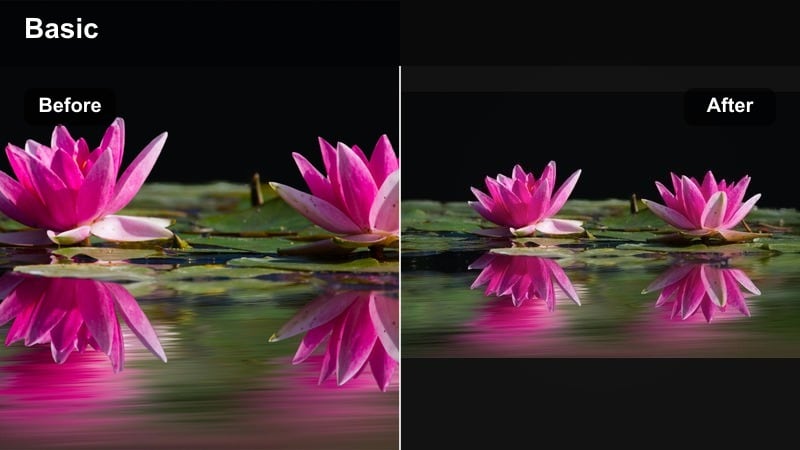
- Effect look: Subtle contrast curve, gentle saturation, and natural shadows that feel like a Netflix-inspired documentary style.
- Best for: Storytime videos, mini-documentaries, branded storytelling, and thoughtful talking-head content.
- Editing tip: After applying the filter, slightly lower saturation and add a tiny bit of vignette around the frame to draw focus to your face.
Cinematic Neutral Story gives your long-form YouTube videos a calm, documentary-style grade that supports your narrative without distracting from it. In Filmora, apply this filter to storytime episodes, interviews, or mini-docs, then add a subtle vignette and minor saturation reduction so viewers stay focused on what you are saying.
This look is especially effective when paired with clean audio and minimal on-screen graphics. Save a slightly brighter variant as a separate preset for darker sets, so you can quickly maintain the same cinematic style across different shooting conditions.
Golden Hour Cine
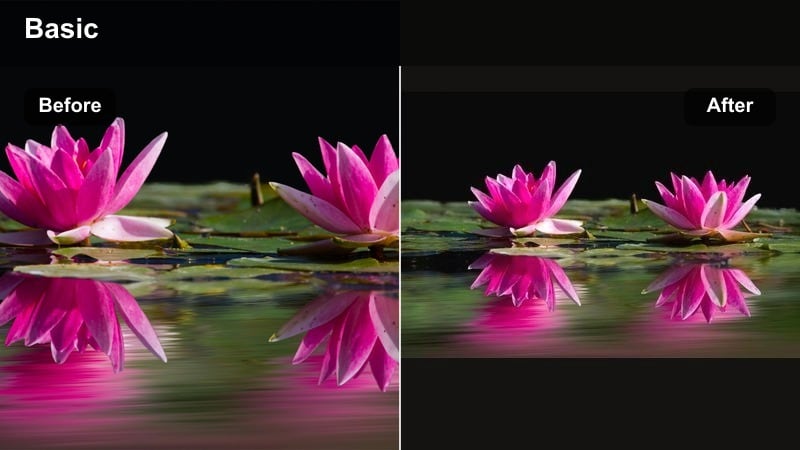
- Effect look: Warm highlights, golden skin tones, and gently lifted shadows that mimic sunset light even when shot earlier in the day.
- Best for: Outdoor vlogs, travel sequences, romantic b-roll, and brand campaigns filmed at dusk.
- Editing tip: Apply the filter and slightly reduce temperature if your original footage is already very warm to avoid orange skin tones.
Golden Hour Cine wraps your outdoor footage in warm highlights and soft shadows that mimic sunset light, giving travel and lifestyle content a dreamy, emotional tone. Apply it in Filmora to B-roll breaks, scenic walks, and romantic or reflective moments where warmth supports the story.
If your source footage is already very warm, reduce color temperature or saturation slightly after adding the filter to keep skin tones from turning too orange. Use it selectively for transitions and key emotional beats so these golden clips feel special compared to your main, more neutral footage.
Cool Urban Story Grade
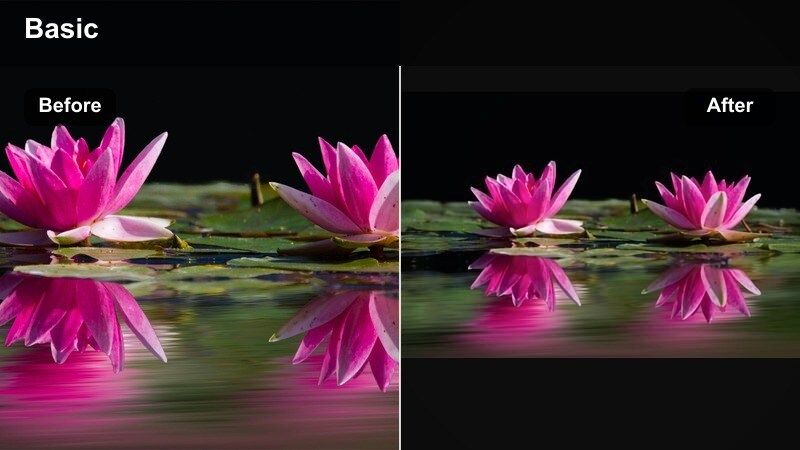
- Effect look: Cool shadows, slightly muted saturation, and strong edge contrast for an urban, documentary street feel.
- Best for: Street vlogs, city B-roll, fashion lookbooks, and behind-the-scenes creator documentaries.
- Editing tip: Use this filter with slower cuts, sound design, and light camera motion to create a more cinematic, moody atmosphere.
Cool Urban Story Grade cools down your shadows while keeping edges crisp, perfect for city vlogs and street-style fashion content. In Filmora, apply it to your urban B-roll and walking shots, then slow the pacing of your cuts and enhance ambient sound to lean into the moody, documentary feel.
After grading, slightly warm up skin tones using local color adjustments so you look natural against the cooler environment. By saving this as a preset and reusing it on all your city episodes, you build a recognizable urban visual identity for your audience.
Tips for Using Influencer Video Filter Youtube Filters in Filmora
- Pick one or two signature filters and use them across playlists so viewers immediately recognize your channel style.
- Always adjust exposure and white balance before applying filters to avoid extremes in brightness or color.
- Export a frame after grading to design thumbnails that perfectly match the final look of your video.
- Keep skin tones natural by tweaking saturation or temperature locally after adding strong stylistic filters.
- Save different presets for vlogs, brand deals, and cinematic projects so you can switch styles quickly without losing consistency.
- Test filters on a short timeline that includes A-roll, B-roll, and product shots to confirm the look works across all scenes.
- Use Filmora s AI color tools to quickly match new footage to a reference video so your channel maintains a unified style.
- Periodically refine your presets as your branding evolves so your influencer look stays current without losing its core identity.
Influencer video filters for YouTube give you a fast, reliable way to achieve pro-level color grades without getting lost in technical settings. By choosing a handful of looks that match your personality and niche, you can keep your content visually consistent and brand-ready for collaborations.
Experiment with these styles inside Filmora, refine them into custom presets, and use them as your own influencer LUT-style toolkit for vlogs, brand videos, and every sponsored upload you share on YouTube.
secure downloadNext: Influencer Video Filters for TikTok: Keep Your Short-Form Style On-Brand
