

 100% Security Verified | No Subscription Required | No Malware


 ChatGPT
 Perplexity
 Gemini
 Claude
 Grok
Grok
These Instagram Reels Travel Vlog LUTs and filters are designed to give your destination footage a polished, cinematic look in just a few clicks, so you can focus on storytelling instead of complicated color grading.
Whether you are capturing sunrise flights, city streets, or blue-hour skylines, use these curated Filmora filters to keep your Instagram travel vlogs cohesive, cinematic, and ready to post fast.
In this article
Golden Hour Arrivals and Airport Transitions
Sunlit Runway Glow
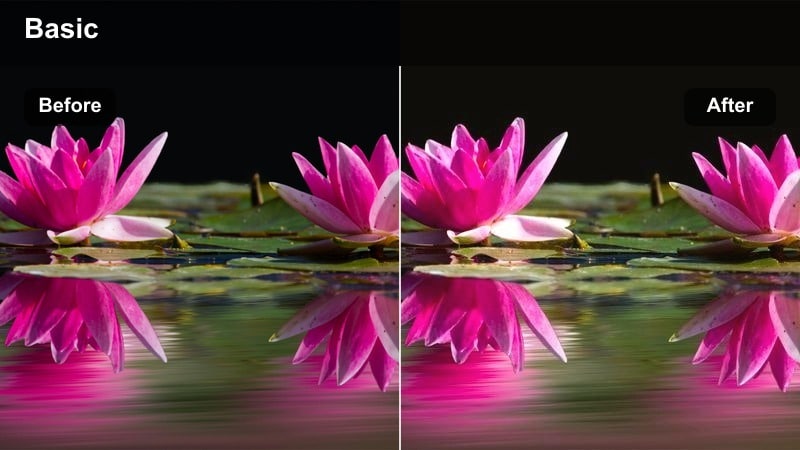
- Effect look: Warm, soft golden contrast that wraps your footage in sunset light even when the sun is just peeking through the clouds.
- Best for: Airport windows, plane wing shots, and first views of a new skyline during takeoff or landing.
- Editing tip: Lower the intensity slightly on overexposed clouds and add a touch of vignette to keep the eye on the plane and horizon line.
Use Sunlit Runway Glow when your plane window clips feel flat or too gray. In Filmora, drop this LUT on your shot and dial the strength until the metal of the wing and the horizon line pick up a gentle amber tone, making even cloudy scenes feel like golden hour. The subtle contrast boost helps separate the wing from the sky while keeping highlights smooth and cinematic.
For a complete airport arrival or departure sequence, combine this filter with Filmora tools like vignette, slight highlight reduction, and light sharpening. Stack it with slow zoom keyframes or a push in on the window to turn simple b roll into a reveal moment that fits perfectly into short, vertical Instagram Reels edits.
Match Every Destination with AI Powered Color
Filmora's AI color tools help you adapt these Instagram Reels travel vlog LUTs to any destination, from hazy runways to glowing city skylines. You can quickly harmonize clips shot across different cameras, times of day, or weather conditions so your final Reel looks like one cohesive story.
Import a short reference shot that captures your ideal look, then let Filmora analyze and match its palette across the rest of your travel footage. Fine tune saturation, contrast, and tone to keep your signature style intact, even as you move from airport to city to coast.
 secure download

See Travel Filters in Action on Reels Footage
Preview how these travel vlog LUTs transform your clips by dragging them onto short airport, city, or beach shots and switching Filmora to a vertical 9:16 view. You can instantly check how skin tones, skies, and key details hold up in Instagram Reels format without committing to a final grade.
Build a mini test timeline that mixes different locations, then give each scene its own filter to define mood. Use side by side comparison to refine intensity, contrast, and warmth until your before and after views feel ready to publish.
secure download1000 plus Video Filters and 3D LUTs
Filmora includes a large library of built in filters and 3D LUTs so you can craft a reusable toolkit for your Instagram Reels travel content. From subtle film fades to bold teal and orange looks, it is easy to combine presets with manual tweaks for a signature style.
After adjusting any LUT or filter with color tools like HSL, curves, or tone controls, save the result as a custom preset. Over time you can build dedicated looks for airports, cafes, rooftops, and beaches that stay consistent across every new trip.
secure downloadTerminal Ambient Film
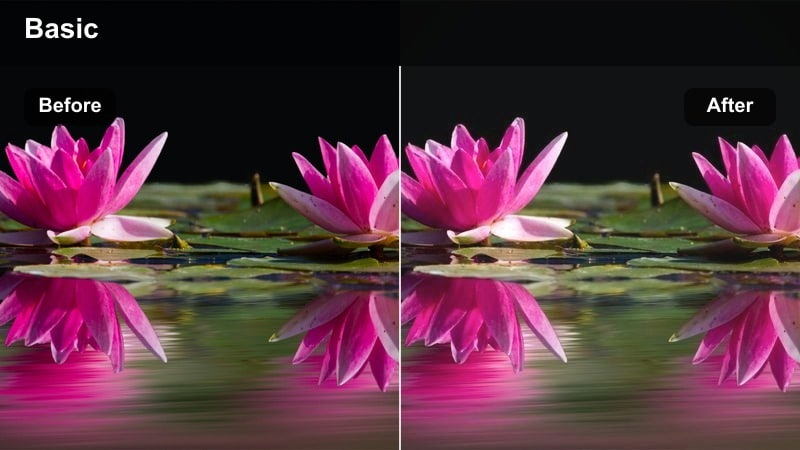
- Effect look: Soft filmic fade with gentle grain and muted blues that turns hectic terminals into moody cinematic spaces.
- Best for: Checking in at the airport, walking through terminals, escalators, and handheld shots of departure boards.
- Editing tip: Stabilize your walking shots, then add this filter at medium strength to keep movement but remove the harsh fluorescent feel.
Terminal Ambient Film is ideal when overhead lights and mixed color temperatures make your airport clips look harsh. In Filmora, apply this filter to roll off the contrast, mute distracting colors, and introduce a light film vibe that feels intentional instead of purely documentary.
Combine the LUT with Filmora's stabilization and a slight motion blur effect on walking shots to smooth out jitters. Then, trim to the beat and add ambient terminal sound from the audio library so your Instagram Reels capture the atmosphere of travel without visual chaos.
Runway Horizon Contrast
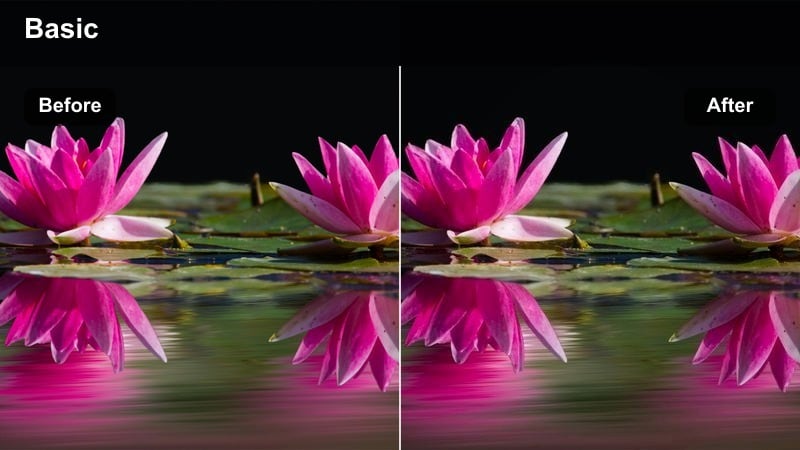
- Effect look: Crisp contrast and clean whites that make tarmac lines, planes, and skyline silhouettes pop against the sky.
- Best for: Time-lapses of planes taking off, taxiing on the runway, and quick cutaway shots from airport exteriors.
- Editing tip: Increase sharpness slightly and keep saturation moderate so the sky stays punchy without turning neon blue.
Runway Horizon Contrast is tailored for sharp, graphic airport exteriors where lines and silhouettes matter. Dropping this LUT onto your runway time lapses or quick cutaways in Filmora helps whites and edges stand out, turning simple establishing shots into high impact transitions for your travel vlog.
Use this look on clips where planes cross the frame or the skyline moves through your composition, then cut on that motion to hide jump cuts between destinations. Pair it with whoosh SFX and a moderate sharpening pass to make each cut feel like a deliberate, energetic transition in your Instagram Reels.
City Streets, Rooftops, and Night Skylines
Rooftop Dusk Cinema
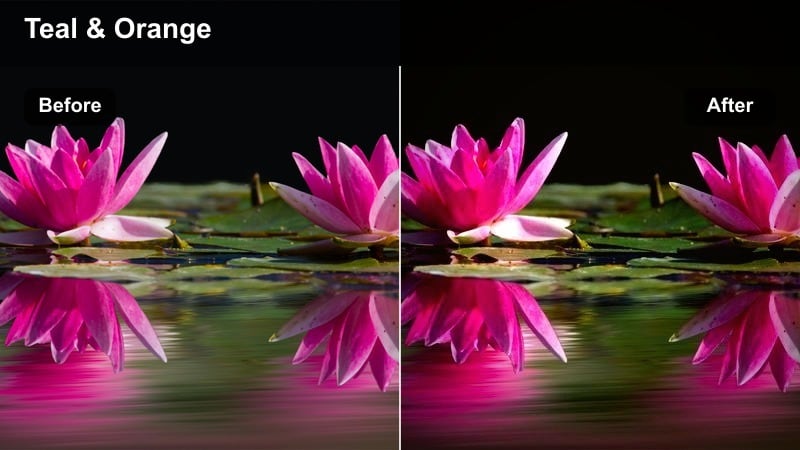
- Effect look: Moody teal and amber tones that emphasize glowing windows and fading blue skies during blue hour.
- Best for: Rooftop viewpoints, city overlook vlogs, and sweeping pans of skyscrapers at dusk.
- Editing tip: Slightly lower exposure and lift shadows to reveal rooftop details while keeping the sky rich and cinematic.
Rooftop Dusk Cinema pushes your blue hour clips toward a classic teal and amber city look. In Filmora, use it on skyline pans, balcony shots, and talking segments facing the city to deepen blues in the sky while keeping windows and practical lights warmly inviting.
After applying the filter, fine tune exposure sliders to avoid clipping highlights in windows, and lift shadows to keep rooftop surfaces and railings visible. Add subtle parallax camera moves or keyframed crops so your Instagram Reels feel dynamic as the city lights slowly turn on behind you.
Neon Lane Punch
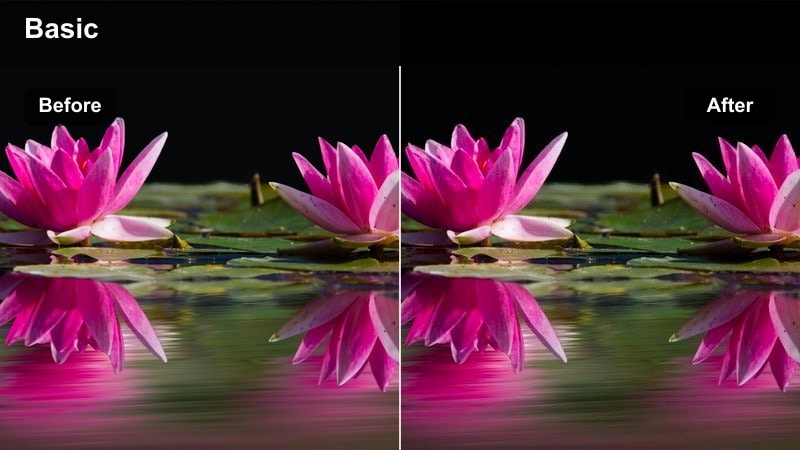
- Effect look: Vibrant neon emphasis with cooler shadows, perfect for colorful, electric city streets at night.
- Best for: Night markets, alleyways full of neon signs, busy nightlife districts, and handheld POV walking shots.
- Editing tip: Push saturation carefully and reduce noise after applying the filter to keep neon signs crisp without muddy shadows.
Neon Lane Punch is designed to turn noisy, dim city streets into bold, electric sequences. Apply it in Filmora to emphasize pinks, blues, and purples in signs while cooling shadows and sidewalks, giving your night walks and POV shots a stylized cyber city feel.
Because low light can introduce noise, add Filmora's noise reduction and avoid over brightening the darkest areas. Cut rhythmically between contrasting sign colors on the beat of your music so every change in neon feels intentional in your Reels timeline.
Urban Day Wander
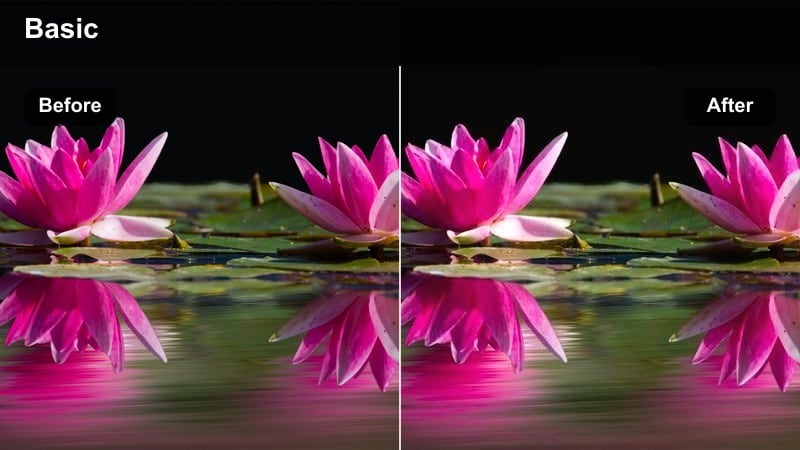
- Effect look: Clean, bright city tones with soft contrast that make sidewalks, crosswalks, and cafes look inviting and modern.
- Best for: Daytime walking tours, crossing busy intersections, and vlog segments filmed on city streets.
- Editing tip: Use moderate strength to keep skin tones natural, and add a touch of clarity to bring out building textures.
Urban Day Wander keeps your daytime city footage crisp and approachable without pushing colors too far. Use it in Filmora for walking tours, coffee stops, and talking to camera moments so sidewalks, glass, and signage all look bright while skin tones stay natural.
Apply the filter, then add a little clarity or texture to emphasize building details and street markings. For vlog segments, reduce intensity slightly and combine with subtitles or captions so viewers can easily follow your story while still appreciating the city backdrop on Instagram Reels.
Coastal Escapes, Beaches, and Island Ferries
Turquoise Coast Pop
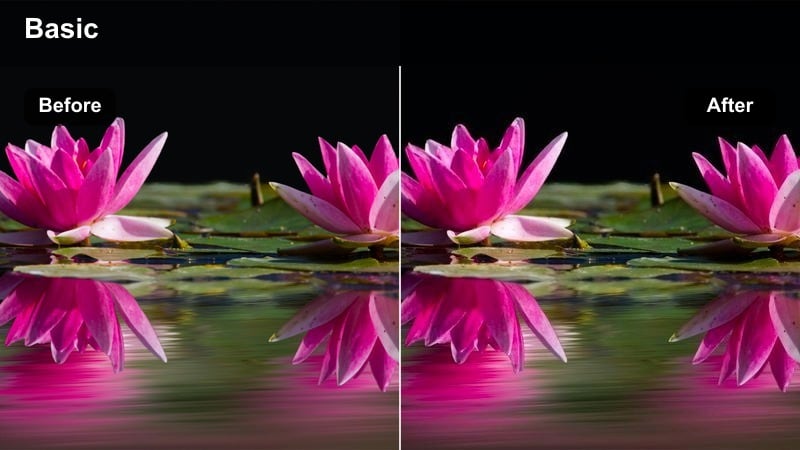
- Effect look: Punchy turquoise water, bright sand, and crisp skies that make coastal scenes look like glossy postcards.
- Best for: Beach walks, drone reveals over bays, and wide shots of piers, marinas, and harbors.
- Editing tip: Reduce saturation on greens slightly so vegetation does not overpower the clean blues of the ocean and sky.
Turquoise Coast Pop is built to make your sea and sky feel like a postcard. In Filmora, use this filter on wide coastal shots, boardwalk clips, and drone passes so blues become vivid, sand brightens, and the whole scene feels ready made for Instagram Reels thumbnails.
To avoid an overly cartoon look, pull back green saturation using HSL after applying the LUT and keep exposure slightly below clipping on bright sand or waves. You can also add a gentle zoom in or speed ramp on drone footage to make reveals over bays or islands feel more cinematic and energetic.
Soft Sunrise Shores
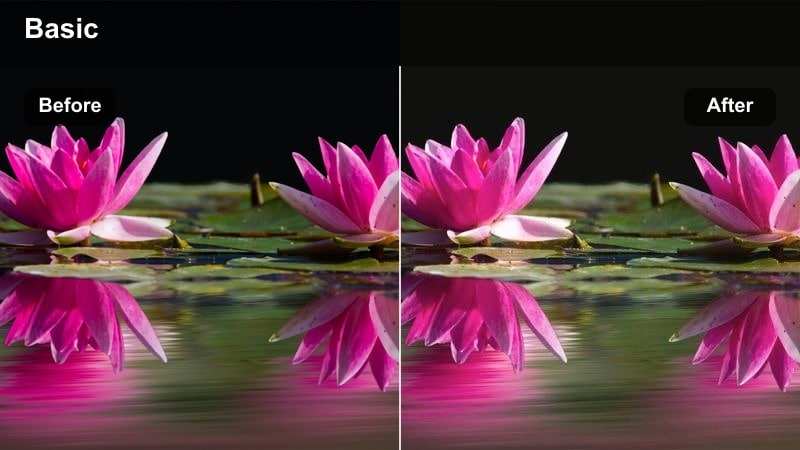
- Effect look: Pastel sunrise tones with lifted shadows and gentle warmth for quiet early-morning beach scenes.
- Best for: Morning walks by the shore, ferry decks at dawn, and soft handheld clips of calm waves.
- Editing tip: Keep contrast low and exposure slightly down to preserve gradient color in the sky while keeping your subject visible.
Soft Sunrise Shores is perfect for calm mornings when you want your travel vlog to feel slow and dreamy. Apply it in Filmora to pastelize skies, warm skin tones, and gently lift shadows on the beach or ferry deck without losing the subtle sky gradients that make sunrise special.
Use slow motion or lower playback speed and keep cuts longer than usual to let this look breathe on Reels. Pair with simple crossfades, light ambient audio, and a soft vignette so your audience can sink into the atmosphere of those early coastal starts to the day.
Harbor Deck Documentary
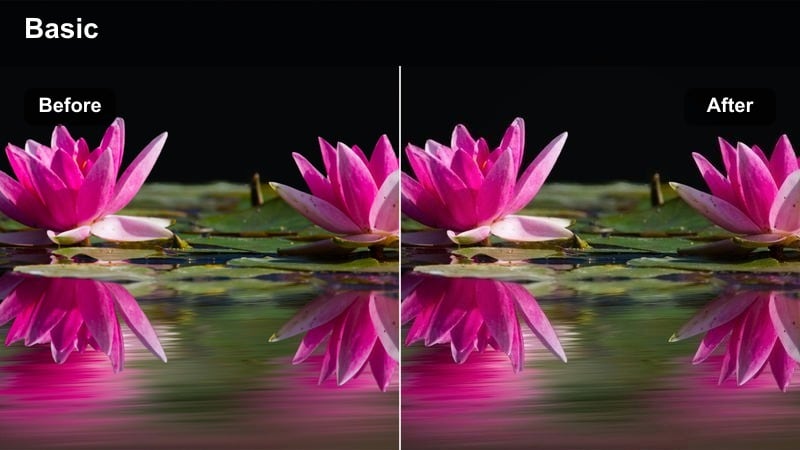
- Effect look: Neutral, documentary-style color with subtle contrast that keeps boats, docks, and city harbors natural and detailed.
- Best for: Ferry rides, harbor walk-throughs, and connecting b-roll between beaches and nearby cities.
- Editing tip: Use this filter lightly and adjust white balance after applying to match the overall temperature of your travel vlog.
Harbor Deck Documentary is a restrained look for when you want realism and clarity between more stylized scenes. Drop it on ferry rides, port walk throughs, and city harbors in Filmora so boats, buildings, and water all look natural with just enough contrast to feel polished.
After applying, adjust white balance and tint to align with your main travel aesthetic, whether slightly warm or cool. These neutral harbor clips work well as bridges between high energy beach sequences and busy city scenes, especially when labeled with clean text overlays naming each stop in your route.
Mountain Trails, Old Towns, and Remote Escapes
Summit Trail Clarity
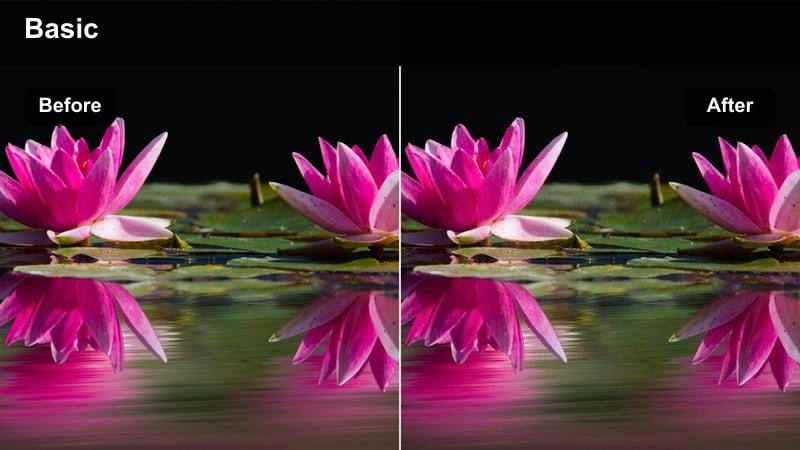
- Effect look: Crisp, cool-toned clarity that enhances distant ridgelines, valleys, and paths without over-saturating the scene.
- Best for: Hiking vlogs, lookout points, cable car rides, and handheld shots along mountain paths near villages or towns.
- Editing tip: Increase sharpness and texture slightly so rocks and paths feel detailed, but keep saturation restrained for a realistic feel.
Summit Trail Clarity is all about definition and depth in your outdoor shots. In Filmora, apply it to mountain trails, lookout points, and cable car views to cool the overall tone slightly, sharpen distant ridgelines, and keep greens and earth tones realistic rather than overly saturated.
Combine the LUT with modest sharpness and texture adjustments so rock faces, paths, and treelines read clearly even on small phone screens. Edit your hike into quick, rhythmic cuts that move from boots on the trail to sweeping vistas, all unified by this consistent, clean mountain look on your Instagram Reels.
Old Town Warm Film
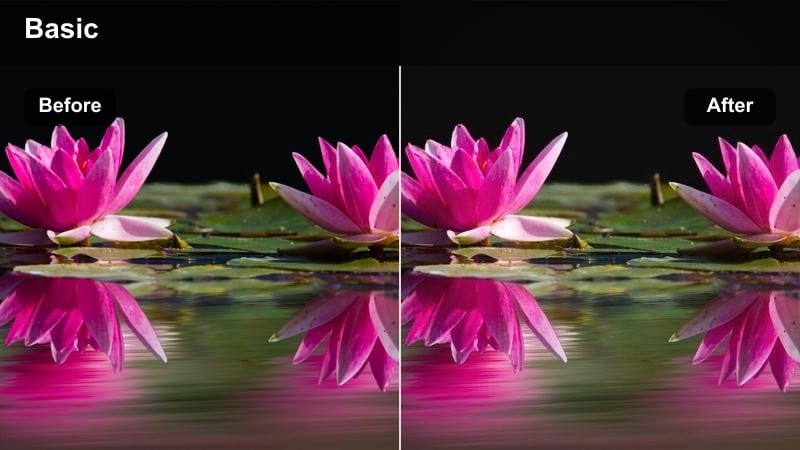
- Effect look: Warm, slightly faded film tones that flatter stone streets, narrow alleys, and historic architecture.
- Best for: Exploring old town squares, side streets, and stairways with historic buildings and textured facades.
- Editing tip: Lift blacks a little for a filmic matte feel and pull down highlights to avoid blown-out light on bright stone walls.
Old Town Warm Film is crafted for cobblestones, textured walls, and sunlit plazas. Apply it in Filmora to introduce a nostalgic, filmic warmth that flatters beige stone, wood doors, and terracotta roofs, making your old town wander clips feel timeless and cozy.
Lift the blacks slightly for a matte finish and rein in highlights so white walls and paving stones retain detail. Mix wide establishing shots with close ups of doors, steps, and windows, all with this filter, to create smooth visual transitions between scenes in your Reels without jarring color shifts.
Remote Lodge Mood
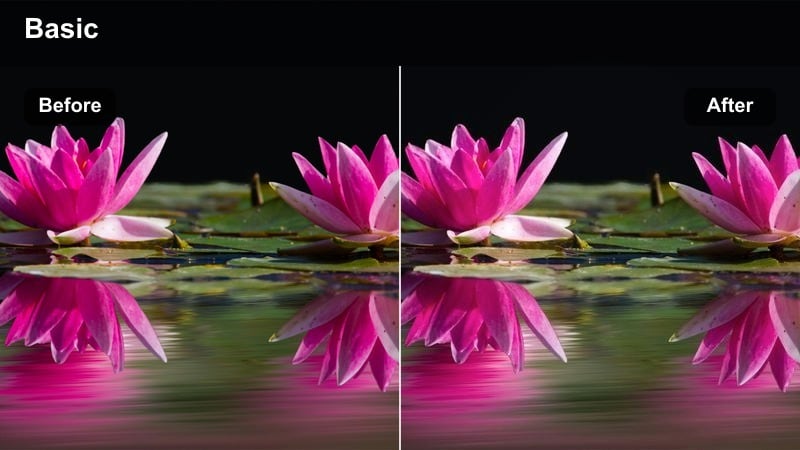
- Effect look: Muted, cozy tones with gentle contrast that make remote stays and quiet town corners feel intimate and cinematic.
- Best for: Cabin exteriors, small-town streets, train platforms, and quiet corners away from busy tourist areas.
- Editing tip: Reduce saturation slightly and warm midtones to keep the scene calm and inviting instead of overly dramatic.
Remote Lodge Mood tones down color and contrast to give your quiet locations a cozy, introspective feel. In Filmora, use it for cabins, guesthouses, small town streets, and less crowded spots so your audience feels the slower, more personal side of your trip.
Reduce saturation a touch and warm midtones so wood, brick, and interior lights feel inviting. Extend your shot lengths, use simple fades, and let ambient audio lead the scene so these muted, cinematic clips can serve as a calm counterpoint to your faster paced city or beach content on Instagram Reels.
Tips for Using Instagram Reels Travel Vlog Luts Filters in Filmora
- Shoot using a slightly flatter picture profile when your camera allows it so these Instagram Reels travel vlog LUTs have more dynamic range to work with.
- Keep white balance consistent for each scene or location before you start grading so your filters do not have to fight mixed color temperatures.
- Batch similar shots together on your Filmora timeline and apply one filter per batch to keep your Reels visually cohesive and fast to grade.
- Use Filmora's vertical preview and safe area guides to confirm that important details and subtitles stay visible in 9:16 before exporting.
- Adjust LUT or filter intensity rather than jumping between too many different looks so your travel feed maintains a recognizable style.
- Save variations of your favorite travel filters at different strengths as custom presets to speed up future edits from similar destinations.
- Combine these LUTs with small tweaks in exposure, contrast, and HSL instead of relying on one click looks for more professional results.
Using scene-focused Instagram Reels travel vlog LUTs and filters in Filmora lets you turn raw airport, city, coastal, and mountain clips into a polished, cinematic story with minimal effort.
Build a simple preset kit from these looks, then carry it with you from destination to destination so every new trip slides seamlessly into your existing Instagram style.
secure download